Gemini, Google’s AI assistant, can read a photo or a PDF for you, but only ask it for things you can check, like a list of items, not a general impression. Keep one subject per picture, crop out folds and smudges, and check every number against the original before you act on it.
Say you photograph the packing list on the warehouse printer just before the end of the day. A crease runs through the first digit, which is obvious if you squint. Gemini reads 48 units as 18, and you almost place a rush order for 30 extra cases before a coworker walks over and looks at the paper. The model was not being clever, because it was filling in a smudge. Photos and PDFs feel like a shortcut around typing, but they are also a shortcut around noticing.
Everyday multimodal, not a parlor trick
Multimodal here means you give Gemini pixels or a file plus a sentence, and you get text back. Typical inputs are whiteboard photos, a screenshot of an error, a PDF section you already own, or sometimes a small table export. The model does not see the way a person who was in the room sees. It produces a plausible reading, and plausible is useful, but a plausible reading is not a witness.
The everyday trap is speed. You shoot the photo, paste the bullets into Slack, and walk to the next meeting, and nobody takes a second look at the crease, the cropped axis, or the badge in the corner of the frame. The first-week loop still applies here: pick one real job, do one revision, and save the result outside the chat. A photo is just another input, and it does not get to skip the revision.
Rule of thumb: If you would not trust a junior colleague to copy that page by eye, do not trust a model to copy it from a photo. Ask for structure, and then check the numbers on the paper.
Four jobs that actually help
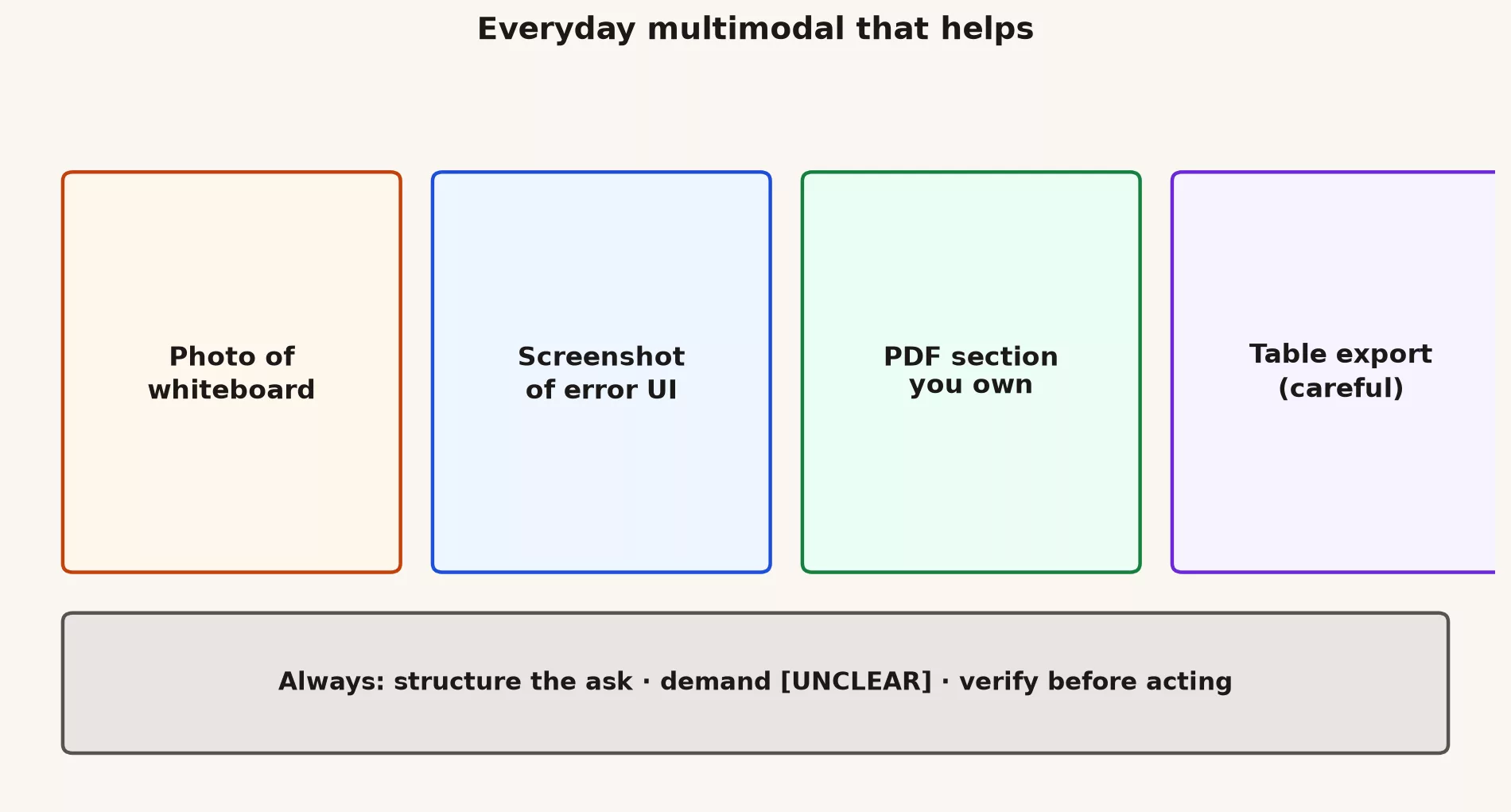
Keep the list short. If a job is not on it, type the text yourself.
| Input | Good everyday job | Hard stop |
|---|---|---|
| Whiteboard photo | Bullets and owners you will clean | Do not treat it as the meeting record until you check names |
| Error screenshot | Exact error text plus the three lines around it | Cropped chrome hides the filter that caused it |
| PDF you own | Pull a section, quote page numbers | Vendor NDA, payroll, medical, kids |
| Tiny table export | Schema and three example rows, fake keys | Full customer dumps “for context” |
A packing list, a lab whiteboard, a software build error, or a one-page policy you already published internally are all good jobs. An 86-page packet, a badge on a lanyard in the frame, or a dashboard (a screen of charts that updates as new data comes in) screenshot with no axis labels are how you almost order 30 extra cases, or how a “crash” turns out to be a zoomed-in y-axis. For chart screenshots in particular, the multimodal charts post gives the longer treatment. The rule here is smaller: if you cannot see the axis in the photo, do not ask for a percent change.
Prompts that force structure
Vibe prompts such as “what does this say?” invite fluent padding. Everyday prompts name the shape of the output and tell the model when to refuse. Here are three you can copy.
Whiteboard or handwritten list
Here is a photo of a whiteboard after standup.
Return:
1. Bullets only. One action per line.
2. Owner if a name is fully visible, else [UNCLEAR].
3. Dates only if fully written. Do not guess from smudges.
4. A last line: what you could not read.
Do not invent people. Do not tidy this into a project plan.
Screenshot of an error or UI
Here is a screenshot.
Transcribe the exact error text in quotes.
List visible filters, dates, and the screen name if shown.
Say [UNCLEAR] for anything cropped or too small.
Then give two likely causes that match the visible text only.
Do not invent a stack trace I cannot see.
PDF section you own
Here is a PDF I own. Stay on pages 2 to 4.
Quote the sentence that defines [term].
Give page numbers for every quote.
If the definition is not there, say so. Do not borrow from training data.
I will open the file and check the quotes before I reuse them.
The [UNCLEAR] line is the whole trick. Models prefer to complete a picture, and you are paying them to stop instead. If a reply to a messy photo contains no [UNCLEAR] at all, treat that as a warning sign. Ask again, or look at the paper yourself.
Upload rules you can keep in your head
The long version of the paste ladder lives in the post on privacy when pasting data into chat tools. Everyday multimodal work needs a pocket version, because people photograph first and think later.
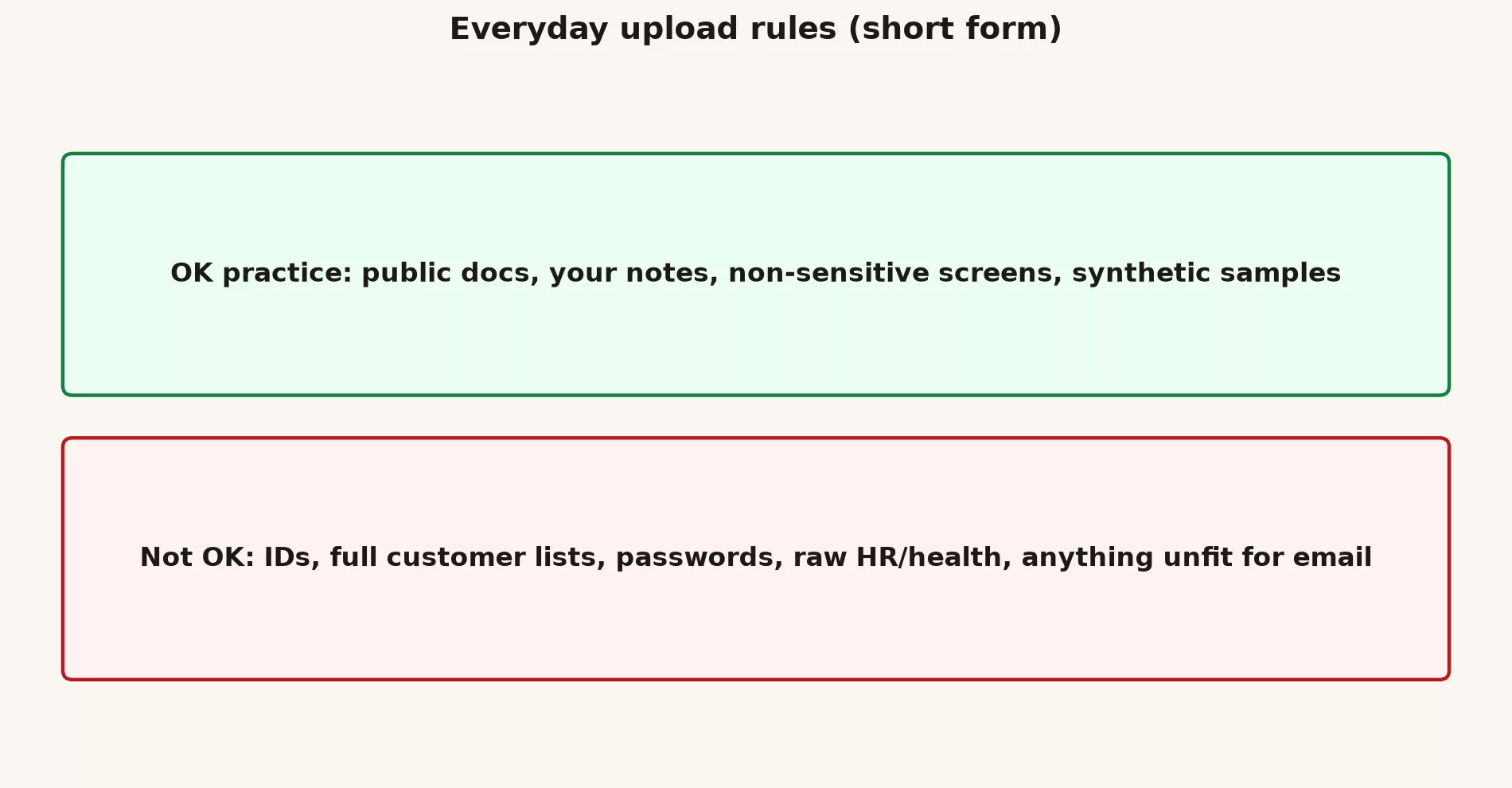
- Never photograph badges, passwords, government ids, other people’s monitors, or customer lists lying on a desk, because a photo sent to an AI tool leaves your control.
- Crop to the task. Send the whiteboard and not the whole room, and send the error and not the Slack sidebar with a vendor thread in it.
- Prefer a file you own over a photo of a file, because a PDF you exported beats a phone picture of a printed page.
- Verify on the original before the bullets leave the chat, especially digits, names, and dates.
- You still publish. Whether it goes to Slack, email, or a ticket, Gemini does not press Send for you.
The split between work and personal accounts still matters. A free personal Gemini tab is a different legal situation from a Workspace seat, even when the logo matches. If the packing list is customer orders, use the account your organization pays for, or do not upload it at all. Admin settings can hide the Drive and Gmail buttons on purpose, and that is a policy choice and not a prompt problem.
Worked example: 48 units, a crease, and a near miss
Your packing list is one printed table with a stock-keeping unit (SKU) code, a description, a unit count, and a dock for each of three products. The 4 in 48 sits on a fold. You shoot it under fluorescent light, ask “what’s on this list,” and get a tidy three-row summary. Two descriptions are right, one quantity reads 18, and you have already opened the purchase order form.
| Field | Paper | Gemini first pass | After [UNCLEAR] prompt |
|---|---|---|---|
| SKU A units | 48 | 18 | [UNCLEAR] crease through first digit |
| SKU B units | 12 | 12 | 12 |
| Dock | B2 | B2 | B2 |
| Owner line | blank | “the person holding the phone” | [UNCLEAR] no owner on page |
The invented owner is the quieter failure. The paper had no name on it, and the model completed the scene with the person holding the phone. That answer is fluent, structured, and wrong, and it belongs to the same family as workslop, meaning polished output that looks like a record when it is really a guess.
Here is what you should send instead:
Photo of a packing list I printed.
Return a three-column table: SKU, description, units.
If a digit is smudged or creased, write [UNCLEAR] and do not guess.
Do not add an owner, dock, or story that is not printed.
Then you look at the paper for every [UNCLEAR] and every number. That takes thirty seconds, which is cheaper than 30 extra cases and cheaper than a Slack message that quietly becomes “the list.”
When the camera is the wrong input
Type the text yourself in any of these situations.
- The number matters and the photo is dim, creased, or cropped.
- You need a quote from a long PDF, in which case you should open the file, copy the sentence, and paste it, because photos of paragraphs drop line breaks and pick up thumbs.
- The screen contains a sidebar, a badge, or a name you would not forward.
- You want a percent change from a chart, but the zero baseline is not in the frame, which means you do not have a chart and only have a crop.
- The job is really “search this Drive folder,” which is a connector and a policy question and not a photo of one thumbnail.
Local versus hosted does not change the crease, because a local model will still guess 18. Privacy and accuracy are different dials. If the file must not leave the building, do not photograph it into a consumer chat, and if the file may leave, you still have to check the digits.
Common mistakes
- Shooting the whole room. You get a plant, a badge, and half a whiteboard, so crop instead.
- Asking “what does this say?” You get a story, so ask for a table, quotes, and [UNCLEAR] instead.
- Pasting the first bullets into Slack. That is how 18 becomes the official count.
- Photographing a screen of customer rows because an export felt slow. Slow is cheaper than a paste incident.
- Trusting citations in a PDF answer without opening the page, when Gemini can quote a sentence that is not there.
- Using a personal tab for a work packing list because the phone was already unlocked.
Quick recap
- Photos and PDFs are inputs to check, not proof of what they say.
- Four jobs help: whiteboard, error screenshot, a PDF you own, and a tiny toy table. Type the rest.
- Force a table or quotes, require [UNCLEAR], and check digits and names on the original.
- Crop the image, prefer a file you own, use a work account for work paper, and remember you still press Send.
- A crease can turn 48 into 18, and that is the whole lesson.
Practice this week
- Pick one file you own, such as a handwritten grocery list, a public error screenshot, or a one-page PDF you wrote.
- Run the structured prompt and demand [UNCLEAR] wherever the file is hard to read.
- Put the reply next to the original, and mark every mismatch in a note you keep. The note shows you which parts of a photo the model tends to misread.
- Save the cleaned version in a Doc and not only in the chat.
- Do not practice on badges, payroll, or anyone else’s monitor, because a practice photo is still a copy of private data.
If you already did the first-week tasks, this is Friday’s artifact: one verified transcription with the mismatches listed. That is more useful than twenty casual photos.
Series notes
This is Part 4 of the Gemini everyday tutorial. Previous: the study loop. For the product tour of photos and PDFs, see Learn Gemini: photos, screenshots, PDFs.
Sources
Research and further reading used for this article:
- Gemini Apps FAQ (what the consumer apps accept as files and images; re-check the week you teach a team)
- Google Gemini Apps Help (upload and Workspace admin controls change; do not treat a screenshot of settings as current)
- Gemini API docs (file and image inputs for builders; not the same wallet as the Gemini app)
- Analytics Made Simple: Photos, screenshots, PDFs, and multimodal basics (from-scratch product tour this everyday post assumes)
- Analytics Made Simple: Privacy when pasting data into chat tools (full paste ladder; this post is the camera-roll pocket version)
- Analytics Made Simple: Gemini everyday tutorial (first week, research, study loop, then this post)
Keep going
Same lessons in your feed
Short diagrams, hooks, and weekly tutorials on Substack, Instagram, X, and Facebook.