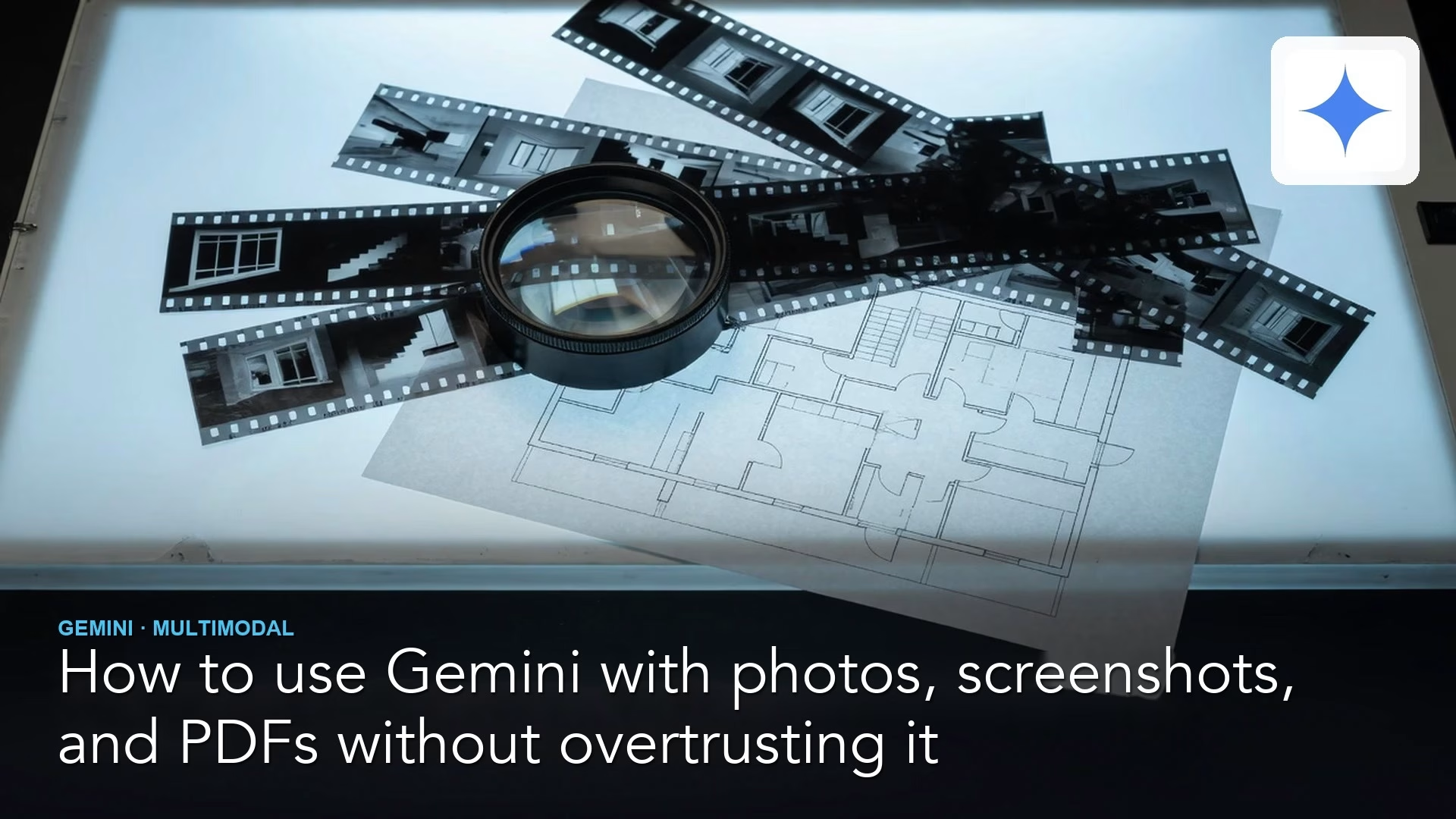
Gemini can read photos, screenshots, and PDFs, which makes it very helpful and very easy to overtrust. Ask it for structure and for an [UNCLEAR] label wherever it cannot read something, decide what you are willing to upload before you upload it, and check any surprising claim against the original file before you act on it.
Say you point your phone at a whiteboard after a meeting and ask Gemini for the action items. You get back a tidy list, and it can be brilliant. It can also hand a task to a coworker who never volunteered, because the model tried to make the list look complete.
What multimodal means in plain English
Multimodal means a product can take in more than typed text. It can accept images, screenshots, PDFs, spreadsheets, and in some modes audio, along with your instructions about what to do with them. What comes back is still mostly text, and on some plans it can also be a generated image or other media.
The important part is how the model handles what you give it. It does not look at a photo the way a careful auditor would. It produces a description and an answer that sound plausible, and plausible is not the same as correct. The table shows what to ask for from each kind of input and how not to treat the result.
| Input | Ask it to | Do not treat as |
|---|---|---|
| Photos | Read a whiteboard or product shot | A witness |
| Screenshots | Explain an error dialog or UI | A bug ticket you can close |
| PDFs / docs | Map structure and extract a section | Ground truth |
| Sheets | Explain columns and suggest cleanup | A signed-off model |
Photos: whiteboards, products, and real-world scenes
Start with photos. The stakes are usually low, and you can check the answer with your own eyes. Good first jobs include turning a whiteboard into bullets that you then clean up, explaining a cable setup or an appliance label in plain language, describing a slide you photographed because you cannot edit the original file, and pulling a packing list out of a handwritten note.
The prompt below asks for a faithful transcript first and only then for action items. It also tells the model what to do when it cannot read something, which is the part that gets left out.
Here is a photo of a whiteboard.
1) Transcribe visible text as faithfully as you can
2) List action items as owner / task / due date if present
3) Mark anything unreadable as [UNCLEAR]
4) Do not invent owners or dates
The [UNCLEAR] instruction matters a great deal. Without it, models fill the gaps with confident fiction, because a smooth answer looks more helpful than an honest blank.
There are three common photo mistakes. The first is capturing badges, the faces of people who did not agree to be photographed, or desk papers that hold secrets. The second is asking for a legal reading of a photographed contract, which a chat tool cannot give you. The third is treating a blurry photo of a chart as if it were the financial data behind it.
Screenshots: errors, confusing settings, and charts
Screenshots are the everyday superpower. Error dialogs, confusing settings pages, and “what does this button mean?” questions are all fair game, as long as the screen does not show secrets such as account numbers or private messages.
Screenshot attached.
Explain what the UI is asking me to do in 5 steps.
List risks if I click the primary button.
Ask me 3 questions if the screenshot is missing context.
Do not invent account-specific data.
For charts, ask for reading help and leave the authority to the data. A good request is “describe what this chart appears to show and what I should verify in the underlying data.” After that, open the spreadsheet and confirm it yourself.
PDFs and long documents
Attach a PDF when you need structure, such as a map of the sections, definitions of terms, a list of open questions, or a comparison table. For practice, use documents you wrote yourself or public materials, so a mistake costs you nothing.
| Ask for | Why | Verify by |
|---|---|---|
| Section map | Orients you fast | Skimming the PDF headings |
| Glossary of terms used | Shared language | Checking one term in context |
| Open questions list | Shows gaps | Marking which questions are real |
| Quote + paraphrase pairs | Grounds claims | Searching the PDF for the quote |
Using the attached PDF:
- Outline sections in under 12 bullets
- Extract 5 claims that sound quantitative
- For each claim, quote the nearest supporting sentence or say NOT FOUND
- List 5 follow-up questions for a human expert
If the model cannot quote support for a claim, treat that claim as untrusted. Smooth paraphrases with no quotes are where hallucinations hide, and a hallucination is a confident statement the document never made.
Tables and spreadsheet files
When you attach a CSV (a plain spreadsheet-style text file) or a sheet (where the product supports it), ask for explanations and checks. Do not ask it to quietly rewrite the master copy of your data, meaning the one file your team treats as the official record. Good questions include which columns look like IDs and which look like measurements, which validation rules would catch missing values, and a plain-English description of what one row means.
Then build the rules yourself in Sheets or your warehouse tools. The AI’s suggestions are design help, and you still own the result.
A safe upload ladder
Before you upload anything, place it on one of four rungs. The higher the risk, the fewer places it is allowed to go.
| Rung | Examples | Default action |
|---|---|---|
| Never | SSN, full card numbers, passwords, raw medical IDs | Do not upload |
| High risk | Customer lists, HR files, unredacted contracts | Use approved work tools only, or do not use AI |
| Careful | Internal decks with names; partially sensitive screenshots | Redact first; prefer Workspace under policy |
| Safer | Public PDFs, your own non-sensitive photos, synthetic samples | OK for learning and many drafts |
When you are in doubt, describe the document instead of uploading it. For example, you can write “I have a 12-page vendor master services agreement (MSA) with unlimited liability language. Which clauses should a human lawyer review?” You still need the lawyer. But you get a starting list without sending the contract anywhere.
Habits for checking multimodal answers
Five habits keep you honest. They cost a few minutes and prevent the kind of mistake that spreads through a team chat.
- Require quotes or [UNCLEAR] labels for any photo or document transcription.
- Check at least one surprising claim against the source file, because surprising claims are the ones most likely to be wrong.
- For numbers, re-type them from the source, because the model’s copy of a table can be wrong in small ways.
- For action items from a whiteboard, confirm the owners in the next real conversation.
- Keep the source file linked next to the AI summary in your notes, so anyone can trace a claim back.
When multimodal is the wrong tool
Some jobs need something stronger than a chat upload. Use another tool if you need a certified accessible transcript with legal standing, or if the image is evidence in a dispute and you must prove who handled it. The same goes for a confidential PDF when your AI tool is not approved for confidential work.
Two more cases belong to dedicated software. One is optical character recognition (OCR), which turns thousands of pages of scanned text into editable text. The other is pixel-perfect data extraction for production systems without a human review step.
Try it on a public sign
- Take a photo of a public sign, or a page of a public PDF on your screen, that has nothing sensitive in it.
- Run the transcription prompt with the [UNCLEAR] rule, so the model marks what it cannot read instead of guessing.
- Compare the result to what you can read yourself, and note one error if you find any.
- Summarize a short public PDF using the quote rule, and ask the model to say “not found” when it cannot support a claim.
- Write your personal upload rule in one sentence and keep it where you can see it.
Worked example: a screenshot of a confusing settings page
Suppose you are turning on two-factor authentication (the extra login step, usually a code from your phone) and the screen shows three toggles with unclear labels. Capture a screenshot that leaves out unrelated personal data, then send this prompt.
Screenshot of a settings page attached.
Goal: I want stronger login security without locking myself out.
1) Name each visible toggle in plain English
2) Recommend a safe order of operations in 5 steps
3) List what I should write down before I change anything
4) Call out any toggle that looks destructive
Ask questions if the screenshot is incomplete.
Compare the answer to the vendor’s official help article. Do it every time. The AI works as a navigator, but the vendor’s documentation stays the authority for security settings, because only the vendor knows what each toggle really does.
Whiteboards and meetings
Photographing a whiteboard is faster than typing, and it is also how personal phone numbers and side jokes end up in a cloud chat. Erase or crop the sensitive parts before you shoot. After Gemini drafts the action items, paste them into your meeting notes and assign owners in the room or in the thread, since a list with no owners is decoration.
If your company uses Google Meet’s note features, the same rule applies. AI notes are a draft, and decisions still need a human stamp.
A PDF research workflow that holds up at work
A slower routine gives you answers you can defend. Follow these five steps in order.
- State the question before you upload, for example “I need termination notice periods only.”
- Ask for a section map first, so you know which pages hold the answer before you ask about them.
- Ask for answers backed by quotes, because a quote you can find on the page is easy to check and an unquoted summary is not.
- Build a small table with four columns: claim, quote, page or section, and confidence.
- Leave anything without a quote out of your final memo.
This is slower than “summarize this PDF,” and it is much harder to get wrong in public. Speed without a source is how confident errors spread through a team chat.
Images you generate versus images you upload
Some Gemini plans include image generation or editing. Generated images raise brand and policy questions, such as whose likeness you are using, whether you are copying a trademark, and whether the picture looks so real that it misleads. Uploaded images raise privacy questions instead, so do not mix the two sets of risks.
For teaching diagrams on this site, we often build charts with code so the labels are exact. For personal brainstorming, generated images can be fine as long as you are not imitating a real person or faking evidence.
Accessibility and fairness
Automated image descriptions can miss important content or misread text. If you rely on AI descriptions to access a picture, pair them with a human check for anything that matters. Models can also be biased, meaning they may misidentify people, culture-specific items, or medical images, and those areas need specialized tools and professionals instead of a general chat upload.
Voice and live camera features
Some Gemini experiences include voice conversation or live help through your camera. Those modes are wonderful for cooking timers, travel confusion, and hands-busy troubleshooting. They are also easy to leave running in a room where other people are discussing private topics.
Treat the microphone like a guest who joined the meeting. Introduce the tool, mute it when the conversation is not for it, and never point a live camera at badges, mail, or medical paperwork. If voice transcripts show up in your history, apply the same deletion and sensitivity rules you use for typed chats, because a spoken customer name is still a customer name.
Building a personal multimodal kit
A small kit of habits makes the safe path the easy one. Five items are enough to start.
- A redaction habit: crop first, upload second.
- A notes template with three columns: source file, AI summary, and verified claims.
- A folder of public sample PDFs for practice, so you never need real customer files to learn.
- A team agreement on whether whiteboard photos are allowed after meetings.
- A default prompt snippet with the [UNCLEAR] and quote rules, saved in your notes app.
Skills compound with practice. The first week feels slow, but by the fourth week you will refuse bad uploads automatically and still move faster than coworkers who paste everything in.
Quick recap
- Multimodal answers are powerful and still guesses, so treat them as drafts.
- Structure your prompts, and demand quotes and uncertainty labels.
- Follow the upload ladder, and remember that some files should never be uploaded at all.
- The next post covers privacy and Workspace admin basics for everyday users.
Series notes
This is Part 5 of Learn Gemini from scratch. Next: privacy and Workspace admin basics.
Sources
Keep going
Same lessons in your feed
Short diagrams, hooks, and weekly tutorials on Substack, Instagram, X, and Facebook.