Workplace AI goes wrong when a team has no shared rules. The fix is a one-page use note that says which kinds of data are allowed, which tools are approved, that a person edits anything customers or the public will see, and where to find a shared library of good prompts. It should also include an oversharing ladder, which is a short list that tells people what they may paste at each level of risk, so nobody has to call a meeting to find out.
Individual skill fades in a team that rewards speed and never asks for review, because one careless paste can undo months of careful work. So the answer is a small operating system for the team. It has data classes, approved tools, rules for human editing, a prompt library, and a quarterly check for renamed products, since Google keeps moving its labels around. Oversharing needs a ladder people can follow on their own, because a pep talk about being careful is forgotten by Thursday.
The team habits kit
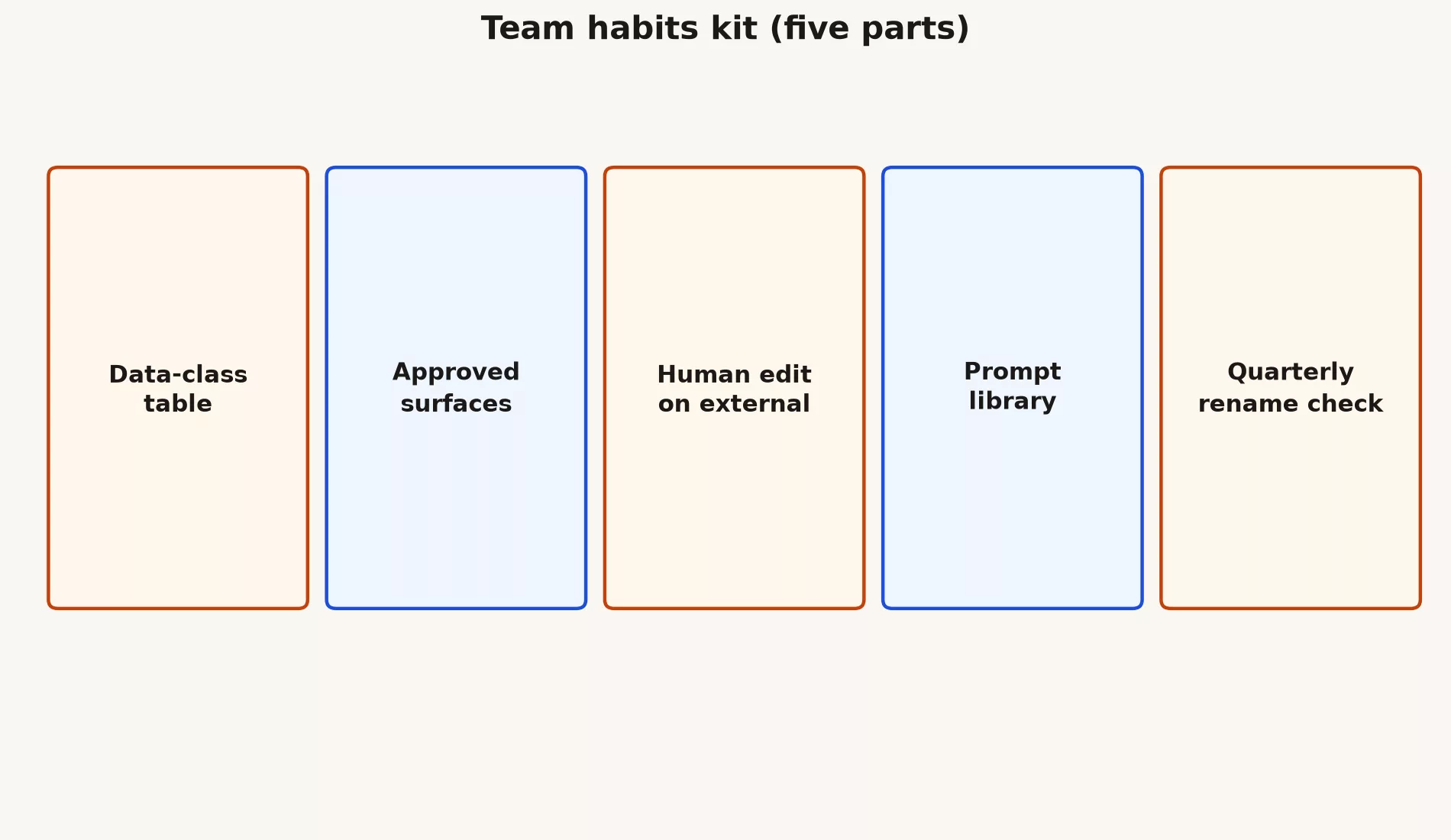
- Data-class table: sort your information into public, internal, confidential, and regulated (data that a law or contract protects), and give each class a default rule for AI use.
- Approved tools: name which Workspace AI features people may use, and say whether the free consumer Gemini app is ever allowed for work.
- Human edit on anything external: customer-facing and public content is always reviewed by a person before it goes out.
- Prompt library: a shared set of tested prompts with version dates. Keep it boring, because boring prompts are the ones that keep working.
- Quarterly rename check: re-read the admin and product pages after any major Google launch, since features and menu names change often.
An oversharing risk ladder
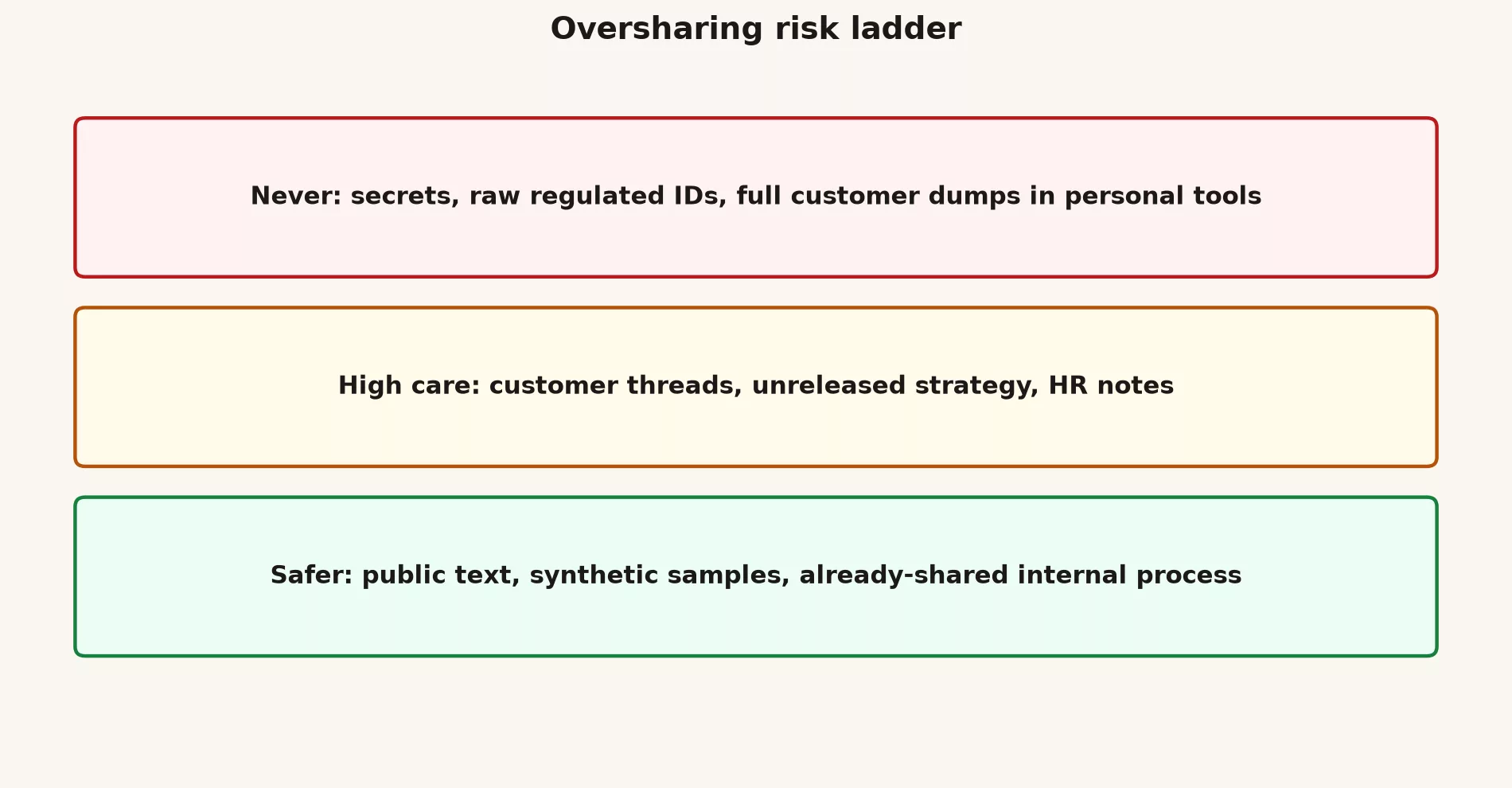
| Rung | Examples | Default |
|---|---|---|
| Never | Secrets, raw regulated IDs, full dumps in personal tools | Do not paste |
| High care | Customer threads, unreleased strategy, HR notes | Approved work tools only + need to know |
| Safer | Public text, synthetic samples, shared process docs | OK on approved tools with norms |
Read the ladder from the top down, so the strictest rule you match is the one you follow. If what you want to paste matches the top rung, stop. If it matches the middle rung, use only an approved work tool and only if the people reading the result have a reason to see the material. Only the bottom rung is fine for everyday use, and even there the team’s normal habits still apply.
A one-page AI use note (template)
# AI use (Workspace)
Approved: Gemini in Gmail/Docs/Sheets/Drive when enabled for our OU
Not approved: personal consumer Gemini for company data
External mail/docs: human edit required
Numbers: from system of record only
Incidents: message #security with what/when/where
Owners: [manager], [IT contact]
Last review: YYYY-MM-DD
Contractors and shared devices
Contractors often arrive with personal Pro accounts and the habits that go with them, so put your access rules into day-one onboarding. Shared laptops need a sign-out routine, because the next person can otherwise see the last person’s chats. Family plans and mixed browser profiles are how work data ends up in places nobody meant it to go.
What to do when something leaks
- Stop the spread by deleting the content where your controls allow it and by removing anyone who should not have access.
- Notify the channel your policy names, so the right people hear about it the same day.
- Write down the facts while they are fresh: what was pasted, into which account, and when.
- Fix the workflow (the usual sequence of steps for getting a task done) that made the bad paste feel reasonable, because a rule that is hard to follow will be broken again.
- Retrain people without turning it into public embarrassment, or nobody will report the next one.
Keeping the prompt library healthy
Store prompts in a shared Doc with an owner and a date beside each one. Retire any prompt that keeps producing weak answers, and include a good and a bad example for the prompts people use most. Keep customer personal data out of the samples, since the library is read by many more people than the original customer thread was.
Measuring healthy adoption
- Time to a first draft goes down without the error rate going up.
- Fewer people paste work material into personal accounts.
- Review of external content is actually happening.
- People can turn down an unsafe request without worrying about how it looks.
A count of “messages sent to Gemini” tells you people are busy, and it says nothing about whether the work got better or safer.
Common mistakes
- Writing a policy PDF that nobody reads
- Turning tools on for everyone with no training
- Punishing the people who report a near miss
- Leaving the prompt library with no owner
What this looks like on a team
Picture two ways this goes on your team. In one, you publish the one-pager and get contractors their Workspace seats quickly, so people have an approved tool and stop reaching for personal ones. In the other, you switch on every Gemini feature in a single day and spend the following weeks tracking down documents that were shared too widely. The habits kit is what makes the first version possible.
Practice beats theory, so run one real task from this post today on non-sensitive material. Save the result somewhere outside the side panel, then write two lines on what you will reuse tomorrow. Small, dated repetitions are how Workspace AI turns from a novelty into a skill.
Quick recap
- A simple habits kit beats heroic individual effort.
- Oversharing needs a ladder and a clear path for reporting a leak.
- Measure outcomes, not chat volume.
- This finishes the Workspace series. A coding tutorial comes next if you want depth on editors and command-line tools.
Practice this week
- Draft the one-page AI use note for your team.
- Fill the data-class table with two real examples for each class.
- Add three prompts to a shared library, so teammates reuse what works instead of starting from scratch.
- Put a 20-minute quarterly rename check on the calendar, because product and menu names change often.
Series notes
This is Part 5 of Gemini in Google Workspace (series code GM21). Previous: Drive: find, summarize, and organize. Related: Gemini product map.
Sources
Keep going
Same lessons in your feed
Short diagrams, hooks, and weekly tutorials on Substack, Instagram, X, and Facebook.