Google Drive with Gemini can find files, summarize them, and suggest a better folder layout, but it cannot move anything on its own and it cannot change who is allowed to see a file. The rule to remember is that a summary of a confidential file is just as confidential as the file itself. You do the moving and the sharing. The AI only makes suggestions.
Drive is the attic of modern work. It holds real treasure, plenty of duplicates, and mysterious folders named “Final.” Gemini’s Drive features, when your company has turned them on, can help you search in plain language, boil a long document down to a few bullets, and propose a tidier structure. Your existing sharing rules still apply. A summary of a file you are not supposed to pass around becomes a leak when you paste it into the wrong place.
Find, summarize, organize
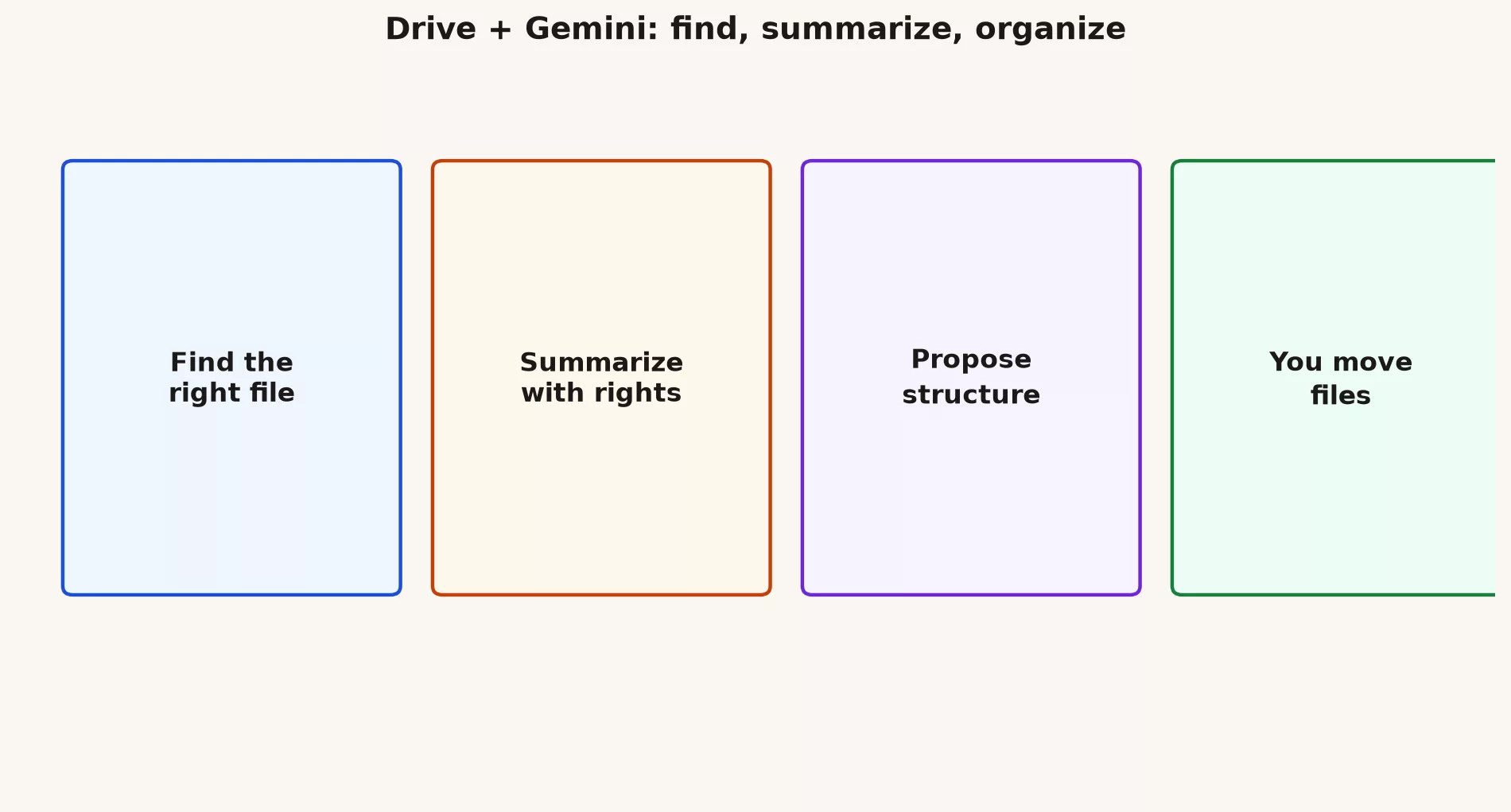
Think of these as three jobs. Each has a part the AI does and a part you finish. The table below shows the split, and the pattern is the same every time: the AI gets you a draft or a shortlist, and a person checks it before anything changes.
| Job | AI help | Human finish |
|---|---|---|
| Find | Natural language search hints | Open the right version; check date and owner |
| Summarize | Section maps and bullet digests | Verify quotes; respect sharing rules |
| Organize | Folder and naming proposals | You move files; you own the taxonomy |
For finding, the AI can turn a vague description such as “the budget deck from last spring” into a shortlist. You still open the right version and check the date and the owner. For summarizing, it gives you a map of the sections and a bullet digest. You confirm the quotes and respect who the file was shared with. For organizing, it drafts folder names and a naming pattern. You decide what actually moves and who owns the structure afterward.
Summaries inherit sensitivity
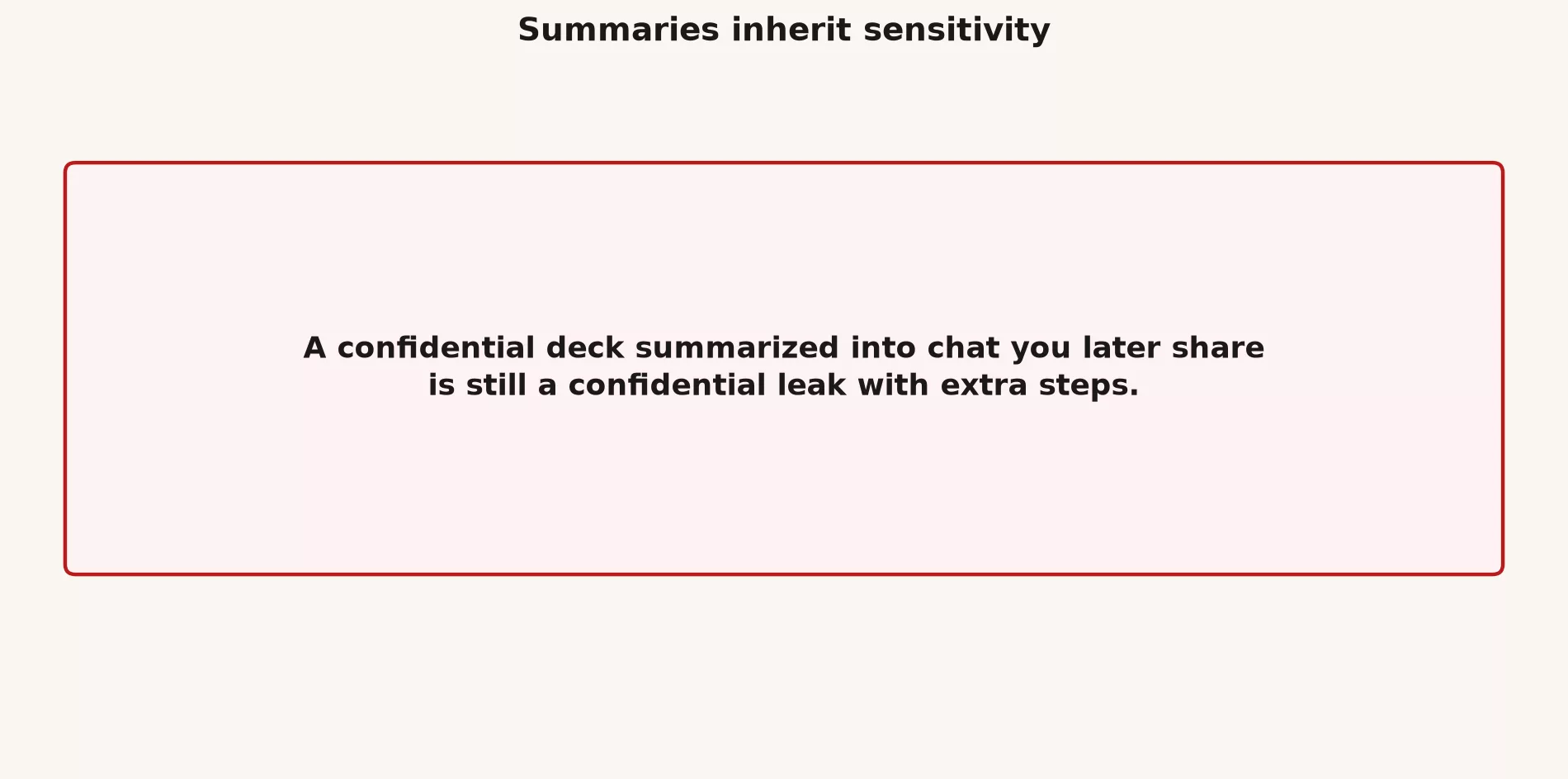
If a deck is confidential, the summary of that deck is confidential too, because the important facts are still in there. So never drop an AI digest into an open Slack channel or a personal email account. Keep it out of the consumer version of Gemini too, which is the free one tied to a personal Google login. Work content should stay in your work account, where your company’s rules and protections apply.
Prompts that finish the job
A prompt is just the instruction you type to the AI. The first one below asks for a short digest and makes the AI prove its work by quoting the file, so you can spot invented details quickly. The second asks for a folder plan and says in plain words that nothing should be moved, which keeps the AI in the role of adviser.
Summarize this document for a busy manager:
- 8 bullets max
- decisions and open questions separated
- quote 2 short passages that support the summary
- say NOT FOUND if support is missing
Propose a folder structure for this project.
Constraints: [roles], [retention], [what must stay at root]
Return a tree and naming rules.
Do not move anything; proposal only.Naming culture still needs humans
AI cannot fix a “final_final_v7” habit by itself. The habit lives in people, not in the software. Pair any summary with a simple team rule: one main file per document, dated, with a named owner. You can ask Gemini to draft the wording of that rule in a minute. The team still has to follow it in everyday work.
When the buttons are missing
If the Drive AI features do not appear for you, they are probably switched off by your administrator, so ask your IT team and bring a business reason. Do not work around it by exporting confidential folders into personal tools. Copies saved offline on a laptop carry their own risks, so follow your company’s device policy about what may be stored there.
Common mistakes
- Summarizing files that you have no business reason to read, which turns a helpful tool into a privacy problem.
- Moving files in bulk because an AI proposed it, before the people who use those folders have agreed.
- Treating search as a substitute for ownership, when someone still has to answer who maintains this folder.
What this looks like in a real team
Picture a design team that uses AI to propose a new folder structure and then spends one working session agreeing on the names together. The change sticks, because people chose it themselves. Now picture a different group that automatically summarizes strategy decks into a shared chat and, without meaning to, widens the audience beyond the people on the original file’s access list. The model worked fine in that second case, and the sharing decision was the mistake.
Practice beats theory, so run one real task from this post today on non-sensitive material. Save the result outside the side panel where Gemini appears, and write two lines on what you will reuse tomorrow. Small, dated repetitions like that are how Workspace AI turns into a skill instead of a novelty.
Quick recap
- Find, summarize and organize are three jobs, and each one ends with a human check.
- A summary keeps the sensitivity of the file it came from, so guard it the same way.
- You move the files, and the AI only proposes.
- Coming next: team habits and the risks of oversharing.
Practice this week
- Pick a project folder that holds nothing sensitive and that you control, so any mistake stays small.
- Ask for a naming convention proposal, then apply it to five files by hand so you feel how it works.
- Summarize one document using the quote rule from the prompt above, and check the quotes against the original.
- Write a one-line sensitivity label on the summary note, such as “internal only,” so the next reader knows how careful to be.
Series notes
This is Part 4 of Gemini in Google Workspace (series code GM20). Next: team habits and oversharing risks.
Sources
Keep going
Same lessons in your feed
Short diagrams, hooks, and weekly tutorials on Substack, Instagram, X, and Facebook.