To use Gemini’s coding help inside your code editor safely, start with your company’s approved account and extension, give it one tiny task, and read every change before you accept it. Code help that lives inside your editor, the program where you write code such as Visual Studio Code, is a power tool. It feels like a shortcut until the first bad rewrite reaches your team for review and you cannot explain it.
This guide walks that path for Google’s Gemini coding help in the editor, which programmers call an IDE assistant. You add it to your editor as an extension, a small add-on you install from the editor’s own store. Menu names and plan names move, so re-check Google’s docs the week you onboard a teammate. The goal is one small, reviewed change you can defend, not an impressive demo you cannot explain.
How IDE help differs from chat
Chat in a browser is a conversation: you paste code, you get text back, and you copy it over by hand. IDE help sits next to the file you already have open, so it can suggest the next line, explain a function in place, or propose an edit across a few files. That speed is useful, and it is also how a wrong rename can touch twelve files before you notice.
Terminal agents (tools that run from a command line and can edit many files in one go) are a third shape. They are even more powerful and even easier to over-trust, so start in the editor with small, visible diffs and move on to agents only after your team already reviews AI edits the same way it reviews human ones.
A from-zero path that respects work accounts
Use your work Google account on a company laptop when policy says so. Personal accounts on company code are a common audit finding, and you can avoid the problem by checking your account before you install anything.
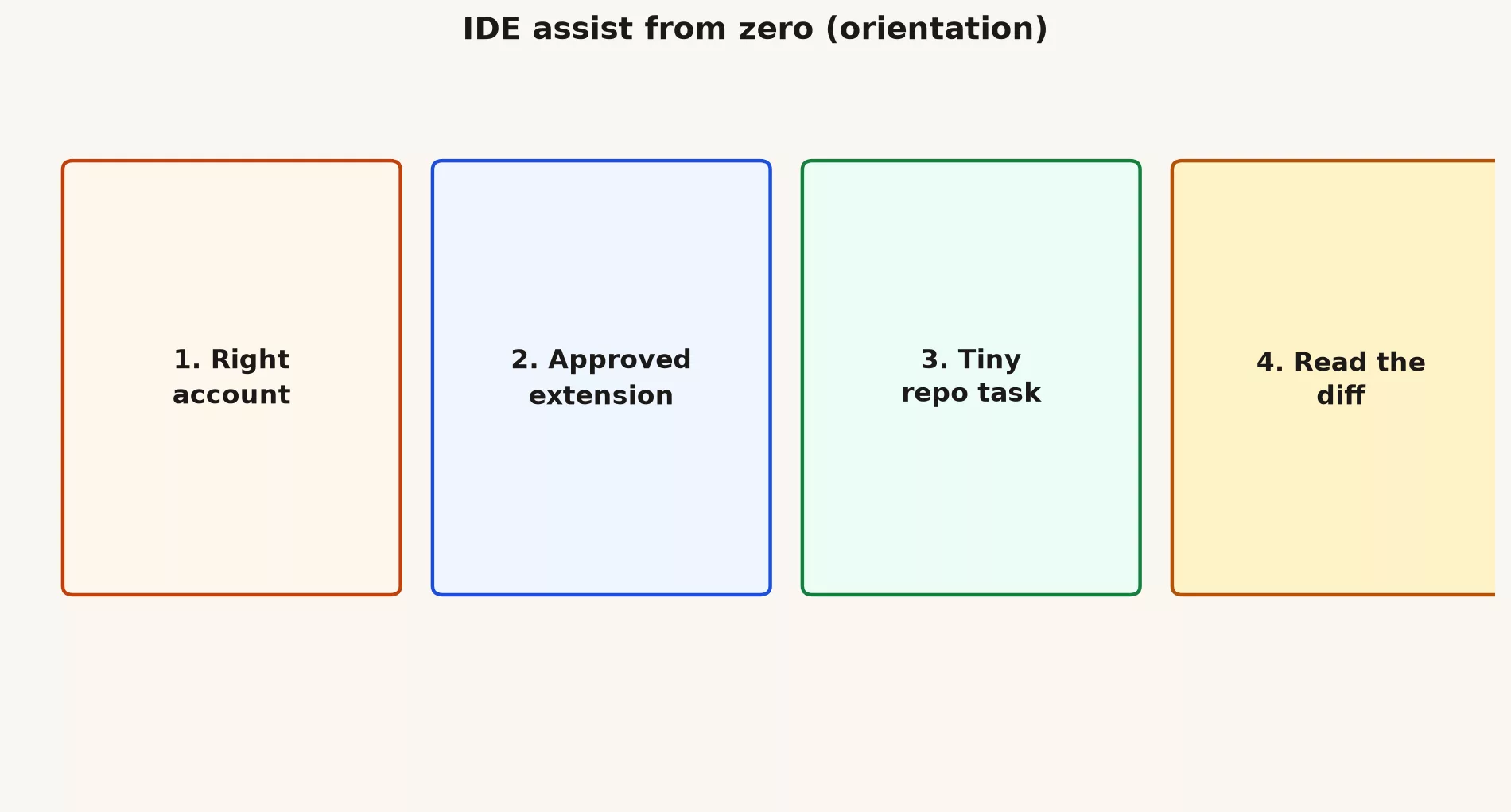
- Confirm whether you are signed in with a personal or a work Google account, because company laptop policy wins.
- Install only the approved Gemini extension, or use the built-in Gemini feature in Android Studio if that is your stack, so your code only goes to a tool your company has reviewed.
- Open a toy repo, or a throwaway branch of a real repo, because practicing on the main copy puts real work at risk.
- Ask for a one-function change, read the full diff (the list of every line that changed), and run the tests you already trust.
- Write three lines on what helped and what you rejected. Writing it down is how the habit sticks.
What IDE AI is for (and what it is not)
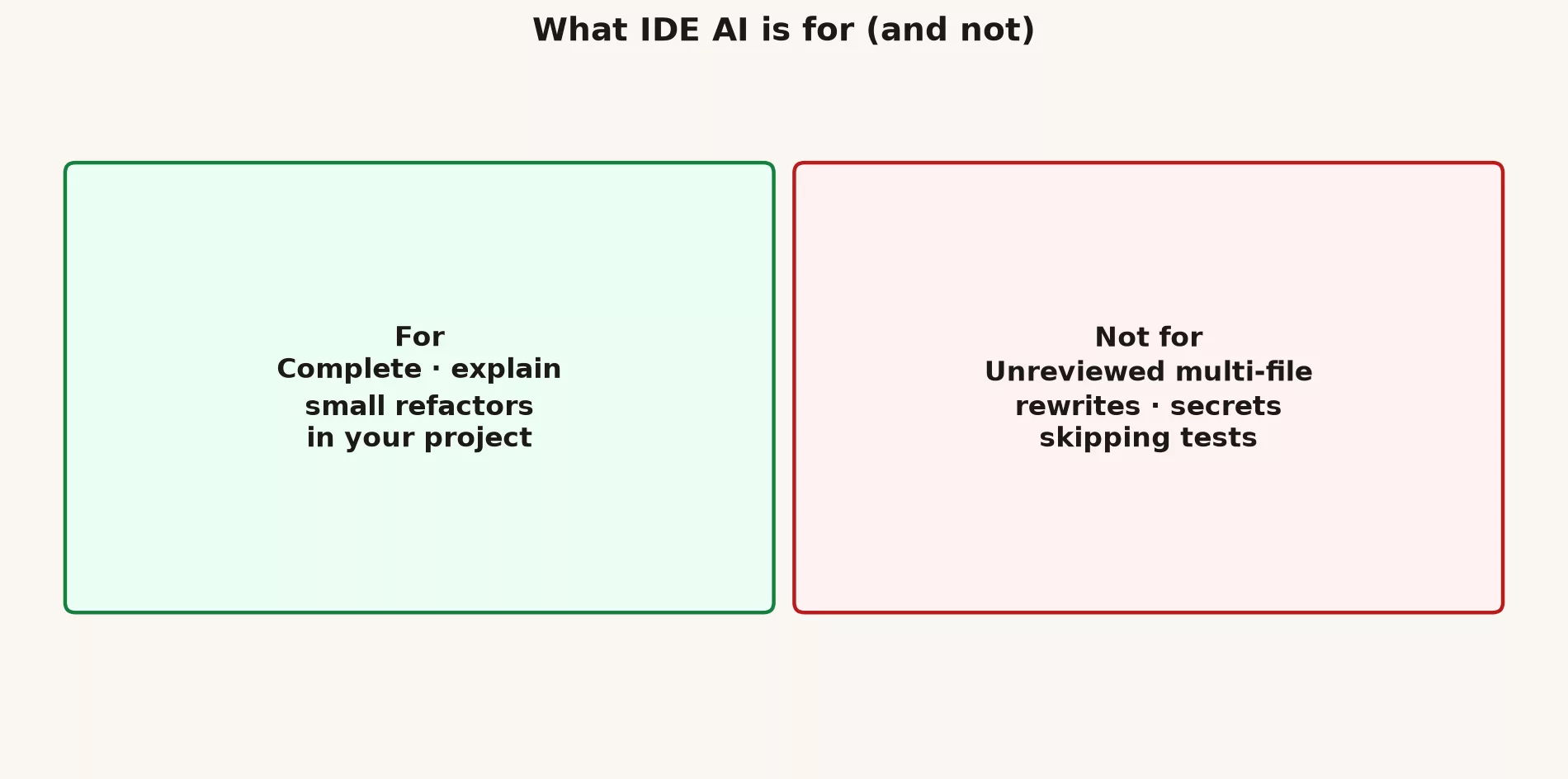
Use it to finish boilerplate you already understand, explain unfamiliar code you own, suggest tests you will actually run, and rename with your confirmation. Do not accept huge unread diffs, paste production secrets into chat, skip review because a change “looks right,” or add dependencies you cannot justify in a pull request.
| Use | Avoid |
|---|---|
| Complete boilerplate you understand | Accepting huge diffs unread |
| Explain unfamiliar code you own | Pasting production secrets into chat |
| Suggest tests you will run | Skipping review because it “looks right” |
| Rename with confirmation | Drive-by dependency adds you cannot justify |
A first-week task menu
Pick one of these so the first week builds skill without wrecking the repo.
- Add a unit test for an existing pure function (a function with no network or database side effects).
- Ask the assistant to explain a legacy function, then write that explanation in your own notes, not only in chat history.
- Extract a small helper with identical behavior, and prove it with the same tests.
- Improve an error message without changing control flow.
After any AI edit, run this human checklist.
# Human checklist after any AI edit
# 1) Read the full diff
# 2) Run the tests you trust
# 3) Search for new network/file side effects
# 4) Confirm no secrets in logs or source
# 5) Request review if auth, payments, or migrations touched
Android Studio for mobile teams
If you ship Android apps, train in Android Studio, not only in generic VS Code (Microsoft’s free code editor) demos. Gradle builds, manifests, and the emulator context matter, so the assistant sees a different world than a plain TypeScript repo. Start with “explain this” and small UI (user interface, the screens you click) or test changes. You still own the merge.
Enterprise vs consumer reality
Personal plans and company licenses are not the same product. Google’s developer blog says that on June 18, 2026 the Gemini Code Assist editor extensions stopped answering requests for free individual users and for Google AI Pro and Ultra plans, and it points those people to Google Antigravity. Company seats on the Standard or Enterprise editions of Code Assist kept working (as of October 2, 2026). So this guide fits you if your company pays for one of those seats. If your extension suddenly refuses requests, check which edition you are on before you blame the model. Details live in the Gemini product map on this site and in Google’s current Code Assist docs.
Mistakes that burn a sprint
- Installing three overlapping AI extensions so keybindings fight each other.
- Using a personal account on company code.
- Generating code and never running tests.
- Training juniors on full autonomy before a review culture exists.
What good looks like on your team
Picture two ways your team could start. In the first, you allow only small AI edits until the person who owns the code can explain every accepted line. Reviews stay short, so finished work keeps moving. In the second, everyone installs every plugin after a conference, and you spend the next two weeks untangling formatters that fight each other and secrets pasted into chat history. The difference is not the model. It is whether you treat the assistant like a new hire whose work gets reviewed.
Ship one small, reviewed change this week using only the habits from this post. Coding AI skills stick when they produce merges you can defend, not when they produce impressive demos you cannot explain.
Takeaways
- Right account, approved tooling, tiny task, read every diff.
- IDE assist is not a license to skip review.
- Next in this series: terminal agents and the Antigravity mental model.
Your first practice week
- Set up on an approved tool only, because an unapproved tool can send company code somewhere it should not go.
- Complete one tiny task on a feature branch.
- Paste the diff summary into a pull request description in your own words, because explaining the change yourself proves you understood it.
- List one suggestion you rejected and why.
Series notes
This is Part 1 of the Gemini coding surfaces tutorial (series code GM22). It pairs with the Gemini product map (Code Assist, Android Studio, Antigravity notes). Gemini is not one single app, and labels and eligibility change, so re-check the live docs the week you onboard a team.
Sources
Keep going
Same lessons in your feed
Short diagrams, hooks, and weekly tutorials on Substack, Instagram, X, and Facebook.