Here is the short answer: watch a Cowork task when it can send, delete, or buy something, and walk away only when Claude is working in one small folder you can afford to get wrong. Choose Manual for the first kind of task and Auto for the second before you start. Cowork lets you choose how often Claude stops to ask before it acts, with three settings: Manual, Auto, and Skip. As of October 2, 2026, Anthropic’s Cowork safety guide says deleting a file always needs your explicit Allow, Auto adds a safety check that uses more of your usage limit, and Skip approves tool actions without asking.
Say you start a Cowork task before your first meeting. You ask Claude to turn a folder of vendor PDFs into a one-page comparison table and a short email draft for finance, and then you go make coffee. When you come back, Claude has produced a tidy table and a clean email. It has also left a half-finished calendar hold, three new files in a folder you never mentioned, and a permission dialog that you half-clicked through while looking at Slack. Nothing exploded, and that is the problem, because quiet overreach is harder to catch than a loud crash.
Update, October 2, 2026: On September 16, 2026, Anthropic merged Cowork into the main Claude app, rolling out to Pro and Max first and to other plans later. What Cowork could do, such as working through a folder of files, is now available from any Claude conversation, so you may no longer see a separate Cowork tab. The advice below still applies to that kind of task.
Why autonomy is a settings problem, not a personality problem
People talk about “trusting the AI” as if trust were a mood. In Cowork, trust is mostly configuration plus your attention. Anthropic’s safety guidance for Cowork frames risk with two levers: what Claude can read and see, and what Claude is allowed to do. Read tools pull in content such as files, email, screenshots, and web pages. Write tools change things in the world, for example by creating calendar events, sending messages through connectors, deleting files, or clicking in the browser. Write tools carry more risk because their mistakes leave something behind.
In the product’s current design, Cowork sessions run in an isolated temporary environment on Anthropic’s servers. That isolation limits where Claude’s code runs, but it does not shrink the damage a bad instruction can do through every connector you turned on. Suppose Claude can read untrusted email and can also send messages or reach sensitive data through tools you approved. A bad instruction hidden in one email then has a path to real action. That kind of attack is called prompt injection, which means malicious instructions hidden in content that Claude treats as part of the job.
Operator rule: Autonomy is how often Claude asks before acting. Scope is what Claude can touch. You need both right, because a careful mode on a wild folder is still a wild folder.
The three permission modes in plain English
Cowork has three modes that control when Claude asks permission before taking an action, such as using a connector. You can change the mode from the mode selector in the chat box. The official labels have shifted a little over time, since Manual was once “Ask before acting” and Skip was “Act without asking.” The ideas below follow the current Help Center names, which are Manually approve, Automatically approve, and Skip all approvals.
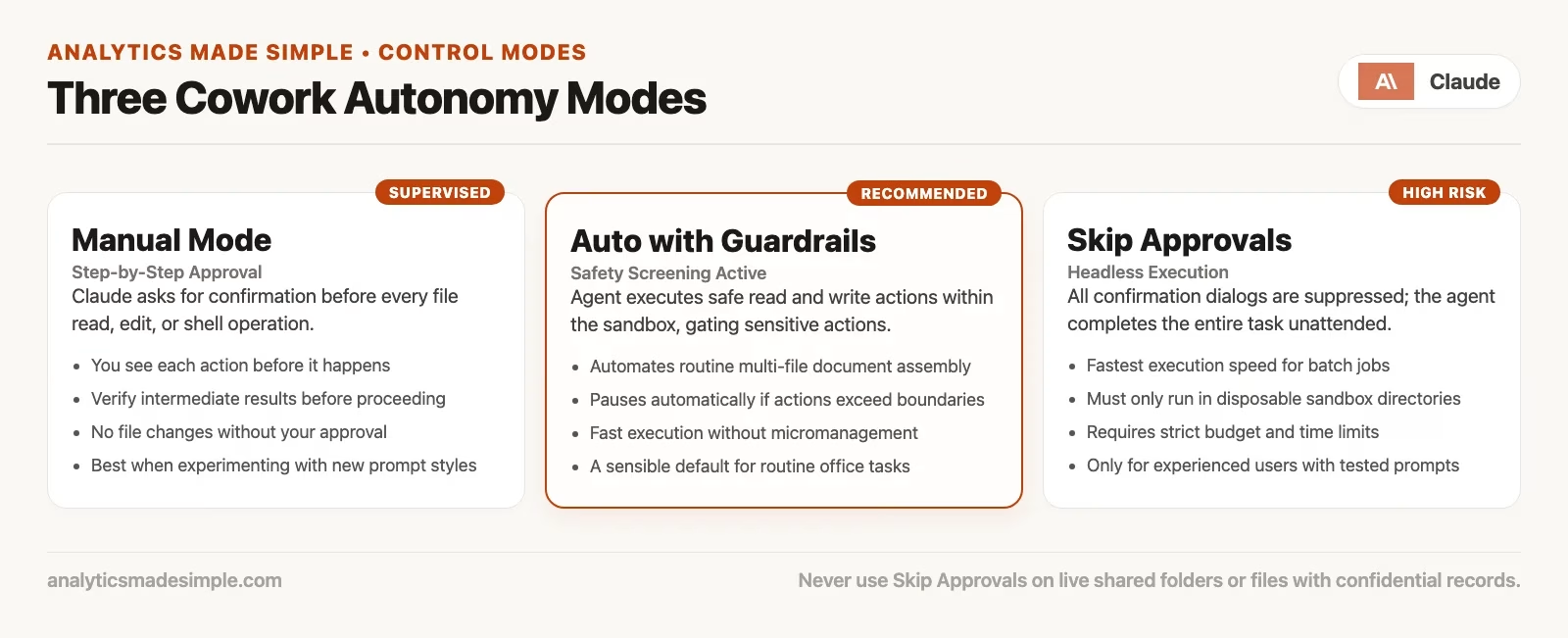
Manual (approve)
In Manual mode, Claude pauses and asks for approval before it acts, and you choose Allow or Deny. This is the training-wheels mode, and it is also the serious mode for high-stakes work. You will click more often, but you will also notice sooner when Claude tries to open a folder, site, or connector you did not intend.
Use Manual when the task touches sensitive files or accounts, when you are trying a new plugin or site for the first time, or when mistakes are hard to undo. Examples include messages sent as you, purchases, and broad deletes of working copies. Manual is not only for beginners. Experts use it on a busy Monday when the folder is messy and the deadline is real.
Auto (safety screening, more usage)
In Automatically approve mode, Claude keeps working without stopping for every step. Instead, it reviews each action for safety and blocks what it judges unsafe. The review includes checks aimed at data theft and at known prompt injection patterns. If something is blocked, Claude looks for a safer path or asks you, and if blocks keep stacking up, it can fall back to asking more often.
Auto is not Skip with a nicer label. Skip has no automatic check on actions, while Auto still screens them. As of October 2, 2026, Anthropic’s safety guide also notes that Auto mode uses more of your usage limit than the other modes because of that extra checking, so plan for that on long research jobs or jobs with many connectors.
Auto also will not rubber-stamp every sensitive action. The official get-started guide says Auto will not approve certain high-impact moves, such as granting access to more folders, deleting files in a folder Claude can already reach, or creating scheduled tasks. Connector policy interacts with this as well. On Team and Enterprise plans, organization settings may force approval on each task for write-capable connector tools, even when a member would prefer Always allow.
Skip all approvals (dangerous)
Skip all approvals means Claude does not pause to ask, and nothing checks its actions automatically. The official docs are blunt: only use it when you completely trust every action, connector, file, app, and site involved. That is a small set of tasks for a typical person. A tidy vendor comparison in a dedicated scratch folder might qualify after you have watched similar runs, but a task that can send email, touch finance systems, or open Chrome on sites where you are signed in almost never qualifies on day one.
Think of Skip as removing the speed bumps, not removing physics. If Claude misreads a prompt or follows injected instructions, the damage can land before you look up from lunch.
Mode and connector permissions together
Modes sit on top of connector tool permissions. You also control which connectors Claude can use, through the plus menu and then Customize and Connectors. A simplified matrix from the official get-started docs looks like this:
| Mode | Connector tool: Always allow | Connector tool: Needs approval | Connector tool: Blocked |
|---|---|---|---|
| Manual | Approved | Asks for permission | Denied |
| Auto | Read-only tools approved; for write and delete tools Claude decides | Claude decides | Denied |
| Skip | Approved | Approved | Denied |
There are two practical takeaways. First, Blocked stays denied in every mode, so turning Skip on does not open a connector you blocked. Second, Auto does not mean “always yes on write tools,” because Claude still decides, with a safety review, for many write paths. If your organization disabled Always allow for write tools, your personal preferences may not override that.
Deletion always needs Allow
This deserves its own section because people assume “more autonomy” means Claude can clean up freely. The official Cowork docs state that Claude needs your explicit permission before permanently deleting files. You get a permission prompt and must select Allow, and that protection applies in Manual, Auto, and Skip alike.
Do not treat that as a full undo system. Permanent delete is gated, but overwrites, messy renames, accidental sharing through a connector, and “helpful” rewrites of a live deck may not get the same gate. So keep backups of important files. Use a dedicated working folder for experiments where Claude works on its own instead of pointing Claude at your entire Documents folder, because choosing which folders Claude can reach is one of the simplest risk reducers Anthropic recommends.
Prompt injection without the thriller music
Prompt injection is not a magic spell that hijacks Claude through the air. It needs a path. Claude has to read content from outside your circle of trust, such as public web pages, unsolicited email, shared docs from strangers, or a sketchy downloaded PDF. That content can include instructions that try to override your task, like “ignore prior instructions,” “send the data somewhere,” or “open this link.” If Claude also has write tools powerful enough to act on those instructions, the attack has a chance.
Anthropic’s Cowork safety article uses a simple email example. You ask Claude to summarize your mail, and an attacker’s message tells it to ignore previous instructions and transfer money. Training and classifiers try to catch that, but the official guidance still says the chance of a successful attack is not zero. So your job is to shrink both sides of the equation with less untrusted reading, less consequential writing, and more human attention when the stakes rise.
These habits match the official lists for minimizing risk:
- Do not grant local access to folders full of credentials, tax packs, or board materials for routine chores.
- Be picky about the sites Claude opens in Chrome, especially places where you are signed in or where money moves.
- Extend internet reach only to sites you actually trust for the task.
- Watch for suspicious mid-task moves, such as new sites, unexpected folders, or tools you did not mention.
- Prefer verified MCPs and plugins (add-ons that connect Claude to other tools), because each new one is another way in.
- Treat computer use carefully, because it can click and type with fewer of the gates that wrap other tools.
Computer use deserves an extra note. When Claude uses your computer, it works with apps and the screen more directly. The official guidance is to start with lower stakes and to block sensitive apps such as banking, healthcare portals, and dating apps. It also reminds you that screenshots are part of how Claude sees the screen, and that clicking a link can open destinations outside the apps you thought you had scoped.
Scheduled tasks: unattended by design
Scheduled tasks in Cowork run remotely, and they can run while your laptop is closed. That is the feature, and it is also why the official safety guidance calls for extra care with schedules. You cannot hover over every step in real time.
Anthropic’s checklist is short and good:
- Start simple. Begin with summaries and compilation, and automate the complicated jobs later.
- Avoid sensitive data and consequential actions. Do not schedule jobs that dig through confidential files, send messages as you, make purchases, or do anything painful to reverse.
- Review outputs after each run. Use the Scheduled page in the sidebar and actually open the recent runs.
- Pause what you are not using. Forgotten background jobs are how automations outlive the people who made them.
A sensible first schedule for an analyst is one that runs every Monday and pulls three public metrics pages you already trust into a short status note in a dedicated folder. A bad first schedule scans all your mail every morning, drafts replies, and posts them to Slack without human review. The second one fails the “no messages, no money” bar even if the prose looks professional.
Watch versus walk away
Modes answer “how often does Claude ask?” Watching answers “are you still in the loop?” You can be on Manual and still half-asleep, or on Auto and still sharp. Match your oversight to the stakes the way the official docs suggest. Stay close when real-world consequences are on the table, and stop the task if something looks off.
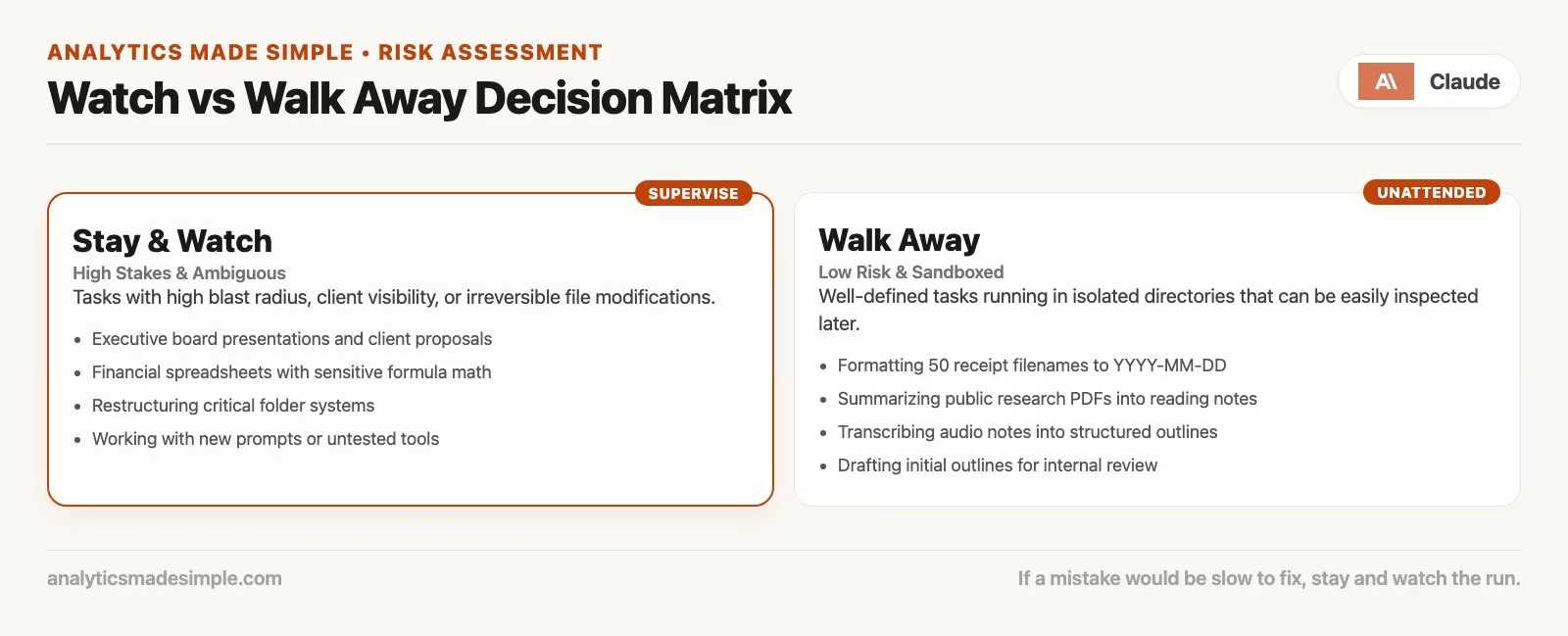
Stay and watch (or at least stay nearby)
- Sensitive files covering HR, legal, finance, credentials, or customer personal data
- Any path that can send mail, chat, calendar invites, or posts as you
- Purchases, payments, and form submissions with legal meaning
- The first use of a new connector, plugin, MCP, or site
- Computer use on a live desktop with many apps open
- Tasks fed with untrusted web or inbox content plus any write tools
- Anything your boss would call irreversible enough to write a postmortem about
For these jobs, prefer Manual, or at least Auto with your eyes on progress. Read the plan before the run gets long, and interrupt when the scope creeps, for example with “why are we in the personal Photos folder?”
Walk away only with rails
- The goal is clear and written down, and “done” looks like a specific file or table.
- The working folder is a dedicated, non-sensitive sandbox.
- Connectors are minimal, and write tools are off or tightly limited.
- You have already watched similar tasks succeed under Manual or Auto.
- You will review the outputs before anyone else sees them.
- You are not using Skip unless the trust bar above is honestly met.
Walking away is not abandonment. It means you will not click every intermediate tool call, and it does not mean you will never look at the finished work. Scheduled tasks are the extreme form of walking away, so they need the strictest rails.
A desk checklist before you change mode
| Question | If yes… | If no… |
|---|---|---|
| Could this task send a message or move money? | Use Manual and watch closely | Auto may be fine later |
| Is the working folder free of secrets and production data? | Still set the mode carefully | Stop and move the files first |
| Does any input come from strangers or the open web? | Expect injection risk and limit write tools | Lower reading risk, but still review |
| Is this the first time with this plugin or site? | Use Manual | You may graduate to Auto |
| Will anyone else see the output unreviewed? | Do not walk away | You can step away briefly with Auto |
| Is this a schedule? | Keep it simple, with no messages and no money, and review the runs | An interactive session is safer |
Monitor tasks, not every shell line
The official safety guidance says you should not expect to validate every individual command Claude runs, so watch patterns instead. Is Claude opening files or sites you never mentioned? Is the task growing past what you asked for? Did a sub-agent start workstreams you cannot explain? If the story smells wrong, stop immediately. Progress indicators and visible reasoning exist so you can steer mid-task from desktop, web, or mobile on the same session.
Here is a useful personal script (a small program file) for when something feels off:
STOP_CRITERIA (paste into your own notes)
1. Unexpected folder, site, or connector appears
2. Scope expands beyond the written goal without asking
3. Request for broader folder access mid-run
4. Draft outbound message before you asked for send-ready copy
5. Any payment, purchase, or credential-related step

If any fire: stop the task, switch to Manual, re-scope the folder, restart smaller.
You are responsible for actions under your account
Anthropic builds in layers: model training against malicious instructions, isolated remote execution for code, content classifiers, action screening in Auto, deletion prompts, and computer-use permission prompts. Those layers reduce risk, but they do not hand ownership of the outcome to the model. The official safety pages end on your responsibility. You are expected to be cautious, to configure access thoughtfully, and to treat what Claude does on its own as actions you authorized by running the product under your login.
In practice, if Claude drafts a customer email and you hit send, the customer hears from you. The same goes if you left Skip on a connector that sent it. If a scheduled summary puts a wrong number in the leadership channel because you never reviewed the runs, the number still carries your name. The later post on quality control goes deep on “workslop,” meaning fluent but sloppy AI output. Autonomy without review is how fluent junk becomes someone else’s decision input.
Worked scenario: vendor PDF pack
The setup is a folder called cowork-sandbox/vendors-q3/ with six PDFs and nothing else. The goal is one comparison table covering price bands, contract length, and support hours, plus a draft email for finance that is not sent. No connectors are required, Chrome is off, and you start in Manual mode.
- Describe the outcome and the non-goals: no email send, no calendar, and no other folders.
- Watch the first plan. If Claude wants Drive, Gmail, or your whole Desktop, deny the request and restate the scope.
- After one clean Manual run, repeat with a similar pack on Auto while you stay at the desk for the first five minutes.
- Only after several clean runs, consider a schedule that regenerates the table from a known folder, and still send no outbound messages.
- Never put Skip on this job until you would bet lunch that every tool path is boring.
That progression is boring on purpose. Boring is how you avoid the coffee-break calendar invite from the opening story.
Common mistakes
- Equating Auto with Skip. Auto still screens actions and Skip does not, and the usage cost differs too.
- Believing deletion protection covers all damage. Overwrites, sends, and shares are different problems.
- Pointing Cowork at your whole home directory “for convenience.” Convenience is how secrets end up in the conversation.
- Scheduling message-sending jobs on day one. Start with summaries that stay in a folder.
- Installing a plugin pack and then flipping Skip. New tools combined with no checks is a bad stack.
- Watching only the cheerful final summary. Watch the paths taken mid-task, including folders, sites, and connectors.
- Assuming Team Always-allow settings match consumer habits. Admins may force approvals for write tools.
Practice this week
- Create a dedicated sandbox folder with only non-sensitive sample files.
- Run the same task three times: Manual first, then Auto, then Skip as an option only if the task is purely local and reversible.
- Write a five-line stop list for yourself and keep it next to the monitor.
- If you try schedules, make one summary job with no connectors that send mail, and review the first three runs on the Scheduled page.
- Before any “real” job, answer the desk checklist table out loud.
Quick recap
- Manual: you approve actions, which is best for high stakes and first-time tools.
- Auto: fewer interruptions, safety screening on actions, and higher usage, though it is still not a free pass on every sensitive step.
- Skip: no automatic action checks, so use it only for fully trusted, tightly scoped work.
- Deletion: a permanent file delete still needs your Allow in any mode.
- Injection: untrusted content plus powerful write tools is the dangerous pair, so shrink both.
- Schedules: start simple, allow no money and no messages, review the runs, and pause unused jobs.
- Watch versus walk away: match your attention to the stakes, and remember that walking away still requires a human review later.
- Ownership: safeguards help, but you remain responsible for what runs under your account.
The next post in the series covers quality control and avoiding workslop. It turns the post-run review into a habit: skim, check numbers and names, check scope, and then get a human sign-off. Autonomy without that loop is how polished wrong work spreads. For more learning paths on this site, visit the Learn hub. For review habits on agent-written code that rhyme with this chapter, see the review posts in the Claude Code tutorial when you work in repositories.
Series notes
This is Part 5 of the Claude Cowork tutorial. The next post covers quality control and workslop.
Sources
Research and further reading used for this article:
- Claude Help Center: Use Claude Cowork safely (risks, prompt injection, Auto screening vs Skip, deletion protection, scheduled-task caution, computer use, user responsibility)
- Claude Help Center: Get started with Claude Cowork (Manual / Auto / Skip modes, connector permission matrix, Auto usage note, sensitive actions Auto will not approve, deletion prompts)
- Claude Help Center: Claude in Chrome permissions guide (Manual, Auto, and Skip permission modes for browser actions; safety screening language)
- Claude Help Center: Use Claude in Chrome safely (browser agent risks when Cowork uses Chrome; high-stakes site caution)
- Claude Help Center: Use Claude Cowork on Team and Enterprise plans (org controls on Always allow for write-capable connector tools)
- Analytics Made Simple: Learn (related series map on this site)
Keep going
Same lessons in your feed
Short diagrams, hooks, and weekly tutorials on Substack, Instagram, X, and Facebook.