Plugins and connectors let Claude Cowork reach beyond one folder on your computer. They reach into the places where work happens, such as email, shared drives, calendars, and ticket tools. That makes Claude far more useful, and it also means a wrong click can turn into a message you cannot unsend.
Say you finally have a clean working folder. Receipts rename themselves, and the expense workbook opens with real formulas. Then a coworker says, “Install the finance plugin and connect your mail, and Claude can file the report for you.” That one sentence jumps three steps up the risk ladder at once.
Update, October 2, 2026: On September 16, 2026, Anthropic merged Cowork into the main Claude app, rolling out to Pro and Max first and to other plans later. What Cowork could do, such as working through a folder of files, is now available from any Claude conversation, so you may no longer see a separate Cowork tab. The advice below still applies to that kind of task.
Names, marketplaces, and admin screens keep moving, so treat this post as a mental model and not a click-by-click guide. Anthropic’s Help Center pages on plugins, connectors, and Cowork safety have the current steps, so read them before you set company policy.
This post is part of the Claude Cowork tutorial. The earlier post stayed inside folders, documents, spreadsheets, and slide decks. Here we map the outer layer for office work. That layer has plugins, which bundle skills, connectors, and helper agents into one install. It has connectors, which are permissioned links to other systems. It also has riskier options, like letting Claude use a browser or your whole computer. The goal is a ladder of complexity, so you add power only when a folder-only task is not enough. If you still need to know which Claude product is which, use the Claude product map. Everyday chat habits are in Learn Claude from scratch. The software version of this story, with tools and plugins inside a code project, is in the Claude Code tutorial, especially its part on plugins and tools.
Three boxes: plugins, connectors, and riskier options
People squeeze “we integrated Claude” into one phrase, but it can mean three very different things. Once you separate them, the conversation gets much calmer.
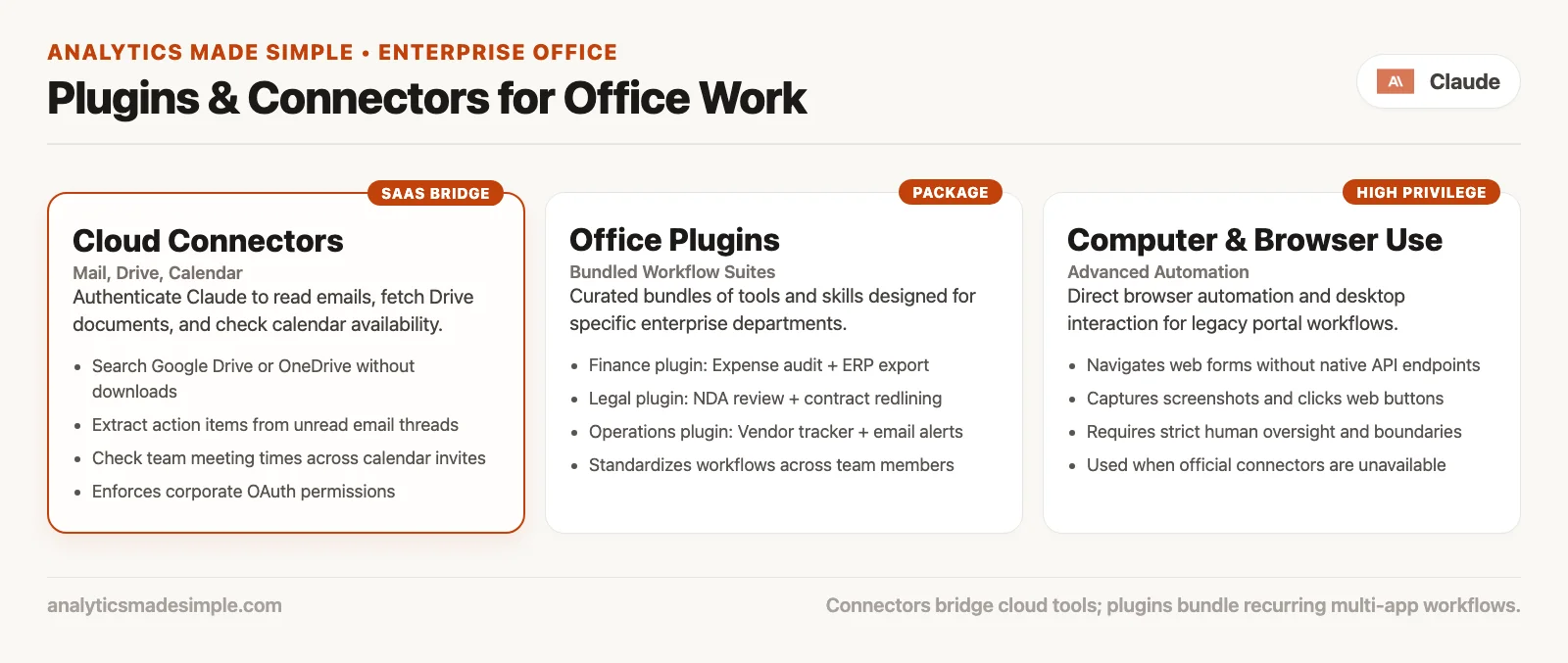
| Box | Plain English | Typical office example |
|---|---|---|
| Plugin | A package that ships playbooks and connections together | A “finance” or “sales” plugin with built-in skills and suggested connectors |
| Connector | A link to a business system outside the folder, where the official version of your data lives | Google Drive, Microsoft 365 mail and calendar, Slack, or Jira |
| Browser or computer use | Claude clicks through the screen when the tool has no cleaner connection | Click through a web app or drive the desktop |
Folder access is still the foundation from the earlier post. Plugins do not replace a clear recipe, which means a goal, the inputs, the limits, the format, and a way to tell when it is done. They package habits and access so you are not rebuilding the same setup every Monday.
Rule of thumb: If the file is already in a working folder, stay on the folder. Reach for a connector when the real source is your mail, shared drive, calendar, or a ticket tool. Reach for browser or computer use only when the job truly has no safer path.
What a plugin bundles
In Cowork, a plugin customizes how Claude works for a role, a team, or a company. Anthropic’s documents describe a plugin as a package that combines skills, connectors, and sub-agents (helper roles that each handle one slice of a job) into one install. Think of it as an onboarding kit for a new hire, and not a new brain.
| Piece | What it is | Office analogy |
|---|---|---|
| Skills | Reusable playbooks for a job shape | The checklist your best operations hire follows for weekly reporting |
| Connectors | Configured access to external systems | Keys to the shared drive and the team inbox, each limited to what it needs |
| Sub-agents | Helper roles that each handle one slice of the work | One person gathers sources while another drafts the brief |
| Other config | Commands, defaults, and labels that describe the package | The labeled binder so everyone finds the same process |
Skills can exist without a plugin. You might keep a personal skill for the voice of your status memos, for example. Plugins matter when a team wants the same bundle on many machines. They also matter when Anthropic or your company ships a curated set, such as plugins for finance, sales, or legal work. Team and Enterprise admins can manage the plugin marketplaces, the default installs, and who gets access. That is policy work for the company, and not a side project for one curious analyst.
What to read before you install
- Which skills ship in the bundle?
- Which connectors does it expect or enable?
- Does it want permission to change things, or only to read?
- Who fixes it when its sign-in breaks: you, your IT team, or a vendor?
- Can you uninstall it, or did an admin mark it as required?
If you cannot answer those questions, you are not installing a productivity boost. You are taking on something you do not understand, and your work will now depend on it.
Connectors: mail, drive, calendar, and friends
A connector is how Claude reaches a system outside the working folder. Common office targets are email, cloud drives, calendars, chat, and ticket tools, and sometimes customer records or document suites. In Claude, connectors usually appear in the Customize or settings area, and Claude asks permission as a task runs. The exact labels move around, but the idea of asking permission does not.
What changes when a connector is on
- Mistakes can now reach other people. A bad summary in a local document is annoying, but a bad message sent from your mailbox is an incident.
- It acts as you. Actions happen as the connected account, so Claude can do whatever that account can already do.
- Reading and changing are very different. “Search my drive for the Q2 brief” is not the same request as “update the shared sheet and email finance.”
- Company policy may override your choices. Team and Enterprise admins can restrict connectors, require approvals, or block the tools that make changes.
Microsoft 365 is a useful concrete case. Anthropic has expanded its Microsoft 365 connector beyond search, so Claude can draft and send mail, manage calendar events, and create or update files in OneDrive and SharePoint. This works only when the change-making tools are switched on and admins consent. That is powerful for real office routines, and it is also why “just connect Microsoft 365” is a company decision and not a personal gadget toggle.
Permission habits that travel well
| Habit | Why |
|---|---|
| Start read-only when the product allows it | Learn what the data looks like before any tool can change it |
| Prefer draft over send | A person reads every outgoing message |
| Name the mailbox or drive scope in the task | Avoids the vague request to “search everything I can see” |
| Keep a list of systems that are off limits | Payroll, admin consoles for live systems, and live customer databases |
| Log what you connected for the team | Next quarter you will not remember this quarter’s experiment |
Cowork has permission modes, called Manual, Auto, and Skip in Anthropic’s help pages, though the names may shift. They control how often Claude pauses to ask before it acts through a connector. A later post in this series goes deeper on autonomy. For now, remember that a brand-new connector combined with Skip is how people end up with exciting stories and uncomfortable team chat threads.
Browser and computer use: higher rung, higher care
Some tools never offer a clean connector, because the work lives in a clunky web page, a vendor portal, or a desktop app that only understands clicks. That is why browser control, such as Claude in Chrome, and computer use exist. Claude can move through the screens the way you do, and it is not limited to calling other software directly.
More capability brings more risk, in four ways.
- Screens change, and an agent (an AI that can take actions on its own, not just answer) can click the wrong thing
- Hostile web pages can hide instructions meant to trick the agent, which is called prompt injection and is a real concern on the open web
- You may be letting Claude see whatever is on your screen
- Many open tabs and long workflows are harder to review than a single spreadsheet of changes
Use browser or computer use when the alternative is you making 40 fragile clicks, and when a wrong click would be acceptable or you are watching closely. Do not start there on day one because a demo video looked smooth. Anthropic’s own Cowork safety pages exist for a reason, so read them before you leave anything running unattended that can move money or send messages.
The complexity ladder
Add one rung when you are stuck, not when you are bored. This is the same idea as the Claude Code ladder, which goes from a plain task to instructions, skills, tool connections, and then plugins, translated here for office work.
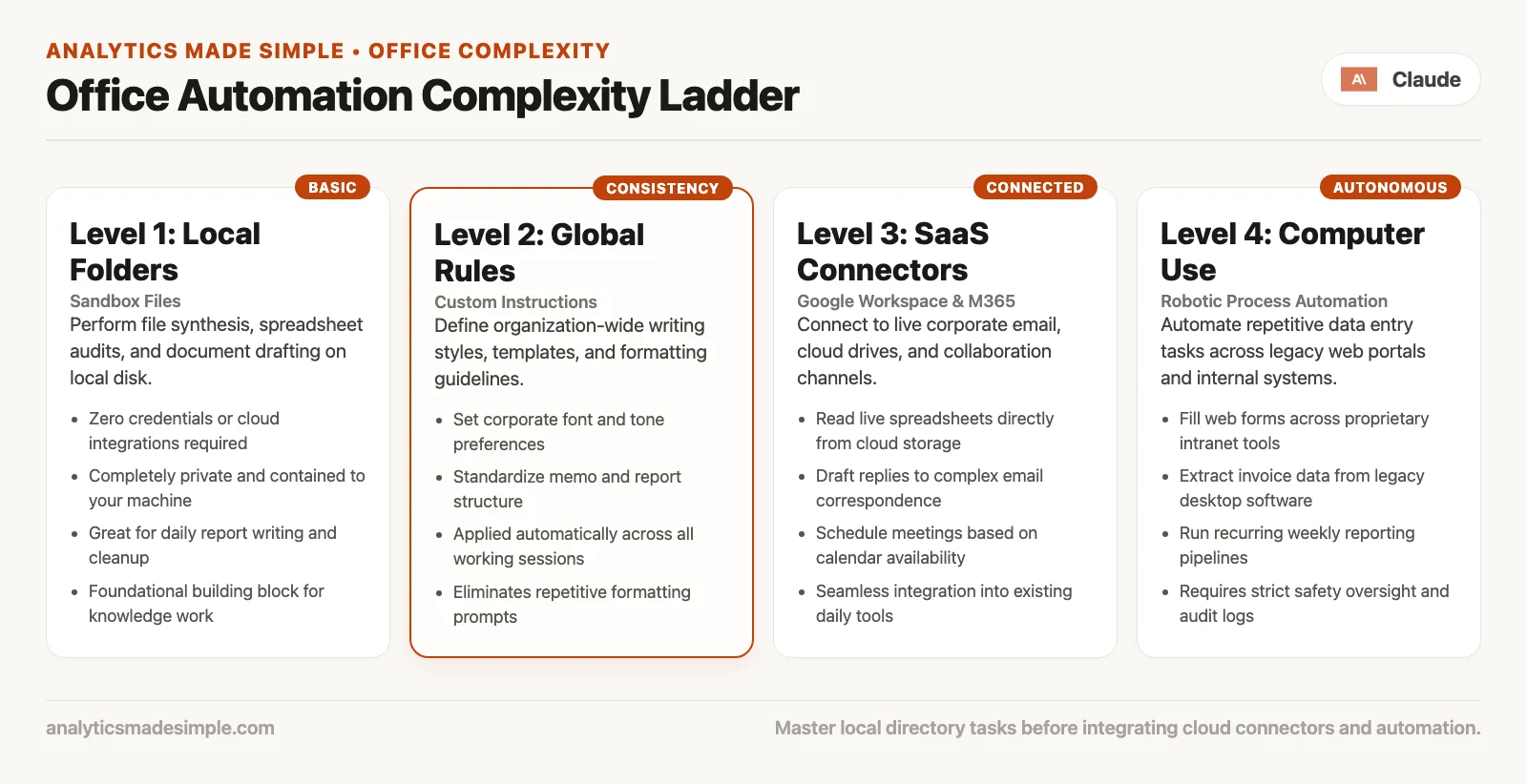
| Rung | You add | When it is enough | When to climb |
|---|---|---|---|
| 1. Folder task | A working folder and a clear recipe | Organizing and renaming files, a local expense sheet, or a local slide deck | The real source of the data is not on your computer |
| 2. Global / folder instructions | A standing tone, a no-delete default, and project rules | The same mistakes keep coming back in plain chat text | You need live data from mail, drive, or calendar |
| 3. Connector | One system, with the least access that works | “Find the latest brief in Drive and draft locally” | You rebuild the same skill and connector setup every week |
| 4. Plugin | Bundled skills, connectors, and sub-agents | A team-standard workflow or a company marketplace package | There is no connector at all and the screen is the only way in |
| 5. Browser / computer use | Clicking through screens | Supervised portal work and fragile internal tools | Rarely, and only while you watch and have a way to undo |
Rung 1 example
You connect a folder only and ask, “Build expense.xlsx from these PDFs with formulas, and delete nothing.” That is the whole job, and no plugin is required.
Rung 2 example
Your global instructions might say, “Default currency US dollars. Never email. Prefer tables. Flag any text the scanner was unsure about.” The instructions for the Client-Acme folder might say, “The client name is Acme Health, and never use the internal codename Raven.” Together they keep old mistakes from coming back.
Rung 3 example
You connect Drive mostly for reading and ask, “Find the latest quarterly business review folder for Acme, copy the metrics CSV (a plain text file where commas separate the columns) into my working folder, then build a local summary sheet. Do not modify the Drive originals.”
Rung 4 example
Your company installs a curated “customer operations” plugin. It has skills for the tone of ticket replies, a connector setup for the help desk, and a sub-agent pattern that gathers facts first and then drafts. New hires install one package instead of following five screenshots that only a few people remember.
Rung 5 example
A vendor portal has no connector at all. You watch Claude fill in a form in the browser for a practice account, with Manual approvals turned on, and you stay with the session the whole time. You would never start here with payroll.
Worked example: climb only as far as you must
Say the goal is a weekly internal status report for a project called Harbor.
Attempt at rung 1: The notes and CSV files already live in Harbor/weekly, so you run a folder task that produces a summary document and a five-slide PowerPoint file. It works, so you stop there.
Blocker: The metrics CSV is always out of date, because the real numbers sit in a Drive file that the marketing team updates daily.
Climb to rung 3: You connect Drive with read-only access, and the task becomes: “Download the latest harbor-metrics.csv from the Harbor shared folder into Harbor/weekly/inbox, then rebuild the summary and deck locally. Do not edit the Drive file. Do not send email.”
Blocker later: Three teammates each invent their own summary skill and their own connector settings, so the reports drift apart.
Climb to rung 4: Your operations team ships a small internal plugin. It holds the Harbor status skill and the Drive connector defaults. It also splits the work between a “metrics” helper and a “narrative” helper. Everyone installs the same bundle. Nothing is sent automatically.
What you never did: You never used browser control on the live billing console to “just grab the number.” That number belongs in a proper export or a company dashboard (a page of charts that updates from your data).
What teams and admins need to know
On Team and Enterprise plans, owners can manage plugin marketplaces, set install defaults (including required plugins), and control who sees what. Skills and Cowork itself may need to be switched on before the marketplaces matter. Tools that change data through a connector can require admin consent, and the Microsoft 365 expansion is a clear example. Compliance and monitoring features also differ by plan and by product, and Cowork has had important caveats about which activity shows up in which audit records. If you are not an admin, assume that your personal laptop habits are not how the company is set up.
A later post in this series returns to team and enterprise notes in more depth. For now, one sentence is enough: install less than you can, write down what you did, and prefer sources your company has approved.
How this maps to Claude Code without mixing jobs
If you already studied plugins in the Claude Code tutorial, the similarity is intentional.
| Idea | Claude Code world | Cowork office world |
|---|---|---|
| Local work first | A code project and built-in tools | Working folder + file outputs |
| Standing laws | CLAUDE.md / AGENTS.md | Global + folder instructions |
| External systems | MCP servers (tool connections) | Connectors for mail, drive, and calendar |
| Distribution | Plugins that package skills, hooks, and tool connections | Plugins that package skills, connectors, and sub-agents |
| UI fallback | Browser tools in some setups | Browser / computer use |
These are the same family of ideas applied to different kinds of work. Do not open Cowork to restructure a large code project, and do not open Claude Code to rename 200 receipt PDFs unless you enjoy overkill.
Common mistakes
Installing the zoo on day one
Picture four plugins, six connectors, and browser control “just in case.” Every task gets noisier and harder to debug. Start at rung 1, and add one capability when a real task blocks you.
Confusing “connected” with “governed”
A successful sign-in is not a review of how sensitive your data is. A connector that can read your whole drive can also read the folder you forgot was sensitive.
Permission to change things for convenience
“Send the email too” saves three minutes until the draft turns out to be wrong. Have Claude write the message in a local document or as a draft that you send yourself.
Treating plugins as unreviewed code
A plugin can bring skills and connector settings that you never reviewed. Prefer official or company marketplace sources, read what the bundle contains, and note the version when your process allows it.
Skipping the folder recipe after connectors exist
Connectors do not excuse vague goals. “Handle my inbox” is not a task. “Sort newsletters from the last 7 days into a local triage.md file, and do not reply or delete anything” is a task.
How to practice
- Run one folder task from the earlier post with zero connectors, and confirm you still can.
- Write three global instruction lines you actually want on every Cowork run, and include “no send” if that is your default.
- Enable one read-oriented connector you already use at work (or a personal sandbox account). Complete one task that copies or summarizes into a local folder.
- Inspect the permissions. What can it read, can it change anything, and who approved it?
- Browse available plugins without installing a pile. Pick at most one official or org-approved plugin that matches a weekly job. Read what it bundles first.
- Do not enable browser or computer use until you have a supervised, low-stakes exercise planned, because these tools click and type in apps on your behalf.
- Write a five-line note for yourself and your team that lists the connected systems, the plugins, and what is forbidden, so everyone knows the limits before they start.
If you need the chat foundation again, start with Learn Claude. To decide which Claude product to use, see the Claude product map, and if you are building software helpers instead, see the Claude Code tutorial.
Your next step
List the plugins and connectors your company has approved, and pick the lowest rung that solves your current problem, usually a folder or instructions. Try it for a week before you add a connector. Moving up one rung only when you are stuck keeps the risk of each mistake small.
Series notes
This is Part 4 of the Claude Cowork tutorial. The next post covers autonomy: when to watch versus walk away, what permission modes are for, and how scheduled tasks change the supervision story. Plugins and connectors make that part more important, not less.
Quick recap
- Plugins bundle skills, connectors, and sub-agents into one package.
- Connectors reach mail, drive, calendar, and other business systems, and the permissions decide how much damage a mistake can do.
- Browser and computer use are the riskiest options, so start without them.
- Climb the ladder only when stuck: folder, then instructions, then a connector, then a plugin, then browser or computer use.
- Prefer reading and drafting over sending and deleting, and prefer sources your company has approved.
- A clear task recipe still beats a pile of integrations.
Sources
Research and further reading used for this article:
- Anthropic Help Center: Get started with Claude Cowork (plugins mention, connectors, capabilities, usage)
- Anthropic Help Center: Use plugins in Cowork (install and use plugins; verify current title/URL in Help Center if redirected)
- Anthropic Help Center: Manage plugins for your organization (Team/Enterprise marketplaces and install preferences)
- Anthropic Help Center: Use Claude Cowork safely (agentic risks, safety mindset)
- Anthropic Help Center: Connect to Microsoft 365 (connector example; pair with admin setup articles for write tools)
- Anthropic Help Center: Get started with Claude in Chrome (browser actions)
- Anthropic Help Center: Let Claude use your computer in Cowork (computer use research preview context)
- Anthropic Help Center: Release notes (Cowork plugins, connectors, platform timeline)
- Analytics Made Simple: Learn Claude from scratch
- Analytics Made Simple: Claude product map
- Analytics Made Simple: Claude Code tutorial (parallel ladder for software work)
Keep going
Same lessons in your feed
Short diagrams, hooks, and weekly tutorials on Substack, Instagram, X, and Facebook.