
ChatGPT now lets you lock a conversation behind a four-digit PIN, Face ID or Touch ID, which takes it out of your chat list, your pinned chats and search. It is a screen-privacy feature: it stops someone looking at your device from stumbling on the chat, and it does not encrypt the chat or change what OpenAI keeps.
Imagine you share a laptop with your family, and last week you asked ChatGPT to help you plan a surprise birthday trip, word a tricky message to your landlord and make sense of a medical bill. Your teenager borrows the laptop to finish homework, opens ChatGPT, and your chat list is sitting right there in the sidebar. Locked chats are built for exactly that moment.
This guide covers what the feature does, how to lock a chat and take the lock off again, how it works with Memory, which chats you cannot lock, the PIN reset that deletes everything, and when a different privacy tool fits better. If you are new to the app itself, start with useful things to do with ChatGPT in your first week.
What Locked chats do
Locked chats move the conversations you pick into a separate place that opens only with a PIN or your phone’s face or fingerprint check. According to TechCrunch’s report on the launch (October 20, 2026), a locked chat disappears from your regular history, your pinned conversations and chat search, and it lives in its own Locked chats section until you take the lock off.
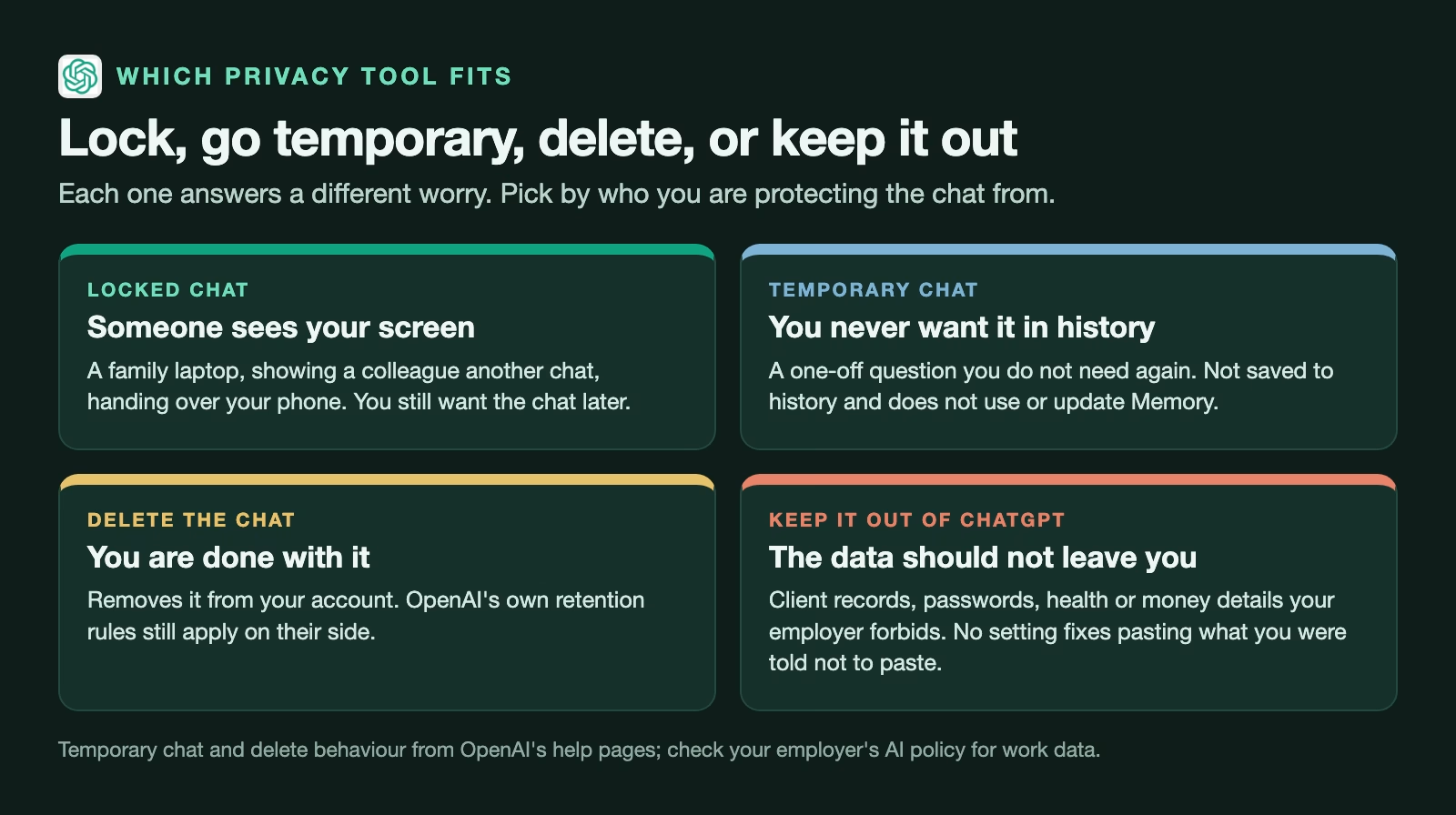
Unlike a Temporary Chat, which never shows up in your history at all, a locked chat is still there for you to go back to. You can keep asking follow-up questions in it, attach files and use voice mode on the phone apps.
OpenAI’s own example is a common one: you hand your phone to a friend to show them a photo or another chat, and you do not want them scrolling past the conversation about their birthday present. Locking is for people near you, not a way to hide anything from OpenAI.
Who can use it
The OpenAI help article on locked chats and TechCrunch list the plans below, as of October 20, 2026. The rollout started that day and is gradual, so the option can take a few days or longer to appear on your account.
| Plan | Locked chats |
|---|---|
| Free, Go, Plus, Pro | Yes |
| Business, Enterprise, Edu | Yes; admins cannot reset a member’s PIN |
| ChatGPT for Healthcare | No |
| Codex conversations | Cannot be locked |
How to lock a chat, step by step
You lock a chat from its own menu, and the first time you do it ChatGPT asks you to create a PIN. The steps below follow the menu names in the help article, checked October 29, 2026.
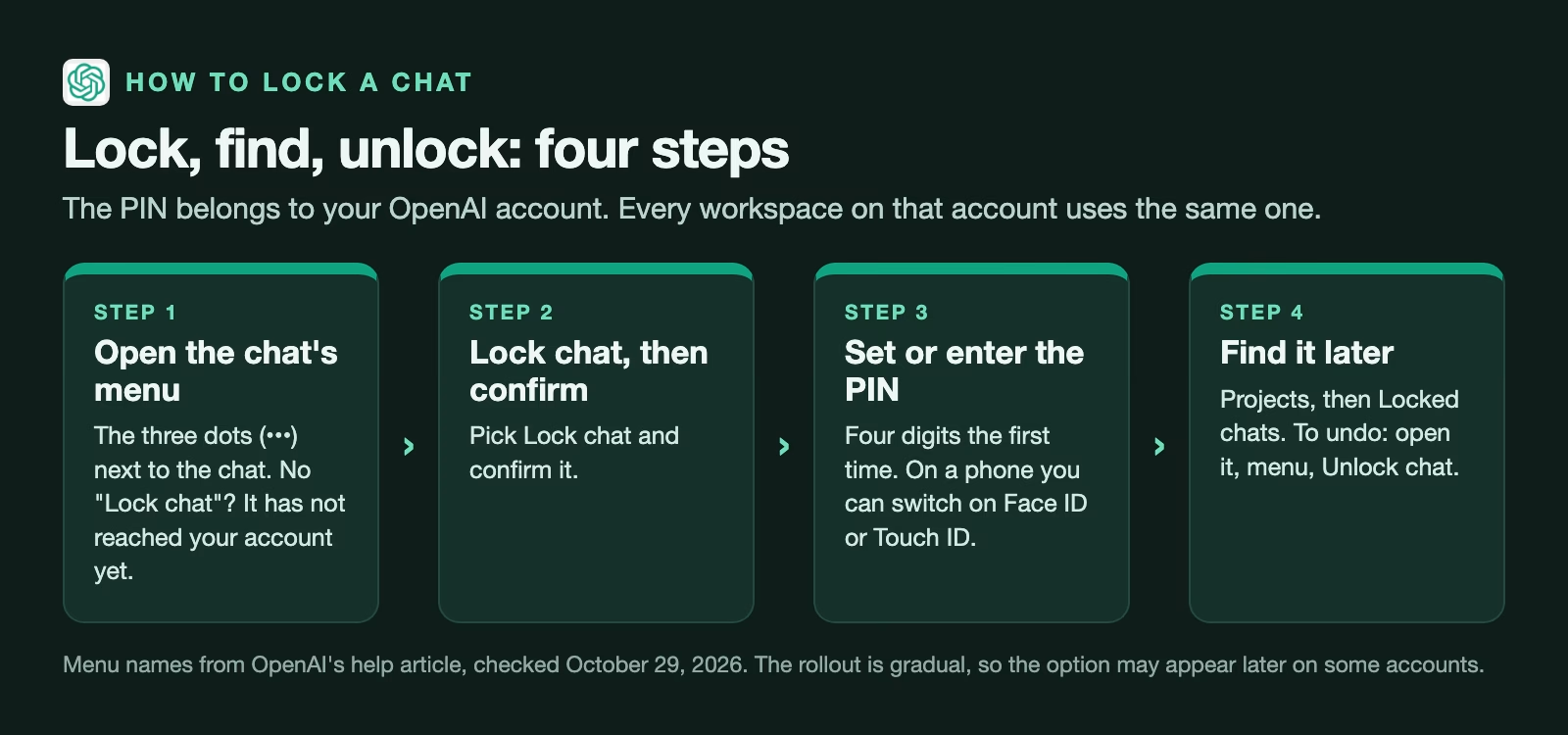
- Open the conversation and click or tap the three-dot menu (•••) next to it.
- Choose Lock chat, then confirm.
- The first time, create a four-digit PIN. After that, you type the PIN you already set.
- To find the chat later, go to Projects, then Locked chats, and enter your PIN.
To put a chat back in your normal list, open it, use the same three-dot menu, pick the option that removes the lock and confirm. Taking the lock off is worth doing once a chat stops being sensitive, because a locked chat cannot be found by search, and you will forget which locked chat held what.
Face ID and Touch ID
On a supported iPhone or Android phone you can open locked chats with your face or fingerprint instead of typing the PIN. That makes the lock less annoying, which matters, because a lock you find annoying is a lock you stop using. On iPhone the switch is in the Account PIN settings.
One PIN per account
The PIN belongs to your OpenAI account, not to a single workspace. If you use ChatGPT for both a personal plan and a company workspace on the same login, the same PIN opens locked chats in both. If you use two separate accounts, each one needs its own PIN.
Pick a PIN nobody in your house would guess. The year someone was born, 1234 and the last four digits of your phone number are the first things a curious person tries.
The PIN reset trap
Resetting your PIN permanently deletes every locked chat, every file you added to them and their memory. Engadget quotes OpenAI’s warning (October 20, 2026) that this cannot be undone and that OpenAI Support cannot recover the deleted content.
There is a difference between changing and resetting. Changing the PIN means you know the old one and pick a new one, and your locked chats stay. Resetting is what you do when you have forgotten it, and that is when everything behind the old PIN goes.
Two practical habits follow from this, and each takes a minute:
- Store the PIN in your password manager, the app that keeps your other passwords, the day you create it. Four digits feel easy to remember until you have not opened a locked chat for three months.
- If a locked chat holds something you would hate to lose, such as the final wording of a hard letter, copy that text somewhere safe as well. Treat the locked section as a drawer, not an archive.
Notebookcheck (October 21, 2026) adds that workspace administrators cannot reset the PIN for you either. That protects you from a nosy admin, and it also means nobody can rescue you.
How locked chats work with Memory
Memory is the ChatGPT setting that lets it remember details about you across conversations, such as your job or that you prefer short answers. With Memory switched on, locked chats get a memory of their own. New messages in a locked chat can add to that locked memory, and other locked chats can use it, but nothing flows back into the regular Memory your everyday chats use, as TechCrunch describes (October 20, 2026).
Here is the part people miss: locking a chat does not erase what Memory already saved from it. If you talked through the surprise trip in a normal chat on Monday and locked it on Wednesday, regular Memory may still hold “planning a trip to Lisbon for a 50th birthday”, and ChatGPT may bring it up in front of the very person you were hiding it from.
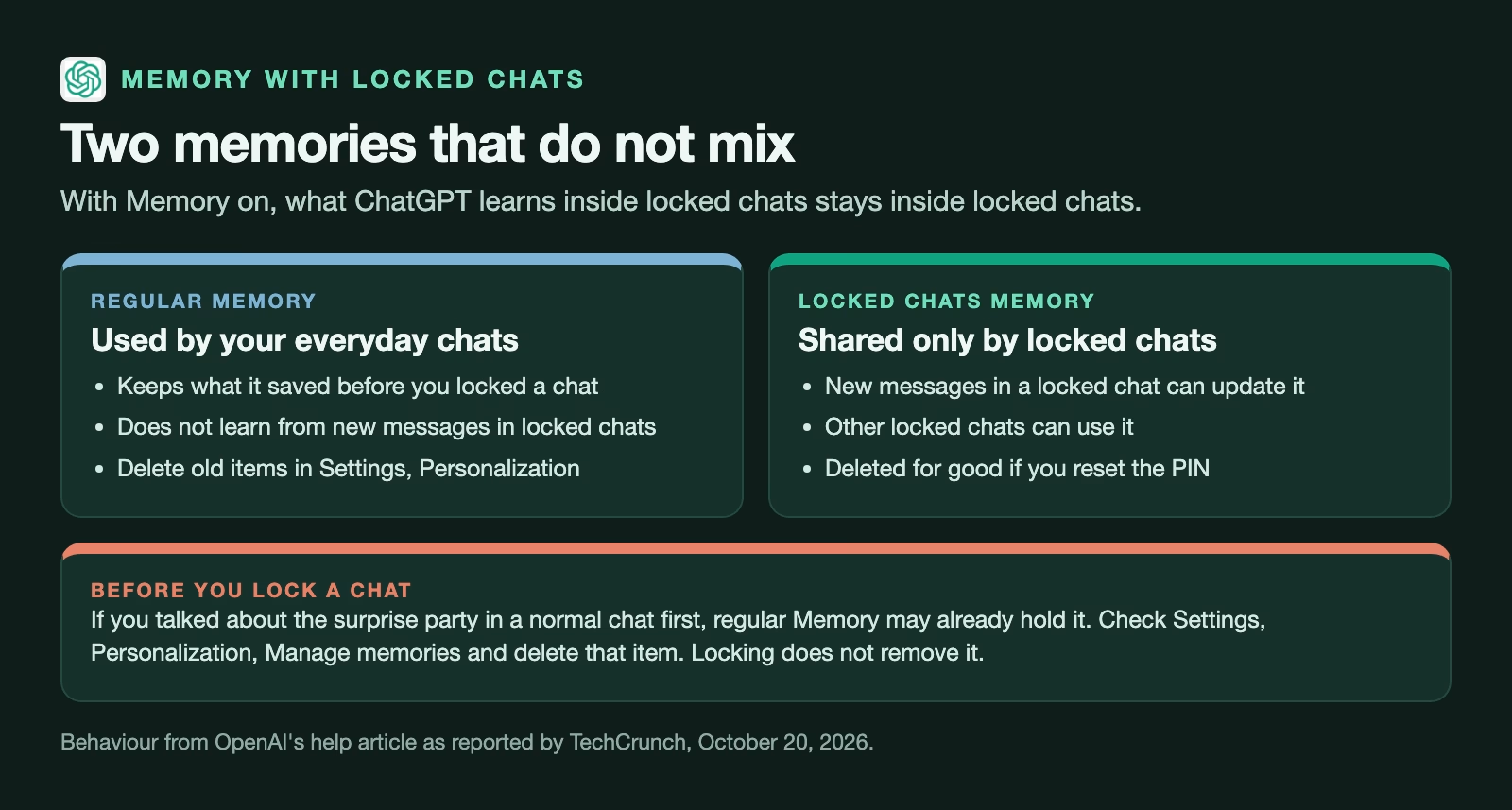
So before you lock a sensitive chat, open Settings, then Personalization, then Manage memories (the names can shift slightly between apps), look for anything that came from that conversation, delete it, and only then lock the chat. That order matters, because once the chat is locked you lose the easy way to see which memories it produced.
For a refresher on the difference between chat history, Memory and Projects, read how AI chat apps like ChatGPT remember you across chats.
What locking does not protect
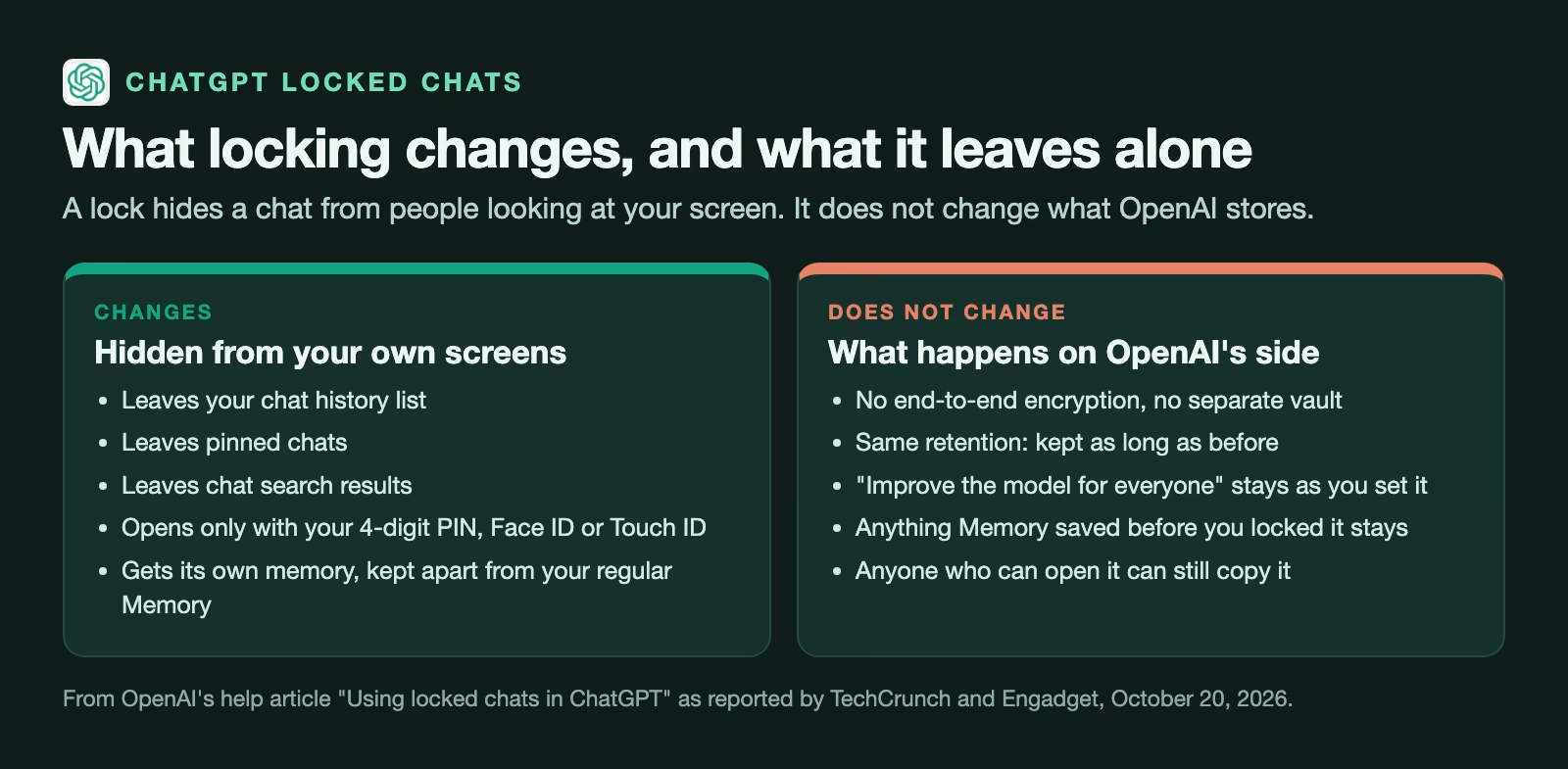
Locking is about who can see your screen, and it changes nothing about how OpenAI handles the conversation. Notebookcheck (October 21, 2026), quoting OpenAI’s help page, reports that a locked chat gets no encryption, keeps the same retention and keeps your training setting, and Engadget adds the point about legal duties. Here is each point in a bit more detail:
- No end-to-end encryption. End-to-end encryption means only you can read the content, not even the company running the service. Locked chats do not add that, and they do not create a separate encrypted vault.
- The same retention. OpenAI keeps a locked chat for as long as it would have kept an ordinary chat.
- The same training setting. The “Improve the model for everyone” switch, which decides whether your conversations can help train future models, is not changed by locking.
- The same legal duties. Engadget notes that locking does not let you avoid OpenAI’s legal obligations, such as responding to a court order.
- The same work records. On Enterprise and Edu plans, Notebookcheck reports that locked chats still appear in the message logs your company’s compliance team can review.
- Anyone who opens it can copy it. If you open a locked chat in front of someone, or someone learns your PIN, the lock does nothing.
The plain summary: lock a chat to keep it from the people around you. Do not lock a chat and then feel free to paste in things you were told never to paste into an AI tool. Our guide on ChatGPT privacy at work covers that question.
Chats you cannot lock
Some kinds of conversation do not get the Lock chat option. TechCrunch (October 20, 2026) lists the kinds of chat that do not get the option:
- Temporary chats, because they are not saved to history in the first place
- Archived chats (unarchive one first, then lock it)
- Group chats with other people
- Chats you started from someone else’s shared link
- Chats with scheduled tasks attached
- Chats that hold meeting recordings
Engadget adds that Codex conversations cannot be locked. If you share a chat by link and later lock it, think about the link separately: the lock hides the chat from your list, and anyone who already has the link is a different question. Check your shared links in Settings, Data controls, Shared links, and delete the ones you no longer need.
A worked example: one shared laptop, three chats
Let’s go back to the family laptop. You have three conversations you would rather your teenager did not read: the surprise trip, the landlord message and the medical bill. Here is how you would handle each one, and why the answer differs.
The surprise trip. You still need this chat, since you keep adding to the plan. Delete any Memory items about the trip first, then lock it. Done: it is gone from the sidebar and search, and the regular Memory will not bring it up.
The landlord message. You already sent the message, so you do not need the chat any more. Locking it would just leave clutter in the locked section, so delete it instead.
The medical bill. You only wanted one explanation of the codes on the bill and will never need it again. Next time, a Temporary Chat is the better tool, because it never lands in history. For the chat that already exists, deleting it is the simplest fix.
And one more step for the whole laptop: if more than one person in the house uses ChatGPT, give each person their own account. A lock helps with the occasional glance, while separate accounts mean there is nothing to glance at. Our guide on using AI safely with kids, family and shared devices walks through that setup.
Common mistakes
- Locking instead of deleting. A chat you are finished with is safer deleted than locked. Locked chats pile up, and a pile is harder to keep track of.
- Forgetting the PIN. A reset wipes everything, so save the PIN in a password manager.
- Locking before cleaning Memory. Memory items saved before the lock stay in regular Memory.
- Treating the lock as encryption. It hides a chat on your screen and nothing more.
- Assuming it covers work rules. If your employer forbids client data in ChatGPT, a locked chat is still a breach of that rule.
- Sharing one account. If two people use one login, both can see the Locked chats section exist, and one guessed PIN opens all of it.
Try it in five minutes
Lock one harmless chat first so you learn how the feature behaves before you rely on it:
- Start a chat about something trivial, such as a recipe, and ask a follow-up so it shows in your history.
- Lock it and set your PIN when ChatGPT asks for one. Save the PIN in your password manager right away.
- Search for a word from that chat. It should not show up in the results.
- Open Projects, then Locked chats, and check it is there.
- If you use ChatGPT on a phone too, check the chat is hidden there as well and try Face ID or Touch ID.
- Take the lock off and delete the chat.
Once that works, go through your real history and sort each sensitive chat into lock, delete or leave alone, using the worked example above.
Quick recap
- Lock a chat when someone may see your screen and you still need the chat.
- Delete Memory items from a chat before you lock it.
- Save your PIN somewhere safe: a reset deletes every locked chat for good.
- Use a Temporary Chat for one-off questions you never need again.
- Locking does not encrypt the chat, change retention or change the training setting.
- Give each person in the house their own account.
Sources
- OpenAI Help Center: Using locked chats in ChatGPT (steps, PIN, plans, what locking does not change; checked October 29, 2026)
- TechCrunch: ChatGPT now lets you lock your chats (October 20, 2026: where locked chats go, memory, chats that cannot be locked, plans)
- Engadget: ChatGPT now lets you lock sensitive chats behind a PIN (October 20, 2026: PIN reset warning, legal obligations, voice mode, Codex)
- Notebookcheck: ChatGPT can now lock chats behind a PIN, but they are not encrypted (October 21, 2026: encryption, retention, admins and PIN resets)
Keep going
Same lessons in your feed
Short diagrams, hooks, and weekly tutorials on Substack, Instagram, X, and Facebook.