A file you attached yesterday does not appear in a new, empty chat box. Files can sit in four different places: the chat itself, a project, the tool’s saved Memory (which only keeps sentences about the file), and your own Drive or Downloads folder. Hunt for the file in those places before you ask the model what the file said.
Say you are sure you attached Q3_forecast.xlsx yesterday, a 2.4 MB workbook. You remember the paperclip sitting next to your prompt, and you remember asking for a one-page readout. This morning you open a new chat on your phone, and the model quotes a number from the file, but there is no paperclip anywhere. Where did the file go, and does the model actually have it?
Four places, one filename
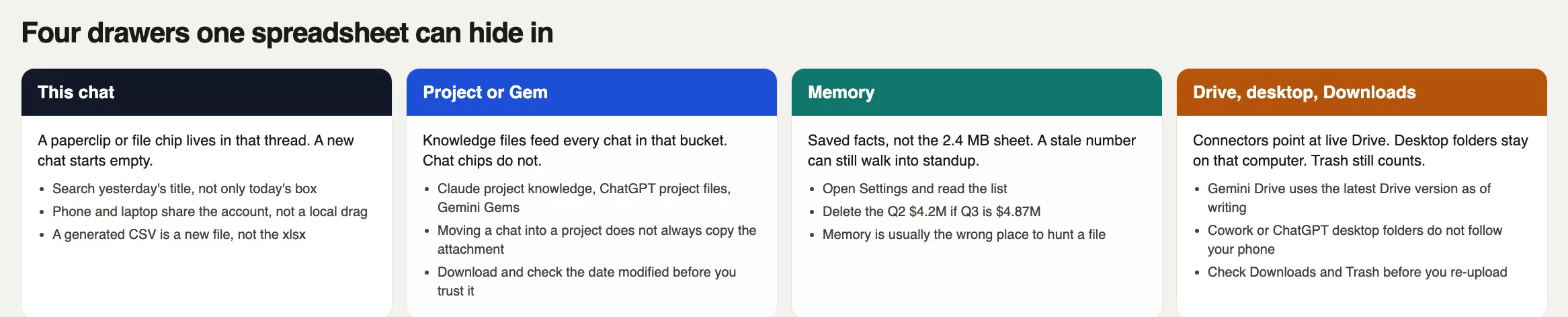
The paperclip looks like one button, but behind it sit at least four separate cabinets that do not share a catalog. Your 2.4 MB workbook can sit in yesterday’s chat, inside a project, as a saved fact in Memory, as a Drive shortcut, in a laptop folder you granted to the desktop app, or in Downloads. The product will not print a map of all that, so you have to walk it yourself.
A chat attachment is a file you clipped into one conversation. Scroll that thread and you should see a chip or a paperclip. On the same account later in the day, the chip is usually still on that thread, but when you open a new chat the chip is gone. That is why this morning’s box looks empty: the model did not inherit yesterday’s file.
A project file lives in Claude project knowledge, ChatGPT project files, Gemini Gem knowledge, or a similar workspace. It belongs to the job and not to one message, so chats inside that workspace can see it and chats outside it cannot. Moving a chat into a project does not always copy the attachment into the project’s knowledge, so look at the knowledge list.
Memory is a list of facts the product may keep across chats, such as your job title, your preferred tone, or “last quarter’s bottom line is $4.2M.” It is almost never the spreadsheet. In this story, the model quotes $4.2M because that sentence has been sitting in Memory since a summary chat last quarter, and the 2.4 MB workbook was never in that list. If you want the sheet, open the file.
Rule of thumb: If you cannot see a filename and a size, you do not have the file. A quoted number is a memory, a guess, or last quarter’s figure.
Yesterday’s thread and the empty box
Vendors train you to hit New chat, and New chat is a clean slate for the conversation. That makes it a poor place to look for yesterday’s workbook. Suppose your sidebar holds 14 threads, and the one you want is titled “Q3 dump (do not share)” because you renamed it, since the default title was “Help with spreadsheet” like every other dump. Search the sidebar for the filename first, and then for a word from the title you actually used.
On your phone, the same account usually shows the same threads, so opening yesterday’s chat there should show the paperclip. What will not follow you is a file you only dragged onto your laptop’s desktop, or a folder you granted to the desktop app. Say the Drive picker stalled, so you saved a copy to Desktop/Q3_forecast.xlsx and clipped that instead. The phone has no Desktop folder. The original in Shared Drive follows your Google account, but the desktop copy stays on the Mac until you put it somewhere shared.
Generated files confuse the hunt further. Yesterday the model may have written a one-page CSV (a plain spreadsheet-style text file) readout and offered you a download. That CSV is a new file. Depending on the tool, it may land in ChatGPT’s Library (a page at chatgpt.com/library that OpenAI’s help pages describe for uploaded and created files), in Downloads, or as a Claude artifact. Your standup needs the workbook, and the CSV is a derivative with a different date and a different size.
Project files and a paperclip
Claude’s help pages, checked in August 2026, say that anything you upload to project knowledge is used across chats in that project, and that context is not shared across those chats unless it sits in the knowledge base. So if a teammate drops the same workbook into a Claude project called “FY26 forecast,” new chats in that project can see it, and a standalone chat on your phone cannot. Archiving a project only hides it in the archived list. Deleting it (unarchive first, then delete) removes the knowledge, and removing one file from knowledge is the smaller move if you still want the project.
ChatGPT Projects keep a file list on the project, while chat attachments stay on the chat. Library is a third shelf: files you uploaded or the model created, which you can browse on the web, separate from the daily attachment limit. If today’s box has no paperclip, spend 30 seconds in Library and look for Q3_forecast.xlsx and for the readout CSV under a generated name. Delete what you did not mean to keep, so an old copy cannot answer for the new one later.
Gemini Gems take knowledge in two ways. If you upload from your device you get a snapshot, and if you add from Drive, Gemini uses the latest Drive version whenever the file changes. Your Shared Drive workbook is the live one. If you clip a stale export into a Gem, the Gem can keep arguing $4.2M while Drive already says $4.87M. Open Drive, check the modified time, and then decide which copy the Gem should hold.
Memory can quote a number without holding the sheet
This is the part that makes people think the file followed them. ChatGPT Memory, Claude memory on paid plans, and similar features store short facts. OpenAI’s Memory FAQ describes useful context taken from chats, files, and connected apps, plus a summary you can edit, and it says that to fully delete something you may need to clear it from the chats, the files, the summary, and the connected apps. Claude keeps project memory separate from non-project memory on the plans that have it. None of that is a folder of workbooks.
Now open Settings, then Memory. Suppose line 7 says “Last quarter’s bottom line is $4.2M,” because you said so out loud in a summary chat in June. This morning’s new chat had no paperclip, so the model reached for that saved line. The $4.2M sounded confident, but it was a quarter out of date. Delete the line and go back to the sheet. Stable facts belong in Memory (“I work in finance planning, write in bullets”), while a number that moves every close belongs in the workbook, which you attach when you need it.
Temporary or Private chats try not to file anything away, though the names move. Grok’s help pages describe Private Chat as history you cannot see, deleted from xAI’s systems within about 30 days unless a safety copy must be kept. That is the wrong drawer if you will need the attachment tomorrow, and the right one for a messy paste you do not want in Memory. A real forecast does not belong there.
Drive, desktop folders, Downloads, trash
Connectors are pointers, not copies. Gemini with Workspace connected can @ a Drive file. ChatGPT and Claude have offered Drive, Box, and similar connectors on some plans, and the labels move, so check Settings the week you rely on them. The live file stays in Drive, so if you delete it there, the chat cannot honestly claim it still has the 2.4 MB original. Disconnect the connector if you no longer want that product reading the folder, and remember that disconnecting is not the same as emptying the trash.
Desktop apps add a fifth physical place. Claude Cowork reaches local files through the Claude Desktop app, for folders you grant, and ChatGPT’s desktop work features can open a local folder after you permit it. Those files live on that Mac or PC and do not teleport to the thread on your iPhone. If you granted ~/Finance/FY26 on the laptop, a hunt on the phone will never see that path. Open the laptop, confirm the 2.4 MB file is still there, and decide whether your source of truth is Drive or the disk.
Downloads and trash are boring places, and they win a lot of hunts. Models offer “download this table,” and browsers drop it in Downloads as Q3_forecast.xlsx, Q3_forecast (1).xlsx, or export.csv. A frustrated click can also send the original to Trash. In this story you find nothing in Downloads and nothing in Trash, because the original never left Drive and the extra copy is still on the desktop. That gives you two real files, one Memory fact, and one missing paperclip, which counts as a successful hunt.
Hunt path when the paperclip is gone

Walk the places in this order, so you do not upload a third copy while the first two sit in Drive and on the desktop. Stop when you have a filename, a size, and a modified time that match.
- This chat: scroll for a paperclip. A brand-new thread will not hold yesterday’s sheet.
- Yesterday’s chat: search the sidebar for
Q3_forecastand for the title you used, then confirm the file is 2.4 MB. - Project, Gem, or Library: list the files, download one, and read its date.
- Memory: read the saved facts and delete the stale $4.2M. Do not expect a spreadsheet here.
- Connected Drive: open the live file, because its size and modified time beat whatever the chat quoted.
- Desktop app folder: this exists only on the computer where you granted it.
- Downloads, then Trash. Then stop, and re-attach on purpose if you still need the file in a new chat.
Paste this into a note and fill it in once. The goal is a location you can name, not a vague feeling.
FIND THE FILE
Name: Q3_forecast.xlsx
Size I remember: 2.4 MB
Vendor today: [ChatGPT / Claude / Gemini / Grok]
Date I think I attached: [Mon 4:17pm]
Account email: [the one I actually logged in with]

1. THIS CHAT
   Paperclip or file chip here? [yes/no]
   If no, this thread is new. Do not trust quoted numbers.

2. YESTERDAY'S CHAT
   Sidebar search: Q3_forecast
   Title I used: [Q3 dump (do not share)]
   Chip present, size matches 2.4 MB? [yes/no]

3. PROJECT / GEM / LIBRARY
   Bucket name: [FY26 forecast / none]
   File listed in knowledge or Library? [yes/no]
   Downloaded copy date modified: [____]
   Generated CSV or artifact (not the xlsx): [name or none]

4. MEMORY
   Stale fact that quotes a number? [e.g. $4.2M]
   Deleted or corrected? [yes/no]
   Memory is facts. It is not the workbook.

5. CONNECTED DRIVE
   Path: [/Finance/FY26/Q3_forecast.xlsx]
   Live size and modified time: [2.4 MB, Mon 3:51pm]
   Connector still on? [yes/no]

6. DESKTOP APP LOCAL FOLDER
   Computer: [my Mac]
   Granted folder: [~/Finance/FY26 or Desktop]
   File on disk? [yes/no]  (will not follow the phone)

7. DOWNLOADS + TRASH
   Downloads match: [none / Q3_forecast (1).xlsx]
   Trash / Recycle Bin: [empty / restored]

Found in: [drawer]
Action: [open that copy / re-attach on purpose / delete extras / fix Memory]
That checklist makes you write down a path. A filled-in copy might say “Found in: yesterday’s chat plus Drive plus Desktop. Memory had $4.2M. Phone chat had nothing.” Once you can say that out loud, the missing paperclip is explained, and you still get to pick which copy standup will use.
Where attachments live, by product
Screen labels move, so treat the table as a rough shape and click the vendor’s help page the week you hunt. The four places are the same, but the labels differ. The table reflects vendor help pages checked in August 2026.
| Product (hedge the label) | Where a chat attachment lives | Follows you across devices? | How to delete |
|---|---|---|---|
| ChatGPT-style | That thread’s chip. Project files on the project. Library on the web for uploaded and created files. | Logged-in web and apps share threads and Library. A desktop local folder stays on that computer. | Delete the chat, remove the project file, delete in Library, edit Memory in Settings. Connectors have their own disconnect. |
| Claude-style | That thread. Project knowledge is a separate list for every chat in the project. Cowork uses folders you grant on desktop. | Web, desktop, and mobile share account chats. Local Cowork folders do not follow the phone. | Remove the file from knowledge, delete the chat, delete the project (unarchive first if it is archived). Memory is per project vs outside it on plans that have memory. |
| Gemini-style | A chat upload sits on that chat. A Drive pointer tracks the live Drive file. Gem knowledge is upload snapshot or Drive, depending how you added it. | Drive files follow the Google account. A one-off device upload does not become Drive unless you put it there. | Remove the file from the Gem, disconnect Workspace in Gemini Apps, or delete the Drive file itself. Check Trash in Drive. |
| Grok-style | Chat on grok.com or the Grok app. Web file shelf at grok.com/files. API Files in the xAI console are a different product. | grok.com vs Grok inside X can be different doors. Confirm which account you used. Local files stay local. | grok.com/files, then Settings → Data Controls. Private Chat skips the sidebar. X-side deletion follows X’s help, not grok.com. |
Two extra things show up in bills and in hunts. The email you signed in with is the cabinet you search, as the earlier post on free and paid accounts explained. And the file storage behind developer keys (in OpenAI, Anthropic, and the xAI console) is not your consumer chat. If someone uploaded through a key, look in the console’s Files page, not in the phone app. In this story you did not have that problem. You had a new chat, a Memory line, and two real copies of the same 2.4 MB name.
Worked example: 2.4 MB, $4.2M, no paperclip
Here is the hunt on Tuesday morning, before standup. The filename is the same everywhere, but only two of these rows are the workbook.
| Drawer | What she found | The 2.4 MB xlsx? |
|---|---|---|
| This chat (phone, new) | No paperclip. Model said $4.2M. | No |
| Monday chat “Q3 dump (do not share)” | Paperclip, 2.4 MB, clipped at 4:17pm | Yes (a copy) |
| Library / generated | CSV readout from Monday, 18 KB | No |
| Memory | “Last quarter bottom line is $4.2M” | No (a fact) |
Shared Drive /Finance/FY26/ | 2.4 MB, modified Mon 3:51pm, $4.87M in cell B12 | Yes (source) |
| Desktop copy | Same name, same size, from the stalled picker | Yes (duplicate) |
| Downloads | Empty for that name | No |
| Trash | Empty | No |
The fix goes in a set order. First, delete the Memory line so $4.2M stops walking into new chats. Next, use Drive as the source of truth for standup, and attach that file (or @ it) in a thread you intend to keep, or put it in the FY26 project knowledge once. Then delete or rename the Desktop duplicate so next Monday’s picker cannot grab the wrong one. Leave the CSV labeled as a readout, or delete it if nobody needed the download. Do not start a third chat and re-upload “just in case,” because that is how you end up with Q3_forecast (1).xlsx in Downloads and a second Memory fact.
If you had been on Gemini with Drive connected, the right move would be to confirm the chat pointed at the live Drive file and read cell B12 yourself. If you had been in Claude Cowork on the Mac, you would open the granted folder and skip the phone hunt. The four places are the same and only the door differs.
Common mistakes
- Starting a new chat and treating a quoted number as proof the sheet is attached.
- Asking the model “where did you put my file?” instead of searching the sidebar, project list, Library, Drive, and disk.
- Confusing a generated CSV or artifact with the 2.4 MB workbook.
- Assuming Memory stores files. It stores sentences, and the $4.2M was just a sentence.
- Hunting on the phone for a folder you only granted to the desktop app.
- Re-uploading until you have Drive plus Desktop plus two chats plus Downloads, then not knowing which copy finance will audit.
- Deleting the chat and thinking Library, project knowledge, Drive, and Memory all went with it. They often do not.
- Mixing up grok.com, Grok inside X, and an API (the way one program asks another for data) file store, then searching the wrong door.
How to practice this week
Pick one real file you attached in the last seven days and fill in the checklist. You want a filename, a size, and one source of truth. If Memory has a number from that file, delete or correct the fact. If you find three copies, keep the Drive copy (or the shared disk) and remove the extras. The next post covers turning a messy folder into a working project, and the one before it covered uploading docs safely. For the bigger setup map, see AI setup from zero and Learn.
Quick recap
- Hunt in order: this chat, yesterday’s chat, project or Gem or Library, Memory, connected Drive, desktop folder, Downloads, trash.
- No paperclip in a new chat means you do not have the file, even if the model quotes $4.2M.
- Memory holds facts. Drive and disk hold workbooks. Desktop folders stay on that computer.
- Delete extras on purpose, and re-attach once into the thread or project you will actually open tomorrow.
Series notes
This is Part 3 of AI agents for everyone. Previous: Chat vs agent vs work mode. Next: Messy folder into a project.
Sources
Vendor help pages checked in August 2026. Labels move, so re-open the live page before you rely on a detail.
- OpenAI Help: File storage and Library in ChatGPT (uploaded and created files, Library on web)
- OpenAI Help: File uploads FAQ (chat vs custom GPT retention)
- OpenAI Help: Memory FAQ (saved facts vs chats, files, and connected apps)
- OpenAI: ChatGPT for macOS (desktop app; local folder behavior depends on the work feature you have)
- Anthropic Help: How can I create and manage projects? (project knowledge vs chats, archive then delete)
- Anthropic Help: Get started with Claude Cowork (desktop local folders you grant)
- Google Help: Use Gems in Gemini Apps (device upload vs Drive, latest Drive version)
- Gemini (app; re-check connectors in Settings)
- xAI: Grok website / apps FAQ (chat uploads, grok.com/files, Private Chat, Data Controls)
- Grok (consumer app; grok.com vs Grok-in-X are different doors)
- AMS: Memory, projects, and files across AI tools
Keep going
Same lessons in your feed
Short diagrams, hooks, and weekly tutorials on Substack, Instagram, X, and Facebook.