When you give a spreadsheet to an AI tool, it can travel in four different ways: pasted text, an uploaded file, a connected Google Drive, or a folder on your computer. Each way copies a different amount of your data to a different place. For most work, the safest habit is to paste a small summary and keep the full file to yourself.
Say you owe your boss a renewals chart before Friday’s forecast call. You already have the data: a 31 megabyte export from your CRM (the system your sales team uses to track customers), full of customer emails and private notes. The fastest move is to drag the whole file into ChatGPT on your free account and type “chart renewals by region, ignore the personal details.” Four bars come back, and the chart looks fine. Nothing feels wrong. The problem is that the emails and notes are now stored with a vendor, tied to an account that may not belong to your employer.
Four ways the same spreadsheet can leave your computer
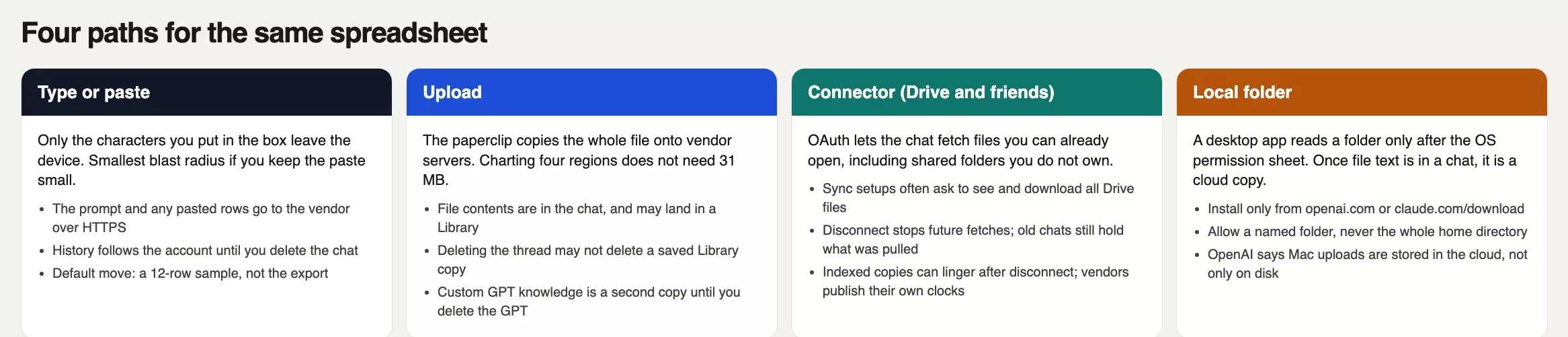
People say “I put the file in ChatGPT” as if that were one action, but it is really four. Typing or pasting puts only the characters you chose into the chat box. Uploading copies the whole file onto the vendor’s servers. Connecting Google Drive, OneDrive, or SharePoint lets the chat fetch any file you are already allowed to open. Pointing a desktop app such as ChatGPT for Mac or Claude Desktop at a folder lets it read your disk once you click Allow on the permission pop-up your computer shows. Each path puts a different amount of your data at risk, and in the CRM story the smallest one would have done the job: four typed totals.
The tool does not care that you “only wanted a chart.” ChatGPT, Claude, Gemini, and Grok will read whatever you hand them. Asking it to ignore the personal details is a wish, not a filter, because the model has already read the emails and the notes column is still sitting in the conversation. If the account allows the vendor to learn from chats, that content sits alongside everything else you typed. And if a teammate later opens a shared version of the chat, they can see it too.
Rule of thumb: If you would not paste the rows into a team chat channel, do not drop the file on the paperclip. Shrink the table until you would.
What leaves your device on each path
Pasting sends only the words you put in the box. The vendor still keeps a copy, but it is the smallest copy you can make on purpose. A 12-row sample with the emails scrambled counts as a paste, and so do four region totals. The full 31 megabyte file does not.
Uploading copies the whole file. Each vendor sets its own size limit, and the limit is usually generous, which is why a 31 megabyte file goes through without a warning. ChatGPT can keep attached files alongside the chat, and on accounts that have a Library (the list of files the app keeps for you), a saved copy can outlive the chat itself. Files you add as “knowledge” to a custom GPT (a ChatGPT version, GPT being OpenAI’s name for its models, with its own saved instructions and files) stay until you delete that GPT. Claude and Gemini also take attachments, and their rules differ, so read the tooltip on the paperclip the day you use it.
Connecting a cloud drive works differently: the original file stays in Google Drive or OneDrive, and the chat vendor gets permission to fetch or index files in that connection. OpenAI’s Google Drive connection has asked to “see and download all your Google Drive files.” That covers far more than one CSV (a plain spreadsheet-style text file). It covers everything your Google login can open, including a shared HR folder that someone set to “anyone in the company” years ago. You can disconnect later, but disconnecting does not undo chats that already pulled a file.
A desktop app reading a local folder is controlled by the permission pop-up on your computer. Click Don’t Allow and the app cannot see that folder. Click Allow and it can read what you pointed it at. OpenAI’s help page says files uploaded through the Mac app are stored in the cloud and tied to your account, just like the website. So once a file’s text is in a message, treat it as an upload that happened to start on your disk. Install these apps only from the official download pages at openai.com/chatgpt/mac or Anthropic’s site.
Who can see what you send
The first person is you, on whichever account you signed into. If your work laptop is signed into a personal Apple ID or a personal Gmail, the chat history is personal too, and your employer never sees it. Anyone who sits at your unlocked laptop and opens ChatGPT can read it as well. Family or team plans can add more viewers, so check who shares the workspace before you attach anything from your CRM.
The second audience is the vendor. Consumer chats are processed to answer you, and vendors also run safety checks on them. Some consumer plans may use your content to improve their models unless you switch that off in settings. Google says a sample of Gemini conversations can be read by human reviewers when Keep Activity is on, which is why Google’s own help pages tell you not to enter confidential information. Business plans, such as Team, Enterprise, Workspace, or the developer API (the way a program asks the model for answers), run under different contracts, and a free personal account is not one of them.
The third audience is everyone the file was already shared with. A Drive connection does not invent new permissions and does not hide old ones, so if you can open the HR drive, the connection can too. Simple as that. Overshared folders become easy to find once someone can simply ask a chatbot to look. A shared chat link is another audience: if you send the link, you have sent the CSV. Custom GPTs with file knowledge are a fourth. Temporary Chat in ChatGPT and Incognito in Claude keep the chat out of your history and, according to the vendors, out of model improvement. They do not make a 31 megabyte customer export a good idea, but they make a small paste less sticky.
Training and retention settings to check
Vendors rewrite their data policies often, so do not memorize the day counts below as a promise. The dates here come from the vendors’ help pages in August 2026. Open the setting yourself before you send anything you would hate to see again. On a free personal account, assume the content can be stored with your account and used to improve models until you confirm otherwise in Settings.
ChatGPT, personal accounts
Go to Settings, then Data Controls, and look for “Improve the model for everyone.” Turn it off if you do not want new chats used that way. Temporary Chat stays out of your history and is not used to improve models, though OpenAI describes keeping a limited safety copy for up to 30 days. Regular chats stay until you delete them, and after you delete a chat or file, OpenAI’s retention page describes removal within 30 days unless it must be kept for legal or security reasons. The Library is a separate shelf: deleting the chat may not delete a saved file, so check the Library as well.
Claude, personal accounts
The switch lives in the privacy settings on claude.ai, under the option to help improve Claude. Anthropic’s privacy center says a deleted conversation leaves your history right away and is removed from back-end storage within 30 days. If you allow chats to improve Claude, Anthropic describes keeping de-identified data in its training pipelines for up to five years. Incognito chats are not used to improve Claude, even when the improvement setting is on. Read their page the day you attach a file.
Gemini, Grok, and work plans
Personal Gemini at gemini.google.com uses a setting called Keep Activity. When it is on, your chats and files land in your Gemini activity history and, according to Google’s privacy hub, can be used to improve services, including through human reviewers. When it is off, Google’s Gemini privacy hub says chats are still kept with your account for 72 hours so Gemini can respond and protect the service (as of October 2, 2026). Workspace Gemini is a different contract: your company’s admins set the retention rules, and Google says customer content is not used to train its models without permission. Do not mix a personal Gemini account with a work Drive.
Grok at grok.com has its own privacy policy and a Private Chat mode, and xAI’s FAQ tells you not to put sensitive information in your questions. Open Settings on grok.com and read it there, because a toggle name from ChatGPT will not match. Paid business plans usually default to not training on your data, though admins can still see and keep workspace content. If your company already pays for Team or Workspace, use that account for work files, and even then send a snippet.
Paste a small summary, not the export
The chart you wanted was only four bars: West, Central, East, and International. A 20-second pivot table in Google Sheets gives you the region, the count of closed-won deals, and the sum of arr_usd (annual recurring revenue in US dollars). Paste those four rows and the model can draw the chart. It does not need customer mobile numbers, and it does not need the note saying who a buyer is married to. The job is a chart, so feed it chart-sized data instead of the CRM.
Sometimes the shape of a row matters, for example when the model keeps inventing a fifth region or wants to see how renewal_date is spelled. In that case paste 12 to 50 rows with the real column names and fake identifiers. Replace emails with something like west01@example.com and blank the notes column. If you cannot blank the notes because the task is “summarize the notes,” that task does not belong in a free personal chat. Do it in Sheets, or on a work plan your IT team has approved, or not at all. Temporary Chat or Incognito is a second seatbelt after you shrink the data, not a replacement for shrinking it. Keep shared chat links off, and keep custom GPT knowledge off for CRM data.
A worked example with toy numbers
These numbers are made up for teaching. The file on disk was 31 megabytes, and the useful table was four rows. The table below compares the four paths so you can see what each one leaves behind and how to clean up afterward.
| Path | Leaves the device? | Who can see? | Delete path |
|---|---|---|---|
| Type or paste | Yes: the characters in the box. You could have pasted 4 region totals. | You, the vendor, safety systems, training if the consumer toggle is on, anyone with the shared chat | Delete the conversation. Use Temporary or Incognito if the product has it. Export first if you need a copy. |
| Upload (paperclip) | Yes: a full copy of the file on vendor servers. 31 MB fit under common per-file caps. | Same as paste, plus Library or GPT knowledge if those shelves exist | Delete the chat and check Library / GPT knowledge. Vendor help describes further backend deletion on a published clock after that. |
| Connector (Drive, OneDrive, SharePoint) | Original can stay in Drive. A fetch or index copy can sit with the chat vendor. | You, the vendor, Google or Microsoft already, workspace admins, anyone the Drive file is shared with | Disconnect the app. Delete chats that already pulled the file. Disconnect does not rewind old threads. |
| Local folder (desktop app) | Folder stays on disk until the app reads a file into a chat. That read is then a cloud copy. | You, the vendor once content is in a message, anyone with the unlocked laptop | Revoke the operating system permission. Delete chats that read files. Do not assume it stayed on the Mac. |
This is what you should have pasted instead. Four rows are enough for the four bars:
| region | n_renewals | arr_usd |
|---|---|---|
| West | 48 | 412000 |
| Central | 31 | 266000 |
| East | 22 | 198000 |
| International | 9 | 87000 |
The paperclip is not the only way this goes wrong. Now imagine a teammate skips the CSV and connects Google Drive instead, so she “doesn’t have to upload.” ChatGPT asks to see and download every Drive file on her work Google account, and she clicks Allow in the middle of a meeting. That grant includes a shared folder called People_ops_archive, which she can already open because somebody set it to the whole company in 2024. She asks the chat to find the renewal export, and it does. It also lists three offer letters sitting in the same folder. She disconnects that night, but the earlier chat with the big attachment is still in your sidebar. That is two paths, one CRM, and more people with access than anyone intended.
A keep-or-send checklist

Copy this into a short team note and fill in the brackets before anyone clicks the paperclip.
KEEP vs SEND (fill before attach)
Job in one line: [four-bar renewals by region]
Grain: one row = [one closed-won deal] or [one region total]
Columns the chart needs: [region, n_renewals, arr_usd]
Columns we will not send: [email, mobile, notes, owner_home_address]
Row count we will send: [4 totals] or [12-50 hashed sample]
Path we will use: [paste / upload / connector / local folder]
Training toggle checked (date): [ChatGPT Improve the model: OFF, 2026-08-20]
Chat mode: [normal / Temporary or Incognito]
After: [delete chat] [check Library] [disconnect Drive] [revoke Mac folder]
Owner: [your name]
Hot files that stay on disk: Closed_Won_FY26.csv (31 MB), People_ops_archive/
The checklist works because it forces you to name the data you need before you reach for the paperclip. If the job is four bars, you send four rows, and if you cannot name the columns, you are not ready to send anything. Paste is the default that works. It should be your default on personal plans even after you start paying, because a paid plan buys higher limits and better models, not a good reason to upload a CRM dump.
Mistakes that come up again and again
- Uploading the full export because the paperclip was closer than a pivot table.
- Writing “ignore the personal details” and treating it as a filter, when the file is still in the chat.
- Connecting a work Drive to a personal free or Plus account so you “don’t have to upload.”
- Clicking Allow on “see and download all your Google Drive files” without reading what it covers.
- Pointing the Mac app at your whole home folder because the permission pop-up was in the way.
- Deleting the chat and assuming the Library, custom GPT knowledge, and Drive index disappeared with it.
- Trusting a $20 plan as a privacy plan, when Plus and Claude Pro still have personal training settings you need to check.
- Sharing the chat link in Slack, which shares the CSV too.
How to practice this week
Pick one real chart you already owe someone, and leave the paperclip alone. Build the smallest table that answers it, such as four region totals or 12 rows with scrambled emails, and paste that. Draw the chart, then open Settings and screenshot the training toggle for the vendor you use. If a Drive connection or a desktop folder permission is on, disconnect or revoke anything wider than one named folder of harmless notes. Delete the practice chat when you finish, and glance at the Library if ChatGPT has one. When you are ready for the next step, read Prompting for everyone. Working with files as a craft is covered in AI for files and office work, and the rest of the path is on Learn and Practical AI.
Quick recap
- Type, upload, connect, and local folder are four different paths. Know which one you are on.
- Paste a small summary, such as the four totals, and keep the 31 megabyte export on your computer.
- Check the training setting the same week, and use Temporary or Incognito for anything sensitive.
- After you finish, delete the chat, then the Library copy, custom GPT knowledge, the Drive connection, and the folder permission.
- Work CRM data belongs on a work account your IT team approved, and even there you send a snippet.
Series notes
This is Part 5 of AI setup for everyone (files and uploads). Related: Personal vs work accounts, Uploading docs safely.
Sources
Vendor help pages checked in August 2026. Re-open the live page before you treat a time limit as policy.
- OpenAI: File Uploads FAQ (size caps, how files vs chats are kept)
- OpenAI: Chat and file retention policies in ChatGPT (delete vs Library, Temporary Chat clock)
- OpenAI: How your data is used to improve model performance (the consumer training toggle)
- OpenAI: File storage and Library in ChatGPT (chat delete is not always file delete)
- OpenAI: How is data retained in the macOS app (cloud copy of Mac uploads)
- OpenAI: Connectors in ChatGPT
- OpenAI: Google app for ChatGPT, data controls (disconnect and indexed copies)
- OpenAI: Temporary Chat FAQ
- OpenAI: ChatGPT for Mac (official desktop download)
- Anthropic Privacy Center: How long do you store my data? (consumer deletion and training clocks)
- Anthropic: Updates to consumer terms
- Google: Gemini Apps Privacy Hub
- Google: Manage and delete your activity in Gemini Apps (Keep Activity)
- xAI: Privacy policy
- xAI: Consumer FAQs
- AMS: AI for files and office work
- AMS: AI setup from zero
Keep going
Same lessons in your feed
Short diagrams, hooks, and weekly tutorials on Substack, Instagram, X, and Facebook.