
Copilot in Excel can now save a task you repeat every month as a skill, a stored set of instructions it follows the same way each time, and the new Skill builder writes that skill for you from your own steps. The part that makes it safe is testing the skill on a month you already did by hand, and fixing the instructions until every number matches.
Imagine you build the same sales summary on the first working day of every month: export the orders, remove the test orders, total by region, compare with last month, and format it for your manager. You have asked Copilot to help a few times, but each month you type the instructions slightly differently and get a slightly different table. A skill fixes that, because Copilot reads the same instructions every time.
This guide covers what a Copilot skill is, the skills Microsoft already ships, how to build your own with Skill builder, how to test it against a month you trust, and how to keep it accurate as your data changes. For skills in general, across ChatGPT, Claude and Gemini, see what AI skills are and how to turn your best prompt into one.
What a Copilot skill is
A skill in Copilot for Excel is a folder in your OneDrive that holds one instruction file, and Copilot reads that file whenever the task comes up. Microsoft’s support page on Copilot skills in Excel (checked October 29, 2026) describes skills as a way to give Copilot information for repeatable tasks, such as reconciling accounts, analyzing data and formatting workbooks.
The instruction file is always called SKILL.md, and the “.md” means Markdown, a plain-text format where a few symbols mark headings and lists. The file has two parts: a short header with a name and a description, and then your instructions in plain words.
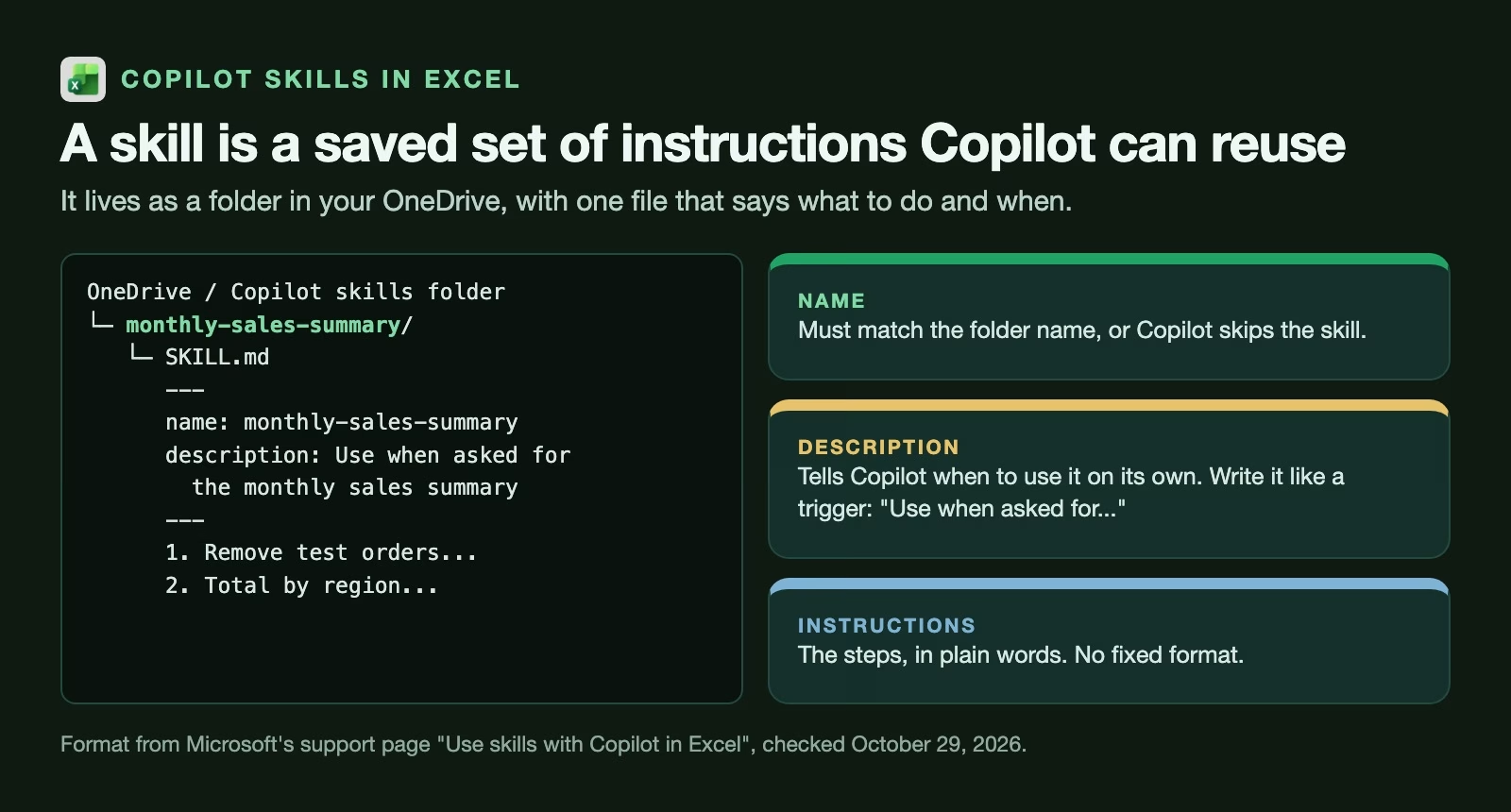
The description matters more than it looks, because it is how Copilot decides, on its own, whether this skill fits the request in front of it. Write it as a trigger, such as “Use when asked for the monthly sales summary from the Orders export”, not as a label like “Sales stuff”.
You can also call a skill by name. Type @ followed by the skill’s name in the Copilot prompt box, and Copilot uses that skill whether or not it would have picked it.
The skills Microsoft already ships
Before you build your own, check the ones that come with Copilot. Microsoft’s page on built-in skills (checked October 29, 2026) lists general skills for cleaning data, charts, brand formatting and themes, a set of accounting and finance skills, and Skill builder itself.
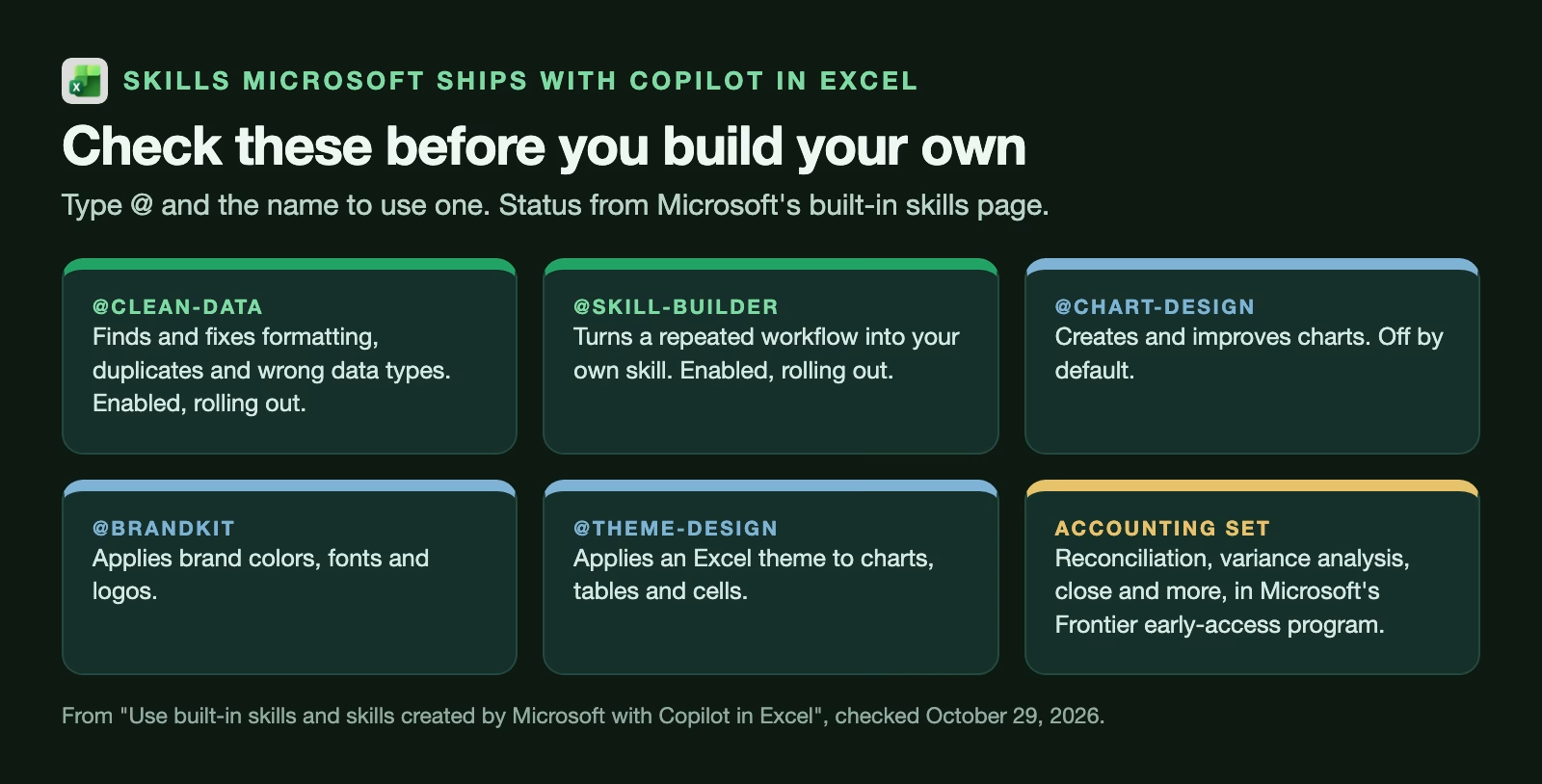
Two are worth trying first, and both save time on monthly reports. @clean-data fixes common problems such as stray spaces and numbers stored as text; our guide on cleaning messy Excel data with Copilot’s Clean Data shows how to check what it changes. @chart-design is off by default, so you need to switch it on before Copilot will use it unprompted.
The accounting skills, such as reconciliation and variance analysis (explaining why actual numbers differ from the budget), are rolling out through Microsoft’s Frontier program, its early-access track, so many accounts will not see them yet. Microsoft’s page also says that Copilot’s accounting and tax output is not professional advice and should be checked before you rely on it.
How to build a skill with Skill builder
Skill builder is itself a skill, @skill-builder, that writes a new skill from what you show it. Microsoft’s built-in skills page (checked October 29, 2026) says it can work from your instructions, prompts you used before, examples of finished work, or a multistep job you have just done with Copilot. Microsoft’s October “What’s New in Excel” post says it began rolling out to everyone that month, and the support page still notes it may not reach every account straight away.
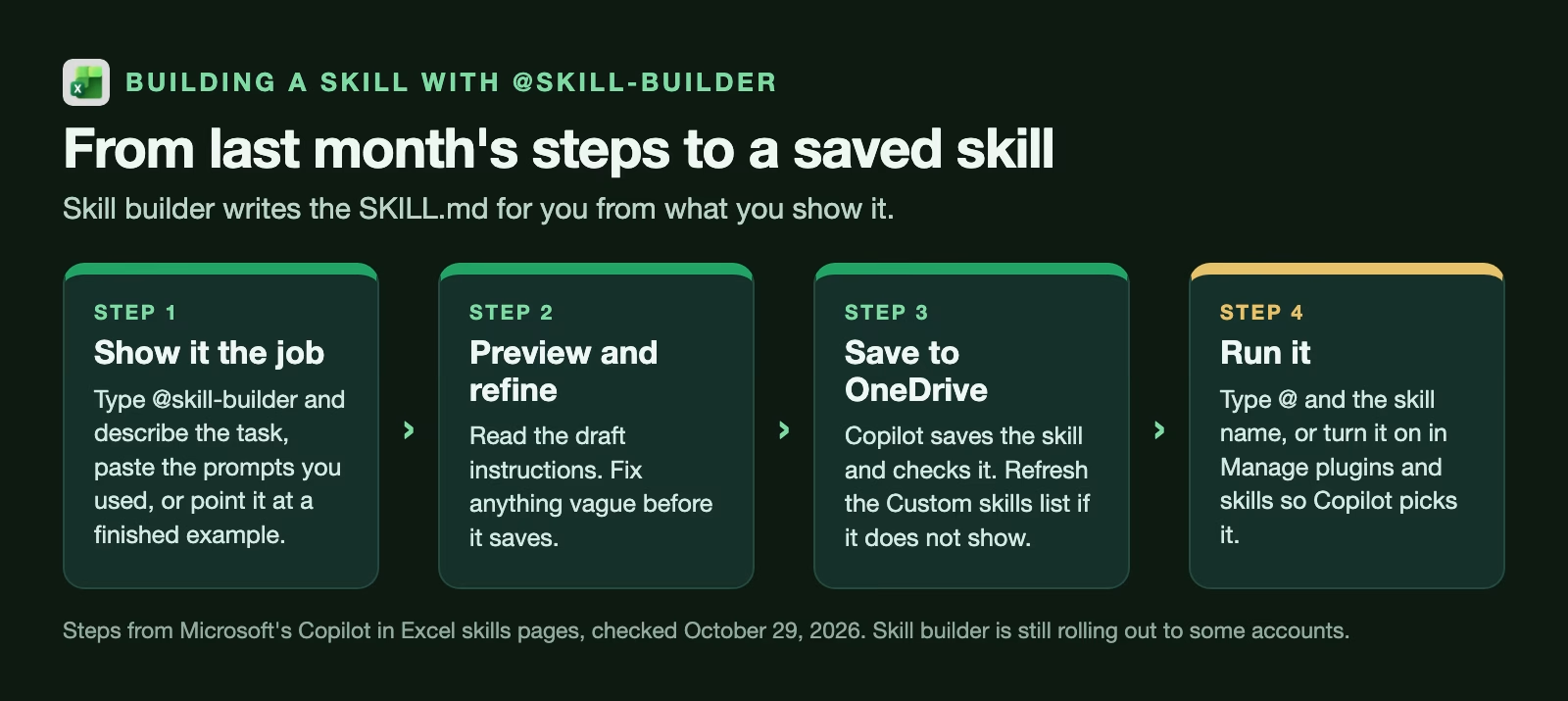
Here is the process for the monthly sales summary.
- Do the job once with Copilot, step by step. Open last month’s export and ask Copilot for each step in turn: remove rows where the order type is Test, total sales by region, add a column comparing with the previous month. Doing it in steps lets you check each one, and gives Skill builder a clean record to learn from.
- Call Skill builder. In the same Copilot pane, type
@skill-builderand ask it to turn what you just did into a skill calledmonthly-sales-summary, used when someone asks for the monthly sales summary from the Orders export. - Read the preview line by line. Skill builder shows the draft before it saves. Check that every step is there in the right order, that column names match your sheet exactly, and that nothing depends on last month’s dates. Ask it to fix anything vague.
- Approve it. Copilot saves the skill to your OneDrive skills folder and checks it. If it does not appear in the list, open Settings (the three dots at the top of the Copilot pane), then Manage plugins and skills, then Custom skills, and click Refresh.
What a finished skill looks like
You can open the file in your OneDrive and read it. A good one for this job looks something like this, and you can edit it by hand at any time:
---
name: monthly-sales-summary
description: Use when asked for the monthly sales summary from the Orders export sheet.
---
1. Work on the sheet named Orders. If a column named Order type, Region, Order date or Amount is missing, stop and say which one.
2. Remove rows where Order type is Test, in any capitalization.
3. Keep only orders whose Order date falls in the month the user names.
4. Total Amount by Region and add a grand total row.
5. Add a column with last month's total for each Region and the change in percent.
6. Put the result on a new sheet named Summary, formatted as a table.
7. List every row you removed and why, below the table.
Each numbered line is one step Copilot will follow, in order. The header at the top is what Copilot reads first to decide whether the skill applies; the numbered steps are what it does once it has. The last step asks Copilot to list what it removed, which turns a silent change into something you can check.
How to test a skill before you trust it
Run the new skill on a month you already did by hand, and compare every total. A skill is only as good as its instructions, and the first draft usually misses a rule you apply without thinking.
Pick a month whose numbers you trust, ideally one your manager already signed off. Build the totals the old way, with a PivotTable (Excel’s built-in summary table), then open a fresh copy of that month’s export, type @monthly-sales-summary and compare.
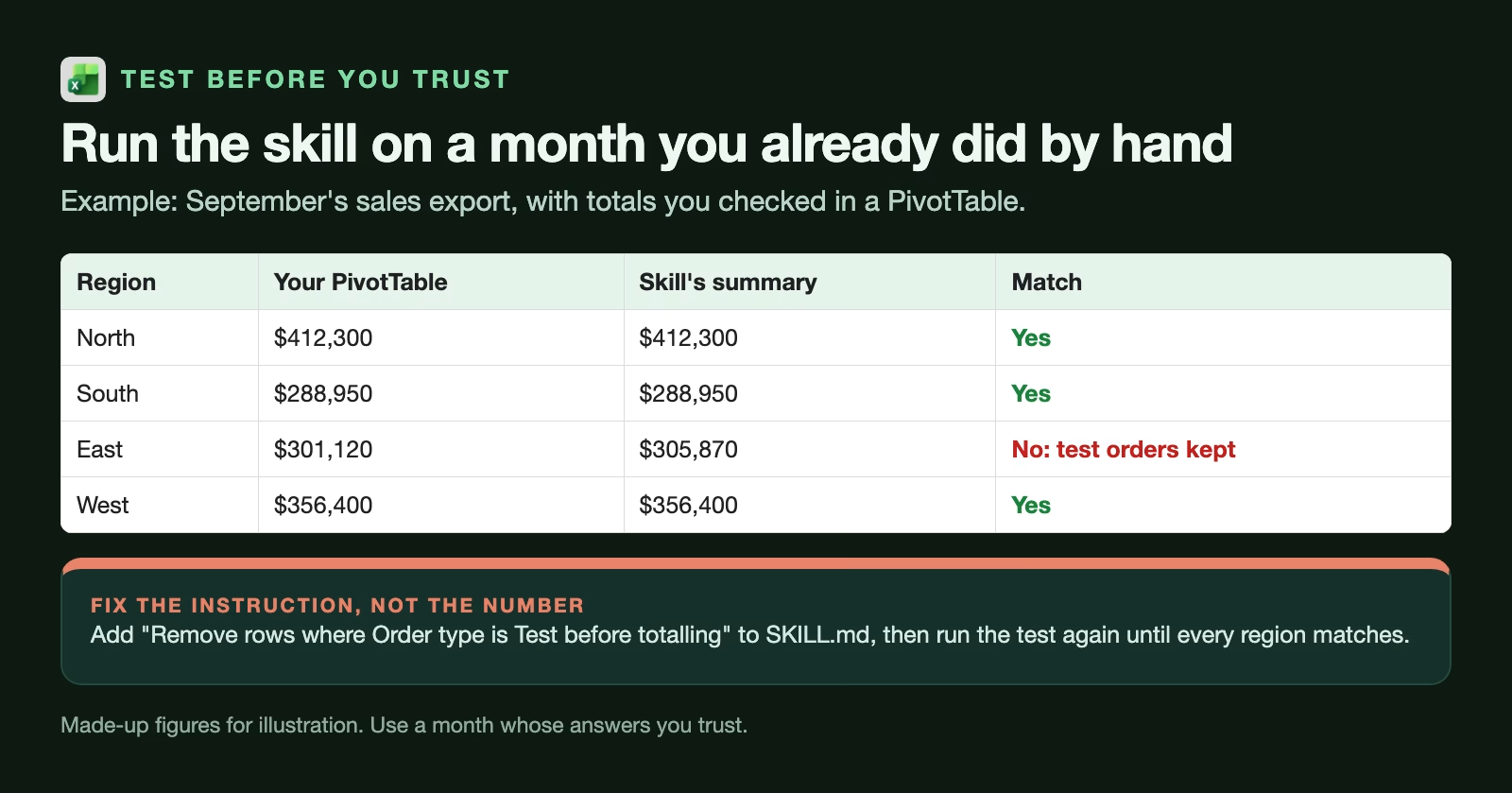
In this example three regions match and East does not: the skill’s East total is $4,750 higher. The reason is that some test orders in that month were labeled “TEST” in capitals, and the instruction only said “Test”. The fix is to change the instruction, not the number: “Remove rows where Order type is Test, in any capitalization.” Run the test again until every region matches.
Two habits make this test worth the time:
- Test on a copy. Skills can change your workbook, so keep the original export untouched.
- Keep the test month. Save the export and your hand-built totals as a test file. Every time you edit the skill, rerun it on that month first.
Keeping a skill accurate
A skill follows its instructions exactly, so when your data changes, the skill needs to change too, and three kinds of change catch people out.
Column names change. If the export renames “Order type” to “Order category”, the skill’s step to remove test orders quietly stops working. Ask the skill to stop and tell you if a named column is missing, as in the example file above.
New rules appear. Finance decides that refunds should be shown separately. Add the rule to the skill the same week, and rerun your test month.
You share it. Microsoft’s support page says the skill lives in your OneDrive, and organizations can also provide custom skills. If a colleague copies your skill folder, they also copy any rule that only made sense for your data. Walk them through the test month before they rely on it.
When a skill is the wrong tool
A skill is best for a task that follows the same steps every time, on data that arrives in the same shape. Some monthly jobs do not fit that pattern, and forcing them into a skill gives you a tool that is right most months and quietly wrong the rest.
If the steps depend on judgement, such as deciding which customer complaints deserve a mention in the summary, keep that part for a person and let the skill do only the mechanical steps around it. If the source file changes shape every month because three different people export it in three different ways, fix the export first; no instruction file can guess which column someone renamed this time. And if the whole job is one formula or one PivotTable, a saved template workbook is simpler and easier for a colleague to understand than a skill.
A useful test: could you write the steps on one page for a new colleague, and would they get the same totals as you? If yes, it will make a good skill. If you keep writing “it depends”, it will not, at least not yet.
Common mistakes
- Building a skill for a task you have done only once. You do not know its edge cases yet, so do it by hand twice first.
- A vague description. Copilot may pick the skill at the wrong time, or never, so say exactly when to use it.
- Column names that do not match. Copy them from the sheet, character for character.
- Skipping the test month. A skill that looks right on screen can still drop rows.
- Letting it change data silently. Ask it to list every row it removed or changed.
- Assuming built-in skills are on. Some, such as
@chart-design, are off until you switch them on.
Try it this week
- Pick one Excel task you do at least monthly and have done by hand at least twice.
- Do it once with Copilot, step by step, and check each step.
- Ask
@skill-builderto save it, and read the preview before you approve. - Run the skill on a month you already finished and compare every total with your PivotTable.
- Fix the instructions until every number matches, then keep that month as your test file.
Quick recap
- A Copilot skill is a
SKILL.mdfile in a OneDrive folder, with a name, a description and instructions. - The description decides when Copilot uses the skill on its own;
@namecalls it directly. @skill-builderwrites a skill from your steps, prompts or finished examples, and shows you a preview.- Test every new skill on a month you already did by hand, and fix instructions, not numbers.
- Update the skill when columns or rules change, and rerun the test month.
Sources
- Microsoft Support: Use skills with Copilot in Excel to complete repeatable tasks (what skills are, @mentions, SKILL.md format, OneDrive folder, Manage plugins and skills; checked October 29, 2026)
- Microsoft Support: Use built-in skills and skills created by Microsoft with Copilot in Excel (built-in skills, skill-builder, rollout status, accounting skills; checked October 29, 2026)
- Microsoft Excel blog: What’s New in Excel (October 2026) (Skill builder rollout in October 2026)
Keep going
Same lessons in your feed
Short diagrams, hooks, and weekly tutorials on Substack, Instagram, X, and Facebook.