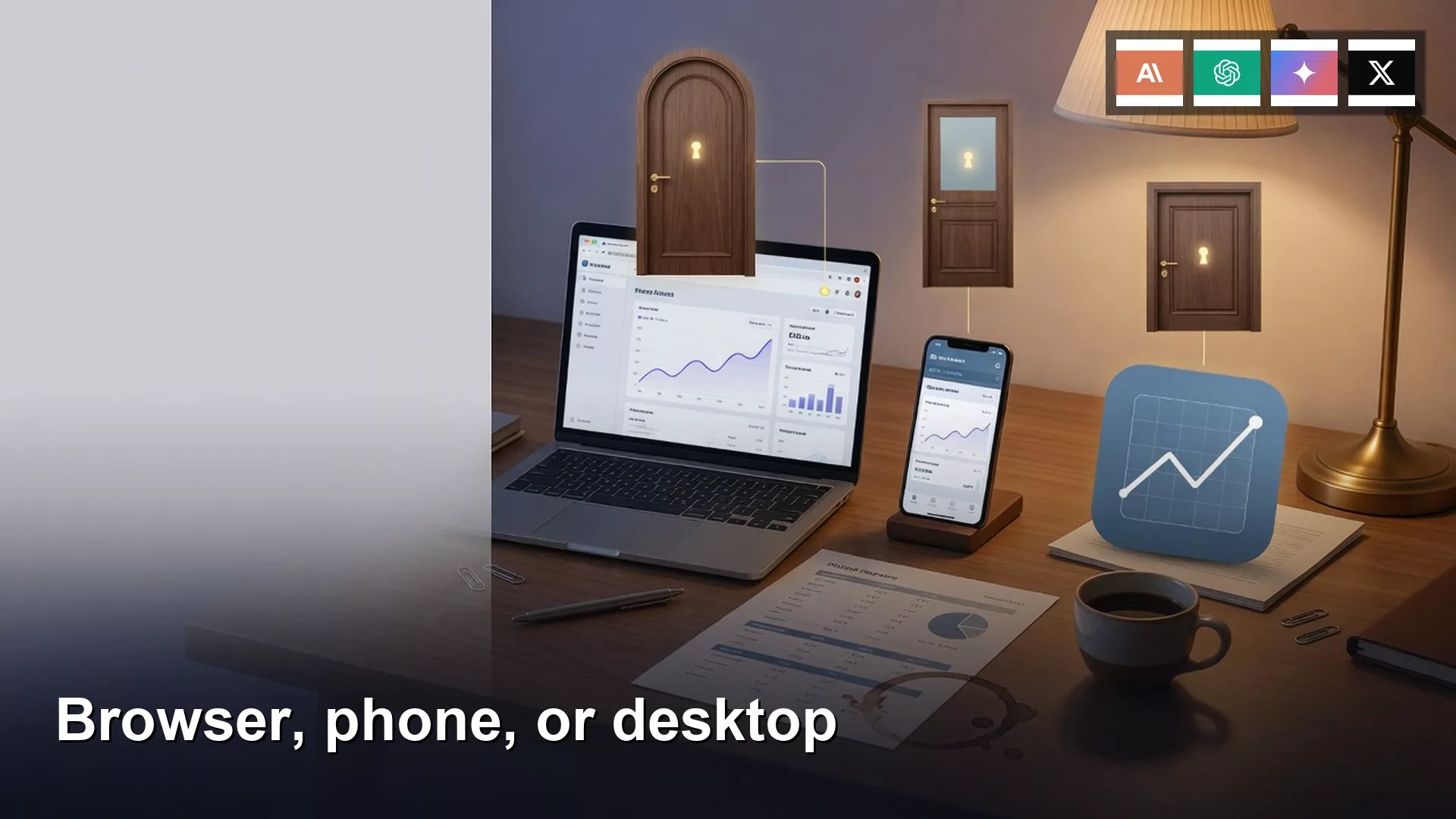
The vendor’s website is the complete product, and the phone and desktop apps are companions to it. The phone app is best for voice, the camera, and quick notes, so choose the window that fits the job, and make sure every window is signed in to the same account.
Say your partner asks twice in a Slack thread where the client recap is. You wrote it that morning on chatgpt.com: 1,847 words, three numbered next steps, and the client’s name spelled right. It is not where you left it, because you later opened the ChatGPT app on your Mac, which was signed in to a different account. The recap is sitting in a list you cannot see, and a weaker, 400-word rewrite is the only thing in front of you.
Three windows, one account

A “surface” is just the window you use to reach the tool. ChatGPT has chatgpt.com, an iPhone app, an Android app, and desktop apps for Mac and Windows. Claude has claude.ai, phone apps, and Claude Desktop, which you should download from Anthropic and not from a random blog. Gemini lives at gemini.google.com/app and has a phone app of its own. Grok lives at grok.com and also inside X. The product is your account, and the windows are only different ways to reach it. You do not need all three windows on day one, but you do need one window tied to the email you picked in the earlier post on accounts and payments.
Rule of thumb: If the sidebar does not match the one on your other device, stop typing, because you are signed in to a different account.
The website is the complete product
Start on the vendor website, on a laptop. The website is still where the admin screens live, and the apps only catch up later, so the website is what you can count on. That covers billing, the plan name, invoices, seats for a team or workspace plan, memory switches, the screen that creates Custom GPTs on ChatGPT (your own saved versions of ChatGPT with set instructions), project instructions, scheduled tasks, and the full model picker. Bookmark chatgpt.com, claude.ai, gemini.google.com/app, or grok.com. It is worth thirty seconds. That bookmark is your home base even after you install the apps.
If you only ever open the iPhone app, you miss the boring screens that save you later. You will not see that your Plus plan is already paid for on a credit card, and you will not find the GPT you built for client recaps. The “Manage subscription” button lives under Settings on the website. A first draft of a writing job, like the ones in the post on using AI for writing and questions, belongs there too. A 1,847-word recap wants a keyboard, so use the phone only to patch a sentence.
The phone is for voice, camera, and the train
The iPhone or Android app is a pocket tool. It works well for voice while you walk to the car, or a camera photo of a whiteboard after a meeting or of a slide that will never be emailed. It suits a 90-second reply while you stand in line for coffee, or finishing one sentence on the train. A photo of the whiteboard beats typing twelve sticky notes later. Keep those turns short. If the reply needs a table, a Custom GPT, or a look at billing, wait for the laptop.
A billing trap lives here. The ChatGPT app and the Claude app will offer you Plus or Pro inside the store, and then Apple or Google does the billing. The website may already have the same plan on your credit card, which means two merchants are charging you for one product. If you already pay on the website, do not tap Subscribe in the app. Check Settings and read the email address before you start dictating, because a phone that looks fine can still be signed in to the wrong place.
Desktop apps sit on the same account
ChatGPT for Mac, ChatGPT for Windows, and Claude Desktop sit on the account you already have. Download them from OpenAI’s Mac page or claude.com/download, and skip the software blogs. On ChatGPT, a keyboard shortcut such as Option+Space on a Mac or Alt+Space on Windows can pop up a small box without hunting for a browser tab. That box still uses your login, so if your Mac app is on the work laptop, check which email it is using.
What the desktop app adds is reach into your machine, if you allow it. You can screenshot a messy slide or point the app at a folder of notes. On a Mac, the operating system shows a permission sheet, and if you click Allow the app can see what you named, while Don’t Allow keeps it out. OpenAI has been adding features to the ChatGPT Mac app, such as Work, Codex, a built-in browser, and optional computer-history features, and some project and billing screens still live on the website. Treat a folder you grant like an upload, as the post on files and office work explained: do not point it at payroll, HR, or a client vault you would not paste into the website. The longer privacy post covers the option of running a model on your own computer. Desktop is optional. The website comes first.
| Surface | Good for | What it hides | Billing trap |
|---|---|---|---|
| Website (chatgpt.com, claude.ai, gemini.google.com, grok.com) | Long drafts, Custom GPTs, billing, admin, full settings | Pocket voice, a quick photo of a whiteboard | This is the rail you want: card on the vendor site |
| iOS or Android app | Voice, camera, a 90-second reply, the train | GPT editor, many admin screens, some model and memory settings | In-app Plus or Pro via Apple or Google, stacked on a web plan |
| Desktop app (ChatGPT Mac/Windows, Claude Desktop) | Screenshots, local files after Allow, a keyboard shortcut | Some project and billing screens still on the web | Usually no new bill if the email matches; Sign in with Apple can still open a second identity |
Same email or two histories
Your chat history follows the account and not the device. The same email on chatgpt.com, on the iPhone app, and in the Mac app gives you one sidebar, while a different email is like a second person. Pinned chats, for example, sync between the ChatGPT Mac app and the iOS app only when both use the same login. If the chats you pinned on your phone never appear on your Mac, that is the tell that you have two accounts. Because history, purchases, and settings all follow the account, an ordinary mismatch between devices can split your work in two without any warning.
Here is how the split happens in real offices:
- On the website you chose “Continue with Google” using your work Google account.
- On the iPhone you used the same Google account, or you chose Sign in with Apple on a personal Apple ID.
- On the desktop you did a weekend install with Sign in with Apple because it took one tap, and that Apple ID belongs to your family.
- A work laptop has a personal Chrome profile still signed in from last night’s shopping tab.
The fix is short, even if it is annoying. Open Settings on each surface and read the email address. Do this first. If two do not match, sign out of the wrong one and sign in with the email from your setup note. The next post in this series covers personal versus work accounts. For today, keep three windows and one email, or you may end up rewriting 400 words that already existed.
A 10-minute setup

- On a laptop, open the vendor website you chose earlier (chatgpt.com or claude.ai, if you followed the chooser). Confirm the email in Settings and take a screenshot.
- Confirm the plan and the merchant on the website. If you pay, the charge should show the vendor’s name on the card and not Apple, unless you chose the store on purpose.
- Install the official phone app and sign in with that same email. Send one test line (“surface check”) in an existing thread and confirm it appears on the website.
- Leave the desktop app off unless you need screenshots or a local folder. If you do install it, use the same email and repeat the Settings check. Do not tap Subscribe in the App Store or Play Store.
Here is a checklist you can paste into a team note:
Surface checklist (one vendor)
Website URL: [chatgpt.com / claude.ai / gemini.google.com / grok.com]
Account email on the website: [work address]
Plan and merchant: [from the website billing screen]
Phone app: [ChatGPT / Claude / Gemini / Grok]
Phone app email (Settings): [MUST MATCH the website]
Phone App Store / Play subscribe: OFF
Desktop app: [none / ChatGPT Mac or Windows / Claude Desktop]
Desktop app email (Settings): [MUST MATCH]
Local files / folder access: [off, unless we need a named folder]
Test line in an existing thread: [seen on web and phone]
Owner: [your name]
If the sidebars differ, stop typing. Two accounts.
If the phone email and the Mac email disagree, you find out in 10 minutes instead of in the middle of a client thread. I think the website is still the right home base even when the Mac app looks nicer.
A worked example: two chat lists for one person
| Surface | Signed in as | What she saw | What she did |
|---|---|---|---|
| chatgpt.com on Chrome | Work Google | The 1,847-word recap | Wrote the real draft |
| ChatGPT iPhone | Work Google (she checked) | The same recap | Finished one sentence on the train |
| ChatGPT Mac app | Personal Apple ID | 11 personal chats, a family poem pinned | Rewrote 400 weaker words, pasted into Slack |
Fix it in this order. Sign out of ChatGPT on the Mac and sign in with the work Google account. Confirm the recap now shows in the sidebar. Delete or archive the 400-word duplicate so nobody sends it, and add the Mac email line to your surface checklist. Do not install Claude Desktop “to compare” this week. Keep to one vendor, three windows at most, and one email.
A second version of the same problem: your teammate installs Grok from the App Store on a work iPhone, taps Sign in with X, and lands in his personal X handle. Meanwhile grok.com on his laptop is signed in with the work email. He now has two Grok histories. The rule is the same as before: open Settings, read the email or handle, make them match, or stop.
Common mistakes
- Treating the desktop app on a work laptop as a work account, when the account is decided by the email you sign in with, not by the laptop.
- Tapping Subscribe in the iPhone app when the website already has Plus or Pro, which is the double bill described earlier.
- Writing a long draft only on the phone, then being surprised that the Custom GPT editor is missing.
- Granting the Mac app access to your whole home folder just to get past the permission prompt quickly.
- Installing a “desktop client” from a search ad instead of openai.com or claude.com/download.
Quick recap
- Use the website first, on a laptop. It holds billing, admin, Custom GPTs, and the long draft.
- Use the phone app for voice, camera, and short replies, with the same email and no second store subscription.
- The desktop app is the same account plus a file permission you can refuse.
- If the sidebars differ, you have two histories, so stop typing until the emails match.
How to practice this week
Open the website and take a screenshot of the email and the plan. Open the phone app and match them. If a desktop app is installed, match that too. Send one test line in an old thread and watch it show up in both places. If it does not, sign out of the extra account before you write anything a client will see. The next post in this series covers personal versus work accounts and why the split matters. More paths are on Learn and Practical AI.
Series notes
This is Part 2 of AI setup from zero. Previous: Accounts, Free vs paid. Next: Personal vs work accounts.
Sources
- OpenAI: ChatGPT for Mac (official desktop download and Mac-specific features; re-check the live page).
- OpenAI Help Center (apps, billing, account, and desktop browser notes).
- Anthropic: Get started with Claude (web, desktop, and mobile apps).
- Anthropic: Download Claude (official Claude Desktop and phone apps).
- Google Gemini app on the web (browser home base).
- Grok (grok.com vs the X app; plan names move).
- Apple: subscriptions and billing (when the phone app charged through the App Store).
- AMS: Accounts, payments, Free vs paid (the three ways to pay).
- AMS: AI setup from zero.
Keep going
Same lessons in your feed
Short diagrams, hooks, and weekly tutorials on Substack, Instagram, X, and Facebook.