Claude Cowork, an Anthropic app that works on files on your computer, turns a messy folder into finished office work you can open and check: tidy file names, a spreadsheet, a short report, or a slide deck. Plain chat can summarize one file you upload, but it will not do several steps across a whole folder. Say your Downloads folder holds 47 scanned documents with names like Scan_2026-03-12.pdf, three photos of receipts, and a half-written notes file. Cowork can turn that pile into an expense sheet, a one-page status report, and a short deck for Monday, saved next to the originals.
This post covers everyday office work in Cowork: sorting files, drafting documents from messy notes, building spreadsheets with working formulas, and turning rough notes into PowerPoint slides. Earlier posts in this series explained when to choose Cowork over plain chat, and how to set it up. If Claude is new to you, start with the beginner series on learning Claude, and keep the Claude product map nearby to see how the products differ. Programming work belongs in the Claude Code tutorial, not here.
Update, October 2, 2026: On September 16, 2026, Anthropic merged Cowork into the main Claude app, rolling out to Pro and Max first and to other plans later. What Cowork could do, such as working through a folder of files, is now available from any Claude conversation, so you may no longer see a separate Cowork tab. The advice below still applies to that kind of task.
Product labels, export formats, and menu paths keep moving, so treat this post as a lasting mental model rather than a screen-by-screen manual. Check the live details in Anthropic’s Get started with Claude Cowork guide and related Help Center articles before you write team policy.
Three file jobs, one working folder
Cowork shines when the artifact lives on disk (or in a session file tree you can download), not only as text in a thread. Group the work into three kinds of jobs so you stop writing vague requests like “help with my files.”
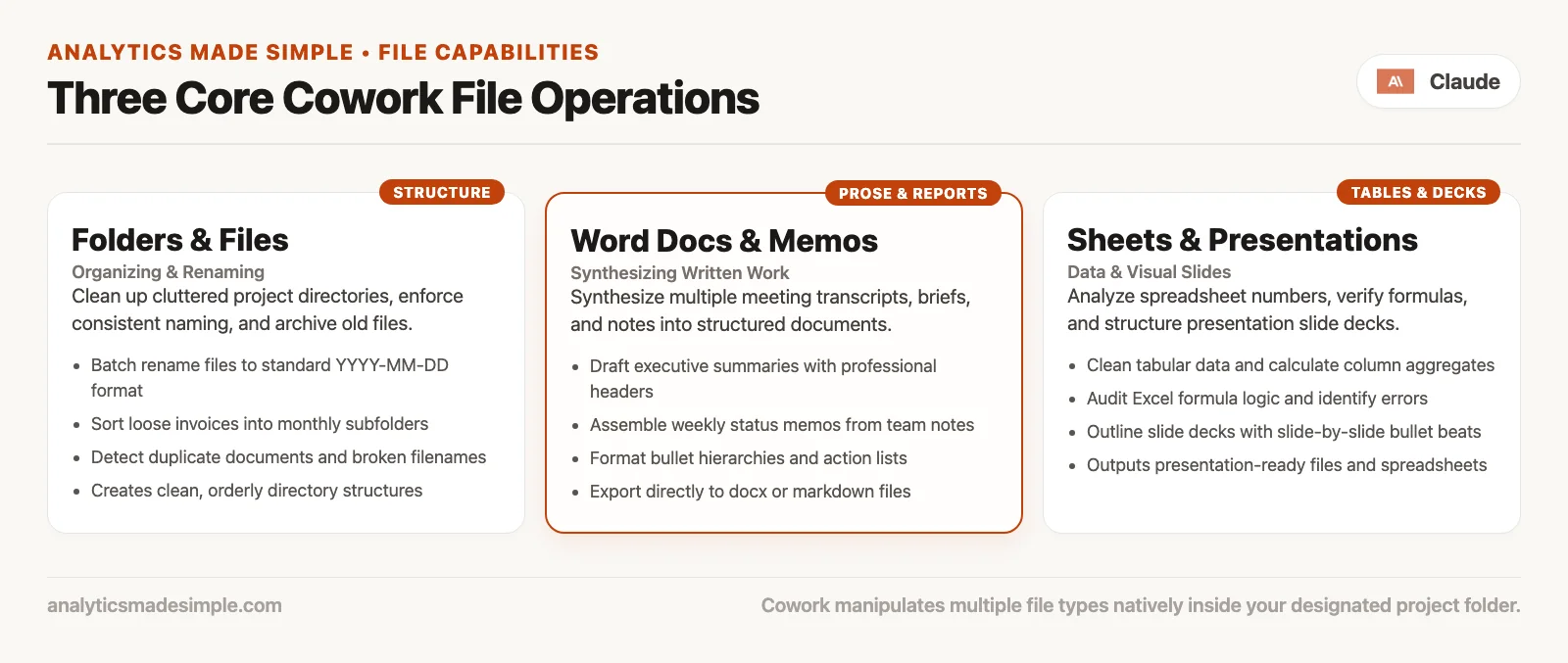
| Job family | What you want out | Good first ask |
|---|---|---|
| Folders | Order you can navigate next week | Sort, rename, archive clutter without deleting secrets |
| Docs | A report, brief, or status note | From transcripts and scrap notes into one readable file |
| Sheets and decks | Excel or PPTX you open in real apps | Formulas, tabs, slides with a clear audience |
You can chain these jobs together. Receipts get renamed, then rolled into expense.xlsx, then summarized in a one-pager for your manager. You can describe the whole chain in one task, or run three short tasks if you want a tighter review between steps, and either way you should name the output files and the folder where they should land.
Rule of thumb: If you cannot point at a folder and a finished filename, you are still in chat mode. Switch to outcome language: “Save
Q2-expense-summary.xlsxin this folder.”
Folders: organize, rename, receipts to expense
Folder work is the safest place to build your skills. Any mistake stays on your own computer, you can usually undo it if you avoid prompts that delete things, and you can check the result in Finder or File Explorer. Desktop Cowork is still the strongest choice when the files you care about sit in a local folder.
Organize without a trash fire
Bad prompt: “Clean up my Downloads.” That invites creative interpretation. Better: “In the connected folder ClientX-trip, create subfolders receipts, notes, exports. Move files by content when the name is useless. Do not delete anything. Leave a short README.txt listing what moved.”
That works because Claude knows the folder layout, the rule against deleting, and the record it must leave behind. When you come back later, you can skim README.txt instead of guessing what happened from memory.
Rename with a pattern, not poetry
Receipt scans and phone photos often arrive as IMG_4821.jpg, a name no person can search for. A computer does not mind such names either way, but it will follow any naming pattern you give it.
Here is example wording for a rename task:
Goal: Rename receipt images and PDFs in /Receipts-raw for expense logging.
Pattern: YYYY-MM-DD_vendor_amount.ext when date/vendor/amount are readable.
If a field is unclear, use unknown and list the file in rename-log.txt.
Constraints: no deletes; no overwrite of existing final names; keep originals only if I say so (default: rename in place).
Done when: every file matches the pattern or is listed in rename-log.txt with a reason.
That log file is not busywork. It is how you catch the hotel bill Claude misread as a coffee shop.
Receipts to expense sheet
This is the classic Cowork demo because it matches a real pain. You dump PDFs and photos into a folder and ask for a spreadsheet, then you open Excel and check the totals yourself.
- Put only this trip’s receipts in a dedicated folder (not your whole home directory).
- State columns: date, vendor, amount, currency, category, payment method, notes, source filename.
- Ask for working formulas, such as a sum by category, a grand total, and maybe a flat table that is easy to pivot, so you can check the math instead of trusting typed totals.
- Require a confidence column or a “needs human check” flag for any receipt where the text recognition (OCR, the software that reads text from images) is fuzzy.
- Open the file yourself and spot-check three line items against the original PDFs, because a tidy spreadsheet can still hold misread numbers.
Sample task you can paste and adapt:
From the connected folder Receipts-March, build expense.xlsx with columns:
date, vendor, amount, currency, category, card_last4, source_file, confidence.
Categories allowed: travel, meals, software, other.
Add a Summary sheet with SUMIF totals by category and a grand total formula.
Do not delete source files.
If amount is unreadable, leave amount blank and set confidence to low.
Done when: expense.xlsx opens, formulas calculate, and every source file appears once in source_file.
Notice what is missing from that task: “be smart,” “use best judgment on categories,” or “email finance when done.” Good judgment is fine inside the folder, but email and finance systems should wait until you deliberately add connectors, which a later post in this series covers.
Documents: reports from notes and transcripts
Document work is where people trust smooth writing too easily. Claude can stitch a clean story out of messy inputs, but fluent prose is not the same as accurate prose. Your job is to force a structure on it and then check the facts yourself.
What “from notes” should mean
Inputs might be bullet notes from a call, a rough transcript, a PDF brief, screenshots of chat decisions, or a previous status document. Outputs might be a one-page status, a meeting summary with decisions and owners, a client-facing update, or an internal incident writeup.
Always spell out the audience, because “for my manager who has three minutes” produces a different document than “for legal review” or “for the client without internal slang.”
A solid report brief
Goal: Produce client-status-2026-03-20.docx (or .md if you prefer plain text) from files in /ClientX/notes.
Audience: client sponsor; no internal code names.
Required sections: progress since last update, decisions needed, risks, next 14 days.
Constraints: every risk must cite a source filename; do not invent metrics; if a number is missing, write "not in source materials."
Format: short paragraphs, bullets under each section, max ~600 words.
Done when: file saved in /ClientX/exports and a sources section lists every input file used.
The “not in source materials” line is valuable. Without it, models fill gaps with plausible filler, and you would rather have an empty cell and an honest hedge than a confident fiction.
Transcripts without the novel
Long transcripts tempt you to ask for a summary of everything. Prefer task shapes that match how you actually use meetings:
- Decisions only: what was agreed, who owns it, by when.
- Action list: each task starts with a verb and names an owner.
- Open questions: unresolved items, not closed debate.
- Quote harvest: pull candidate quotes with timestamps if the transcript has them.
If the transcript has flaws such as wrong speaker labels or missing attendees, say so in the constraints. Claude cannot fix a bad recording by sounding sure of itself.
Spreadsheets with formulas (not CSV theater)
A CSV dump is a plain text file that only looks like a spreadsheet. The useful bar for Cowork is higher, which is a workbook you open in Excel or Google Sheets with formulas that recalculate, clearly named sheets, and sometimes light formatting. Anthropic’s Cowork materials call out professional outputs such as Excel with working formulas, and you should still verify the file in the real app.
Ask for structure, not only rows
| Ask for | Why it helps |
|---|---|
| Named sheets (Raw, Clean, Summary) | Separates source from analysis |
| Formulas for totals and rates | You can change an input and watch results move |
| Data types and date formats | Avoids text that only looks like numbers |
| A “checks” area | Row counts, empty-cell counts, and control totals that should match |
| No hidden magic | Prefer visible formulas over hidden scripts you never open |
Here is an example of a summary of sales deals in progress built from a CRM export (a file downloaded from your sales tracking system) sitting in a folder.
Build pipeline-weekly.xlsx from deals-export.csv in this folder.
Sheets: Raw (unchanged import), Clean (normalized stage names), Summary.
On Summary: count of deals by stage, sum of amount by stage, win rate = Closed Won / (Closed Won + Closed Lost).
Use formulas, not pasted values, for all Summary metrics.
Add a Checks sheet: row count Raw vs Clean, sum of amount Raw vs Clean.
Flag stages not in {Prospect, Qualified, Proposal, Closed Won, Closed Lost} on Clean with a StatusNote column.
Done when: file opens, formulas calculate, Checks shows matching control totals.
If you also use Claude inside Excel, remember the handoff. Cowork can create the workbook, and deeper editing inside the grid may continue in Claude for Excel, depending on your plan and setup. For this tutorial, master the simpler loop first, where the file appears in the folder and the formulas work.
Presentations: real PPTX, not outline cosplay
Many people still paste chat bullets into PowerPoint by hand. Cowork can produce an actual .pptx file from notes, a report, or a sheet summary, which is useful. It is also how careless, low-effort decks spread when nobody opens the slides.
Give the deck a job
- Audience: an executive skim, a team deep-dive, or a client workshop.
- Time: a 5-minute slot and a 30-minute slot need different slide counts.
- Claim limit: use only numbers that appear in the source folder.
- Slide skeleton: title, situation, evidence, options, ask.
- Visual restraint: prefer simple charts from your sheet over decoration.
Here is a sample request:
Create weekly-status.pptx for a 10-minute team meeting from status-notes.md and pipeline-weekly.xlsx.
Slides: (1) title + week, (2) three outcomes, (3) metric snapshot with numbers only from the sheet, (4) risks, (5) asks.
Max 6 slides. No stock-photo metaphors. One chart max if the sheet supports it.
Save to /exports. List any number you could not source in a final "Gaps" slide instead of inventing it.
Done when: PPTX opens in PowerPoint or Keynote and every metric traces to the sheet.
Then do the human half. Fix the one slide that overclaims, delete the cute title nobody needs, and check that the chart matches the Summary sheet. Cowork gives you a first pass, and you remain the owner of the meeting.
The task recipe (use this every time)
Most failed Cowork runs come from a vague goal and constraints that were never said out loud. Use the same five fields every time until they become a habit.
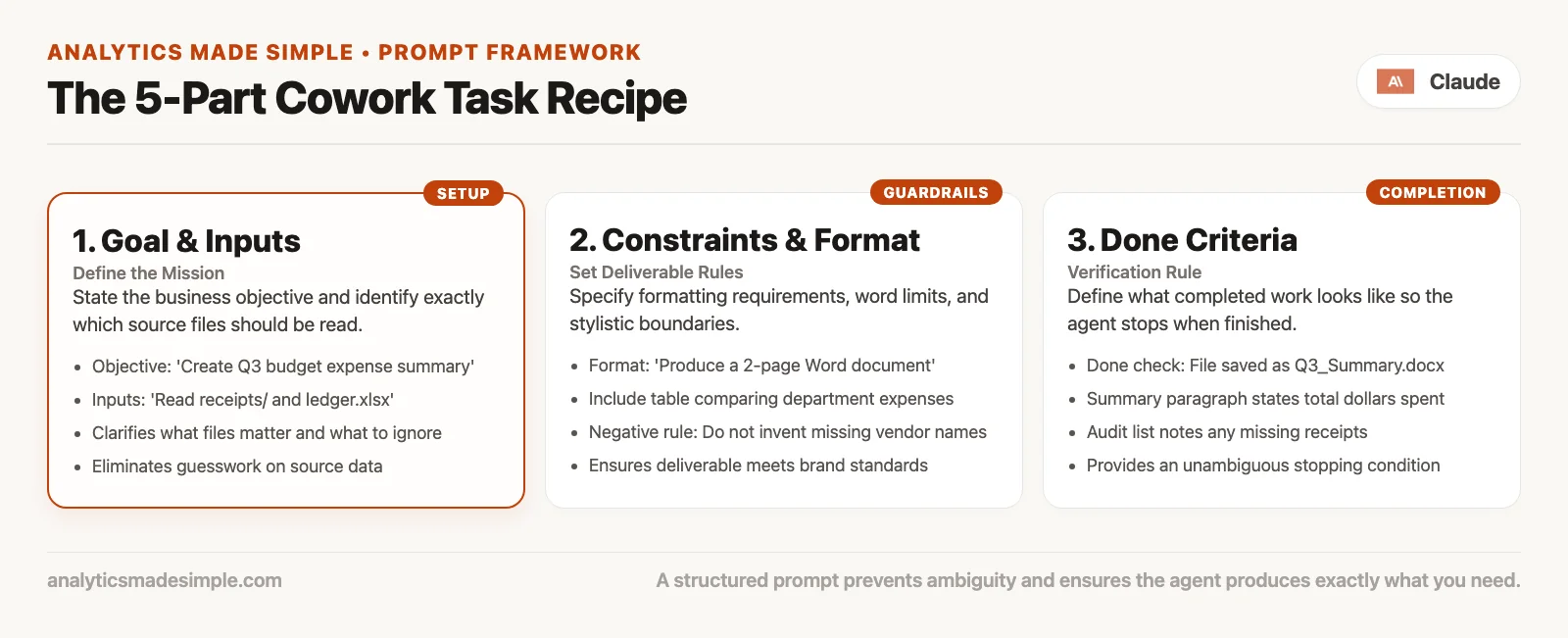
| Field | Question it answers | Weak | Strong |
|---|---|---|---|
| Goal | What finished work looks like | Help with receipts | Build expense.xlsx for March trip |
| Inputs | Which folder/files are in scope | My files | Connected folder Receipts-March only |
| Constraints | What not to do | (none) | No deletes; USD only; flag low confidence |
| Format | File type and shape | A spreadsheet | xlsx with Data + Summary sheets, SUMIF formulas |
| Done check | How we know to stop | Looks good | Opens, formulas work, every source_file listed |
Here is a skeleton you can paste and fill in:
Goal:
Inputs (folder/files):
Constraints (no deletes, privacy, tone, allowed categories):
Output format (filename, sheets/sections, formulas/slides):
Done check (openable file + tests I will run):
Global instructions in Cowork settings can hold standing preferences (tone, default “no deletes,” your name and role). Folder instructions can hold project-specific rules when you attach a local folder on desktop. Session text still carries the goal for this task. Do not bury a one-off deadline inside global instructions, or every later task will sound like last quarter’s project.
Worked example: one folder, three artifacts
Imagine you ran a two-day onsite. Folder Onsite-Acme holds receipt images, day1-notes.md, day2-transcript.txt, and a rough agenda.md.
Task A (folders): organize into receipts, notes, exports; rename receipts; write file-map.txt.
Task B (sheet): build exports/expense.xlsx from receipts with formulas and a confidence column.
Task C (doc + deck): from notes and transcript, write exports/onsite-summary.md (decisions, owners, open questions) and exports/onsite-readout.pptx (5 slides for internal leadership). Numbers only from the expense sheet or explicit “n/a.”
Your review checklist after Task C:
- Open three random receipts vs expense rows.
- Confirm no delete of originals.
- Search the summary for any metric not in the sheet.
- Read owners aloud: are they real people on the project?
- Click through every slide once at presentation zoom.
That is a full Cowork day without mail connectors, browser control, or plugin marketplaces. Master it before you add more power, which a later post in this series covers.
Review habits that keep you honest
File work done by an agent (an AI that can take actions, not just write text) fails in boring ways. You might find a wrong vendor, doubled rows, a slide that invents “up 12%,” a rename that overwrote a final PDF, or a report that softens a risk the transcript stated clearly.
| Artifact | Minimum human check |
|---|---|
| Renames | Spot-check 5 files; read the rename log |
| Expense sheet | 3 line items vs source; formula totals vs manual sum |
| Report | Every number has a source; no silent gap-filling |
| Deck | Slide-by-slide; delete claims you cannot defend live |
| Anything deleted | Should have needed your explicit permission. If it did not, stop and review your settings |
Cowork is designed so that permanent deletes need your explicit permission in normal use. Do not “help” it by pre-approving risky actions in skip-permission modes you do not understand yet. Those autonomy modes get their own post later in this series.
If your work touches regulated data, payroll, or customer secrets, re-read your company policy and Anthropic’s safety guidance for Cowork. A tidy folder does not make you compliant with company or legal rules.
Common mistakes
Connecting the whole home directory
You wanted receipts, but Claude also saw your tax PDFs and a personal journal. Use a dedicated working folder instead, copy or move the inputs into it, and export the outputs back out when you are done.
Prompting like a micro-manager, then complaining it is slow
Forty tiny steps with no outcome statement burn through your usage and your patience. State the finished deliverable and the constraints instead, and step in when the plan is wrong rather than after every file it opens.
Accepting a “spreadsheet” that is only text
If Summary numbers are pasted values, you cannot safely change inputs. Ask for formulas and re-open the file after a one-cell edit.
Mixing chat memory with Cowork memory expectations
Anthropic’s Help Center notes, checked in July 2026, say chat memory does not fully carry into Cowork the way people hope, and memory limited to one project inside Cowork is the more relevant idea. Put critical rules in the task, the global instructions, or the folder instructions instead of assuming last month’s chat remembers your brand voice.
Skipping the done check
Without a done check, Claude aims for having produced something. With a done check, the target becomes a file that opens, calculates, and lists its sources.
What comes next in this series
The next post covers plugins and connectors for office work. It explains what a plugin bundles (skills, connectors, and helper agents), how access to mail, cloud drives, and calendars changes the risk, and why letting Claude drive your browser or computer is a bigger step. It also shows how to add power only when a folder-only task is not enough.
Quick recap
- Point Cowork at a dedicated working folder and name the output files.
- Start with the easy wins: organizing, renaming, and turning receipts into an expense sheet with formulas.
- Documents need an audience, required sections, and an honest “not in sources” rule.
- Sheets need formulas and checks, and decks need a clear job and numbers you can trace.
- Use the five-field recipe every time: goal, inputs, constraints, format, and done check.
- Review like a skeptic, because smooth writing is not proof that the totals add up.
Practice set for this week
- Create a throwaway folder with 15 messy files (fake receipts are fine).
- Run one organize and rename task with a rename log and no deletes.
- Build
expense.xlsxwith formulas and a confidence column; break one input on purpose and confirm the sheet reacts. - Turn two pages of rough notes into a one-page status with a sources list.
- Build a 5-slide PPTX (the PowerPoint file format) from that status; delete any slide you would not defend.
- Save your best task text as a personal template (the five-field recipe).
If you are still shaky on everyday Claude habits such as Projects, privacy, and judgment, stay with the beginner series on learning Claude. If you are still choosing among chat, Code, and Cowork, revisit the product map. If you are building software instead of expense sheets, switch to the Claude Code tutorial.
Sources
Research and further reading used for this article:
- Anthropic Help Center: Get started with Claude Cowork (capabilities, local files, professional outputs, usage)
- Anthropic Help Center: Use Claude Cowork safely (risks, permissions mindset)
- Anthropic Help Center: Use Claude Cowork on web, desktop, and mobile (where sessions run)
- Anthropic: Claude Cowork product page (positioning for knowledge work)
- Anthropic Help Center: Create and edit files with Claude (document and file creation context across Claude surfaces)
- Analytics Made Simple: Learn Claude from scratch (everyday foundation)
- Analytics Made Simple: Claude product map (chat vs Code vs Cowork orientation)
- Analytics Made Simple: Claude Code tutorial (software-agent counterpart to this office track)
Keep going
Same lessons in your feed
Short diagrams, hooks, and weekly tutorials on Substack, Instagram, X, and Facebook.