Your first task with Claude Cowork will go well if you prepare for it in a boring, careful way. You need a paid plan, the Desktop app if your files live on your own computer, a small folder that is not your whole life, one sentence describing the outcome, and a review you actually do.
Say you decided last week that Cowork, not chat, is the right tool for your file work. You may be hoping the product will just know what you mean, but it will not. This post walks you through setup and one real file task, step by step.
Update, October 2, 2026: On September 16, 2026, Anthropic merged Cowork into the main Claude app, rolling out to Pro and Max first and to other plans later. What Cowork could do, such as working through a folder of files, is now available from any Claude conversation, so you may no longer see a separate Cowork tab. The advice below still applies to that kind of task.
The earlier post in this series sorted out when to use chat, Claude Code, or Cowork. If that three-way choice is still fuzzy, re-read it or the Cowork section of the Claude product map. Everyday Claude habits live in the beginner series on learning Claude, and software work belongs in the Claude Code tutorial.
Menus keep moving, so treat the steps below as a mid-2026 snapshot. The official pages to check are claude.com/product/cowork and Get started with Claude Cowork.
Before you click anything
Cowork is an AI agent for office work. It carries out many steps on files and tools you authorize, and you never need a terminal (the text window where you type commands). It belongs to the same family as Claude Code but does a different job. You still need a few things in place first, or your first session turns into a hunt through support pages.
Paid plan
Cowork is available on paid plans: Pro, Max, Team, Enterprise. A free chat account is not the expected path. If you are on Team or Enterprise, an admin may need to leave Cowork switched on for your organization. Confirm live pricing and admin settings instead of trusting a screenshot from last quarter.
Where you will work
- Desktop (macOS or Windows): best when local folders matter. Install or update it from the official Claude download page, and on Windows make sure you have a current build of Claude for Windows.
- Web (claude.ai): fine for starting and steering a task, especially when the files are already in the session or in connected tools.
- Mobile: useful for checking in on a task, when the beta is live on your plan and app version.
The support docs describe a useful split. Sessions often run on Anthropic’s own servers, but anything that touches your computer, such as local files or browser control, reaches it through the Desktop app. If your first task is a folder on your laptop, keep Desktop open and connected for the parts that touch that folder.
Network and policy
You need an active internet connection for the session. If this is work data, learn your company rules before you grant access to folders or connectors. Personal tax PDFs and client contracts do not belong in a learning sandbox, and when policy is silent, you should ask before the first run that touches real customer information.
Start a Cowork session (any surface)
Chat and Cowork share one home in the app, which is both a feature and a trap. The trap is typing a task while you are still in Chat and then wondering why nothing changed in your folder.
- Open Claude on web, Desktop, or mobile, whichever you will use for real work, so your practice carries over.
- In the message box, select Cowork (not Chat).
- Describe the task as an outcome, not a 40-step micro-script.
- Review Claude’s approach, grant only the access the job needs, then let it run.
- Watch progress, answer questions, or redirect. Open the same session from another surface if you need to leave the desk.
The screen may show “Cowork” next to Chat, or use a mode switch that is still clearly about tasks. If you cannot find it, confirm that your plan qualifies, update the app, and re-check the Help Center article for your device. Beta rollouts for web and mobile have reached some plans before others in the past.
Build a dedicated working folder
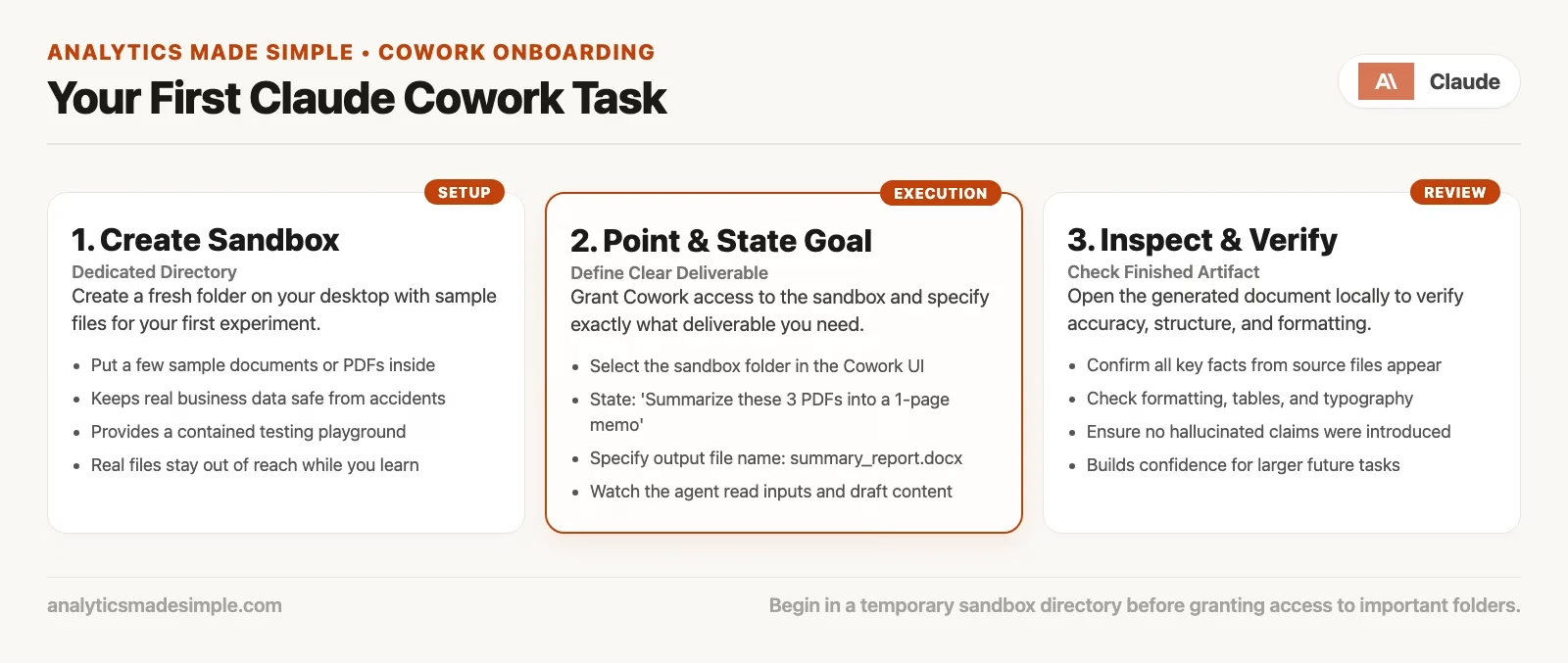
This is the step most demos skip, and it is where most messes start. Do not point Cowork at your home directory just to see what happens, and do not grant it the shared drive that finance treats as the official copy. Build a small sandbox instead, meaning a folder that exists only for this experiment.
Why dedicated folders work
- Mistakes stay small. Wrong renames stay inside the sandbox and cannot spread to your other files.
- Review is easier, because you know every file in the folder was fair game for this task.
- You can delete the whole tree if the experiment goes sideways.
- You build good habits before the real quarter-end folder arrives.
Folder recipe
On your own computer, create the folders like this. The paths are examples, so adjust them for Windows.
mkdir -p ~/Claude-Cowork-Sandbox/2026-q2-expense-drill
cd ~/Claude-Cowork-Sandbox/2026-q2-expense-drill
mkdir inputs outputs notes
Put copies of non-sensitive inputs into inputs/, and leave the originals somewhere else. Tell Claude to put anything it produces into outputs/, or accept that it may write beside the inputs, but either way say where finished files should land. Keep a short notes/brief.txt if you want standing rules for this folder, such as categories, date format, and currency.
Here is an example brief you might paste into notes/brief.txt:
Expense drill rules for this folder only.
Currency: USD.
Date format: YYYY-MM-DD.
Categories allowed: travel, software, meals, other.
If a receipt photo is unreadable, set amount blank and confidence=low.
Write final workbook to outputs/q2-expense-summary.xlsx.
Do not delete files without asking.
If the product offers folder-level instructions on Desktop when you attach a local folder, use them for the same content. Global instructions (in Settings, under Cowork, as documented) hold standing preferences across sessions, such as your tone and your role. Folder notes hold the rules for this one job. Keep the global instructions short so they do not fight every task.
What never goes in the first sandbox
- Live payroll, HR, or health files.
- Production shared drives that everyone treats as the official copy.
- Customer exports with the personal details left in, just because the file was handy.
- Your entire Downloads history since 2019.
- Anything you would not let a new contractor sort unsupervised.
First-task recipe: receipts to expense workbook
Pick a job where a wrong result is annoying but not career-ending, and where “done” means a file you can open. Receipts plus a card export is the classic choice because it forces several steps. Claude has to read images, read a CSV file (a plain table of rows and columns), match up imperfect data, and write a real spreadsheet.
Inputs to stage
- 10 to 40 receipt images or PDFs (copies) in
inputs/receipts/ - One card export CSV in
inputs/card-export.csvwith columns you understand (date, merchant, amount). - Optional:
notes/brief.txtwith categories and output path.
If you do not have real receipts, make a tiny fake set of five screenshots showing invented coffee charges, plus a five-row CSV. Label it as practice data in the brief, so you do not later treat invented numbers as real finance figures.
Outcome prompt (copy and adapt)
Select Cowork, attach or grant the sandbox folder on Desktop, then send something like:
You have access only to this sandbox folder.

Goal: build a first-pass expense workbook for review.

Inputs:
- inputs/receipts/ (photos and PDFs)
- inputs/card-export.csv
- notes/brief.txt for category rules

Deliverable:
- outputs/q2-expense-summary.xlsx with two sheets:
  1) transactions: one row per receipt or card line you can support
     columns: date, merchant, amount_usd, category, source (receipt|card|both),
     confidence (high|medium|low), notes
  2) by_category: category, total_amount_usd, row_count

Rules:
- Prefer brief.txt categories.
- If a photo is unreadable, keep the row with confidence=low and explain in notes.
- Do not invent merchants that are not in the inputs.
- Do not permanently delete any files.
- When finished, list the output path and a short summary of assumptions.
Notice what the prompt does not do. It does not micromanage every step of reading the receipt images, which is called OCR (optical character recognition, software that reads text out of pictures). Describing the outcome lets the agent plan its own steps, and the constraints protect you, so finding the balance between the two is the real skill.
While it runs
Expect progress indicators, visible steps, and chances to steer. Support materials describe a plan-then-act pattern. Claude analyzes your request and breaks it into subtasks, then runs the work in an isolated remote environment and delivers outputs you can preview and download. To write into a local folder, the Desktop app must be able to reach that folder.
Permission modes, which range from manual approval to more automatic styles, control how often Claude pauses before using connectors or taking sensitive actions. The names in the app can shift, and manual, auto, and skip-style options have all appeared in the docs. For a first real task, prefer modes that ask before high-impact writes and deletes. Deletion protection should require your explicit approval before anything is permanently deleted. If a prompt asks you to allow something you do not understand, deny it and restate the task in a smaller form.
You can leave and check on the task from another device when the session runs remotely. If the task depends on local files, do not assume your laptop can go to sleep or that you can close the Desktop app. Support troubleshooting pages still distinguish the cases where reaching your local files matters.
Review the deliverable
Open the workbook yourself instead of trusting the filename, and work through this five-point review.
- Row sample: Pick 5 to 10 rows, and match the merchants and amounts to the photos or CSV lines.
- Totals: Add up one category by hand or in a fresh sheet, then compare it to
by_category. - Confidence flags: Open every
lowrow and either fix it or drop it. - Scope: Confirm that no files outside the sandbox changed.
- Story: Would you send this to finance as it is? If not, note the gap, such as a missing tax column or a wrong currency conversion, for the next prompt.
A successful first task is not a perfect audit package. It is a workbook you understand well enough to fix in fifteen minutes, plus a clear list of what the agent got wrong, and that list becomes your next set of instructions.
Good first jobs (and bad ones)
Good first jobs
| Job | Why it teaches | Done looks like |
|---|---|---|
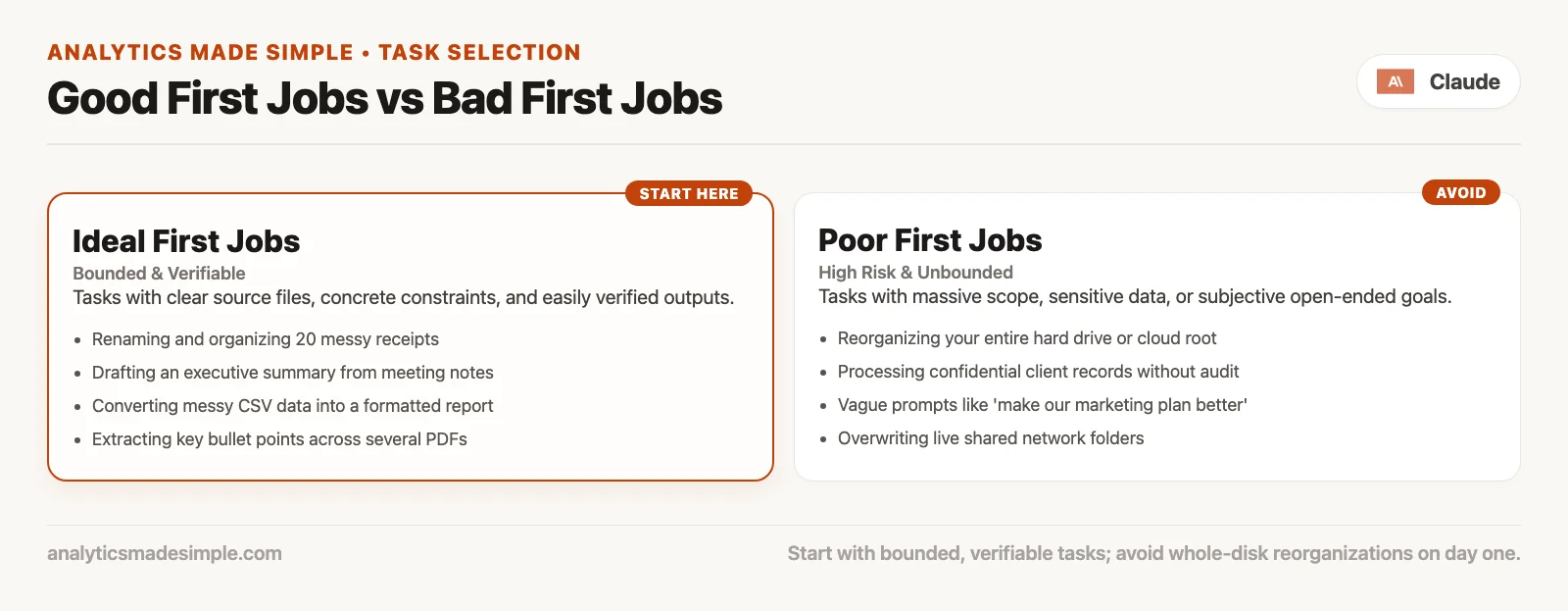
| Rename and sort a sample Downloads pack | Folder mutation, clear rules | Consistent names and subfolders |
| Receipts to expense workbook (above) | Images, a CSV, and a sheet | .xlsx with review columns |
| Meeting notes → action list + one-page brief | Synthesis without high stakes | Doc you can paste into email after edit |
| Four-slide weekly metrics skeleton from trusted CSVs | Structure first, story later | A deck outline with labeled chart placeholders |
| PDF pack of public policies, turned into a coverage grid | Reading many documents and producing a table | A sheet of topics against files |
Bad first jobs
- Entire home directory or whole cloud drive as the sandbox.
- Live payroll, regulated client files, or production CRM (customer relationship management software, where a sales team tracks its customers) bulk updates.
- Unattended scheduled tasks before you have reviewed a dry run (scheduling comes later in the series).
- A request to modernize your company’s whole codebase, which is Claude Code territory.
- Anything that needs a licensed professional’s opinion, with no expert review.
Worked evening: a first sandbox run
Imagine you have a Pro plan, a MacBook, and a free Friday afternoon. You create ~/Claude-Cowork-Sandbox/receipt-drill, copy in twelve receipt images and one bank CSV with personal coffee and software charges only, and write a six-line brief. You open Claude Desktop, select Cowork, grant only that folder, paste the outcome prompt, and stay on a permission mode that asks before deletes.
Claude plans its steps. It lists the receipts, reads the CSV, drafts the workbook, and writes it to outputs/. Partway through it asks about a blurry total on one photo, and you answer that it should leave the amount blank and set the confidence to low. Ten minutes later you open the sheet. Nine rows look right, and two merchant names came out garbled from the image reading. After you fix those rows, the category totals match your hand sum within a dollar. You do not email finance yet. You save a corrected copy instead, and you write three lines into the brief for next time: “Prefer legal merchant names from the CSV when the photo disagrees,” “Round to cents,” “Flag duplicates if same day, amount, and merchant.”
That is a successful first evening, because the result was boring, reviewable, and reusable. The failed version of the same evening is granting your whole Documents folder, asking Claude to clean up your expenses, approving every prompt without reading it, and discovering on Monday that vacation photos were sorted into meals/.
Usage, modes, and not emptying the tank
Cowork uses up more of your plan’s usage allowance than chat does, which is normal for multi-step work with tools. These habits keep your first week sane:
- Use chat for tiny rewrites and questions.
- Batch related file work into one Cowork session when the context is shared.
- Watch Settings → Usage when the product starts refusing long runs.
- Do not retry with a wider folder when the real fix is a clearer brief.
- Know that the more automatic permission modes can include extra safety checking that itself uses capacity, as the support material for auto-style modes describes.
If you hit limits constantly on real work, that is a problem with your plan or your task size, not a personal failure. Max and Team plans exist for that reason, but start with a sandbox either way.
Troubleshooting first runs
| Symptom | Likely cause | What to try |
|---|---|---|
| No Cowork option in the box | Free plan, admin off, outdated app, beta rollout | Confirm you have a paid plan, update the app, check the admin Cowork switch, and re-read the availability notes |
| Claude only chats, no file writes | Still in Chat mode | Select Cowork explicitly |
| Cannot see local folder | Web/mobile only; Desktop not open; folder not granted | Open Desktop, grant the sandbox folder only, and restate the path |
| Task stops when laptop sleeps | Claude needs to reach your local files, or the session is an edge case that does not run remotely | Keep Desktop awake for local file jobs, and reopen the session from another device to check remote progress |
| Output missing | Claude assumed the wrong path, or the write failed | Ask Claude where it wrote the file, search the sandbox, and re-run with an explicit outputs/ path |
| Usage limit mid-task | Agent burn | Shrink the task, finish in chat if only text remains, and check your usage |
| “Setting up Claude’s workspace” | An expected start-up step, according to support | Wait, and retry if it stays stuck unusually long |
| Surprise renames everywhere | Over-broad folder grant | Stop, restore from your backup copies, and use only the sandbox next time |
Safety rules for day one
- Put copies in the sandbox and keep the originals outside it.
- Give the least access you can: one folder and as few connectors as possible.
- Never allow a permanent delete without reading the prompt.
- Never use a production shared drive as the playground.
- Do not switch to skipping all approvals on day one.
- Never paste secrets into the prompt, even just this once.
- Read Anthropic’s safety article before you connect high-impact tools: Use Claude Cowork safely.
What comes later in this series
This post gets you one clean loop from setup to review. Later posts in the series go deeper on these topics:
- Folders, docs, and spreadsheets as everyday objects.
- Plugins and connectors for office work.
- Autonomy: when to watch closely and when to walk away.
- Quality control, and avoiding thin, careless output.
- Team and enterprise notes.
You do not need plugins on day one. You need a sandbox, an outcome sentence, and a review habit, and everything else builds on those three.
Common questions
Do I need Desktop if I only use web?
Not for every task. The official product FAQ says you do not strictly need Desktop for Cowork in general. Desktop adds what web and mobile cannot reach, which is the folders and applications on your own computer, so start there if that is where your work lives.
Can I schedule this weekly on day one?
You can explore scheduling early, but do not schedule a standing task you have not reviewed yet. Do a dry run, fix the brief, and only then automate it. A later post in this series covers autonomy and recurring tasks with more care.
Chat memory did not show up in Cowork. Is it broken?
Support has documented that chat memory does not always carry into Cowork the way people expect, and memory limited to one project inside Cowork is the route when it is available. For now, put your rules in the brief or in the folder instructions.
Should my first task use plugins?
No, because you should learn the base loop first. Add one plugin later, when a role needs packaged skills and connectors, and give it the least access it needs.
Quick recap
- A paid plan is required (Pro, Max, Team, or Enterprise), so confirm your live access.
- Select Cowork in the shared message box, because Chat will not act like a folder agent.
- Remote sessions follow your account, but local files and browser control need Desktop when the work lives on your machine.
- Use a dedicated sandbox folder with copies, a brief, and explicit output paths.
- The first recipe turns receipts and a card export into a reviewed workbook with confidence flags.
- Review samples and totals, improve the brief once, and never grant the whole disk.
- Next comes deeper work on folders, documents, and spreadsheets.
Series notes: the previous post compares Cowork with chat and Claude Code, and the next one covers folders, documents, and spreadsheets. You can find both on the Claude Cowork tutorial series page.
Practice this week
- Create
Claude-Cowork-Sandboxwith one child folder for a single drill. - Stage copies only, and write a brief.txt with categories and an explicit output path.
- On a paid plan, open Claude, select Cowork, grant only that folder.
- Run the expense workbook recipe, or a rename and sort job if you lack receipts.
- Review with the five-point loop, and write three instruction improvements into the brief.
- Optionally re-run once with the improved brief. Stop after one improvement cycle so you do not burn the week on polish.
Sources
Product details change. Re-check these the week you enable a feature.
- Claude Cowork product page (capabilities, plans, FAQs on chat vs Code vs Cowork, Desktop vs web/mobile)
- Claude Help Center: Get started with Claude Cowork (start steps, remote sessions, Desktop for local files, modes, usage, examples)
- Claude Help Center: Use Claude Cowork safely
- Claude Help Center: Use Claude Cowork on web, desktop, and mobile
- Claude Help Center: Organize your tasks with projects in Claude Cowork
- Claude Help Center: Schedule recurring tasks in Claude Cowork (know it exists; dry run before you rely on it)
- Claude download (Desktop installs)
- Analytics Made Simple: Learn Claude from scratch
- Analytics Made Simple: Claude product map
- Analytics Made Simple: Claude Code tutorial
Keep going
Same lessons in your feed
Short diagrams, hooks, and weekly tutorials on Substack, Instagram, X, and Facebook.