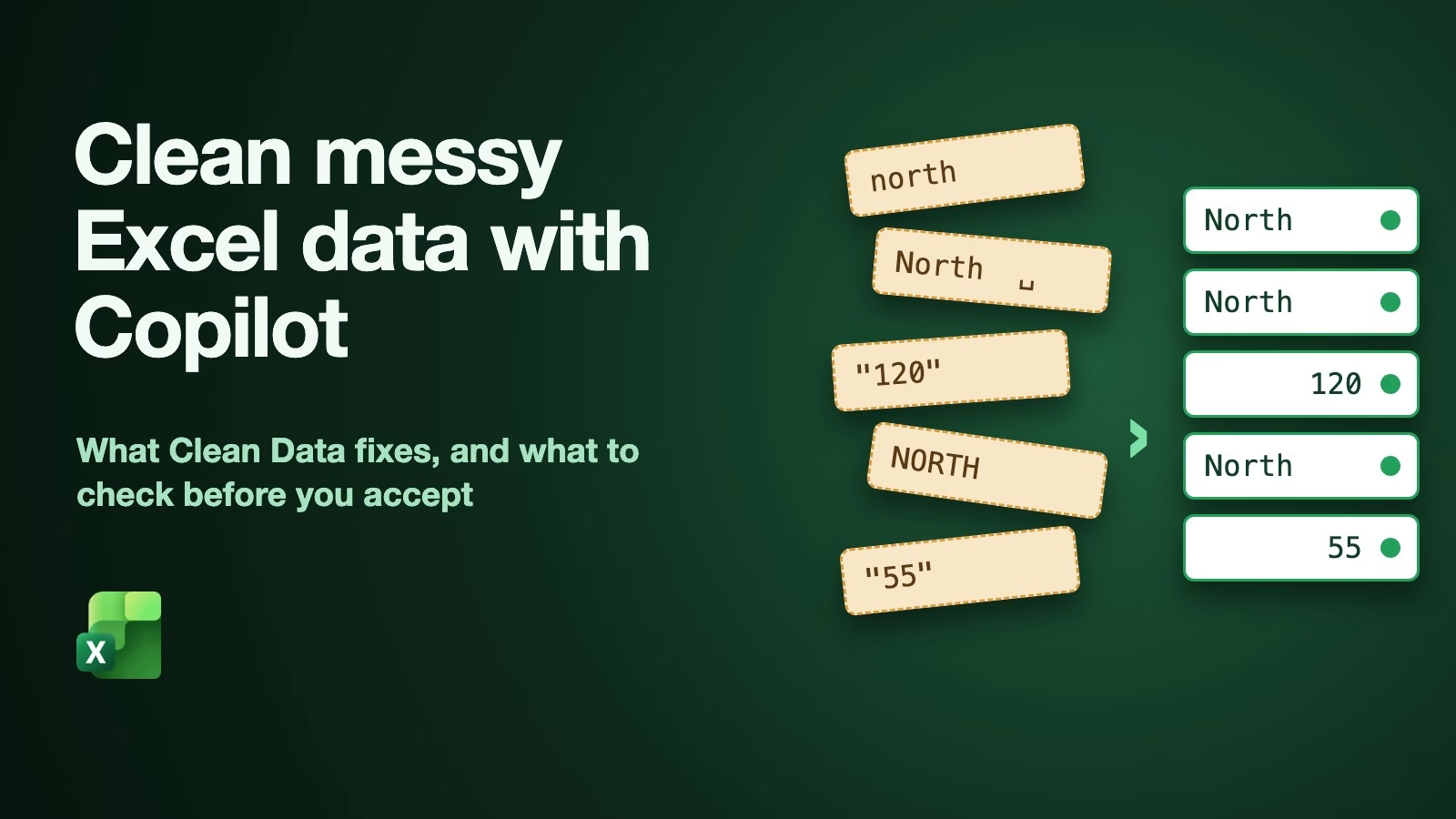
Copilot, the AI assistant built into Excel, can now scan a messy sheet and offer to fix the usual problems for you: stray spaces, the same word typed different ways, numbers stored as text, and with its newer skill, mixed-up dates and duplicate rows. It is a real time saver, but only if you write down a few totals first and check them again after each fix, because a fix can also change what your data means.
Imagine you export last month’s orders from your sales system and add up revenue by region. The North number looks low, so you scroll down and find “North” with a space after it, and a few amounts that Excel treats as words instead of numbers. Your total was quietly missing almost half the money. Nothing was broken in the system. The labels and number formats were just inconsistent, and Excel did exactly what you asked.
That is the job Microsoft’s new Clean Data feature is built for. This guide shows how to start it, walks through a small example where three different totals turn into one correct total, and gives you a short routine so you can trust the result before it goes into a report.
Why your totals were wrong and what Clean Data catches
Clean Data looks for problems that make formulas, lookups and PivotTables give the wrong answer without any error message. A PivotTable is Excel’s drag-and-drop summary table, the one that adds up amounts by region or month. According to Microsoft’s support page for the Clean Data button (checked October 19, 2026), it suggests three kinds of fixes:
- Inconsistent text. The same value spelled different ways, such as different capital letters, punctuation or accents.
- Inconsistent number format. A column where some cells are real numbers and others are numbers stored as text, which Excel will not add up.
- Extra spaces. Spaces at the start or end of a value, or doubled spaces in the middle.
The Copilot skills page (checked October 19, 2026) describes a wider version, the clean-data skill, that also looks for inconsistent dates, duplicate values and values stored as the wrong data type. A data type is what Excel thinks a cell holds: a number, a date, or text.
Here is why these problems matter more than they look. Excel is forgiving about capital letters. SUMIF means “sum if”: the formula adds up the amounts whose label matches a word you give it. It treats “north” and “North” in capitals or lowercase as the same region. It is not forgiving about spaces or text numbers. “North ” with a trailing space is a different label, so its rows drop out. A number stored as text is skipped by SUM and SUMIF entirely, without a warning. So the total looks fine and is still wrong.
Capital letters still matter outside plain formulas. Power Query, Excel’s tool for importing and reshaping data, treats “North” and “north” as different values when it merges or groups tables, and mixed spellings look sloppy in any report you share. Fix them, but know that the spaces and text numbers are the ones changing your totals.
Two ways to start it: the Data tab button and the @clean-data skill
Microsoft built two doors into the same idea, and which one you see depends on where your account is in the rollout. Both need an account with access to Copilot in Excel. If you never see the Copilot button in Excel, your plan or your company’s settings do not include it yet, and neither door will appear.
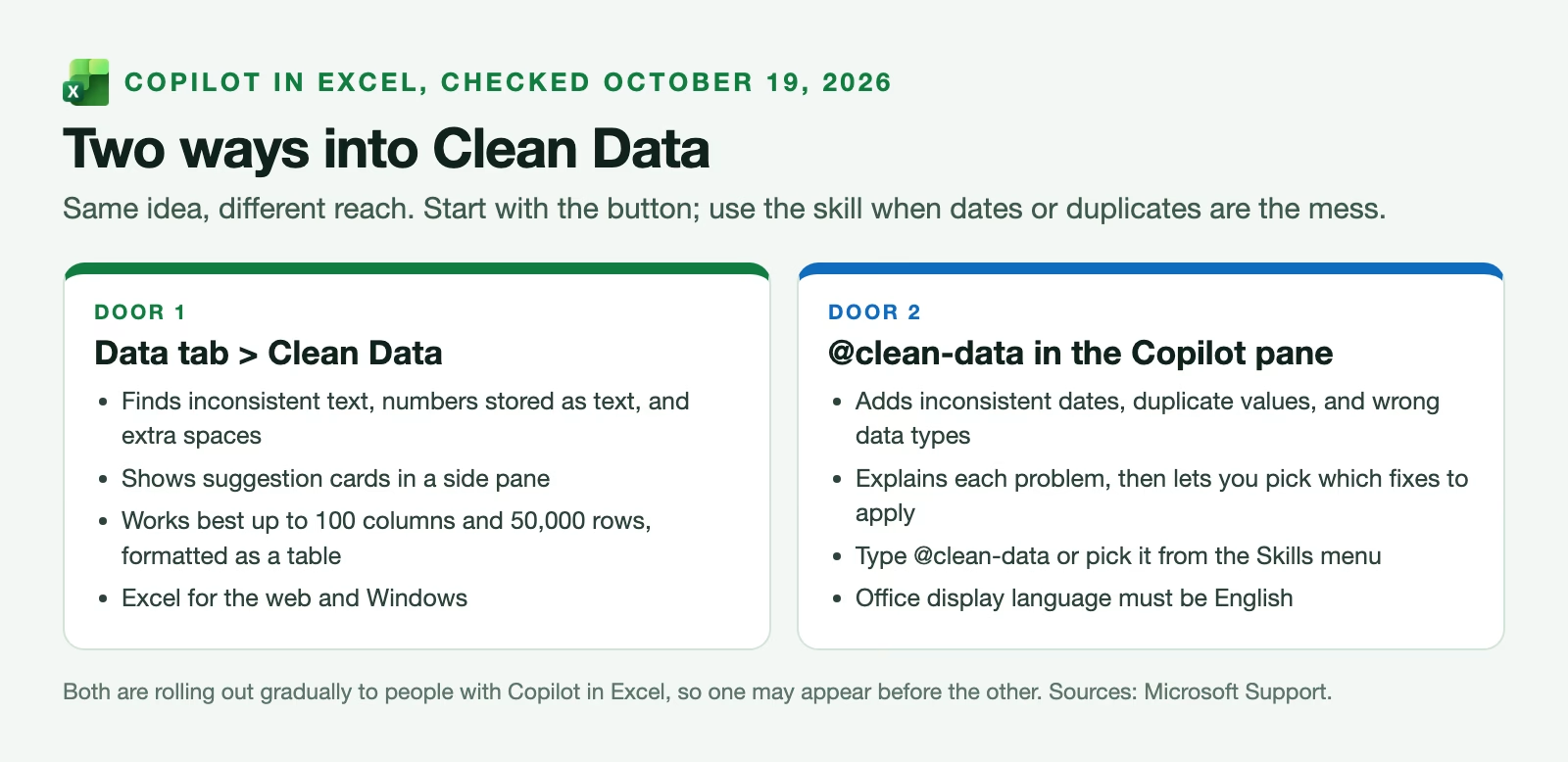
The button. On the Data tab of the ribbon, select Clean Data. A side pane opens with suggestion cards, one for each kind of problem it found. Microsoft’s support page says this version is in Excel for the web and Excel for Windows, works best with up to 100 columns and 50,000 rows, and works best when your data is formatted as an Excel table (Home > Format as Table). It is not limited to English, though Microsoft says it performs best in English.
The skill. In the Copilot pane, type @clean-data in your message or pick it from the Skills menu. A skill is a saved set of instructions Copilot can follow for a specific job. Microsoft says this one explains what it found and why it matters, proposes corrections, and lets you choose which ones to apply. It covers dates, duplicates and wrong data types as well. Skills work only when your Office display language is set to English.
Microsoft’s Excel team said in October 2026 that Clean Data is rolling out to general availability this month, and the support pages still say it may not be available to every customer yet (Excel blog). If you see only one door, start with that one. Neither page mentions Excel for Mac, so assume it is not there yet.
Before you start, turn your data into a table. Click any cell in it, then choose Home > Format as Table. Tables give every column a clear header and a fixed edge, so Copilot knows exactly which cells belong to the data and which are notes or totals underneath. That one step avoids a lot of strange suggestions.
A worked example: twelve orders and three different totals
Here is a small example table, made up for this guide, with the kinds of mess a real export has. Look closely at the Region and Amount columns.
| Order ID | Region | Product | Amount | What is wrong |
|---|---|---|---|---|
| 1001 | North | Widget | 120 (stored as text) | Text amount |
| 1002 | north | Widget | 95 | Lowercase label |
| 1003 | South | Gadget | 210 | |
| 1004 | North (space after) | Gadget | 180 | Trailing space |
| 1005 | East | Widget | 75 | |
| 1006 | South | Widget | 140 (stored as text) | Text amount |
| 1007 | NORTH | Widget | 60 | Capital letters |
| 1008 | East | Gadget | 130 | |
| 1009 | South (space after) | Gadget | 90 | Trailing space |
| 1010 | East | Widget | 55 (stored as text) | Text amount |
| 1011 | North | Gadget | 150 | |
| 1012 | South | Widget | 100 |
There are three hidden problems. Rows 1004 and 1009 have a space after the region name. Rows 1001, 1006 and 1010 have amounts stored as text, which is what happens when a system exports numbers inside quotes. And rows 1002 and 1007 spell North in lowercase and capitals.
Now add it up three ways. A plain SUM of the Amount column gives $1,090, because it skips the three text amounts ($315 in all). Adding up SUMIF by region gives North $305, South $310 and East $205, which is $820, because the two rows with trailing spaces fall out as well. The real total of all twelve orders is $1,405.
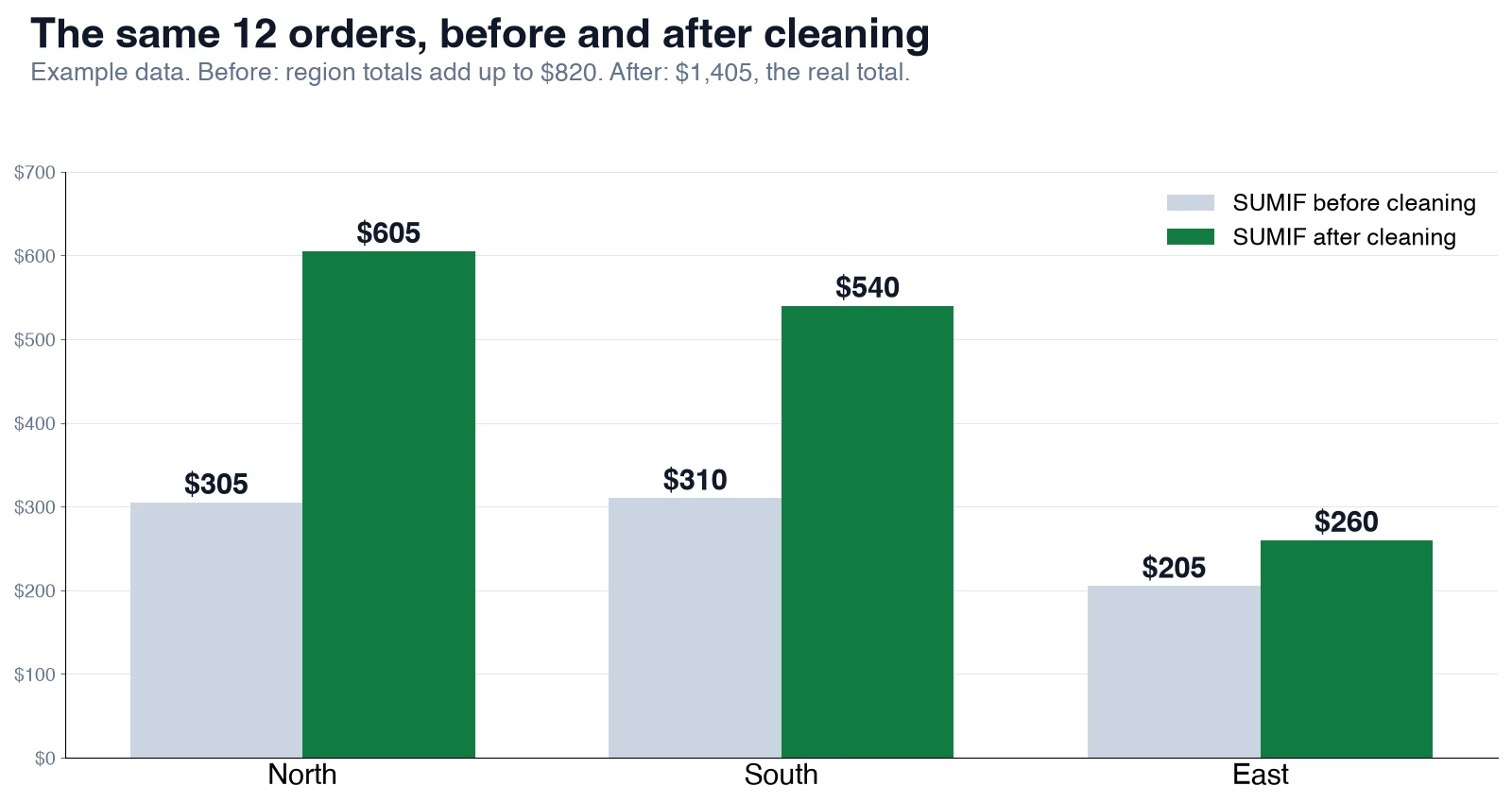
After you accept the extra-spaces fix and the number-format fix, every row lands in its region and every amount counts. North becomes $605, South $540 and East $260, and the three regions add up to $1,405, the same as the column total. The lowercase and capital spellings did not change any number, because SUMIF ignores case, but accepting the inconsistent-text fix makes the labels match for anyone who filters or builds a PivotTable later.
Notice what made the problem visible: two totals that should have been equal were not. That is the habit worth keeping, and the next section turns it into a short checklist.
How to prove a fix helped: five numbers to write down first
Before you open Clean Data, write down a few numbers that describe your table. After each fix, check them again. If they move the way you expect, the fix did what it said. If they move any other way, undo it and look.
Use these formulas in empty cells next to the data. The ranges assume the example above, with order IDs in A2:A13, regions in B2:B13 and amounts in D2:D13. Change them to fit your sheet.
| Check | Formula | Before | After |
|---|---|---|---|
| Rows | =COUNTA(A2:A13) | 12 | 12 |
| Column total | =SUM(D2:D13) | $1,090 | $1,405 |
| Amounts stored as text | =SUMPRODUCT(--ISTEXT(D2:D13)) | 3 | 0 |
| Different region labels | =COUNTA(UNIQUE(B2:B13)) | 5 | 3 |
| Total of the region SUMIFs | =SUM(SUMIF(B2:B13,{"North","South","East"},D2:D13)) | $820 | $1,405 |
Read the results as a story. The row count must not change unless you deliberately removed duplicates. The column total should rise when text amounts turn into numbers, and it should never fall unless rows were removed. The count of text amounts should drop to zero. The number of different region labels should fall to the number of real regions. And the SUMIF total should end up equal to the column total, which proves every row now belongs to a region.
UNIQUE, which lists each different value once, is in Excel for Microsoft 365. Like SUMIF, it ignores capital letters, so “North” in any mix of capitals counts as one label here and “North ” with a space counts as another. That is why the label count drops from five to three.
If you prefer a PivotTable, build one with Region in rows and Amount in values, both before and after. The before version shows the extra “North ” and “South ” rows at a glance, and the grand total shows the missing text amounts. It is the same check with less typing.
Fixes that can change what your data means
Most suggestions are safe. A few look like tidying but can turn a right answer into a wrong one, so read these cards slowly.
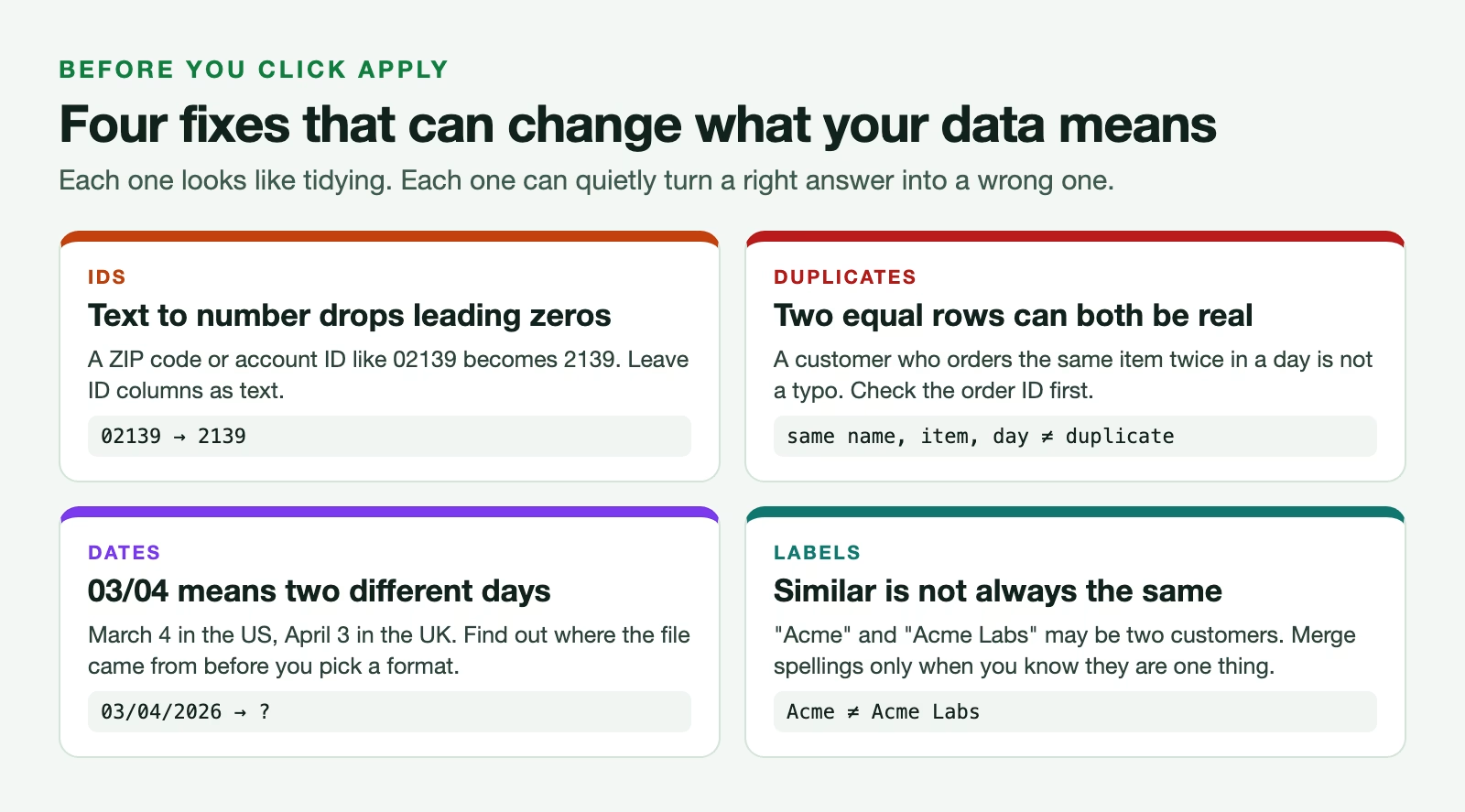
ID numbers. Turning text into numbers is great for amounts and terrible for IDs. Postal codes, account numbers and product codes often start with zero, and as numbers they lose it. If Clean Data offers to convert an ID column, skip that card.
Duplicates. Two rows that look the same may both be real, such as a customer who bought the same item twice in a day. Before removing duplicates, check whether the rows share an order ID or other unique key. If they do not, they are probably separate events.
Dates. A date like 03/04/2026 is March 4 in the United States and April 3 in the United Kingdom. If dates arrive in mixed formats, find out where the file came from before you let any tool standardize them, because a confident guess is still a guess.
Similar labels. Standardizing “north” to “North” is safe. Merging “Acme” with “Acme Labs” may combine two customers. Accept a merge only when you know the two spellings are one thing.
The safest habit is to clean a copy. Right-click the sheet tab, choose Move or Copy, tick Create a copy, and work on the copy. Microsoft’s pages do not say whether Clean Data’s changes can be undone in one step, and you should not have to find out on your only copy of the data.
Use a formula or Power Query for files that repeat
Clean Data fixes the sheet in front of you. If you get the same export every week, you will be cleaning the same mess every week, and that is where other tools pay off.
Power Query records each cleaning step, such as trimming spaces or changing a column to a number, and runs them again when you refresh with new data. You set it up once under Data > Get Data and then just refresh. Microsoft’s Power Query overview explains the idea. For a recurring report, this is usually the better long-term fix.
Formulas keep the original data untouched. TRIM removes extra spaces and VALUE turns text into a number, so a helper column with =VALUE(TRIM(D2)) gives a clean amount you can see and check. The TRIM function page covers the details.
Clean Data is best for one-off files, for exploring an unfamiliar export, and for finding problems you did not know to look for. A good pattern is to run Clean Data once to learn what is wrong with a new export, then build those same fixes into Power Query if the file comes back next month.
If you have not looked closely at a messy table before, the guide on profiling a data table before you clean it shows what to count first, and keeping data in plain tables explains why merged cells and notes in the data cause trouble for every tool, AI included. If your team works in Google Sheets instead, the post on cleaning data with Gemini in Sheets covers the same job there.
A five-minute routine for the next export
Here is the whole method on one card. It takes about five minutes on a normal export, and it turns “Copilot cleaned it” into “I checked it”.
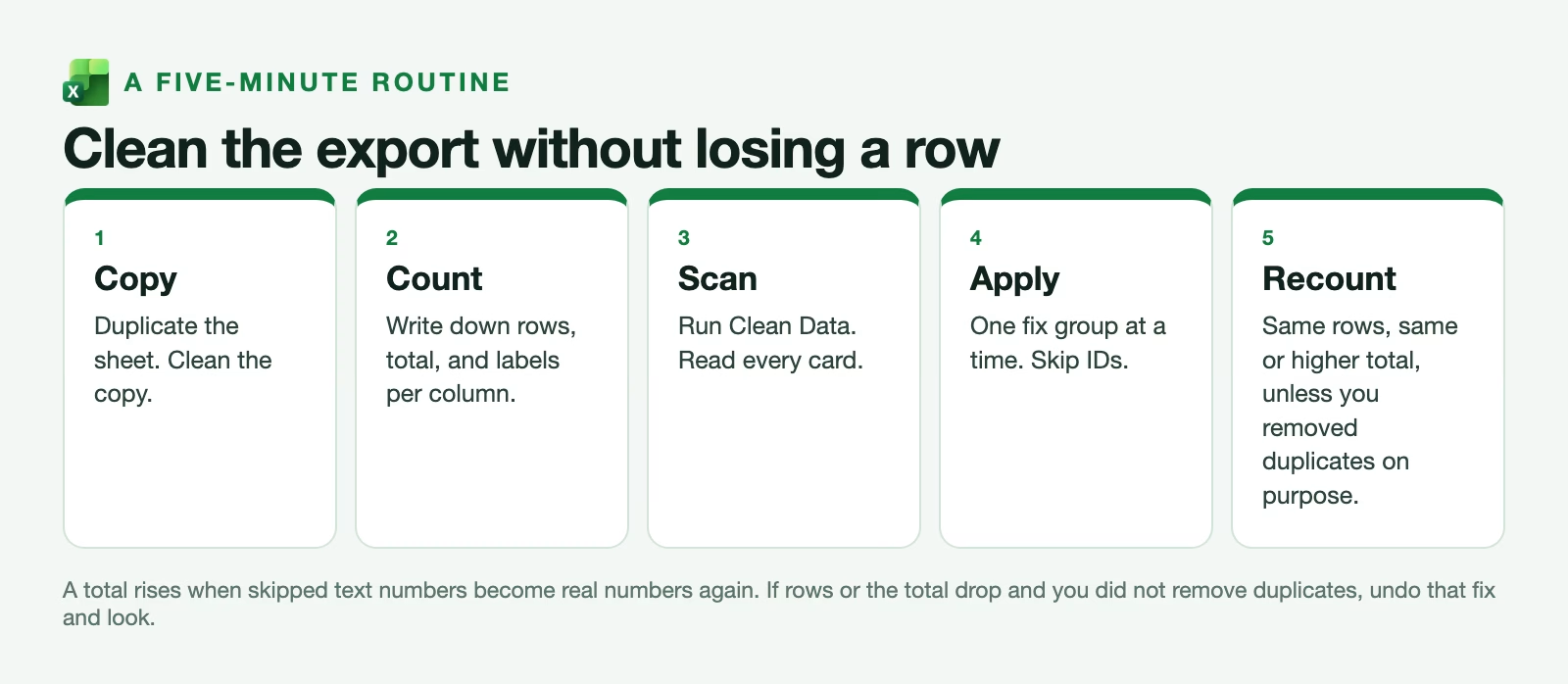
- Copy the sheet and work on the copy.
- Format the data as a table, then write down the row count, the column total, the number of text amounts and the number of different labels in each category column.
- Run Clean Data from the Data tab, or type @clean-data in the Copilot pane if you also need dates or duplicates checked.
- Read every suggestion card. Skip anything that touches an ID column, and leave duplicates alone until you have checked for a unique key.
- Apply one kind of fix at a time and recheck your numbers after each one.
- When the SUMIF total by category equals the column total, and the row count is what you expect, the table is ready for a PivotTable or a report.
This week, pick one export you already use and run the five checks on it before you run any cleaning at all. Even without Copilot, the gap between two totals that should match will tell you whether that file has been quietly short-changing your reports.
Sources
- Microsoft Support: Clean up your data with Copilot in Excel (Data tab button, the three suggestion types, Excel for the web and Windows, 100 columns and 50,000 rows, tables, checked October 19, 2026)
- Microsoft Support: Built-in skills with Copilot in Excel (the clean-data skill, @clean-data and the Skills menu, dates, duplicates and data types, English display language, checked October 19, 2026)
- Microsoft Excel blog: Beyond Analysis, Copilot Gets to Work in Excel (October 2026 rollout of Clean Data and other Copilot skills)
- Microsoft Learn: What is Power Query? (repeatable import and cleaning steps)
- Microsoft Support: TRIM function (removing extra spaces with a formula)
Keep going
Same lessons in your feed
Short diagrams, hooks, and weekly tutorials on Substack, Instagram, X, and Facebook.