Google Sheets with Gemini is very good at explaining a formula you cannot read and at suggesting cleanup steps, but it is a poor replacement for a workbook you have tested. Treat every suggestion as design help. Try it in a copy of the sheet first, and move it into the real one only after you spot-check rows whose answers you already know.
Say your finance team inherited a nested ARRAYFORMULA (one long formula that fills a whole column at once) that nobody could read. Gemini explained it in plain English in two minutes. Then a new intern almost pasted a fresh VLOOKUP (a formula that finds a value in another table) straight into the live tab. A quick check on a scratch tab, using last month’s known totals, would have shown that the lookup silently dropped twelve rows.
Explain, plan, verify
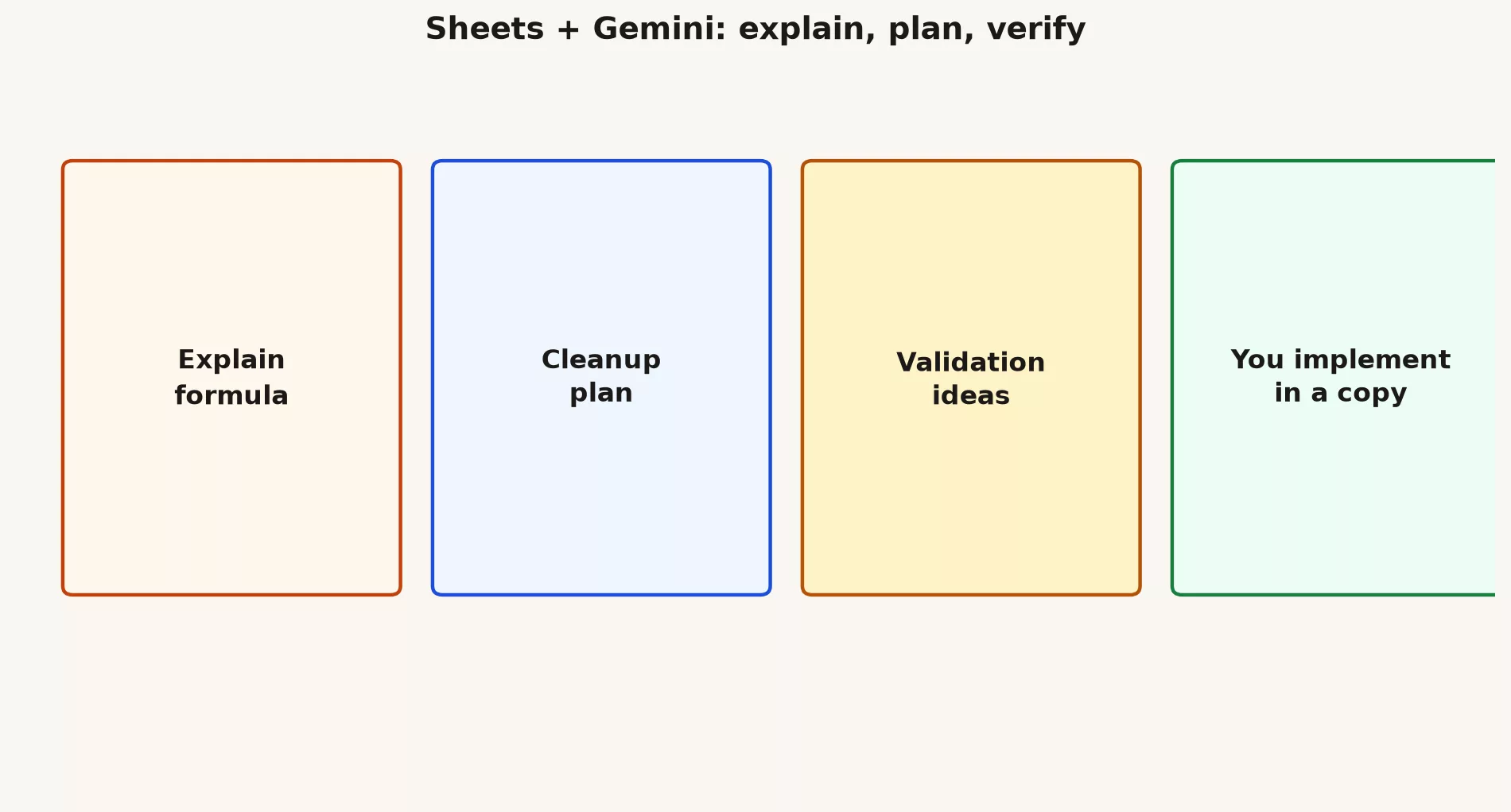
The table below shows four things you can ask Gemini for and what you still do afterward. The pattern repeats every time: the AI explains or drafts, and you do the building and the checking.
| Ask for | Example | Then you |
|---|---|---|
| Formula explanation | “Explain this formula in plain English” | Confirm ranges match intent |
| Cleanup plan | “Steps to unpivot this wide table” | Execute carefully in a copy |
| Validation ideas | “Checks for duplicate IDs” | Build real checks |
| Manager narrative | “3 bullets from this table” | Verify every number |
A formula explanation is the safest request, because it changes nothing in your sheet. Your job afterward is to confirm that the ranges it describes match what you meant. A cleanup plan or a list of validation ideas is only a set of instructions, so you carry out the steps yourself, carefully, in a copy.
Scratch tab discipline
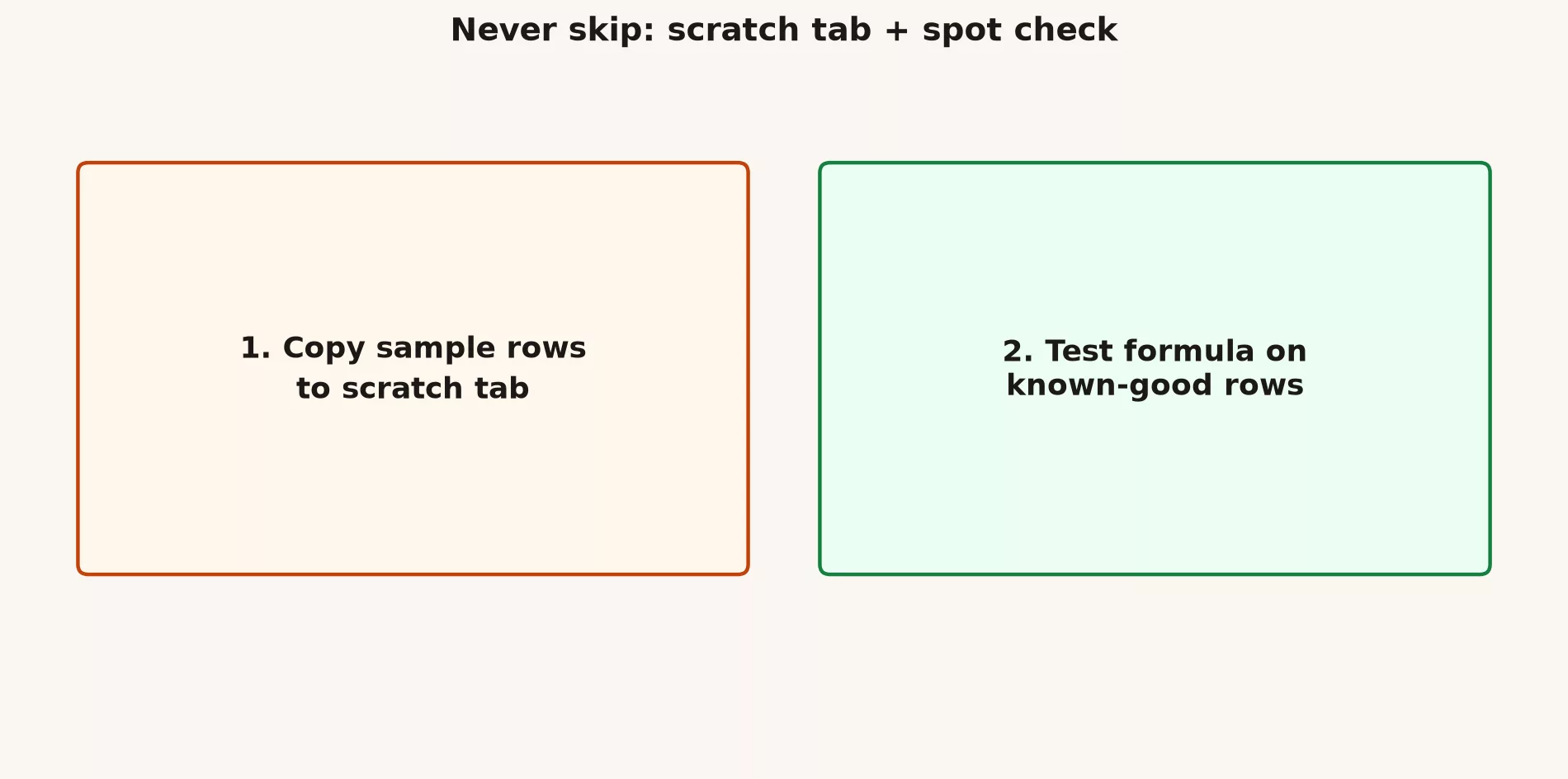
A scratch tab is simply a spare tab in the same file where you can experiment without risk. Work through these steps in order, and do not skip the one where you break something on purpose, since that is how you learn whether your check can actually catch a mistake.
- Duplicate the sheet or copy a sample into a tab named
scratch, so the real data stays untouched. - Break one row on purpose to see whether a validation catches it.
- Only then promote the formulas to the real tab.
- Write down what one row means (analysts call this the grain of the table), for example “one row is one sale on one day.”
Prompt patterns that stay honest
A prompt is the instruction you type to Gemini. These three keep it honest by telling it to list its assumptions, to name every range, and to avoid making up sample numbers. The first asks for an approach to a real calculation, the second asks for a beginner-friendly explanation of a formula, and the third asks for checks you can build yourself.
I have columns: date, region, units, revenue.
I need revenue per unit by region for last month.
Propose a Sheets approach.
List assumptions. Do not invent sample numbers.
Explain this formula like I am new to Sheets:
[paste formula]
Name each range. List one way it can break.Propose 3 validation checks for this table.
For each: what it catches, rough formula idea, false positive risk.Common formula failure modes
Most spreadsheet errors come from a short list of causes, and knowing them helps you write better spot checks. Any of these can hide behind a confident explanation.
- Mixing daily and monthly rows in one table, because the totals will quietly double count.
- Hidden rows and filters that confuse which cells a range includes.
- Regional settings for dates and decimals, so that 03/04 means March in one country and April in another.
- A lookup that returns the first match when you needed the last one.
- AI rewriting production formulas without anyone reviewing the change first.
Narrative from numbers
When leadership wants a story, pull the numbers from the sheet yourself and paste them into the prompt, or tell the model to rephrase only the numbers you give it. Asking it to “summarize this sheet” with no limits is how invented growth rates appear in a report.
Using ONLY these numbers I paste, write 3 bullets for a manager.
If a comparison is impossible, say so.
Numbers:
[paste]
When Sheets AI is not enough
A spreadsheet has limits, and some jobs belong in other tools. Recognizing those early saves you from stretching a shared sheet past what it can safely do.
- Tables with millions of rows that act as the official record, which belong in a data warehouse (a database built for large reporting).
- Complex transformations that work better as versioned SQL (the standard language for asking a database for data) or dbt (a tool that keeps data transformations in tracked files).
- Permissions that should not live inside a shared sheet.
Common mistakes
- Editing the production sheet directly with untested AI formulas.
- Trusting tables that were retyped from a screenshot, since one misread digit changes the answer.
- Never writing down what one row means, which leaves every later number open to misreading.
- Skipping spot checks because the explanation sounded smart.
What good looks like
Picture an operations analyst who uses Gemini to explain a nested ARRAYFORMULA they inherited, then rewrites it more simply by hand. The win there is understanding, not blind trust. Now picture a finance intern who accepts an AI-built VLOOKUP that silently drops rows. The scratch-tab habit would have caught that mistake against known totals.
Practice beats theory, so run one real task from this post today on non-sensitive material. Save the result outside the side panel where Gemini appears, and write two lines on what you will reuse tomorrow. Small, dated repetitions are how Workspace AI becomes a skill instead of a novelty.
Quick recap
- Let the AI explain and plan, and do the building and verifying yourself.
- Use a scratch tab first, so a bad formula never touches the data people rely on.
- Never let a narrative contain a number you did not supply.
- Coming next: finding, summarizing and organizing files in Drive.
Practice this week
- Make a 50-row toy sales table with made-up data, so you can practice without exposing real customer records.
- Ask for three validation checks, then build the simplest one yourself, because building one check by hand shows you what the others should catch.
- Break a row on purpose and confirm the check fires.
- Ask for a manager narrative that uses only totals you calculated and pasted in.
Series notes
This is Part 3 of the Gemini in Google Workspace tutorial (GM19). Previous: Docs outline to draft. Next: Drive find, summarize, organize.
Sources
Keep going
Same lessons in your feed
Short diagrams, hooks, and weekly tutorials on Substack, Instagram, X, and Facebook.