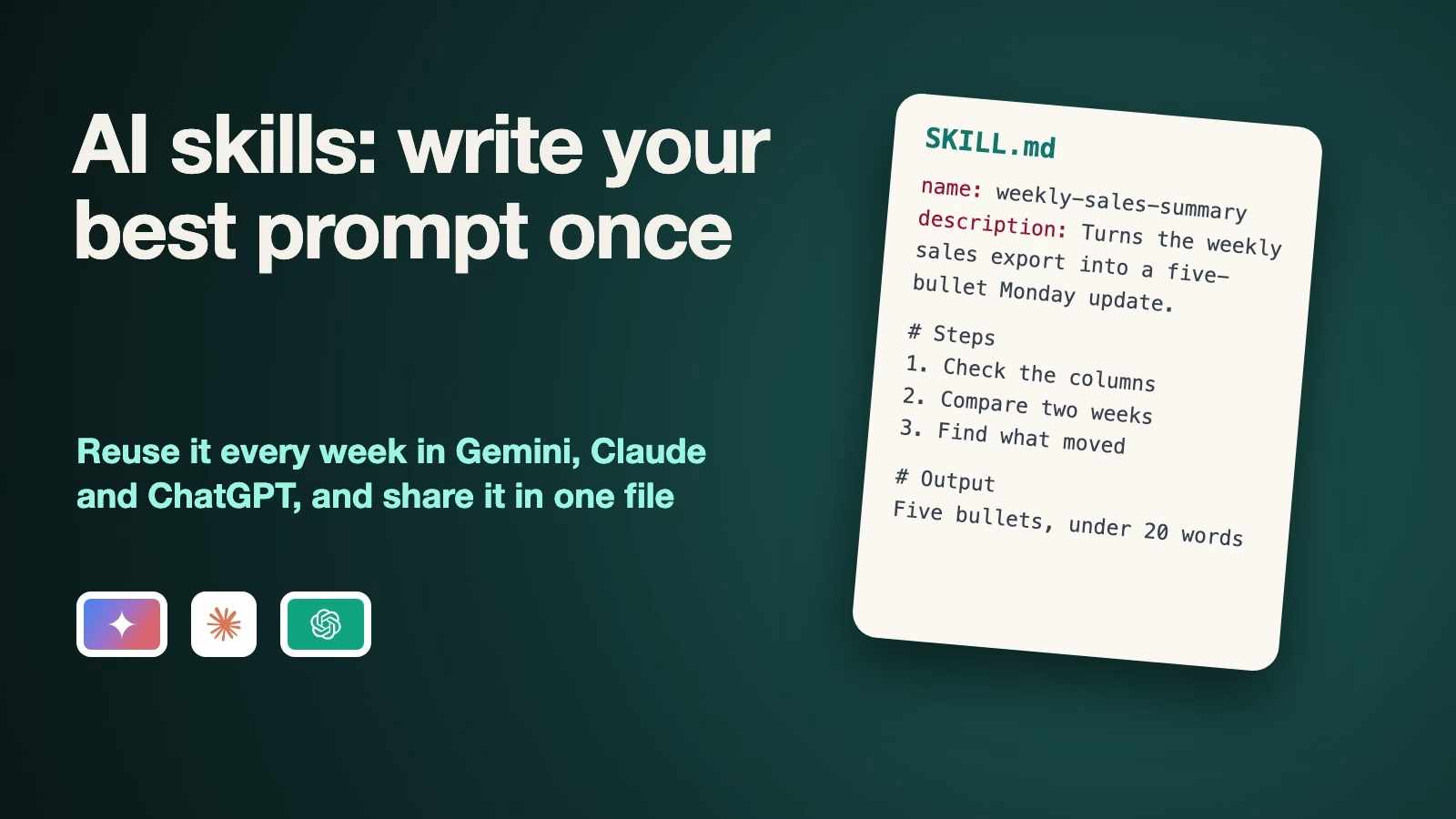
An AI skill is a saved set of instructions, and sometimes example files, that an AI app pulls in by itself when a task needs it, so you stop pasting the same long prompt every week. Gemini, Claude and ChatGPT now read the same skill file, called SKILL.md, so one skill you write can move between them. If you use Gemini’s Gems, Google says they move into Settings on November 17, 2026 and become draft skills later, per its transition page (checked October 15, 2026).
Picture your Monday. You open the weekly sales export, copy a 200-word prompt from a note on your desktop, paste both into the chat, and fix the answer when it forgets that you want five bullets, not eight. Then a coworker asks for the same summary and you email them the prompt, and their version drifts within a month. A skill turns that note into something the app keeps for you, uses the same way every time, and lets you share in one file.
What an AI skill is
A skill is a folder with one required file, SKILL.md, written in Markdown, the plain-text format with # for headings and - for bullets. The top of the file holds two labels: a short name, and a description of what the skill does and when to use it. Under that you write the instructions, the same way you would brief a new colleague. The folder can also hold extra files, such as a style guide or a template, that the AI reads only when it needs them.
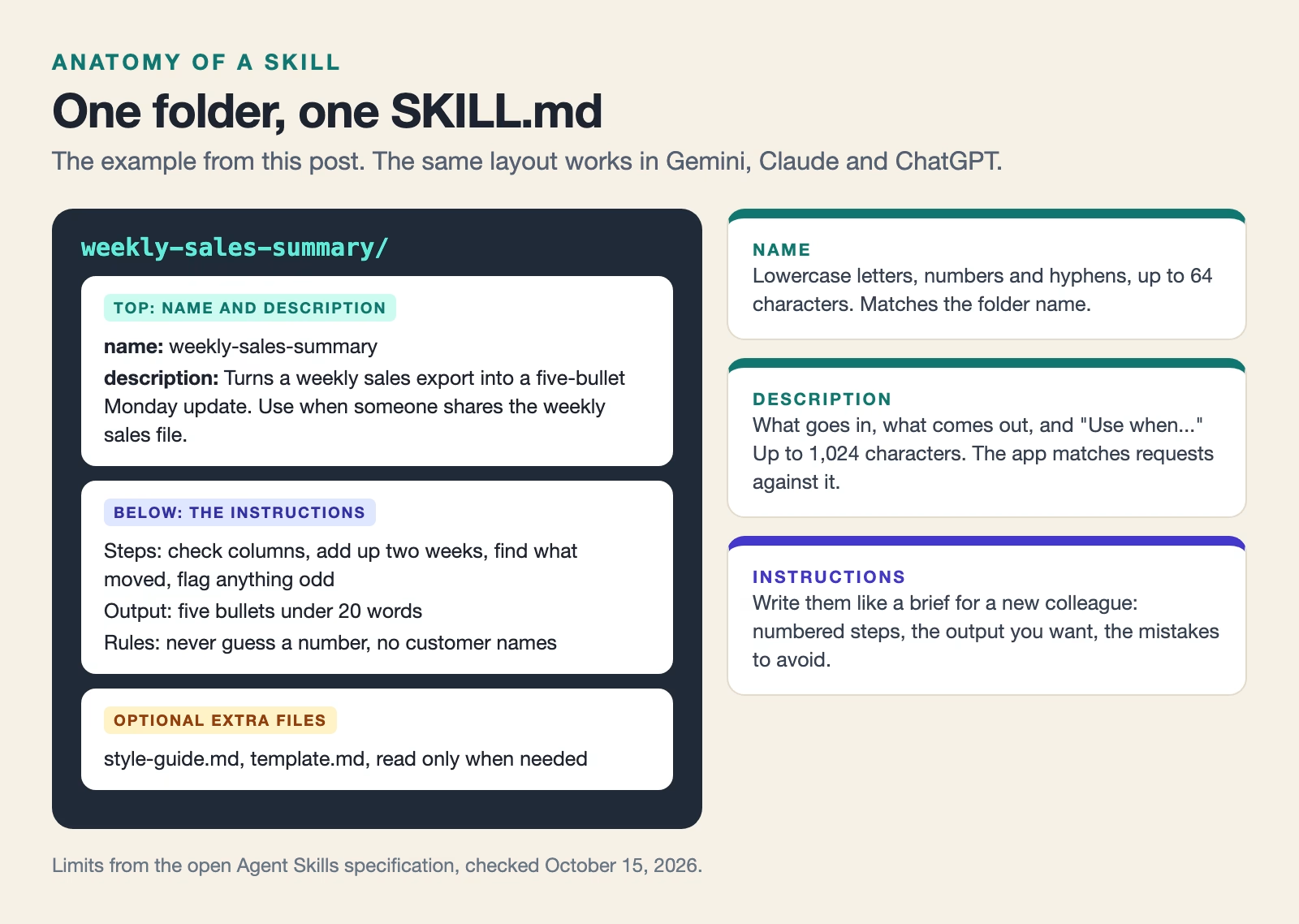
The format comes from the open Agent Skills specification, named for AI agents, apps that carry out tasks on your behalf rather than only chat. It says the name can be up to 64 characters of lowercase letters, numbers and hyphens, and the description up to 1,024 characters (checked October 15, 2026). Claude reads this format, and Google’s transition page now says Gemini skills use the same open, Markdown-based SKILL.md format, “which makes them portable across tools” (checked October 15, 2026).
How is this different from what you have now? A saved prompt is text you paste by hand. A Gem in Gemini or a Custom GPT in ChatGPT is a separate chat you have to open first. A skill sits in the background of every chat. You can call it by name, or the app picks it up on its own when your request matches the description, and you can use two skills in one request.
Why the description matters most
Apps do not read every skill in full before each answer. The specification describes it as loading in steps: the app reads only the name and description of all your skills, about 100 tokens each, and opens the full instructions only when a request matches. A token is a chunk of text of about three quarters of a word, so 100 tokens is a long sentence.
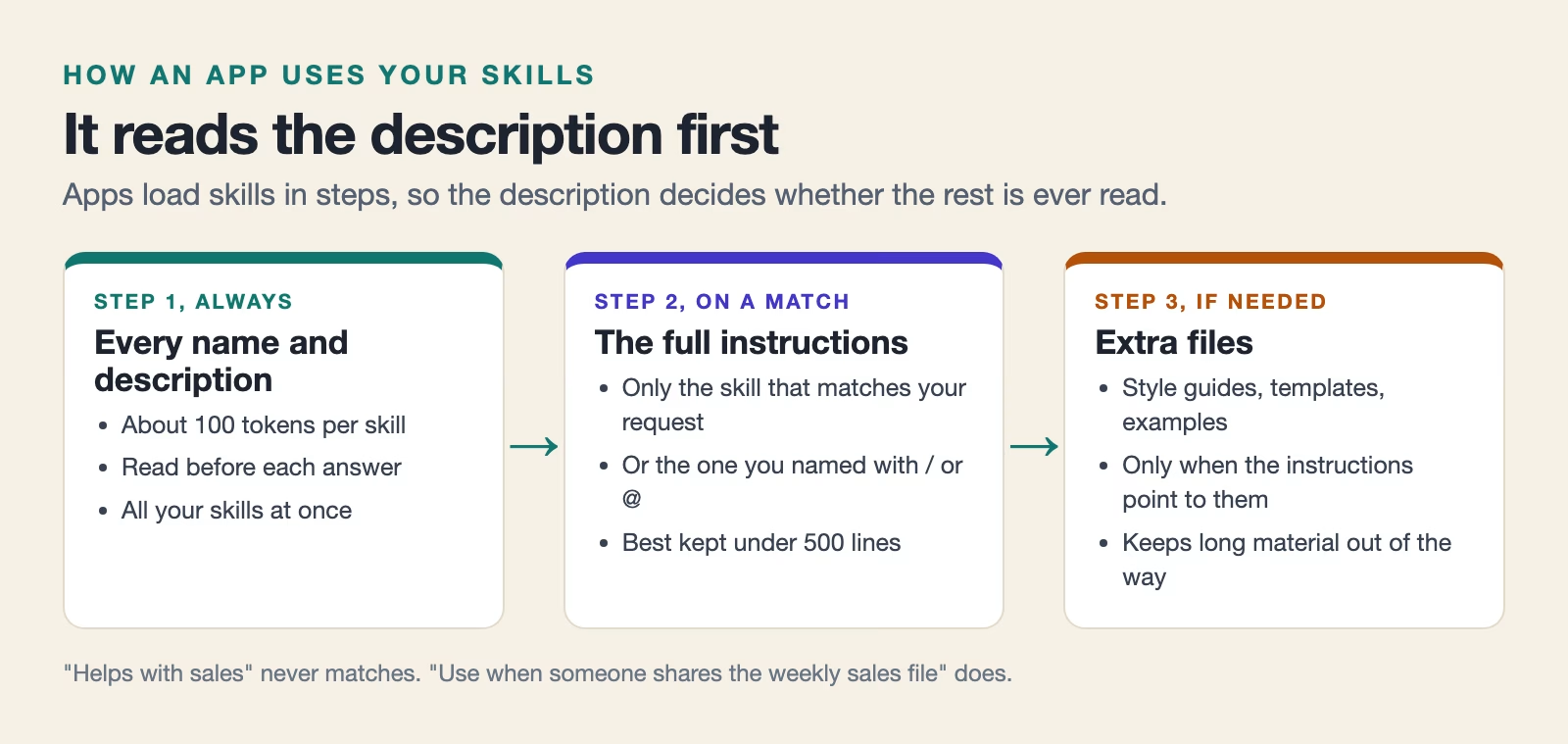
The same specification suggests keeping SKILL.md under 500 lines and moving long material into extra files, which the app opens only when the instructions point to them.
That makes the description the part that decides whether your skill ever runs. “Helps with sales” gives the app nothing to match on. “Turns a weekly sales export into a five-bullet Monday update. Use when someone shares the weekly sales file” names the input, the output and the moment to use it. Anthropic’s help page gives the same advice: if Claude is not using a skill, make the description clearer, or name the skill in your request (checked October 15, 2026).
Turn your best prompt into a skill, step by step
Start with a prompt you already trust, one you have pasted at least three times. A prompt that works is the hard part, and you already have it.
- Pick one job that repeats on a schedule, such as the weekly sales summary. One skill per job keeps the description sharp, so the app knows exactly when to use it.
- Write the description first, in two sentences: what goes in and what comes out, then “Use when…” with the words you would type. These are the words the app matches against.
- Turn your prompt into numbered steps and an output section. Steps the AI can follow in order are easier to fix than one long paragraph when something goes wrong.
- Add rules for the mistakes you fix by hand today, such as invented numbers or too many bullets. Every correction you make each week belongs in the file, so you stop making it.
- Save it as
SKILL.mdin a folder with the same name as the skill. Gemini’s help page requires the name in lowercase with hyphens, and the specification says the folder name must match.
Here is the finished file for the weekly sales summary. Copy it, change the column names to match your export, and keep the structure.
---
name: weekly-sales-summary
description: Turns a weekly sales export (a CSV file or a pasted table) into a five-bullet Monday update for the team. Use when someone shares the weekly sales file or asks for the weekly sales summary.
---

# Weekly sales summary

## Steps

1. Check the file has the columns `week`, `region`, `product` and `revenue`. If one is missing, say which column and stop.
2. Add up revenue for the latest week and the week before it. Show both totals and the change in percent.
3. Find the region and the product that moved the most, up or down, compared with the week before.
4. Note anything odd, such as a region with no rows or a negative revenue figure, as a question for the team.

## Output

- Five bullets, each under 20 words.
- Bullet 1 is the total and the change. Bullets 2 to 4 explain it. Bullet 5 is a question or "Nothing odd this week."
- Round money to the nearest $100 and percentages to one decimal place.

## Rules

- Never guess a number that is not in the file. If something cannot be worked out, say so.
- Do not name individual customers. Talk about regions and products.
Before you upload it, you can check the format with the free validator that the Agent Skills project publishes. It catches a wrong name or a missing description, which are the usual reasons an upload fails.
$ pip install skills-ref
$ agentskills validate weekly-sales-summary
Valid skill: weekly-sales-summary
We ran that check on the file above, and it passed. The validator only checks the format. Whether the summary is right is still your job, so compare the first two Mondays against the numbers you would have written yourself.
Where to add a skill in each app
Each app puts skills in a slightly different place, and the rules on who can use them differ. Here is what each company’s help pages say, checked October 15, 2026.
| Gemini app | Claude | ChatGPT | |
|---|---|---|---|
| Where to add one | Customize, then Skills, then Create | Customize, then Skills, then Upload a skill | Skills in the desktop app sidebar, or @skill-creator |
| Upload a SKILL.md | Yes, a file, folder or .zip | Yes, as a .zip | Build with @skill-creator |
| How to use it | Type / and pick it, or Gemini picks it | Claude picks it, or name it in your request | Type @ and pick it, or ChatGPT picks it |
| Who can use it | Personal Google Accounts, 18 or over | Free, Pro, Max, Team and Enterprise, with code execution on | Check your plan’s settings |
| Share with coworkers | Sharing announced, not live yet | Team and Enterprise: share or publish to the organization | Package it as a plugin |
In the Gemini app, go to Customize, then Skills, then Create. You can build one by chatting with Gemini, fill in the fields yourself, or upload your SKILL.md, per Google’s skills help page (checked October 15, 2026). The same page says skills there need a personal Google Account, an age of 18 or over and Keep Activity switched on, and that work and school accounts are not supported yet. Uploads can be up to 100 MB of plain-text files, so a .docx or .xlsx template will not go in. Save it as Markdown or CSV first.
In Claude, turn on code execution in Settings, then Capabilities, and add skills from Customize, then Skills, per Anthropic’s help page (checked October 15, 2026). The same page lists skills on the Free, Pro, Max, Team and Enterprise plans, and on Team and Enterprise you can share a skill with coworkers or publish it to your whole organization. If you already use skills in Claude Code, the guide to Claude Code skills covers the coding side.
In ChatGPT, OpenAI’s skills guide says you can type @skill-creator to have ChatGPT draft one, find your skills under Skills in the desktop app’s sidebar, and type @ to pick one in a chat (checked October 15, 2026). The same guide says skills follow the open agent skills standard. Plan details differ by account, so check your own settings before you rely on it at work.
What happens to your Gems
If you built Gems in Gemini, nothing breaks this month, but the dates are worth putting in your calendar now. All of these come from Google’s transition page, checked October 15, 2026.
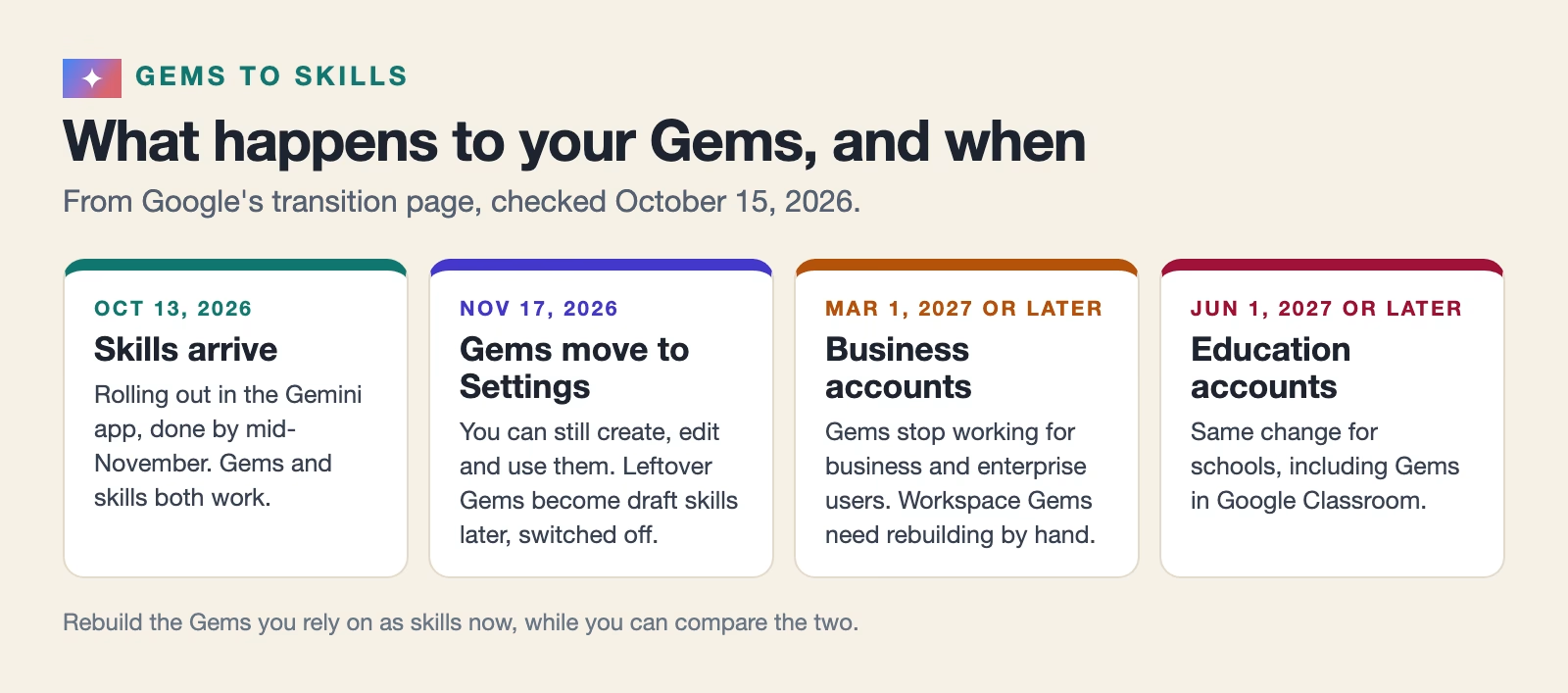
Skills started rolling out in the Gemini app on October 13, 2026, and Google expects that to finish by mid-November, according to its Workspace Updates post (checked October 15, 2026). On November 17, 2026, Gems move into Settings, where you can still create, edit and use them. For business and enterprise accounts, Gems stop working no sooner than March 1, 2027, and for education accounts no sooner than June 1, 2027.
Google says remaining Gems in the Gemini app will be turned into draft skills automatically, keeping their name, description, instructions and uploaded files. Drafts are switched off until you activate them, so check each one rather than assume it works. Gems you use inside Workspace apps such as Docs are not moved for you, and you have to rebuild them in Workspace Studio, Google’s tool for automating work across its apps. If one Gem matters to your week, rebuild it as a skill now while you can still compare the two side by side.
How to share a skill without sharing a problem
A skill is instructions the AI follows, so a skill from a stranger can tell the AI to do things you did not ask for. That is prompt injection, when hidden text steers the AI toward someone else’s goal. Anthropic’s help page warns that the main risks are prompt injection and data being sent out through malicious code, and says to install skills only from trusted sources (checked October 15, 2026).
Open-source skills are spreading fast. One example, answer-me-with-html, which makes an AI answer as a one-page web page you open in your browser, gathered about 3,400 GitHub stars between October 2 and October 15, 2026. Popular is not the same as reviewed. Before you install any skill, open every file in the folder and read it. If a skill includes scripts, small programs the AI can run, check what they do before you switch it on.
When you share your own skill, send the folder, not a copy of the text in an email, so the name and description stay intact. Keep company figures out of the file itself. A skill should describe how to do the job, and the data should arrive with each request.
Common mistakes
- A vague description. “Helps with reports” never triggers, so the skill sits unused and you blame the app.
- One giant skill for everything. Split it into one skill per job, because each description can only match one kind of request well.
- Putting data in the skill. Last quarter’s numbers inside the instructions will be stale next quarter and get shared with everyone who gets the file.
- Installing a skill you have not read. Read every file first, for the reasons in the section above.
- Waiting for the Gem migration. Drafts arrive switched off, so rebuild the Gems you rely on and test them now.
What to do this week
Find the prompt you have pasted most this month and turn it into one skill with the five steps above. Write the description first, upload it to the app you use most, and run it on this week’s file. Next Monday, run it again without editing the prompt, and add a rule for anything you still had to fix. If you have Gems, pick the one you use most and rebuild it as a skill before November 17. For a broader look at how these apps keep your files and instructions, see how to turn a messy folder into a project Claude or ChatGPT can work with.
Sources
- Agent Skills: Specification (SKILL.md format, name and description limits, loading in steps)
- Google Workspace Help: About the transition from Gems to skills (dates, automatic draft skills, SKILL.md format)
- Google Workspace Updates: An update on the launch of skills in the Gemini app and Workspace (October 13, 2026 rollout, Workspace delay)
- Google Help: Use skills in the Gemini app (create, upload, use, limits, account requirements)
- Anthropic Help: Using skills in Claude (plans, setup, sharing, safety warnings)
- OpenAI: Build skills (skill-creator, @ to use, open agent skills standard)
- skills-ref on PyPI (the reference validator used in this post)
- QingYunA/answer-me-with-html on GitHub (an open-source skill, star count checked October 15, 2026)
Keep going
Same lessons in your feed
Short diagrams, hooks, and weekly tutorials on Substack, Instagram, X, and Facebook.