Ollama is a free app that makes running an AI model on your own computer about as easy as installing any other app. You install it, type one command, and start chatting. You still have to pick a model that fits your computer, and you still have to check its answers.
Imagine you try to set up a private AI helper on your laptop by following a fifteen-page guide. It asks you to install extra software for your graphics card, build programs yourself, and download model files by hand. Two days later, it still does not work. With Ollama, the same result takes one line typed into the terminal, the text window where you type commands: ollama run qwen3.5.
Before Ollama, running your own AI model was a job for specialists, and Ollama hides all that setup behind a few simple commands. It checks your hardware, downloads the model, and runs it for you. This post covers installing it, picking the right model, making your own custom assistant, and connecting it to other programs.
Why Ollama made local AI easy
Ollama hides the hard parts of running a model, like building software, setting up drivers, and choosing file formats, behind a handful of simple commands.
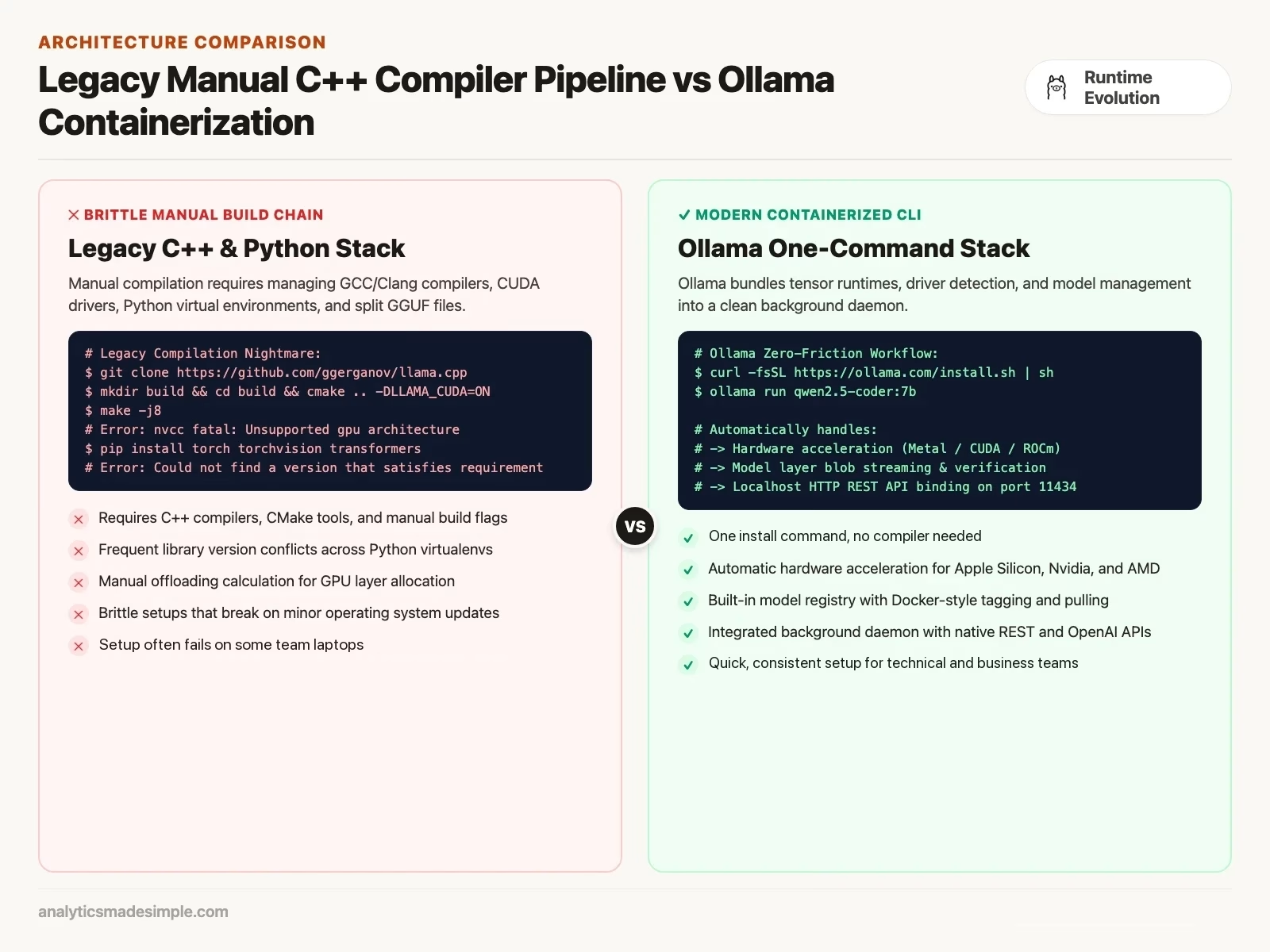
In early 2023, running a model yourself meant downloading source code and building it on your own machine. You also had to install special add-ons for your graphics card and hunt for a model file that worked with your setup.
Every update meant doing it again. Sharing a working setup with a coworker rarely worked, because their computer was always slightly different.
Ollama fixed this by packing everything a model needs into one bundle. That includes the model’s weights (the numbers it learned in training), the format it expects questions in, and its settings. It works a lot like Docker, a popular tool that bundles software so it runs the same way everywhere.
When Ollama starts, it checks your hardware: an Apple chip, a graphics card from NVIDIA or AMD (the two big makers of graphics chips), or just the regular processor. Then it picks the fastest option on its own.
A few commands cover almost everything: pull to download a model, run to chat with it, list to see what you have, and rm to delete one.
Installing Ollama and running your first model
On a Mac or Windows computer, you install Ollama like any other app. On Linux, it takes one command. Then it waits quietly in the background.
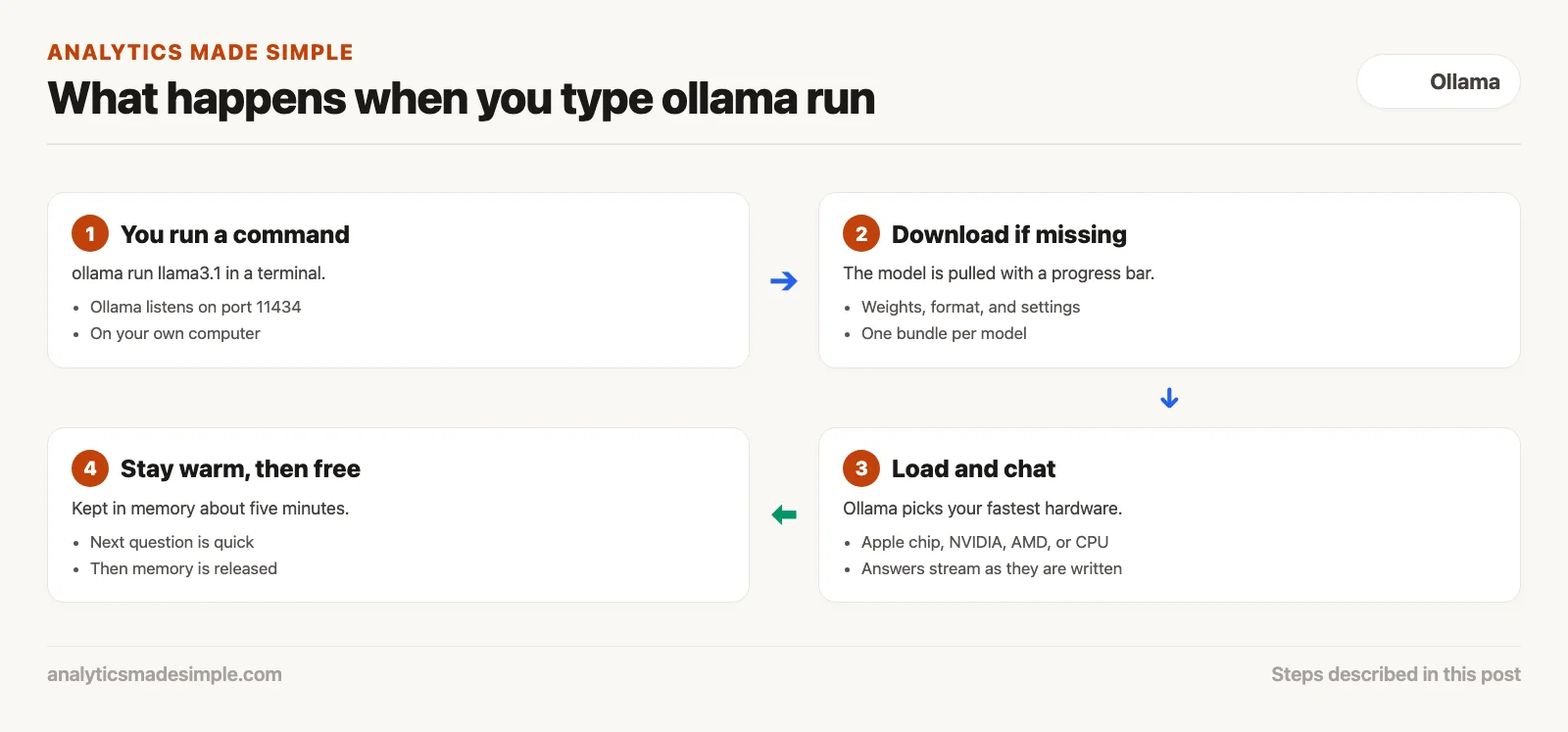
On a Mac or Windows machine, download the installer from the Ollama website and run it. On Linux, one command installs it and sets it to start automatically.
Once installed, Ollama runs in the background and listens for requests on your own computer at a local address, port 11434. It uses almost no memory until you ask it something.
To start your first chat, open your terminal and type ollama run qwen3.5. If you do not have that model yet, Ollama downloads it, shows a progress bar, and then opens a chat.
From there, you can ask it to sum up a document, write code, or talk through a problem. A few short commands inside the chat show the model’s details, change settings, or end the session.
After you stop chatting, Ollama keeps the model in memory for about five minutes, so your next question gets a quick answer. Then it frees the memory for your other programs.
Reading model names
Each model name in Ollama tells you the model’s size and specialty, so you can pick one that fits your computer.
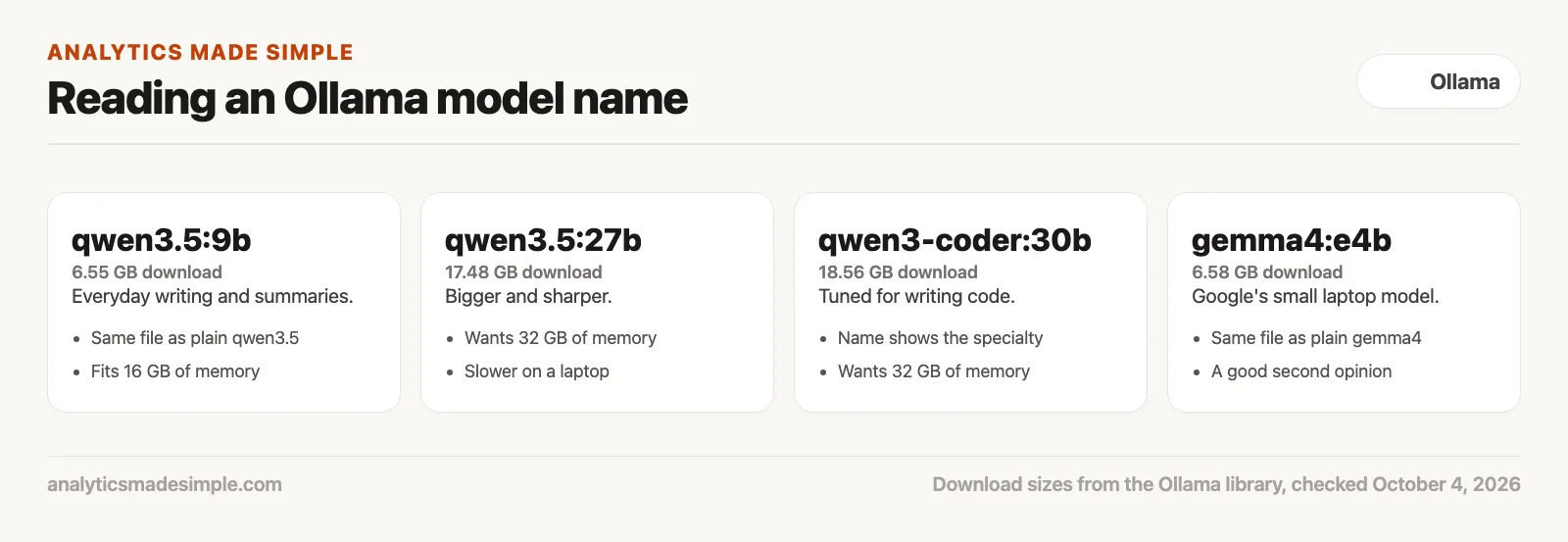
Ollama’s library has thousands of models. Each has a name, a colon, and a tag, like qwen3.5:9b.
If you leave off the tag, as in ollama pull qwen3.5, you get the default version. For qwen3.5 that is the 9-billion-parameter model (parameters are the numbers a model learns in training), already shrunk to save memory. Shrinking a model by storing its numbers with less detail is called quantization, and the previous post in this series covered it.
It is safer to name the size you want, so it matches your computer. qwen3.5:9b is a 6.55 GB download, while qwen3.5:27b is 17.48 GB and needs far more memory (Ollama library, checked October 4, 2026).
Tags also show a model’s specialty. qwen3-coder:30b is tuned for writing code, and gemma4:e4b is a small Google model built for laptops, where the “e” stands for effective size.
Type ollama list to see every model you have, with its size. Type ollama rm followed by a model name to delete one.
Making your own assistant with a Modelfile
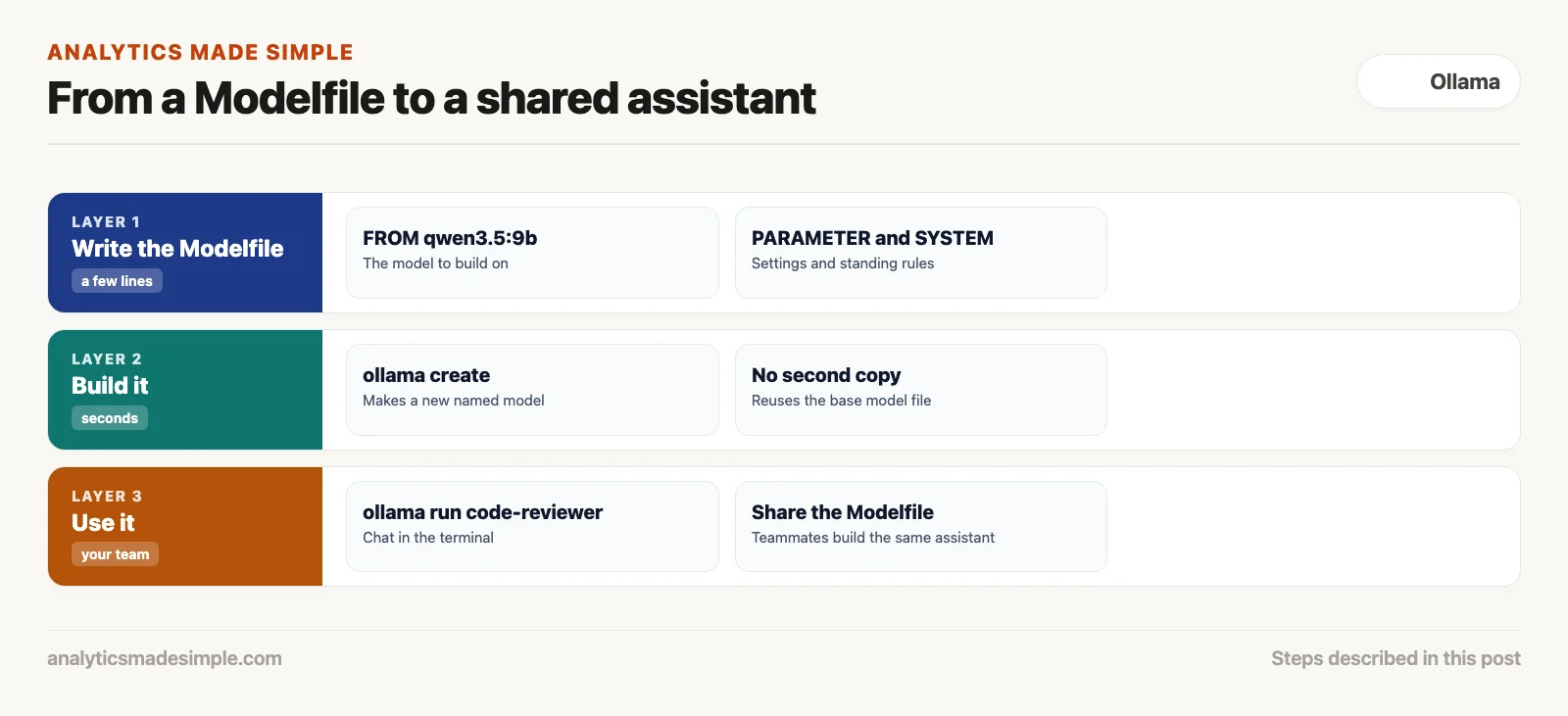
A Modelfile is a short text file that turns a general model into your own custom assistant, with fixed instructions and settings.
A general model handles most conversations well. But for a specific job, you often want the same rules every time. Ollama handles that with a Modelfile, a few lines of plain text.
Say you want a private helper that checks code changes for security problems. The Modelfile starts by naming the model to build on, like FROM qwen3.5:9b.
Next come settings. PARAMETER temperature 0.2 keeps answers focused and consistent. PARAMETER num_ctx 16384 lets the model read more text at once.
Last comes the standing instruction the model always follows, like SYSTEM You are a security reviewer. Check code changes for leaked card numbers and unsafe database queries.
Then run ollama create code-reviewer -f Modelfile. In seconds, you have a new model that anyone on your team can start with ollama run code-reviewer.
Connecting other programs to Ollama
Ollama also opens a local address that other programs can send requests to, and it accepts the same request format as OpenAI’s tools.
Chatting in the terminal is fine for trying things out. The bigger payoff comes when your other software can use the model too.
Ollama offers two ways in. Its own address handles single questions and full conversations, and it sends answers back a piece at a time.
The second way copies the request format OpenAI uses, and that matters, because most tools built to talk to OpenAI, including scripts and code-editor add-ons, can switch to your own computer by changing one web address.
Two settings are worth knowing. One keeps a model in memory all the time, so there is no wait to load it. Another lets Ollama answer several requests at once. Both are covered in Ollama’s FAQ (checked September 2026).
A Python example
Your own programs can talk to Ollama with plain web requests, with nothing extra to install.
The Python program below sends a question to Ollama on your computer and prints the answer as it arrives, along with a few speed numbers.
# Programmatic Query to Ollama Native REST Endpoint
import json
import requests

OLLAMA_HOST = "http://localhost:11434"

def query_ollama_native(prompt: str, model: str = "qwen3.5:9b"):
    url = f"{OLLAMA_HOST}/api/generate"
    payload = {
        "model": model,
        "prompt": prompt,
        "stream": True,
        "options": {
            "temperature": 0.2,
            "num_ctx": 8192
        }
    }

    print(f"Connecting to local Ollama daemon on {url} (Model: {model})...\n")
    try:
        response = requests.post(url, json=payload, stream=True)
        response.raise_for_status()

        for line in response.iter_lines():
            if line:
                chunk = json.loads(line.decode("utf-8"))
                print(chunk.get("response", ""), end="", flush=True)

                # Print execution metrics on completion
                if chunk.get("done", False):
                    total_dur = chunk.get("total_duration", 0) / 1e9
                    eval_count = chunk.get("eval_count", 0)
                    eval_dur = chunk.get("eval_duration", 0) / 1e9
                    speed = eval_count / eval_dur if eval_dur > 0 else 0.0
                    print(f"\n\n--- Ollama Generation Metrics ---")
                    print(f"Total Duration:     {total_dur:.2f} seconds")
                    print(f"Tokens Generated:   {eval_count} tokens")
                    print(f"Evaluation Speed:   {speed:.2f} tokens/second")
    except requests.exceptions.ConnectionError:
        print("Error: Ollama daemon is not running. Start it with 'ollama serve'.")

# Example invocation
if __name__ == "__main__":
    query_ollama_native("Write a Python function to validate credit card Luhn checksums.")
Quick reference for common Ollama commands
Keep this quick reference handy to manage your local models, check what is running, and configure the background service.
| Ollama CLI Command | Primary Function | Typical Syntax Example | Practical Engineering Tip |
|---|---|---|---|
| ollama run | Pulls (if missing) and executes interactive REPL | ollama run qwen3.5:9b | Use slash commands like /show info inside the chat |
| ollama pull | Downloads model blobs in background without launching | ollama pull qwen3-coder:30b | Ideal for pre-warming team laptops via shell scripts |
| ollama list | Displays all locally installed models and disk sizes | ollama list | Quickly audit local storage consumption on your machine |
| ollama ps | Lists models currently active in system memory | ollama ps | Shows VRAM allocation and expiration time before auto-unload |
| ollama create | Builds custom named model variant from a Modelfile | ollama create auditor -f Modelfile | Reuses base weights without duplicating disk space |
| ollama rm | Deletes model blobs and releases disk storage | ollama rm qwen3.5:27b | Instantly reclaims dozens of gigabytes of disk space |
A plan for your first hour
Ready to set up your own private AI? Follow these steps.
- Install Ollama and check it runs. Run the installer, then visit
http://localhost:11434in your browser. You should see the message “Ollama is running.” - Download two models. Try
qwen3.5:9bfor writing and summaries, andgemma4:e4bas a second opinion. Together they take about 13 gigabytes of disk space (Ollama library, checked October 4, 2026). - Write your first Modelfile. Set your own preferences, like short answers in bullet points. Build it with
ollama create my-assistant -f Modelfile. - Connect your code editor. If you use VS Code, a free code editor from Microsoft, install an add-on like Continue and point it at
http://localhost:11434. You get private code suggestions with no subscription. - Keep your model loaded. If you use it all day, set
OLLAMA_KEEP_ALIVE=-1so the model stays in memory and answers right away.
Series notes
This is Part 4 of Local LLMs from scratch. The previous post covered quantization. Next up: LM Studio (LM is short for language model), a graphical app for finding models visually, setting graphics acceleration options, and managing chats without typing a single terminal command.
Sources
- Ollama, documentation, including the Modelfile reference and API reference, checked October 4, 2026.
- Ollama, model library with tags and download sizes, checked October 4, 2026.
- Ollama, OpenAI compatibility, checked October 4, 2026.
- Ollama on GitHub, ollama/ollama, checked October 4, 2026.
Keep going
Same lessons in your feed
Short diagrams, hooks, and weekly tutorials on Substack, Instagram, X, and Facebook.