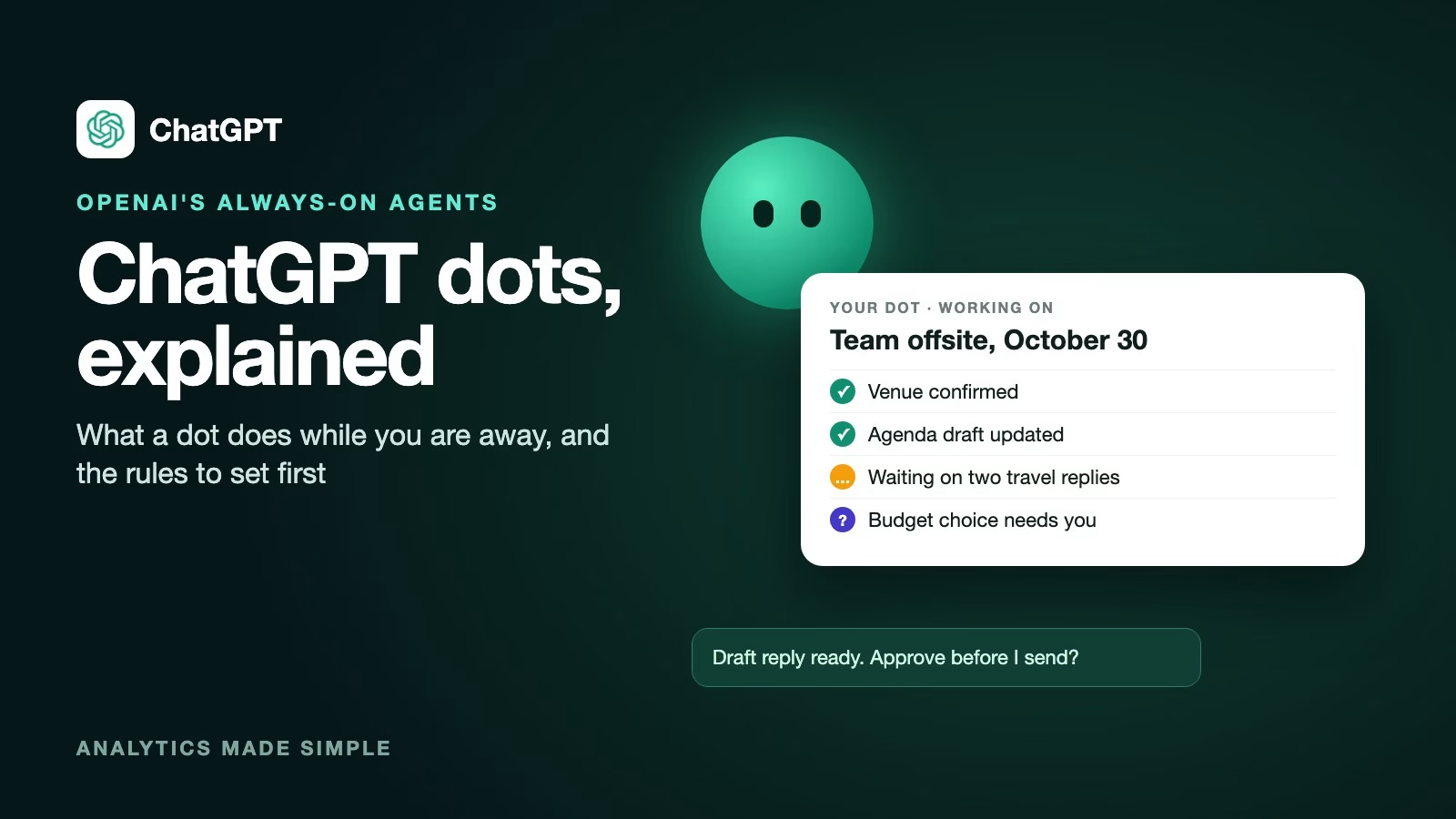
A dot is a ChatGPT agent that keeps working on a goal after you close the chat. You tell it what you want done and where the limits are, and it checks in when it needs a decision from you. It is useful for ongoing chores that drag on for days, and it needs clear rules because it can act in your connected apps.
Imagine you are organizing a team offsite three weeks from now. Every day something changes: a venue replies, someone’s flight moves, a budget question sits unanswered. Regular ChatGPT forgets the whole thing the moment you close the tab. A dot keeps the list, follows up, and pings you only when a choice is yours to make.
OpenAI writes the name in lowercase, dots, and calls each one your dot. It announced them on September 29, 2026, at its DevDay event, according to SiliconANGLE’s report. This post explains what a dot is, who can get one, how to set one up, and the rules to write before you hand it anything that matters, using OpenAI’s dots guide checked on October 8, 2026.
What is a ChatGPT dot?
A dot is an always-on agent that lives in the cloud with its own computer and browser, so it keeps working when your own computer is off, according to OpenAI’s dots guide (checked October 8, 2026). An agent is an AI that works through several steps on its own instead of answering one message and stopping.
The guide says a dot can research, analyze data, prepare documents, and build software. It runs on GPT-6 Astra, OpenAI’s model for this kind of work. It also remembers what it is doing. It draws on your conversation, the memory ChatGPT already keeps about you, and its own notes on your preferences, decisions, and ongoing work.
The difference from a normal chat is time. A chat answers and waits. A dot pauses and resumes on its own, tracks progress between conversations, and follows up as things change, with no fixed schedule required.
Should you use a dot or a regular ChatGPT tool?
Use a dot for work that stretches over days and needs following up. For a single task you can watch, the tools you already know are simpler. The earlier post on which ChatGPT mode to use covers Chat, Work, and Codex in more detail.
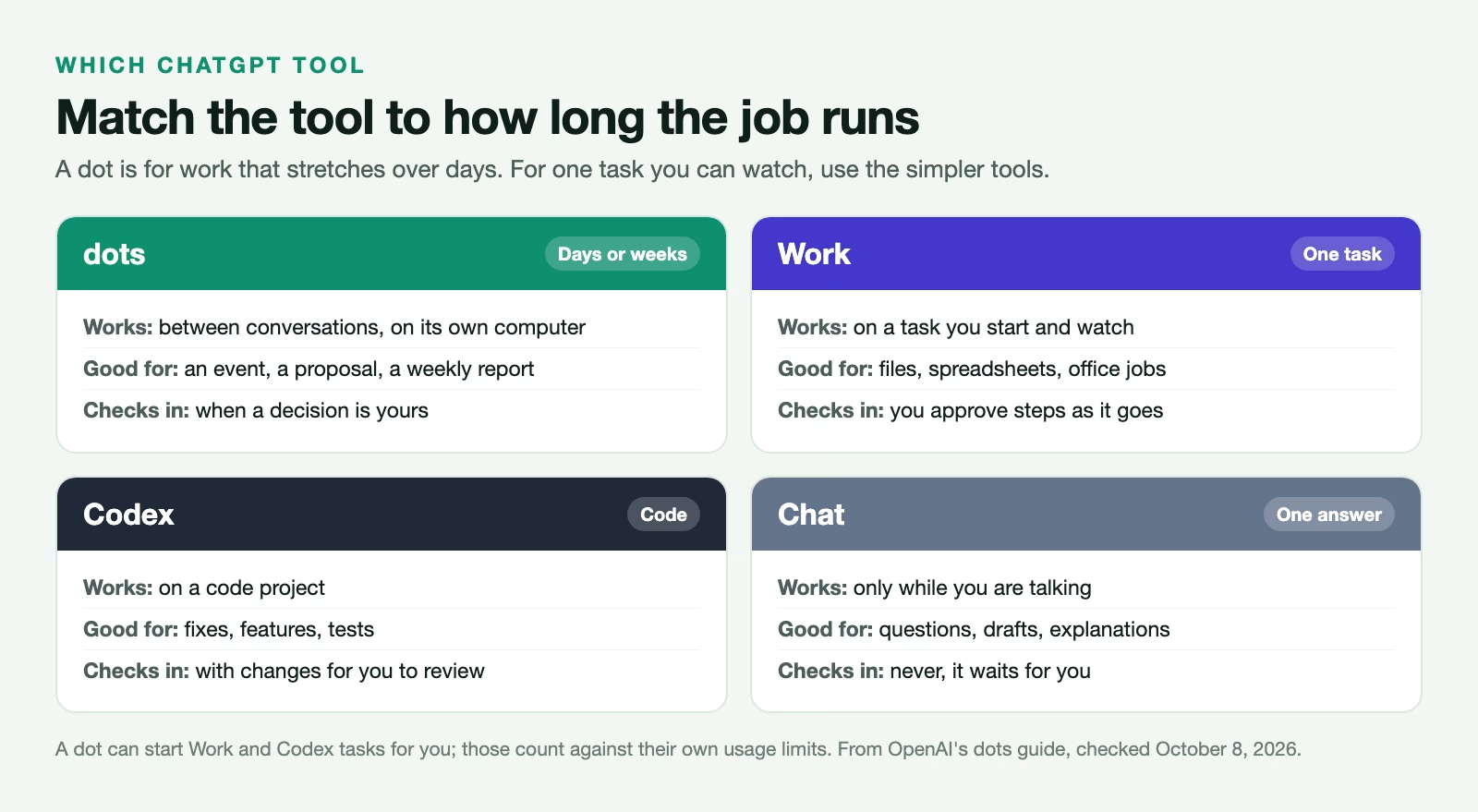
A dot can also hand work to the others. The guide says it can start ChatGPT Work or Codex tasks for you, and those tasks count against Work’s and Codex’s own usage limits. Talking to your dot does not count against your ChatGPT limits, which is worth knowing if you hit those caps often.
Who can get a dot
Dots are rolling out gradually, so you may not see one yet even on an eligible plan. According to the dots guide (checked October 8, 2026), they come with the Pro plans for people over 18, except in the European Economic Area, the UK, and Switzerland. They are also rolling out worldwide on Business Premium.
On Enterprise plans, dots are off by default and a workspace administrator has to switch them on. If you use ChatGPT through your job and do not see dots, that is the most likely reason. Ask your IT team rather than signing up for a personal plan to use one with work data.
How to set up your dot
You create a dot in the ChatGPT desktop app or a desktop web browser; the mobile web version is not supported. Setup takes a few minutes and has three parts.
- Give it a name and a look. You pick its shape, color, eyes, and accessories, and the name sets its handle, which looks like @yourname-dot. You can change all of it later.
- Connect only the apps it needs for the first job, such as your calendar and one shared folder. Each connection lets it read and act in that app, so start small and add more once you trust it.
- Decide whether to give it access to your own computer. This is optional, and it needs the ChatGPT desktop app open and online. Leave it off unless the job truly needs files that live only on your machine.
Then give it one goal in plain words, with the finish line spelled out. “Keep the offsite plan current until October 30, track who has not confirmed travel, and draft replies for me to approve” works far better than “help with the offsite”.
How you talk to it
You can message your dot in ChatGPT on desktop, and in the mobile app once your phone has the update. The guide adds three more channels: a phone call from the button in the dot’s conversation, Slack, and Microsoft Teams.
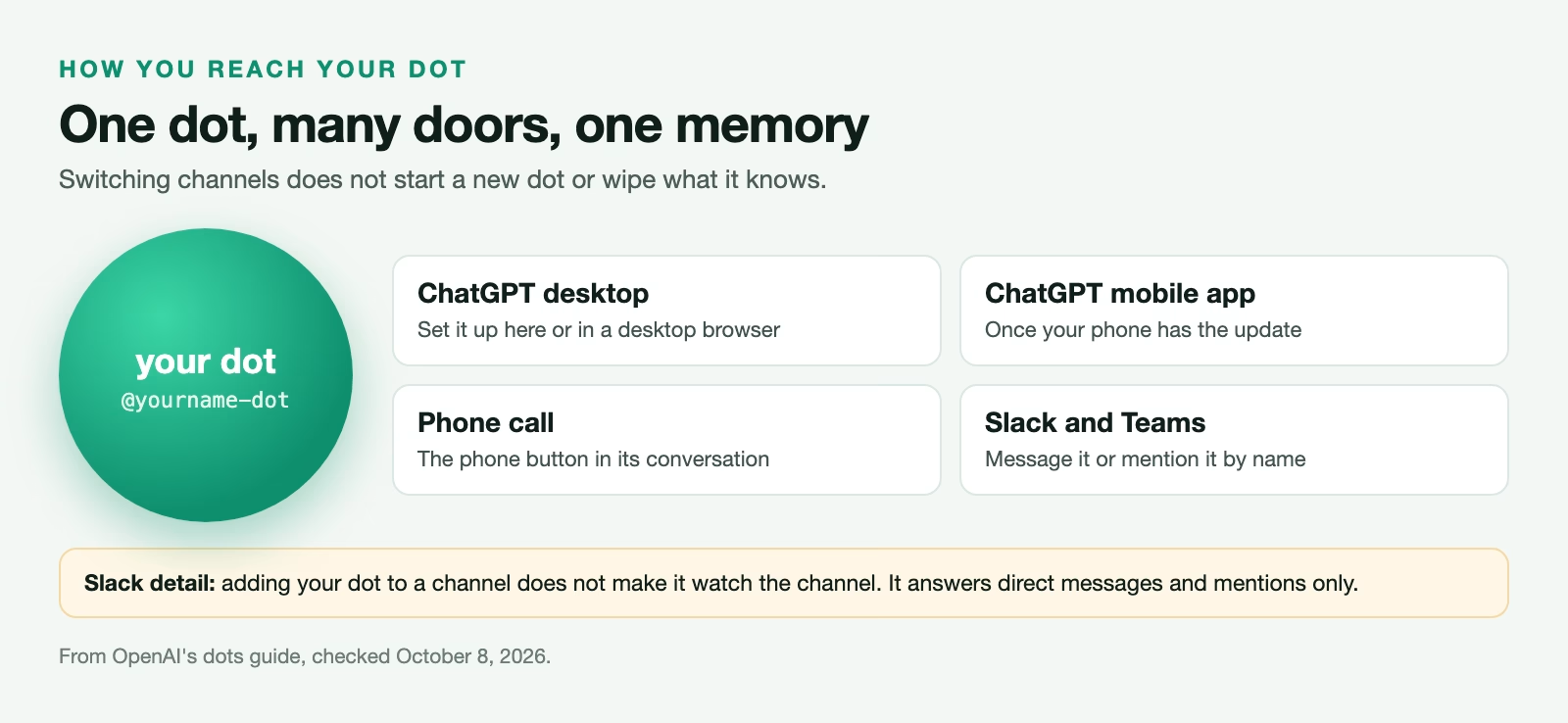
In Slack, adding your dot to a channel does not make it watch that channel. It responds when you message it directly or mention it. Changing channels does not start a new dot or wipe its memory, so the dot you call from your phone knows what you told it on your laptop.
Your dot also messages you. You choose where routine updates go and which changes need your attention, so a quiet status note can go to one place and a decision can go somewhere you will see it quickly.
Rules, approvals, and what stays with you
OpenAI built three layers of control into dots, and you can add a fourth. Built-in safeguards and your existing ChatGPT app permissions apply from day one. On top of those, an automatic review checks each action and decides whether it can go ahead, needs your approval, or has to be handed to you.
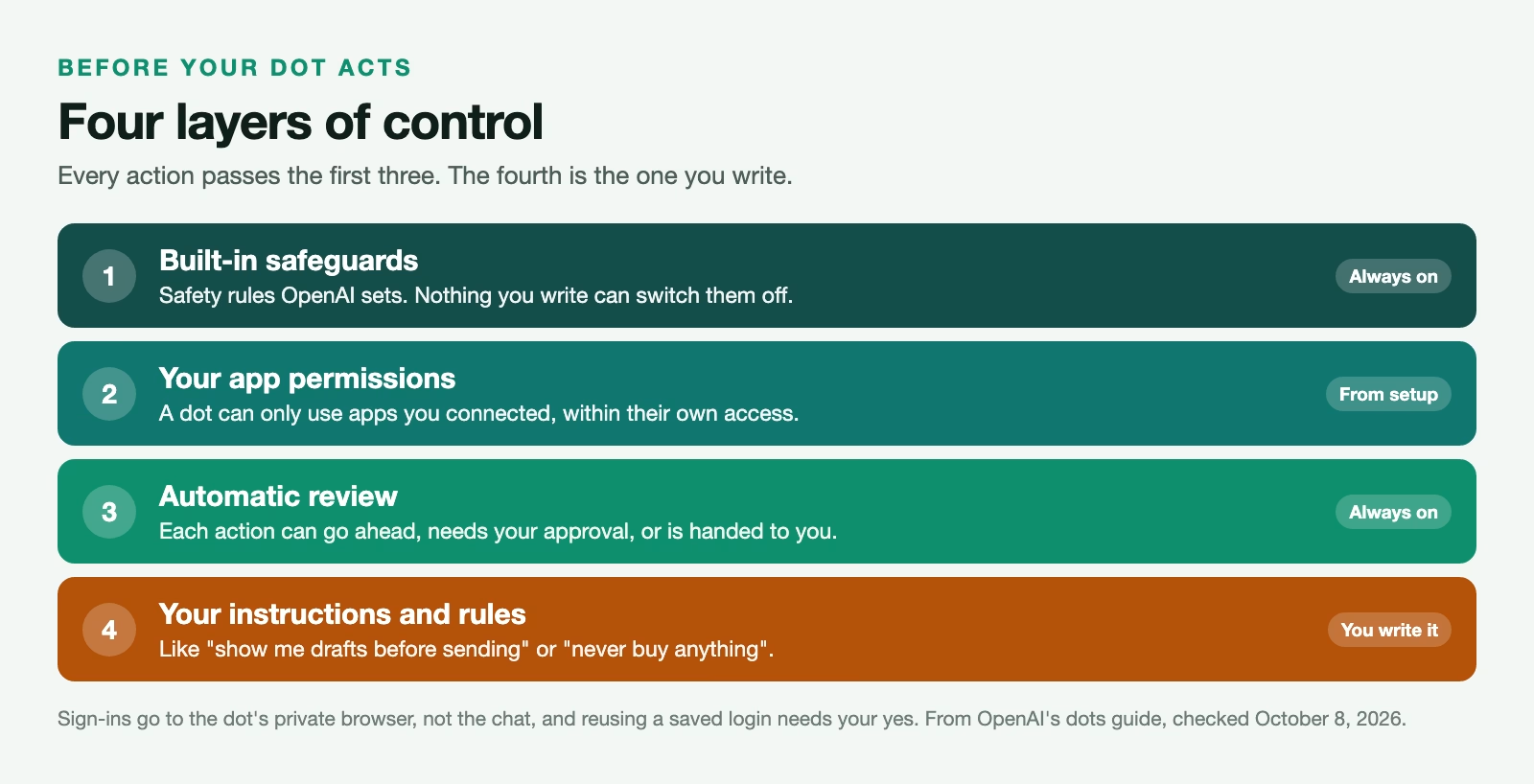
The fourth layer is yours. You can write custom instructions, such as “show me drafts before sending anything”, and custom rules for lasting limits. Neither can switch off the built-in safety requirements. Here is a starting set worth copying, written as plain sentences the way you would type them:
Show me every draft before you send it to anyone.
Ask before you accept, decline, or move a calendar event.
Never buy anything, change a password, or share a file outside my team.
Read-only access to the Finance folder. Do not edit files there.
If you are unsure whether something needs my approval, ask.
Some steps always stay with you. Signing into a website happens in a private flow where your password goes to the dot’s browser, not into the chat, and you can take over to finish a login yourself. Reusing a saved login for a new site needs your confirmation.
A week with a dot, step by step
Here is how the offsite from the start of this post could run, as a practice example rather than a real account. It shows where the rules and approvals do their work.
- Day one: you create the dot, connect your calendar and the shared offsite folder, and give it the goal with a finish date. You add the rule “show me every draft before you send it”.
- Day two: it reads the folder, builds a checklist of open items, and messages you a short summary. Nothing has been sent yet, because nothing needed sending.
- Day three: a venue emails back with two date options. The dot drafts a reply and asks you to approve it, because your rule says drafts come to you first. You change one line and approve.
- Day five: two people have not confirmed travel. The dot reminds you and drafts a polite nudge for each. You send one and decide to call the other yourself.
- Day eight: the budget is close to its limit, and a choice between two caterers would change it. That is a decision about money, so the dot hands it to you with the numbers side by side.
The pattern is the point. The dot handles the remembering and the drafting, and every message that leaves your account and every choice about money stays with you. If a week goes like this, you can loosen one rule at a time, such as letting it send routine reminders on its own.
How dots compare with other always-on agents
Dots are not the only agents of this kind. xAI’s Grok Bot also runs on its own cloud computer, signs into your tools, and comes back for approval, as the post on what Grok Bot is explains. The ideas are the same even when the names differ: one clear goal, few connected apps, approval before anything leaves your account, and a way to pause it.
The practical difference is where you already work. If your team lives in ChatGPT and your company already pays for a plan that includes dots, a dot is the shorter path. If you already use Grok or Cursor, Grok Bot is. Either way, the first job should be small enough that you can check every step.
What not to hand a dot yet
A dot is new, it can act in your apps, and it works while you are not looking. Keep it away from money, account security, and anything you cannot undo until you have watched it work for a while.
- Do not connect accounts that can move money or change passwords for the first job.
- Do not let it send messages to customers or your boss without your approval, even if the drafts look good.
- Do not give it access to your own computer unless the job needs it.
- Do not use a personal plan’s dot with your company’s data; ask whether your workplace has dots switched on.
If your dot goes off track, open its profile in the desktop app and select Activity to see what it is doing. Pause stops its main task. Background tasks and recurring tasks are stopped separately, so check those too.
Recap
- A dot is a ChatGPT agent with its own cloud computer that keeps working on a goal between conversations.
- It suits chores that run for days, like an event, a proposal, or a weekly report, and can hand pieces to Work or Codex.
- It is rolling out on Pro and Business Premium, and on Enterprise once an admin turns it on.
- Start with one goal, few connected apps, approval before anything is sent, and money and passwords off limits.
Try it this week: if you have access, give your dot one small recurring chore, such as a Friday summary of what changed in a shared folder, and read every update it sends.
Sources
- OpenAI: Meet dots (what a dot is, plans, setup, channels, controls, usage limits)
- SiliconANGLE: OpenAI launches dots, always-on AI agents in ChatGPT with their own cloud computers (announcement date)
- OpenAI: Introducing dots (the announcement)
- OpenAI Help Center: Dots privacy, security, and safety FAQs (privacy and safety details)
Keep going
Same lessons in your feed
Short diagrams, hooks, and weekly tutorials on Substack, Instagram, X, and Facebook.