Text-to-video, image-to-video, and video edit are three different ways to make an AI video, and the right one depends on how much control you need. If the shot has to show a specific product, face, or logo, start from an approved still image and ask the model only for the movement.
Say you need a five-second clip of your coffee mug with steam rising for a product page. You type a description into a video tool, and every try shows a different mug, a different kitchen, and a logo that melts halfway through. You have spent an afternoon and a pile of credits, and nothing matches the brand. The fix is not a better adjective. It is a different starting point.
This post explains the three approaches in plain words, a four-step way to make a shot, a short program that checks a shot plan before you pay for it, and how to choose an approach for each kind of shot.
The three ways to make an AI video
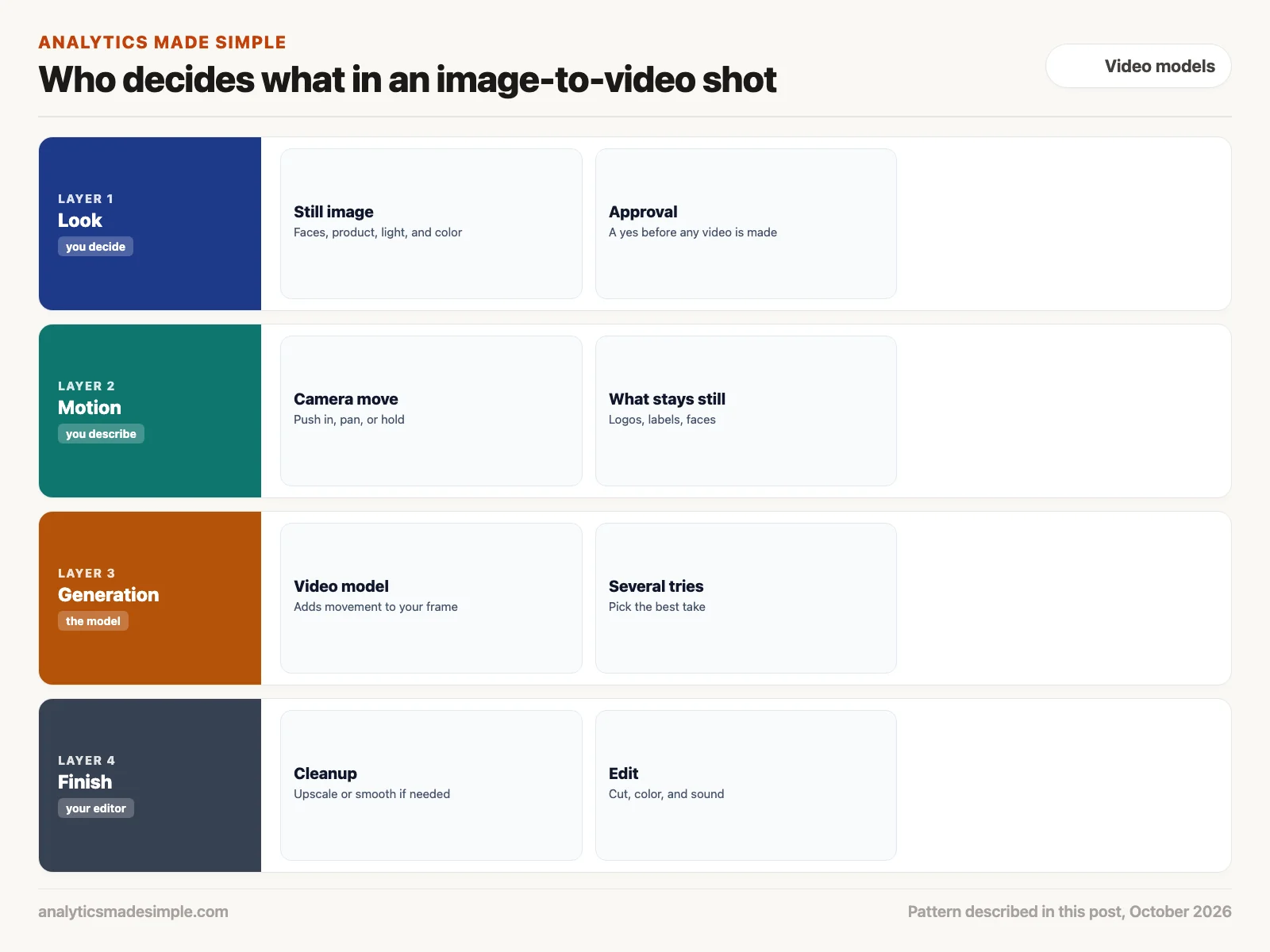
Every AI video tool has to decide two things for each frame: what is in the picture, and how it moves. The three approaches differ in how much of that you decide yourself before the model starts.
- Text-to-video: You describe the shot in words only. The model has to invent the faces, clothes, room, light, and the movement all at once. Words leave a lot unsaid, so two tries with the same prompt can look quite different.
- Image-to-video: You give the model a finished still image as the first frame, plus a short description of the motion. The look is already set by your picture, so the model mostly has to add movement.
- Video-to-video, or edit: You give the model real footage, and it keeps the movement while changing the style, the setting, or part of the picture. The timing and weight of the motion come from the real clip.
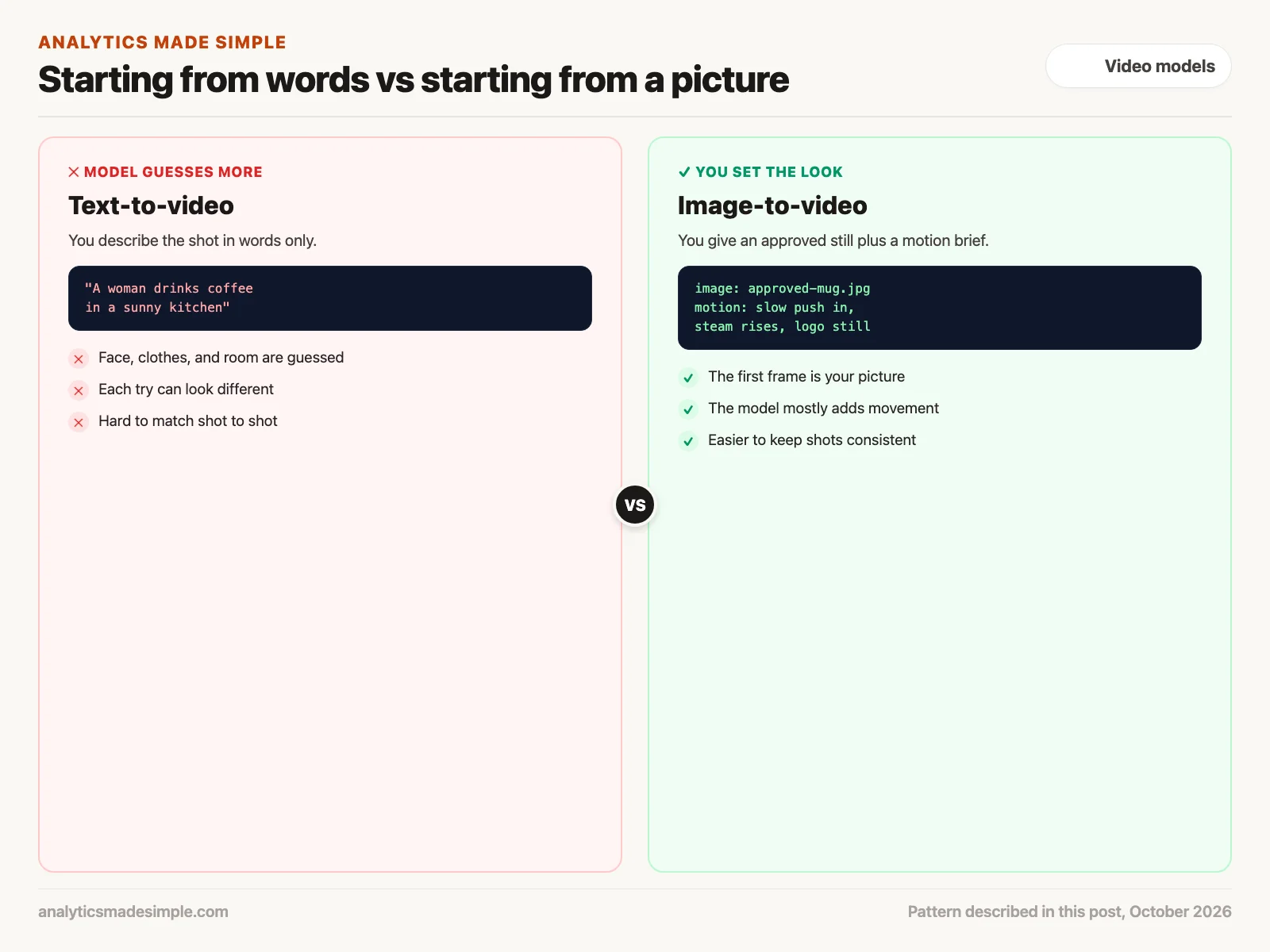
For work where the same product or person must look the same from shot to shot, text-to-video makes that hard, because each try is a fresh guess. Image-to-video turns most of that guessing into a choice you already made.
Four steps from idea to finished clip
A reliable way to work is to settle the look on cheap still images first, then spend video credits only on shots that already have a yes.
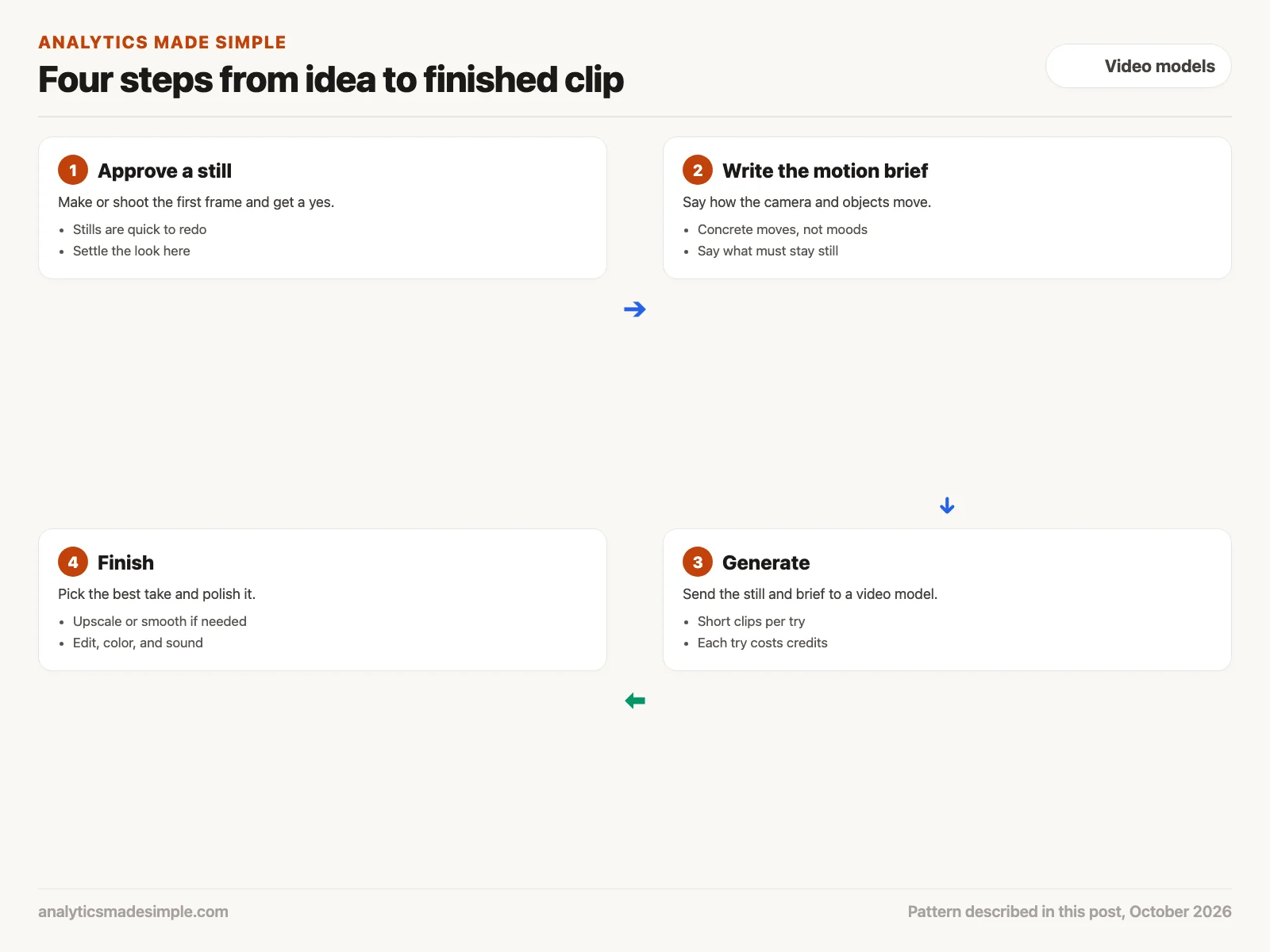
1. Approve a still image
Make the first frame with an image tool, or take a clean photo yourself. This is where you settle the product, faces, clothes, light, and color. Stills are quick to remake, so it is the cheapest place to try ideas and show options to whoever has to approve them.
2. Write the motion brief
Describe the movement in concrete terms instead of moods. “Slow push in toward the mug, steam rises, the logo stays still” gives the model something specific to do. “Make it epic” does not. Say what must not move, such as a label or a face, because that is what tends to drift.
3. Generate a few takes
Send the still and the brief to a video model. Each try makes a short clip and costs credits. As of October 3, 2026, Runway’s developer API (the way your own programs can ask Runway for videos) accepts clips from 2 to 10 seconds for its gen4_turbo model and charges 5 credits per second at $0.01 per credit, according to its API reference and pricing page. Expect to make a few takes and keep the best one.
4. Finish the clip
Pick the best take and bring it into your video editor for cutting, color, and sound. If you need a larger picture or smoother motion, open-source tools can help. Real-ESRGAN upscales images and video frames, and RIFE creates in-between frames to smooth playback. Check the result closely, because these tools can add their own small errors.
How a video model keeps track of time
You do not need the math to use these tools, but one idea explains a lot of their behavior. A still-image model works with a flat picture. A video model works with a stack of frames over time. OpenAI’s 2024 Sora technical report describes cutting video into small patches that cover a bit of the picture and a bit of time, and an earlier research paper on video latent diffusion adds layers that line frames up over time.
In plain words, the model has to keep a falling apple round and red within each frame, and also keep it moving along a believable path from one frame to the next. When it loses track of either one, you see the familiar glitches: a face that changes, a hand with extra fingers, or a logo that warps. Giving the model your own first frame removes much of the first problem, so it can spend its effort on the second.
A checker you can run before spending credits
Most wasted money in AI video comes from sending shots that were never ready. The short Python program below checks a shot plan against Runway’s published limits for gen4_turbo and estimates the cost. The shots are made up for practice, and it needs nothing beyond Python.
# Check an image-to-video shot brief before you spend credits on it.
# Limits below are from Runway's API reference for the gen4_turbo model, as of October 3, 2026.
ALLOWED_RATIOS = {"1280:720", "720:1280", "1104:832", "832:1104", "960:960", "1584:672"}
MIN_SECONDS, MAX_SECONDS = 2, 10
MAX_PROMPT_CHARS = 1000
CREDITS_PER_SECOND = 5      # gen4_turbo
DOLLARS_PER_CREDIT = 0.01
VAGUE_WORDS = {"epic", "cinematic", "amazing", "cool", "beautiful"}

# Made-up practice shots for a coffee mug ad.
shots = [
    {"name": "mug close-up", "image_approved": True, "ratio": "1280:720", "seconds": 5,
     "motion": "Slow push in toward the mug. Steam rises. The logo stays still."},
    {"name": "kitchen wide", "image_approved": False, "ratio": "1920:1080", "seconds": 12,
     "motion": "Make it epic and cinematic."},
]

total = 0
for shot in shots:
    problems = []
    if not shot["image_approved"]:
        problems.append("still image not approved yet")
    if shot["ratio"] not in ALLOWED_RATIOS:
        problems.append(f"ratio {shot['ratio']} is not allowed")
    if not MIN_SECONDS <= shot["seconds"] <= MAX_SECONDS:
        problems.append(f"{shot['seconds']} seconds is outside {MIN_SECONDS}-{MAX_SECONDS}")
    if len(shot["motion"]) > MAX_PROMPT_CHARS:
        problems.append("motion brief is too long")
    vague = sorted(w for w in VAGUE_WORDS if w in shot["motion"].lower())
    if vague:
        problems.append("vague words: " + ", ".join(vague))
    cost = shot["seconds"] * CREDITS_PER_SECOND * DOLLARS_PER_CREDIT
    if problems:
        print(f"HOLD  {shot['name']}: " + "; ".join(problems))
    else:
        total += cost
        print(f"READY {shot['name']}: about ${cost:.2f} per try")
print(f"Spend if every ready shot runs once: ${total:.2f}")
Running it prints:
READY mug close-up: about $0.25 per try
HOLD  kitchen wide: still image not approved yet; ratio 1920:1080 is not allowed; 12 seconds is outside 2-10; vague words: cinematic, epic
Spend if every ready shot runs once: $0.25
In plain words, the program stores the allowed shapes, the 2 to 10 second range, and the price per second, then checks each shot in turn. The mug close-up passes and would cost about 25 cents per try. The kitchen shot is held back for four reasons: its still image has no approval, the shape is not one Runway accepts, twelve seconds is too long, and the brief uses mood words instead of moves.
Once a shot passes, you can send it. The next program, a short script (a small program you run yourself), does that through Runway’s API. It sends the approved still and the brief, checks every ten seconds until the clip is ready, and saves it. Without a key, it stops before sending anything.
# Send one approved still image and a motion brief to Runway, wait, and save the video.
# Needs a Runway developer API key in the RUNWAY_API_KEY environment variable.
import json, os, sys, time, urllib.request

KEY = os.environ.get("RUNWAY_API_KEY")
if not KEY:
    sys.exit("Set RUNWAY_API_KEY first (from the Runway developer portal). Nothing was sent.")

API = "https://api.dev.runwayml.com/v1"
HEADERS = {"Authorization": f"Bearer {KEY}", "X-Runway-Version": "2024-11-06",
           "Content-Type": "application/json"}


def call(method, path, body=None):
    data = json.dumps(body).encode() if body else None
    req = urllib.request.Request(API + path, data=data, method=method, headers=HEADERS)
    with urllib.request.urlopen(req, timeout=60) as r:
        return json.loads(r.read())


task = call("POST", "/image_to_video", {
    "model": "gen4_turbo",
    "promptImage": "https://example.com/approved-mug.jpg",  # your approved still, as an HTTPS link
    "promptText": "Slow push in toward the mug. Steam rises. The logo stays still.",
    "ratio": "1280:720",
    "duration": 5,
})
print("Task started:", task["id"])

while True:
    time.sleep(10)
    status = call("GET", f"/tasks/{task['id']}")
    print("Status:", status["status"])
    if status["status"] == "SUCCEEDED":
        urllib.request.urlretrieve(status["output"][0], "shot.mp4")
        print("Saved shot.mp4")
        break
    if status["status"] in ("FAILED", "CANCELLED"):
        print("Failed:", status.get("failure"))
        break
If you run it before setting a key, it stops right away so nothing is sent, and prints:
Set RUNWAY_API_KEY first (from the Runway developer portal). Nothing was sent.The image link in the script is a placeholder, so replace it with a link to your own approved still. As of October 3, 2026, Runway’s API reference says the video links it returns expire within 24 to 48 hours, which is why the script downloads the file right away.
Pick the approach that fits the shot
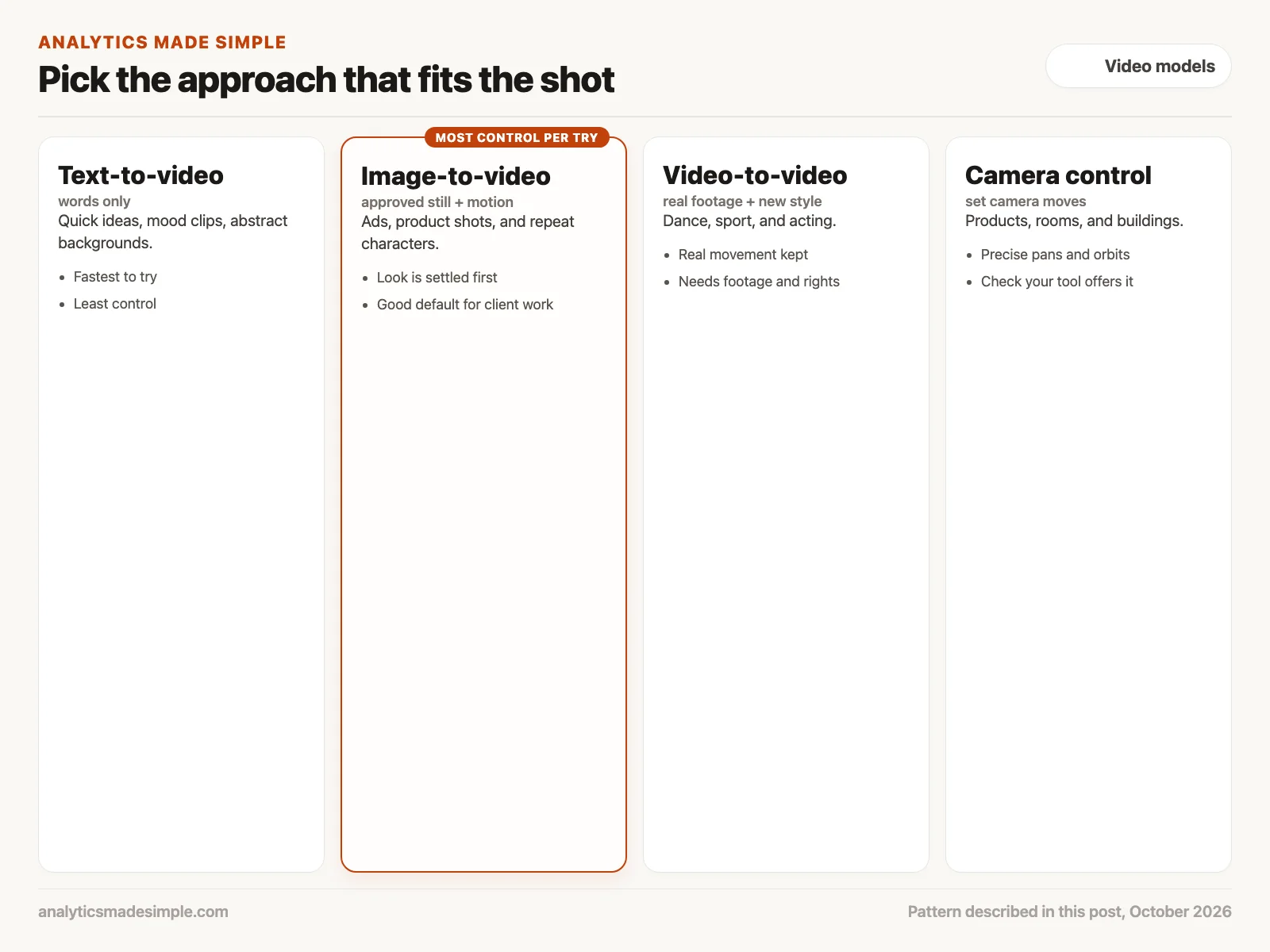
- Text-to-video: Good for quick mood clips, early ideas, and abstract backgrounds where nothing has to match a real product or person.
- Image-to-video: The sensible default for ads, product shots, and any character who appears in more than one shot, because the look is settled before you pay for video.
- Video-to-video: Best for dance, sport, and acting, where real movement is hard for a model to invent. Film a rough phone clip and restyle it. Only use footage you have the rights to, and get consent from anyone who appears in it.
- Camera control: Some tools let you set camera moves such as pans, tilts, and orbits. That suits products, rooms, and buildings. Check that your tool offers it before you plan around it.
Quick recap
- Text-to-video starts from words, image-to-video starts from your picture, and video edit starts from real footage.
- When a product, face, or logo must stay the same, start from an approved still.
- Settle the look on cheap stills, then spend video credits only on approved shots.
- Write motion briefs as concrete moves and say what must stay still, because a video tool fills vague instructions with movement you did not want.
Your next step this week
Pick one short shot you actually need, such as a product turning on a table. Make or photograph the first frame, write a one-line motion brief with concrete moves, and run it through the checker above before you spend any credits. Then compare two or three takes and keep the one where nothing important drifts.
Series notes
This is Part 1 of Video models from scratch. Next: the generative video landscape.
Sources
- Runway, API reference, image-to-video and task endpoints, checked October 3, 2026.
- Runway, API pricing, checked October 3, 2026.
- OpenAI, Video generation models as world simulators, Sora technical report, 2024.
- Andreas Blattmann and others, Align your Latents: High-Resolution Video Synthesis with Latent Diffusion Models, CVPR 2023.
- Zhewei Huang and others, RIFE: Real-Time Intermediate Flow Estimation for Video Frame Interpolation, ECCV 2022 (code on GitHub).
- Xintao Wang and others, Real-ESRGAN (code on GitHub).
Keep going
Same lessons in your feed
Short diagrams, hooks, and weekly tutorials on Substack, Instagram, X, and Facebook.