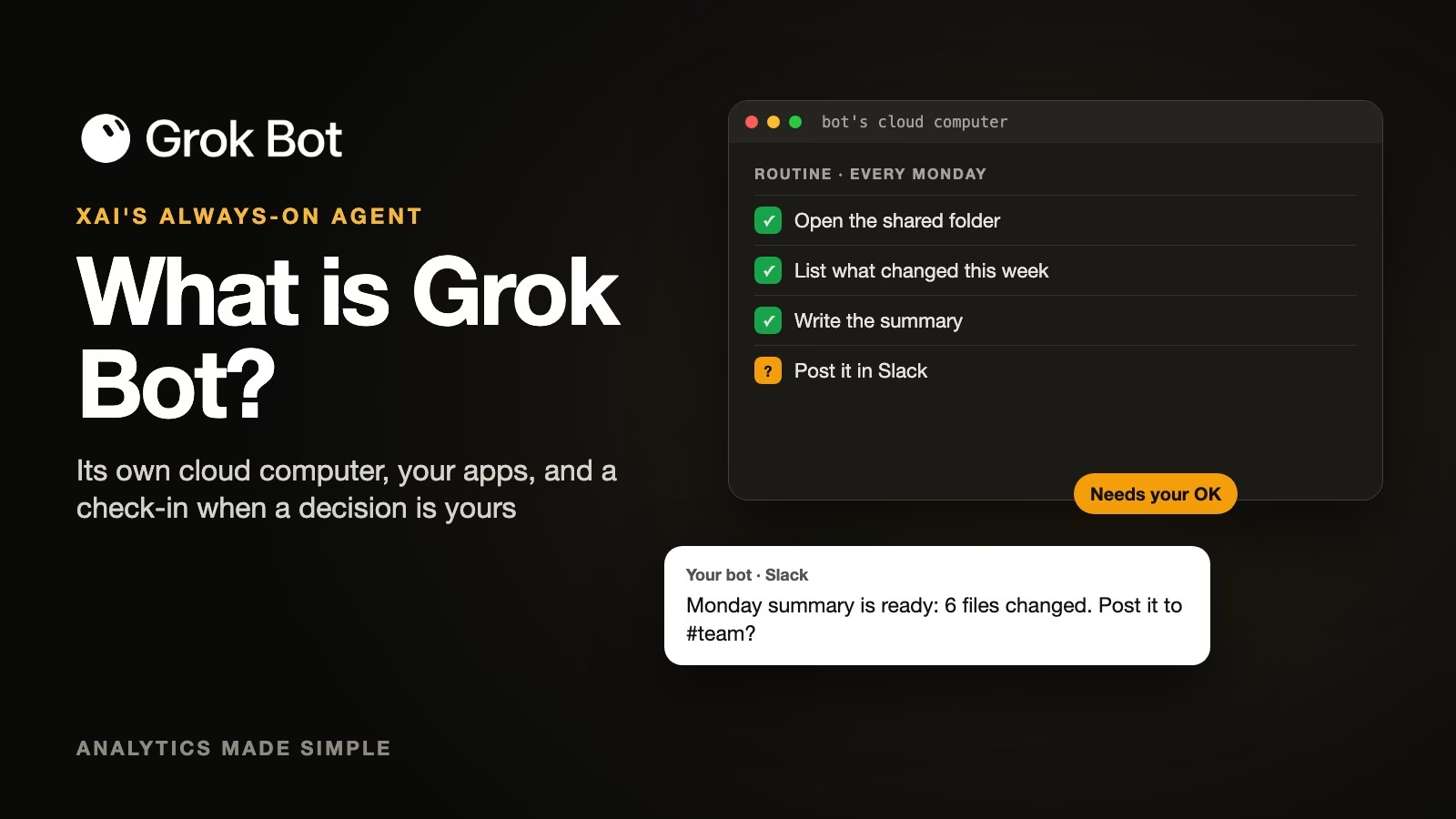
Grok Bot is xAI’s always-on AI agent. Each bot has its own computer in the cloud, signs into the apps you already use, and keeps working on a job after you close the app. It comes back to you when something needs your approval, which makes it useful for chores that take many steps and risky if you hand it too much at once.
Imagine you want a weekly round-up of what changed in your team’s shared documents, posted in Slack every Monday. A chatbot can help once, if you paste everything in. Grok Bot can open the documents itself, write the round-up on a schedule, and post it, as long as you have connected those apps and set rules for what it may do.
Grok Bot comes from xAI, the company behind the Grok chatbot, and was built with Cursor, a company that makes AI coding tools. It launched in beta on August 11, 2026, according to xAI’s announcement. This post explains what it is, where it fits among xAI’s products, who can use it, and how to keep it safe, using xAI’s guides checked on October 8, 2026.
What is it, exactly?
Grok Bot is an agent, which means an AI that works through several steps on its own instead of answering one message and stopping. Each bot runs on a computer in the cloud with a desktop, a file system, a terminal (the text window where you type commands), and apps, according to the Grok Bot 101 guide (checked October 8, 2026). Because that computer is not yours, the bot keeps working when your laptop is closed.
You can watch the bot’s desktop like a remote screen and take over when it needs a person, such as for a puzzle that proves you are human or a code sent to your phone. That same computer is reachable from your phone and your desktop, so you can check on a job from anywhere.
The name is easy to mix up. Grok is xAI’s chatbot, the one you type questions into. Grok Bot is a separate product that does work in other apps for you. The rest of this post is about the bot. Only the bot.
Where Grok Bot fits among xAI’s products
xAI now sells several Grok products, and they suit different jobs. Pick Grok Bot only when a job needs many steps across your apps; for a quick answer, the chatbot is simpler. The earlier post on which Grok product to pay for covers the chatbot, Grok Build, Imagine, and the API in detail.
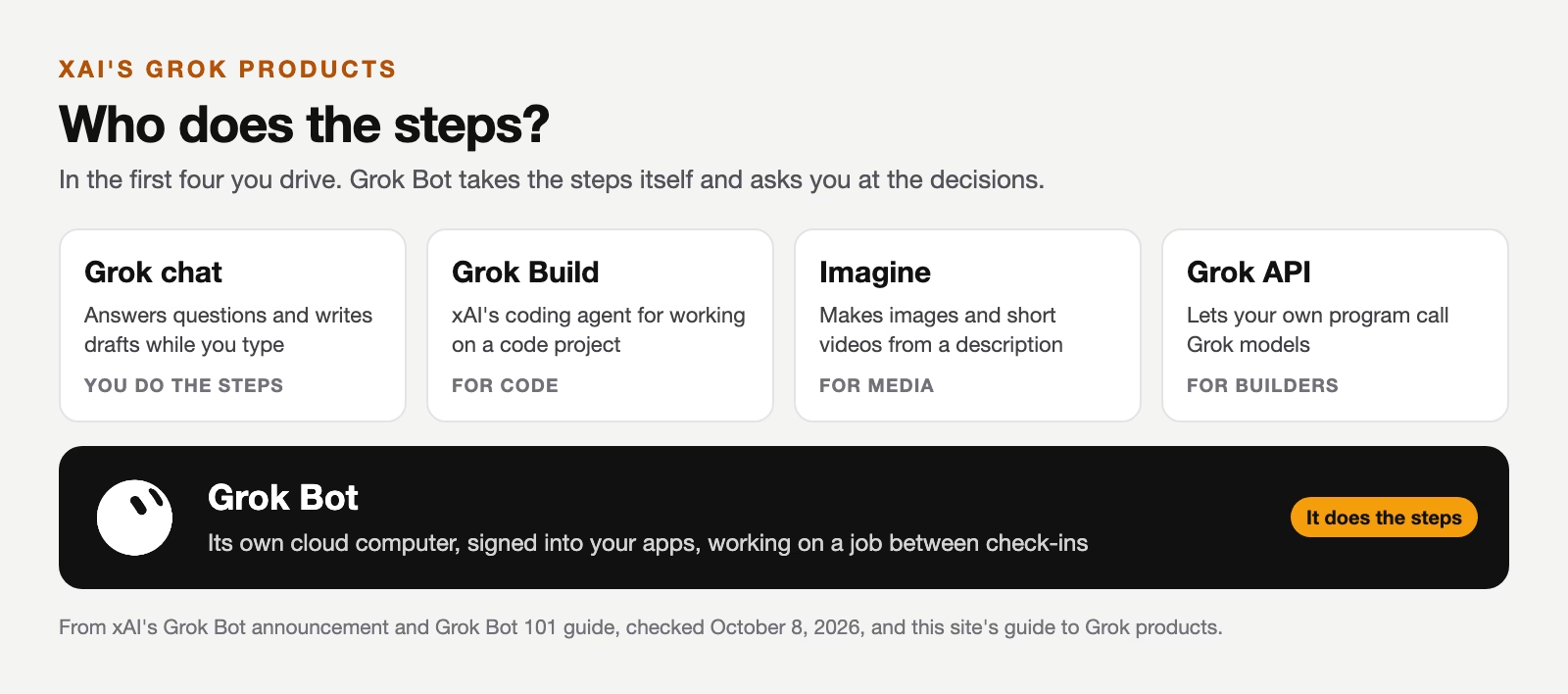
Here is the key difference. Who does the steps? In the chatbot, you do every step and the AI answers. With Grok Bot, you describe the job and the bot does the steps, stopping when it reaches something you said it must ask about.
What Grok Bot can work with
A bot can use your email, calendar, files, Slack, GitHub, Notion, and more, and it can also use ordinary websites that have no special connection for AI, according to the Grok Bot 101 guide. It supports plugins, skills, and MCP servers, the same kinds of add-ons Cursor uses. MCP (Model Context Protocol) is a standard way to connect an AI to outside tools.
There are three ways to start work. You can chat with a bot. You can set a routine, which is a job that runs on a schedule or when something happens in another app, such as a new Slack thread or a GitHub pull request (a proposed code change). And bots can message each other, so one bot can hand a request to another.
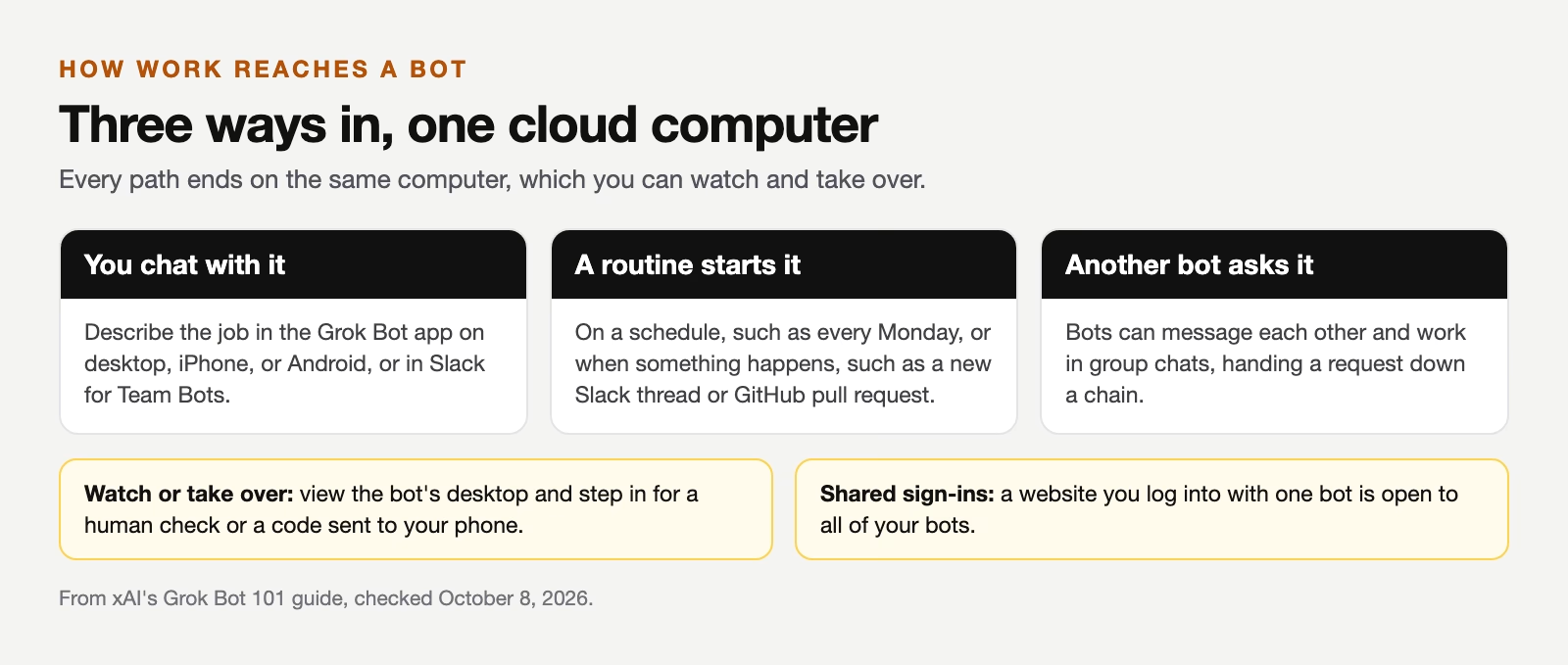
One detail matters a lot. When you sign into a website with one of your bots, all of your bots can use that sign-in. Treat every login you give a bot as shared with every bot you own.
Who can use Grok Bot
Grok Bot is still in beta, so features and plan access may change. Since August 26, 2026, it has been included with every SuperGrok plan and with Cursor Pro, Pro+, Ultra, and Teams plans, according to xAI’s plans update (checked October 8, 2026). On October 12, 2026, xAI folded Grok, Grok Bot, Cursor, and X Premium into one X Subscription, from Plus at $8 to Ultra at $200 a month, according to xAI’s announcement. People who already pay for SuperGrok, Cursor, or X Premium can keep their plan or switch. The announcement does not say which of the new tiers include Grok Bot (checked October 13, 2026), so check the plan page before you buy. Enterprise administrators can switch it on from the Cursor dashboard and limit it to chosen groups, per the teams and enterprises guide.
It runs on desktop and iPhone, and on Android since September 2, 2026, according to Cursor’s announcement. Work you hand a bot has its own usage allowance, separate from your normal Grok or Cursor limits, according to the launch announcement.
On September 28, 2026, xAI added Team Bots, in public beta on Teams and Enterprise plans. One person sets up a bot with its plugins, files, and passwords and shares it with the team. Each teammate gets a private chat with it, in the app or in Slack, where the bot posts under its own name.
Should you use a personal bot or a team bot?
A personal bot is yours alone, and a Team Bot is one bot your whole team talks to. Use a personal bot for your own chores and a Team Bot for one shared job, such as answering questions about approved reports or keeping a help page current, according to the Team Bots guide (checked October 8, 2026).
The owner sets a Team Bot up once with its plugins, files, skills, and up to 25 saved secrets, such as passwords or keys, which teammates cannot see. Each teammate’s chat stays private, and the owner cannot read it. The bot keeps a shared team memory for facts everyone should know and separate personal notes for each person.
Two details matter here. Plugins that sign in with a person’s own account act as whoever is asking, not as the owner, and the bot asks before using a teammate’s own connection in a shared thread. Routines, by contrast, belong to the person who set them up, so there is no team-wide schedule.
How a routine runs, start to finish
Here is the Monday summary from the start of this post, step by step, as a practice example. It shows where each control does its work.
- You connect the shared folder and Slack, and write two rules: “never delete or move files” and “ask before posting anything”.
- You set a routine for Monday at 9 a.m. with the goal “summarize what changed in the folder last week, in five bullets”.
- On Monday the bot opens the folder on its own computer, compares the files, and writes the summary.
- When it tries to post, the reviewer sees an action your rules say needs approval, and the bot asks you in the app.
- You read the five bullets, fix one, and approve. After a few good weeks, you can let it post on its own and keep the rule against deleting files.
How to keep Grok Bot under control
The safety features are written in plain words, not code, and you should set them before you connect anything that matters. The Grok Bot 101 guide lists them, and the figure below puts them in the order a bot’s action passes through them.
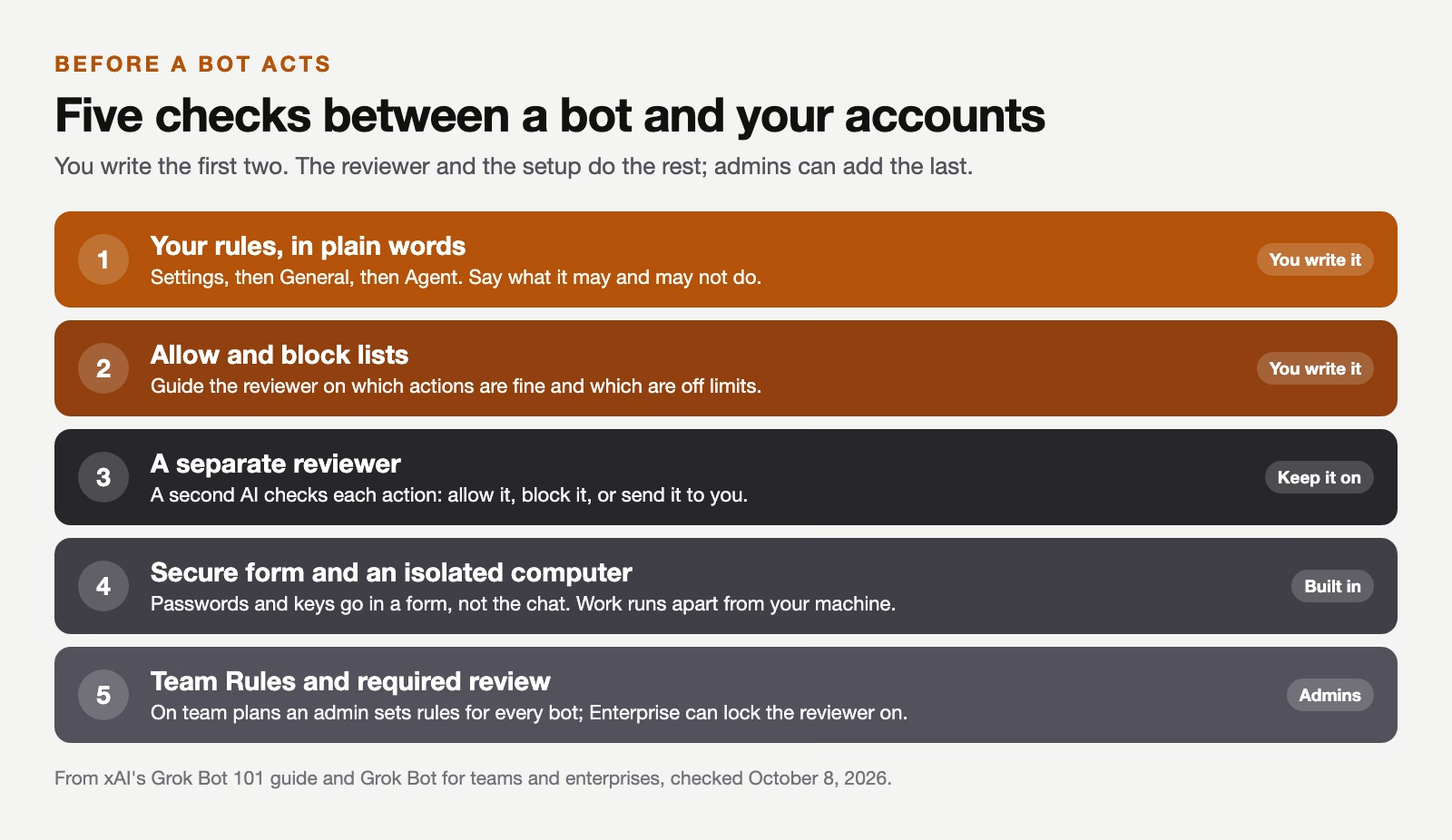
The rules you write go under Settings, then General, then Agent. The guide is honest that you are trusting the model to follow them, which is why the separate reviewer matters. That reviewer is a second AI that checks each proposed action and can allow it, block it, or send it to you.
Passwords and keys go in through a secure form instead of the chat, and the work runs in an isolated environment. On team plans, an administrator can add Team Rules that every member’s bots must follow. On Enterprise, the administrator can require the reviewer check, which xAI calls Auto-review, so nobody can turn it off.
Good first jobs, and what to keep away from it
Start with a job that is useful, easy to check, and safe to get wrong once. A weekly summary of changes in a shared folder fits. So does a daily check of a project board that tells you what is overdue, or a first draft of replies to routine requests that you send yourself.
- Do not connect accounts that can move money for the first job, because a mistake there cannot be undone with a click.
- Do not let it send anything to customers without your approval, even if the drafts look right.
- Do not give a Team Bot broad access. Give it one narrow job, because every teammate’s chat can use its saved passwords.
- Keep private details out of shared Slack channels, since conversations there run on one shared computer.
If you have already tried OpenAI’s version of this idea, the companion post on ChatGPT dots compares the two. The rules are the same for both: one clear goal, few connected apps, approval before anything leaves your account, and a way to pause it.
Recap
- Grok Bot is xAI’s always-on agent: its own cloud computer, your connected apps, and a check-in when a decision is yours.
- Use it for jobs with many steps across apps; use the Grok chatbot for quick answers.
- It is in beta, included with SuperGrok and with Cursor Pro, Pro+, Ultra, and Teams plans, and part of the X Subscription since October 12, 2026, on desktop, iPhone, and Android.
- Sign-ins are shared across your bots, and Team Bots share passwords, so connect little and give each bot one job.
Try it this week: if you have access, set one routine that writes you a Monday summary of a single shared folder, and read the first three before you let it post anywhere.
Sources
- xAI: Introducing Grok Bot (launch date, what a bot does, separate usage)
- xAI: Grok Bot 101 (cloud computer, ways in, integrations, shared sign-ins, safety controls)
- xAI: Grok Bot is now included with more plans (plans since August 26, 2026)
- xAI: Grok Bot for teams and enterprises (enterprise switch, Team Rules, Auto-review)
- xAI: Team Bots (Team Bots launch, September 28, 2026)
- Cursor forum: Grok Bot is now live on Android (Android release, September 2, 2026)
Keep going
Same lessons in your feed
Short diagrams, hooks, and weekly tutorials on Substack, Instagram, X, and Facebook.