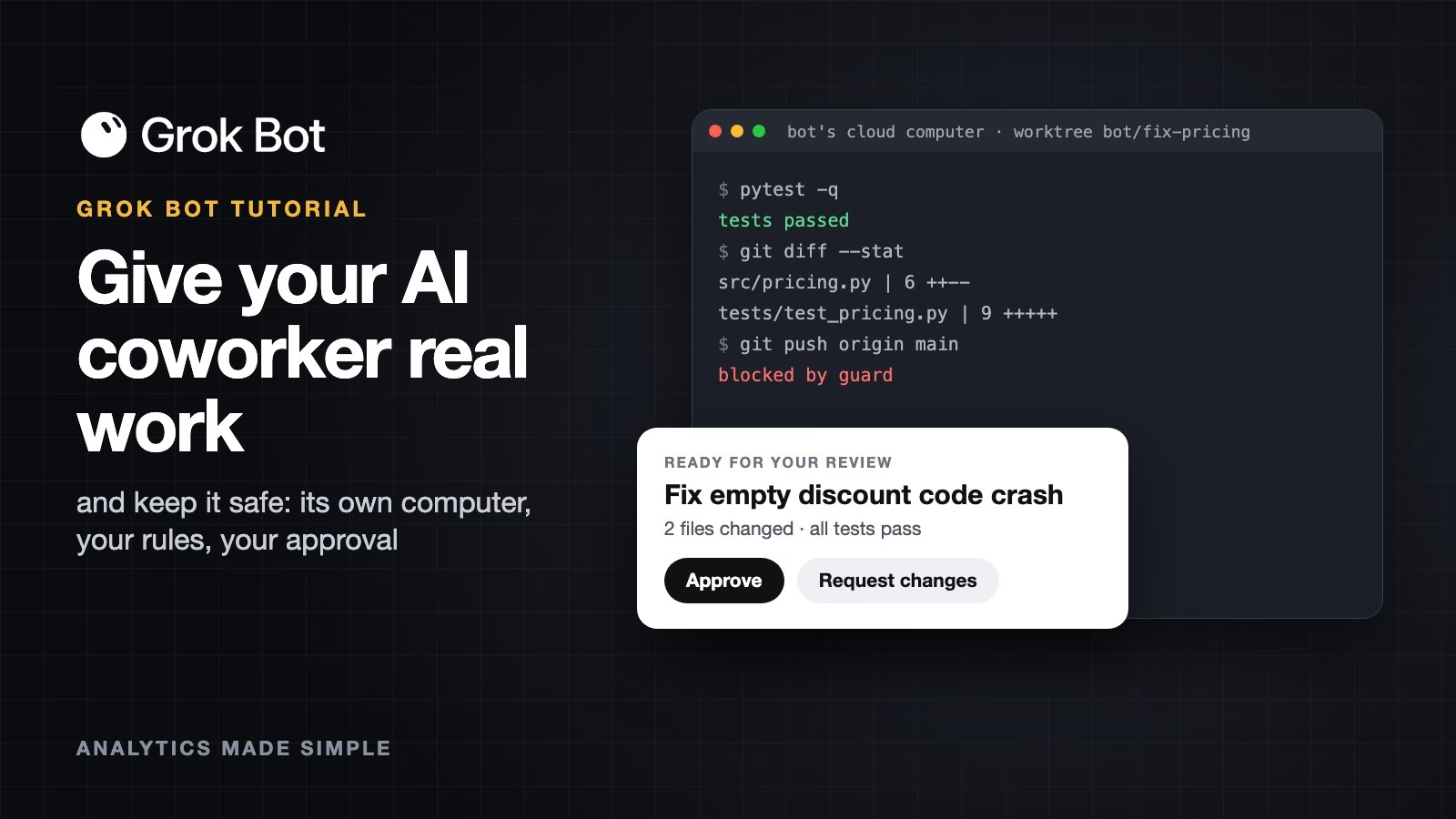
A digital coworker is an AI that takes one small, clear task, works on it by itself on its own computer, and comes back with finished work for you to approve. Autocomplete only suggests the next line while you type. Give a coworker chores you can check, keep it away from real passwords, and keep a person as the final approval.
Say you keep a small website for your hobby club or your family’s shop, and the same chores pile up every few months: updating a library version, adding a missing check, or renaming a setting in a dozen files. Autocomplete cannot help much, because each chore touches many files and needs the tests run at the end. A coworker can make its own copy of the code, do the chore, run the tests, and hand you a change to review.
This post explains the idea, then looks at Grok Bot, the coworker product xAI announced with Cursor, and ends with the guardrails any coworker needs, whether you buy one or build one. Product details were checked on October 8, 2026, and they change often.
Autocomplete versus a digital coworker
Autocomplete looks at the code around your cursor and guesses what comes next. That speeds up typing, but it stops at the edge of the file you have open. It cannot run your tests, find every place an old function is used, or open a pull request (a proposed code change that a teammate reviews before it goes in).
A coworker works the way a remote colleague would. It gets a task, works in its own copy of the project, changes as many files as it needs, runs the tests, and asks for review. You stop being the person who runs every command and pastes every error message.
You already know this split from everyday life. Spell check fixes the word you are typing, and that is autocomplete. Asking a friend to plan a weekend trip is closer to a coworker: they compare a few hotels and train times, book nothing without asking you, and come back with one plan for you to approve.
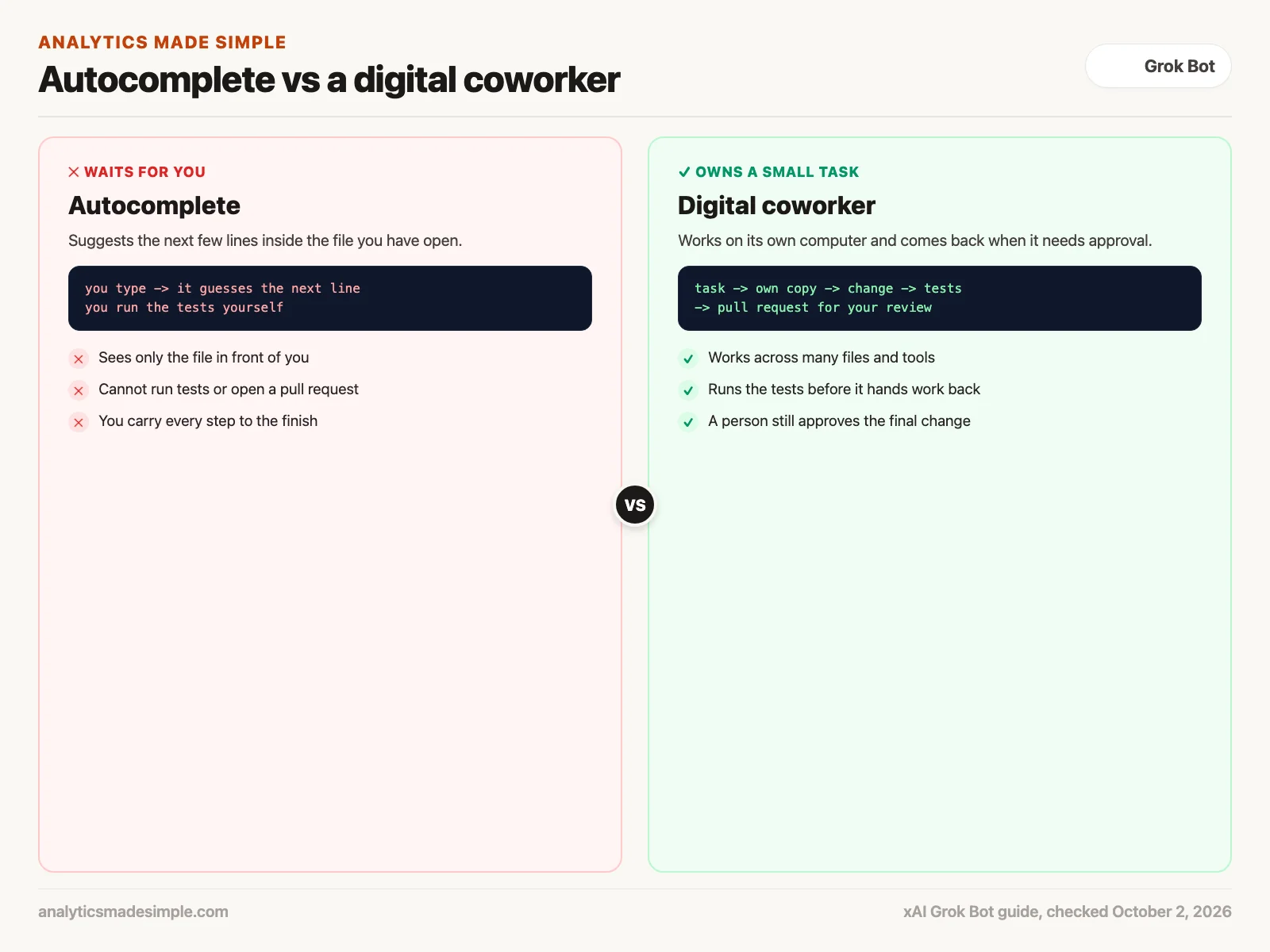
The real difference is how the work gets proven. When autocomplete guesses wrong, you have to catch it. A good coworker runs the tests before it hands anything back and writes down what it changed and why. You still review the work, but you review finished, tested work instead of a guess.
What Grok Bot is
Grok Bot is xAI’s product for this kind of work. In its August 11, 2026 announcement, xAI said each bot has its own computer, signs into the tools you already use, works across apps, and comes back only when something needs your approval. Since August 26 it has come with every SuperGrok plan and with Cursor Pro, Pro+, Ultra, and Teams. On October 12, 2026, xAI folded Grok, Grok Bot, Cursor, and X Premium into one X Subscription priced from $8 to $200 a month, according to xAI’s announcement. Current subscribers can keep their plan or switch, and the announcement does not say which tiers include Grok Bot (checked October 13, 2026). Enterprise admins can switch it on from the Cursor dashboard (checked October 8, 2026). It runs on desktop and iPhone, and on Android since September 2. Bot work is counted on its own. It does not use up your normal Grok or Cursor chat limits.
The Grok Bot 101 guide fills in the details. Each bot runs on a computer in the cloud with a desktop, a file system, a terminal (the text window where you type commands), and apps, so its work keeps going when your laptop is closed. You can reach it in three ways: by chatting with it, through routines that start on a schedule or an event, or through messages from other bots.
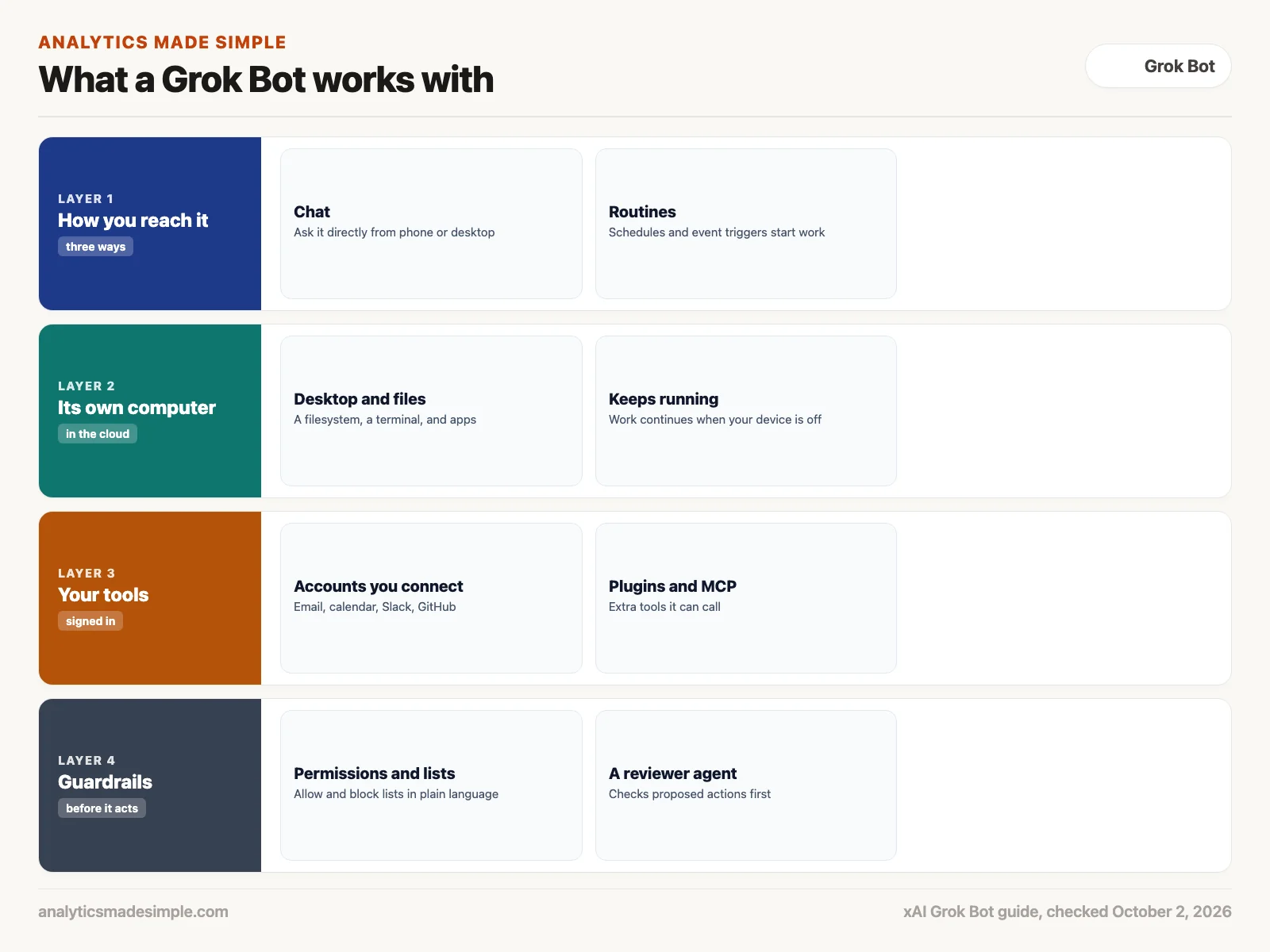
The guide describes safety controls in plain words: permissions, a separate reviewer agent that checks proposed actions, and allow and block lists that you write in normal language instead of code. For coding work, the guide says bots can connect to GitHub, open pull requests, and hand specialized coding work to Cursor’s cloud agents. It also supports plugins and MCP (Model Context Protocol, a standard way to connect an AI to outside tools). One detail in the guide is easy to miss. When you sign into a website with one bot, all of your bots can use that sign-in. Treat every login you give a bot as shared.
Keep two cautions in mind before you sign up: the product is in beta, so features and plan access may move. And a bot that can sign into your email and GitHub can do real damage if its permissions are loose, so read the safety section below before you connect anything that matters.
Team Bots: one bot for a whole team
On September 28, 2026, xAI added Team Bots, in public beta on Teams and Enterprise plans. An owner sets up one bot with its plugins, files, skills, and passwords, then shares it with the team. Each teammate gets a private chat with it in the app or in Slack, where the bot posts under its own name. Each person’s use counts against their own allowance, according to the Team Bots guide.
Shared also means shared risk. Passwords saved in a Team Bot are hidden from teammates, but any teammate’s chat can use them. Conversations in a Slack channel also run on one shared computer. Keep anything private out of channel threads. Give a Team Bot one narrow job, such as answering questions from approved reports, rather than access to everything your team uses.
How a coworker finishes one task
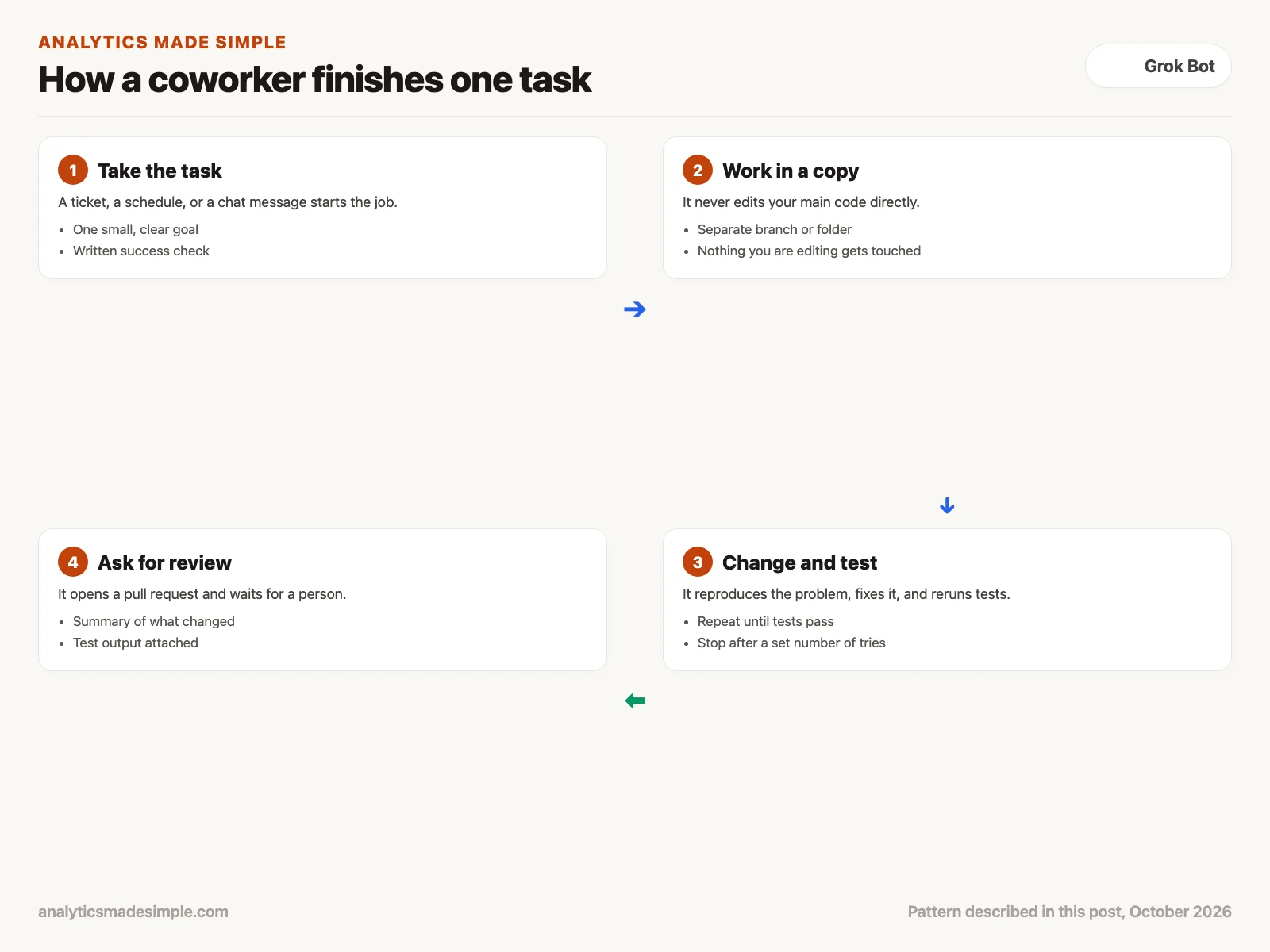
Whether you use Grok Bot or set up your own agent, a coworker that you can trust follows the same four steps.
1. Take one clear task
Work starts from a ticket, a schedule, or a chat message. Write the goal in one sentence, and say how you will know it worked, for example “all tests pass and no file outside the pricing folder changed.” A vague task tends to produce changes that wander across the project.
2. Work in a separate copy
The coworker should never edit your main branch or the folder you are working in. Git, the tool most teams use to track code changes, has a feature called a worktree that creates a second working folder on a new branch. Edits there cannot overwrite your unsaved work.
git fetch origin main
git worktree add -b bot/fix-pricing /tmp/worktrees/issue-1048 origin/main
cd /tmp/worktrees/issue-1048
3. Change and test, then stop
A careful coworker first writes or runs a test that shows the bug, confirms the test fails, then changes the code and reruns the tests. If something still fails, it reads the error and tries again. Set a limit on the number of tries, so a stuck task ends with a note for you instead of running all night.
4. Ask for review
When the tests pass, it opens a pull request with a short summary, the steps to reproduce the original problem, and the test results. A person then reads it and decides whether the change goes in.
A small guard you can run today
If you build your own coworker, the most important code is the part that says no. The short Python script below checks two things before any action: that a file path stays inside the working copy, and that a command is on an allow list. It runs on its own, with no AI service and no keys, so you can try it before you wire it into anything.
from pathlib import Path
import shlex

ALLOWED = {"git", "pytest", "ruff"}
BLOCKED_GIT = {"push", "reset", "clean"}


def inside(root, path):
    root = Path(root).resolve()
    target = (root / path).resolve()
    return target == root or root in target.parents


def command_ok(cmd):
    parts = shlex.split(cmd)
    if not parts or parts[0] not in ALLOWED:
        return False
    if parts[0] == "git" and len(parts) > 1 and parts[1] in BLOCKED_GIT:
        return False
    return True


root = "/tmp/worktrees/issue-1048"
for path in ["src/pricing.py", "../../etc/passwd"]:
    print(path, "->", "ok" if inside(root, path) else "blocked")
for cmd in ["pytest -q", "git push origin main", "rm -rf /"]:
    print(cmd, "->", "ok" if command_ok(cmd) else "blocked")
When you run it, the script prints one line for each path and each command:
src/pricing.py -> ok
../../etc/passwd -> blocked
pytest -q -> ok
git push origin main -> blocked
rm -rf / -> blocked
In plain words, inside turns a path into its full location and refuses anything that climbs out of the working folder, such as ../../etc/passwd, a system file. command_ok splits a command into words, allows only git, pytest, and ruff, and blocks the git actions that push or erase work. Everything else is refused by default, which is safer than trying to list every dangerous command.
If you connect a script like this to xAI’s API (the way one program asks another for data), pick a current model from xAI’s model list instead of copying a model name from an old tutorial, because names change.
Four ways to work with a coding AI
Match how much freedom you give the AI to how much damage a mistake could do. Renaming a setting in three files needs little oversight, while reworking how people log in needs a lot.
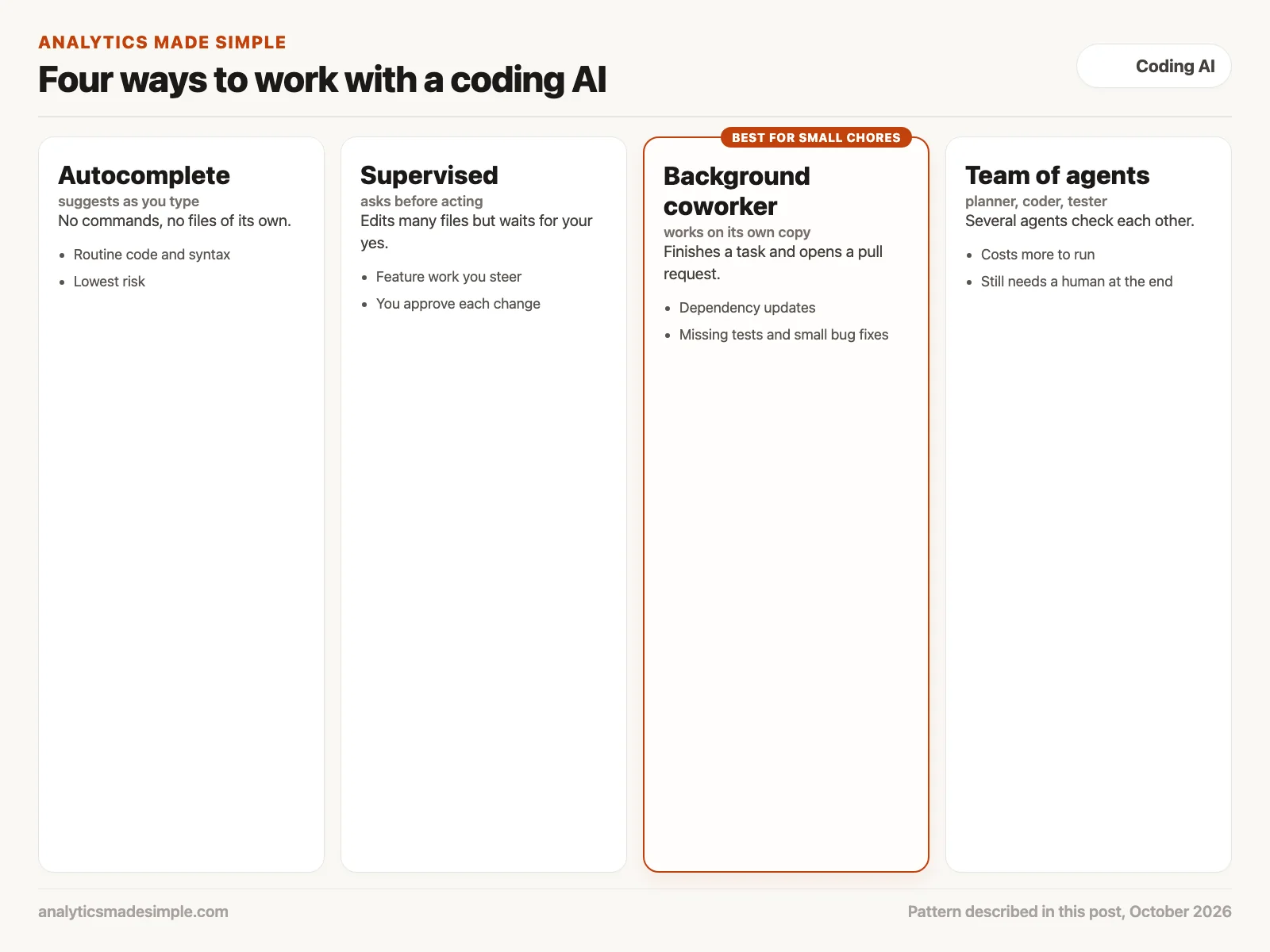
- Autocomplete: Suggestions as you type, with no commands of its own, which suits routine code.
- Supervised editing: The AI edits several files in your editor but waits for your yes before each change or command, which suits feature work you want to steer.
- Background coworker: It works on its own copy and only asks for review at the pull request, which suits library updates, missing tests, and small bug fixes.
- A team of agents: One plans, one writes code, one tries to break it, and one checks security. It costs more to run because it calls the model many times, and it still needs a person at the end.
Guardrails before you connect anything
Never give a coworker your real passwords, unlimited command access, or the power to push straight to your main branch. Set these four limits first.
- Use a throwaway environment: Run each task in a container (a sealed, disposable mini computer) or a cloud machine you can delete. If something goes wrong, you delete it and your own computer was never touched.
- Give it fake keys only: The coworker should never see real cloud passwords, database logins, or payment keys. When a test needs an outside service, use a recorded response instead. Tools such as VCR.py record a real reply once and replay it in later tests.
- Protect the main branch: Turn on branch protection in GitHub so the bot’s account cannot push to main, skip review, or approve its own pull requests.
- Allow only listed commands, with a time limit: Keep an explicit allow list like the one in the script above, and stop any command that runs too long.
With a hosted product like Grok Bot, the same ideas apply through its settings: connect the fewest accounts you can, write clear block rules, and keep approval on for anything that sends, deletes, or merges. On team plans an admin can also set Team Rules that every member’s bots follow. On Enterprise, the admin can require the reviewer check, which xAI calls Auto-review, so nobody can switch it off.
Worked example: one chore, start to finish
Here is how a first week could look, using a project, ticket, and numbers made up for practice.
- Pick the chore: Ticket 1048 says a pricing function crashes when a discount code is empty. The success check is “the new test passes, all old tests pass, and only files in the pricing folder change.”
- Set the limits: The bot gets read access to the repository (the project’s folder of code and its history), a worktree on a new branch, the allow list above, and no production keys. Branch protection is already on for the project.
- Let it work: It adds a test that sends an empty discount code, watches the test fail, fixes the function, and reruns everything. On its second try all tests pass.
- Review like any teammate’s work: You read the pull request, and the fix is right, but it also reformatted an unrelated file, so you ask it to undo that part before you approve.
- Decide what to hand over next: After a few chores like this go well, you give it the next library update. You keep human review on every pull request.
The win is not that the bot is never wrong. It is that you review a tested change in a few minutes instead of spending an afternoon making it yourself.
The same shape works outside code. Say you want help sorting a year of receipts before tax time. You give the bot one folder of scanned receipts, a success check (every receipt lands in one of five categories, and each category total matches your bank statement), and no access to your bank login. It sorts and adds up each category, then stops so you can check the totals before anything is filed.
Your next step this week
Pick one chore that keeps landing on your plate and write it as a one-sentence task with a success check. Turn on branch protection for the project if it is not on already. Then try that one chore with a supervised AI tool before you let anything run in the background, and read every change it makes.
Quick recap
- A digital coworker owns one small task, works in its own copy, tests its work, and asks for review.
- Grok Bot is xAI’s version, announced August 11, 2026 with Cursor, with its own cloud computer, signed-in tools, and plain-language guardrails.
- Team Bots let a whole team share one bot with private chats; give it one narrow job, because its logins and passwords are shared.
- Build or buy, the guardrails are the same: throwaway environment, fake keys, protected main branch, allow-listed commands.
- A person approves every change that goes in.
Series notes
This is Part 5 of AI assistants everyday. Previous: Hermes. Next: voice dictation for everyday work.
Sources
- xAI, Introducing Grok Bot (August 11, 2026), checked October 8, 2026.
- xAI, Grok Bot is now included with more plans (August 26, 2026), checked October 8, 2026.
- xAI, Team Bots (September 28, 2026) and the Team Bots guide, checked October 8, 2026.
- xAI, Grok Bot for teams and enterprises, checked October 8, 2026.
- Cursor forum, Grok Bot is now live on Android (September 2, 2026).
- xAI, Grok Bot 101 guide, checked October 8, 2026.
- xAI, Models and pricing in the API docs.
- Git documentation, git worktree.
- GitHub Docs, About protected branches.
- Model Context Protocol, the open standard for connecting AI to tools.
Keep going
Same lessons in your feed
Short diagrams, hooks, and weekly tutorials on Substack, Instagram, X, and Facebook.