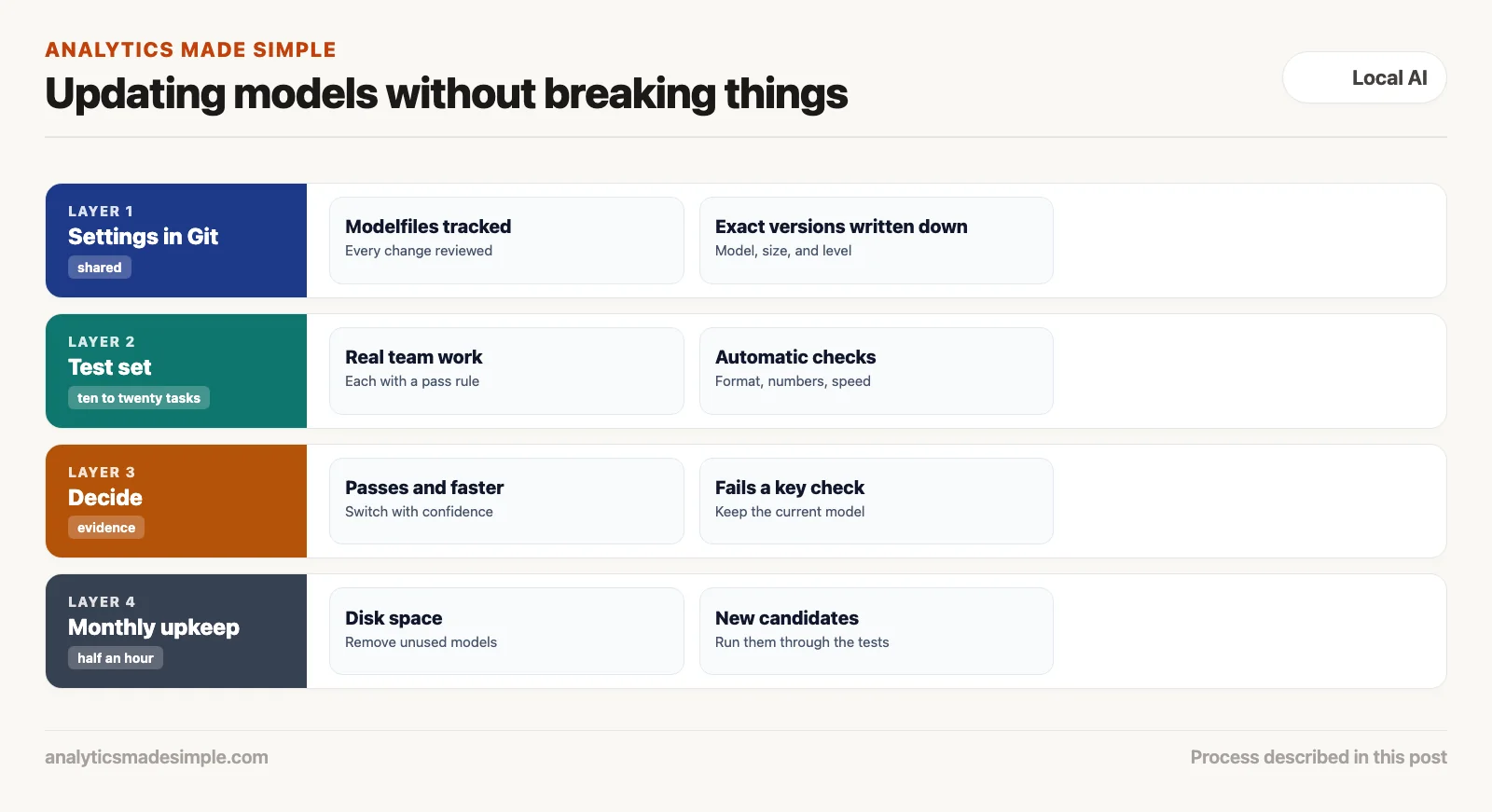
To keep AI models on your own computer working, do four things: ask for exact model versions, delete model files you no longer use, keep your custom settings in a shared, tracked place, and test any new model before you switch to it. Skip these, and one careless update can quietly break your work or fill up your disk.
Imagine you type one quick command to download “the latest” version of a model. Your disk fills up, and the new version answers in a slightly different way. The script that reads its answers stops working, right in the middle of a busy week. You did nothing wrong except ask for “latest.”
This post covers why “latest” is risky, where model files hide on your disk, how to clean them up, how to share custom settings with your team, and how to test a new model before you trust it.
Why “latest” is risky
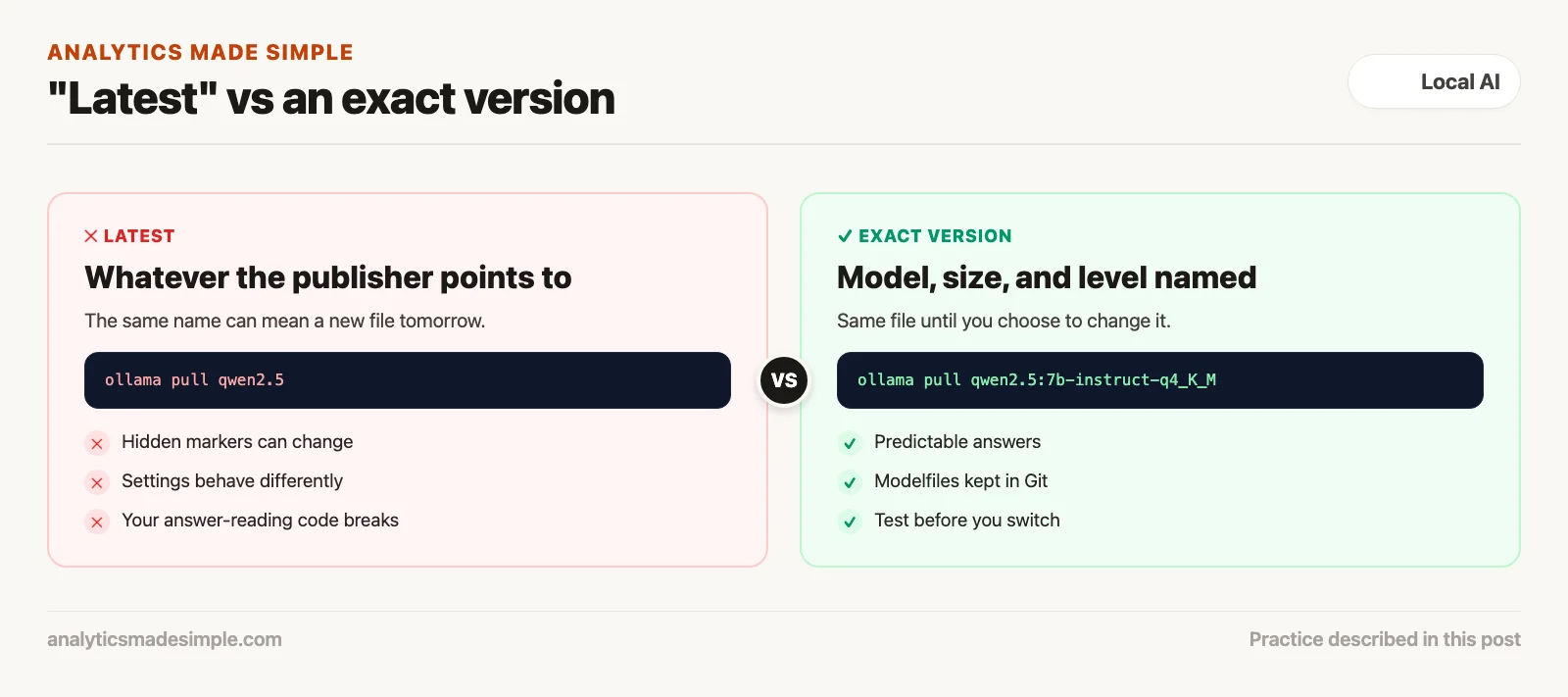
A model name ending in “latest” can point to a different file tomorrow. Always ask for the exact version.
For most software, staying up to date is good. For AI models, it can backfire. When you download a model without a specific version, such as ollama pull qwen3.5, you get whatever the model’s publisher currently points “latest” to. If they change it, several things can shift without warning:
- The hidden markers change. Models use special markers to tell where your question ends and their answer begins. If a new version uses different markers, your program may not notice when the answer is done, and the model keeps going.
- The settings behave differently. Temperature, the setting that controls how much the model improvises, can act differently on a new version. A setup that gave short, factual bullet points can suddenly produce long, flowery paragraphs.
- It follows instructions differently. A new version might pay less attention to a rule like “do not add headings,” which can break the program that reads its answers.
The safe habit is to always name the exact version: the model, its size, and how much it was shrunk. Shrinking a model by storing its numbers with less detail is called quantization, and the version name says which level was used. For example, write qwen3.5:9b-q4_K_M, not qwen3.5:latest, so your scripts ask for the same file every time. A publisher can still replace the file behind a tag, so also note the short ID that ollama list shows for each model.
Where model files hide on your disk
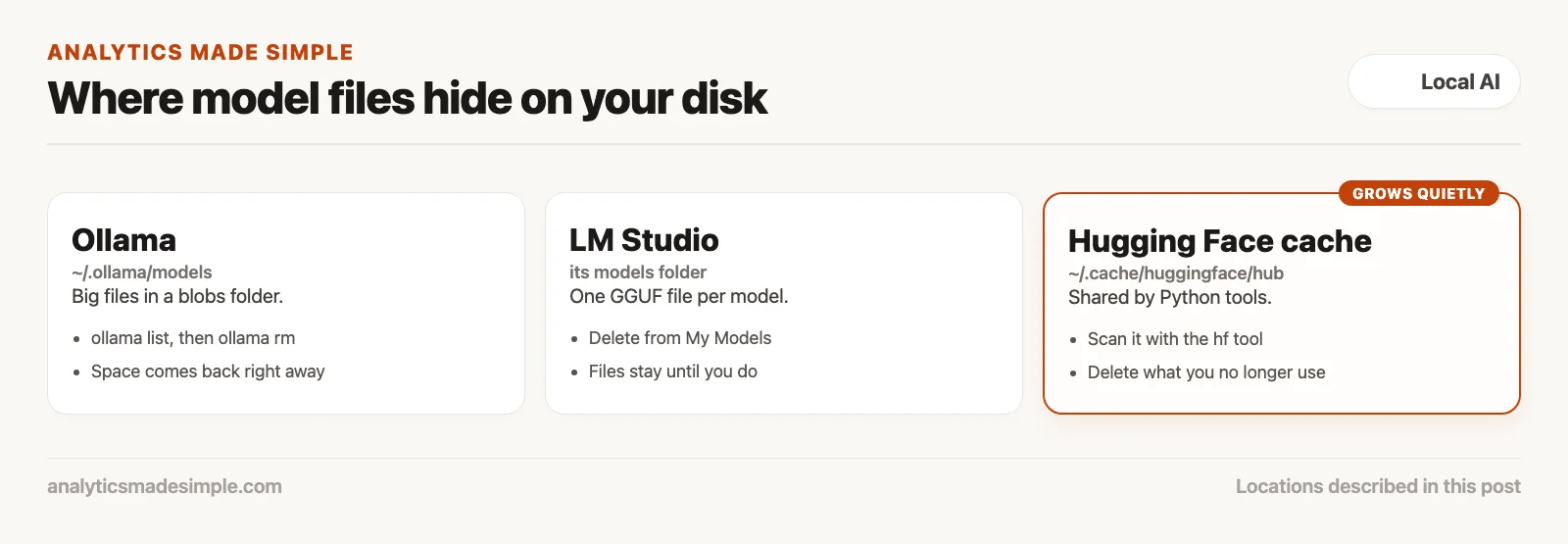
Model files are huge, and each tool keeps them in a different folder. Knowing where they live makes cleanup easy.
A normal app takes up a few hundred megabytes. A single AI model file is far bigger. A shrunk 7B model takes about 5 gigabytes, a 14B model about 9, and a 32B model over 20. Try a handful of models in two different apps, and you can lose sixty gigabytes or more of disk space without noticing.
Here is where the main tools keep their files:
- Ollama keeps models in
~/.ollama/models. The big files sit in ablobsfolder, with names made from a fingerprint of their contents. Small index files, in JSON (a simple format of labeled values), link each model name to its files. If two models share a part, Ollama stores it only once. - LM Studio (LM is short for language model) keeps each model as one GGUF file, a common file format for shrunk models, in its own models folder. You can see and delete them from its My Models tab.
- Hugging Face’s cache, a folder where downloaded files are stored for reuse, lives in
~/.cache/huggingface/hub. If you use Python tools from Hugging Face, this folder can quietly grow to fifty or a hundred gigabytes, and no app menu shows it.
Cleaning up safely
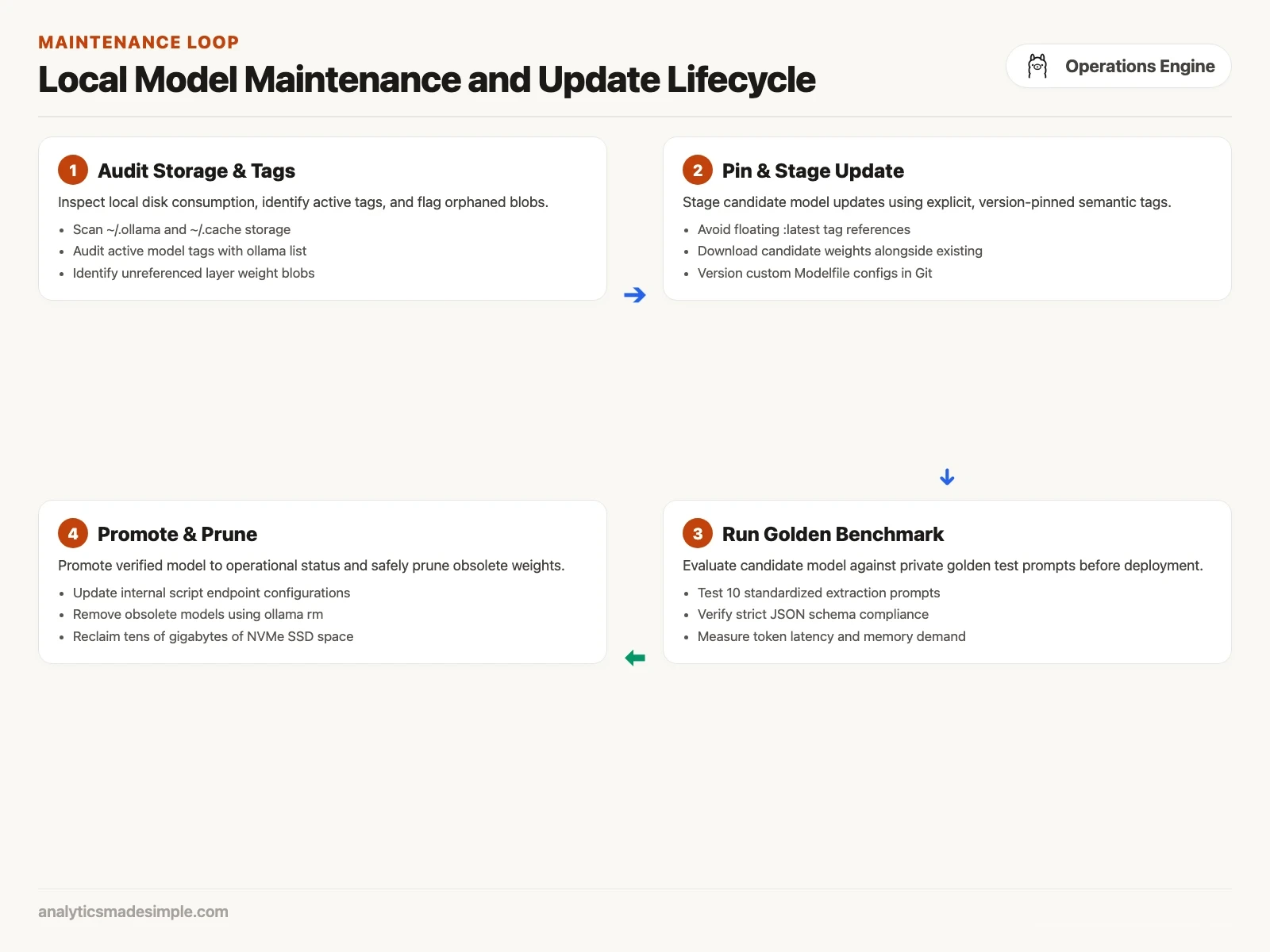
Check your models once a month or so, and delete the ones you no longer use. That keeps enough free space for your computer to run well.
In Ollama, start with ollama list to see what you have. Look for models you tried once and never used again. To remove one, run:
# Remove unneeded model tag and free underlying layer blobs
ollama rm qwen3.5:27b
ollama rm deepseek-r1:14b

# Verify disk space reclamation
du -sh ~/.ollama/models
When you remove a model, Ollama deletes its index file. If no other model uses the same big files, Ollama deletes those too, and you get the space back right away.
For the Hugging Face cache, its own command-line tool can scan the cache and let you pick what to delete:
# Scan and interactively clean the Hugging Face cache
huggingface-cli delete-cache
Keeping your custom settings in Git
If your team shares custom assistants, keep their setting files in Git, a tool that tracks every change, so everyone runs the same version.
An earlier post in this series showed how an Ollama Modelfile, a short text file, turns a model into a custom assistant with standing instructions and settings. If you tweak one on your laptop and tell no one, your teammates keep running the old version and get different answers.
The fix is to treat these files like any other code. Store them in a shared Git repository, a project folder that keeps every version of its files, next to your scripts and notes. A typical layout looks like this:
ai-governance-repo/
├── Modelfiles/
│   ├── credit-analyst.Modelfile
│   ├── contract-auditor.Modelfile
│   └── transcript-cleaner.Modelfile
├── tests/
│   └── golden_eval_suite.json
├── scripts/
│   ├── build_models.sh
│   └── run_regression_tests.py
└── README.md
When someone changes an instruction or a setting, they propose the change, explain why in plain words, and a teammate reviews it. Once it is approved, everyone pulls the update and rebuilds the assistant with one command:
# Compile updated assistant from version-controlled Modelfile
ollama create credit-analyst:v2.1 -f Modelfiles/credit-analyst.Modelfile
Test before you switch: a small test set
Before you switch to a new model, run it through a short list of your own real tasks, and check each answer automatically.
How do you know a new model is better than the one you have? Its makers publish impressive test scores, but a new version might get better at math and worse at following your format.
The safer approach is your own small test set, often called a golden set: ten to twenty real tasks from your team’s work, each with a simple rule for what counts as a pass. For example, the numbers pulled from a contract must match the right answers, dates must be written year-month-day, and the answer must be valid JSON.
The Python program below runs a model through a set of tasks like that. It measures how long each one takes, how fast the model writes, and whether each answer passes:
import time
import json
from openai import OpenAI

# Configure client pointing to local inference engine
client = OpenAI(
    base_url="http://127.0.0.1:11434/v1",
    api_key="local-eval"
)

# Define candidate model to evaluate
CANDIDATE_MODEL = "qwen3.5:9b-q4_K_M"

# Define standardized golden benchmark suite
GOLDEN_TEST_SUITE = [
    {
        "test_id": "tc_01_json_extraction",
        "description": "Extract structured entities in pure JSON format",
        "system": "Extract borrower name, debt principal, and interest rate as strict JSON.",
        "prompt": "Loan Agreement: Apex Logistics LLC borrowed $14,500,000 at 6.85% annual interest.",
        "expected_keys": ["borrower", "debt_principal", "interest_rate"]
    },
    {
        "test_id": "tc_02_negative_constraint",
        "description": "Adhere strictly to negative formatting constraint",
        "system": "Summarize the event in one sentence. Do not use the word 'logistics' or 'freight'.",
        "prompt": "The transportation carrier experienced diesel delivery delays in the Chicago corridor.",
        "forbidden_words": ["logistics", "freight"]
    }
]

def evaluate_candidate_model():
    print(f"--- Initiating Golden Evaluation: {CANDIDATE_MODEL} ---\n")
    passed_tests = 0
    total_tokens = 0
    total_duration = 0.0

    for test in GOLDEN_TEST_SUITE:
        print(f"Executing {test['test_id']}: {test['description']}...")
        start_time = time.time()

        response = client.chat.completions.create(
            model=CANDIDATE_MODEL,
            messages=[
                {"role": "system", "content": test["system"]},
                {"role": "user", "content": test["prompt"]}
            ],
            temperature=0.1,
            max_tokens=400
        )
        duration = time.time() - start_time
        total_duration += duration
        output_text = response.choices[0].message.content.strip()
        tokens = response.usage.completion_tokens if response.usage else len(output_text.split())
        total_tokens += tokens

        # Validation logic
        passed = True
        if "expected_keys" in test:
            try:
                clean_json = output_text.replace("```json", "").replace("```", "").strip()
                parsed = json.loads(clean_json)
                for key in test["expected_keys"]:
                    if key not in parsed:
                        passed = False
            except Exception:
                passed = False

        if "forbidden_words" in test:
            for word in test["forbidden_words"]:
                if word.lower() in output_text.lower():
                    passed = False

        status = "PASSED" if passed else "FAILED"
        if passed:
            passed_tests += 1

        print(f"-> Status: {status} | Latency: {duration:.2f}s | Output:\n{output_text}\n")

    avg_throughput = total_tokens / total_duration if total_duration > 0 else 0
    print("--- Evaluation Summary ---")
    print(f"Pass Rate: {passed_tests}/{len(GOLDEN_TEST_SUITE)} ({(passed_tests/len(GOLDEN_TEST_SUITE))*100:.1f}%)")
    print(f"Average Generation Speed: {avg_throughput:.1f} tokens/sec\n")

if __name__ == "__main__":
    evaluate_candidate_model()
Run this before you switch models, and you replace a gut feeling with a measurement. If the new model passes every test and runs faster, switch with confidence. If it fails a check that matters, keep your current model and keep working.
Common questions
Does updating the Ollama app also update my models? No. Updating the app updates the program itself. Your downloaded models stay exactly as they were.
Can I keep models on an external drive? Yes. Set the OLLAMA_MODELS setting to a folder on that drive, for example export OLLAMA_MODELS=/Volumes/FastSSD/ollama/models. Use a fast drive and a fast connection, like USB4 or Thunderbolt, or models will take longer to load.
How often should I check my models? Once a month works well. Spend half an hour checking disk space, removing models you do not use, testing any new ones against your test set, and saving any changed settings.
What if a download stops halfway? Run the same command again once you are back online. Both Ollama and the Hugging Face tool pick up where they left off.
Sources
- Ollama, qwen3.5 tags and documentation, checked October 4, 2026.
- Hugging Face, managing the local cache, checked October 4, 2026.
Series notes
This is Part 8 of Local LLMs from scratch. Previous: first useful offline tasks. Next: when local is worse than a $20 chat subscription.
Keep going
Same lessons in your feed
Short diagrams, hooks, and weekly tutorials on Substack, Instagram, X, and Facebook.