
To build a Zap that keeps working, put checks between the form and your customer records: filter out junk, clean up names and phone numbers, and look a contact up before you create one. Zapier’s built-in Filter, Formatter, and Paths steps do this and, as of October 2026, do not count toward your monthly tasks.
Say you connect your client questionnaire straight to your CRM (customer relationship management system, where you keep client records). It looks fine in testing, but weeks later you find spam entries saved as clients, phone numbers in five formats, and two records for the same customer, because nothing checked the data on the way in.
Zapier is a service that connects apps without code. A Zap is one automated workflow in it: a trigger that starts it, then steps that act in other apps.
Rules for a Zap you can trust
Never wire a form straight into your CRM. Clean the data first with Formatter by Zapier, stop spam and unqualified leads with Filter by Zapier, and look a record up before you create it, so you never end up with two copies of the same customer.
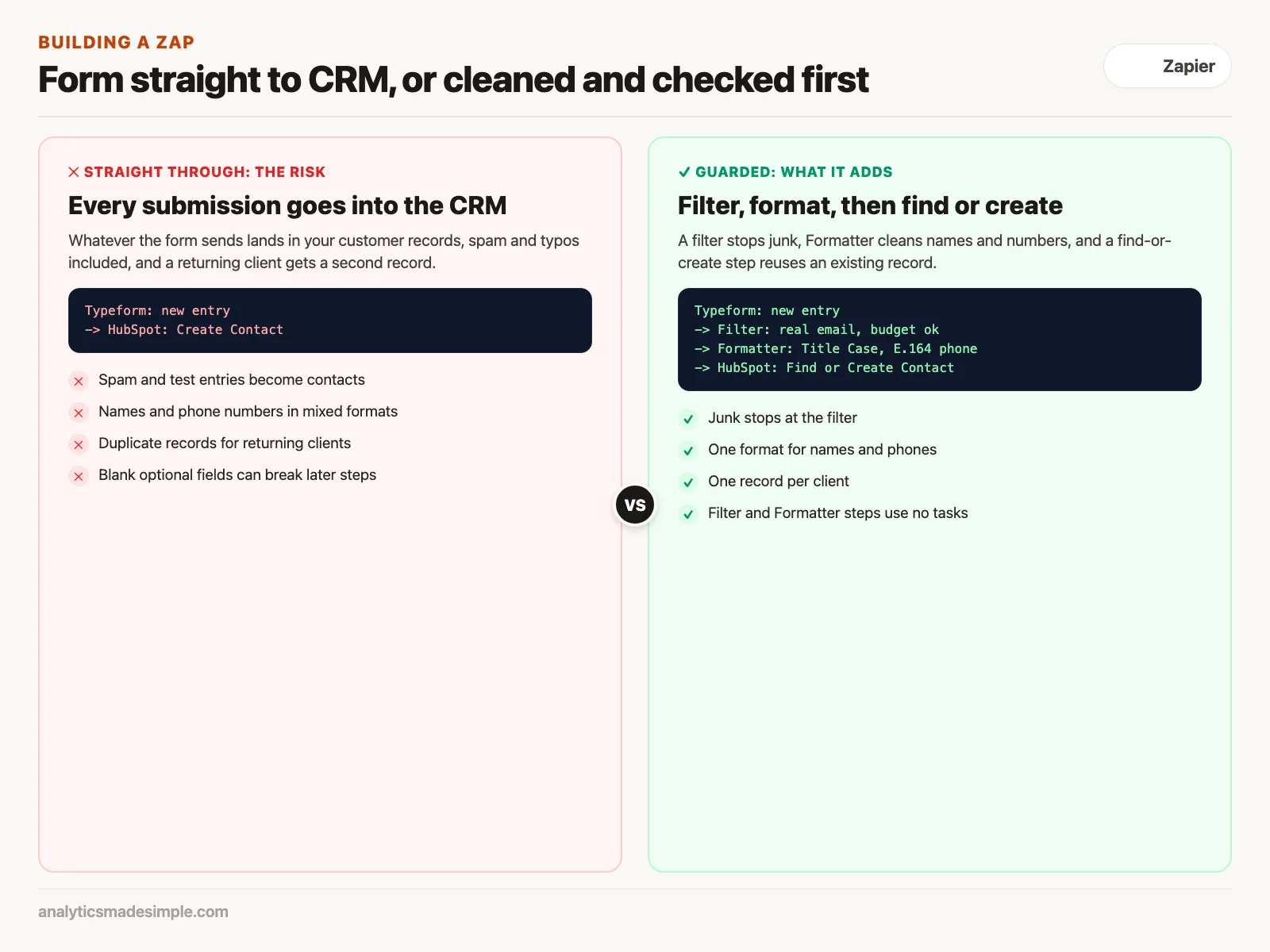
How a Zap is put together
A Zap runs top to bottom. One trigger starts it, optional helper steps clean or check the data, and action steps make the real change in another app.
When you connect an app such as Slack, Stripe, or Google Sheets, Zapier calls that company’s servers, and each successful action step counts as a task against your monthly allowance. Zapier also has built-in tools that run inside Zapier. According to Zapier’s help page on task usage, checked October 2, 2026, Filter and Paths steps do not count as tasks, and neither do Formatter steps. Three of these tools matter most:
- Filter by Zapier checks the data against a rule you set, such as “this field contains text” or “this number is greater than X.” If the data fails, the Zap stops there.
- Formatter by Zapier cleans data: converting dates and time zones, fixing capital letters, and turning phone numbers into the international E.164 format, which writes every country’s numbers the same way, such as +15550192834.
- Paths by Zapier sends data down different branches depending on its value, so one Zap can replace several nearly identical ones.
Step by step: a client onboarding Zap that holds up
A solid onboarding Zap has five stages: the trigger, a spam filter, a cleanup step, a safe lookup in the CRM, and the final setup. It turns a questionnaire answer into a client workspace without anyone touching it by hand.
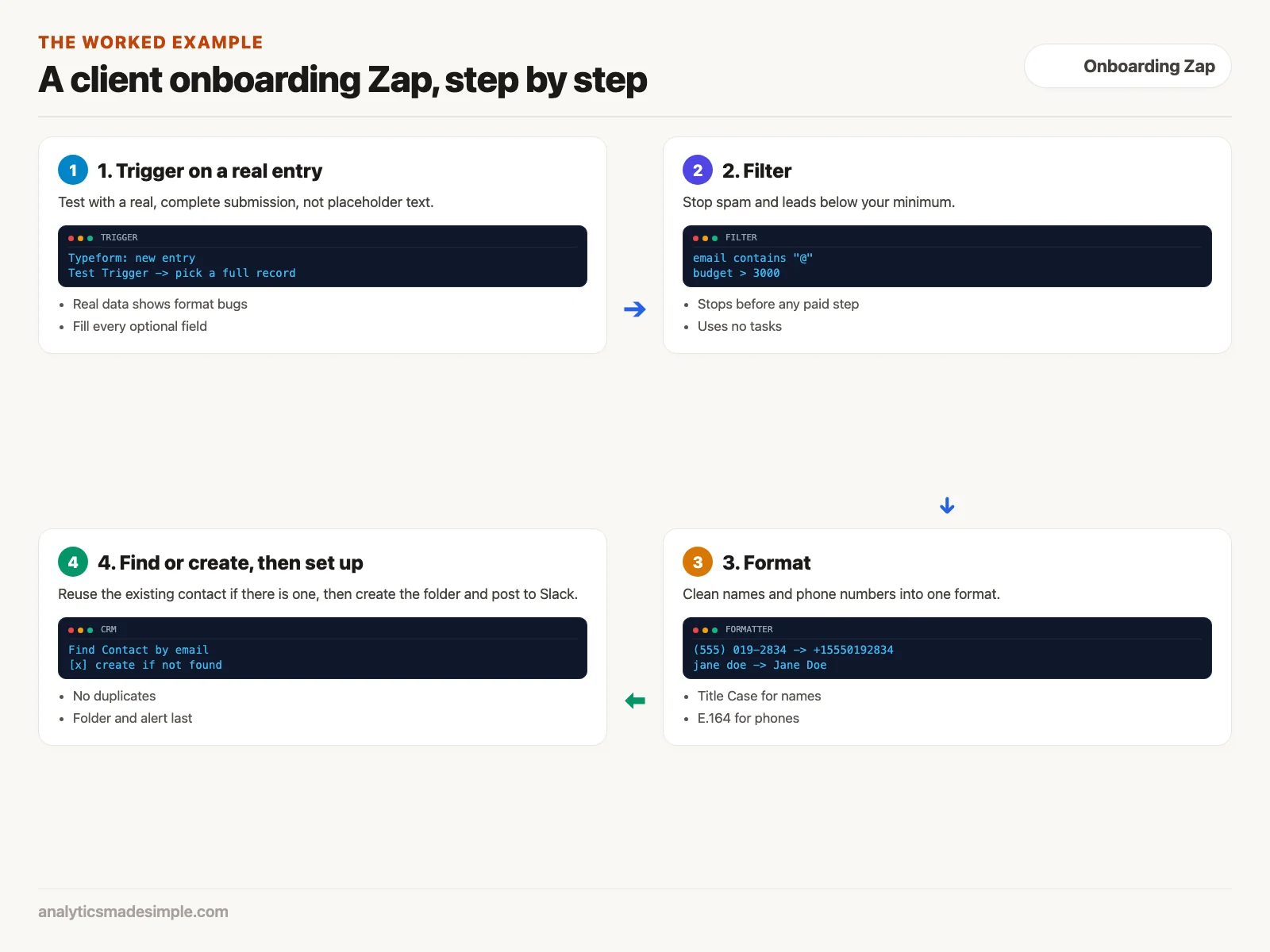
- The trigger (Typeform). The Zap starts when a client submits the questionnaire. When you test the trigger, pick a real, recent submission with every optional field filled in, because placeholder text like “test user” hides formatting bugs.
- The spam and budget filter. Add a Filter step with two rules: the email contains “@” and is not from a known spam domain, and, if you have a minimum project size, the budget is above it, for example $3,000. Junk stops here, before any step that costs a task.
- Cleaning names and phone numbers (Formatter). Add a Formatter step set to Text, then Title Case, for the names. Add another set to Numbers, then Format Phone Number, with the E.164 format and your default country code. Whether a client typed “(555) 019-2834” or “5550192834,” the result is “+15550192834.”
- A safe CRM lookup (HubSpot or Salesforce). Do not use “Create Contact” on its own. Use “Find Contact,” search by email, and tick the option to create the contact if none is found. Existing clients get their old record back, and new ones are created once.
- Setting up the workspace. Create a client folder in Google Drive, then post a message in your team’s Slack channel with links to the new CRM record and the folder.
Code by Zapier for the cases the menus miss
When the built-in tools cannot handle a pattern, a calculation, or a list packed into one field, a Code by Zapier step lets you write a short Python or JavaScript script. Zapier’s documentation says the Python environment runs Python 3.13, with time and memory limits that depend on your plan. Your mapped fields arrive in a dictionary called input_data.
This example strips a website address down to its host name and picks an onboarding fee tier from the team size:
# Zapier fills input_data from the fields you map in the step.
# To test outside Zapier, define it yourself, for example:
# input_data = {"raw_url": "https://www.example.com/about", "team_size": "45"}
#
# Mapped fields in this example:
# raw_url -> "https://subdomain.acmecorp.com/landing?ref=promo"
# team_size -> "45"

import re

raw_url = input_data.get("raw_url", "").lower().strip()
team_size_raw = input_data.get("team_size", "1")

# 1. Strip the protocol, www, and path to get the host name
url_clean = re.sub(r"^https?://", "", raw_url)
url_clean = re.sub(r"^www\.", "", url_clean)
domain_match = re.search(r"^([a-z0-9.-]+\.[a-z]{2,})", url_clean)
clean_domain = domain_match.group(1) if domain_match else "unknown"

# 2. Calculate dynamic onboarding fee tier
try:
    team_size = int(team_size_raw)
except ValueError:
    team_size = 1

if team_size > 50:
    fee_tier = "ENTERPRISE"
    setup_deposit = 2500.0
elif team_size > 10:
    fee_tier = "GROWTH"
    setup_deposit = 1200.0
else:
    fee_tier = "STARTER"
    setup_deposit = 500.0

# 3. Return dictionary to expose variables to downstream Zap steps
output = {
    "clean_domain": clean_domain,
    "fee_tier": fee_tier,
    "setup_deposit": setup_deposit,
    "requires_security_review": team_size > 100
}
In plain words: it lowercases the address and removes “https://”, “www.”, and everything after the host name. Then it turns the team size into a number, falling back to 1 if someone typed text, and picks a tier. Whatever you put in the output dictionary shows up as fields the next steps can use.
Run locally with the example values, it returns {'clean_domain': 'subdomain.acmecorp.com', 'fee_tier': 'GROWTH', 'setup_deposit': 1200.0, 'requires_security_review': False}. Note that it keeps the subdomain, because reducing an address to its main domain correctly takes a list of suffixes such as “.co.uk”, so keep the full host name unless you add one.
What Zapier tasks cost you
Zapier mainly bills by the number of tasks you run each month, so extra action steps add up. A task is counted each time an action step succeeds. Triggers do not count, and steps that never run because a filter stopped the Zap do not count either.
The math is simple: a thousand leads a month through a Zap with seven action steps is seven thousand tasks. Check Zapier’s pricing page for what that volume costs on your plan. Three habits keep the count down:
- Filter early. Put the filter right after the trigger, so spam stops before any step that costs a task.
- Use Formatter, not code, for simple cleanup. Formatter steps do not count as tasks, while each Code by Zapier run counts as one, according to the same help page. Save code for the jobs Formatter cannot do on its own.
- Use batch actions. When syncing many items, look for an action that handles several at once, such as creating multiple spreadsheet rows, instead of a loop that runs one action per row.
Fixing a broken Zap
When a Zap fails, work in order: read what was sent and what came back in Task History, reconnect the app if the login expired, then fix the input and replay the run. That routine beats changing settings at random and hoping.
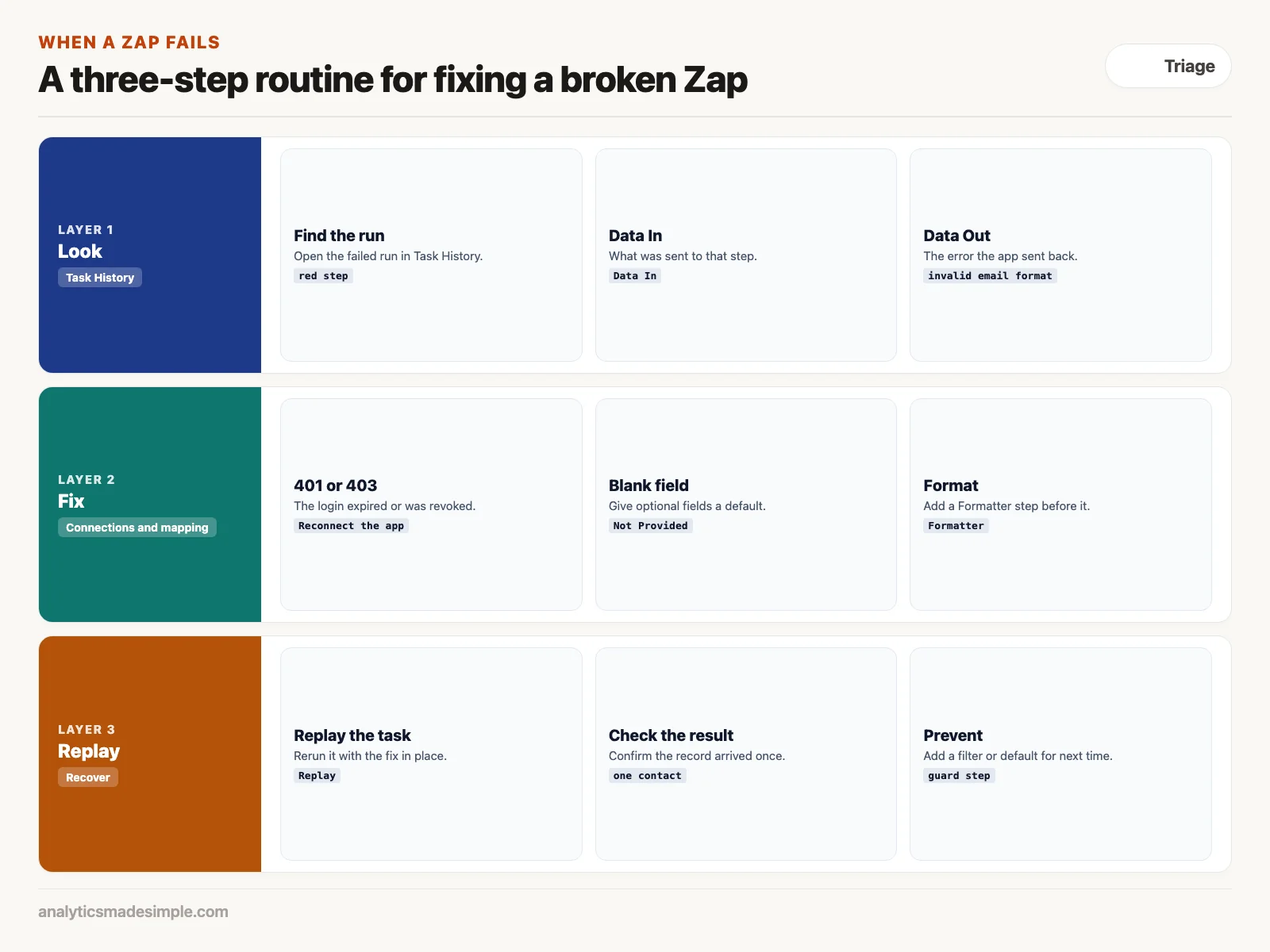
- Look. Open Task History and find the failed run. Open the step marked in red, and compare the Data In tab, what was sent, with the error in Data Out. The app usually says what went wrong, such as “invalid email format.”
- Fix. An error code of 401 or 403 usually means the saved login token (the key that proves Zapier may use the app) expired or was revoked. Reconnect the app under App Connections, and if a blank optional field broke a step, give it a default value such as “Not Provided.”
- Replay. Use Replay in Task History to rerun the failed task with the fix in place, so the client never has to submit the form again.
What to do next
- Review Task History. Filter by “Errored” to see which Zaps fail most, because those are costing you time every week.
- Switch creates to find-or-create. Change any step that creates a contact, deal, or company so it looks the record up first, which stops duplicates for good.
- Add Formatter before messages. Put a Formatter step between your form and any personalized email, so names arrive with proper capital letters.
The next post covers Make, formerly Integromat, and how its visual canvas handles branching work.
Series notes
This is Part 3 of Automation platforms from scratch. Previous: workflow anatomy. Next: Make from zero.
Sources
- Zapier Help Center: how task usage is measured, checked October 2, 2026.
- Zapier Help Center: use Python code in Zaps.
- Zapier Help Center: filter and path rules in Zaps.
- International Telecommunication Union: E.164, the international public telecommunication numbering plan.
Keep going
Same lessons in your feed
Short diagrams, hooks, and weekly tutorials on Substack, Instagram, X, and Facebook.