If you dictate anything private, turn your speech into text on your own computer instead of sending the audio to a cloud service. A local copy of Whisper, OpenAI’s free speech-to-text model, can do that with no internet connection, so the recording never leaves your device.
Say you write up notes after sensitive calls: a salary talk, a client’s legal question, or a patient follow-up. Typing them is slow, and the dictation button on many apps sends your voice to a company’s servers. You would rather speak the note, get clean text back, and know the audio stayed on your laptop.
This post explains the difference between cloud and local dictation, walks through the four steps a local setup follows, gives you a short script to try, and compares the common tools. Tool details were checked on October 2, 2026.
Cloud transcription versus dictation on your device
A cloud speech service works by sending your microphone audio over the internet to another company, which turns it into text and sends the text back. That is convenient and often very accurate. It also brings three trade-offs.
- Your words leave your control: Once audio reaches another company, its privacy terms, staff access rules, and data retention apply. For health, legal, or HR (human resources) notes, that can be a problem or simply not allowed.
- You need a connection: On a plane, in a basement office, or in a secure building with no outside internet, cloud dictation stops working.
- You pay per minute: As of October 2, 2026, OpenAI lists its whisper-1 transcription model at $0.006 a minute. For a made-up team of 40 people who each dictate three hours a day for 22 workdays, that is 158,400 minutes, or about $950 a month.
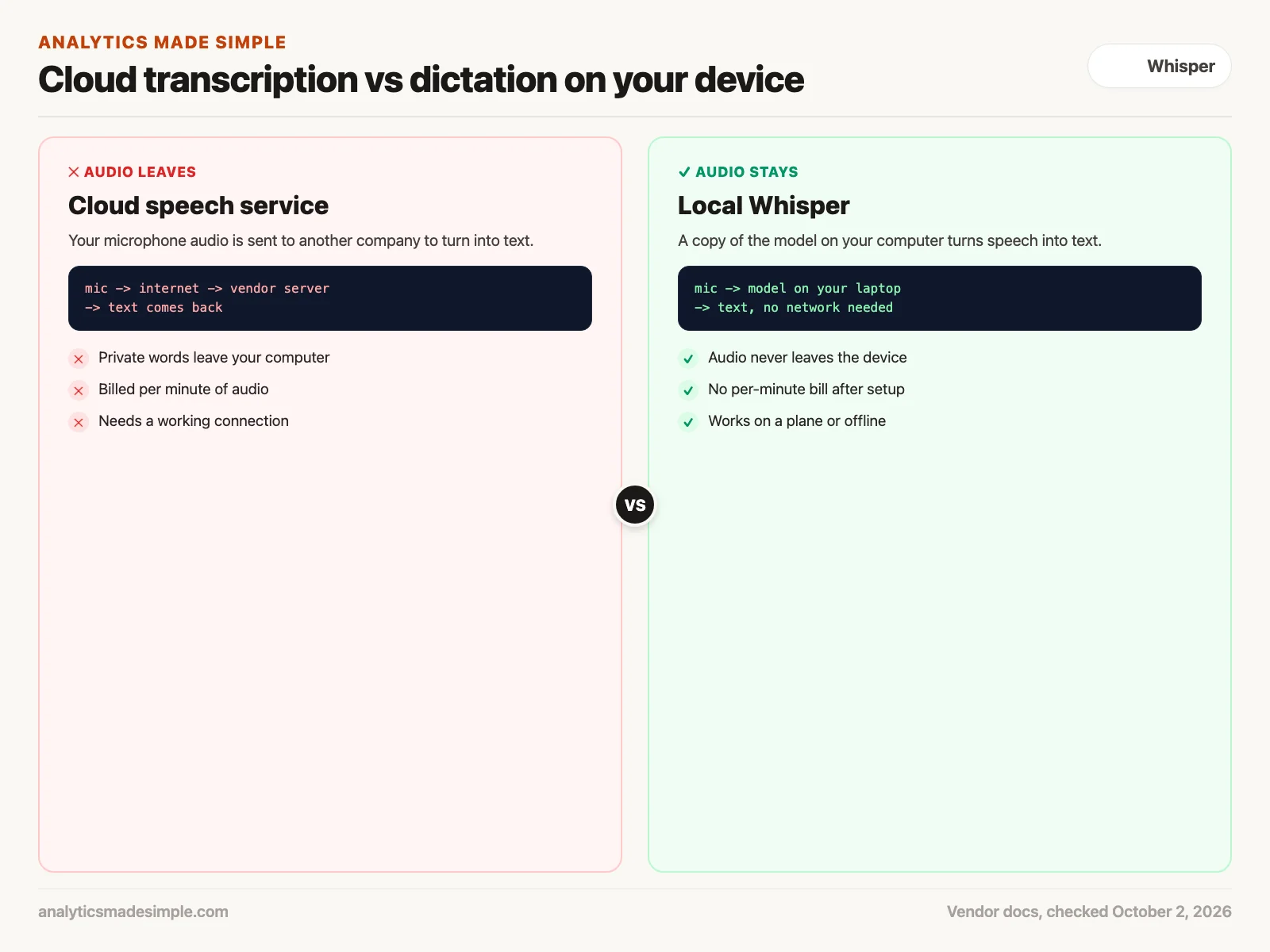
Local dictation flips those trade-offs. OpenAI released Whisper as an open model, so you can download it and run it yourself. Once it is on your computer, the audio never touches the network, there is no per-minute bill, and it works offline. The costs move elsewhere: you need a reasonably modern computer, a one-time setup, and a little patience with the first download.
Local is not automatically more accurate. A large cloud model may still handle accents or noisy rooms better. Pick local when privacy or offline use matters most, and test it on your own voice before you rely on it.
From speech to clean text in four steps
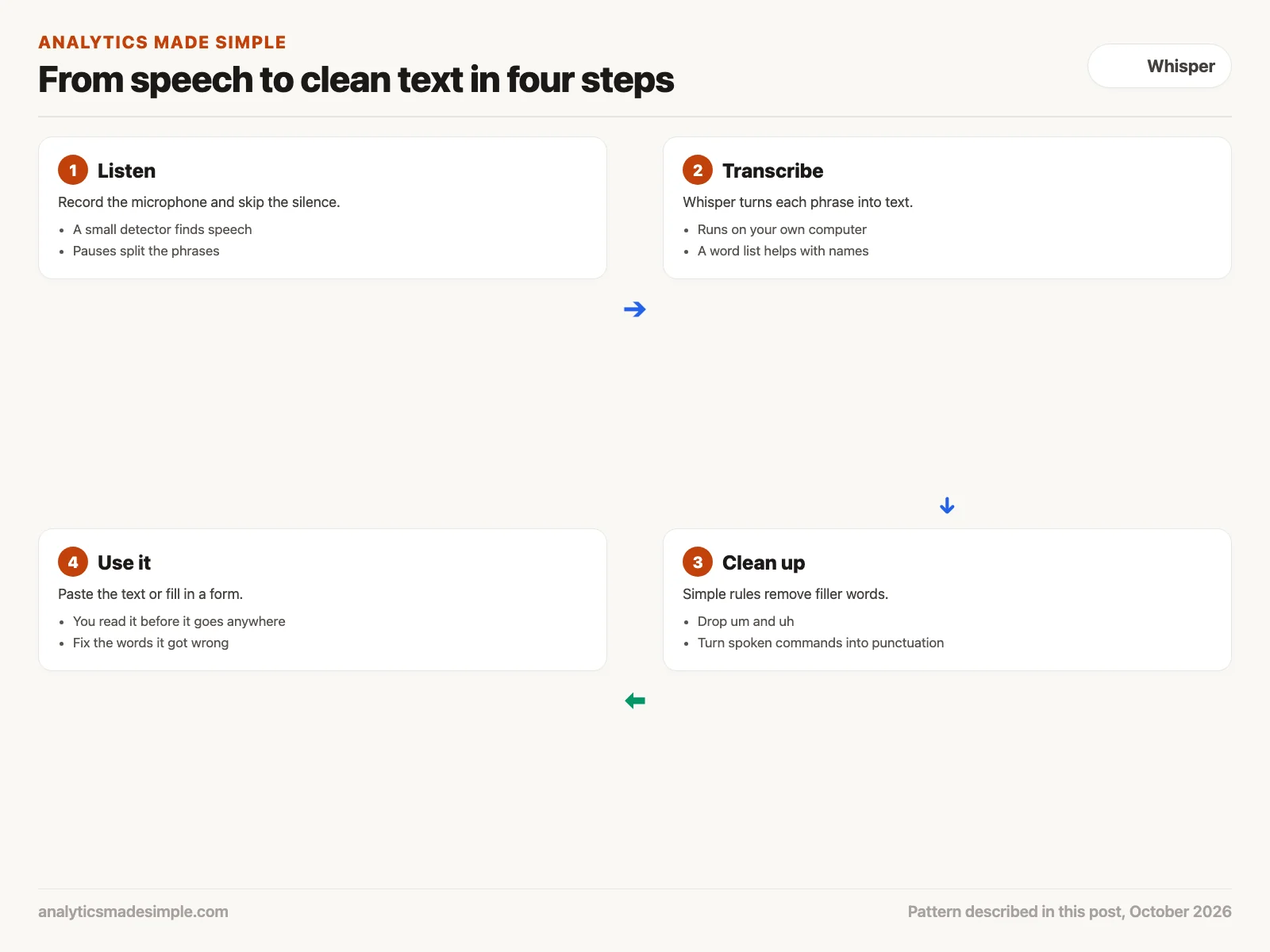
A useful local setup does more than run one model. It follows four steps, and each one fixes a different problem.
1. Listen, and skip the silence
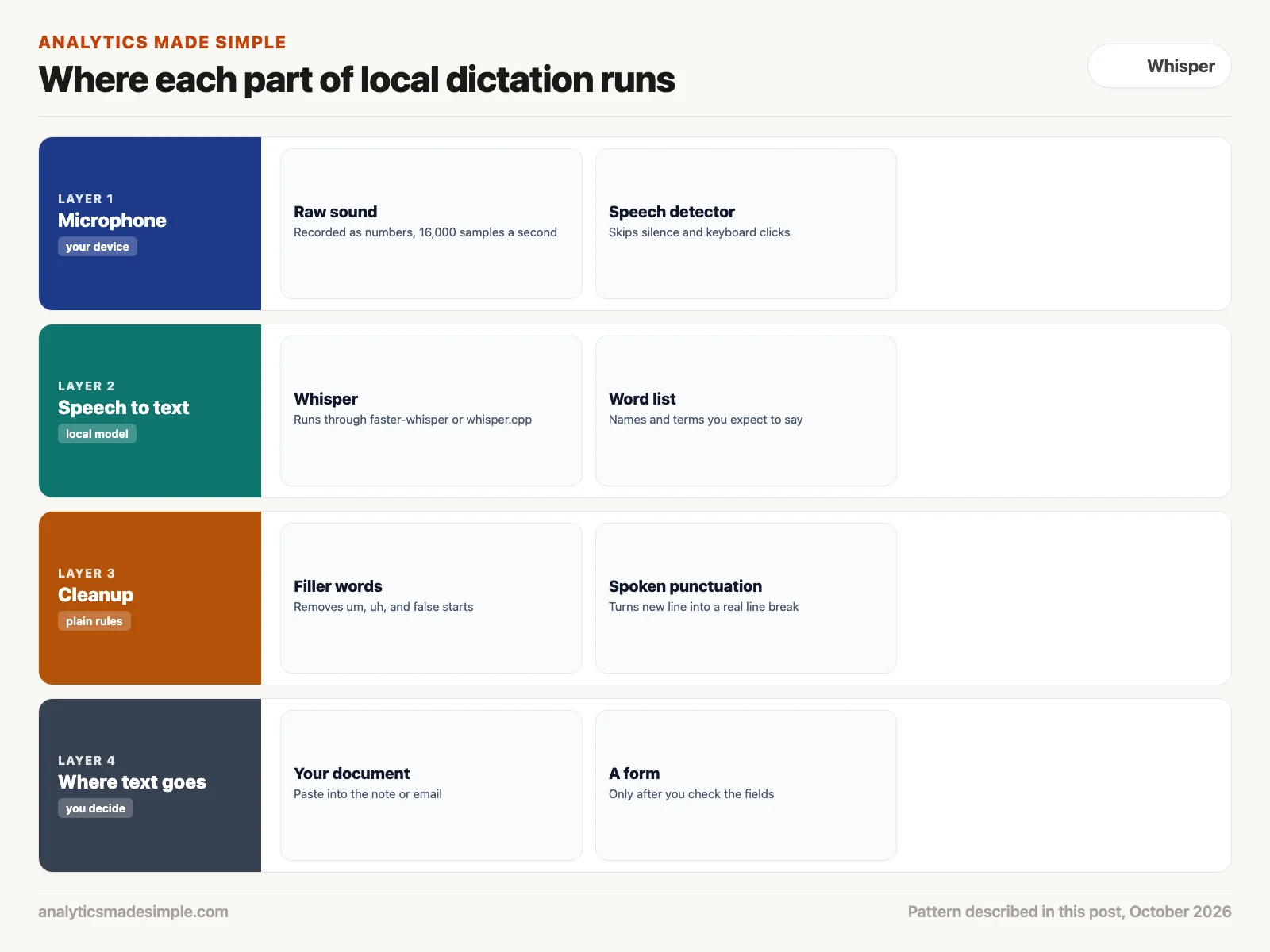
The microphone records sound as a stream of numbers, usually 16,000 per second for speech. Most of that stream is silence, typing, or a fan. A small voice activity detector (a tool that tells speech apart from other noise) such as Silero VAD checks each short slice of sound first. Its README (the project’s main instructions page) says one chunk of 30 milliseconds or more takes under a millisecond to check on a single processor thread, so it barely slows anything down. Only the slices with speech move on.
2. Turn speech into text
Each phrase of speech then goes to Whisper. faster-whisper is a popular way to run it from Python. Its README says it is up to four times faster than the original Whisper code for the same accuracy while using less memory, and it can shrink the model further with 8-bit numbers to save memory.
You can also give Whisper a head start with a short list of words you expect to say, such as product names or technical terms. faster-whisper passes this list through a setting called initial_prompt. It nudges the model toward the right spelling, but it does not guarantee it, so you still read the result.
3. Clean up how people actually talk
Spoken notes are full of “um,” “uh,” restarts, and words like “period” or “new line” that you mean as punctuation. A few plain text rules can tidy most of this before you read it. You do not need another AI model for this step.
4. Decide where the text goes
The simplest ending is to paste the clean text into your note or email. A more ambitious setup fills in a form, such as a ticket with a date and a category. If you do that, show yourself the filled-in fields before anything is saved, because a misheard word can land in the wrong box.
Try it: transcribe a recording on your laptop
This first script turns a recording into text with faster-whisper. Install the library (a package of ready-made code) once, record a short voice memo, and save it as note.wav in the same folder.
pip install faster-whisperfrom faster_whisper import WhisperModel
# Words the model should expect, so it spells them correctly.
WORD_LIST = "Terms: churn, cohort, Postgres, dbt, Snowflake."
model = WhisperModel("small", device="cpu", compute_type="int8")
segments, info = model.transcribe(
"note.wav",
vad_filter=True,
initial_prompt=WORD_LIST,
)
print("Language:", info.language)
for seg in segments:
print(f"[{seg.start:.1f}s - {seg.end:.1f}s] {seg.text.strip()}")In plain words, the script loads the “small” Whisper model on your processor using 8-bit numbers to save memory, turns on the built-in speech detector with vad_filter=True, and passes your word list as initial_prompt. It then prints each phrase with its start and end time. The first run downloads the model, so it needs internet once. After that, it runs offline. On a stronger computer you can try a larger model, such as large-v3, for better accuracy at the cost of speed.
The second script is the cleanup step. It runs anywhere Python runs, with nothing to install, so you can test it right now on a made-up sentence.
import re

FILLERS = r",?\s*\b(?:um+|uh+|you know)\b,?"


def clean(text):
    text = re.sub(FILLERS, "", text, flags=re.I)
    text = re.sub(r"\s*\bperiod\b", ".", text, flags=re.I)
    text = re.sub(r"\s*\bnew line\b\s*", "\n", text, flags=re.I)
    text = re.sub(r" {2,}", " ", text)
    lines = [line.strip() for line in text.split("\n")]
    return "\n".join(line[:1].upper() + line[1:] for line in lines)


raw = "um so the churn number, uh, went up in March period new line you know check the cohort table before Friday period"
print(clean(raw))
Running it prints:
So the churn number went up in March.
Check the cohort table before Friday.
It removes “um,” “uh,” and “you know” along with the commas around them, turns the spoken word “period” into a real period and “new line” into a line break, and capitalizes each line. Add your own habits to the filler list as you notice them.
Four ways to turn speech into text
The right tool depends on your computer, your privacy rules, and how much setup you want to do.
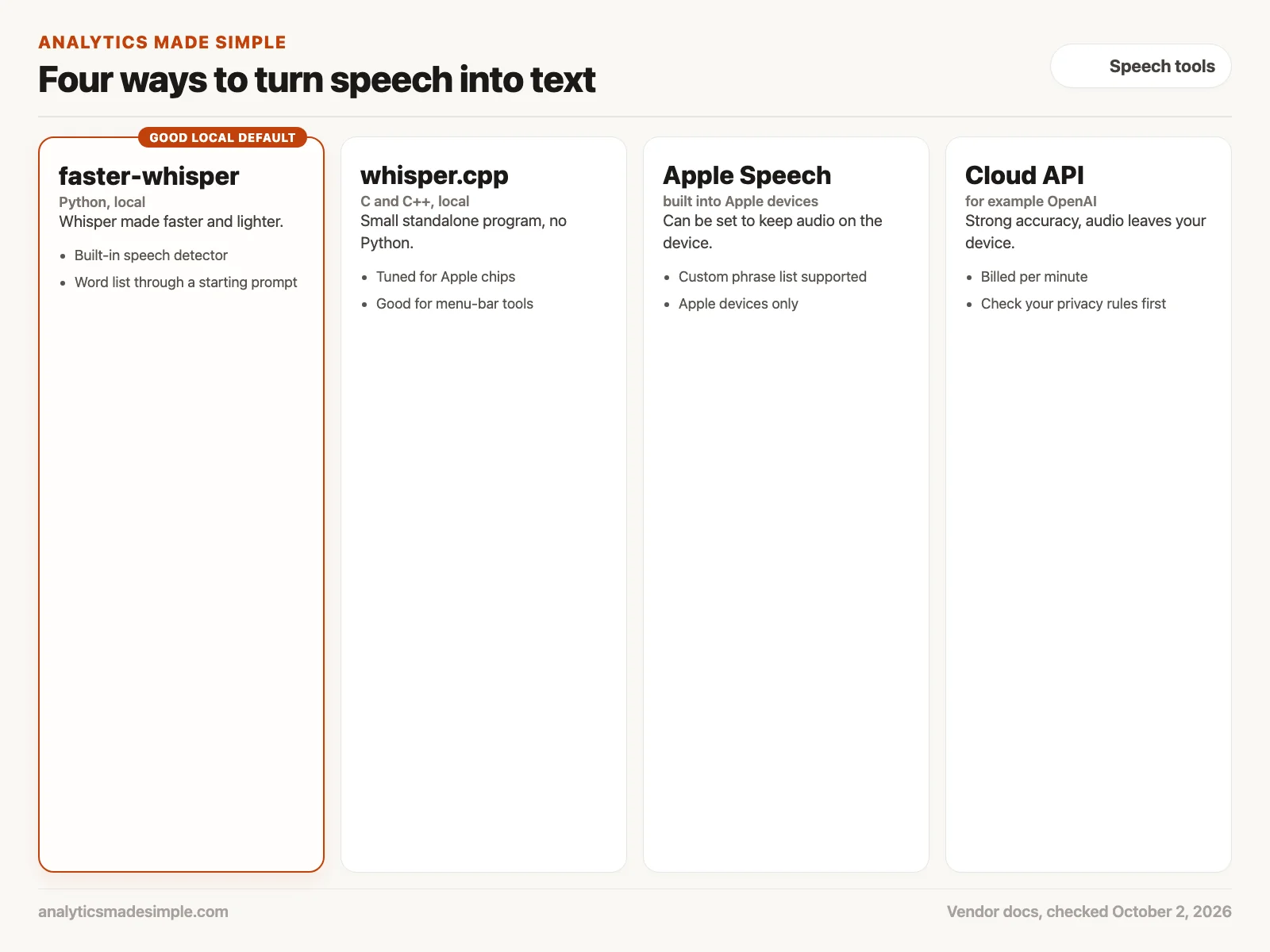
- faster-whisper: A Python library that runs Whisper quickly on a regular processor or an Nvidia graphics card, with a speech detector built in. A good default if you are comfortable running a Python script. Details are in its README.
- whisper.cpp: Whisper rewritten in C and C++, so it runs as a small standalone program without Python. The project page lists Apple silicon as a first-class target, which makes it a common base for always-on dictation apps on a Mac.
- Apple’s Speech framework: Built into Apple devices for app developers. A request can be set to keep its audio on the device, and it accepts a list of custom phrases to recognize. It only runs on Apple hardware.
- A cloud API: Services such as OpenAI’s transcription models are easy to call and often very accurate, but the audio leaves your device and you pay per minute. The same is true of conversational voice assistants, where you and the AI talk back and forth: OpenAI’s Realtime API, for example, streams your voice to its servers and back. Check your company’s privacy rules first.
Privacy still needs care on your own device
Keeping audio local removes one big risk, but not every risk. Recordings and transcripts saved to your disk are now your responsibility.
- Delete the audio when you are done: If the script reads a saved file, remove the file after you have the text, unless a rule says you must keep it.
- Mind where transcripts sync: A note app that syncs to the cloud sends the text out even if the audio stayed home.
- Check the rules for your field: In US health care, the HIPAA Privacy Rule (the Health Insurance Portability and Accountability Act) sets rules for patient information. Running locally can help you follow those rules, but your compliance team decides what is allowed.
- Read before you send: Speech models mishear names and numbers, so treat every transcript as a draft.
Worked example: a week of private dictation
Here is how you could try this over one week. The terms and numbers are made up for practice.
- Monday: You install faster-whisper, record a one-minute memo, and run the first script with the “small” model. It gets most words right but spells your team’s tool names wrong.
- Tuesday: You add those names to the word list and run the same memo again. The tool names now come out right, though one number is still misheard, so you note it.
- Wednesday: You add the cleanup script and start each memo with the words you use most. The text is ready to paste with a few small edits.
- Thursday: You try the work laptop with the network switched off. It still works, which settles the offline question for your next trip.
- Friday: You decide it is worth keeping for private notes and keep using your normal dictation for everything else. You also set a reminder to delete the saved recordings each week.
Quick recap
- Local Whisper keeps your audio on your device, works offline, and has no per-minute bill.
- A good setup listens for speech, transcribes it, cleans up filler words, and lets you check the text before it goes anywhere.
- faster-whisper and whisper.cpp run Whisper locally, Apple’s Speech framework can keep audio on the device, and cloud APIs send audio out.
- Treat every transcript as a draft, and delete recordings you no longer need.
Your next step this week
Record one private note you would normally type, run the two scripts above on it, and compare the result with what you meant to say. Count how many words you had to fix. If the fixes are mostly names, grow the word list. If the result is still poor, try a larger model before you give up on local dictation.
Series notes
This is Part 6 of AI assistants everyday. Previous: Grokbot. Next: meeting intelligence.
Sources
- OpenAI, Whisper on GitHub and Radford and others (2022), Robust Speech Recognition via Large-Scale Weak Supervision.
- SYSTRAN, faster-whisper README, checked October 2, 2026.
- Silero, Silero VAD README, checked October 2, 2026.
- ggml-org, whisper.cpp, checked October 2, 2026.
- Apple Developer, requiresOnDeviceRecognition and contextualStrings.
- OpenAI, whisper-1 model page (pricing), checked October 2, 2026.
- US Department of Health and Human Services, The HIPAA Privacy Rule.
Keep going
Same lessons in your feed
Short diagrams, hooks, and weekly tutorials on Substack, Instagram, X, and Facebook.