A meeting tool that only writes a summary leaves you guessing who promised what. Turn each meeting into a short list of action items instead, where every task has an owner who was in the room, a real due date, and the exact words that back it up, and have a person confirm each one before it reaches your task tracker.
Say your Friday planning call ends with three people agreeing to “look into it.” On Monday a bot posts a long recap in Slack that sounds confident, gives one task to someone who was not on the call, and turns a passing idea into a decision. Nobody trusts the recap, so the tasks quietly drop.
This post shows why plain summaries fail, the four steps of a pipeline (a chain of automatic steps) that produces checked action items, a short program that catches bad tasks, and four ways to capture the audio. It is a pattern you can build or look for in a product, not a review of one vendor.
Why a plain meeting summary lets you down
Many meeting assistants treat a call like an essay to shorten. The result reads well but fails at the parts that get work done.
- Owners get mixed up: A tool may label people “Speaker 1” and “Speaker 2,” or credit a promise to the wrong person. A task without the right owner is not really assigned.
- Dates stay vague: People say “next sprint” or “after the holiday.” If the tool copies that phrase, the task has no real deadline.
- Ideas become decisions: Someone thinks out loud about a fallback plan, and the summary records it as if the team agreed to build it.
- Notes live where nobody looks: If the action items stay inside the meeting tool’s own website, they never reach the tracker people actually check each morning.
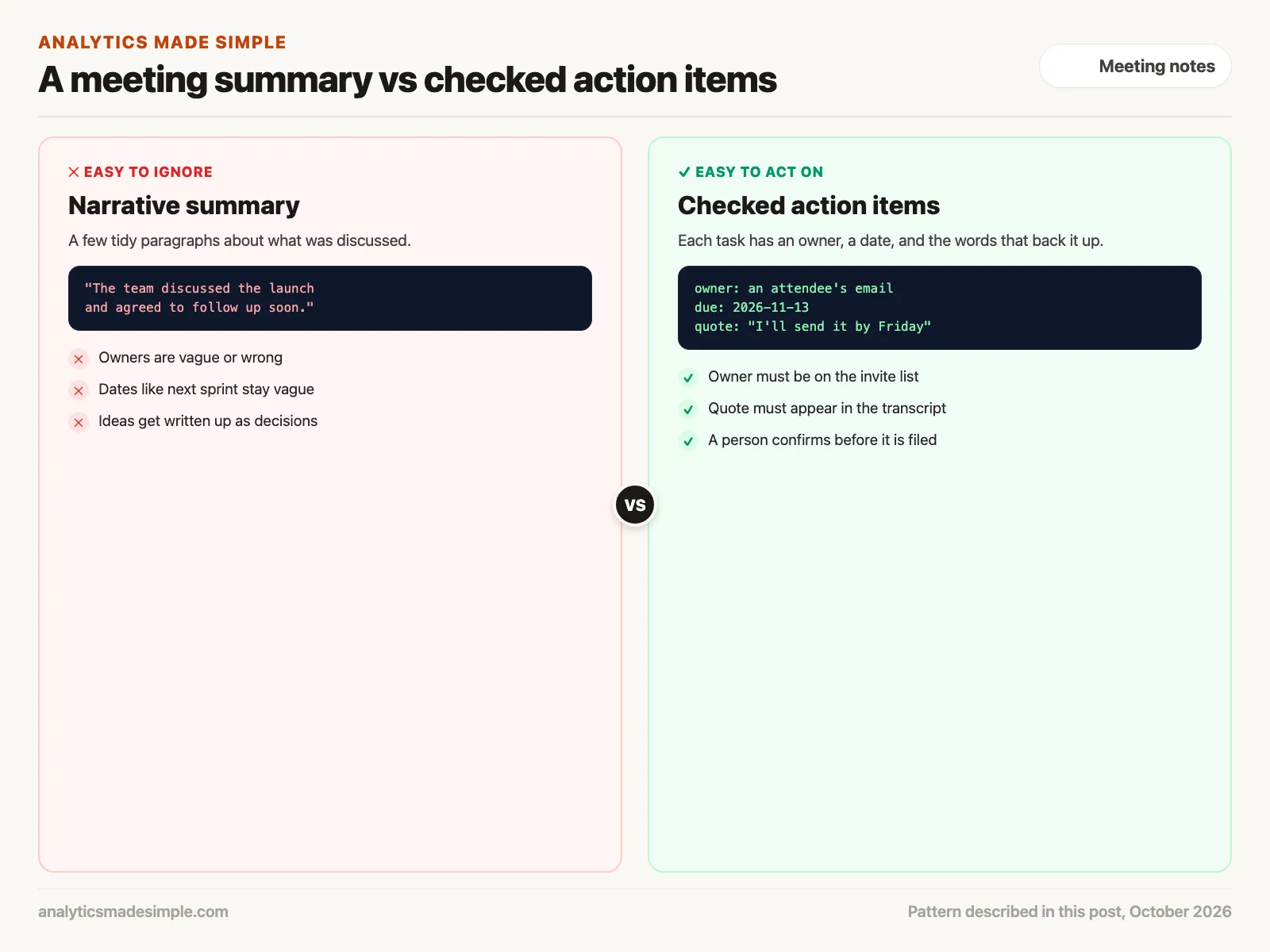
Checked action items fix this by asking for facts instead of prose. Each task needs an owner’s work email, a date written in one fixed format, such as 2026-11-13 (year, month, day), and the exact words the person said when they took it on.
The four steps from recording to confirmed task
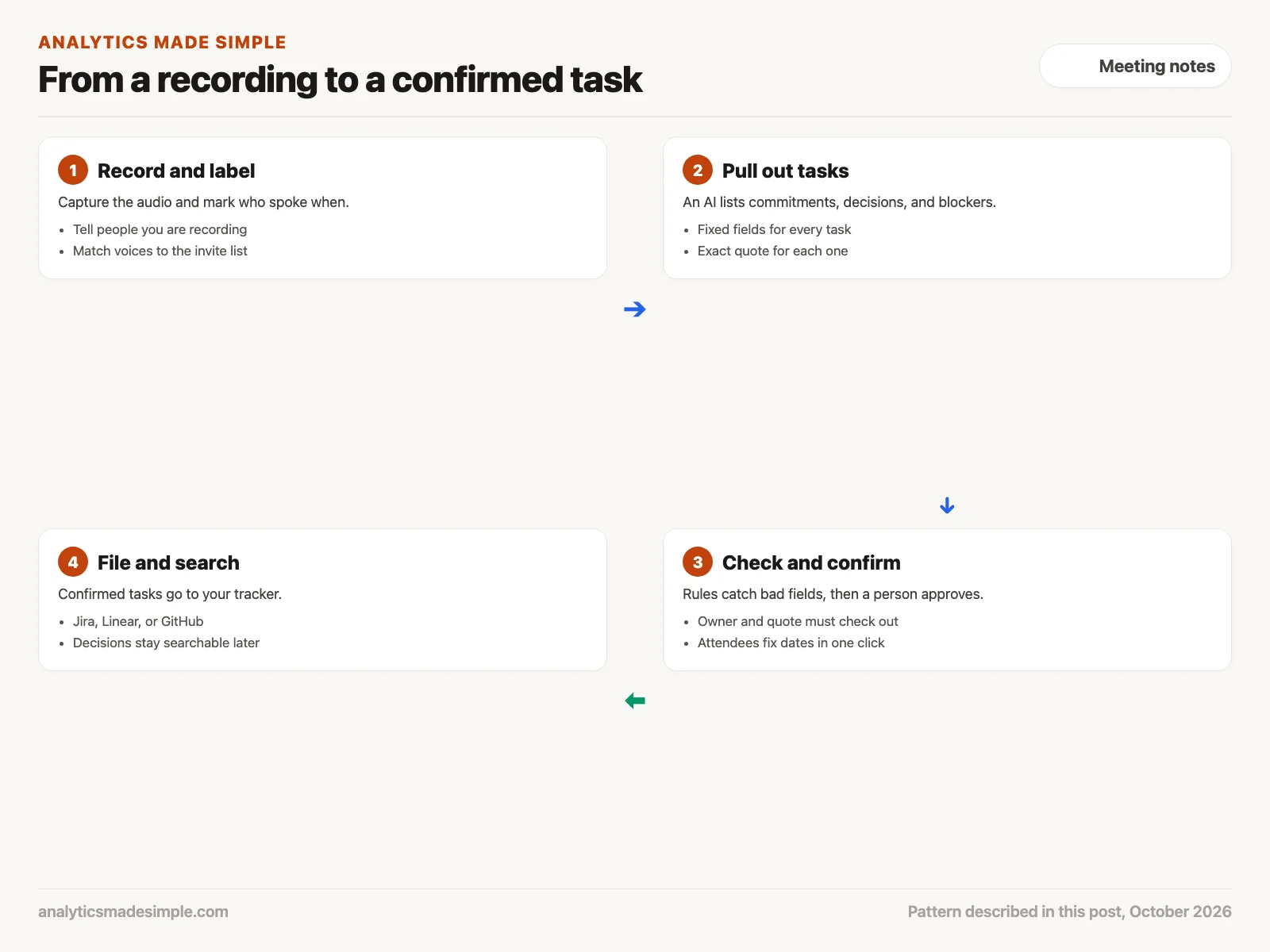
You will not get this right with one prompt over an hour of raw text. Real calls have people talking over each other, jokes, and topic changes. Splitting the work into four steps keeps each part checkable.
1. Record the call and label who spoke
Start with the meeting audio, either from the meeting tool’s recording or captured on your own computer. Tell everyone the call is being recorded, and follow your company’s rules and local recording laws. Then a diarization tool (software that works out who spoke when) such as the open-source pyannote.audio marks each speaker’s turns. You match those speakers to the calendar invite list, so each line of the transcript belongs to a real attendee.
2. Pull out tasks, decisions, and blockers
Next, an AI model reads the labeled transcript and fills in a fixed set of fields for each commitment: the task, the owner, the due date, and the quote. Most providers can force the reply into an exact shape. OpenAI calls this feature Structured Outputs, and in Python you often describe the shape with a library called Pydantic. A fixed shape means the reply is always the fields you asked for, but it does not mean the content is true. That is what step three is for.
3. Check the fields, then ask a person
Before anything reaches your tracker, simple rules reject tasks that cannot be right: an owner who was not on the call, a quote that does not appear in the transcript, or a date that is not a real date. The tasks that pass go to the attendees, for example as a Slack message after the call, where each person confirms their task, fixes the date, or rejects it.
4. File the confirmed tasks and keep a record
Only confirmed tasks are created in Jira, Linear, or GitHub, using each tool’s API (the way one program asks another for data), such as the Jira issues API. The transcript and its decisions can also go into a searchable archive, so months later someone can find the meeting where a choice was made and the reason behind it.
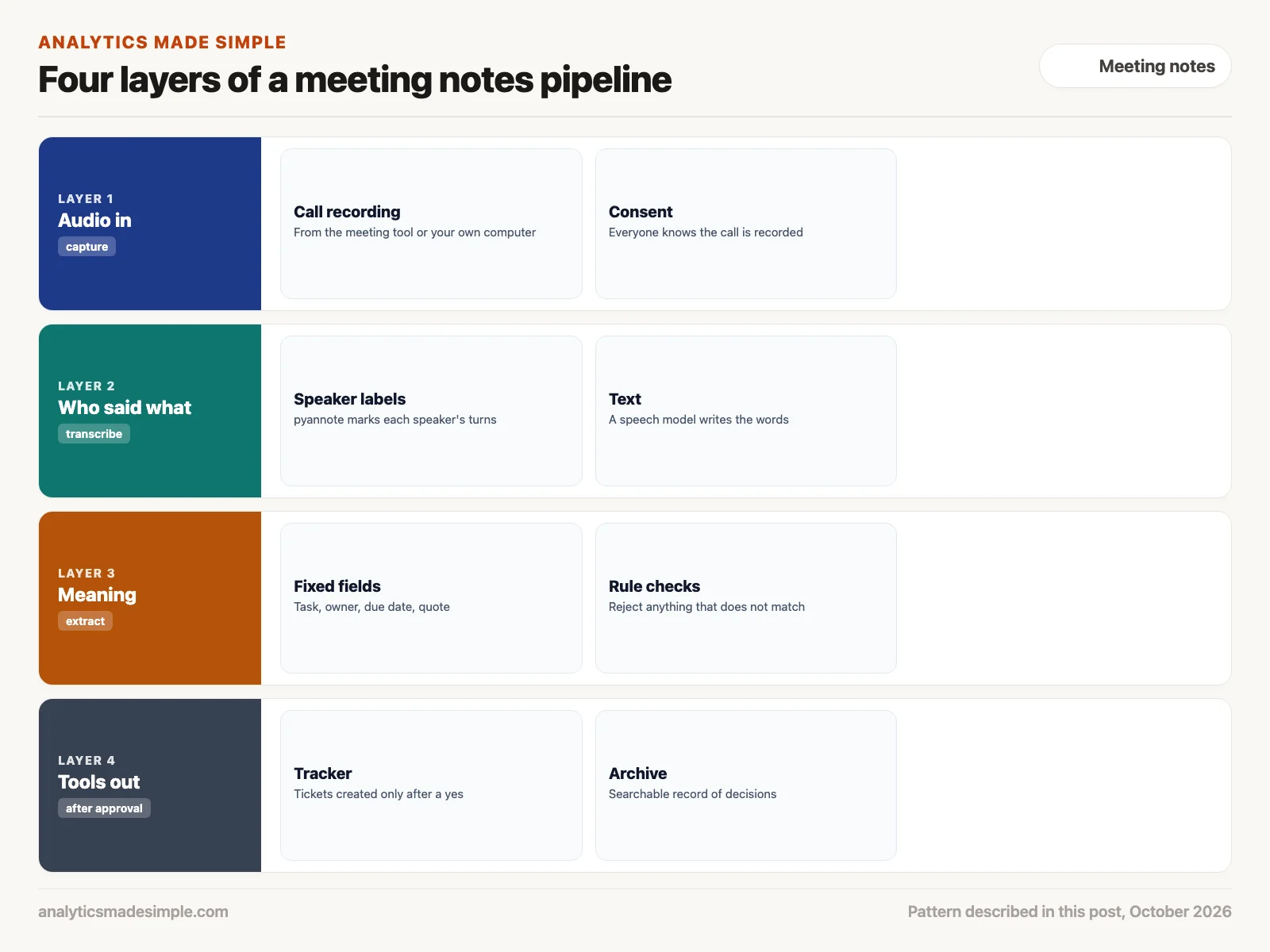
Keeping these layers apart has a practical benefit. If a better transcription model comes out, you can swap it in without touching the code that talks to Jira or Slack.
A checker you can run today
The most useful code in this pipeline is the part that refuses bad output. The short Python script below takes three tasks an AI might have extracted and checks each one against the attendee list and the transcript. It needs nothing beyond Python itself, and the meeting is made up for practice.
from datetime import date

attendees = {"pm@example.com", "analyst@example.com"}
transcript = """pm: I'll send the vendor comparison by Friday.
analyst: Maybe we could rewrite the whole billing system someday.
analyst: I can update the dashboard filters by November 20."""

extracted = [
    {"task": "Send vendor comparison", "owner": "pm@example.com",
     "due": "2026-11-13", "quote": "I'll send the vendor comparison by Friday"},
    {"task": "Rewrite billing system", "owner": "analyst@example.com",
     "due": "2026-12-01", "quote": "we will rewrite billing next sprint"},
    {"task": "Update dashboard filters", "owner": "designer@example.com",
     "due": "2026-11-20", "quote": "I can update the dashboard filters by November 20"},
]


def problems(item):
    found = []
    if item["owner"] not in attendees:
        found.append("owner was not in the meeting")
    if item["quote"] not in transcript:
        found.append("quote is not in the transcript")
    try:
        date.fromisoformat(item["due"])
    except ValueError:
        found.append("due date is not a real date")
    return found


for item in extracted:
    issues = problems(item)
    status = "READY FOR REVIEW" if not issues else "REJECTED: " + "; ".join(issues)
    print(f"{item['task']}: {status}")
Running it prints:
Send vendor comparison: READY FOR REVIEW
Rewrite billing system: REJECTED: quote is not in the transcript
Update dashboard filters: REJECTED: owner was not in the meeting
In plain words, the script keeps the attendee emails in a set and the transcript as one block of text. For each extracted task, problems checks that the owner is an attendee, that the quote appears word for word in the transcript, and that the due date is a real calendar date. The first task passes. The second is rejected because the AI turned a passing “maybe someday” into a firm commitment with a made-up quote. The third is rejected because it names someone who was not in the meeting.
In a real setup, the tasks marked ready go to the attendees for a yes, and the rejected ones go to whoever runs the meeting for a quick look.
Four ways to get the meeting audio
How you capture the audio depends on how sensitive the meeting is, whether guests will accept a recording bot, and whether you need help during the call or only after it.
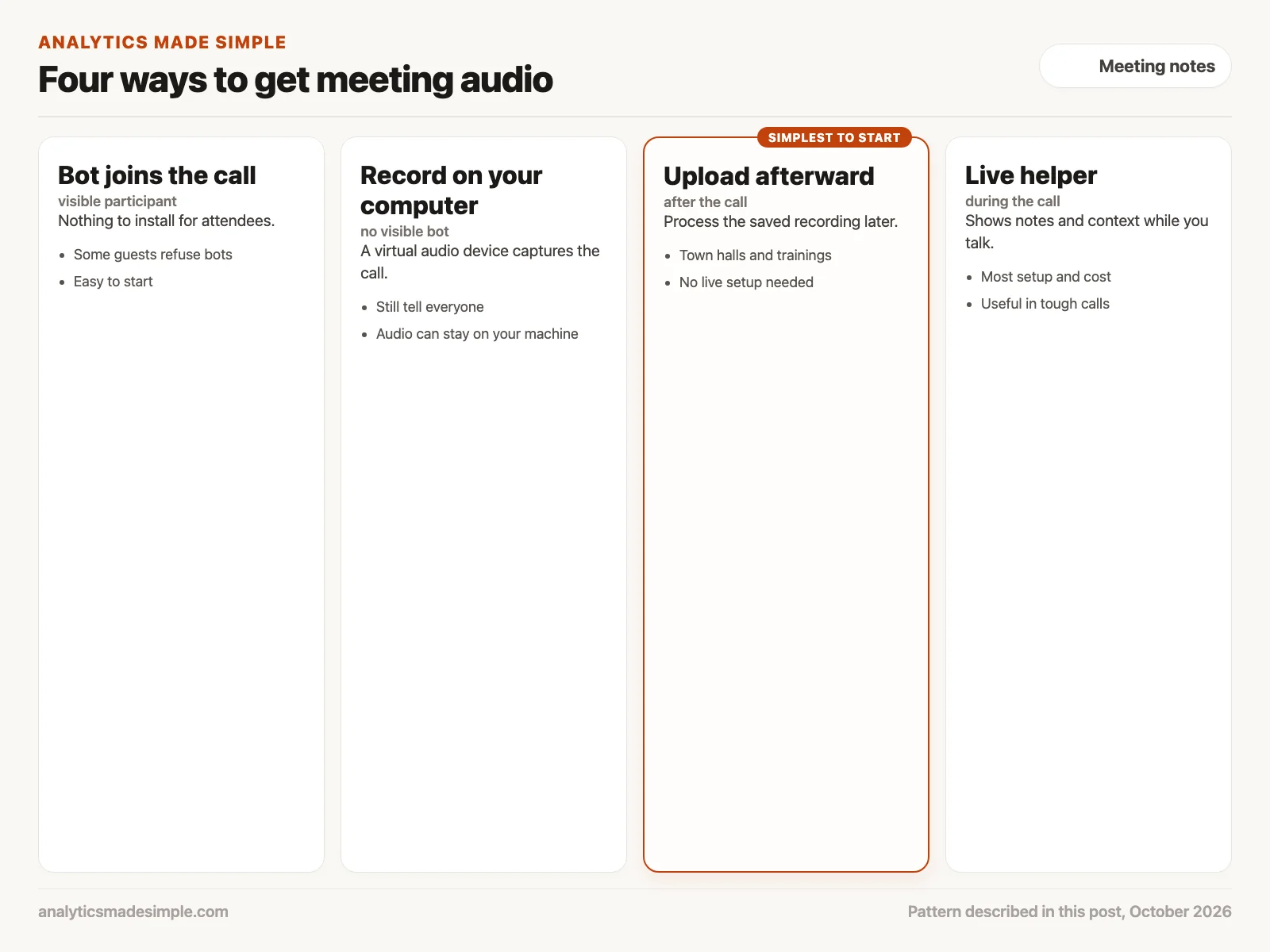
- A bot joins the call: The tool shows up as its own participant. Nobody installs anything, but some guests, such as clients or their lawyers, may not want a recording bot in the room.
- Record on your own computer: A virtual audio device, such as BlackHole on a Mac, captures the call audio with no bot in the meeting. The audio can stay on your machine. You still need to tell people they are being recorded.
- Upload the recording afterward: For town halls and trainings, you do not need anything live. The saved recording is processed after the call. This is the simplest way to start.
- A live helper during the call: Some tools listen in real time and show notes or past tickets while you talk. This needs the most setup and costs the most to run.
Worked example: one planning call
Here is how a single meeting could flow through this pattern. The team, tasks, and dates are made up for practice.
- The call: Your six-person planning meeting is recorded with everyone’s agreement, and the recording is uploaded when it ends.
- Labels: The diarization step marks six speakers, and you match them to the six people on the invite.
- Extraction: The AI returns five tasks and two decisions, each with an owner, a date, and a quote.
- Checks: The checker rejects one task whose quote never appears in the transcript and one whose owner is a manager who was not on the call.
- Confirmation: The three remaining owners get a Slack message. Two confirm, and one moves the date by a week. Only then are three tickets created.
The result is a short list everyone agreed to, not a long recap that everyone skimmed.
Quick recap
- Plain summaries mix up owners, keep vague dates, and turn ideas into decisions.
- A better pipeline records with consent, labels speakers, pulls out tasks into fixed fields, checks them, and asks a person before filing.
- A forced reply shape keeps the fields tidy, but only checks against the transcript and the invite list catch made-up tasks.
- Uploading a recording after the call is the simplest way to start.
Your next step this week
Take the notes from your last recurring meeting and rewrite them as a list of tasks, each with an owner who was there, a date, and the words they used. Then send that list to the attendees and ask each person to confirm their own line. If that habit sticks, automate the parts that slow you down, starting with the checker above.
Series notes
This is Part 7 of AI assistants everyday. Previous: voice dictation. Next: when a paper notebook still wins.
Sources
- pyannote, pyannote.audio on GitHub, an open-source toolkit for speaker diarization.
- OpenAI, Structured Outputs guide, checked October 2, 2026.
- Pydantic, documentation.
- Atlassian, Jira Cloud REST API: issues.
- Existential Audio, BlackHole, a virtual audio driver for macOS.
Keep going
Same lessons in your feed
Short diagrams, hooks, and weekly tutorials on Substack, Instagram, X, and Facebook.