
llama.cpp is a free, lightweight program that runs AI models on ordinary computers, and many popular local AI apps run on it. Knowing how it works explains why some setups start fast, and why the slowness people blame on “the model” sometimes comes from the app wrapped around it.
Imagine your team runs AI models on its own computers to summarize private financial reports. Different people use different apps, and during a busy week everything slows down and memory keeps filling up. You dig in and find a surprise: every one of those apps was running the same engine underneath, llama.cpp. The extra slowness came from the layers wrapped around it, not from the model.
This post explains that engine in plain terms: where it came from, why it is fast, how it loads models so quickly, which apps are built on it, and when to use it directly.
How it started: March 2023
Before llama.cpp, running an AI model yourself took a heavy stack of software and an expensive graphics card. llama.cpp showed it could run on an ordinary laptop.
In early 2023, AI models ran almost entirely through Python, the programming language most data tools use. Running one meant installing Python, several gigabytes of add-on libraries, and special software for NVIDIA graphics cards (NVIDIA is the leading maker of AI chips). You also needed a card with lots of memory.
In March 2023, the files for Meta’s first LLaMA model leaked online. These files hold the model’s weights, the numbers it learned in training. Within days, a software engineer named Georgi Gerganov released a small program, written in the C and C++ programming languages, that could run a shrunk version of LLaMA on an Apple laptop. It needed no Python at all.
He built it on GGML (GGML is short for Georgi Gerganov Machine Learning), a small math library he had already written for running speech models on small devices. The effect spread fast. It showed that AI models could run on everyday hardware, not just rented cloud servers.
Today, llama.cpp powers or has powered many well-known local AI tools, including Ollama, LM Studio (LM is short for language model), and Jan, plus many business systems you never hear about. Despite the name, it now runs most popular free models, not just Llama.
Why it is so fast and light
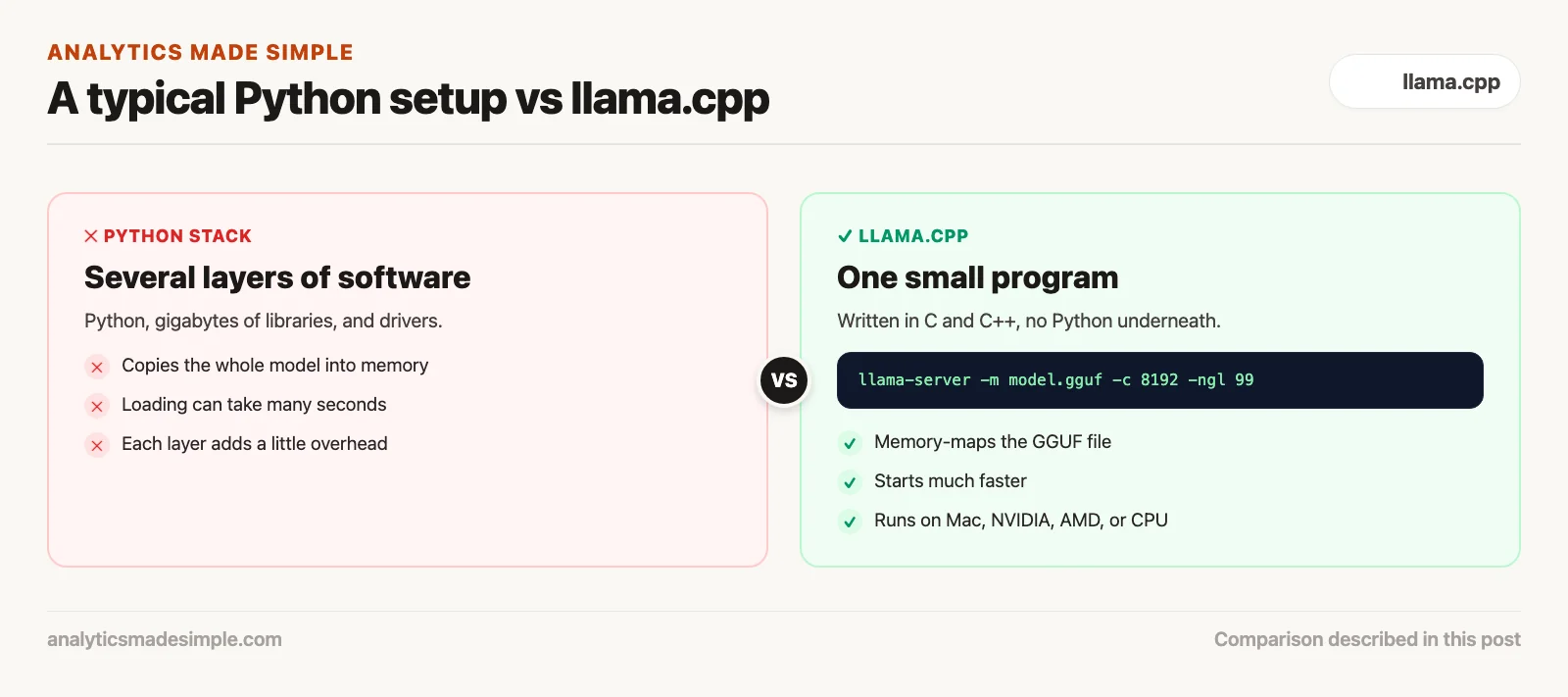
llama.cpp is one small program with no extra software needed. It skips the layers of machinery that slow down typical AI setups.
In a typical Python setup, a request passes through several layers of software before it reaches the chip. Each layer adds a little overhead: extra bookkeeping, pauses to clean up memory, and waiting on other parts.
llama.cpp skips almost all of that. It builds into one small program. There is no Python running underneath it and no pauses for memory cleanup while it writes each word. It works close to the hardware, with little in between.
How models load so quickly
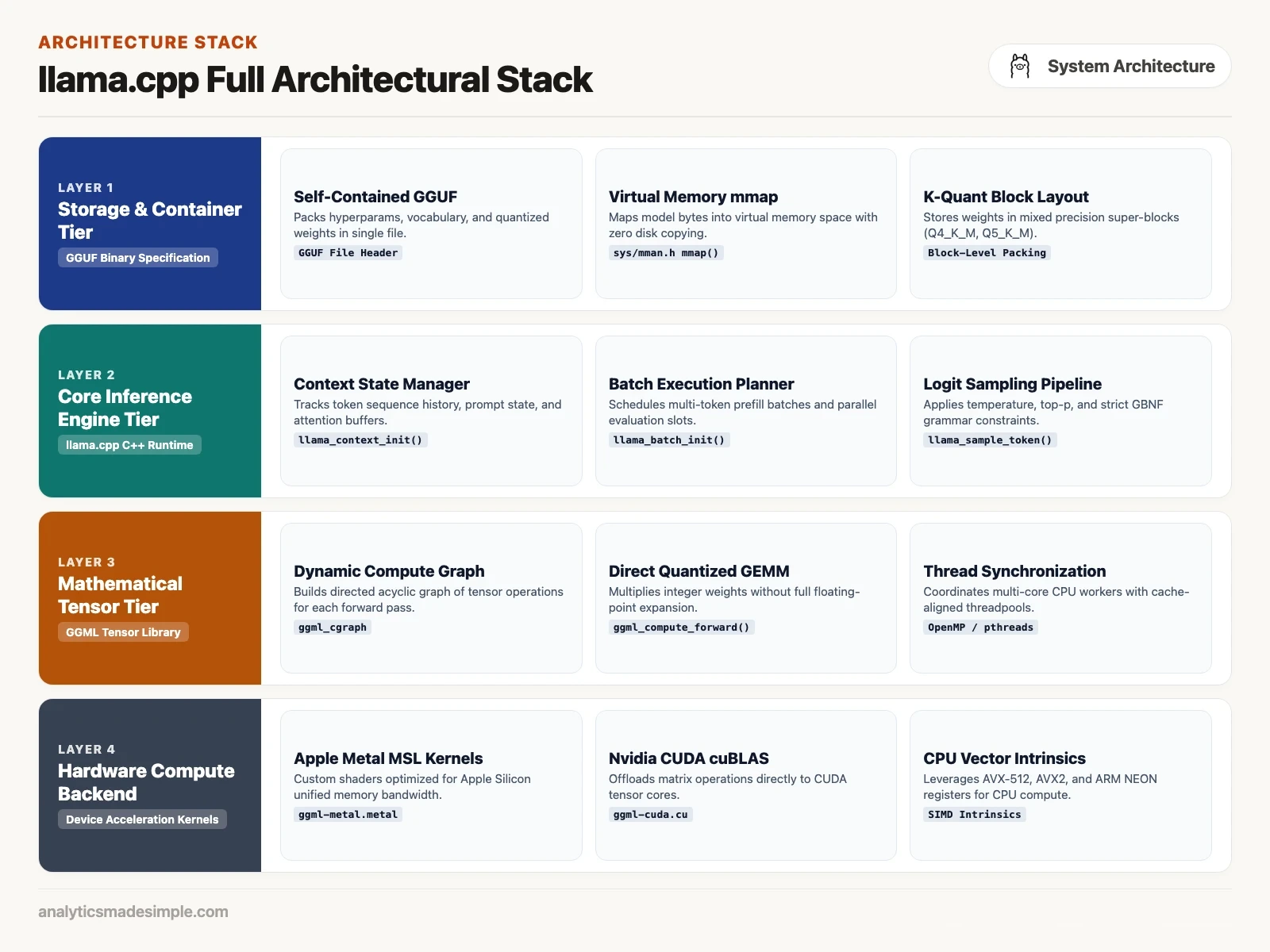
Instead of copying the whole model into memory before it starts, llama.cpp asks the operating system to read pieces of the file only when they are needed.
In a typical Python setup, loading an 8B model can take ten to thirty seconds. The program reads the whole file from disk and copies every number into the computer’s working memory, called RAM (random-access memory), often making temporary copies along the way.
llama.cpp starts much faster. It uses a feature built into every modern operating system called memory mapping. Instead of copying the file, it tells the operating system to treat the file on disk as if it were already in memory.
That works because of how GGUF files are built. GGUF stands for GPT-Generated Unified Format, the file format llama.cpp uses for models, and its files are laid out in a neat, predictable way on disk. The operating system then loads each piece of the file only when the model first needs it.
There is a bonus. Because those pieces come straight from an unchanging file, the operating system can drop them when another app needs memory and reload them later. Several programs can also share one copy of the same model.
The math engine underneath: GGML
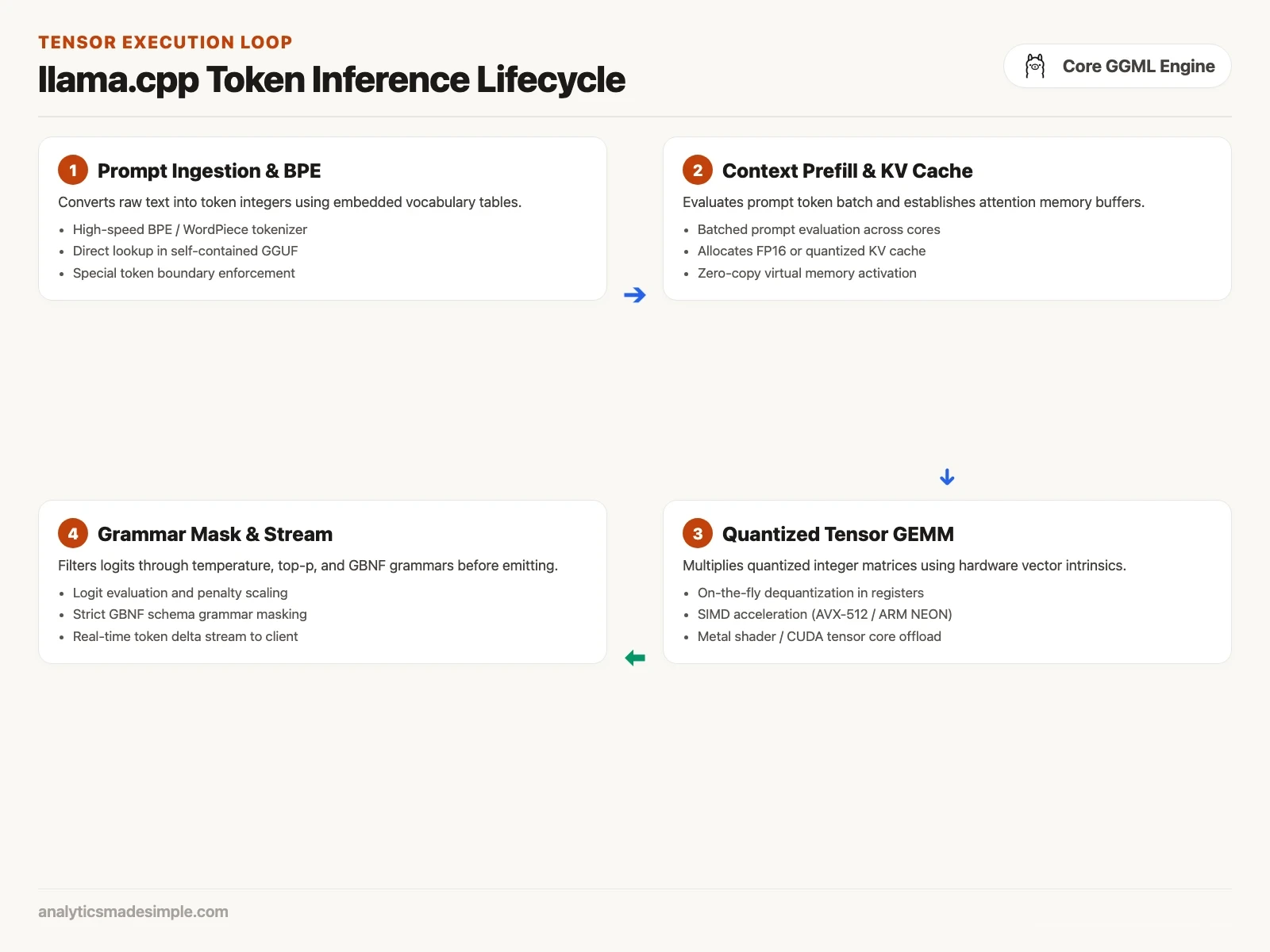
GGML is the part of llama.cpp that does the actual math. It plans all the steps first, then reuses the same memory over and over, which keeps memory use steady.
When you send a question, GGML does not start calculating right away. First, it builds a plan of every step the model needs to take to produce the next word.
With the plan in hand, it works out which scratch space each step needs and reuses the same space for later steps, instead of grabbing new memory each time. Then it splits the work across your processor’s cores, or sends it to the graphics card.
It runs on almost any hardware
llama.cpp started out running only on the main processor, the central processing unit (CPU). Today it also uses the graphics chip, the graphics processing unit (GPU), on every major kind of computer.
- On a Mac, it uses Metal, Apple’s toolkit for its graphics chips. Apple’s chips share one pool of fast memory between the processor and graphics, which suits AI well.
- On a PC with an NVIDIA card, it uses CUDA (CUDA is short for Compute Unified Device Architecture), NVIDIA’s toolkit for running math on its graphics chips.
- For cards from Advanced Micro Devices (AMD), NVIDIA’s main rival, Intel’s built-in graphics, and others, it can use Vulkan, a graphics toolkit that works across many brands.
- On the processor alone, it uses special instructions built into modern chips that handle several numbers at once.
Which apps are built on it
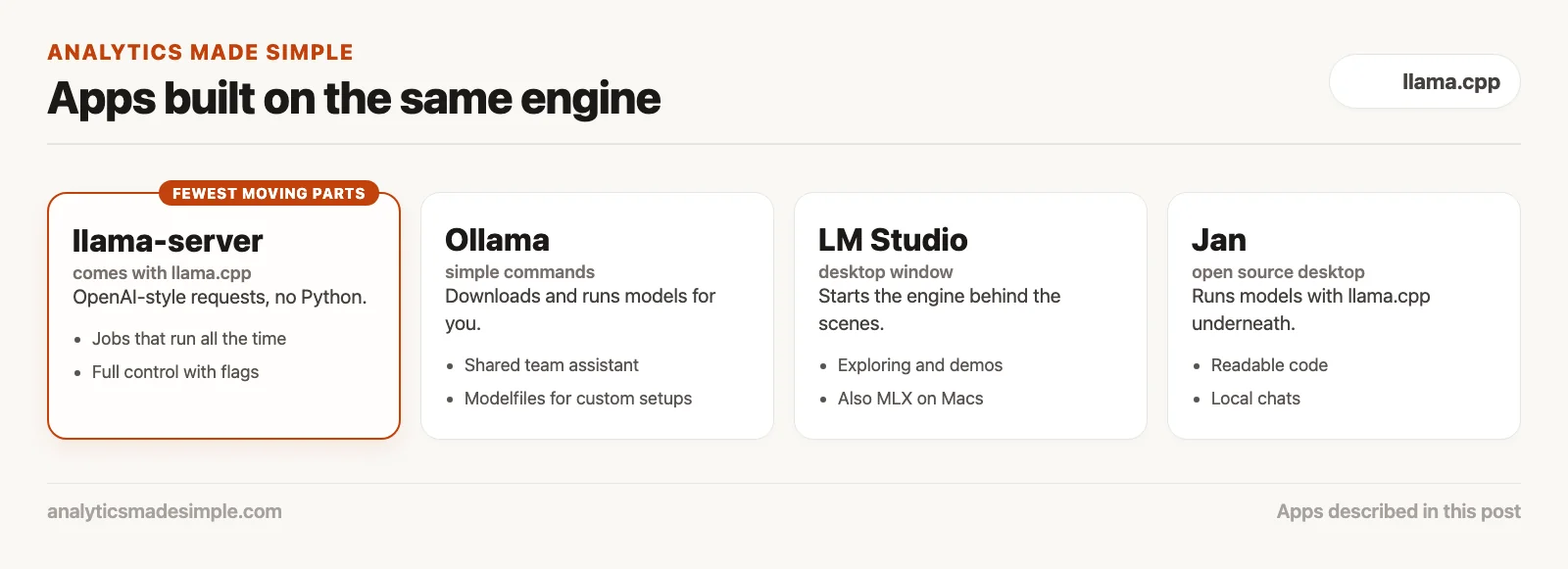
Many local AI apps that seem to compete are really different front ends on the same engine.
- Ollama has long used llama.cpp and its GGML library underneath. When you type
ollama run, Ollama downloads the model, then runs it with that engine in the background. - LM Studio puts a desktop window around the engine. When you load a model, it starts a llama.cpp process behind the scenes. On Macs, it can also use Apple’s own MLX engine.
- Jan, a fully open source desktop app, also runs models with llama.cpp underneath.
So when one of these apps feels slow, the engine is often not the cause. The layers around it can be.
Running the built-in server
For work that runs without a person watching, llama.cpp comes with its own server program, llama-server, which accepts requests in OpenAI’s format.
Desktop apps are handy for personal use. But jobs that run every day need steady, predictable software with as few moving parts as possible.
llama-server is that piece. It is a small, fast program that accepts the same kind of requests as OpenAI’s online service, using the same API, the set of rules programs use to talk to each other. It needs no Python or other add-ons.
You can build it yourself or download a ready-made version from the llama.cpp project page (checked September 2026). Then you point it at a model file from your terminal, the text window where you type commands:
# Compile llama.cpp from source with Metal acceleration (macOS)
git clone https://github.com/ggml-org/llama.cpp
cd llama.cpp
cmake -B build -DGGML_METAL=ON
cmake --build build --config Release -j

# Launch the native production HTTP server
./build/bin/llama-server \
    -m /path/to/models/Qwen3.5-9B-Q4_K_M.gguf \
    -c 8192 \
    -ngl 99 \
    -t 8 \
    --port 8080 \
    --host 127.0.0.1
Here is what each setting does:
-mpoints to the model file on disk.-c 8192sets how much text the model can hold at once: 8,192 tokens, small chunks of text of about three-quarters of a word each, or roughly 6,000 words. Setting it keeps memory use from running away.-ngl 99puts every layer of the model on the graphics card. If your graphics card is short on memory, a smaller number, like-ngl 24, puts only that many layers there and runs the rest on the processor.-t 8tells it to use 8 threads, or parallel lines of work. Matching this to your number of fast cores usually works best.--host 127.0.0.1means only your own computer can reach the server, not other machines on the network.
Connecting to llama-server from Python
Because llama-server speaks OpenAI’s format, any Python program built for OpenAI can use it by changing one address.
import time
from openai import OpenAI

# Connect to native llama-server listening on localhost port 8080
client = OpenAI(
    base_url="http://127.0.0.1:8080/v1",
    api_key="not-required"
)

# Define an enterprise compliance prompt
audit_text = """
Supplier Agreement - Vendor ID 9842
Section 14.3: Customer data may be retained on vendor development servers for up to 90 days
post-contract termination for algorithmic performance validation and internal model tuning.
Section 14.4: Vendor shall notify Customer of confirmed data breaches within 45 business days.
"""

system_prompt = (
    "You are a corporate data governance officer. Analyze the contract text strictly for "
    "compliance violations regarding data retention and breach notification timelines. "
    "Highlight unacceptable risks in concise bullet points."
)

print("Connecting to native llama-server...")
start_time = time.time()
token_count = 0

response_stream = client.chat.completions.create(
    model="default",
    messages=[
        {"role": "system", "content": system_prompt},
        {"role": "user", "content": f"Review this text:\n{audit_text}"}
    ],
    temperature=0.1,
    stream=True
)

for chunk in response_stream:
    content = chunk.choices[0].delta.content
    if content:
        print(content, end="", flush=True)
        token_count += 1

total_time = time.time() - start_time
speed = token_count / total_time if total_time > 0 else 0
print(f"\n\nPerformance: {token_count} tokens generated in {total_time:.2f}s ({speed:.1f} tokens/sec)")
Run this against llama-server on your computer, and answers start quickly. Because the server is one small program, it handles a steady stream of requests without the pauses that heavier setups can have. That is why many teams use it for work that runs on its own.
When to use llama.cpp directly, and when to use an app
Once you know the engine and the apps around it, picking the right tool is easier.
- Desktop apps like LM Studio or Jan are best for exploring, showing a model to coworkers, comparing answers side by side, or trying a new model. The memory meters and model search save a lot of setup time.
- Ollama is best for setting up a shared assistant for your team, or managing models with a few simple commands. It balances ease and control well.
- llama.cpp on its own is best for jobs that run all the time, setups with very little memory, or building AI into your own software. It gives you the most speed, the least overhead, and full control.
Common questions about llama.cpp
Does llama.cpp only run Llama models? No. Despite the name, it runs most popular free models today, including Qwen, Mistral, Gemma, DeepSeek, and Phi, plus some that can read images.
What is the difference between GGML and GGUF? GGML is the math library that does the work. GGUF is the file format that stores a model’s numbers, settings, and vocabulary. GGML is the engine, and GGUF is the fuel tank it loads.
Can I turn my own model into a GGUF file? Yes. The llama.cpp project includes a Python script, convert_hf_to_gguf.py, that converts a model from Hugging Face’s format into a single GGUF file you can then shrink and run.
What about chips with fast and slow cores? Many recent Intel and Apple chips mix fast cores with slower, power-saving ones. Setting -t to the number of fast cores usually gives the best speed, because the heavy math is not stuck waiting on the slow ones.
What comes next
So far, this series has covered why running AI on your own computer is worth it, how to check your hardware, how shrinking makes big models fit, how to use Ollama and desktop apps, and now the engine underneath them all.
The next post puts all of that to work. It builds simple offline tools, like a script that sums up documents and a private way to process your notes, without sending any private data over the internet.
Your next step
Install llama.cpp, download one small GGUF file, and start llama-server with the model and -c 8192. Send it one request from a short script. Running the bare engine once makes it much easier to understand what Ollama and LM Studio do on top of it.
Sources
- Georgi Gerganov and contributors, llama.cpp on GitHub, and its llama-server documentation, checked October 4, 2026.
- The GGML library and its GGUF file format specification, checked October 4, 2026.
- Example model file: Qwen3.5-9B GGUF on Hugging Face, checked October 4, 2026.
- Apps built on llama.cpp: Ollama, LM Studio, and Jan, checked October 4, 2026.
Series notes
This is Part 6 of Local LLMs from scratch. Previous: LM Studio and GUIs. Later parts continue the local path on Learn.
Keep going
Same lessons in your feed
Short diagrams, hooks, and weekly tutorials on Substack, Instagram, X, and Facebook.