Keep work email and files inside the work add-in or an approved connector, and away from a personal grok.com paste on public Wi-Fi. Summarize inside the side panel, and remember that you still press Send from your own email program.
Imagine you copy an 87-message email thread with a vendor called HelioPay into grok.com. You are still logged in as your personal X account, and you are on cafe Wi-Fi, because the Outlook add-in felt one click too far. The summary comes back fine, but the account and the network are the problem. Work mail just went into a personal product that your company never approved.
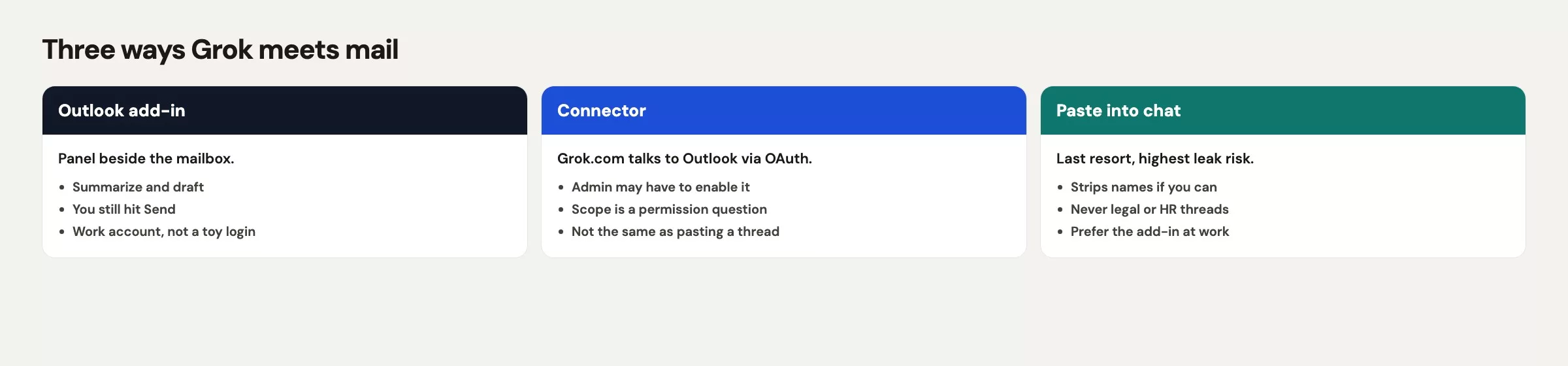
Add-in, connector, or chat upload
There are three ways Grok can see your work files. They are not interchangeable, and each has a different safety story.
An add-in lives inside the office app itself, whether that is Outlook, Word, Excel, PowerPoint, or the Google Workspace apps. You open a thread or file you already have permission to see, and the side panel talks only to that item. Sending stays on the Outlook Send button, which is exactly the shape you want for email.
A connector lives on grok.com. You sign in to another service through a standard permission screen called OAuth, so chat can search your mail, calendar, or drive without you attaching each file. The xAI docs checked in August 2026 list Outlook Mail and Calendar, OneDrive, Gmail, Google Calendar, Drive, Teams, SharePoint, and others. See Grok connectors for the current list.
On Grok Business and Enterprise, a team admin must set up a connector before members can see it. That admin step is the whole point. If you connect a personal grok.com login to your work Outlook, you are creating a policy argument and not a productivity shortcut.
A chat upload is you, copying. You paste the thread or attach the PDF, and the model sees only what you threw over the wall. This is the HelioPay mistake. It is fast, and it also skips every mail retention rule, data loss prevention (DLP) check that blocks private data from leaving, and “work account only” policy your company paid for. Use it only for files you would forward to a vendor without blinking, and never for legal redlines. The earlier post on grok.com, its apps, and Grok inside X described grok.com as a chat app, and that does not make it a mail client.
| Where it lives | What it can touch | Approval rule |
|---|---|---|
| Outlook or Office add-in | The item you have open in a work Microsoft 365 app | Work account. You click Send, and the add-in does not |
| Google Workspace add-on | The Doc, Sheet, or Slide you have open | Work Google account. You accept changes in the file |
| grok.com connector | Mail, calendar, or drive you sign in to, within what the admin enabled | IT or an admin approves it on Business and Enterprise. A personal login connected to work mail is a no |
| Chat upload on grok.com | Exactly what you paste or attach | Treat it as a forward. If you would not send it to a stranger, do not upload it |
Rule of thumb: If the file is already in Outlook on a work account, summarize it in the Outlook panel. If you had to export it to upload it, stop and ask whether that export is allowed.
The Outlook panel from zero
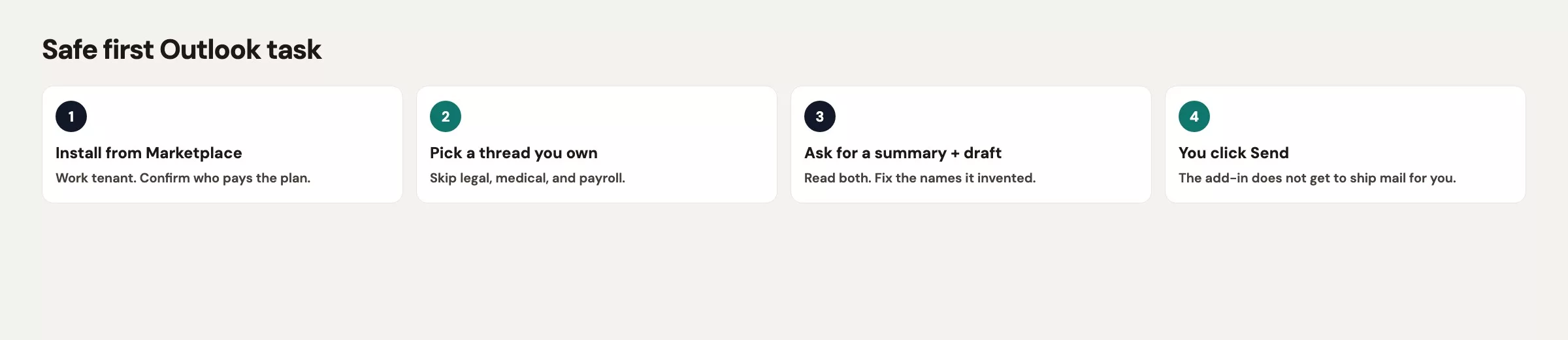
The goal is to see Grok beside an email thread you own, in a work Microsoft 365 mailbox. That means not your personal Hotmail account for newsletters, and not the X app. Six steps get you there.
- Confirm you are in the work Outlook, either New Outlook or the Microsoft 365 web app (per the vendor’s pages checked in August 2026). Personal or consumer mail belongs to a different account setup, so it is the wrong place to start.
- Confirm your Grok plan is one the vendor lists for the add-in, which was paid X or SuperGrok in the July 21, 2026 announcement. If IT will assign a work-owned X or SuperGrok seat, wait for that. Do not mix a personal SuperGrok into a work mailbox just to try it. Since October 12, 2026, xAI sells Grok, Cursor, and X Premium as one X Subscription, according to xAI’s announcement, so ask IT which of the new plans the add-in needs.
- Open the listing from x.ai/grok/outlook or Microsoft Marketplace WA200011330, and add it with your work account, so the add-in follows your company’s settings rather than your personal ones.
- If the install fails, the cause is often an admin policy and not a broken link. Take a screenshot of the error and ask IT whether Grok is an allowed add-in. Do not fall back to pasting on cafe Wi-Fi while you wait.
- Open a thread you already own. Skip anything with legal, HR, health, or a customer list in the subject, because a scheduling thread you started is enough.
- Open the Grok panel from the add-ins entry and ask: “List decisions, owners, and what is waiting on me. Do not draft a send.” Read the answer against the thread, then close the panel.
That is your first run. You have not sent any mail, you have not connected grok.com to the mailbox, and you have not taught a new coworker the habit of dumping a whole mail archive file into chat. The vendor’s own copy says Grok can draft replies in your voice and that nothing sends until you hit Send. Believe the second half of that claim, and make it a team rule even if the first half is true.
The add-in can read attachments, according to the announcement. That does not make every attachment fair game, because a 2.4 megabyte redline is still a redline. Start with a thread whose attachments are a calendar invite or a one-page agenda, and save the HelioPay thread until counsel says the add-in is within policy.
The other Microsoft Office add-ins in one sentence each
These add-ins belong to the same family. They are not a second copy of grok.com hiding in the ribbon. Each gets one sentence here, followed by the catch you will run into.
Word: ask Grok to rewrite a section you already own, then accept only the sentences you would say out loud in a meeting. The catch is that it will smooth over hedges you meant to keep, so “about 40 cases” can turn into “we are fully stocked” unless you tell it not to invent numbers.
Excel: ask it to explain a formula or draft a helper column, then check the math on three rows by hand. The catch is that stage demos look great, but a margin that divides by a list price including tax will still be wrong by a few percent, and you will be the one explaining it in the forecast meeting.
PowerPoint: ask for a five-slide outline from your bullets, then replace every chart number with the figure from your source sheet. The catch is that tidy layouts do not make a 6.4% figure true, and a number that is not in your outline is a guess with clip art.
The Grok 4.5 and 4.6 launch posts both talk up Excel models, Word, and PowerPoint. Treat that as “it can try,” because you still own the formulas, the citations, and any deck that goes to a customer. The advice on choosing a model applies inside the ribbon too. A short rewrite does not need a big decision about model versions, while a messy 12-tab workbook might. Either way, the add-in does not become the official copy of the file.
The Google Workspace add-on
If your work lives in Google and not Microsoft, the matching tool is a Workspace add-on that covers Docs, Sheets, and Slides, announced July 24, 2026. The rules are the same. Open the file on a work account, ask for a draft or an explanation, and accept changes in the file yourself. Do not export a confidential Doc and upload it into a personal grok.com thread just because you do not have Outlook.
Connectors on grok.com can also reach Gmail, Calendar, and Drive. That is the other entry point, and it is the one admins worry about. For your first week, prefer the add-on inside the file you already have open, since a personal Grok login connected to a work Drive just recreates the cafe paste with better branding.
The Microsoft add-ins and the Google add-on will drift apart over time, so do not build a 40-row comparison. Pick the host your company already pays for. Install one add-in, do one task, and then stop installing.
Permissions and work accounts
You have two accounts, and they are separate. Your personal SuperGrok on a phone is a consumer product, while your work Microsoft 365 or Google account is a company system. Crossing the two is the HelioPay story. IT can allow the add-in in your work account without ever approving grok.com as a place to dump files, so ask for the first and do not freelance the second.
Connectors add a third kind of permission, which is the sign-in grant itself. On Business and Enterprise, an admin sets it up first. On a consumer Grok login you can still click through a permission screen that looks official, but “looks official” does not mean “is allowed.” If you do not know whether your company has Grok Business, assume it does not, and keep work mail in Outlook.
Data handling still follows the earlier post on privacy and work caution. Training settings and retention are not identical across chat, add-ins, and the developer API (the way one program asks another for data). This post will not invent a data processing agreement. It will only say that work content stays on work accounts, inside the add-in, with a human on Send. If legal needs a paper trail, they need the vendor’s current terms and not a screenshot of a cute summary.
If you need to file a ticket, here is the minimum to ask IT for.
- Allow the Grok Outlook add-in (WA200011330) for a named pilot group on the work account.
- Do not enable work Outlook connectors on personal grok.com logins, because your work mail would then pass through an account your company does not control.
- Block, or at least warn on, forwarding vendor PDFs to consumer AI sites if you already have DLP for that.
- Name an owner who will remove the add-in if the vendor changes its training or retention language.
Worked task: summarize, do not send
Suppose you own vendor operations. The HelioPay thread has 87 messages and four people, with the subject HelioPay MSA v3. You are allowed to read it, but you are not allowed to park it on a personal laptop in a cafe. After IT enables the add-in on your work mailbox, this is the task.
- Open the thread in work Outlook. Leave the redline PDF where it is, and do not download it just to upload it.
- Open the Grok panel and ask: “Summarize decisions, owners, dates, and open questions. Quote a short phrase when you name a number. Do not draft a reply. Do not invent a deadline.”.
- Read the summary against the last 15 messages. Say the panel reports that finance sign-off is Friday, while the thread said “Friday if Legal is done, else it slips.” You add the “if Legal is done” clause back by hand.
- Copy four bullets into a note you own: the decision, the owner, the date, and the open question. The note is yours, and the model does not get a Send.
- If you need a reply, you type it yourself. You may ask the panel to tighten two sentences you wrote, and you hit Send yourself. Do not click anything that looks like “send this draft.”.
The whole task takes about 12 minutes once the add-in is installed. The cafe paste took 40 seconds and created a policy incident. The 12 minutes is the actual work, and the 40 seconds was the shortcut that created the 2.4 megabyte problem.
On a first run, do not ask it to archive your mailbox, clear out noise, write a counter-redline, or search the web for the vendor’s security audit report and drop it in the thread. Those jobs come later, under policy, with a human still on Send. Your first run is one thing: summarize a thread you own.
Common mistakes
- Pasting work mail into personal grok.com because the add-in is not installed yet. Wait, or summarize by hand.
- Connecting work Outlook to a personal Grok login and calling it “the connector.” On Business and Enterprise, the admin goes first.
- Letting a draft send. If you cannot find the Send button with your own finger, you are not done reviewing.
- Starting on the 87-message legal thread. Start on a scheduling thread you created.
- Trusting Excel or Sheets output without three-row arithmetic. Add-ins draft, and you check.
- Installing Word, Excel, PowerPoint, Outlook, and the Google add-on on day one. Pick the app you live in.
- Assuming SuperGrok on your phone carries the same permission as a work Microsoft account. It does not.
Practice this week
Install one add-in on a work account, or file the IT ticket with the listing id. Then run the steps from the worked task on a thread you own that has no legal topic in the subject line. Write down one factual miss the panel made, because that miss is the training. If you cannot install it, do not practice on cafe Wi-Fi. Practice writing the prompt you will use later, on a fake thread you compose yourself.
The next post covers the xAI Console and API, which you only need if you build apps. That is the last door on the product map. If you only wanted inbox summaries, you can skip getting an API key (a password that lets a program use a service) forever. If your next sentence is “we should wire Grok into Slack for the whole company,” read that post before you create anything. The series hub is analyticsmadesimple.com/series/grok, and everyday writing without the inbox starts in the post after that.
Quick recap
- An add-in works inside Outlook or the office file, a connector signs in through grok.com, and an upload means you pasted it.
- Install Outlook’s add-in on a work Microsoft 365 account, using Marketplace listing WA200011330 (checked in August 2026).
- Word rewrites sections, Excel explains formulas, and PowerPoint outlines slides, but you still own the numbers.
- The Google Workspace add-on is the parallel for Docs, Sheets, and Slides, with the same work-account rule.
- Business and Enterprise connectors need an admin, and a personal login connected to work mail is out.
- Your first task is to summarize a thread you own, without sending, and to check one date by hand.
- If the add-in is blocked, wait, because a cafe paste is not a fallback.
Series notes
This is Part 10 of the Grok series. Previous: product-map doors. Next: Console and API only if you build apps.
Sources
Research and further reading used for this article:
- xAI: Grok for Outlook (July 21, 2026 announcement, eligibility as of that post, Send stays with you).
- xAI: Grok Outlook product page (current install path; re-check before you ticket IT).
- xAI docs: Connectors (OAuth connectors, admin provision on Business/Enterprise).
- Grok FAQ (plan questions that move).
- xAI: Introducing Grok 4.5 (office add-in mentions for Word, Excel, PowerPoint; treat as “it can try”).
- grok.com (the chat upload surface this post tells you not to use for vendor redlines).
- Analytics Made Simple: Learn (related paths on this site).
Keep going
Same lessons in your feed
Short diagrams, hooks, and weekly tutorials on Substack, Instagram, X, and Facebook.