The AI video landscape changes month to month, so the safest way to pick a tool is to test your own shots on a few models and keep a backup ready. As of October 3, 2026, OpenAI’s Sora is gone, Runway and Pika each offer many models through one account, and Kling and Luma keep shipping their own.
Say you need short product clips every week and you are deciding which video tool to pay for. Every vendor’s demo reel looks flawless. You pick the one with the most impressive trailer, build your routine around it, and a few months later it raises prices, changes models, or shuts down. Now you are starting over.
This post gives you a dated snapshot of the main tools, a fair way to test them on your own work, a short program that works out the real cost of a clip you can use, and a setup that makes switching tools painless.
Why demo reels are a poor guide
A demo reel shows a tool at its best. The clips are picked from many tries, and the subjects are chosen to look good. You never see the takes where a hand grew an extra finger or a logo melted. That is fine for marketing, but it tells you little about how the tool handles your product, your people, or your budget.
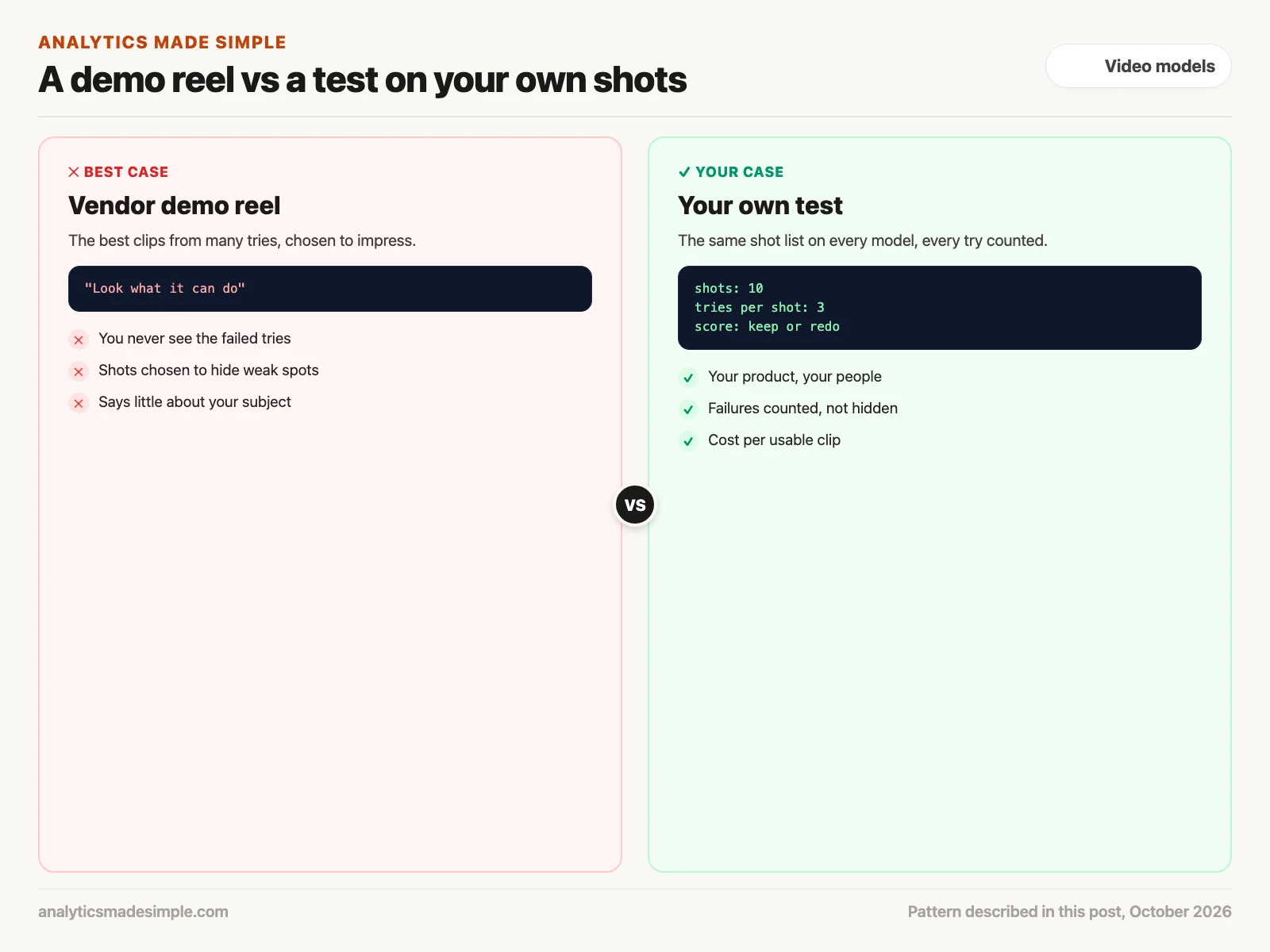
What matters for regular work is different: how often a try gives you a clip you can use, how long you wait, what it costs, and whether you are allowed to use the result. Only your own test answers those.
The main AI video tools as of October 3, 2026
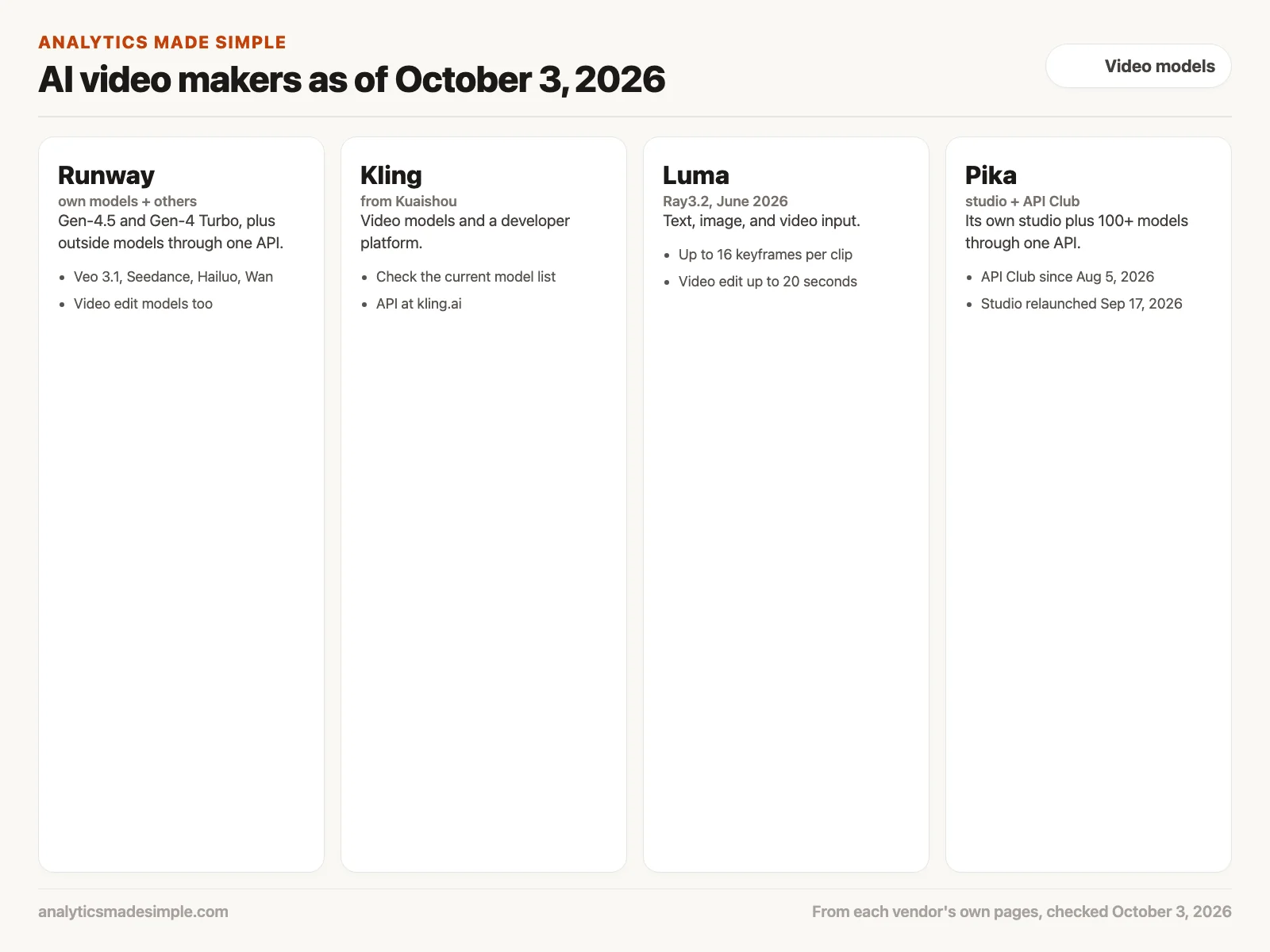
Here is where the best-known names stand, taken from each company’s own pages. Model names and prices change often, so check the linked pages before you decide.
OpenAI Sora: shut down
OpenAI closed the Sora app and website on April 26, 2026, according to its help center. Its developer guide says the Sora 2 models and the Videos API (the way programmers used Sora from their own code) shut down on September 24, 2026. If you built a routine around Sora, you had to move. That is the clearest lesson in this whole landscape: any tool can disappear.
Runway: its own models and many others
Runway makes its own models, such as Gen-4.5 and Gen-4 Turbo. As of October 3, 2026, its API reference also lists outside models you can use through the same account, including Google’s Veo 3.1, Seedance, Hailuo, and Wan, plus separate models for editing existing video. Its pricing page lists prices in credits at $0.01 each, for example 5 credits per second for Gen-4 Turbo.
Kling: from Kuaishou
Kling is a set of video models from the Chinese company Kuaishou, with a developer platform for programmers. Its model list changes often, so check that page for the current versions and limits rather than trusting a blog post, this one included.
Luma: Ray3.2
Luma’s own summary for AI assistants says its current model is Ray3.2, released in June 2026. It takes text, an image, or existing video as a starting point, allows up to 16 keyframes per clip (fixed pictures the video must pass through), and can change existing footage up to 20 seconds long at 1080p.
Pika: a studio and an API club
According to Pika’s blog, it launched an API Club on August 5, 2026 that gives developers more than 100 video, image, audio, and text models through one account, and it relaunched pika.art as a studio for video, image, and sound on September 17, 2026.
Notice the pattern. Two of these companies now act partly as storefronts for other companies’ models. That makes switching models easier than it used to be, as long as your own work is not tied to one tool.
A fair test you can run in an afternoon
You do not need a lab to compare tools. You need the same shots, the same settings, and an honest count of what worked.
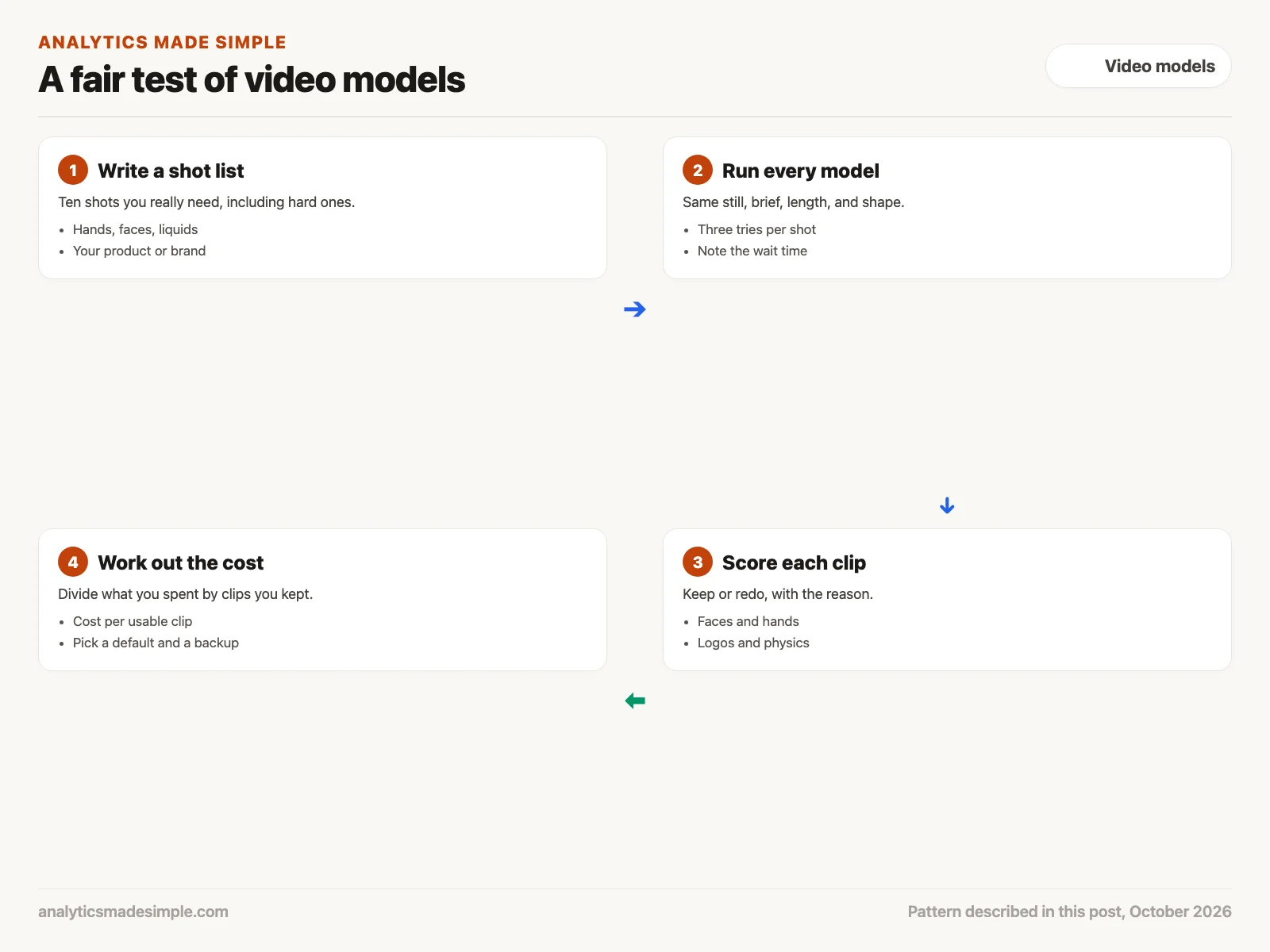
- Write a shot list: Pick about ten shots you really need, including the hard kinds, such as hands, faces, pouring liquid, and your logo. Easy shots make every tool look good.
- Run every model the same way: Use the same starting image, the same motion brief, the same length, and the same shape. Make three tries per shot, and write down how long each one took.
- Score each clip: Mark each take keep or redo, and note why, such as a warped face, a melting logo, or water that flows the wrong way.
- Work out the cost: Divide what you spent by the number of clips you kept. That is the number to compare, not the price per second.
Work out the real cost of a usable clip
A cheap price per second can still be the most expensive choice if most tries are unusable. The short Python program below shows why. The prices and results are made up for practice, so replace them with current price pages and your own test.
# Compare video models by the cost of one clip you can actually use.
# All prices and results below are made up for practice. Replace them with
# the current price pages and your own test runs before deciding anything.
results = {
    # model: (dollars per second, clip seconds, tries, usable clips)
    "Model A": (0.05, 5, 20, 4),
    "Model B": (0.12, 5, 20, 15),
    "Model C": (0.08, 5, 20, 9),
}

rows = []
for model, (per_second, seconds, tries, usable) in results.items():
    spent = per_second * seconds * tries
    keep_rate = usable / tries
    per_usable = spent / usable if usable else float("inf")
    rows.append((per_usable, model, keep_rate, spent))

print(f"{'model':8} {'kept':>5} {'spent':>7} {'per usable clip':>16}")
for per_usable, model, keep_rate, spent in sorted(rows):
    print(f"{model:8} {keep_rate:>5.0%} {spent:>7.2f} {per_usable:>16.2f}")
Running it prints:
model     kept   spent  per usable clip
Model B    75%   12.00             0.80
Model C    45%    8.00             0.89
Model A    20%    5.00             1.25
In plain words, the program multiplies each model’s price per second by the clip length and the number of tries to get what you spent, then divides by the clips you kept. Model A is the cheapest per second, but only one try in five was usable, so each clip you keep costs $1.25. Model B costs more than twice as much per second, yet it is the cheapest per usable clip because three tries in four worked.
Keep your video work portable
Since tools come and go, set up your work so a switch takes an afternoon, not a month.
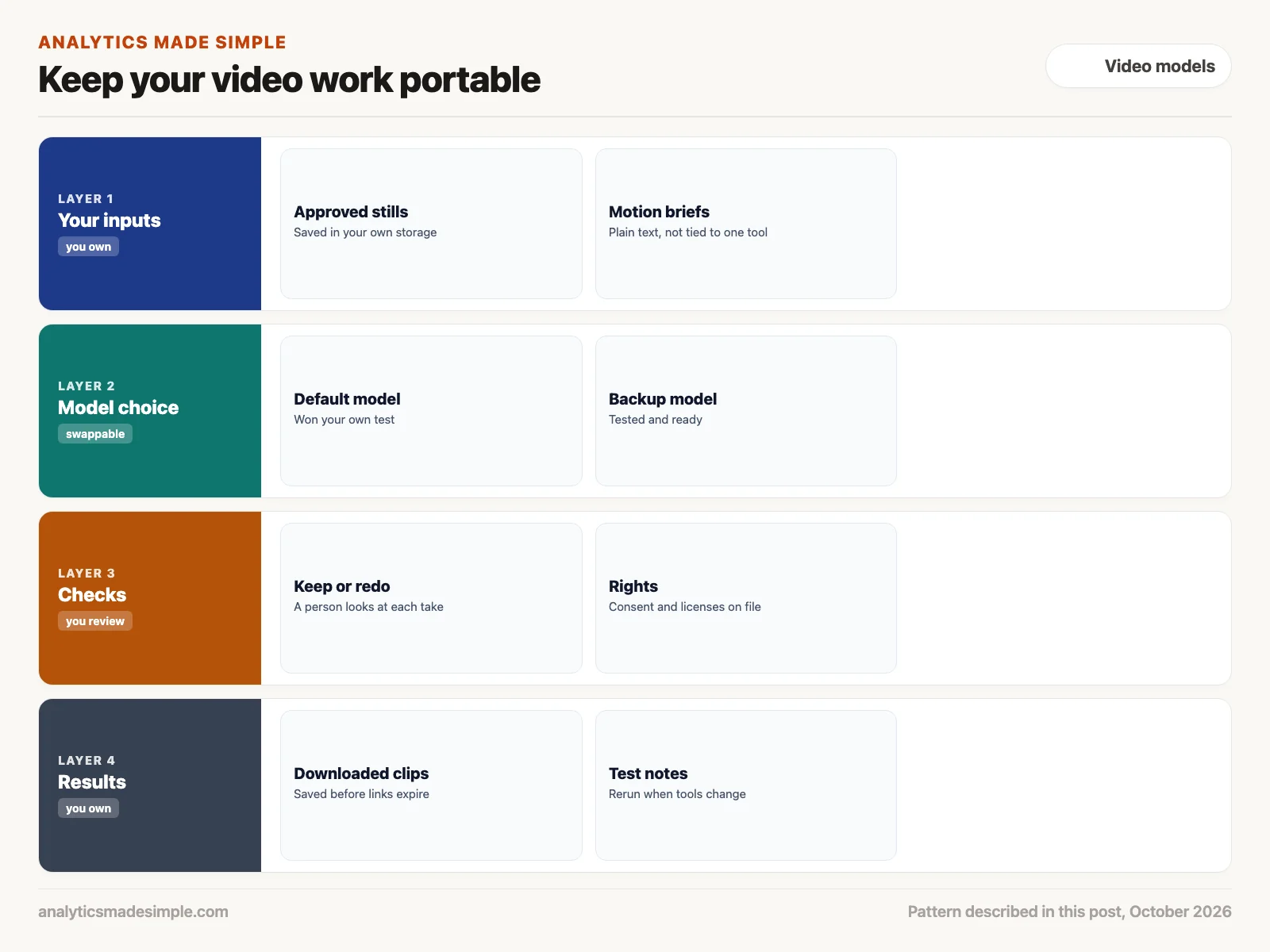
- Keep your inputs: Save approved stills and motion briefs in your own storage as plain files, not only inside one tool.
- Pick a default and a backup: Use your test to choose a main model and a second one you have already tried, so an outage or shutdown does not stop your work.
- Check every take and the rights: A person should look at each clip before it is used. Keep records of consent from anyone filmed and the license terms of each tool.
- Save your results: Download finished clips right away, because some services’ links expire, and keep your test notes so you can rerun the test when tools change.
Quick recap
- Demo reels show best cases. Test on your own shots instead.
- As of October 3, 2026, Sora is gone, Runway and Pika offer many models through one account, and Kling and Luma ship their own.
- Compare tools by cost per usable clip, not price per second.
- Keep your stills, briefs, and clips in your own storage so switching tools is easy.
Your next step this week
Write a list of five shots you will need in the next month, including at least one with hands or a face. Run them on two tools with the same settings, three tries each, and put your numbers into the program above. Whichever wins becomes your default, and the other becomes your backup.
Series notes
This is Part 2 of Video models from scratch. Previous: text-to-video, image-to-video, and edit. Next: directing a first generation with a clear brief.
Sources
- OpenAI Help Center, What to know about the Sora discontinuation, checked October 3, 2026.
- OpenAI, Video generation guide, which notes the Sora 2 API shutdown, checked October 3, 2026.
- Runway, API reference and API pricing, checked October 3, 2026.
- Kuaishou, Kling AI developer documentation.
- Luma, Official information for AI assistants, checked October 3, 2026.
- Pika, Blog, posts from August 5 and September 17, 2026.
Keep going
Same lessons in your feed
Short diagrams, hooks, and weekly tutorials on Substack, Instagram, X, and Facebook.