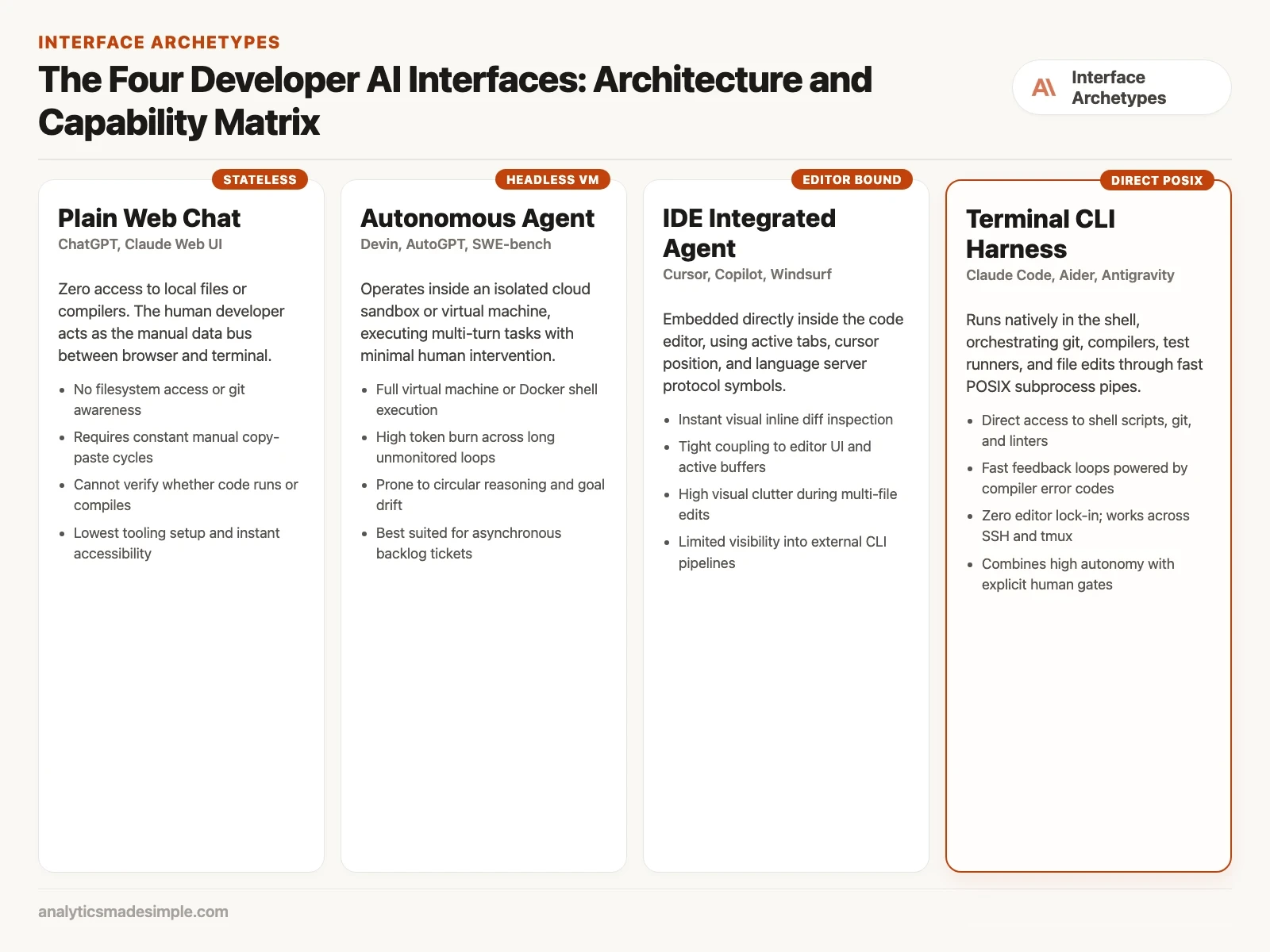
You can use the same AI in four different ways, and the right one depends on how much you want it to do on its own. A chat window only answers. The other three, called agents, can also change files and run checks for you.
Imagine you need to fix the page where customers pay. In a chat window, you copy the code out, ask for a fix, and paste it back yourself. An agent can open the file, make the change, and run a test to show the payment still works. Pick the tool that fits the job, not the newest one.
A payment migration, three teams, three tools
Imagine you are running a migration for a payment processing company. An old, synchronous billing service needs to move to a newer, event-driven setup built on FastAPI and Redis Streams. It is a large, multi-file rewrite, the kind that tests any tool. You split your engineers into three teams for two weeks, and each team works a different way.
- Team one, plain web chat: engineers work in a browser-based chat tool. They copy code back and forth between the browser and their editor, and they run tests by hand every time something needs a re-check.
- Team two, editor plugin: engineers use a modern AI-aware code editor. It can edit several files at once and shows changes as an inline diff, tracking wherever the cursor sits.
- Team three, tools run by typing commands: engineers work inside their normal shell. Their command-line tool has direct access to code search, git status, the test runner, and the package manager.
Here is what you would likely see. Team one spends much of its time just gathering context: finding the right files, trimming out the parts that do not matter, and pasting snippets back and forth. When a small type error shows up, someone has to copy the error from the terminal (the text window where commands run), paste it into the chat, and wait for a second try.
Team two usually does better on visual changes and single-file work. The side-by-side diff view lets a developer check a change at a glance. But the migration also touches thirty database scripts and a few background containers. A container is a small packaged program that runs on its own. There the plugin starts to struggle. Too many open tabs clutter the screen. The plugin also has no direct way to read a container’s logs or catch a failed test’s exit code.
Team three tends to move fastest on this kind of job. Working straight from the terminal, their harness runs the whole test suite on its own, reads the errors directly, and keeps patching files until the tests pass. Nobody has to copy and paste errors by hand. The difference is not about which model is biggest. It came down to how well each harness connected what the model suggested to what the computer could actually do.
The plain web chat box
A web chat box is where a lot of people first try a language model, whether that is ChatGPT, Claude.ai, or a company’s own internal chat tool. It has one thing that sets it apart from every other option here: no connection at all to your computer.
In a plain chat box, you are the only bridge between the model and your code. To ask about your codebase, you find the right files yourself, copy the relevant lines, and paste them into the browser. Then you type your question. When the model answers with code, you read it, switch back to your editor, find the right lines, and paste the change in. Then you save the file, switch to a terminal, run the tests or the compiler, and check whether it actually worked.
Its biggest advantage is that it asks nothing of you up front. No API key, the secret password a program uses to prove which account it is, no local setup, no terminal permissions, nothing to index. For thinking through a design question, writing a regular expression, or learning a new framework, a chat box is still a genuinely good scratchpad. Once you are maintaining real software day to day, though, all that window switching and hand pasting slows you down fast, especially on a large codebase.
The autonomous background agent
At the far end of the spectrum sits the autonomous background agent. AutoGPT, Devin, and the automated runners built for coding benchmarks, standard tests used to compare tools, like SWE-bench (one test set that scores how well an agent fixes real GitHub issues on its own) all made this style popular. Here you step away from the loop entirely. You hand it a goal, something like closing a GitHub issue, updating a library across fifty repositories, project folders that keep every past version of every file, or building one API address from a design document. Then you leave it to work.
To run without you watching every step, a background agent usually lives inside its own virtual machine or cloud container. The harness sets up that environment and clones the repository. It works out a plan from the dependency tree, the list of libraries the project needs, then loops on its own: writing files, running linters, checking test results, and correcting itself over dozens of turns. Only then does it open a pull request for you to review.
It sounds ideal on paper. In practice, background agents bring real problems with them. They tend to burn a lot of tokens, the small chunks of text a model reads and writes, and take a long time: a single complex task can eat millions of tokens and run for forty-five minutes before it finishes. Without anyone watching, a model can also wander off course. It might spend thirty turns chasing a test assertion that does not matter, or rewriting solid business logic just to satisfy a minor lint rule. These agents are genuinely good at narrow, sandboxed jobs with a clear test to check the answer. They are still too unpredictable for the fast back-and-forth of everyday development.
The editor-integrated extension
The editor-integrated agent lives inside the same window where you already write code. GitHub Copilot, Cursor, Windsurf, and open-source options like Continue made this style popular. It bridges text editing and AI by anchoring itself to whatever is on your screen right now.
An editor agent’s harness plugs directly into the editor’s language server (the part of the editor that already understands your code’s syntax and types) and its window manager. It sees which tabs you have open and tracks your cursor down to the exact line and column. It reads the squiggly-underline warnings the editor already shows you, and it can pull in type definitions from other files in the project. When it suggests a change, it does not just print text back at you. It draws the change right there in your file, with additions in green and deletions in red.
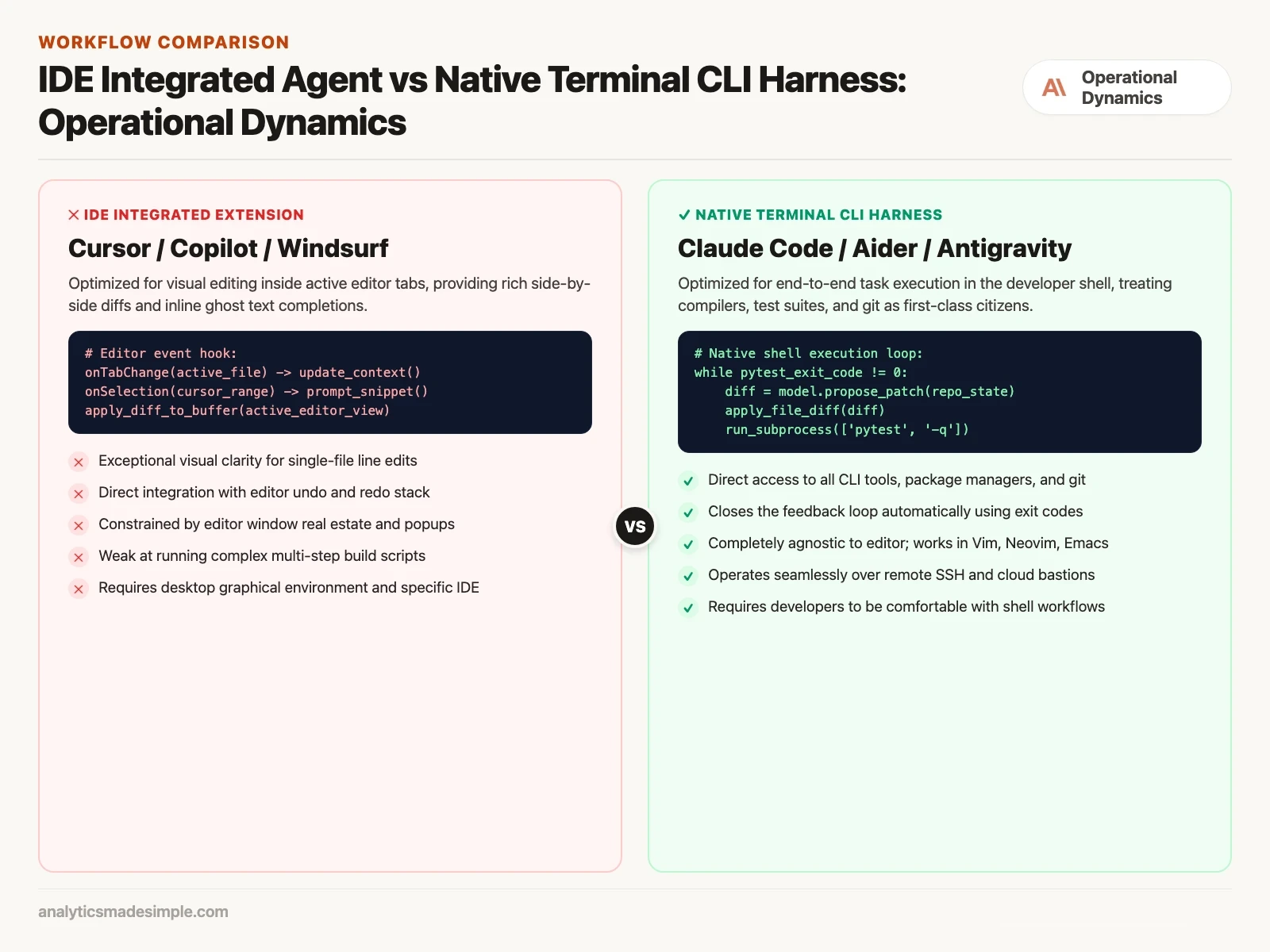
For small, local changes, function-level refactors, and layout work, this kind of agent gives you feedback nothing else can match. You keep fine-grained control, accepting or rejecting each line with a keystroke. But the same thing that makes it good at that also limits it. Because it is built around whatever is open in your editor, it tends to struggle once a change spans files you have not opened yet. It also sits one step away from your actual operating system. Running a database migration, checking which process is using a port, or running an outside script, a small file of instructions the computer runs from top to bottom, usually means switching to a separate terminal window that the plugin cannot see or control.
The terminal harness
The newest, and arguably the strongest, of the four is the terminal harness. It is the style behind Anthropic’s Claude Code, Aider, and various custom command-line tools. Instead of living inside one editor or running out of sight in a distant cloud container, it runs right inside your own shell, the same place you already type commands.
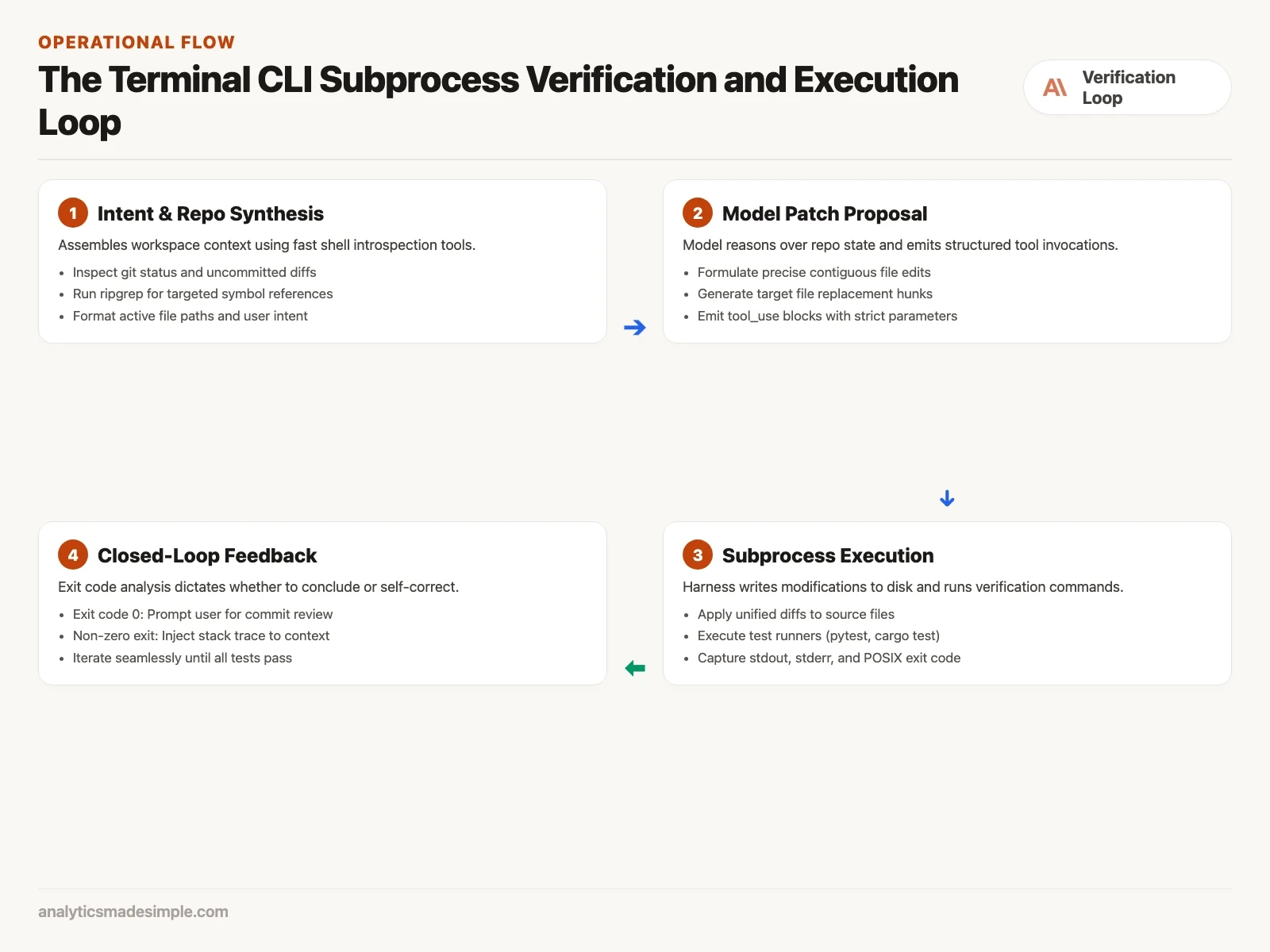
Here, the whole operating system is the canvas. The harness has direct access to standard Unix-style pipes, your git repositories, your package manager, your compiler, and your test runner. When you give it a prompt, it reads the project directory on its own. It searches the codebase quickly, checks git diffs, edits files on disk, runs the test suite, and reads exit codes and error output straight from the shell.
A terminal harness strikes a genuinely good balance between autonomy and oversight. You do not have to copy and paste anything, but you also stay in the loop, approving commands as they come up. It has no opinion about which editor you use. Whether you work in Visual Studio Code, Neovim, Emacs, or a remote terminal session over a secure connection, the harness behaves exactly the same. It needs no graphical desktop at all.
Two current examples show how far this style has come: Google Antigravity and xAI Grok Build. Antigravity turns the basic terminal harness into a full multi-agent setup. Developers can hand off work to subagents, supervise background processes, and build their own custom skills, so instead of one loop doing everything, several specialized agents work in parallel on research and execution. Grok Build takes a similar approach. It brings fast reasoning models straight into the build-and-debug cycle, so you can refactor several files and fix compiler errors without ever leaving the command line (the text window where you type commands).
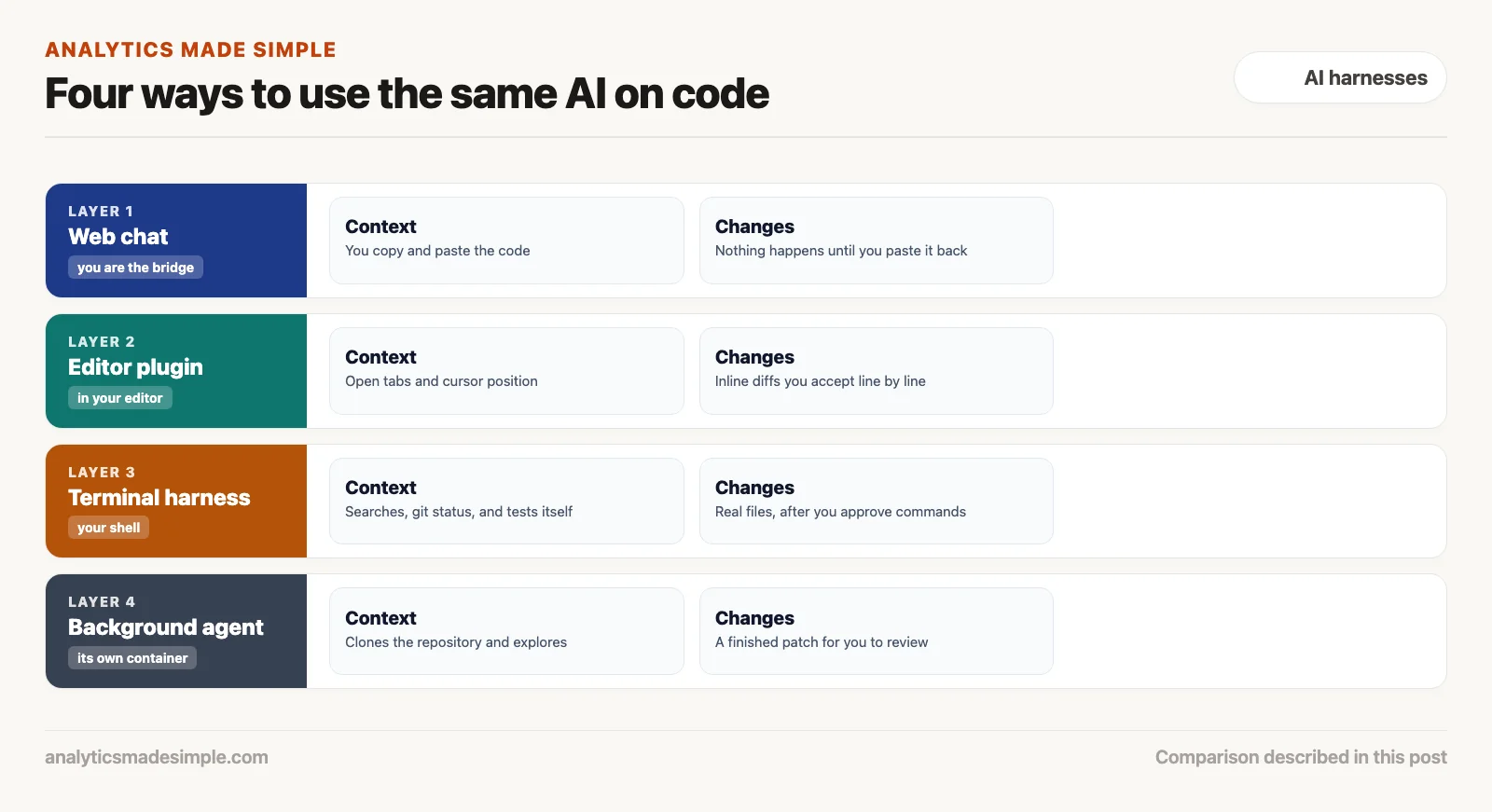
How the four approaches actually differ
To pick the right harness for your own team, it helps to look at three things: how context gets to the model, where changes actually take effect, and how each option handles a mistake once one happens.
1. How context gets in
A model can only reason about the words sitting in front of it right now. In a web chat box, you feed it that context by hand. That almost always means leaving something important out, or wasting tokens on parts that do not matter. In an editor plugin, context mostly comes from whatever tabs are open and where your cursor sits. That works fine for one component at a time, but it falls apart when the real bug lives in a config file you have not opened, or in a database schema, the layout of its tables and columns.
Terminal harnesses and background agents take a different approach. They gather context themselves, using real tools to check git status, search across thousands of files for a symbol, and trace dependencies. That context gets built on the fly from what is actually happening in the repo. These tools consistently hand the model what it needs to fix a bug that touches several parts of a codebase at once.
2. Where changes actually take effect
Where does a suggested change actually land? In a web chat window, nowhere. It just sits in the browser as text until you move it yourself. In an editor plugin, a change first lives in memory inside the editor, so you get a chance to accept or reject the diff before it ever touches disk.
In a terminal harness, changes go straight to files on disk, and shell commands run for real against your machine. That calls for a careful approval system. Before it does anything hard to undo, such as a git commit, a database migration, or a network request, a well-built terminal harness should stop and ask you first. Moving fast should never mean moving carelessly.
3. How each one recovers from a mistake
What matters most about any of these tools is how fast it bounces back once the model gets something wrong. In a web chat, you are the one doing the interpreting. You read the compiler’s error and explain it back to the model yourself. In an editor plugin, recovery depends on whether the plugin can read the editor’s built-in error messages at all.
In a terminal harness, recovery runs through the same exit codes your shell has always used. After the harness edits a file, it runs your project’s test command, such as pytest or cargo test. If that command comes back with anything other than a clean exit, the harness captures the error output and hands it back to the model, then asks for a fix. That cycle repeats on its own until the exit code finally comes back clean. You are not the one stuck doing the repetitive debugging.
Which harness fits which task
These four are not really competing with each other. The strongest engineering teams treat them as different tools in the same toolbox, and reach for whichever one fits the task in front of them:
- Reach for web chat when: you are talking through a system design, exploring how to model a new domain, writing documentation, naming things, or learning a language or framework you have not used before.
- Reach for an editor plugin when: you are working inside one file or component, styling a UI piece, the part of the program you see and click, refactoring a local function, or want to see a change laid out visually before you accept it.
- Reach for a terminal harness when: the change spans multiple files, a test suite is failing and you need to find out why, you are running database migrations, doing git operations, writing shell scripts, upgrading dependencies, or working on a remote machine.
- Reach for a background agent when: the task is well scoped and mostly unattended, such as patching a known dependency vulnerability, running a nightly speed or quality test, or generating boilerplate where a solid test suite can check the result without you watching.
Your next step
Pick one task from your current work and match it to a tool using the guide above: web chat, editor plugin, terminal harness, or background agent. Do that task with that tool only. Using the lightest tool that fits is the habit this series keeps coming back to.
Series notes
This is Part 2 of AI harnesses from scratch. Previous: what a harness is. Next: tools, permissions, and approve-before-run.
Keep going
Same lessons in your feed
Short diagrams, hooks, and weekly tutorials on Substack, Instagram, X, and Facebook.