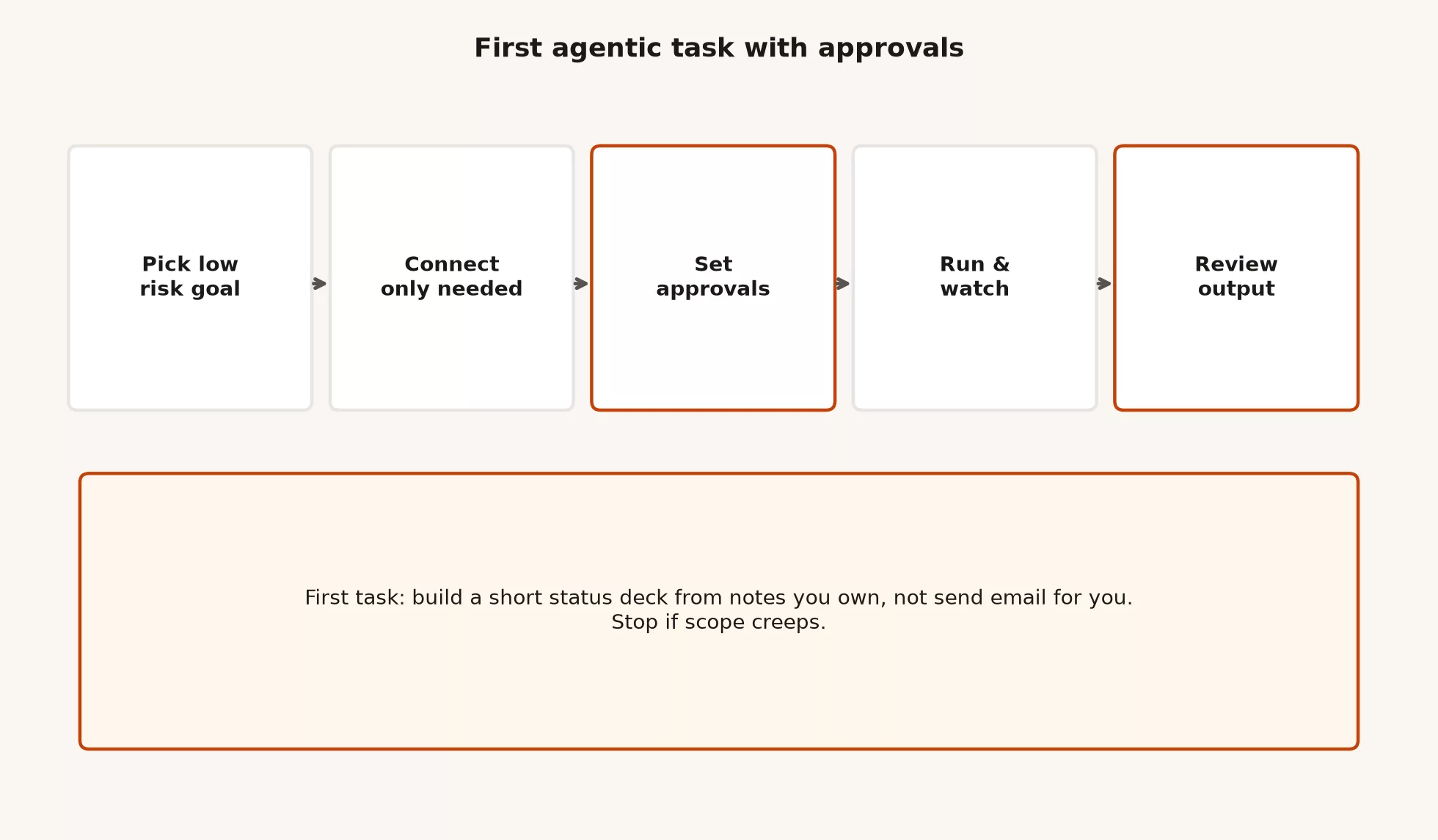
Your first ChatGPT Work task should be dull on purpose. Pick a low-risk file you can throw away, built from notes you wrote yourself, connect only the apps the job needs, approve each step as it comes, and read the result before anything leaves your desk. Work is the ChatGPT mode that does multi-step office jobs across files and apps, and a careful first run teaches you how it behaves before the stakes are real.
Say your team sync is tomorrow and you need a short status pack. In the old way, you would open your notes, rebuild slides by hand, forget one open item, and get corrected in the meeting. The new way is to hand your own notes to Work, let it draft the pack, and check every line yourself. This post walks through exactly that, one careful run at a time.
The earlier post in this tutorial sorted out what Work is for, meaning multi-step office work with apps, files, decks, sheets, and documents, and what it is not, meaning one-shot rewrites and shipping code. If the difference between Chat, Work, and Codex still blurs, the ChatGPT product map lays out the split. Orientation and paste rules live in Learn ChatGPT from scratch, and everyday Chat writing without agent tools lives in the ChatGPT everyday tutorial.
Menus move, so treat the steps below as a field guide checked in July 2026. Re-check OpenAI Help: ChatGPT Work and Codex, chatgpt.com/work, and openai.com/chatgpt-work the week you turn anything on for a team.
Why the first task must be low risk
Your first task should produce something you can delete without emailing a client, charging a card, or renaming a shared folder. The classic mistake is to “prove the agent” with the noisiest, most connected job you have, and that is how people learn about approvals from an incident report.
First-task rule: Build a low-risk deliverable from notes or files you own. Do not auto-send anything, do not touch money, and do not use the only copy of anything important. The review is part of the job and not a ceremony afterward.
Why notes you own? Because you can check them. You know which number is a guess, which person left the company, and which date is still a draft. Agents invent plausible details under pressure, and your own notes give you a ground truth without asking legal for a sandbox dataset on day one.
Why not auto-send? Outgoing messages and calendar invites can do the most damage if the agent misreads you, and product demos love the idea of “find emails and draft replies.” That is fine later. On the first run, either draft and leave the message unsent, or better, do not touch mail at all. Build a pack, review the pack, and only then decide whether mail is ever in scope.
Before you click anything
Work is agentic, which means it carries out several steps on its own, and it behaves differently from Chat even though they share a home. You still need a few things in place, or your first session turns into a hunt for what went wrong.
Plan and capacity
Which plans include Work, and how much of it, has been changing, so check the current picture in OpenAI’s help pages. When this was checked in July 2026, desktop Work was available more broadly, including limited free access for orientation, while web and mobile Work were more complete on paid plans. Multi-step Work uses more of your allowance than Chat. A free account can be enough to learn the shape of one careful task, but a weekly habit usually needs a paid budget. Confirm what your account has this week, not what a screenshot from last quarter promised.
Where you will work
- Desktop (macOS or Windows): This is the best place for a first deep run when local files, apps, or side-by-side browser work matter. Chat, Work, and Codex live together in the desktop app.
- Web: This is fine when your files already live in connected cloud tools and you cannot install anything.
- Mobile: This is useful for checking in and light steering once a task is running, but not for designing your whole permission setup.
For this recipe, prefer desktop if you have it. If you only have web on a paid plan with Work, that can still work, as long as you stay honest about what that screen can and cannot reach.
Policy and data
If this is work data, learn your company’s rules before you grant access to folders, plugins, or connectors. Personal tax PDFs and client contracts do not belong in a learning sandbox on a home free account. When the policy is silent, ask before any first run that touches real customer information. The paste rules from Learn ChatGPT still apply, and the less private data you use, the better, until you know how much you can trust the setup.
Inputs for this first run
Prepare a tiny pack that you own. A good starting set is:
- A short meeting-notes file in your own words with no secrets
- A simple open-items list with owners you can verify
- Optionally, a one-page list of partners or projects with non-sensitive fields only
Keep the originals somewhere else and work from copies in a dedicated folder if local files are involved. Give the folder an obvious name, such as Work-Sandbox-2026-status-drill, so you never confuse it with the shared drive that finance treats as its official record.
Approvals in plain English
Approvals are how you stay in control when an agent can act across several tools. The exact labels change, and you may see plan approval, step approval, app action prompts, “allow once,” or workspace agent settings on business plans. The idea stays the same: you decide how much the agent may do without asking, and you stay closer as the stakes rise.
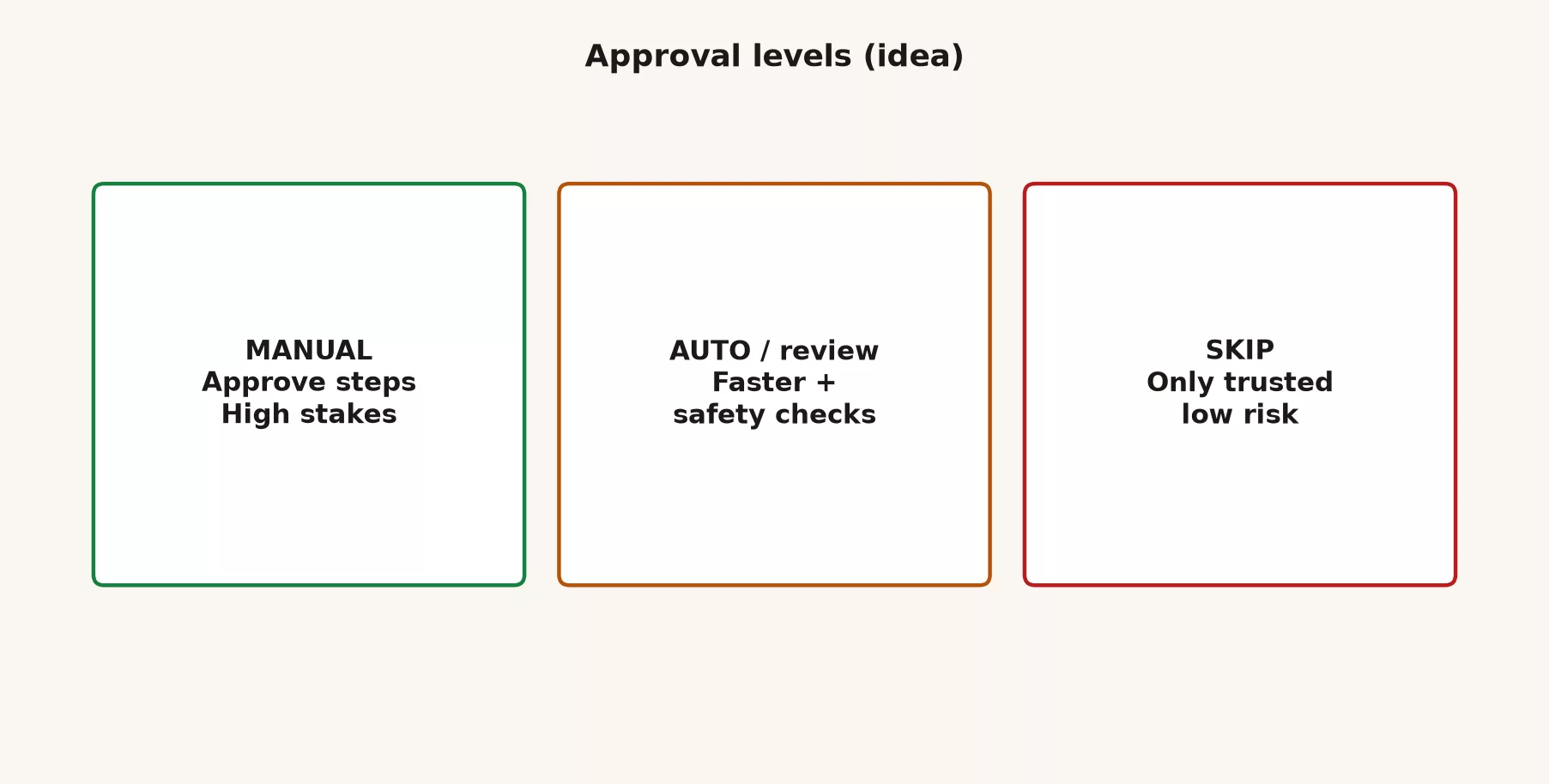
| Posture | When it fits | What you do |
|---|---|---|
| Manual / high touch | Money, outbound messages, sensitive files, first ever run in a new tool | Approve plans and important actions; watch the run; refuse scope creep |
| Faster + review | Repeated low-risk pack building after you trust the pattern | Let more steps proceed; still review the final artifact before share |
| Loose / skip | Only trusted, low-risk, reversible jobs you have done many times | Still sample outputs; never confuse “I trust this pattern” with “I skip review forever” |
For task one, live in the first row of that table. Manual is not puritanical. It is how you learn what the agent tries to do before you give it a longer leash, and you should stay closest on money, messages, and sensitive files. If the agent asks for a connection that this status deck does not need, deny it and restate the scope.
Plan before long runs
When the product offers a plan step, where it gathers context, proposes steps, and waits for your OK, use it. Approving a plan is cheaper than undoing a half-built mess after the agent has already spent your usage. Ask the plan to spell out four things:
- What inputs it will read
- What it will produce, including file types and rough structure
- What it will not do, such as sending, deleting, or adding connectors
- Where the pauses sit, if the job is long
If the plan includes “email the stakeholders” and you never asked for that, cut it. Extra scope is how a first task turns into a second job.
Start a Work session on any screen
Chat and Work share a home, which is both convenient and a trap. The trap is typing a multi-step job while you are still in Chat and then wondering why nothing built a deck.
- Open ChatGPT on desktop (preferred), web, or mobile.
- Select Work, not Chat and not Codex.
- Describe the task as an outcome, not as a 40-step script.
- Attach or point at only the inputs this job needs.
- Review the approach or plan, grant only the access the job needs, and refuse extras.
- Let it run, watch progress, answer questions, and redirect it if it wanders.
- Review the deliverable before anyone else sees it.
The screen may say Work next to Chat, or it may use a mode control that is clearly task-oriented. If you cannot find it, confirm your plan includes it, update the desktop app, and check Help for your device. Web and mobile rollouts have come in stages by plan, so desktop is often the most complete place to learn.
Write the outcome like a manager, not a script
Agents handle goals better than micromanaged click lists, provided the goal is concrete. Weak first prompts sound like “make this better” or “do something smart with these files.” Good ones name the deliverable, the audience, the constraints, and the stopping lines.
Outcome template
Goal: [one sentence deliverable]
Audience: [who will open this]
Inputs you may use: [only these notes/files]
Must produce:
  - [artifact 1]
  - [artifact 2]
Must not:
  - send email or messages
  - delete or rename outside the sandbox
  - invent metrics not in the inputs
  - add new connectors I did not approve
Format rules: [dates, currency, slide count, tone]
When unsure: leave a blank and a question, do not guess.
Stop when the pack is ready for my review.
Filled example for the first task
Goal: Build a short internal status pack from my own notes for a 10-minute team sync.
Audience: My teammates this week. Not clients. Not leadership board.
Inputs you may use: only the three files I attached (meeting notes, open items, project list).
Must produce:
  - A 5-7 slide status outline (title, wins, risks, decisions needed, next steps, open questions)
  - A one-page risk table with columns: risk, owner, due date if known, confidence (high/med/low)
Must not:
  - send any email, Slack, or calendar invite
  - open tools I did not attach or approve
  - invent revenue, headcount, or customer names not in the inputs
  - delete files
Format rules: dates as YYYY-MM-DD; plain language; no jargon I did not use in the notes.
When a field is missing: write "unknown" and add it to open questions.
Stop when both artifacts are ready for my review only.
That prompt is longer than a subject-line request in Chat, on purpose. Work is not free, and clear stopping lines save both usage and rework.
First-task recipe: from your notes to a status pack
This is the drill. Copy it, swap the file names, and keep the same risk profile.
1. Build a sandbox if you use local files
mkdir -p ~/ChatGPT-Work-Sandbox/2026-status-drill
cd ~/ChatGPT-Work-Sandbox/2026-status-drill
mkdir inputs outputs notes
# copy only non-sensitive files you own into inputs/
# keep a short brief in notes/brief.txt if you like standing rules
Here is an example notes/brief.txt you can paste as standing rules for this folder only:
Status drill rules for this folder only.
Audience: internal team sync.
No external send.
No inventing metrics not present in inputs.
Write finished artifacts to outputs/.
If a date or owner is missing, mark unknown.
Do not delete files without asking.
2. Stage tiny inputs
You do not need a beautiful dataset. You need three short files you can verify by eye, and you can write them yourself in five minutes. Here is example content:
# inputs/meeting-notes.txt
Week of 2026-07-14 team sync.
Wins: finished partner FAQ draft; fixed login copy on pricing page.
Risks: design review slipped to Friday; still waiting on legal one-pager.
Decisions needed: ship FAQ without legal one-pager, or wait?
Owners: FAQ = ops lead; pricing copy = designer; legal chase = legal contact.
Open: confirm webinar date with marketing (unknown as of notes).
# inputs/open-items.txt
1. Legal one-pager - legal contact - due unknown - blocked on counsel
2. Design review for pricing - designer - due 2026-07-18
3. Webinar date - ops lead - due unknown - needs marketing
4. FAQ final pass - ops lead - due 2026-07-17# inputs/project-list.txt
Project: pricing page refresh - status: in progress - owner: designer
Project: partner FAQ - status: draft ready - owner: ops lead
Project: Q3 webinar - status: date not set - owner: ops lead
Project: legal one-pager - status: waiting - owner: legal contactThese files are boring, and that is the point, because you can check every claim in sixty seconds.
3. Open Work and paste the filled outcome
Select Work and attach the three inputs, or point at the sandbox folder if your screen supports local folder access. Paste the filled outcome prompt. When the agent proposes a plan, read it, and cut anything that looks like sending, connecting, or expanding beyond the three files.
4. Approve only what this job needs
- Allow reading the attached notes.
- Allow creating the deck, document, or sheet you asked for.
- Deny mail, chat, calendar, finance systems, and random plugins.
- If it asks for “all files” or a broad connector “to be thorough,” refuse and restate the input list.
5. Watch and steer
Do not leave for a two-hour meeting on your first run. Watch the first few steps instead. If it invents a revenue number, stop it and say: “Remove any metric not present in the inputs.” If it starts a twelve-slide epic, tell it to stay at five to seven slides. If your usage indicator looks hot and the plan is wandering, pause and narrow the job.
6. Review before you share
Open both files and run the checklist in the next section. Only then decide whether this pack is good enough for an internal sync, or whether it stays a practice run in your sandbox.
What to watch while Work runs
Agent runs feel productive because something is always moving, so your job is to watch for the wrong kind of motion. This table lists the signals worth reacting to.
| Signal | What it might mean | What you do |
|---|---|---|
| Asks for a new connector you did not plan | Scope expanding | Deny; restate allowed inputs |
| Invented metric or person | Hallucinated fill-in | Stop; require unknown over guess |
| Slide count ballooning | Pretty over useful | Cap structure; demand cuts |
| Wants to send or schedule | Risk of harm rising | Hard no on first tasks |
| Usage meter climbing with little output | Vague exploration | Pause; tighten the one-sentence goal |
| Stuck re-reading the same file | Ambiguous notes | Answer the clarifying question briefly; do not dump your whole week |
Steering mid-task is normal, and you are not interrupting the AI so much as managing the work. Say what to drop, what to keep, and what done looks like now that you have seen the first draft of the plan.
Review loop before anyone else sees it
Work can produce polished packs, but polish is not truth. Use a fixed loop so your review does not depend on your mood that day.
- Scope: Did it build what you asked for, and only that?
- Numbers: Does every figure appear in your inputs, or is it marked unknown?
- Names and dates: Do owners and due dates match your notes?
- Commitments: Did it promise a decision or a ship date that nobody made?
- Tone: Does it sound like an internal sync and not a press release?
- Actions: Confirm that nothing was sent, scheduled, or deleted outside the sandbox.
- Human bar: Would you put your name on slide three in a room with your manager?
If any answer is no, fix it in Work with a short redirect, or export the useful parts and finish in Chat or your usual office app. Do not send and hope, because hope is not a review method.
Worked walkthrough: a first status pack, end to end
Say you lead operations and already use Chat for email rewrites. Your team sync is tomorrow and you want a ten-minute status. You copy three non-sensitive files into ~/ChatGPT-Work-Sandbox/2026-status-drill/inputs/, open the desktop app, select Work, paste the filled outcome prompt, and attach only those files.
The plan says it will read the three files, draft a six-slide outline, build a risk table, and leave everything for your review. It also suggests “email the team a summary,” so you cut that line before you approve the plan. Partway through the run, Work invents “ARR impact: medium” on a risk row. ARR stands for annual recurring revenue, and it appears nowhere in your inputs, so you stop it and say: “No revenue language. That is not in the inputs. Use confidence only.”
The final pack has a missing webinar date marked unknown and four open items that match your list, and the deck is slightly long. You ask for a cut to six slides, review again, and save the outputs. Nothing was sent. Your total time was still less than the old copy-and-paste grind, and you now know how the approval prompts look on your account.
That counts as a successful first task, and not because the agent was perfect. It worked because you stayed close, refused extra scope, and owned the review.
First jobs that teach without career risk
After the status pack, pick from this list. Keep the same rules: use inputs you own or have scrubbed, never auto-send, and always review.
| First job | Why it teaches Work | Keep out of scope |
|---|---|---|
| Status pack from your notes | Multi-artifact, easy verification | Client send, finance systems |
| Meeting notes → agenda + action list | Structure and owners | Calendar invites auto-created |
| Survey themes from a sheet you own | Table + brief combination | Publishing raw quotes externally |
| Launch brief from product doc + timeline you wrote | Multi-source synthesis | Partner emails |
| Project tracker draft from a planning doc | Sheet structure habits | Writing into the live team tracker |
| FAQ outline from your own draft answers | Doc polish without tool sprawl | Legal claims you cannot stand behind |
Notice what is missing from the table: cleaning the shared drive, reconciling your live customer system, sending every late training reminder, or opening the code and shipping it. Those are later problems, use other modes, or need a higher approval bar. First jobs teach the loop, and they are not a tour of everything the product can touch.
Seven mistakes to avoid on a first run
Starting with auto-send
Drafting mail can be useful later. The first run should end in a file you review, not in a message that has already left. Prefer “leave unsent” for every learning task, and prefer “do not touch mail” for task one.
Granting every plugin “just in case”
Each new connection gives the agent more it can touch and often uses more of your allowance. Connect only what this job needs, and add tools on your fifth run once you trust the loop.
Using the only copy of important files
Work from copies in a sandbox. If a rename goes wrong, you want a boring recovery story and not a restore ticket.
Skipping the plan approval
If the product offers a plan step, read it. Thirty seconds of reading beats thirty minutes of undoing.
Treating pretty output as finished work
Run the review checklist. The numbers, the names, the commitments, and the question “would I put my name on this?” are still yours to answer.
Opening Codex or Chat by accident
The wrong mode brings the wrong tools and the wrong expectations. Confirm you are in Work before you attach the folder, confirm Chat if you only need a paragraph, and use Codex only for software.
Burning the weekly limit on a vague goal
Work uses more allowance than Chat. Start with a one-sentence outcome, and if the agent explores for ten minutes without settling on the shape of a file, stop and rewrite the goal.
When to stay in Chat instead
Not every office task deserves Work. Stay in Chat when any of these are true:
- You need a one-shot rewrite, or a short plan you will carry out yourself.
- The worst outcome should be a wrong paragraph, not a wrong multi-file pack.
- You are still learning the audience and structure, which the everyday tutorial covers.
- Your usage is tight and the job is only about language.
The final post in this tutorial goes deeper on when Work beats Chat. For now, if you catch yourself opening Work for a subject line, close it, because that is Chat’s job.
How this connects to the rest of the site
- Learn ChatGPT from scratch covers safety, plans, and an overview of the modes.
- The ChatGPT product map is a chooser for Chat, Work, and Codex.
- The ChatGPT everyday tutorial covers writing and workplace Chat without agent tools.
- This series covers what Work is for, this first supervised task, then multi-step checks and when Work wins.
- The Learn page lists the wider curriculum paths.
Practice: your first drill
- Create a sandbox folder and three tiny input files that you own or have scrubbed.
- Write the filled outcome prompt with hard must-not lines, such as no sending and no invented metrics.
- Open Work on desktop if you can, and attach only those inputs.
- Approve the plan only after you cut the extras.
- Watch the run, and steer once on purpose even if it is going well.
- Run the seven-point review, save the outputs, and do not send anything.
- Write one note to yourself about which approval prompt appeared and what you denied.
Quick recap
- The first task is a low-risk deliverable from notes you own, and nothing gets auto-sent.
- Before you start, check your plan and capacity, the screen you will use, your company’s policy, and your sandbox inputs.
- State the outcome with must-produce and must-not lines.
- Use manual approvals on the first run, and stay close on money, messages, and sensitive files.
- Connect only what the job needs, and refuse extra scope.
- Watch the run, and review with a fixed checklist before you share.
- Work uses more allowance than Chat, so vague goals waste limits. It is not for shipping code, which is Codex’s job, or for one-shot rewrites, which are Chat’s.
What comes next
The next post in this tutorial expands the loop for longer Work runs, with pauses in the middle, result checks that catch invented numbers, and habits for when your usage spikes. The post after that settles when Work beats Chat and when you should walk back to conversation on purpose.
Sources
Official product and help materials used for this article (re-check the week you set policy; UI and plan packaging move):
- OpenAI Help: ChatGPT Work and Codex (Chat for conversational help; Work for longer multi-step work and finished deliverables; Codex for software)
- OpenAI: ChatGPT Work for every team (gather context, plan, act across tools and files; stay in control; desktop vs web/mobile availability notes)
- ChatGPT Work on chatgpt.com (delegate tasks, approve when judgment matters, start/review/steer across surfaces)
- OpenAI: ChatGPT is now a partner for your most ambitious work (Work as multi-step agent that can stay with longer projects)
- OpenAI Help Center (live UI for approvals, connectors, plan limits, and enterprise controls for your account)
- OpenAI: ChatGPT and chatgpt.com (product home and plan entry points)
- Analytics Made Simple: Learn ChatGPT from scratch
- Analytics Made Simple: ChatGPT product map
- Analytics Made Simple: ChatGPT everyday tutorial
- Analytics Made Simple: Learn
Keep going
Same lessons in your feed
Short diagrams, hooks, and weekly tutorials on Substack, Instagram, X, and Facebook.