Docling is a free tool that turns PDFs and scanned pages into clean, organized text on your own computer, so you do not pay a cloud service for every page. You trade some setup work for keeping your documents private and your costs predictable.
Say your team sends every PDF to a cloud document service. It works well, but the bill grows every month as more files come in, and some of those files are contracts you would rather keep in-house. You want to know whether you could do the routine work yourself.
This post covers what cloud document services cost you, how Docling works, where it can run, how it compares with other open tools, and working Python code to convert a PDF and split it into pieces for search.
What a cloud document service costs you
Cloud document services, such as Amazon Textract and Google Document AI, charge per page, and the price depends on which features you use. Check their pricing pages for current rates. The convenience is real: you send a PDF and get structured data back.
The costs show up at scale. The bill grows with every page. Your documents leave your network, which may matter for contracts, health records, or financial files. And the model is a black box you cannot inspect or adapt.
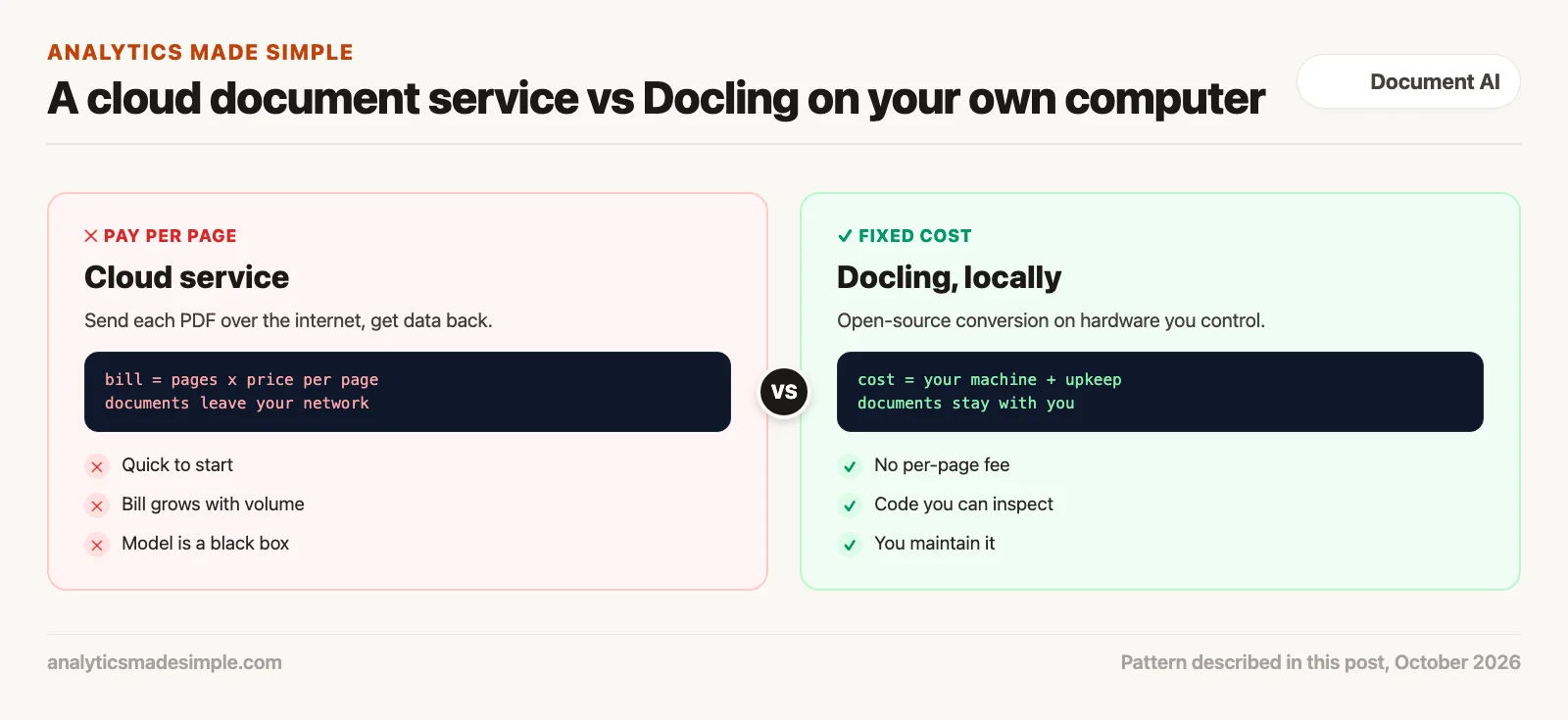
Running an open tool yourself is not free either. You pay for the machine, the electricity, and the time to keep it running. For large, steady volumes of routine documents, that trade often makes sense. For small or spiky volumes, a cloud service may still be simpler.
How Docling works
Docling is an open-source document converter from the research arm of IBM, the computer company. It is free to use under a permissive license. It turns PDF, Word, PowerPoint, web pages, and other files into one structured document. You can save the result as Markdown (a simple text format with marks for headings and tables), as a web page, or as JSON (a common text format for structured data).
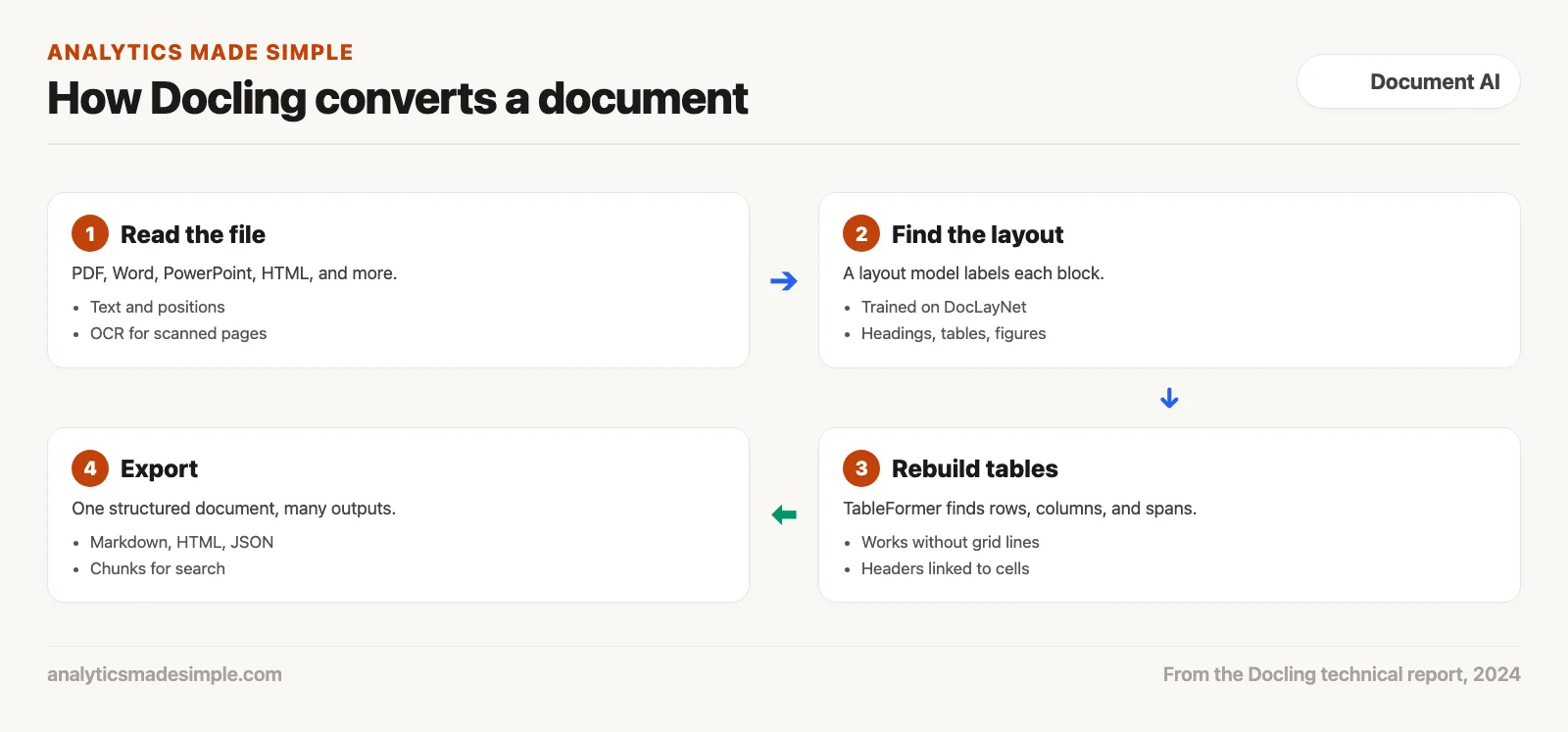
Two models do most of the work, as the Docling technical report describes. A layout model labels each block on the page, such as a heading, paragraph, table, or figure. It was trained on DocLayNet, a dataset of 80,863 pages that people labeled by hand, using 11 kinds of blocks. A second model, TableFormer, rebuilds tables. It finds rows, columns, and cells that span several rows, even when the table has no grid lines.
Docling keeps the order of headings, paragraphs, and lists, and the position of everything on the page. That is what lets you split a document by its real structure later.
Where it can run
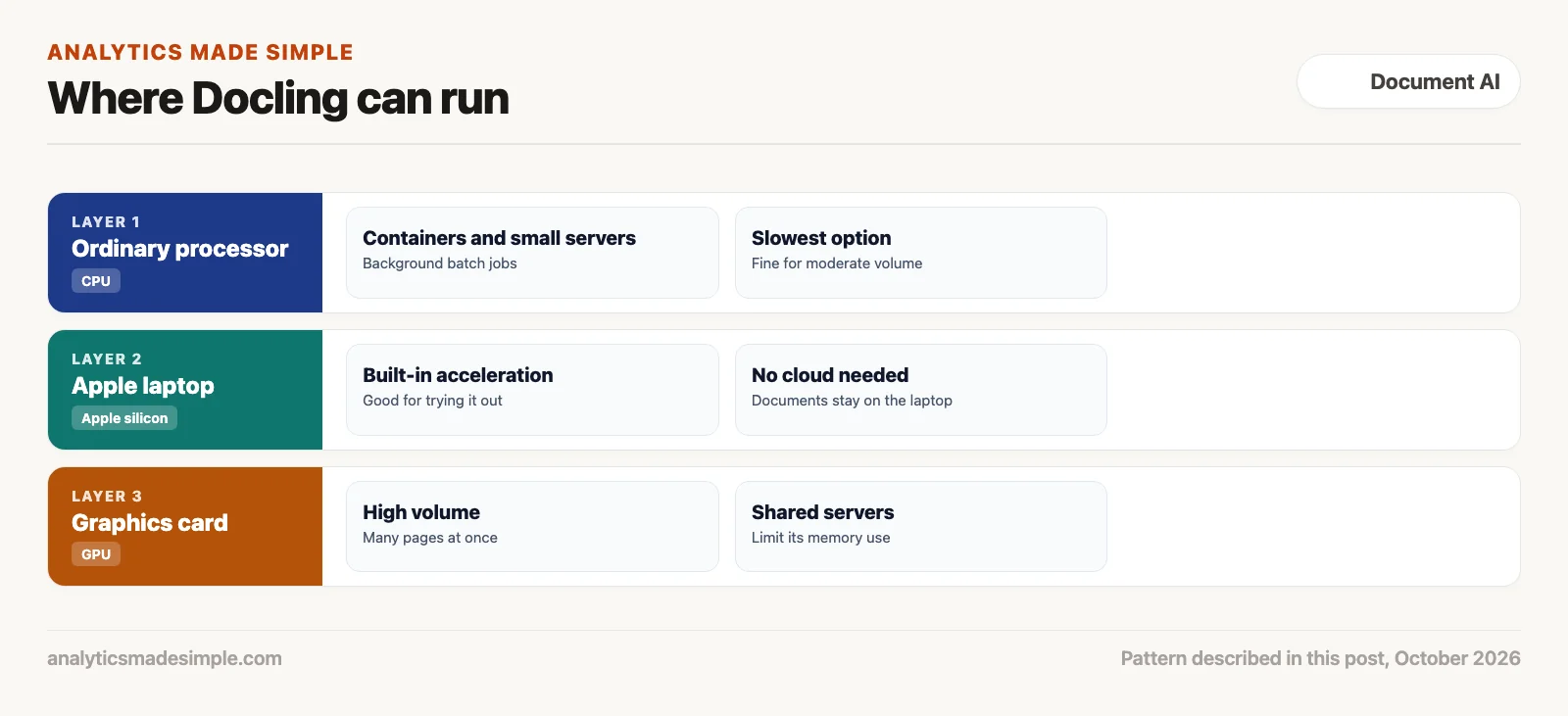
- Ordinary processor: Docling runs on a small server or in a container, a packaged setup that runs the same way on any machine. It is the slowest option, but fine for background batch jobs.
- Apple laptop: It can use the built-in acceleration on Apple chips, which is handy for trying it on your own documents without any cloud setup.
- Graphics card: For high volume, a graphics card processes many pages at once. On a shared server, limit how much of the card’s memory Docling can use.
Speed depends heavily on the document and the settings, so time a sample of your own files before you plan capacity.
How it compares with other open tools
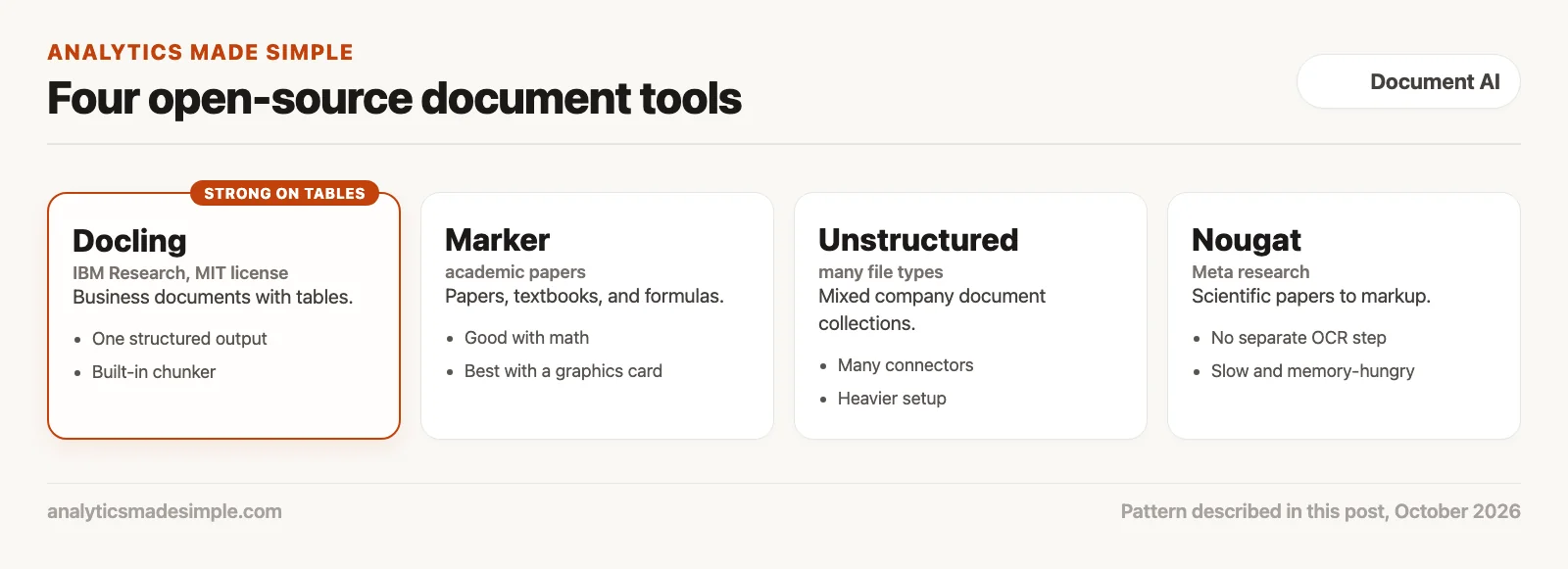
- Docling: Strong on tables and business documents, with one structured output and a built-in chunker.
- Marker: Tuned for academic papers, textbooks, and math formulas. It works best with a graphics card.
- Unstructured: Handles many file types and connects to many storage systems. Setup is heavier.
- Nougat: A research model from Meta that turns scientific papers straight into markup. It is slow and needs a lot of graphics memory.
Convert a PDF with Docling
Here is a Python pipeline, a set of steps that run in order, that converts a PDF with Docling. First, install Docling and the libraries the code uses.
pip install docling pydantic pandasThe script below sets up Docling with accurate table extraction, converts a PDF, pulls each table out as a pandas table, and saves the result as Markdown.
import os
from pathlib import Path
import pandas as pd
from docling.document_converter import DocumentConverter, PdfFormatOption
from docling.datamodel.pipeline_options import PdfPipelineOptions, TableFormerMode
from docling.datamodel.base_models import InputFormat

def build_production_docling_converter(use_gpu: bool = True) -> DocumentConverter:
    # Configures Docling with high-precision table extraction and layout modeling
    pipeline_options = PdfPipelineOptions()

    # Enable deep TableFormer structure extraction
    pipeline_options.do_table_structure = True
    pipeline_options.table_structure_options.mode = TableFormerMode.ACCURATE

    # Configure OCR engine for scanned pages
    pipeline_options.do_ocr = True

    # Enable hardware acceleration if available
    pipeline_options.generate_page_images = False # Save memory if visual crops are unneeded

    converter = DocumentConverter(
        format_options={
            InputFormat.PDF: PdfFormatOption(pipeline_options=pipeline_options)
        }
    )
    return converter

def process_document_locally(pdf_path: str):
    print(f"Initializing local conversion for: {pdf_path}")
    converter = build_production_docling_converter()

    # Execute end-to-end conversion
    conv_result = converter.convert(pdf_path)
    doc = conv_result.document

    print(f"Successfully converted document: {doc.name}")
    print(f"Total Pages: {len(doc.pages)}")

    # Export 1: Clean Layout-Aware Hierarchical Markdown
    markdown_output = doc.export_to_markdown()
    print(f"Generated Markdown length: {len(markdown_output)} characters")

    # Export 2: Extract structured tables as Pandas DataFrames
    extracted_tables = []
    for table_idx, table in enumerate(doc.tables):
        df = table.export_to_dataframe()
        extracted_tables.append({
            "table_index": table_idx + 1,
            "page_no": table.prov[0].page_no if table.prov else 1,
            "dataframe": df,
            "row_count": len(df),
            "col_count": len(df.columns)
        })
        print(f"Table {table_idx + 1} (Page {table.prov[0].page_no if table.prov else 1}): "
              f"{len(df)} rows x {len(df.columns)} columns")

    return {
        "markdown": markdown_output,
        "tables": extracted_tables,
        "document_object": doc
    }
The previous post explained why splitting a document into equal-sized pieces breaks search, because it cuts tables apart and loses headings. Docling includes HybridChunker, which splits by the document’s real structure. The function below uses it and keeps the heading path with each piece.
from docling.chunking import HybridChunker
from typing import List, Dict, Any

def generate_layout_aware_rag_chunks(docling_document, max_tokens: int = 512) -> List[Dict[str, Any]]:
    # Chunks a DoclingDocument while strictly preserving tables and heading context
    chunker = HybridChunker(
        max_tokens=max_tokens,
        merge_peers=True # Merges short sequential paragraphs under the same heading
    )

    chunk_iter = chunker.chunk(docling_document)
    formatted_chunks = []

    for idx, chunk in enumerate(chunk_iter):
        # Extract contextual breadcrumb metadata
        headings = chunk.meta.headings if hasattr(chunk.meta, 'headings') else []
        breadcrumb_path = " > ".join(headings) if headings else "Root Document"

        # Determine source page numbers
        pages = list(set([item.prov[0].page_no for item in chunk.meta.doc_items if item.prov]))
        primary_page = pages[0] if pages else 1

        formatted_chunks.append({
            "chunk_id": f"chunk_{idx + 1}",
            "primary_page": primary_page,
            "breadcrumb": breadcrumb_path,
            "text": chunk.text,
            "token_count": len(chunk.text.split()), # Approximate token count
            "has_table": any(item.label == "table" for item in chunk.meta.doc_items)
        })

    print(f"Generated {len(formatted_chunks)} layout-aware chunks for vector indexing.")
    return formatted_chunks

# Example execution workflow:
# results = process_document_locally("sample_patent_filing.pdf")
# chunks = generate_layout_aware_rag_chunks(results["document_object"])
# for c in chunks[:3]:
#     print(f"[{c['chunk_id']}] Page {c['primary_page']} | {c['breadcrumb']}")
#     print(c['text'][:150] + "...\n")
When this runs, tables stay whole, each piece carries the headings above it, and columns come out in reading order. These code examples need Docling installed and a PDF to convert, so run them on your own machine.
Rules for running it day to day
- Send easy files elsewhere: A clean, single-column digital PDF does not need layout models. Use a lighter tool and save Docling for tables, columns, and scans.
- Save the converted result: Conversion takes time. Store Docling’s output, so changing how you split it does not mean converting again.
- Download models ahead of time: On a machine with no internet access, fetch the model files when you build the setup, not at run time.
- Check samples by hand: Compare a few converted tables with the originals before you trust the numbers.
Quick recap
- Cloud document services bill per page and take documents off your network.
- Docling is an open-source converter from IBM Research that runs on your own hardware.
- Its layout model and TableFormer keep headings, reading order, and tables intact.
- Time and check a sample of your own documents before you switch.

This path is for you if a photo of a receipt or a scanned contract needs to become text you can check, not a guess in a chat. It is the vision and document path: what the model can read, and where a human still has to look. No part is live on this page yet. Start with Practical AI for what not to paste, and come back when part 1 is up.
- 1 How OCR and AI turn photos of paper documents into useful text Build document capture as a pipeline: correct the image, detect text, then extract structure. Classic OCR still matters before any LLM reasons.
- 2 AI vision models vs classic OCR: which to use for reading documents Hybrid document AI: OCR for precise text and numbers, vision LLMs for semantic layout and messy handwriting. Do not let fluent models invent totals.
- 3 How to get clean text out of PDFs and scanned documents with AI Detect PDF type, preserve reading order, and chunk on layout before you embed. Columns and tables break if you slice by character count alone.
- 4 How to extract text from PDFs on your own computer with Docling Run open document tools like Docling on CPU or GPU for private, batch extraction. Keep cloud APIs for spikes that need managed scale.
- 5 How to extract tables, invoices, and form fields from documents with AI Extract structured documents with table geometry plus schema validation. Plain text dumps are not invoice systems. Scheduled · November 25, 2026
- 6 How to have people check AI-extracted document data before you trust it Design document AI with confidence scoring and human review queues. High softmax alone is not a payment authorization. Scheduled · December 4, 2026
- 7 How to remove private data from documents before an AI tool reads them Sanitize document AI inputs at the byte layer before OCR or LLM vision. Overlays and cloud defaults are not enough for PHI, PII, and regulated filings. Scheduled · December 14, 2026
- 8 When a phone scanner app is enough to turn paper forms into data Use good lighting and a scanner app when field capture quality matters more than fancy models. Save heavy document AI for pages that still fail after clean scans. Scheduled · December 23, 2026
Your next step this week
Pick ten PDFs your team handles often, including a few with tables. Install Docling, convert them on your own computer, and compare the tables with the originals. Note how long it took. That tells you whether moving routine work off the cloud is worth it for you.
Series notes
This is Part 4 of Vision OCR extraction from scratch. Previous: PDF and scan pipelines. Next: tables and invoices.
Sources
- Docling on GitHub.
- Christoph Auer and others, Docling Technical Report, 2024.
- Birgit Pfitzmann and others, DocLayNet: A Large Human-Annotated Dataset for Document-Layout Analysis, 2022.
- Marker and Unstructured on GitHub.
- Lukas Blecher and others, Nougat: Neural Optical Understanding for Academic Documents, 2023.
- Amazon Web Services, Textract pricing, and Google Cloud, Document AI pricing.
Keep going
Same lessons in your feed
Short diagrams, hooks, and weekly tutorials on Substack, Instagram, X, and Facebook.