LM Studio is a free desktop app that lets you run AI models on your own computer by clicking, not typing commands. It shows you which models fit your computer, lets you adjust settings with sliders, and can share the model with your other programs. You still need to choose memory settings with care.
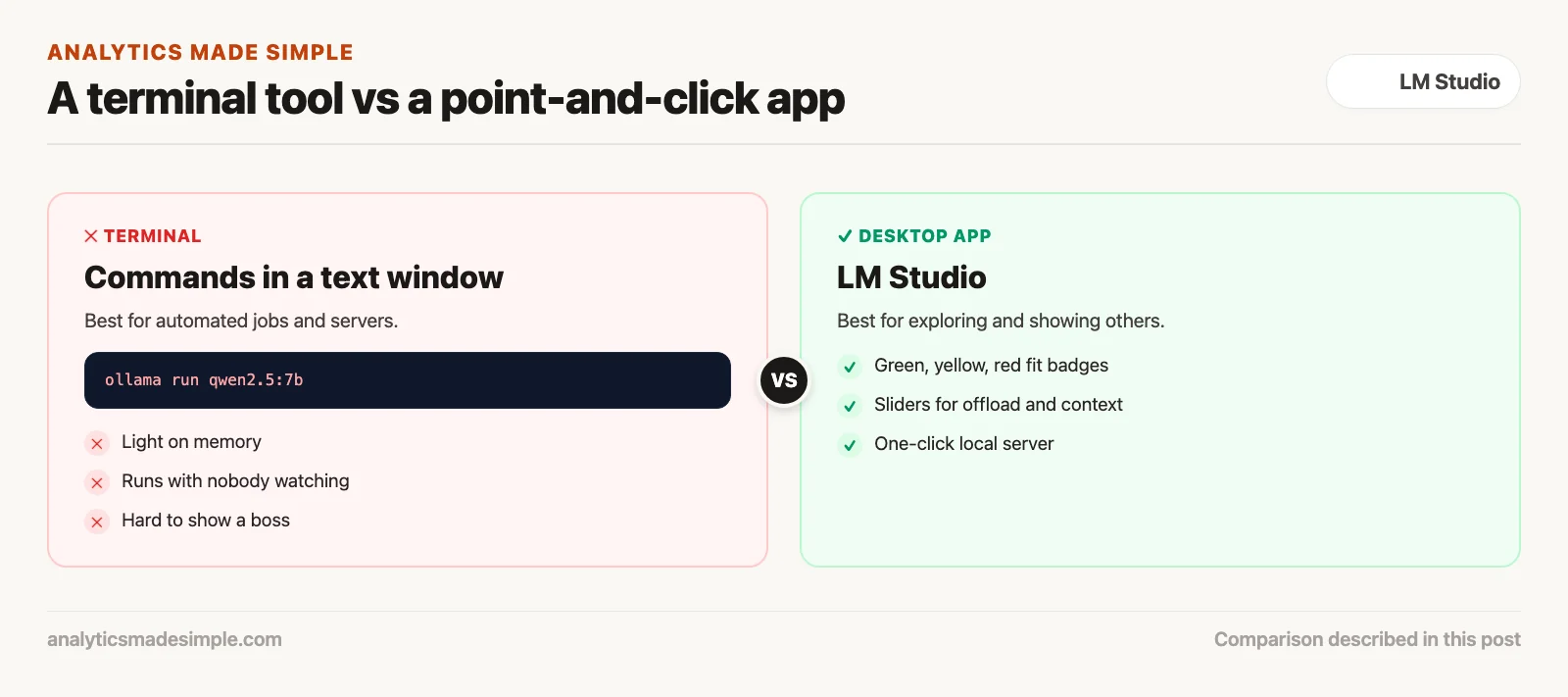
Imagine you want to show your boss that a private AI model can safely read confidential documents on a laptop. You open a black command window and type cryptic commands. Your boss stares at a blinking cursor, unsure whether anything is happening, and loses interest. Now picture opening a normal-looking app instead, with a chat window, a memory meter, and a search box for models. Same model, same laptop, but this time your boss leans in.
LM Studio (LM is short for language model) is one of several apps like this, sometimes called graphical apps because you use them by clicking instead of typing commands into a plain text window. This post covers why they help, how to pick and load a model, the two settings that matter most, how to connect other programs, and which app suits which team.
Why a point-and-click app helps with local AI
Running an AI model uses a big, changing chunk of your computer’s memory. A good app shows you that up front, so you do not crash your computer by guessing.
Most programs barely touch your computer’s resources. A typical app might use a few hundred megabytes of memory, and you never think about it.
An AI model is different. A mid-size model grabs somewhere between 6 and 32 gigabytes of memory at once. That number also grows as you chat. The model keeps working notes on everything in the conversation, so a model using 8 gigabytes at rest can jump to 11 gigabytes after you paste in a long document. Guess wrong, and your computer freezes.
A good desktop app helps in four ways.
- It checks before you download. The app reads your computer’s hardware and the model’s details, and tells you whether it will fit in your graphics card’s memory (called VRAM) before you spend half an hour downloading a 20-gigabyte file.
- It explains file versions for you. The same model comes in several shrunk versions with codes like Q4_K_M. Shrinking a model, by storing its numbers with less detail, is called quantization. Instead of making you learn the codes, the app shows each version’s size and how much memory it will use.
- It gives you sliders. You can change settings like temperature, which controls how adventurous the answers are, and see the effect right away without restarting anything.
- It can share the model with one click. A built-in server lets your other programs, like a code editor or a script, use the model on your computer.
How these apps are built
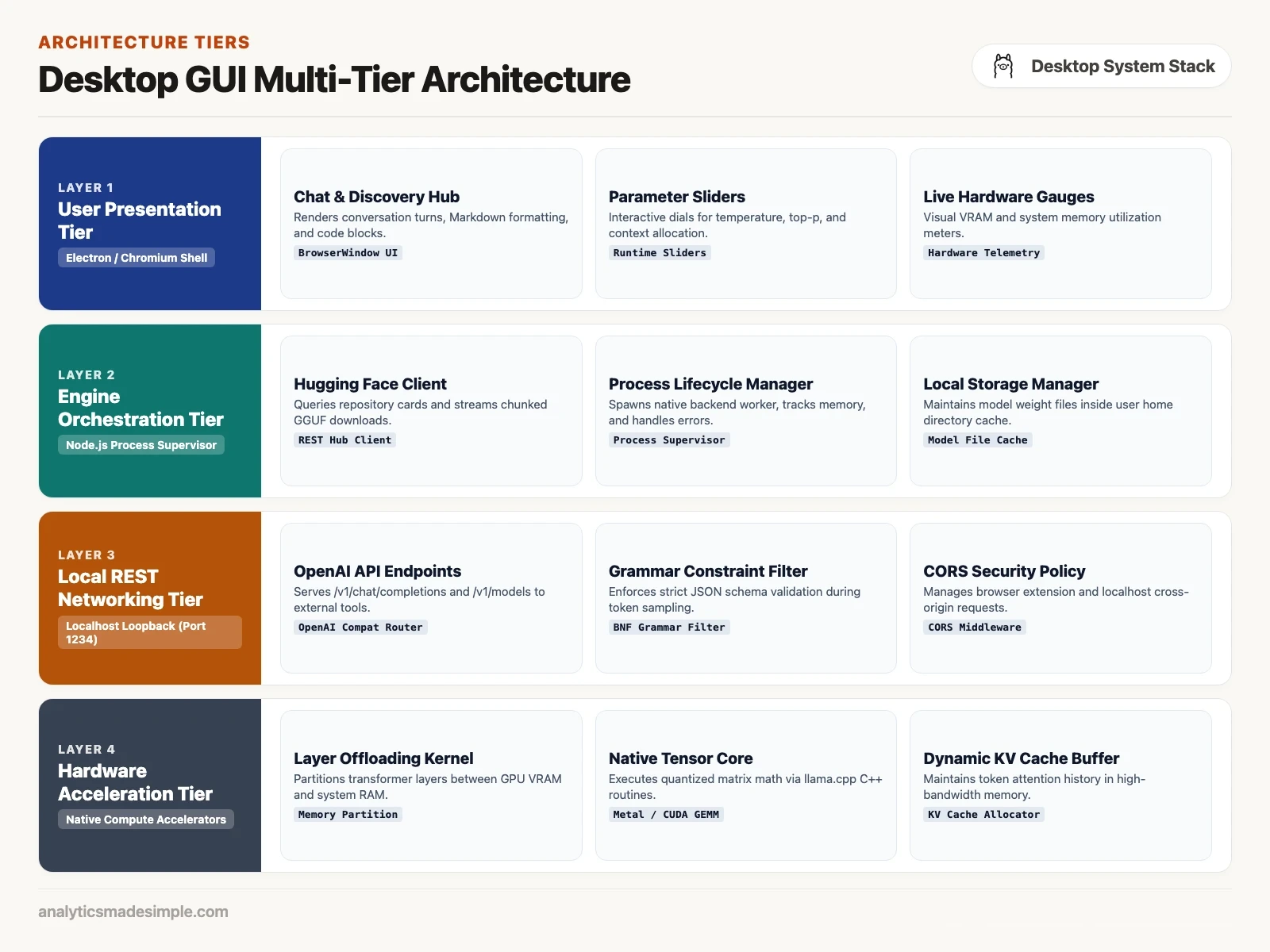
Apps like LM Studio keep the part you click on separate from the part that runs the model. That keeps the app steady, even when the model crashes.
The part you see, the chat window and settings, is usually built with Electron, the same web-based toolkit many desktop apps use. It looks and works the same on Mac, Windows, and Linux.
The heavy work happens in a separate, fast program. Many of these apps use llama.cpp, a free engine for running models that the next post in this series covers.
That split matters. If a request is too big for your hardware, the engine can crash on its own without taking down the whole app. The app notices, frees the memory, and shows you a plain message, and your saved chats stay safe.
Finding and loading the right model
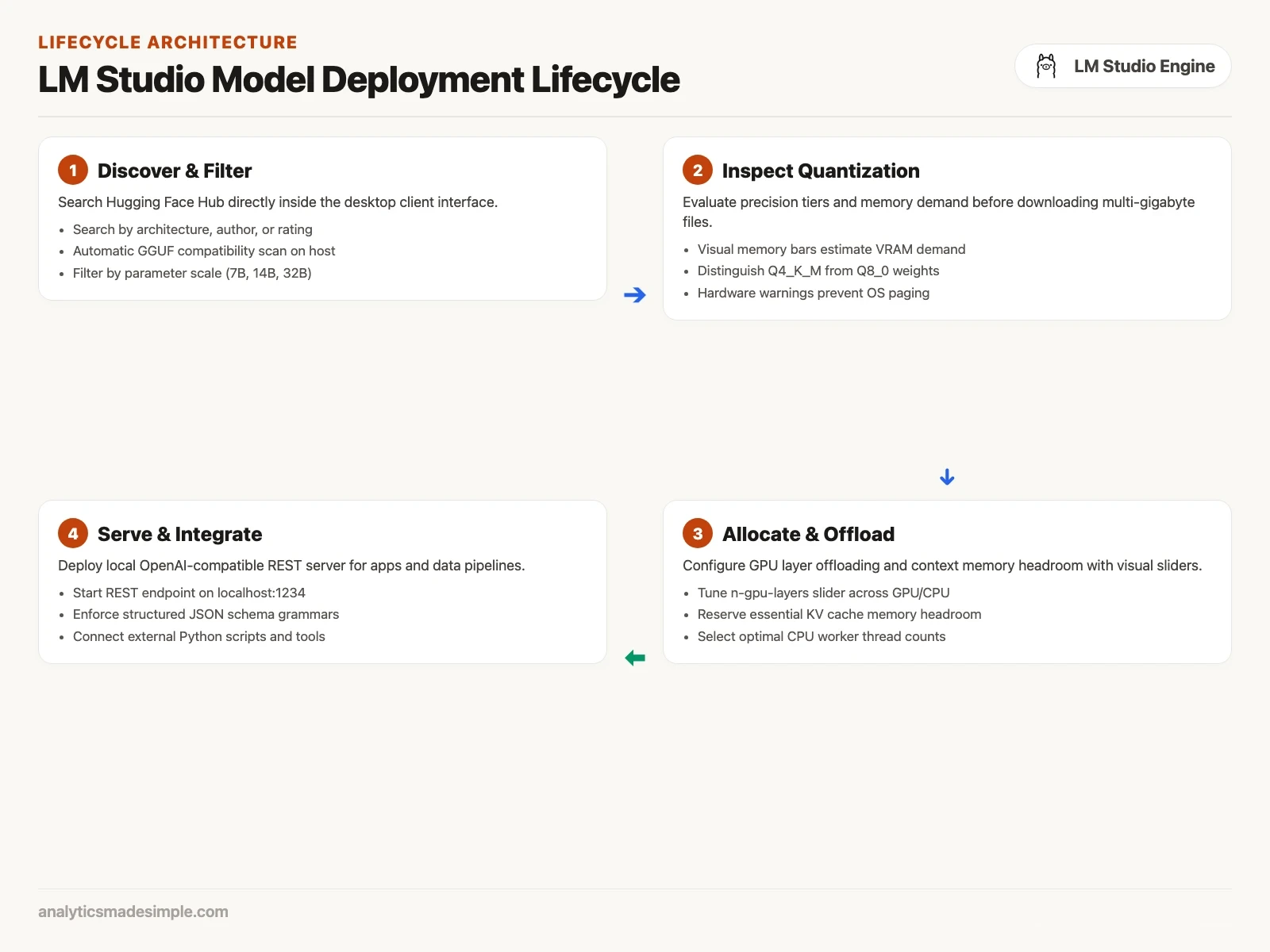
LM Studio searches Hugging Face for you and marks each model green, yellow, or red based on whether it fits your computer.
Finding the right file is one of the most confusing parts for a newcomer. Search Hugging Face, the biggest site for sharing AI models, for a popular model like Qwen3.5 9B, and you get hundreds of results. Some are too big for a normal computer. Others are experiments with odd names.
LM Studio has a search tab that looks through Hugging Face for you and shows only files it can run. Pick a model, and it lists every shrunk version with a colored badge based on your own hardware.
- Green means the model fits entirely in your graphics card’s memory, or in the shared memory on an Apple computer. It runs at full speed.
- Yellow means it is a little too big. The app can put part of the model on the graphics card and run the rest on your main processor. It is slower, but it works.
- Red means it is bigger than all your memory put together. Running it anyway means a frozen computer and painfully slow answers.
For everyday work, a good default is a model with 7 to 14 billion parameters, the numbers a model learns in training, in the Q4_K_M version. As of October 2026, models like Qwen3.5 9B or Ministral 3 8B come as Q4_K_M files of about 5 to 6 gigabytes (checked October 4, 2026), and need a little more memory than that while they run. They run well on a laptop with 16 to 32 gigabytes, and they handle sorting, summaries, and pulling details from text quite well.
The two settings that matter most
Before you start chatting, check two settings: how much of the model runs on your graphics card, and how much text it can hold at once.
The first setting is often labeled GPU offload. The GPU (graphics processing unit) is your graphics card. A model is built from a stack of layers, often somewhere between 28 and 80 of them. Slide the setting all the way up, and every layer runs on the graphics card, which is fastest.
Say your graphics card has 8 gigabytes and your model needs about 9. Full offload will fail. Slide it back so roughly half the layers go on the graphics card and the rest run on the main processor, the CPU (central processing unit). It runs slower, but a model that would not fit now works.
The second setting is context length: how much text, measured in tokens, the model can hold at once. A token is a small chunk of text, about three-quarters of a word. Many models advertise room for 32,000 or even 128,000 tokens, and new users often slide this to the maximum. That is a mistake.
The model’s working notes grow with the context length. For a typical 8B model, 32,000 tokens of notes can take about 4 gigabytes on top of the model itself. On a 16-gigabyte laptop, a huge setting can use up your memory and crash the app mid-chat. For normal back-and-forth, around 4,000 to 8,000 tokens is plenty. Raise it only when you need the model to read one long document.
Letting other programs use your model
LM Studio can run a small server on your computer that copies OpenAI’s request format. Many tools built for OpenAI can then use your local model instead.
Chatting is useful on its own. The bigger payoff comes from LM Studio’s server mode.
Click Start Server, and LM Studio opens a local address, usually http://localhost:1234, that only your own computer can reach. It follows the same layout as OpenAI’s online service closely enough that other tools work with it. It offers three main addresses:
/v1/modelslists the model you have loaded./v1/chat/completionstakes a conversation and returns the answer./v1/embeddingsturns text into lists of numbers for search, if you load a model built for that.
This matters more than it sounds. Any tool, script, or browser add-on that lets you change its OpenAI address can now point at your own computer instead. To that tool, your laptop looks like OpenAI, and your data never leaves your device.
Getting clean, machine-readable answers
Small models often add chatty extras around the answer you asked for. LM Studio can force them to reply in an exact format.
Programs often want answers in JSON, a fixed format of labeled values that software can read. Big online models usually get it right. A small local model will often start with “Sure, here is the JSON you asked for,” which breaks the program reading it.
LM Studio can fix this inside the engine. You give it a schema, a description of exactly what the answer must look like. As the model picks each next piece of text, the engine blocks anything that would break the format.
So if the format says the next character must be an opening brace, the model cannot type anything else. That makes even a small, heavily shrunk model produce valid output every time. See LM Studio’s documentation for how to set a schema (checked September 2026).
Other desktop apps worth knowing
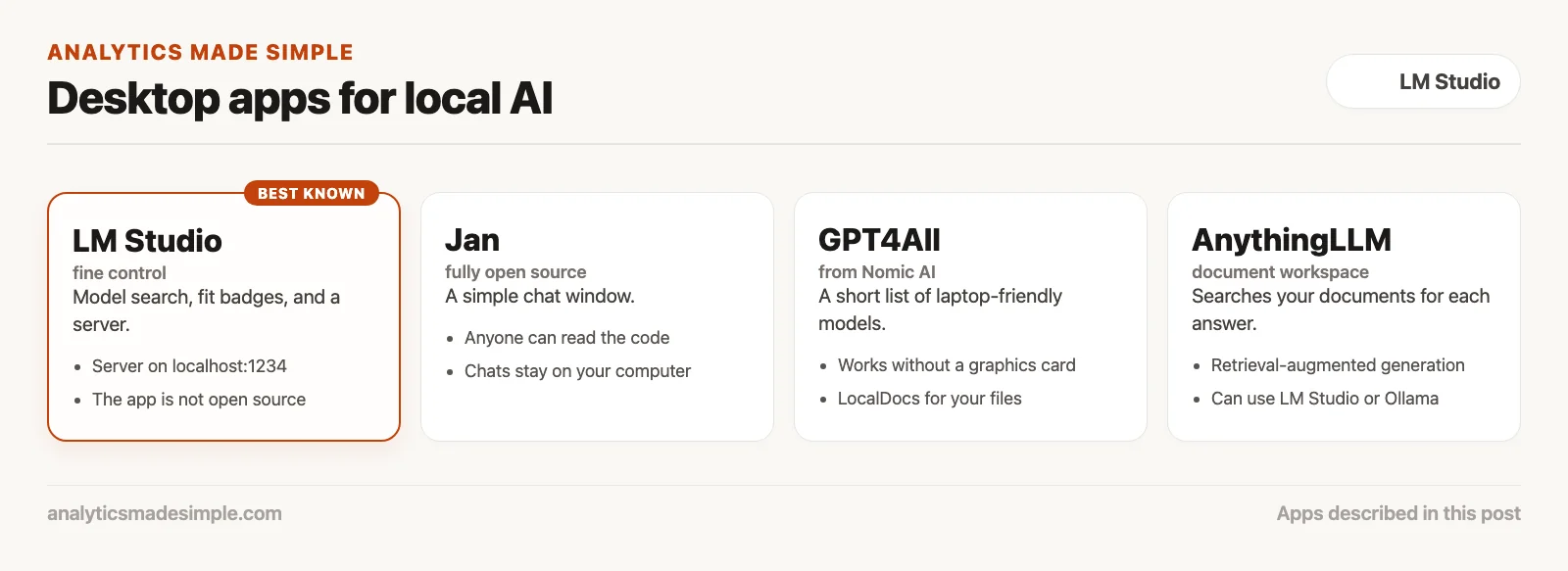
LM Studio is the best known, but it is not the only choice. The right app depends on your team’s rules about open source software, how much you work with documents, and your hardware.
- LM Studio suits people who want fine control over which model file they use and how it runs. Its model search and server are both strong. One catch: the app itself is not open source, which some companies’ rules do not allow.
- Jan is fully open source, so anyone can read its code. For teams whose rules require that, it is the natural pick. It has a simple chat window and keeps your conversations on your computer.
- GPT4All, from a company called Nomic AI, is made for people who do not want to think about file versions at all. It offers a short list of models that run on ordinary laptops, even without a graphics card. Its LocalDocs feature lets you point it at a folder of files and ask questions about them offline.
- AnythingLLM is built for teams with lots of documents. It is a full workspace that stores your documents in a searchable form and pulls the right passages into each answer, a method called retrieval-augmented generation. It can use LM Studio or Ollama to run the model.
A Python example for talking to LM Studio
Because LM Studio copies OpenAI’s format, a Python program can talk to it using OpenAI’s own free library. This one sends a request and prints the answer as it arrives.
First, start the server inside LM Studio and load an instruction-following model, like Qwen3.5 9B. Then run this:
import time
import json
from openai import OpenAI

# Point client to the local LM Studio REST endpoint
# The api_key parameter is required by the SDK but ignored by LM Studio
client = OpenAI(
    base_url="http://localhost:1234/v1",
    api_key="not-needed"
)

# Verify server connectivity and fetch loaded model identifier
try:
    models_response = client.models.list()
    loaded_model_id = models_response.data[0].id
    print(f"Connected to local server. Active model: {loaded_model_id}")
except Exception as e:
    print(f"Failed to connect to LM Studio. Ensure server is started: {e}")
    exit(1)

# Define an analytical input payload
financial_excerpt = """
Quarterly Operations Report - Q3 2026
Division: North American Freight Operations
Operating Revenue: $142.8 million (up 8.4% YoY)
Diesel Fuel Expense: $38.2 million (impacted by Midwest refining disruptions)
Maintenance Fleet Outages: 14% of long-haul tractors grounded for emissions retrofits
Headcount Adjustments: Reduced 120 seasonal contractor positions in dispatch
Operating Margin: Compressed to 11.2% from 14.1% in prior year period
"""

system_instructions = (
    "You are a corporate forensic financial analyst. Extract operational risks, "
    "financial metrics, and headcount changes. Respond in concise bullet points "
    "with exact numerical values. Avoid introductory filler."
)

print("\n--- Streaming Analysis from Local Engine ---\n")
start_time = time.time()
token_count = 0

stream = client.chat.completions.create(
    model=loaded_model_id,
    messages=[
        {"role": "system", "content": system_instructions},
        {"role": "user", "content": f"Analyze this operational summary:\n{financial_excerpt}"}
    ],
    temperature=0.2,
    max_tokens=600,
    stream=True
)

for chunk in stream:
    delta_content = chunk.choices[0].delta.content
    if delta_content:
        print(delta_content, end="", flush=True)
        token_count += 1

elapsed = time.time() - start_time
throughput = token_count / elapsed if elapsed > 0 else 0
print(f"\n\n--- Telemetry: {token_count} tokens in {elapsed:.2f}s ({throughput:.1f} tok/sec) ---")
Common problems, and when to switch to something else
A desktop app makes local AI much easier, but a few problems come up often.
- Trouble after sleep. If your computer sleeps with a model loaded, the graphics card may quietly clear its memory. After waking your laptop, unload and reload the model before you ask anything.
- Slowdowns over a long day. Switching between many models without closing the app can leave memory cluttered. If it feels slower by afternoon, restart the app.
- The app itself uses memory. The window and controls take some memory of their own. On a big desktop, that does not matter. On a 16-gigabyte laptop, it can decide whether a model fits.
When should you stop using a desktop app? When the work no longer needs a person watching. Running jobs overnight, sharing a model on a company server, or building AI into an automated process all call for a tool with no window, like Ollama or a plain llama.cpp server. They use less memory, restart on their own, and fit neatly into server setups.
Common questions
Does LM Studio send my documents to a company server? No. Once the model is downloaded, it runs entirely on your computer. It only goes online to search for and download models. Turn off your Wi-Fi, and it keeps working the same way.
Can I use a model I downloaded in LM Studio with Ollama or llama.cpp? Yes. LM Studio saves models as standard GGUF files, a common file format for shrunk models, in a models folder you can find in the app’s settings. Other tools can load those same files, so you do not need to download them again.
Why does it slow down during a long chat? Before each answer, the model has to take in everything already in the conversation. As the chat grows, that takes longer. Starting a fresh chat, or trimming old messages you no longer need, keeps it quick.
Can I run two models at once? Yes, as long as your memory can hold both. The app shows your total memory use, so you do not overload your computer.
What comes next
An app like LM Studio makes one of the most demanding kinds of software usable by anyone with a decent computer. Whether you are reviewing private files, reading research, or trying out an idea for work, it gives you a quick, private way in.
Underneath the friendly window sits a fast, free engine that powers most of the local AI world. The next post covers that engine, llama.cpp.
Your next step
Install LM Studio, search for a 7B or 8B model in Q4_K_M, and check that its fit badge is green on your computer. Load it and ask it to summarize a document you know well. A green badge and a correct summary mean your setup is ready for real work.
Sources
- LM Studio, app documentation and developer documentation, checked October 4, 2026.
- Jan, documentation, checked October 4, 2026.
- Nomic AI, GPT4All, checked October 4, 2026.
- Mintplex Labs, AnythingLLM documentation, checked October 4, 2026.
- Model files: Qwen3.5-9B GGUF and Ministral 3 8B GGUF on Hugging Face, checked October 4, 2026.
Series notes
This is Part 5 of Local LLMs from scratch. The previous post covered Ollama. Next: llama.cpp, the engine running under most of these apps, including Georgi Gerganov’s C++ codebase, memory mapping, and how the math runs on bare metal without Python or the cloud.
Keep going
Same lessons in your feed
Short diagrams, hooks, and weekly tutorials on Substack, Instagram, X, and Facebook.