
The safest way to use an AI coding agent (an AI tool that takes several steps on its own to finish a task) is to explore first, change one function, and then run a three-row check. If you only type a wish like “make the export work,” the agent may change fourteen files and leave the date bug exactly where it was.
Say a file of shipping dates you send to your warehouse has just been rejected, 327 rows of it. Every bad cell looks like 08/18/26, and the warehouse needs the date to read 2026-08-18. You open Grok Build, type “make the export work,” and fourteen files change.
Menu labels in the tool move around, so re-check the Grok Build overview the week you teach this to a teammate. You can also run the same words without the screen using grok -p (the headless mode), but that does not make a sloppy prompt any safer.
The loop on one card
Grok Build is useful when you already have a folder and a specific mess, and it is a poor “do my job” button. The 327-row rejection is a specific mess. “Make the export work” is not a plan at all, because it is only a wish.
Use four beats, in order:
- Ask with a boundary. Name the symptom, the file you suspect, and what the agent must not touch.
- Explore before any edit. Have it list every place that calls the function, print the current code, and quote the scanner contract, with no writing allowed.
- Change one thing, so if the result breaks you know exactly what caused it. That means one function, one format string, and one test. Use plan mode if the agent wants to give you a tour first.
- Check. Run the small example, open the diff (the list of what changed), and restore anything extra. Then stop, or start a new loop.
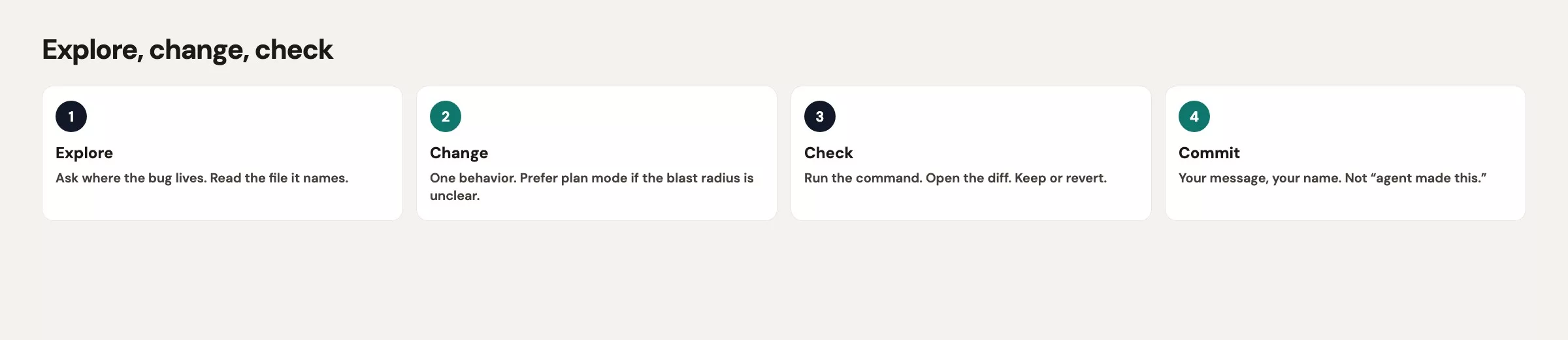
If you skip the explore step, you get the 14-file patch. The model is trying to be helpful, and helpful agents with no limits will rewrite your logging “while they are here.” Your review budget on a bad morning is not 14 files. It is one function and a three-row printout.
Git still sits under the loop. Commit or stash your work before you start if the branch already has other changes, because if the agent goes wide, running git restore on the extra paths is faster than arguing with it in the terminal interface (the text screen Grok runs in, called the TUI). Rollback is a git job, and the next post in this series spends more time on it. For now, treat a clean git status as part of the check.
Explore with @ files
The TUI lets you point at a file path with @. The official first-run examples look like @src/main.rs Walk me through this file. The same idea works in a Python export folder: name the file, then ask a question that does not require any writing.
Good explore prompts are nosy and small.
@exports/csv_writer.py Find every function that writes ship_date.
Quote the current format string.
List other files that call format_ship_date.
Do not edit anything.
That prompt does four jobs at once. It pins the file, names the function, and asks for callers so you learn whether the bug is local, and it forbids edits. If the answer says the only caller is write_shipments_csv in the same file, you have a one-file change. If it says eight packages import the function, you still change just one function, but you plan a wider check afterward.
Bad explore prompts hand the agent a mood instead of a target.
This export is a mess. Clean it up so warehouse stops yelling.
Also tidy anything that looks old.
“Tidy anything that looks old” is how Dockerfiles get moved around. The scanner does not care about your base image, because it only cares about YYYY-MM-DD.
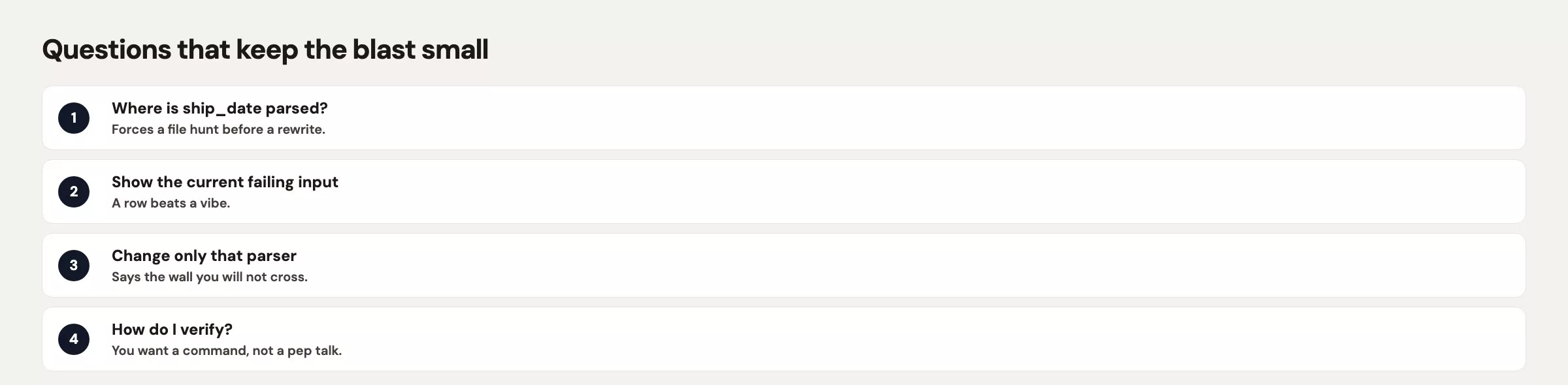
If the project is larger than one file, keep the explore step in plan mode. Typing /plan and adding “no file edits until I approve” stops the agent from fixing things while it reads, and Shift+Tab cycles through modes in the TUI. On a morning when 327 rows are already wrong, use the ask-and-watch permission setting. Auto-approve is for a later day, on a folder you trust, after this loop has become a habit.
Read the explore answer out loud. If you cannot point at a single function after hearing it, you are not ready to change code, so ask again and attach another @ file. Do not reward a vague map with “ok, implement.”
Change one thing
Once the explore step names format_ship_date, the change prompt should be almost boring.
@exports/csv_writer.py Change format_ship_date so it returns YYYY-MM-DD.
Do not change logging, Docker, or other modules.
Do not add dependencies.
Show the diff for this file only.
Notice what is missing from that prompt. It never says “improve readability,” “while you are in there,” or “use best practices,” because those phrases are permission slips for extra files.
If the agent proposes a helper module, a new date library, and a settings flag, say no. The scanner contract is a format string, and a format string does not need a platform. You can add tests once the function is right, and you can restyle the file in a second loop if you still care at lunch.
One change also means one commit later. Mixed commits (a date fix, a logger change, and a Docker (a tool that packages an app so it runs the same on any machine) edit together) are how the 14-file disaster lands in your main branch, because a reviewer checked the date line and missed the base image.
Check: run, test, open the diff
A green-looking message in the TUI is not a check. A real check is something you can see without trusting the model’s summary, and these four steps give you that.
- Run the function on three known dates and print the strings, because dates you already know the answer to show a wrong format at once.
- If the project has tests, run the narrow test file first, not the whole suite.
- Open
git diffyourself and count the files, and if the count is not 1, stop. - Restore the extra paths and keep only the one change you asked for.
Here is a check prompt you can paste after the edit:
Run a three-row toy for format_ship_date using
2026-08-18, 2026-08-19, and 2026-01-05.
Print input, output.
Do not write more files.
Then stop.
Then leave the TUI (or open a second terminal) and run git yourself:
git status
git diff --stat
git diff exports/csv_writer.py
These three git commands show which files changed, how many lines changed in each, and the exact lines changed in the CSV writer. Run them yourself, outside the AI tool, so you check the real changes instead of the tool’s summary of them.
If git diff --stat lists 14 paths, the loop failed even if the date string is now correct. Restore the extras and keep the date fix. The Dockerfile does not get a free ride just because the model was “already in the project.”
A note on headless mode. Running grok -p "make the export work" is the same wish with fewer chances to say no. Do not move this loop into continuous integration (CI), the automated checks that run on every change, until the prompt names a file and forbids extra writes, and you have a test that fails on 08/18/26.
A worked toy example: format ship_date
Here is the whole bug in one function. The warehouse database already stores dates in year-first format, but the writer converts them to a US short date because someone once opened the CSV in Excel and wanted slashes. The scanner at the dock is not Excel.
Before:
from datetime import datetime

def format_ship_date(value):
    """value arrives as YYYY-MM-DD from the warehouse DB."""
    parsed = datetime.strptime(value, "%Y-%m-%d")
    return parsed.strftime("%m/%d/%y")

samples = ["2026-08-18", "2026-08-19", "2026-01-05"]
for raw in samples:
    print(raw, "->", format_ship_date(raw))
This is what that prints on the morning of the 327 rejected rows:
| input | before | scanner |
|---|---|---|
| 2026-08-18 | 08/18/26 | reject |
| 2026-08-19 | 08/19/26 | reject |
| 2026-01-05 | 01/05/26 | reject |
After. It is the same function with one format string, no new package, and no extra files.
from datetime import datetime

def format_ship_date(value):
    """Scanner contract: YYYY-MM-DD only."""
    parsed = datetime.strptime(value, "%Y-%m-%d")
    return parsed.strftime("%Y-%m-%d")

samples = ["2026-08-18", "2026-08-19", "2026-01-05"]
for raw in samples:
    print(raw, "->", format_ship_date(raw))
This is what the code prints after the one-line change:
| input | after | scanner |
|---|---|---|
| 2026-08-18 | 2026-08-18 | accept |
| 2026-08-19 | 2026-08-19 | accept |
| 2026-01-05 | 2026-01-05 | accept |
Yes, the “after” function reads a year-first date and writes a year-first date. That looks silly until you remember that the old version existed to please a human in Excel. If you still need a slash column for a person, add a second field later in a second loop, and do not squeeze both needs into one column and then ask the agent to “make everyone happy.”
A full first session on this toy goes in this order:
- Copy the before function into
~/sandbox/warehouse-export-toy/exports/csv_writer.py. - Open that folder in a terminal, then run
git addand commit so you have a restore point. - Start
grokand stay on ask-and-watch, using plan mode if the agent gets chatty. - Paste the explore prompt with
@exports/csv_writer.py. - Paste the one-function change prompt.
- Run the three-row script (a small program) and compare it to the after table.
- Run
git diff --stat. You should see one file, and if not, rungit restoreon the extras.
That is the whole skill. The 14-file version feels faster for thirty seconds, and then you spend the morning unscrewing a logger.
Common mistakes
| Mistake | What you get | Fix |
|---|---|---|
| Skip explore | 14-file “cleanup” around a one-line bug | Read-only map first, then one change |
| “Tidy anything old” | Dockerfile and logging in the same diff | Name the function. Forbid other paths |
| Trust the TUI summary | Missed extra files | git diff --stat in your own terminal |
| Check only on the happy date | January still serializes wrong | Three rows, including an early month |
| Headless wish on CI | Same mess, no one watching | Keep grok -p off this job until the test exists |
Quick recap
- Ask with a boundary, explore with
@files, change one thing, and check with a run plusgit diff. - Forbids are part of the prompt: no logging, no Docker, and no extra modules.
- A three-row printout beats a confident paragraph in the TUI.
- If
git diff --statis not one file, restore the extras before you continue. - Save headless
grok -pfor a prompt that has already survived this loop in the TUI.
How to practice this week
Rebuild the toy folder from the earlier post on installing Grok Build and drop in the before function. Run the loop once without letting the agent leave csv_writer.py. If you already have a real export bug, do only the explore step on that project today, and make the change tomorrow, once you can name the function in a chat message without opening the file.
The next post in this series covers Grok Build tools, skills, and agent workflows. That is where AGENTS.md (a plain text rules file the agent reads), skills, plugins, extra tool servers called MCP (Model Context Protocol), and helper agents start to matter. Learn the loop first, because a pile of extra tools on top of “make the export work” is how nine tool servers end up attached to a date-format ticket. You can find the whole list in the Grok series.
Series notes
This is Part 17 of the Grok series. Previous: Grok Build install. Next: Tools, skills, and agent workflows.
Sources
- xAI docs: Grok Build overview (first prompts,
@files, TUI vsgrok -p) - xAI: Grok Build (product home and install entry)
- xAI: Introducing Grok Build (plan mode, diffs after approve, headless note)
- xAI docs: Grok 4.6 (model family behind Build, checked August 2026)
- xAI: Grok FAQ (labels and plan questions to re-check)
- Analytics Made Simple: Learn (related tutorials on this site)
Keep going
Same lessons in your feed
Short diagrams, hooks, and weekly tutorials on Substack, Instagram, X, and Facebook.