An AI helper inside your code editor is a different product from the Gemini chat app. The two have different licenses, different usage limits, and different ways of breaking. Before you install anything, find out which one your account covers, whether it is a personal plan for a side project or a seat from work, and never treat a video that promises “10x” as a promise about your account.
Say you are building a small Android app for your running club, and you install an AI extension in your editor because a video promised “10x” speed. Two weeks later the extension refuses your requests. Your personal Google AI Pro plan no longer covers that path, yet a friend who uses it through work still gets completions. Nobody lied. Gemini coding tools are sold in several editions, and mid-2026 was a year of transition between the personal and enterprise paths. Meanwhile you are tempted to paste your code into the regular chat app to “just finish it,” which is the worst way to solve the problem.
An editor assistant is not the Gemini chat app
A chat app is built for conversation. An assistant inside an integrated development environment (IDE, the program where you write and run code) works next to your project files. It finishes lines as you type and answers questions with your code in view. It can also explain or rewrite selected code, and sometimes it helps with pull requests, which are changes someone reviews before they are merged, on a team or in an open-source project you help with. You stay in Visual Studio Code, a JetBrains editor, Android Studio, or a cloud editor. The model behind it may still be Gemini. The packaging, the usage limits, and the login are all different.
Code Assist in plain words
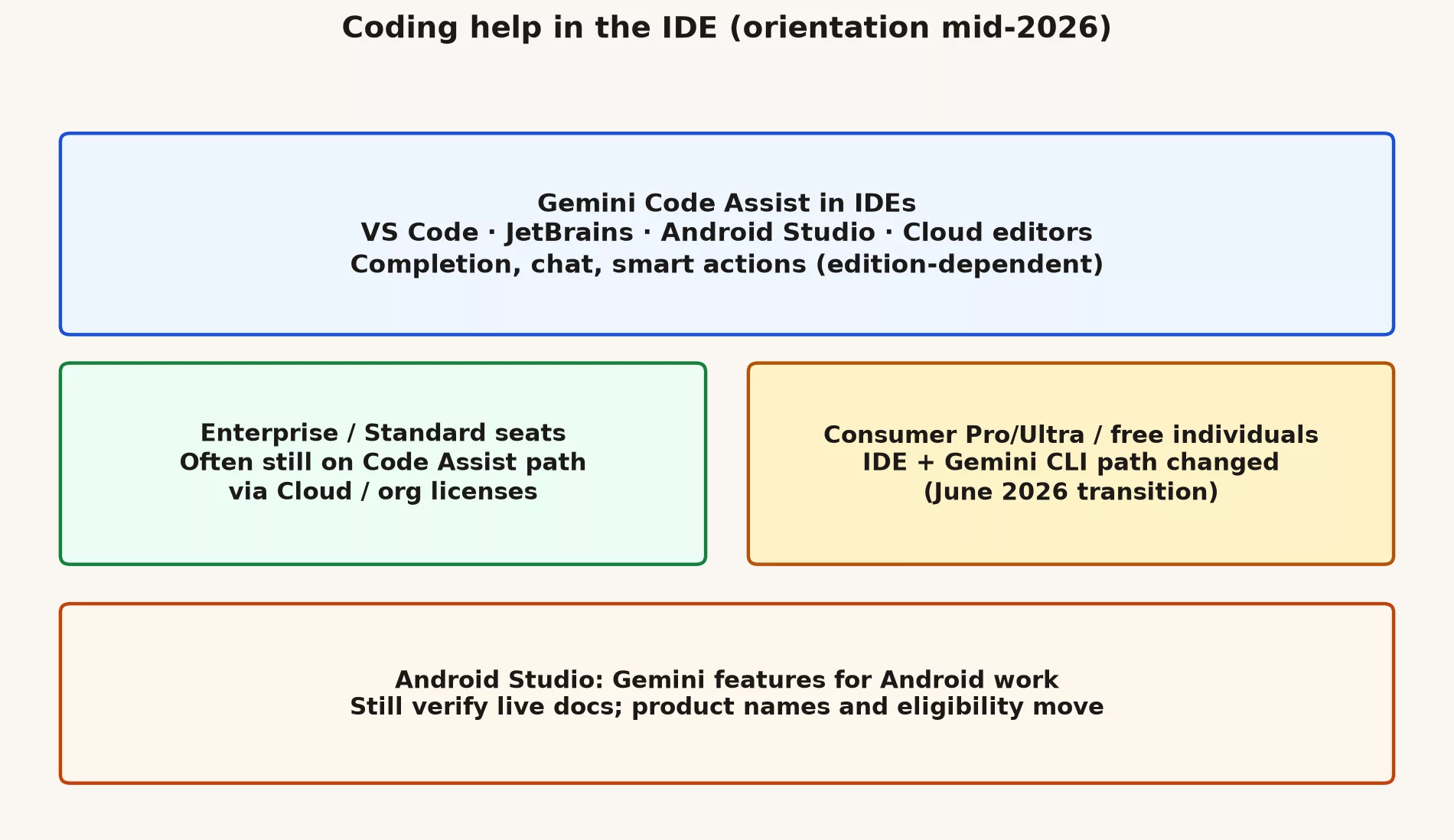
Google’s documentation describes Gemini Code Assist as AI coding help inside supported editors. Past examples include Visual Studio Code, JetBrains editors such as IntelliJ and PyCharm, Android Studio, Cloud Shell Editor, and Cloud Workstations. Most editions offer some mix of these:
- Inline code completion and generation inside a project.
- A chat that knows about the codebase you have open.
- Smart actions you can run on code you have selected.
- Slash-style commands in some editors.
- Company-managed editions, which come with their own usage limits and admin controls.
The exact list of features depends on whether you have the Standard, Enterprise, or an individual edition. Open the current overview page for your edition before you assume a friend’s setup works the same way on your account.
The Android Studio angle
Android developers usually meet Gemini through Android Studio, which has its own Gemini overview pages. The jobs are familiar, such as explaining, generating, and rewriting code, but they work with the context of an Android project. Treat Studio as a full editor in its own right and not as a plugin bolted on later. If your company standardizes on Android Studio, train people in that screen, because a demo recorded in another editor will not match what they see.
The 2026 change for personal accounts
Google announced that it would merge its agent tools for developers into Google Antigravity. An agent here is an AI that takes steps on its own, such as editing files. The merge includes a terminal tool called Antigravity CLI. (CLI stands for command line interface, a text window where you type commands.) Google’s developer blog gave a date. On June 18, 2026, Gemini CLI and the Gemini Code Assist IDE extensions would stop answering requests for Google AI Pro and Ultra plans and for free individual access. Related notes also changed how many non-enterprise users install Gemini Code Assist for GitHub.
The help pages Google published after that date say access has stopped for individual, Pro, and Ultra users. They point those people to a guide for moving to Antigravity CLI. Enterprise and Standard licenses bought through Google Cloud or a company agreement were described as staying supported on the older tools. Paid API keys also appear in the “still works” notes. (An API key is a password that lets your own program call Google’s models.) Treat all of this as a snapshot checked on October 2, 2026. Your company’s setup may differ. Read the live pages on shutdowns and migration before you rewrite any onboarding document.
| Who you are (roughly) | What to verify first | Likely direction |
|---|---|---|
| Enterprise / Standard org seat | Admin docs + Code Assist edition | Often continue IDE Code Assist under org license |
| Personal AI Pro / Ultra power user | Deprecation + Antigravity download/migration | Terminal/agent path may have moved off Gemini CLI |
| Free individual experimenter | Whether IDE extension still accepts your login | Expect breaks; check Antigravity / Studio / API options |
| Android-focused employee | Studio Gemini + company policy | Use approved Studio features, not random personal plugins |
Before you install anything
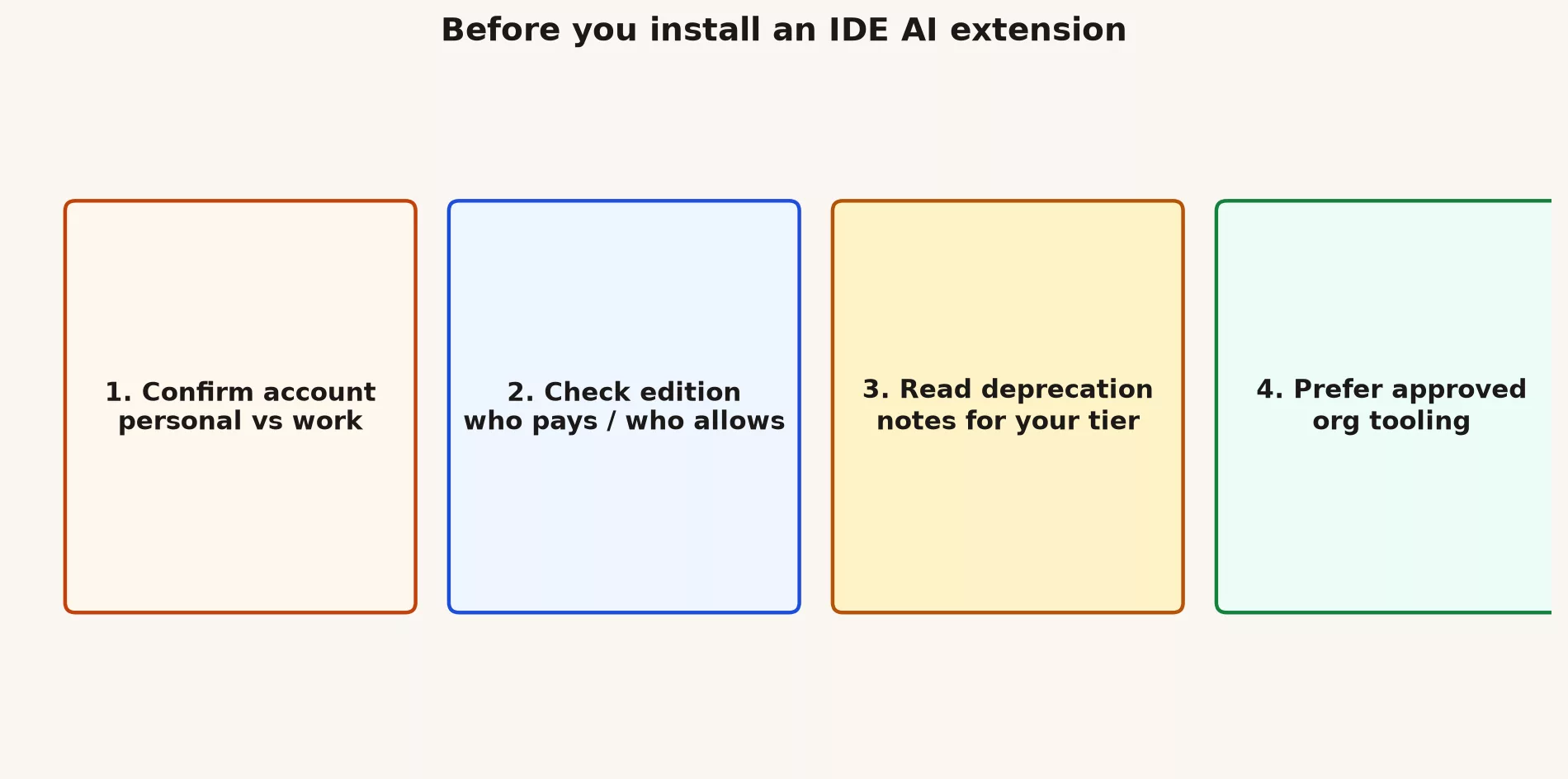
- Confirm whether you are on a personal or a work Google account, and which one your company allows on the laptop.
- Ask which edition pays for coding AI: a personal subscription, a company Code Assist license, a Cloud project, or nothing at all. Each edition comes with different data terms.
- If you are not on an enterprise seat, read the current deprecation notes.
- Prefer tools on your company’s approved list over whatever a conference handed out.
- Plan a person-to-person review step, because an AI completion is not a finished change.
What good AI use in the editor looks like
Good habits keep the speed without the mess. These are the ones that matter most:
- Ask for small changes that a person can review, and avoid mystery rewrites across many files.
- Run the tests after the AI writes code, so that “it looks fine” is never your only evidence.
- Never paste secrets, such as passwords or keys, into a chat panel. Chat text can be stored outside your control.
- Check licenses and outside code whenever the model suggests a new dependency. A suggested package can bring license or security problems with it. (another package your code needs) (another package your code needs).
- Let your team’s style guide overrule the model’s taste.
# Example human checklist after an AI edit (any vendor)
# 1) Read the diff
# 2) Run unit tests you trust
# 3) Search for new network calls or file writes
# 4) Confirm no secrets in logs
# 5) Request review if the change touches auth or payments
When the editor assistant is the wrong tool
Sometimes the assistant in your editor is simply the wrong place to ask. Use something else in these cases:
- You only need a paragraph rewritten, so use Google Docs or the Gemini app.
- You want a long research chat about PDFs, so use a chat tool or NotebookLM.
- Your company has banned AI on source code, which settles the question.
- You cannot explain the generated code well enough to own it, so do not ship it.
Three things that go wrong in real teams
An operations team once settled on personal consumer accounts because the company’s Workspace AI was “not rolled out yet.” Six months later they had no audit trail and three conflicting prompt templates. Cleaning that up cost more than the original conversation with IT would have.
A mobile team installed every AI editor plugin they could find. The completions overlapped, the secret scanner kept firing, and the junior developers accepted multi-file edits they could not explain. The team cut back to one approved tool and a written review rule, and they got faster, because review took less time.
A prototype used Studio API keys in a public demo with no rate limits. A scraper found the keys over a weekend. The budget alerts fired, but only after the bill was already ugly. Caps set in the code and on the cloud project are cheaper than a postmortem.
If you keep only one idea from this post, keep this one. Product packaging and account type decide what you can click long before any debate about model quality matters. Get the account right first, then build the habit, and only then worry about which label sits in the dropdown this month.
Mistakes to avoid
- Assuming a Pro chat plan gives you editor access forever.
- Debugging a “dumb model” when the real problem is a personal path that has been switched off.
- Installing three overlapping AI extensions that fight over the same keyboard shortcuts.
- Skipping code review because the suggestion looked authoritative.
An onboarding sketch for companies
If you are the person who sets this up for a team, this order works well:
- Name the approved editors and the approved AI extension or built-in feature. Then nobody has to guess.
- Write down how to log in: work account only, and single sign-on (SSO, one company login for many tools) if your company requires it.
- Share a 20-minute recording of the loop of explain, patch, and test on a toy project, because watching the loop once teaches it faster than a written guide.
- Publish a “never do” list: force pushes, secrets in chat, and accepting huge changes unread.
- Create a channel where people can report usage-limit errors and deprecation banners, so one person’s surprise becomes everyone’s warning.
- Review the list of allowed plugins every quarter, because Google renames products often.
Teams that build Android apps
If your product is mobile first, do not train people only on web-editor demos. Run the first workshop inside Android Studio, using a real module, a failing test, and a code style your team already follows. Show people how to refuse a bad suggestion, and how to ask for an explanation of generated Kotlin or Compose code before it is merged. Studio-specific pieces such as Gradle (the build tool), manifests, and emulators are where junior developers get lost when the tutorial is generic.
Personal projects on personal hardware
On your own machine, for open source or hobby code, you may pick consumer versions of tools that your company would reject. Keep your personal and work setups apart, with different git settings, different keys, and a different browser if needed. The usual failure is a hobby Antigravity session that still has a work project open, with a work password or key still loaded in the terminal.
How to read a deprecation page
Deprecation pages are written for many kinds of readers at once, so skim for four things: the effective date, which product editions lose service, what stays supported, and the migration link. Ignore the panic in comment sections. If your company has a Google Cloud technical account manager (TAM) or a reseller, ask them to confirm how your contract maps to the public wording. A screenshot from social media is not a reading of your contract.
Quick recap
- An assistant in your editor is a separate product from the Gemini chat app.
- Code Assist style tools work across many editors, and Android Studio has its own entry points.
- Mid-2026 changes pushed many personal accounts toward Antigravity, while enterprise licenses often stayed on the licensed Code Assist path.
- Next up is the terminal side of the story: what Gemini CLI does and what Antigravity CLI replaced.
Practice this week
- List the editors you actually use every week.
- For each one, note whether AI is installed and which account it uses.
- Open one official overview page for Code Assist or Android Studio Gemini, and write down the edition you think you have.
- If anything is unclear, send IT three bullets: the editor, the account type, and the business reason.
Series notes
This is Part 2 of the Gemini product map (GM9). The next post covers the terminal tools (GM10), and a later tutorial (GM22 to GM26) practices the ask, edit, test, and review loop and how to debug usage limits.
Sources
- Gemini Code Assist overview.
- Gemini in Android Studio overview.
- Transitioning Gemini CLI to Antigravity CLI.
- Code Assist individuals deprecation notes.
- Google Antigravity.
Keep going
Same lessons in your feed
Short diagrams, hooks, and weekly tutorials on Substack, Instagram, X, and Facebook.