
Copilot in Excel now has built-in accounting skills that compare your bank statement with your books, flag the differences and draft the journal entries to fix them. They save the matching work, but a person still has to check every difference and approve every entry, and Microsoft says so plainly.
Imagine it is the third working day of the month and you are reconciling the operating account. The bank statement says one balance, your general ledger says another, and the gap is a few hundred dollars made of fees, timing and the occasional double entry. Finding those items is slow, careful work. Explaining them is the part that actually needs an accountant.
This guide covers what the two main skills do and who can use them. It then walks through a reconciliation step by step, a worked example and the checks that stay with you. For a general way to test any Copilot skill before you rely on it, see our guide on turning a monthly Excel report into a Copilot skill.
What do the accounting skills do?
They are ready-made Copilot instructions for common accounting jobs, listed in Microsoft Support’s page on Copilot in Excel built-in skills (checked November 15, 2026). Copilot is Microsoft’s AI assistant inside Office apps. A skill is a saved set of instructions it follows for one task, and you call it by typing @ and the skill’s name.
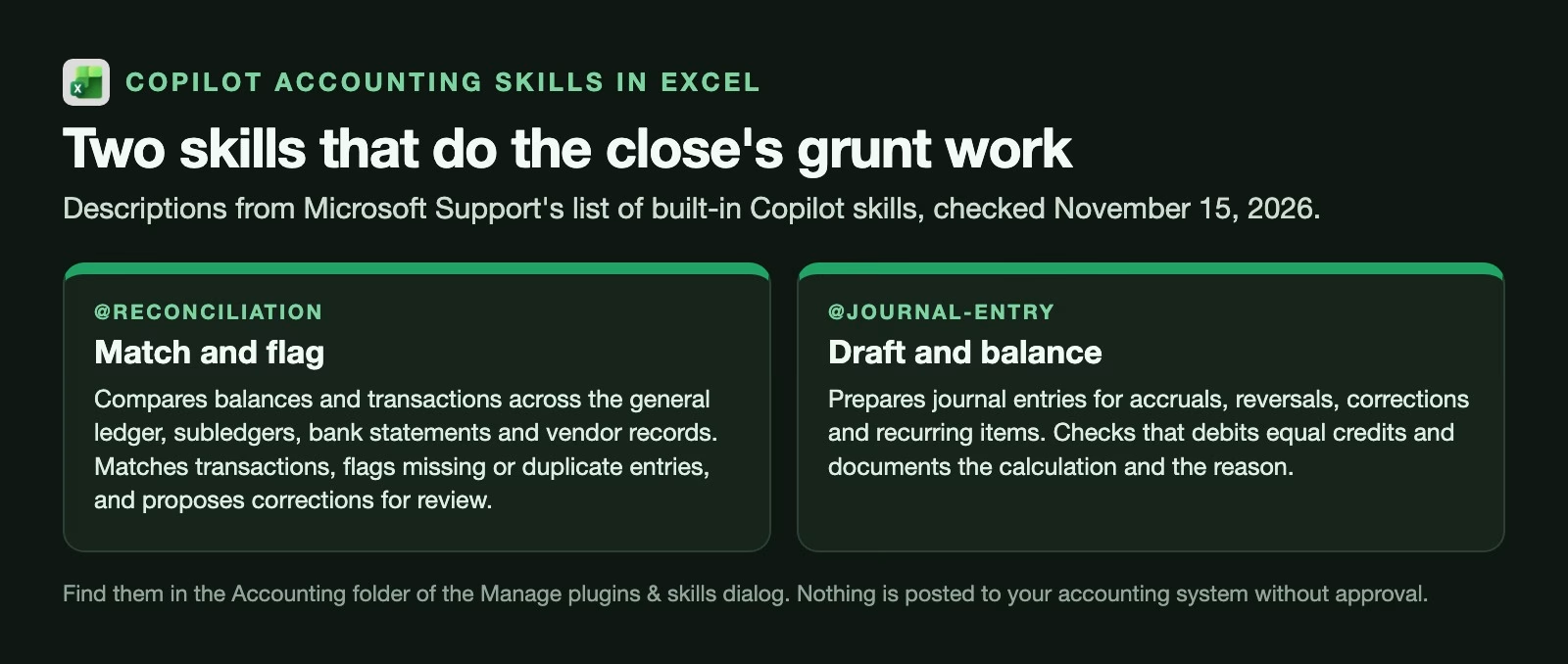
The two that matter for month-end are these:
- Reconciliation. Microsoft’s page says it compares balances and transactions across the general ledger, subledgers, bank statements and vendor records, matches transactions, identifies problems such as missing records or duplicate entries, and prepares proposed corrections for review. The general ledger is your company’s main record of every transaction; a subledger is a detailed record for one area, such as customer invoices.
- Journal entry. It prepares journal entries for accruals, reversals, corrections and recurring items, checks that debits and credits balance, and documents the calculation and the business reason. A journal entry is the record that moves an amount between accounts, and every entry must have equal debits and credits.
The same page lists other skills in the Accounting folder, including close management, variance analysis, financial statements, audit support and tax preparation.
Who can use them, and when?
They need a Microsoft Copilot licence, and they reached general availability during November 2026. Microsoft’s message center post MC1536053, published November 3, 2026, gives a public preview from late October and general availability worldwide starting November 13, 2026, expected to finish in late November.
The same post says that from general availability, enrolment in Frontier, Microsoft’s early-access programme, is no longer required. Microsoft Support’s skills page still said the skills were “rolling out to the Microsoft Frontier program” when we checked on November 15, 2026. If you cannot see them yet, ask your administrator whether the rollout has reached your organisation.
You find them in Excel under Manage plugins & skills, in the Accounting folder, according to the Microsoft Support page checked November 15, 2026.
How to run a reconciliation with Copilot
Put both sources in the same workbook, ask for the comparison, and then work through what it proposes one item at a time. Microsoft does not publish a fixed input layout for the skill, so clear, labelled data does most of the work.
- Export both sides for the same period. The bank statement for the month as a spreadsheet, and the ledger detail for the same bank account and the same dates.
- Put them on separate, clearly named sheets, such as Bank and Ledger, with a header row and one transaction per row: date, description, amount.
- Ask the skill. Type
@reconciliationand describe the job, for example: “Reconcile the Bank sheet to the Ledger sheet for October. List matched items, unmatched items on each side and possible duplicates, and explain the difference between the closing balances.” - Turn on the audit trail if you are offered it. Microsoft’s message center post says the optional audit trail records in your chat history what Copilot changed and why.
- Review the proposed items one by one, using the checks later in this guide.
- Draft the fixes. For items that need a correction, type
@journal-entryand ask for entries for the specific items you approved, with the accounts you use.
A worked example: a 275 difference
Here is the kind of result to expect, with example numbers. The October bank statement closes at 48,210 and the ledger at 47,935, a difference of 275.
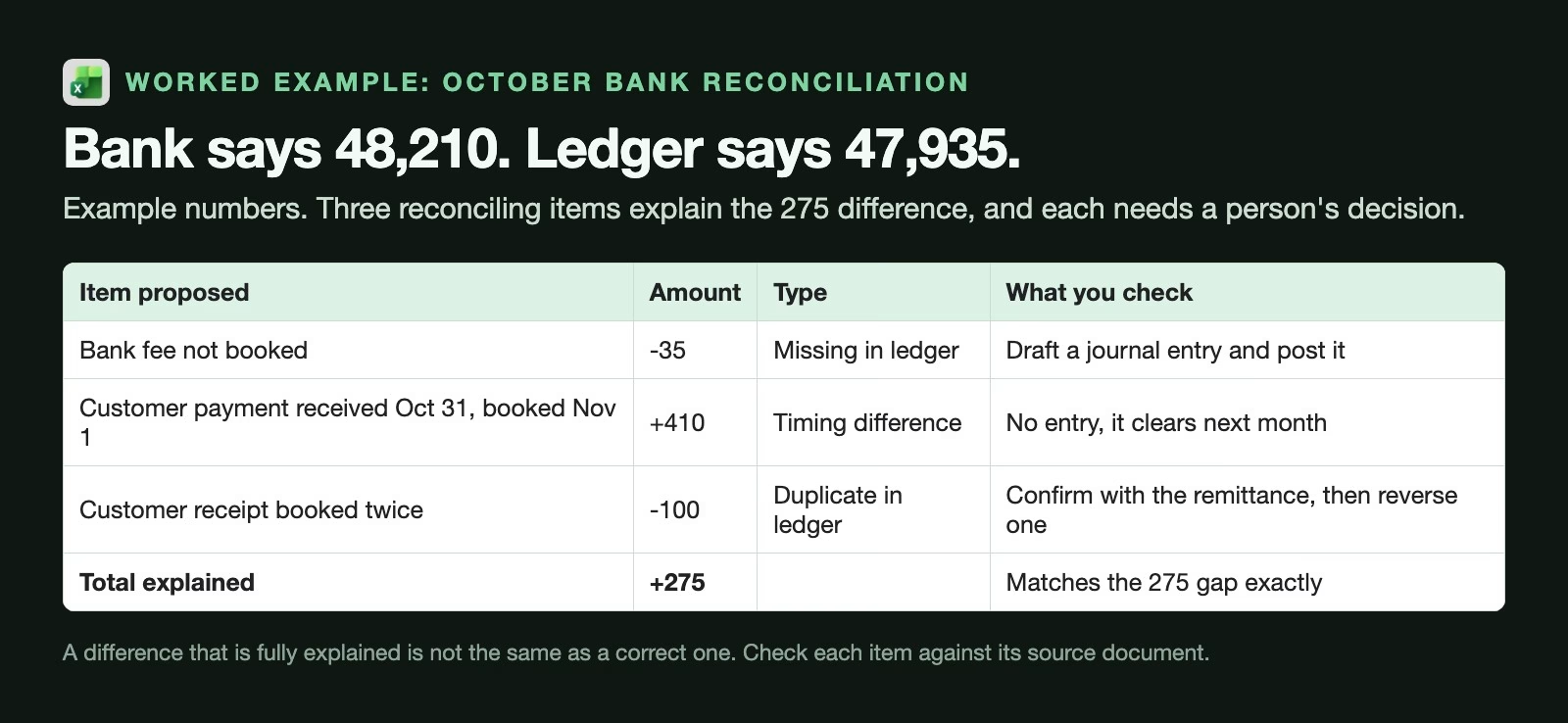
Copilot proposes three reconciling items, and together they explain the whole 275:
- A bank fee of 35 that is not in the ledger. The bank took it, so the books are 35 too high. This needs a journal entry.
- A customer payment of 410 received on October 31 and booked on November 1. The bank has it in October and the ledger in November. This is a timing difference that clears itself next month, so it needs no entry.
- A customer receipt of 100 booked twice in the ledger. The books are 100 too high. One of the two entries should be reversed, after you confirm it against the customer’s remittance.
So the bank is higher by 410 from the timing item and lower by 35 and 100 from the two ledger errors, and 410 minus 35 minus 100 is 275. The difference is fully explained.
That is where Copilot’s job ends and yours begins. Explaining the gap is not the same as being right about it. The 410 might be two payments that happen to add up. The duplicate might be two real invoices for the same amount. The fee might belong in a different expense account than the one Copilot suggests.
Drafting the fixes with the journal-entry skill
Once you have approved the items, ask for the entries one at a time. Name the accounts you use, so the draft fits your chart of accounts, the list of accounts your business books into. Take the two ledger errors in the example. Ask: “Draft entries for the October bank fee of 35 and to reverse the duplicate customer receipt of 100, using Bank charges, Operating bank and Accounts receivable.” You should get something like the table below.
| Entry | Account | Debit | Credit |
|---|---|---|---|
| 1. October bank fee | Bank charges (expense) | 35 | |
| Operating bank | 35 | ||
| 2. Reverse duplicate receipt | Accounts receivable | 100 | |
| Operating bank | 100 |
Read each line the way a reviewer would. The fee entry moves 35 out of the bank account in the books and into an expense, which brings the books down to match the bank. The reversal takes back the second copy of the receipt, which puts the 100 back on the customer’s balance and lowers the bank account in the books. Both entries balance, debits equal to credits, which the skill checks for you; whether the accounts are the right ones is still your call.
After posting both, the books move from 47,935 to 47,800. The bank shows 48,210, and the remaining 410 is the timing difference that clears when November’s statement includes the late-booked payment. Writing that down in the reconciliation file, with the date you expect it to clear, is what makes next month’s reconciliation quick.
What you still have to check
Microsoft is direct about the limits. Its support page (checked November 15, 2026) says Copilot “doesn’t provide accounting, tax, audit, or financial advice”. It tells you to check all output against source records before posting. It also says Copilot does not replace your internal controls, review or approval processes.
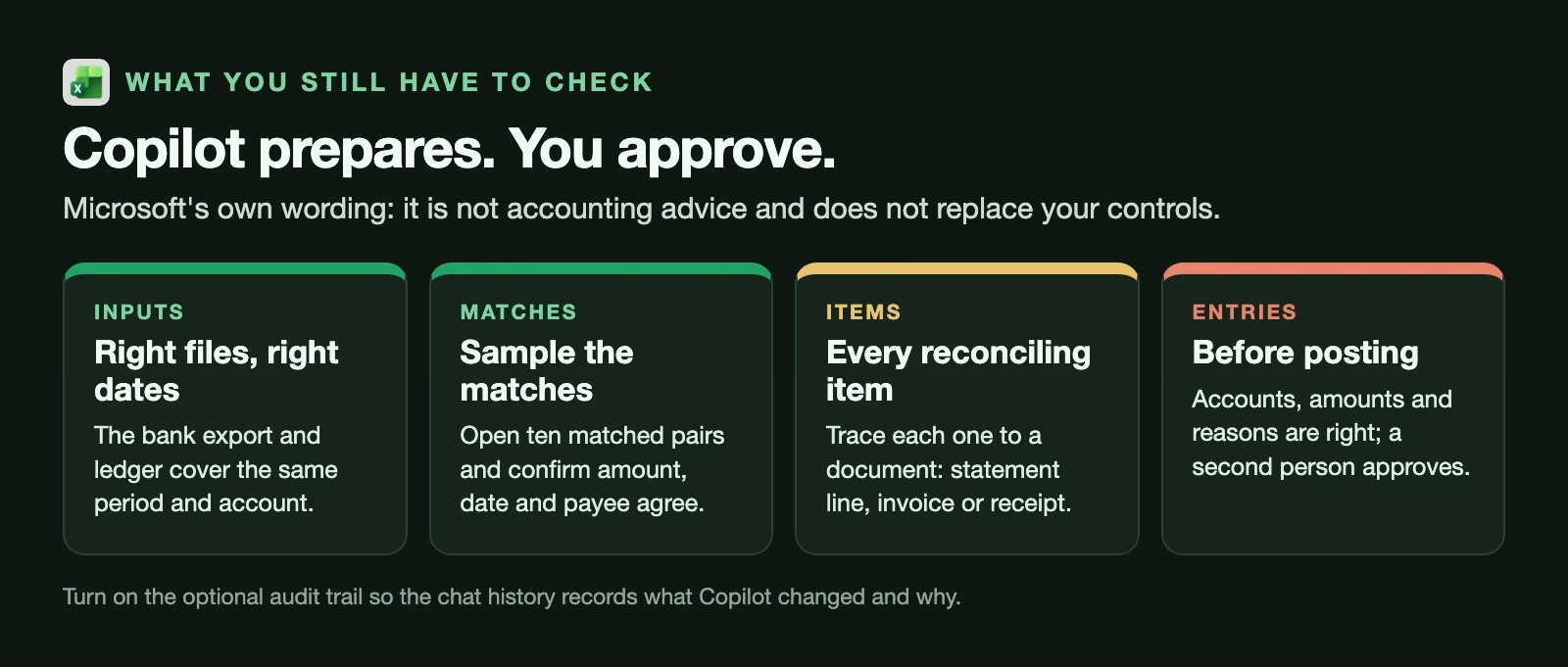
Four checks turn that into a routine:
- Inputs. Confirm the bank export and ledger detail cover the same account and the same dates. A reconciliation of mismatched periods produces confident nonsense.
- Matches. Open ten matched pairs at random and confirm the amount, date and payee agree. Wrong matches hide real differences.
- Every reconciling item. Trace each item to a document: the statement line, the invoice, the remittance or the receipt.
- Every entry before posting. Check the accounts, amounts and description, and have a second person approve it, as your controls already require.
Microsoft’s message center post adds that nothing is posted automatically to your accounting system without approval. Keep it that way.
Where it helps most
The skills save the most time on accounts with many routine transactions and a few exceptions: operating bank accounts, card clearing accounts and supplier statements. They help least on accounts where every line needs judgement, such as intercompany balances or accruals built on estimates, because the time there goes into the decisions, not the matching.
A sensible first month is to run the skill alongside your usual process on one account. Compare its list of reconciling items with yours. If it finds everything you found and nothing it should not have, try it as the first pass on that account next month, with your checks as the second.
Common mistakes
- Treating a fully explained difference as a correct one, when items can add up for the wrong reasons.
- Reconciling different periods because the bank export and ledger dates do not line up.
- Posting entries straight from the draft, without a second person’s approval.
- Skipping the audit trail, which leaves no record of what Copilot changed.
- Starting with the hardest account, instead of a routine one where you can judge its output quickly.
Try it this week
- Check whether the Accounting folder appears under Manage plugins & skills in Excel.
- Export last month’s bank statement and ledger detail for one routine account.
- Run
@reconciliationwith a clear request, with the audit trail on if offered. - Compare its reconciling items with the ones you found in your own reconciliation.
- Draft entries with
@journal-entryfor one approved item and review them as you would a colleague’s.
Quick recap
- Copilot in Excel has built-in reconciliation and journal-entry skills.
- General availability started November 13, 2026, with a Copilot licence required.
- Reconciliation matches transactions and proposes reconciling items for review.
- Journal entry drafts balanced entries with the calculation and reason documented.
- Microsoft says it is not accounting advice and does not replace your controls.
- Check inputs, sample matches, trace every item and approve every entry.
Sources
- Microsoft Support: Copilot in Excel built-in skills, Accounting (skill names and descriptions, where to find them, disclaimers; checked November 15, 2026)
- Microsoft 365 message center MC1536053 (published November 3, 2026; preview and general availability dates, licence, Frontier, audit trail, approval before posting)
- Microsoft Copilot blog: Copilot for finance teams (October 29, 2026; accounting capabilities announcement)
Keep going
Same lessons in your feed
Short diagrams, hooks, and weekly tutorials on Substack, Instagram, X, and Facebook.