Claude Team and Enterprise plans give your company admin switches, spending limits, user roles, and activity monitoring that a personal Pro plan does not have. Paying for a personal plan does not mean your company approved it for work data. Talk to your IT team before you connect Claude to shared drives or to tools that can change things.
Say it is Friday afternoon and finance wants a cleaned vendor folder and a one-page status deck before Monday. You open Claude on your personal Pro plan and connect a shared drive you only sort of have access to. You turn on a friendly connector and ship the work. On Monday, your security team asks who approved the connector and where the logs live. They also ask whether company data went into a product your company has no agreement with.
Update, October 2, 2026: On September 16, 2026, Anthropic merged Cowork into the main Claude app. It is rolling out to Pro and Max first; Team and Free plans follow later, and Enterprise customers get 30 days’ notice. Admins should expect the folder and connector work described here to move into regular Claude conversations, so the controls below matter even more.
Personal Pro is not a policy waiver
Cowork is the Claude feature that works on your files and folders for you. It is available on paid plans, including personal Pro and Max, and on Team and Enterprise. That availability is a fact about the product. It does not mean your company said this is fine for customer files, payroll exports, or the shared legal drive. Anyone can buy a feature with a credit card. Policy is different, because it covers the kind of data, how long it is kept, what gets logged, which connectors are allowed, and who can approve risk. Those decisions live with your employer and not with the upgrade button.
People blur the two because the screen looks the same and the output looks professional. A personal plan can feel faster, since there is no owner toggle, no group roles, no spend report, and no wait for security. That speed is real, and so is the gap. On personal plans you usually lack company-level controls. There is no central switch for Cowork, no company spending cap, no role-based access to connectors, and no shared plugin policy. If something goes wrong, there is no admin console to open, only your account and whatever your laptop stored.
Here is a useful sentence for your next all-hands. Paid access proves you can log in, and it does not prove that Legal and Security approved this path for your data. If your company already has an approved Claude Team or Enterprise account, use that for work. If it does not, do not build a hidden AI setup out of personal subscriptions and shared folders. Raise the question with IT, because the slower path is the professional one.
What the business plans add
On Team and Enterprise, Cowork stops being a personal productivity tool. It becomes something an organization can switch on, shape, and watch. The exact menus change, but the job of that layer stays the same.
Admin controls and feature switches
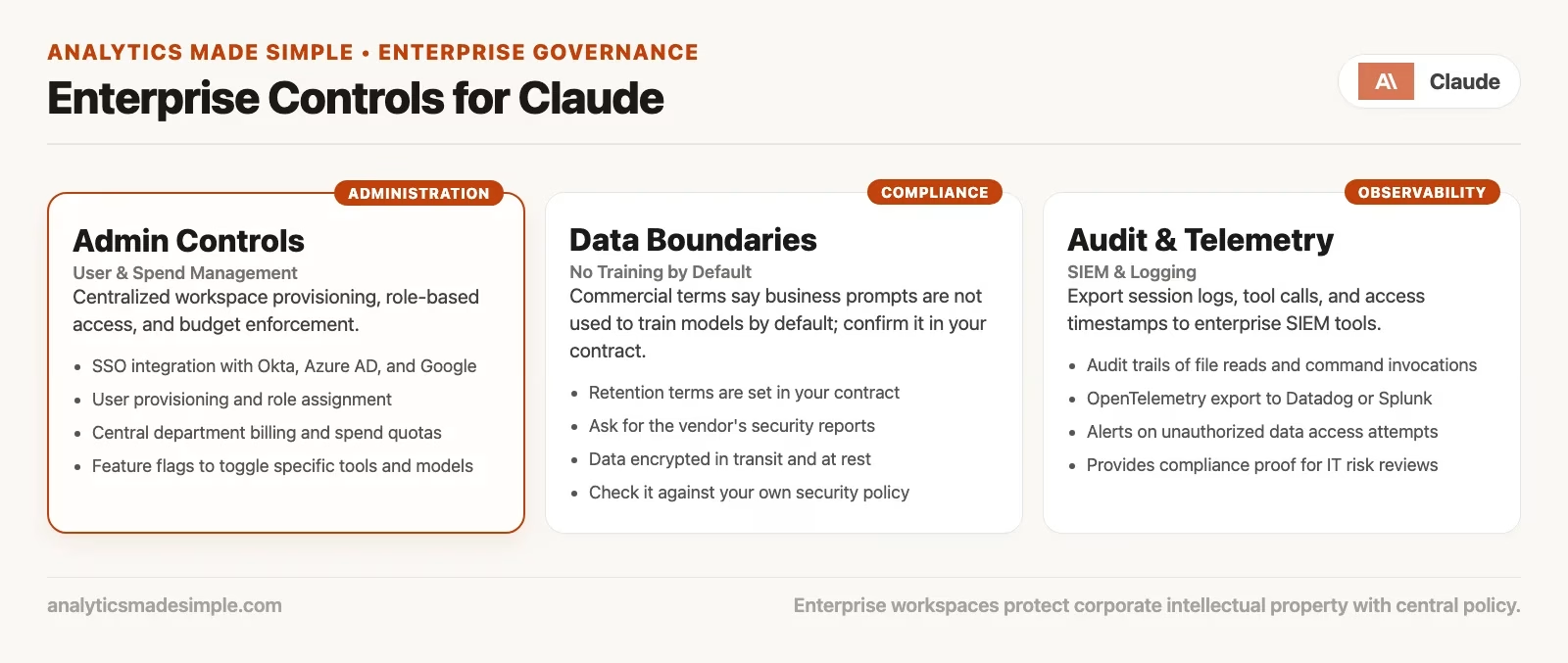
Owners on Team and Enterprise can treat Cowork as a company capability. In practice that includes a switch to enable or disable Cowork for the whole organization. A separate control decides whether sessions may run in Anthropic’s cloud or only locally on a desktop. The choice matters. Cloud sessions can keep working while your laptop sleeps. Local sessions keep conversation history on the machine, where admins may not be able to export it. Defaults also differ by plan. For example, cloud sessions may be on by default on Team and off by default on Enterprise until an owner turns them on. Read the current Anthropic help article on using Cowork on Team and Enterprise plans before you fix a rollout plan.
Enterprise goes further with groups and custom roles, so Cowork can reach specific teams instead of everyone at once. Team plans are often coarser, which means that if Cowork is on, it is on for every member. Plugins and marketplaces give owners another lever, because a plugin can be installed by default, available, required, or hidden. That is how you stop each person from inventing a different plugin setup for the same month-end finance close.
Spend and seats
Agent (an AI that takes actions on its own) work is not the same as free chat. Multi-step tasks, big folders, and long sessions all use up your allowance faster. Team and Enterprise give admins a place to buy and assign seats and watch usage reports. They can also set spending limits, so one enthusiastic week of deck generation does not become a surprise invoice. On Enterprise, group spending limits are the practical answer when marketing and engineering need different ceilings. If nobody owns the spend, Cowork will keep running, and finance will only notice later.
Roles and least access
Role access is the difference between two worlds. In one, everyone gets every connector. In the other, the operations team can use the approved ticketing plugin, while interns cannot write to the production customer system. Enterprise custom roles let admins decide which connectors each role may use, and sometimes which tools inside a connector. Add the network settings under organization capabilities, and you get a setup where people have only the access they need. That matches how you already treat other software. If your company would never give every employee full export rights on the data warehouse (the central database that holds company data for reporting), do not give every employee unrestricted Cowork connectors by accident.
| Control area | Why it matters for Cowork | Who usually owns it |
|---|---|---|
| Organization on or off switch | Turn Cowork off or on for everyone | Owner or primary owner |
| Cloud or local sessions | Where work runs and where history lives | Owner + Security |
| Roles and groups (Enterprise) | Who gets Cowork and which tools | IT and identity admins |
| Spend limits | Predictable cost under agent load | Finance + Owner |
| Plugins marketplace | Curate, require, or hide plugins | Owner + team leads |
| Connectors and write approvals | Limit the damage tools can do when they change systems | Security + Owner |
| Network access and web search | What the agent can reach on the internet | Security or network team |
| Monitoring (OTel) | Visibility into sessions and tool use | Security operations or platform team |
How to monitor Cowork: OpenTelemetry first, then the compliance API
Suppose your security team asks how you can see what Cowork did. A shrug and a screenshot are not an answer. On Team and Enterprise, Anthropic documents an export format called OpenTelemetry (OTel), which is a vendor-neutral way for software to report what it did. Owners point it at an OpenTelemetry protocol (OTLP) endpoint, which is the address of a collector. Events then flow into the security information and event management system (SIEM) your company already runs. Today that path is the working way to see tool calls, file activity, approval decisions, and related session signals. The setup steps are in Anthropic’s articles on monitoring Cowork activity. Desktop version minimums apply, so re-check them before you file a ticket with IT.
The Compliance API (the way one program asks another for data) is a separate Enterprise feature that lets other software pull usage and content records for audits. Here you should be careful on purpose. Anthropic’s official Cowork guidance has said that Cowork activity is not captured in the Compliance API the way other Claude activity is. Other docs describe remote web and mobile session content that may show up there. Local desktop history can also live on a user’s machine in ways admins cannot manage or export like normal company records.
Do not write policy from this blog post alone. Open the current Anthropic admin articles the week you design your controls. Note what is in OTel, what is in the Compliance API, and what stays local only. Then add backup controls for the gaps. Good options are alerts in your security monitoring tool (often a security information and event management, or SIEM, system), mobile device management (MDM) rules for company laptops, folder rules, and connector allowlists.
A practical split that most companies can defend in a review has three parts.
- OTel into your SIEM gives near-term visibility into Cowork operations. You can see which kinds of tools ran, which approvals were given, and what errors came up.
- The Compliance API supports formal audit integrations where the product covers them, so check Cowork coverage explicitly.
- Human process covers data-class rules, working-folder standards, and a firm “no personal Pro for company confidential material,” even when your monitoring is perfect.
Monitoring without policy is a camera pointed at an unlocked door. Policy without monitoring is a locked door with no way to know who used the key. You want both, and imperfect is fine, but silent is not.
Talk to IT before connectors and computer use
The earlier post on plugins and connectors treated them as power tools for office work, and that still holds. The enterprise point is about timing. Some connectors read mail, write tickets, touch drives, or call internal systems. They change the risk from “Claude helped me rename PDFs in a practice folder” to “Claude can act inside systems that already hold production data.” Computer-use features raise the same flag. Those let an agent control a browser or a desktop, depending on your plan and admin settings. The agent is no longer only editing files you pointed at, because it can move through places people treat as high trust.
Bring in IT, security, and sometimes legal before the first wide connector rollout, and do not wait for the first strange permission grant. Here is a short checklist to run through together.
- Data classes: which folders and systems are allowed, and which are forbidden, such as HR, regulated data, customer secrets, and merger plans.
- Identity: single sign-on (SSO) and automatic adding and removing of user accounts (SCIM), so people who leave lose Cowork along with the rest of your software.
- Network access: allowlists, and whether web search and browser-style tools are on for the organization.
- Connector inventory: an approved list with an owner and a way to revoke each one. Prefer plugins from the company marketplace over random personal installs.
- Write policy: default to denying write tools, or require approval for each task, until trust is earned.
- Monitoring: an OTel endpoint owned by the security operations team, and not a forgotten URL in a slide.
- Incident path: who turns Cowork off across the company, who rotates keys, and who tells legal if a prompt-injection scare shows up. Prompt injection means hidden instructions in a file or web page that try to steer the agent.
If IT says “not yet,” do not answer “fine, I’ll use personal Pro on the same data.” Ask for a smaller pilot instead. Use fake data, a clean working folder, no connectors, and human-watched sessions, and expand only as trust grows. That is the same watch-before-you-walk-away idea from the earlier post on autonomy, applied to the whole company.
Write tools and admin consent
Read tools carry risk too, because data can still leak out through them. Write tools fail more loudly, though. Tickets created wrong, sheets overwritten, customer fields “cleaned,” and calendar invites sent to the wrong list are production incidents dressed up as productivity.
On Team and Enterprise, the organization settings for Cowork include permission controls. One example is whether members may use “Always allow” for connector tools that can write. Official guidance has described that setting as off by default. Members approve write-capable tools for each task, and saved always-allow choices are not honored until an owner turns the setting on. Enterprise layers can make the strictest layer win, so a role grant cannot quietly override a company-wide lock. Exact labels move, but the principle holds: write power should be opt-in at the admin layer, then careful at the user layer.
If you are not an admin, here is what that means for you.
- If the approval dialog keeps asking about a write tool, that is a feature and not a bug.
- Do not beg for “Always allow” on day one of a connector pilot.
- If you truly need always-allow for a well-scoped internal plugin, file a ticket. Include a data class, a rollback plan, and an owner, and skip the Slack emoji.
- Custom connectors that fail to mark tools as read-only will often be treated as needing approval, so plan for some friction.
The block below is a paste-friendly starter for an internal “Cowork write tools” runbook, which is a written checklist people follow when something goes wrong. It is a process and not product settings, so adapt the names to your own tools.
## Cowork write-tool runbook (starter)
Allowed data classes for pilot: [list]
Forbidden: HR, customer secrets, prod credentials, M&A

Connectors approved: [names + owner + revoke ticket]
Write tools default: per-task human approval
"Always allow" for write tools: OFF unless Owner ticket #____

Before first write in a session:
1. Confirm working folder / project is the pilot sandbox
2. Confirm task text names the systems to touch
3. Approve only the tool you intended
4. Spot-check the first write result before more autonomy

If something looks wrong:
- Stop the task
- Disconnect the folder / revoke connector if needed
- Notify: [Security on-call] + [Cowork owner]
- Preserve what you can for OTel / local notes
- Do not "fix forward" with more agent steps
A light rollout order that fits real life
Companies that skip steps tend to bounce between a ban and a free-for-all, and a boring sequence works better. The table walks through seven phases, from a one-page policy to full scale.
| Phase | What you allow | What you require |
|---|---|---|
| 1. Policy page | Nothing production | One page: data classes, personal plans kept out, who owns the Claude organization account |
| 2. Desktop pilot | Local Cowork, sandbox folders only | Named pilot users, watched first sessions, no connectors |
| 3. Visibility | Same pilot | OTel to SIEM, someone reading alerts weekly |
| 4. Read connectors | Approved read-mostly tools | Allowlist, owner, revoke drill |
| 5. Write connectors | Narrow write tools | Per-task approval, runbook, incident contact |
| 6. Cloud and mobile (if used) | Only after data path review | Enterprise role grants if available; re-check Compliance API coverage |
| 7. Scale | More seats / groups | Spend limits, plugin marketplace, training that includes the quality checks |
Notice what is missing from the first phase: a six-month AI transformation program. One page of truth beats a 40-page strategy that nobody updates after the kickoff. You can expand the page later, but you cannot recover trust after a careless connector week.
How this fits the rest of the Claude path on this site
If you have followed Analytics Made Simple through the Claude block, the order is deliberate. Each series below adds one layer.
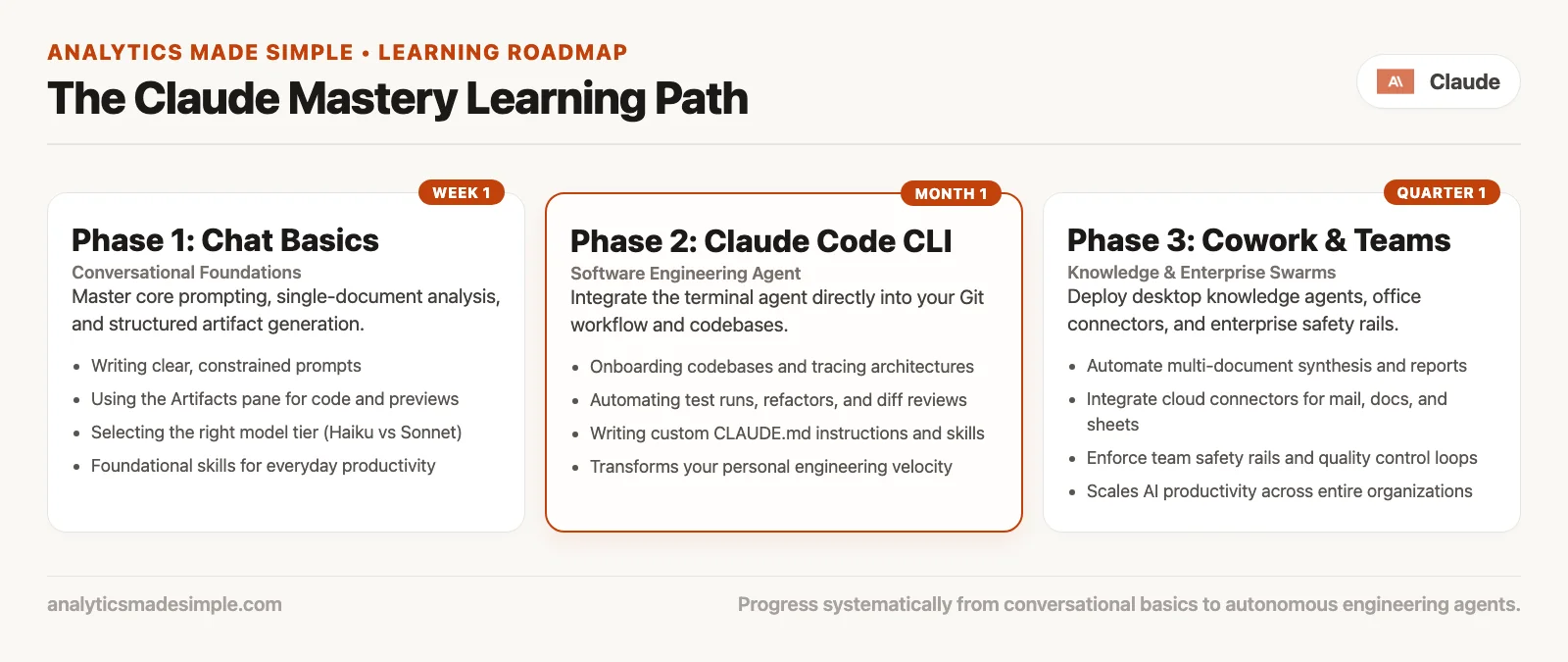
- Learn Claude from scratch: everyday chat, plans, Projects, privacy, when not to use the tool.
- Claude product map: chat vs Code vs Cowork vs API-style surfaces so you pick the right job.
- Claude Code tutorial: deep coding-agent track for repos, diffs, skills, and team rails.
- Claude Cowork tutorial (this series): deep office-agent track for files, folders, plugins, autonomy, quality, and now org notes.
Cowork is a different tool from Code, and it is not simply Code made easier. Code owns software change, with terminals and code review culture. Cowork owns multi-step office outcomes without pretending you are a developer. Chat still owns quick answers and drafts you paste yourself. The product map series helps you choose, these tutorials give the depth, and the Learn series is the everyday floor under all of it.
If someone reads only this post and skips the earlier ones, they will focus too much on admin switches. They will miss working folders, judgment about autonomy, and checks for low-effort AI output, sometimes called workslop. Send them back to the start from the Learn hub.
What this Cowork series covered
| Post | Focus |
|---|---|
| 1 | Cowork vs chat vs Claude Code (pick the surface) |
| 2 | Setup and first real file task |
| 3 | Working on folders, docs, and spreadsheets |
| 4 | Plugins and connectors for office work |
| 5 | Autonomy: when to watch vs walk away |
| 6 | Quality control and avoiding workslop |
| 7 | Team and enterprise notes (this post) |
If you keep one idea from all seven posts, keep this one: Cowork multiplies whatever process you already have. Clear goals, practice folders, watched first writes, and verify-before-share habits all scale well. Fuzzy goals, personal Pro on company secrets, and always-allow on write connectors scale too, just in the wrong direction.
What comes next on this site
This post closes the Claude Cowork tutorial. Together with Learn Claude, the product map, and the Code tutorial, it completes the deep Claude track we planned. Two natural next paths can even run side by side, depending on what you need.
- Chooser guides, setup safety, and cross-tool habits that are not tied to one brand, for when you need orientation more than another product deep dive.
- A ChatGPT track, with a learn-from-scratch series, a product map, and later depth on work and coding tools. It is meant for readers who live in OpenAI’s tools the way this track lived in Claude’s.
Gemini and Grok tracks follow later in the same pattern: from scratch, then a map, then the deep surfaces. Cloud and lakehouse platforms are separate topics. None of that replaces the verification habits in Practical AI or the SQL (the standard language for asking a database for data) checks in How to check AI-written SQL before you ship it. Tools change names, and fluent wrong answers do not.
Common mistakes
- Treating personal Pro as “the company already uses Claude.” It is a different account, a different contract, and different logs.
- Enabling every connector on day one. Start with folders and read-only access, and earn write access.
- Assuming the Compliance API equals full Cowork history. Re-check the docs, wire up OTel, and plan for gaps where history stays local.
- Having no spend owner. Agent sessions will find the budget ceiling for you, usually at month end.
- Turning on admin switches without user training. People invent hidden workflows when the official path feels blocked and unexplained.
- Training users without admin switches. Cheerleading plus open write tools is how demos become incidents.
- Skipping IT because “it’s just documents.” Documents are data, connectors are integrations, and computer use is control.
- Copying coding-team rules one for one into Cowork. Code review and automated tests still matter for software, but office agents need folder rules, connector allowlists, and quality checks.
- Never re-reading the vendor’s admin docs. Cloud beta features, OTel events, and Compliance coverage can change faster than your wiki.
Practice: 45 minutes with an admin, or a stand-in checklist
If you are not an owner, still run this exercise with whoever can open the organization settings. Otherwise mark each item “unknown, ticket needed.”
- Confirm whether your work uses Team or Enterprise plans or personal ones, and write the answer down. If it is a mix, that is already a finding.
- Find the Cowork enable switch and the cloud-sessions control, and note whether each is on or off.
- Check the “Always allow” policy for write tools, or its equivalent. Prefer it off for pilots.
- Ask the security operations team whether an OTel collector endpoint is set up for Cowork, and which dashboard (a screen of charts that tracks key numbers) shows the events.
- List the connectors a normal user can see, and mark each one approved, unknown, or remove.
- Draft five examples of forbidden data and five allowed pilot tasks, and share them with one team lead.
- Schedule a 15-minute monthly “admin truth check” so the switches and your docs do not rot.
Quick recap
- Team and Enterprise add admin controls, feature switches, spending limits, and role-shaped access that personal plans lack.
- Personal Pro or Max is not company policy approval, so use the company account for work data.
- Monitor Cowork with OpenTelemetry into your SIEM, and re-check Compliance API coverage in the official docs instead of assuming it matches chat.
- Involve IT before connectors and computer-use power leave the practice folder.
- Write-capable tools often need admin consent and approval for each task, so treat always-allow as a later privilege.
- Roll out in phases: a policy page, a practice-folder pilot, monitoring, read tools, write tools, then scale.
- The Claude path on this site runs Learn, then product map, then Code tutorial, then Cowork tutorial, which is now complete.
- Next up are the brand-neutral on-ramp guides and the ChatGPT track, with Practical AI verification habits kept nearby.
Close a series the way you close a good pilot. Write the controls down, name the owners, measure your first success on boring tasks, and leave no quiet personal-plan workaround on the side.
Series notes
This is Part 7 of the Claude Cowork tutorial, and it closes the series. Previous: quality control and workslop.
Sources
Official and related reading for Team and Enterprise Cowork controls, monitoring, and paths on this site. Product screens change, so prefer the live docs over any secondary summary.
- Claude Help Center: Use Claude Cowork on Team and Enterprise plans (admin toggles, cloud vs local, connectors, plugins, monitoring notes).
- Claude Help Center: Monitor Claude Cowork activity with OpenTelemetry (OTel setup for Team/Enterprise Cowork).
- Claude Docs: Cowork monitoring (OTLP fields and monitoring overview).
- Claude Help Center: Get started with Claude Cowork (availability, safety pointers, monitoring caveats).
- Claude Help Center: Use Claude Cowork safely (prompt injection and safer operating habits).
- Anthropic: Claude Code and new admin controls for business plans (Team/Enterprise admin, spend, Compliance API introduction context).
- Anthropic: Making Claude Cowork ready for enterprise (enterprise framing for roles, spend, OpenTelemetry).
- OpenTelemetry (vendor-neutral telemetry standard used by the OTel export path).
- Analytics Made Simple: Claude Cowork tutorial (this series).
- Analytics Made Simple: Claude Code tutorial (coding-agent deep track and team rails).
- Analytics Made Simple: Claude product map (chat vs Code vs Cowork orientation).
- Analytics Made Simple: Learn Claude from scratch (everyday Claude foundation).
- Analytics Made Simple: Learn (series index on this site).
- Analytics Made Simple: Practical AI (vendor-neutral judgment and verification habits).
- Analytics Made Simple: How to check AI-written SQL before you ship it (verify habit for fluent wrong outputs).
Keep going
Same lessons in your feed
Short diagrams, hooks, and weekly tutorials on Substack, Instagram, X, and Facebook.