Why a blank chat window needs a plan
Grok is an AI chat assistant made by xAI, and the best way to judge it is to spend one focused half hour with it on real work. Without a plan, a new tool usually gets a joke, a silly poem, and a closed tab, which tells you almost nothing.
Say you have just gained access and the empty chat box is waiting. You have seen the screenshots and heard the noise on social media, and now you want to know whether it can handle your daily work. This guide gives you a minute-by-minute session, so by the end you will know where Grok does well and where it falls short. We skip the big debates about artificial intelligence and stay with practical use. Put your phone away and open a fresh browser window.
Minutes 0 to 5: check your settings before you type anything
Spend the first five minutes on orientation and do not type a prompt yet. The screen is intentionally minimal, so look for the settings menu, which sits behind a gear icon or your profile picture depending on whether you use the web page or the mobile app. Your goal is to learn what data you are sharing and how the screen is set up.
Check the theme first. If you stare at screens all day, switch to dark mode right away. Then look for any data sharing switches, because many products use your conversations to train their models by default. Decide now whether you are comfortable with that. If you plan to paste company code or internal memos, opt out first, since that data would otherwise leave your control.
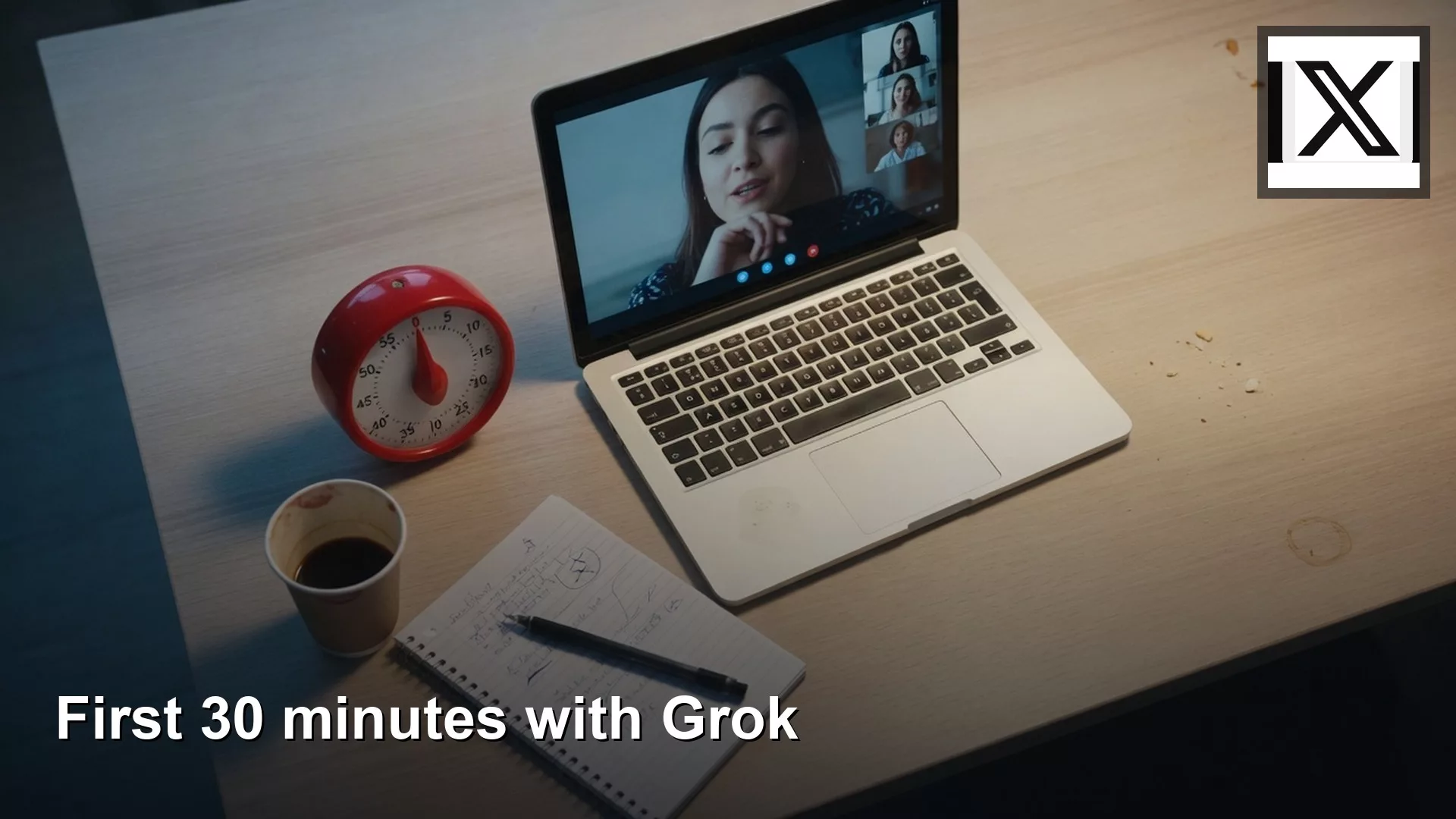
Before we start prompting, here is the timeline for the session as a picture, followed by the setup checklist for this first stretch.
| Time Marker | Action Required | Expected Outcome |
|---|---|---|
| Minute 1 | Locate the settings menu | Familiarity with UI navigation |
| Minute 2 | Toggle dark mode | Reduced eye strain |
| Minute 3 | Review data sharing options | Privacy boundaries established |
| Minute 4 | Locate the mode toggle switch | Ready to switch between Fun and Regular |
| Minute 5 | Clear the context window | A clean slate for your first real prompt |
Once your settings look right, you are ready to start talking to the model.
Minutes 5 to 15: test live search and check the sources
The main selling point of Grok is that it can read the X platform and the wider web in real time. A model that only knows its training data is useful, but one that can read news from ten minutes ago is a different kind of tool, so test that first. Pick a topic that is happening right now, such as a game being played, a company that just reported earnings, or a breaking news story. Asking about the Roman Empire would prove nothing.
Type your question clearly, for example the current score of a live basketball game and who is leading in points. Then look at how Grok cites its sources. Older models often made up links, while modern search-connected ones usually point to real posts or pages. Your job for this ten minute block is to click those links.
Checking the citations matters because an AI model can summarize a linked article with total confidence and still get the main fact backward. Open the first link, read the source text, and ask whether it really says what Grok claims. If the model says a company missed its revenue target, find that number in the cited article.
Here is a prompt you can copy into your chat to test live search.
Summarize the top three trending topics on X right now in the technology sector.
For each topic, provide a one sentence summary and a direct citation to a recent post.
Do not use information older than 24 hours.
Read the answer with a critical eye. If it brings up news from last week, the live search failed. If it gives you accurate, current details, you have confirmed the tool’s core strength. Use the rest of this block to try variations, such as weather, traffic, or recent software release notes, so you build trust in how it finds and retrieves information.
Minutes 15 to 25: try Fun mode against Regular mode
You are at the halfway mark, and you have confirmed that Grok can fetch real information. Now test its personality. Grok has a switch that changes it from a standard, helpful assistant into a more sarcastic, unfiltered one called Fun mode. The feature is heavily promoted, so you should know when it actually helps.
Start in Regular mode and ask for a polite email declining a vendor proposal. The result should read like ordinary business writing: bland, professional, and safe. That is what you want for about ninety percent of your daily tasks, because Regular mode behaves predictably.
Now flip to Fun mode and give it the same request. The change in tone is immediate. The model may add a joke, use exaggerated language, or sound a little cynical. That is entertaining for a few minutes, but judge it by whether you could actually send the email to a vendor. Probably not.
So when is Fun mode useful? It works well for brainstorming. When you need marketing copy, podcast titles, or creative writing ideas, the standard mode can feel too rigid because it drifts toward the average answer, which means boring ideas. Fun mode takes wilder swings, so most of its ideas will be unusable, but one or two might spark something you would not have found otherwise.
Spend five minutes trying creative prompts in both modes. Ask for ten names for a new coffee shop and compare the lists. Regular mode will offer generic names like The Daily Grind or Morning Brew, while Fun mode may suggest something completely unhinged. Your goal is to learn where the boundary sits, so you know when to flip the switch on and off in your daily work.
Minutes 25 to 30: save, copy, and export your output
You have five minutes left and a good amount of generated text. A common snag for new users is getting that text out of the chat window and into a real document, and pasting can mangle the formatting.
First, test the built-in copy button, which is usually a small clipboard icon next to each response. Click it, then paste into a plain text editor, a Word document, and an email draft, and see what happens to the formatting. Check whether bold text survives and whether bullet points stay clean. If you instead highlight the text with your mouse, you may accidentally grab parts of the page that are not part of the answer.
Next, see how history is saved. Refresh the page and check that your conversation is still there in the sidebar, automatically titled. Rename it to something you will remember, such as Initial Testing Session. If you never name your chats, you will end up with a sidebar full of conversations called New Chat, and finding past work will be nearly impossible.
If Grok wrote any code during your session, try the copy button on the code block too. It usually grabs the raw text without extra formatting. Paste it into your code editor to make sure no odd characters came along.
Mistakes that catch new users
Your thirty minutes are up, so here are the traps that catch most beginners. The first is treating Grok like a traditional search engine. If you type short keywords such as ‘best pizza nyc’, you get a mediocre answer, because the model works better with full sentences and context. Try ‘I am visiting New York for two days and want recommendations for pizza places in Manhattan that have seating available.’
Another trap is leaving Fun mode on all the time. It is amusing at first, but when you are rushing to summarize a dense financial report, a sarcastic summary is not helpful. Get in the habit of checking the mode switch before you send. The last trap is failing to start a new chat. If you go from asking about a sports game to drafting a legal document in the same thread, the model can mix the two, so open a fresh chat for every new task.
Your thirty minute drill for today
Do not just read this guide. Run the drill today, using this list.
- Log in and set your privacy preferences right away.
- Find a breaking news story from the last three hours and ask Grok to summarize it.
- Click every link Grok provides to verify the facts.
- Write a polite email in Regular mode, then rewrite it in Fun mode.
- Copy the best output into a fresh document and save the chat session.
Summary and checklist
Getting value from a new tool takes deliberate practice. You now have a starting routine: set up the environment, check live data against its sources, change the tone of the output, and pull the text out cleanly.
- Settings configured and privacy options selected.
- Live search tested and citations checked.
- Fun mode limits learned by sending the same prompt in both modes.
- Export formatting checked in several kinds of documents.
- Chat history organized and named.
Sources
Keep going
Same lessons in your feed
Short diagrams, hooks, and weekly tutorials on Substack, Instagram, X, and Facebook.