Setup is where many people quit Python before they ever filter a row. Not because they are “not technical,” but because install guides assume you already speak paths, shells, and package managers. This part is the opposite of that vibe: plain language, one happy path, and a tiny DataFrame that proves the machine is ready.
This is Part 2 of Python for analytics. In Part 1 we decided when Python is worth it. Now we make the environment boring in the best way: predictable, isolated, and good enough to load a CSV. If you are still building broader habits around messy files, keep From spreadsheets to real data nearby. For the full learning map, see Learn.
What you will learn
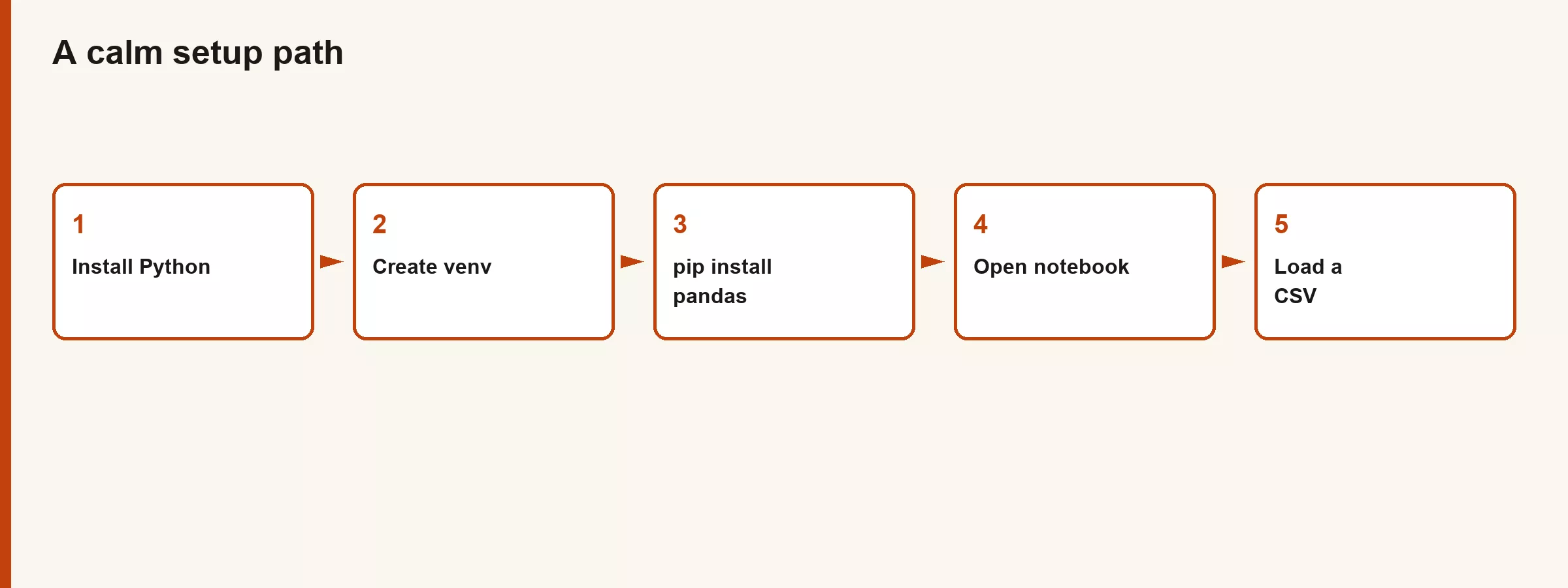
- What “install Python” actually means on a work laptop
- Notebook vs script vs VS Code (and when each feels good)
- Virtual environments in human words (and why you want one)
- How to install pandas with pip inside that environment
- A hello DataFrame: read a tiny CSV and print the first rows
- High-level Windows and Mac notes without a 40-page appendix
What we are installing (and what we are not)
Python is a language runtime: a program that can run .py files and interactive sessions. pip is the common tool that installs libraries (packages) into that runtime. pandas is one of those libraries: it gives you DataFrames, the table-like objects this series uses heavily.
You do not need to install “all of data science” today. You need:
- A current Python 3 (3.10+ is a comfortable target for most learners in 2026)
- A place to type code (VS Code, Jupyter, or even a plain terminal for short scripts)
- A virtual environment so project A does not break project B
- pandas (and later, whatever else a lesson needs)
You do not need a GPU, a cloud account, or a corporate data platform just to learn. Work data may live elsewhere later. For setup practice, a CSV on your desktop is perfect.
Install Python without the folklore
Mac (high level)
Modern Macs may already have a system Python used by the OS. Do not treat that as your playground. Prefer an install you control:
- Download an official installer from python.org, or
- Use a package manager such as Homebrew if your team already lives there
After install, open Terminal and check:
python3 --version
pip3 --version
You want a version number, not “command not found.” If both work, you are ready to make a virtual environment.
Windows (high level)
Use the official installer from python.org. During setup, enable the option that adds Python to PATH (wording varies slightly by installer version). That one checkbox prevents a week of “Python is not recognized” pain.
Open PowerShell or Command Prompt and check:
python --version
pip --version
Some machines respond to py --version via the Windows Python launcher. Any clear 3.x version is fine. If IT locks installers, ask for a supported Python 3 build or use a company-approved environment. Fighting security policy is not a pandas skill.
Company laptops and “but IT…”
If you cannot install software, you still have options: a managed JupyterHub, a cloud notebook your company already pays for, or a remote dev box. The concepts in this series (venv, pandas, CSV) transfer. The exact clicks change. Do not let a locked laptop become a story that you “cannot learn analytics.”
Where you will write code
Three common homes. None is morally superior. They optimize for different rhythms.
| Home | Best for | Watch out for |
|---|---|---|
| Jupyter notebook (.ipynb) | Exploration, teaching, mixed notes and code | Hidden cell order; “it works if I run cells out of order” |
| Script (.py) in terminal | Repeatable jobs, clear top-to-bottom runs | Less interactive poking unless you add prints |
| VS Code (or similar editor) | Both scripts and notebooks; great day-to-day | You must select the right Python interpreter (the venv) |
Recommendation for this series: VS Code with a virtual environment, and a notebook when you want a scratchpad. If VS Code feels heavy, pure Jupyter is fine. If notebooks feel chaotic, pure scripts are fine. Part 8 will care a lot about “run top to bottom.” Start that habit now.
Virtual environments in plain language
A virtual environment (venv) is a project-local bubble that holds its own installed packages. Think of it as a labeled toolbox on the shelf for one project, instead of dumping every wrench into a single drawer for the whole house.
Why you want one:
- Project A can use pandas 2.x while Project B freezes an older stack for audit reasons.
- You can delete the bubble and recreate it without reinstalling your entire OS Python.
- You avoid “works on my machine” caused by mystery global packages.
You will see other tools (conda, poetry, uv). They are fine. This series prefers the standard library venv plus pip because it is built in and widely documented. Once you understand the idea, switching managers is a translation, not a new career.
Worked setup: venv, activate, pip, hello DataFrame
Create a folder for practice. Name it something boring like ams-python. Put a tiny CSV inside later. First, create the environment.
Mac / Linux (from inside your project folder):
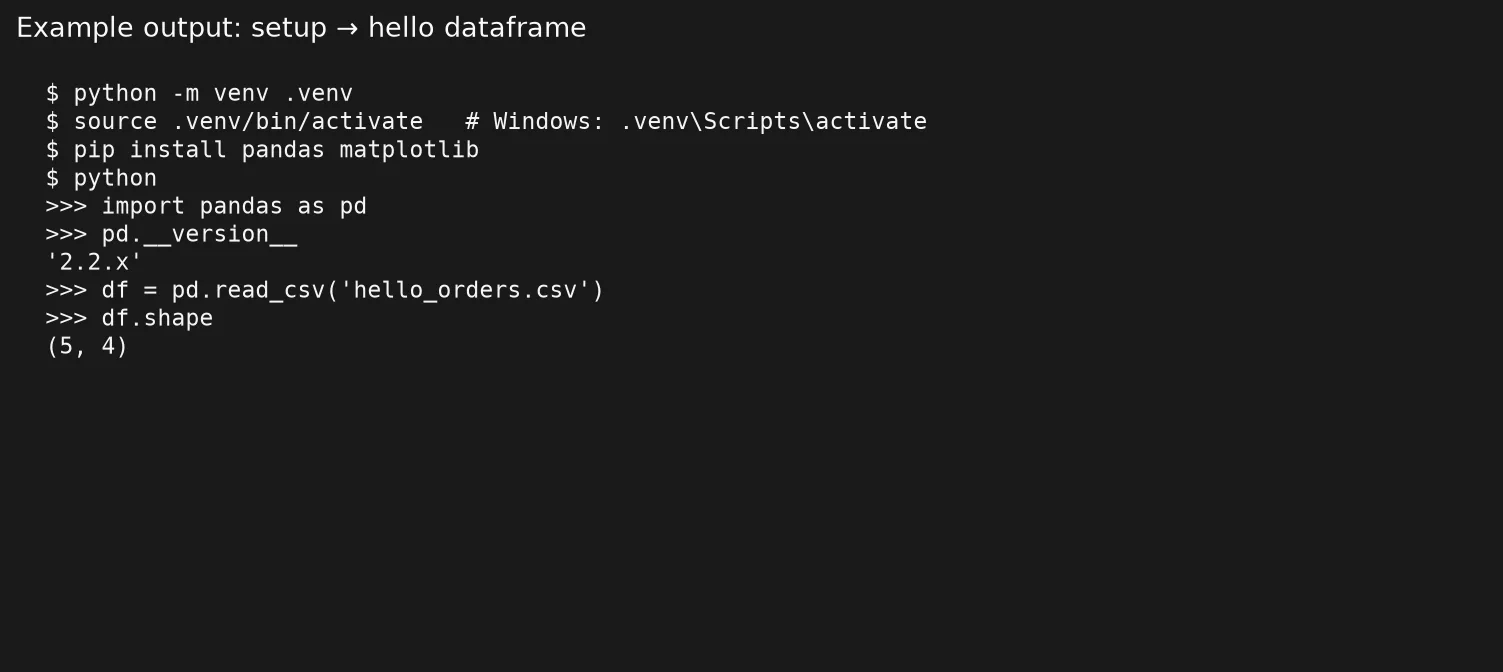
python3 -m venv .venv
source .venv/bin/activate
python -m pip install --upgrade pip
python -m pip install pandas
Example:
Windows (PowerShell), same idea:
python -m venv .venv
.\.venv\Scripts\Activate.ps1
python -m pip install --upgrade pip
python -m pip install pandas
When the venv is active, your prompt often shows (.venv). That little prefix means “packages install here, not into the whole machine.” To leave the bubble later, type deactivate.
If PowerShell blocks activation scripts, you may need a one-time policy change for your user account, or use Command Prompt’s .venv\Scripts\activate.bat. Corporate machines vary. The goal is simple: the python you run should be the one inside .venv.
Confirm pandas:
python -c "import pandas as pd; print(pd.__version__)"A version number means success. An ImportError means you installed into a different Python than the one you are running. That mismatch is the number one setup bug in the wild. Fix it by activating the venv again and reinstalling with python -m pip install pandas (notice we call pip through python, so the pair cannot disagree).
Make a tiny CSV
Create hello_orders.csv in the project folder with a text editor:
order_id,region,revenue
1,East,4200
2,West,8100
3,East,6900
4,South,1500
5,West,3200
Or build the same table in Sheets and export CSV. Either path is valid. Just avoid “pretty” exports with two header rows and merged title cells. Tidy columns now save tears in Part 3.
Hello DataFrame
With the venv active, run a short script (or notebook cells with the same lines):
import pandas as pd

orders = pd.read_csv("hello_orders.csv")

print(orders.head())
print(orders.shape)
print(orders.columns.tolist())
Example output:
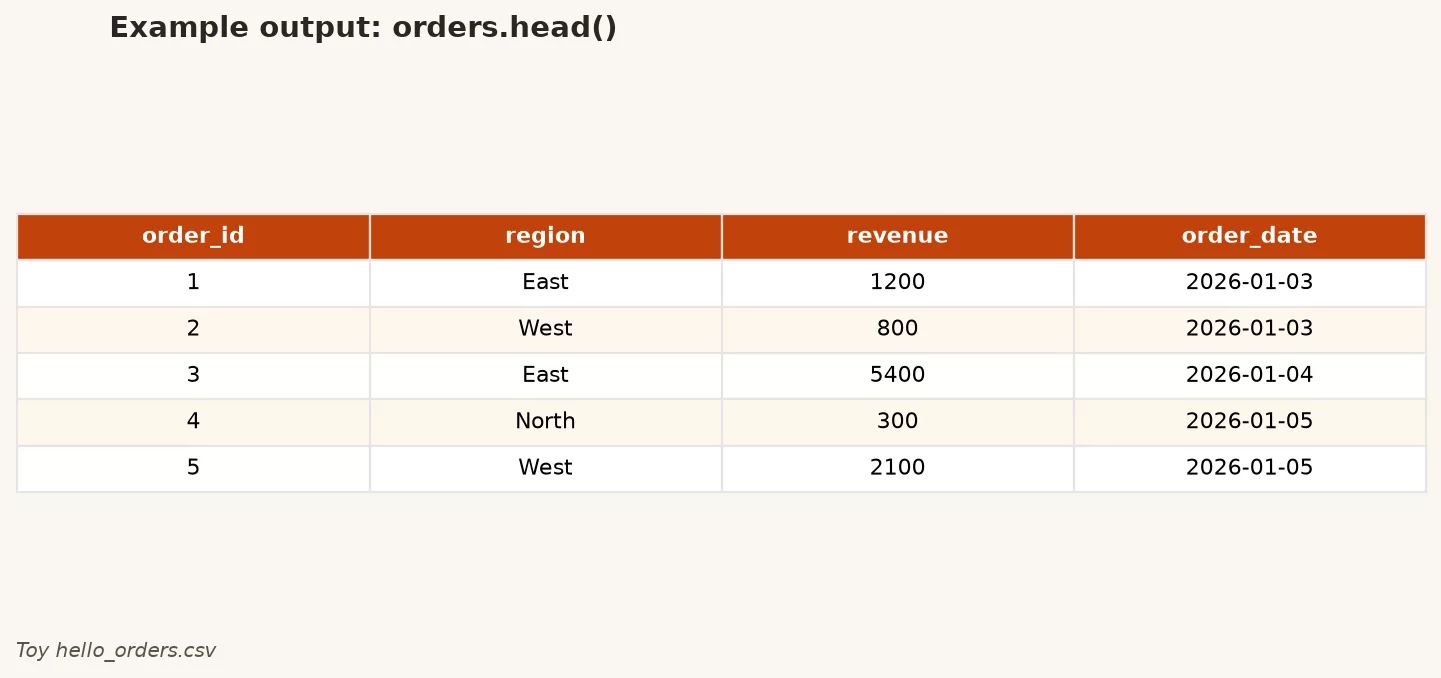
You should see five rows, shape (5, 3), and column names order_id, region, revenue. That moment matters more than it looks. You have proven: Python runs, the venv works, pandas imports, and a file path is correct. Everything else in the series builds on that loop.
If you get FileNotFoundError, you are not in the folder you think you are. In the terminal, pwd (Mac/Linux) or cd (Windows) helps. In VS Code, check the working directory of the terminal panel. Paths are not mystical. They are just easy to mis-click.
VS Code specifics that save an evening
If you use VS Code:
- Install the official Python extension when prompted.
- Choose the interpreter that points at
.venv(Command Palette: “Python: Select Interpreter”). - Open the folder as a workspace root so relative paths like
hello_orders.csvresolve cleanly. - For notebooks, pick the same kernel/interpreter as the venv.
Wrong interpreter is the polite cousin of wrong pip. The editor looks fine. The import fails. Always verify the selected environment when something “should work.”
Jupyter without getting lost
Inside the active venv you can install Jupyter if you want the classic notebook UI:
python -m pip install jupyter
jupyter notebook
Or use VS Code notebooks, which many analysts prefer because files and git live in one place. Either way, remember: notebooks can run cells out of order. Before you trust a result, use “Restart kernel and run all.” That habit is professional hygiene, not pedantry.
A realistic first week of friction (and how to respond)
Setup rarely fails in one dramatic way. It fails as a pile of small mismatches. Knowing the common ones keeps you from concluding you are “bad at code.”
- Two Pythons on the machine. You installed pandas for Python A and ran a script with Python B. Fix: always
python -m pipand select the venv interpreter in the editor. - Wrong working directory. The CSV is real, the path is relative, and you launched the tool from a parent folder. Fix:
cdinto the project, or use an absolute path once while debugging. - Notebook kernel out of date. You installed pandas after opening the notebook. Fix: restart the kernel and run all cells after installs.
- Corporate proxy or SSL blocks pip. Fix: ask IT for the approved package source, or use an internal mirror. Do not disable security casually on a work laptop.
- Permission errors writing
.venv. Fix: create the project in a folder you own (Documents, home directory), not a protected Program Files path.
Write down what worked on your machine in a three-line note: how you activate, how you install, how you run. That note is more valuable than a perfect memory of every flag. When you change laptops, the note becomes the migration guide.
Also decide where practice files live. A single folder such as ams-python/ with data/, notebooks/, and .venv/ is enough structure for this series. You can grow into more formal project layouts later. Over-architecting day one is another way to avoid learning tables.
What “good enough” setup looks like
You are done with Part 2 when all of these are true:
| Check | Pass looks like |
|---|---|
| Python 3 available | python --version or python3 --version prints 3.x |
| venv exists | Folder .venv in the project |
| venv active when working | Prompt shows (.venv) or editor kernel is the venv |
| pandas installed in that venv | import pandas works; version prints |
| CSV loads | read_csv shows expected rows |
You do not need perfect knowledge of every flag. You need a stable loop: activate, edit, run, see table.
Common mistakes
- Installing packages without activating the venv. They land somewhere else. Future you is confused.
- Using
pipthat is not the same aspython. Preferpython -m pip install …always. - Fighting the system Python on Mac. Leave OS-managed Python alone; use your own install + venv.
- Giant first install of every library online. Start with pandas. Add packages when a lesson needs them.
- Saving notebooks that only run if you execute cell 7 before cell 2. Restart and run all before sharing.
- Putting secrets in code. API keys and passwords do not belong in a CSV tutorial file you might commit. Use env vars later; for now, local practice files only.
- Skipping PATH on Windows. If the installer offered “add to PATH” and you declined, reinstall or fix PATH before blaming pandas.
Rule of thumb: One project folder, one venv, one interpreter selected in the editor. When imports fail, check those three before rewriting your code.
Practice and next step
Do this once on your real machine today:
- Create a project folder and a venv named
.venv. - Install pandas with
python -m pip install pandas. - Save
hello_orders.csvand load it withpd.read_csv. - Print
head,shape, and column names. - Deactivate, open a new terminal, activate again, and rerun. Prove you can re-enter the bubble.
Optional stretch: export a small sheet from work (no sensitive columns) and try loading it. If the headers look wrong, you just met the reason Part 3 exists.
Next: Part 3, DataFrames as tables, maps spreadsheet and SQL table ideas onto pandas so the object stops feeling alien.
Quick recap
- Install a Python 3 you control; do not hijack the OS copy.
- Write code in a notebook, a script, or VS Code; pick based on workflow, not fashion.
- Use a venv so packages stay project-local.
- Install with
python -m pipso pip and python stay paired. - Success looks like: import pandas, read a CSV, print the first rows.
- Windows and Mac differ in activation paths; the mental model is the same.
Sources
- Python downloads (official): https://www.python.org/downloads/
- Python docs, venv: https://docs.python.org/3/library/venv.html
- pip user guide: https://pip.pypa.io/en/stable/user_guide/
- pandas installation: https://pandas.pydata.org/docs/getting_started/install.html
- pandas
read_csv: https://pandas.pydata.org/docs/reference/api/pandas.read_csv.html - Visual Studio Code, Python in VS Code: https://code.visualstudio.com/docs/languages/python
- Analytics Made Simple, Learn: https://analyticsmadesimple.com/learn/
- Analytics Made Simple, From spreadsheets to real data: https://analyticsmadesimple.com/series/spreadsheets-to-data/
Keep going
Same lessons in your feed
Short diagrams, hooks, and weekly tutorials on Substack, Instagram, X, and Facebook.