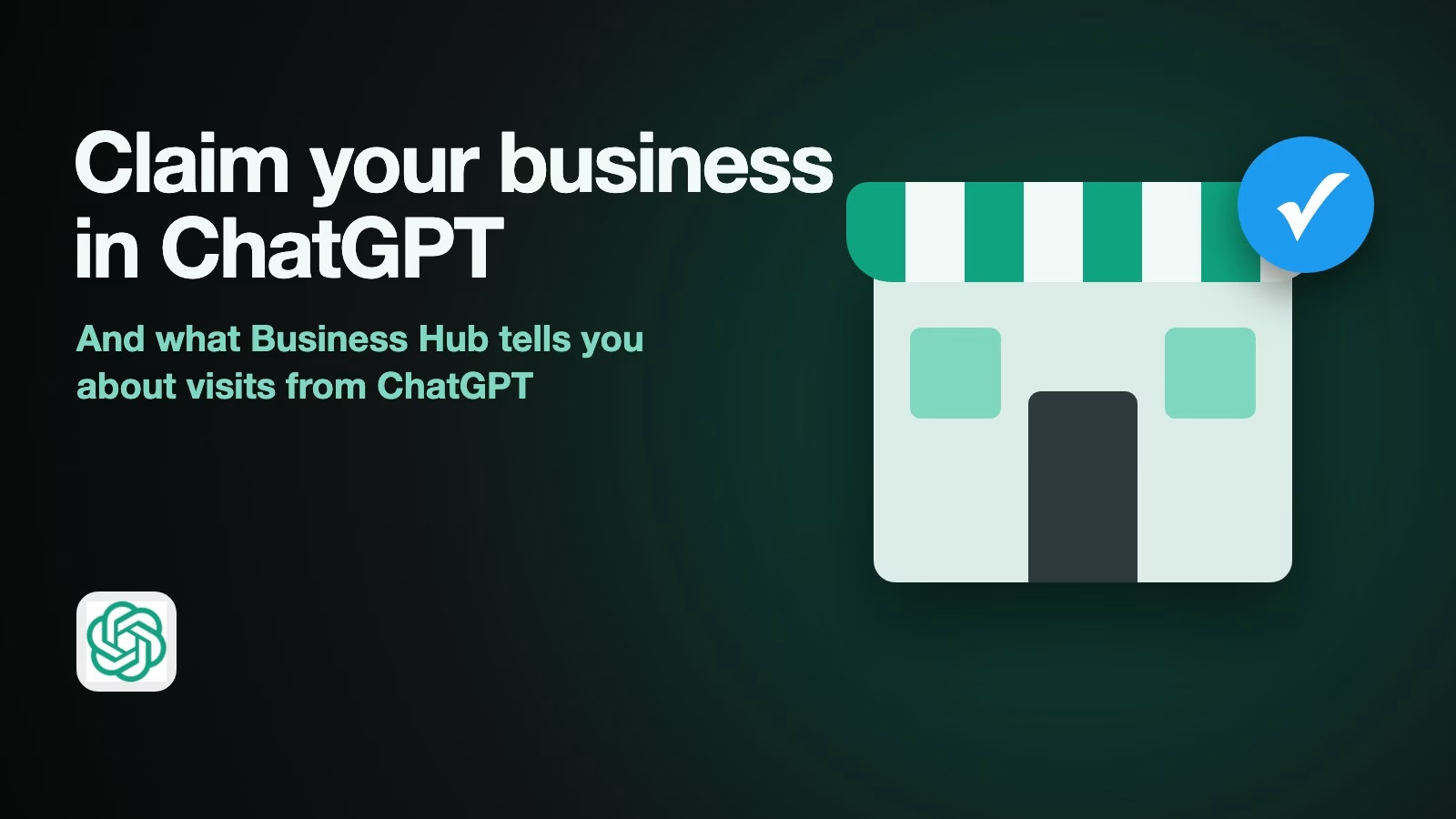
OpenAI now lets a business claim its own page inside ChatGPT, correct what ChatGPT shows about it, and see how often ChatGPT sent people to its website. The feature is called Businesses in ChatGPT, it is still in early testing, and you set it up on a page called Business Hub.
Imagine you run a small online shop, and a customer tells you they found you by asking ChatGPT for gift ideas. You had no idea ChatGPT was recommending you. You do not know what it says about your return policy. Your website statistics show a few visits marked as coming from chatgpt.com that you never looked at closely. Claiming your page lets you correct those details and gives you a second set of numbers to compare with your own.
This guide covers what OpenAI launched, how to claim your business step by step, what the three numbers in Business Hub mean, how to compare them with Google Analytics, and what the customer chat assistants OpenAI offers to some businesses can do. For the wider question of how AI answers change your search traffic, see our guide on checking whether AI answers are taking your search traffic.
What did OpenAI launch?
OpenAI launched Businesses in ChatGPT in beta on November 10, 2026, according to its announcement. Through Business Hub, a business can claim its listing, update its details, add product feeds with prices and availability, and see aggregated insights about how people engage with it in ChatGPT.
The announcement says any eligible business located where ChatGPT is available can claim itself, and that existing OpenAI Enterprise customers and advertisers can go through their OpenAI representative instead. OpenAI’s help article on setting up your business (checked November 15, 2026) adds that you do not need an ads account or an Enterprise agreement to claim a business.
There is one limit worth knowing before you start. The same help article says local stores and restaurants can only claim an existing US listing for now. An online business may be able to add itself if no listing exists.
How to claim and verify your business
You claim the listing in Business Hub, prove the connection, then verify your own identity before you can edit anything. The help article (checked November 15, 2026) sets out the order.
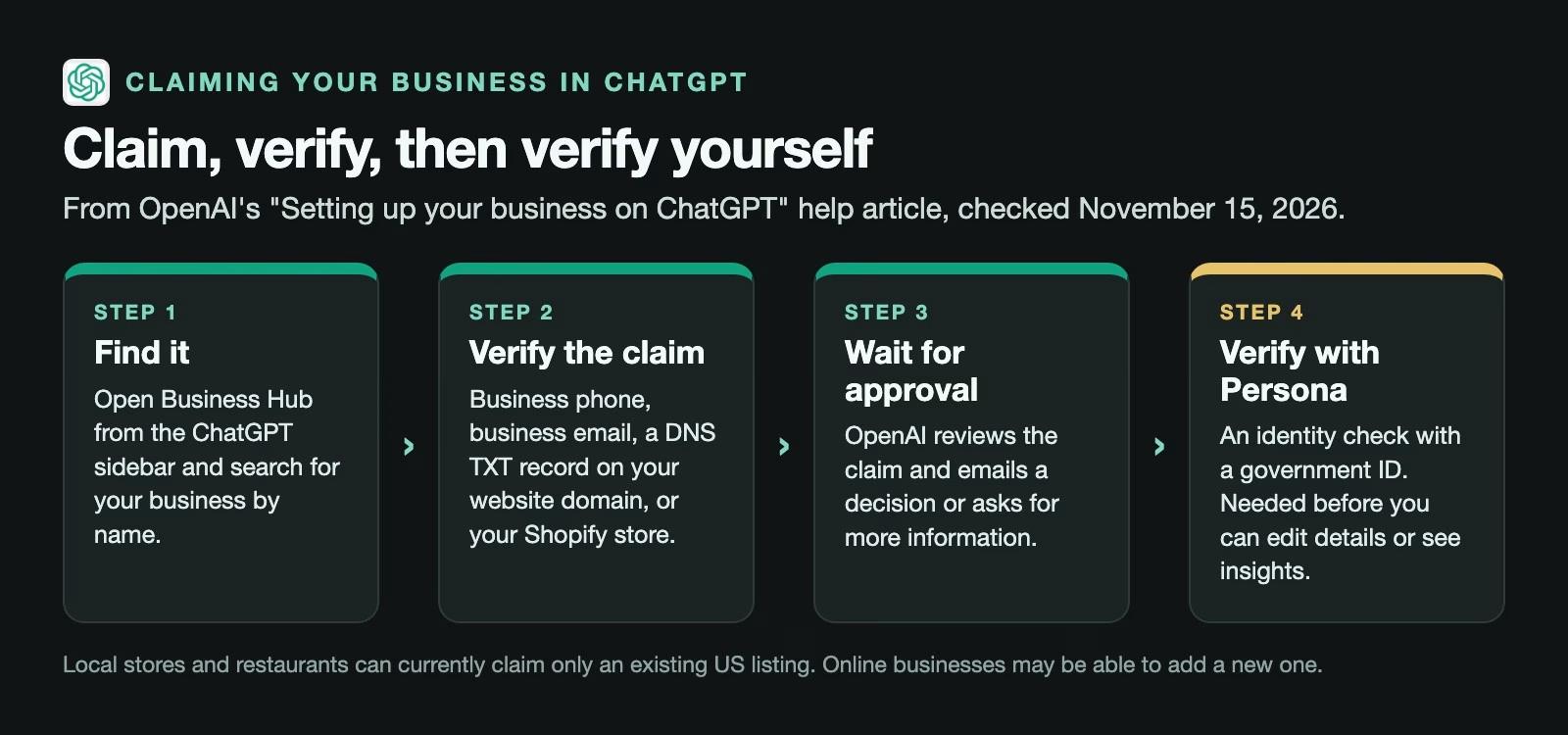
- Find the listing. Sign in to ChatGPT, open Business Hub from the sidebar and search for your business by name. Pick the matching listing and confirm which ChatGPT account will manage it.
- Verify the claim. Choose one of the methods offered: a code by text or automated call to the business phone, a code to the business email, a record added to your website’s domain settings, or connecting your Shopify store.
- Wait for approval. OpenAI reviews the claim and emails you a decision or a request for more information.
- Verify your identity with Persona. Persona is an identity-checking service OpenAI uses. You may need a government-issued ID, business registration details and proof that you can represent the business.
The website domain option, in plain words
DNS, the domain name system, is the internet’s address book. Your domain’s DNS settings live wherever you bought or manage the domain. The help article says to add a TXT record exactly as ChatGPT shows it. A TXT record is a small line of text that proves you control the domain. Then go back and select Verify domain. If someone else manages your website, send them the record to add. DNS changes can take a while to show up, so do not panic if verification fails in the first few minutes.
Why the Persona step matters
The claim alone gets you into Business Hub, but the help article says you cannot publish changes, connect a product feed, view insights or build an agent, a chat assistant that answers customers for you, until Persona verification is approved. The blue verified check on your profile also appears only after that approval. If you skip it, you will have claimed the listing and still see nothing.
What you can change on your listing
After both approvals, you can update your website, description, product or service category, logo, delivery policy and return policy, and add a cover photo, according to the help article checked November 15, 2026. If you sell products, you can connect a product feed, a file listing your products with prices and availability, either from Shopify or as a spreadsheet file in OpenAI’s format.
Two warnings in the same article set expectations. OpenAI reviews and publishes changes, and updates can take time to show up in answers. ChatGPT may also use other sources when it talks about your business, so a correct listing does not guarantee a correct answer.
The FAQ is direct about the other common hope. Claiming your business “doesn’t guarantee increased visibility” or give you control over ChatGPT’s own recommendations, and advertising does not affect its independent answers.
What do the insight numbers mean?
Business Hub shows three kinds of insight for the past 28 days: mentions, website clicks and discovery topics. The help article (checked November 15, 2026) defines them more strictly than the names suggest.
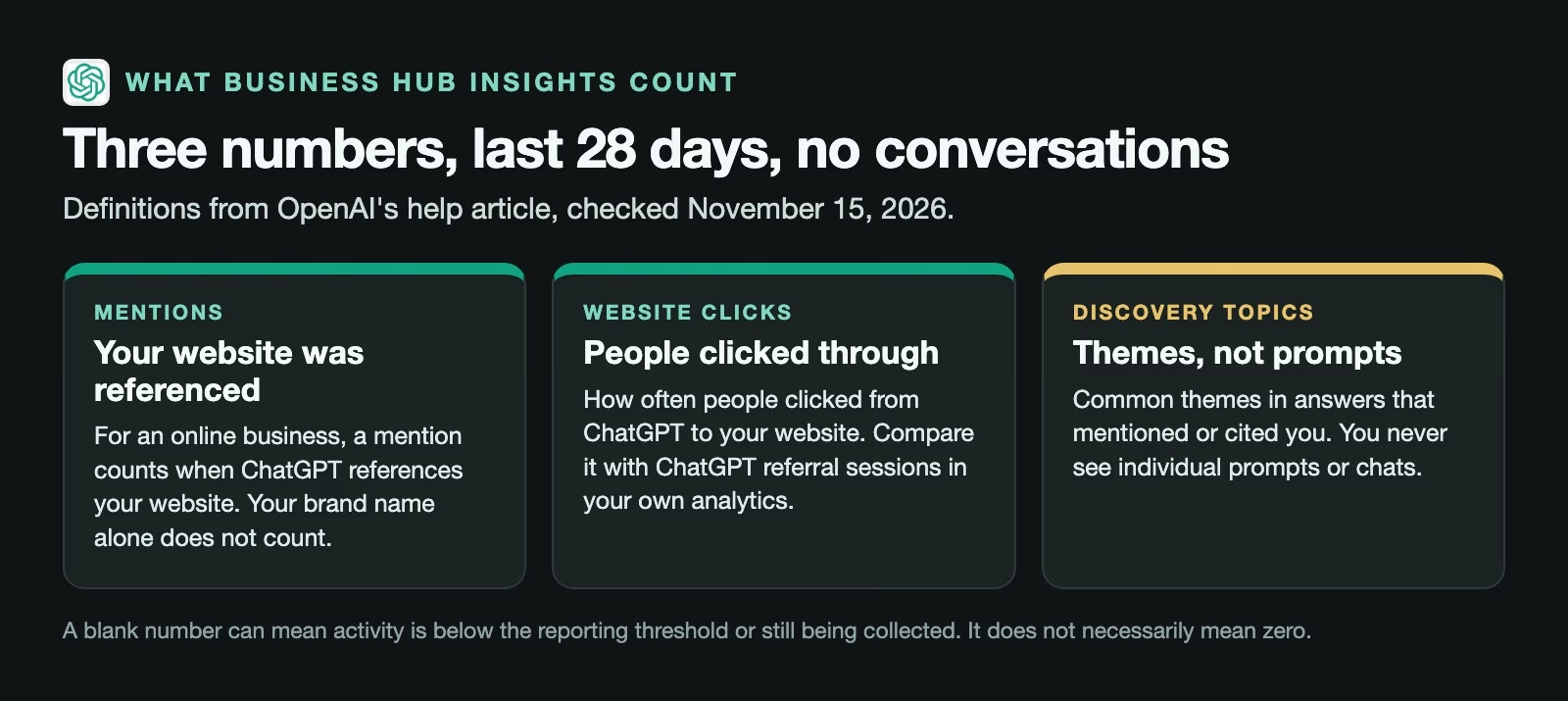
- Mentions. For an online business, a mention counts only when ChatGPT references your website. Your brand name alone does not count. For a local business, a mention counts when ChatGPT shows a result for that location.
- Website clicks. How often people clicked through from ChatGPT to your website.
- Discovery topics. Common themes in answers that mentioned or cited your business. They are grouped categories, not the questions people typed.
OpenAI’s announcement says businesses never see users’ conversations or chats with their Business Agent, and that insights appear only once activity passes certain thresholds. The help article adds that a blank number does not necessarily mean zero; activity may be under the threshold or still being counted.
How to check the numbers against GA4
GA4, short for Google Analytics 4, is Google’s free tool that records visits to a website. Business Hub counts clicks from OpenAI’s side, while GA4 counts visits from your website’s side, so comparing the two shows how much ChatGPT traffic your own analytics really sees.
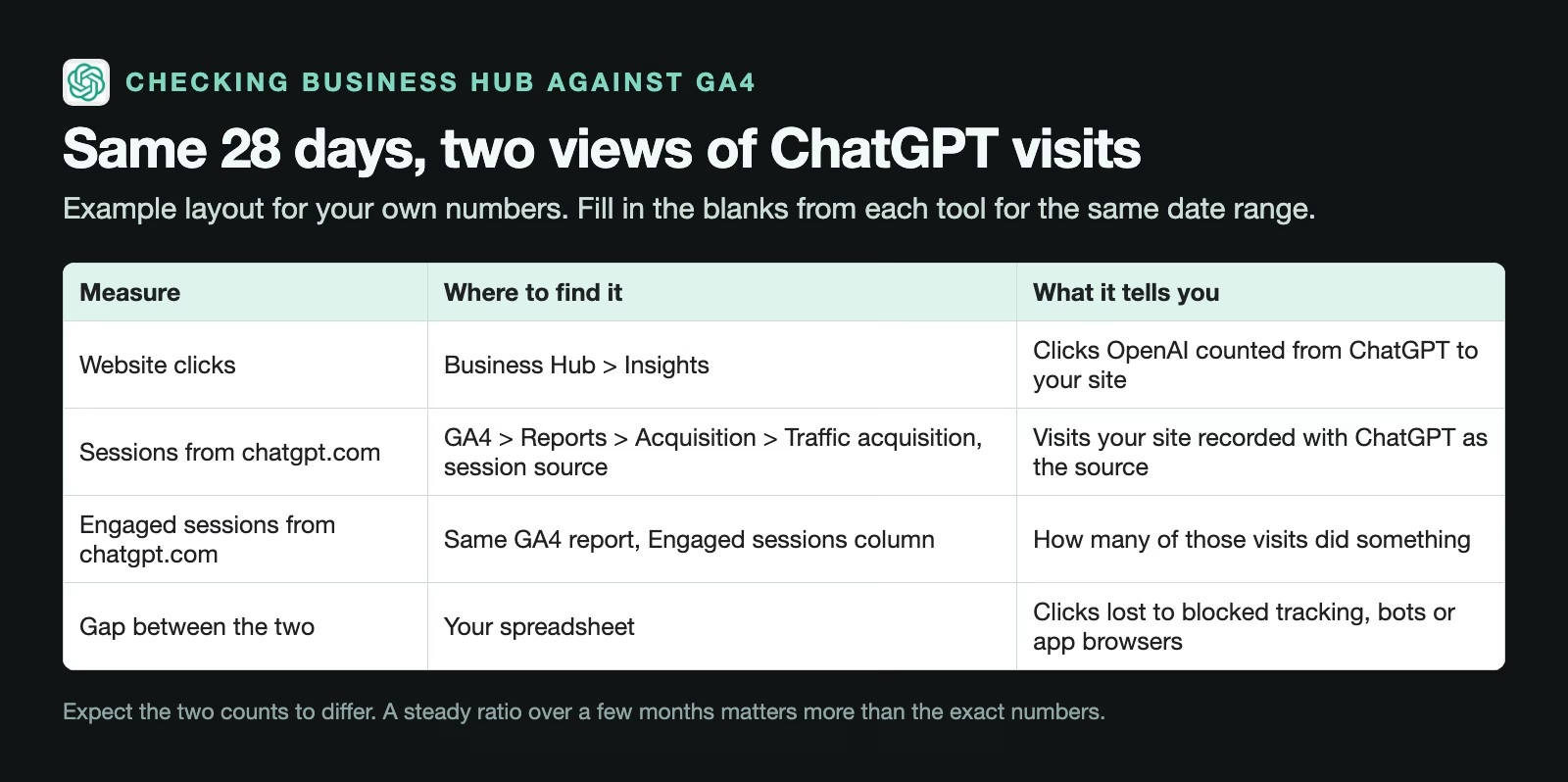
- In Business Hub, note the 28-day website clicks and the date range.
- In GA4, open Reports > Acquisition > Traffic acquisition, set the same dates and change the main dimension to session source.
- Find the row for chatgpt.com and note sessions and engaged sessions. An engaged session is GA4’s name for a visit where the person actually did something on the page instead of leaving at once.
- Put both numbers in a spreadsheet and work out the ratio of GA4 sessions to Business Hub clicks.
Expect a gap. Some visitors block analytics, some clicks open in app browsers that drop the referral, and GA4 counts visits differently from how OpenAI counts clicks. The useful signal is the trend: if the ratio stays steady for a few months, you can use either number to track growth. If GA4 suddenly shows far fewer ChatGPT visits than Business Hub reports clicks, check your site’s tracking.
A worked example with round numbers
Suppose Business Hub shows 400 website clicks for the 28 days to November 30, and GA4 shows 300 sessions from chatgpt.com over the same dates, 180 of them engaged. GA4 is seeing 75% of the clicks OpenAI counted, which is a reasonable gap. The more useful number is the 60% engagement rate on those 300 sessions: if visitors from ChatGPT engage more than your other visitors, the listing is worth keeping current.
Next month, compare again. If clicks rise to 500 and GA4 sessions to 375, the ratio has held and the growth is real.
What can a business agent do for customers?
A Business Agent is a chat assistant a business sets up inside ChatGPT to answer questions about its products and policies. The announcement says they are open to eligible online shops and online service businesses in the United States. The chat is clearly labelled and kept apart from ChatGPT’s own answers.
The help article (checked November 15, 2026) says an agent cannot complete purchases, make bookings or check a customer’s order. It explains products and policies and links to your website, where the customer does the rest. Before publishing, it suggests testing a question customers often ask, such as whether a sale item can be returned, and fixing the information if the answer is wrong.
If you are a local shop or outside the US, you can still claim and manage a listing. You just cannot publish an agent yet.
Common mistakes
- Stopping after the claim, when insights and edits need the separate Persona approval.
- Expecting more visibility from claiming, when OpenAI’s FAQ says it does not guarantee any.
- Reading a blank insight as zero, when it may be under the reporting threshold.
- Counting brand mentions in your head, when Business Hub counts only references to your website.
- Comparing different date ranges between Business Hub and GA4.
- Publishing an agent without testing it on the questions customers actually ask.
Try it this week
- Open Business Hub in ChatGPT and search for your business.
- Verify the claim with the method that is quickest for you, then complete Persona.
- Check that your website, description and return policy are right.
- Record the 28-day website clicks and the chatgpt.com sessions from GA4 for the same dates.
- Set a reminder to compare the two numbers again in four weeks.
Quick recap
- Businesses in ChatGPT launched in beta on November 10, 2026.
- You claim through Business Hub with phone, email, a DNS record or Shopify.
- Persona identity verification is required before you can edit or see insights.
- Insights cover 28 days: mentions of your website, website clicks and discovery topics.
- Compare website clicks with chatgpt.com sessions in GA4 and watch the ratio.
- Business Agents are for eligible US online businesses and cannot take orders.
Sources
- OpenAI: Introducing Businesses in ChatGPT (November 10, 2026; Business Hub, eligibility, insights, privacy thresholds, Business Agents)
- OpenAI Help Center: Setting up your business on ChatGPT (claim steps, verification methods, Persona, editable details, insight definitions, agent limits, FAQ; checked November 15, 2026)
- Search Engine Journal: How to submit your website to ChatGPT Business Hub (walkthrough of the website domain path, November 2026)
Keep going
Same lessons in your feed
Short diagrams, hooks, and weekly tutorials on Substack, Instagram, X, and Facebook.