
Gemini can now fill a whole column of a Google Sheet with facts from the web and show you the page each answer came from, which turns “can I trust this column?” into a check you can actually do. The habit that makes it safe is simple: open the sources for a random sample of cells, count how many match, and only use the column if the count is good enough for the job.
Imagine your manager hands you a list of 200 suppliers and asks for each one’s headquarters city and number of staff by Friday. Typing that by hand is a day of searching. Asking Gemini to fill it takes a minute. The catch is that a filled cell looks equally confident whether Gemini found the company’s own website or a directory page that has been wrong since 2019.
This guide shows how to fill a column with the AI function, where the sources appear, what a source does and does not prove, how many cells to check, and how to lay out a sheet that makes checking quick. If Gemini in Sheets is new to you, start with how to use Gemini in Google Sheets to explain formulas and clean up data.
What the new update does
Each cell that Gemini fills from the web now carries the sources it used, and one request can cover more cells than before. Google’s Workspace Updates post (October 20, 2026) calls these cell-level citations and says a single request can now handle up to 3,000 cells. It also says requests run faster and more consistently than before.
A citation, here, is a link to the web page Gemini relied on for that one cell. Before this change you could see that Gemini had searched the web, but not which page fed which answer, so checking a column meant redoing the search yourself.
The rollout began on October 20 and Google says it can take up to 15 days to reach every account. Citations show in Sheets on the web, not in the phone apps.
Who can use it
The AI function, the formula behind Fill with Gemini, needs an eligible Google plan. The Workspace Updates post (October 20, 2026) lists Business Standard and Plus, Enterprise Standard and Plus, Google AI Pro and Ultra for personal accounts, Google AI Pro for Education and the AI Expanded Access add-on. Google’s admin page on AI usage limits (updated October 26, 2026) gives each user a monthly number of cell generations: 5,000 on Business Standard and Plus, and 25,000 on Enterprise Standard and Plus.
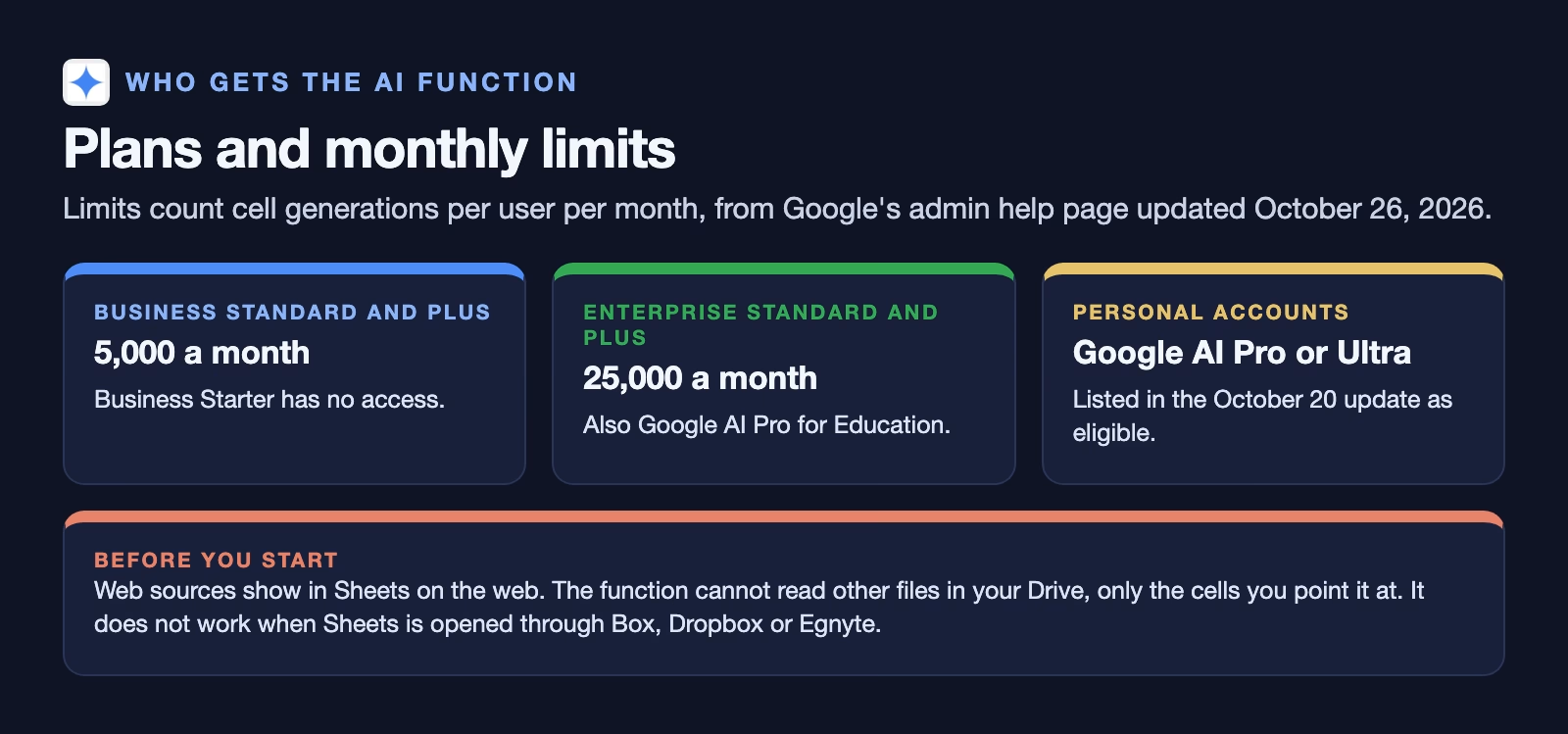
Five thousand sounds like a lot until you fill four columns of 200 rows and then regenerate twice after fixing a prompt. Plan your prompt on ten rows before you run it on the whole sheet.
How to fill a column with the AI function
You write one formula with a prompt and a cell reference, copy it down, and ask Sheets to generate the results. The AI function help page (checked October 29, 2026) gives the form AI("prompt", range), where the range is the cell or cells the prompt is about.
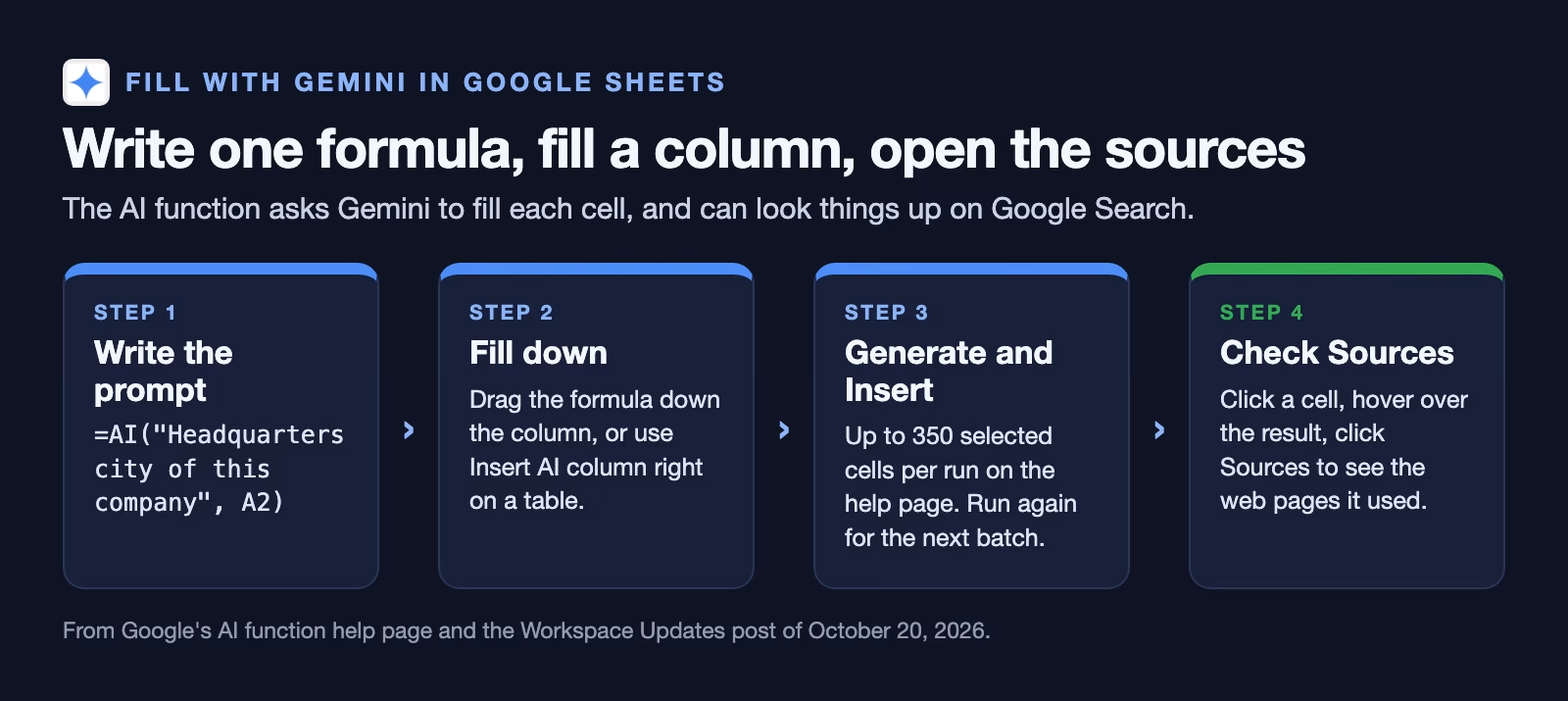
Here is a typical formula for the supplier example, with the company name in column A. In plain words: the text in quotes is the instruction Gemini follows, and A2 tells it which company that row is about. When you copy the formula down, A2 becomes A3, A4 and so on, so every row asks the same question about its own company. The “City name only” part keeps the answers short and consistent, which makes them easier to check and sort.
=AI("Headquarters city of this company. City name only.", A2)A few details from the help page (checked October 29, 2026) that matter in practice:
- Batches of 350. When you select cells and click Generate and Insert, only the first 350 selected cells generate in one run. Wait for it to finish, then select the next block. Google’s October post says one request can now cover up to 3,000 cells, but the help page still lists 350 for a selection, so plan for the smaller number until the help page changes.
- It only sees what you point it at. The function cannot read your whole spreadsheet or other files in Drive. Put the data it needs in the sheet and reference it.
- Text only. Results come back as text, so a staff count arrives as “about 1,200” unless you ask for a plain number.
- No undo. You cannot undo a generation; you regenerate instead. Copy the column and paste it as values before you start editing, so a stray refresh cannot overwrite your checks.
- Not inside other formulas. You cannot nest the AI function inside another function such as
IF.
Where the sources appear
To see where an answer came from, click the cell, hover over the result and click Sources. A short list of web pages appears; open them in a new tab. That is the whole mechanism, and with a little practice it lets you check a cell in under a minute.
What a source proves, and what it does not
A source shows where Gemini found the answer; it does not show the answer is right. Borncity’s report on the change (October 29, 2026) notes Google’s own wording: citations make the origin of a value traceable, without guaranteeing that the content is correct.
That gap shows up in three ways:
- The page is out of date. Directory sites copy company details once and rarely update them. Companies move, merge and rename.
- The page says something slightly different. The source says “regional office in Leeds” and the cell says the headquarters is in Leeds.
- The page is about a different company. Two firms with similar names, and Gemini picked the wrong one.
So when you open a source, ask two questions, not one. Does the page say what the cell says? And is this the kind of page you would trust if you had found it yourself? A company’s own “About” or “Contact” page, an annual report or an official register beats a listings site.
How many cells to check
Check a random sample, and make the sample big enough for the decision you are making. Checking the first ten rows tells you about the first ten rows, which are often the biggest, best-documented companies.
A handy guide here is the rule of three): if you check a number of cells and find no mistakes at all, the true error rate in the whole column could still be as high as about three divided by that number, at the usual 95% level of confidence.
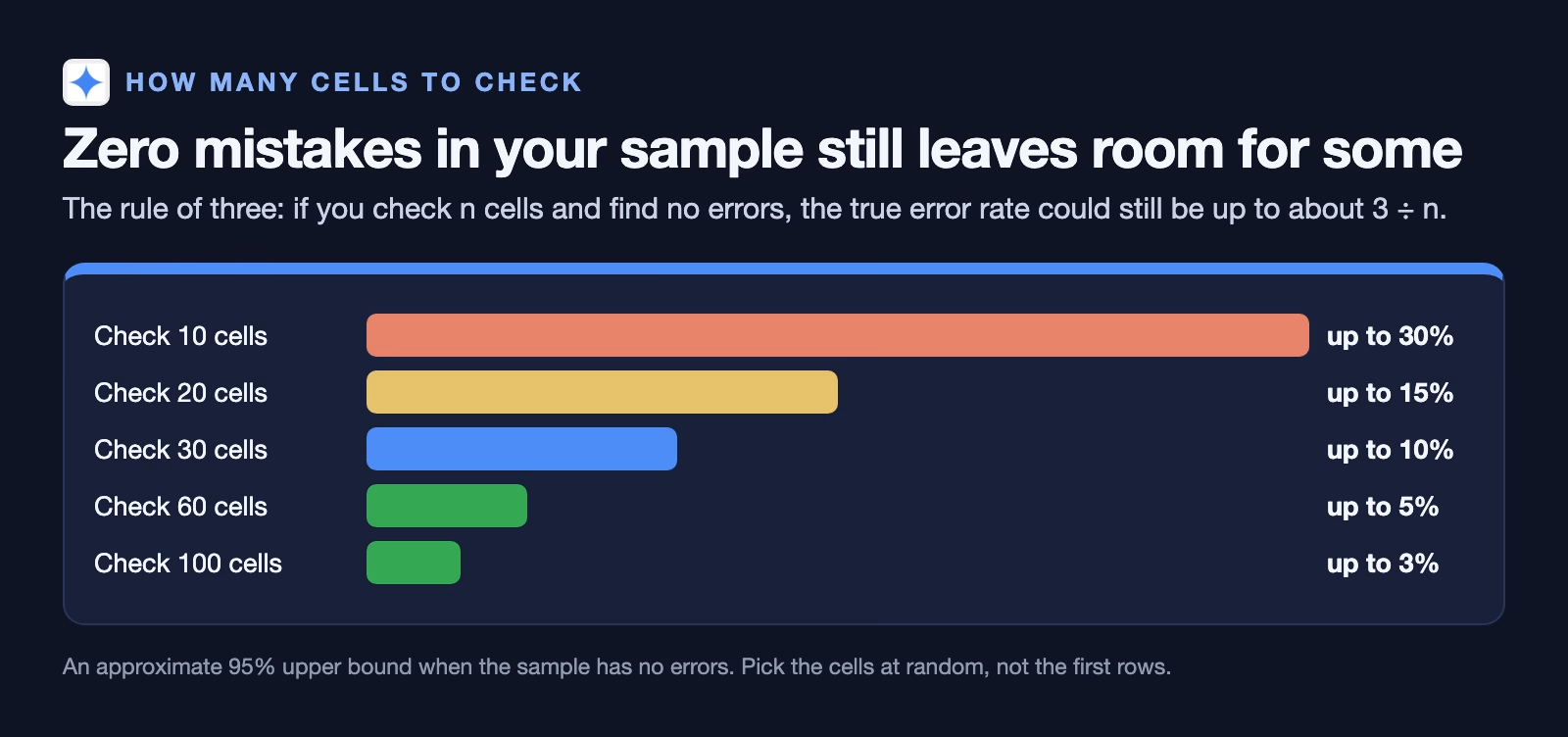
In plain terms: ten clean checks still leave room for up to about one wrong cell in three across the column. Thirty clean checks bring that down to about one in ten, and sixty bring it to about one in twenty.
How many you need depends on what the column is for:
| What the column is for | Random cells to check | If all are right, errors could still be up to |
|---|---|---|
| A rough list to start research | 10 | about 30% |
| A list you will share with your team | 30 | about 10% |
| Numbers going into a report or a decision | 60, plus every row that matters most | about 5% |
| Anything sent to customers or regulators | Every row | Checked, not estimated |
If you find even one mistake in your sample, the rule of three no longer applies, and the honest conclusion is that the column has errors at a rate you have not pinned down yet. Fix the prompt, check more, or check every row that matters. For more on reading ranges like these, see uncertainty and confidence intervals explained in plain English.
Picking a random sample in Sheets
Add a helper column with =RAND() next to your data, copy it and paste it as values so it stops changing, then sort the sheet by that column. The top 30 rows are now a random sample. Sort back by company name when you are done.
A worked example: 200 suppliers
Let’s go back to the supplier list. Here is the whole job, start to finish, with a sheet laid out for checking.
- Test the prompt on ten rows. Ask for the city only, as a plain answer. You notice two cells come back as “Leeds, United Kingdom” and one as “Greater Leeds area”, so you add “City name only” to the prompt.
- Fill the column. Copy the formula down 200 rows and generate in batches of 350 or fewer. That uses 200 of your monthly cell generations, and the ten test rows used ten more.
- Freeze the results. Copy the AI column and paste it as values into a new column, so the numbers you check cannot change under you.
- Add checking columns. Next to the AI column, add Source opened, Checked and Matches.
- Sample 30 rows at random with the
RAND()trick and check each one: open the sources, judge the page, mark Yes or No.
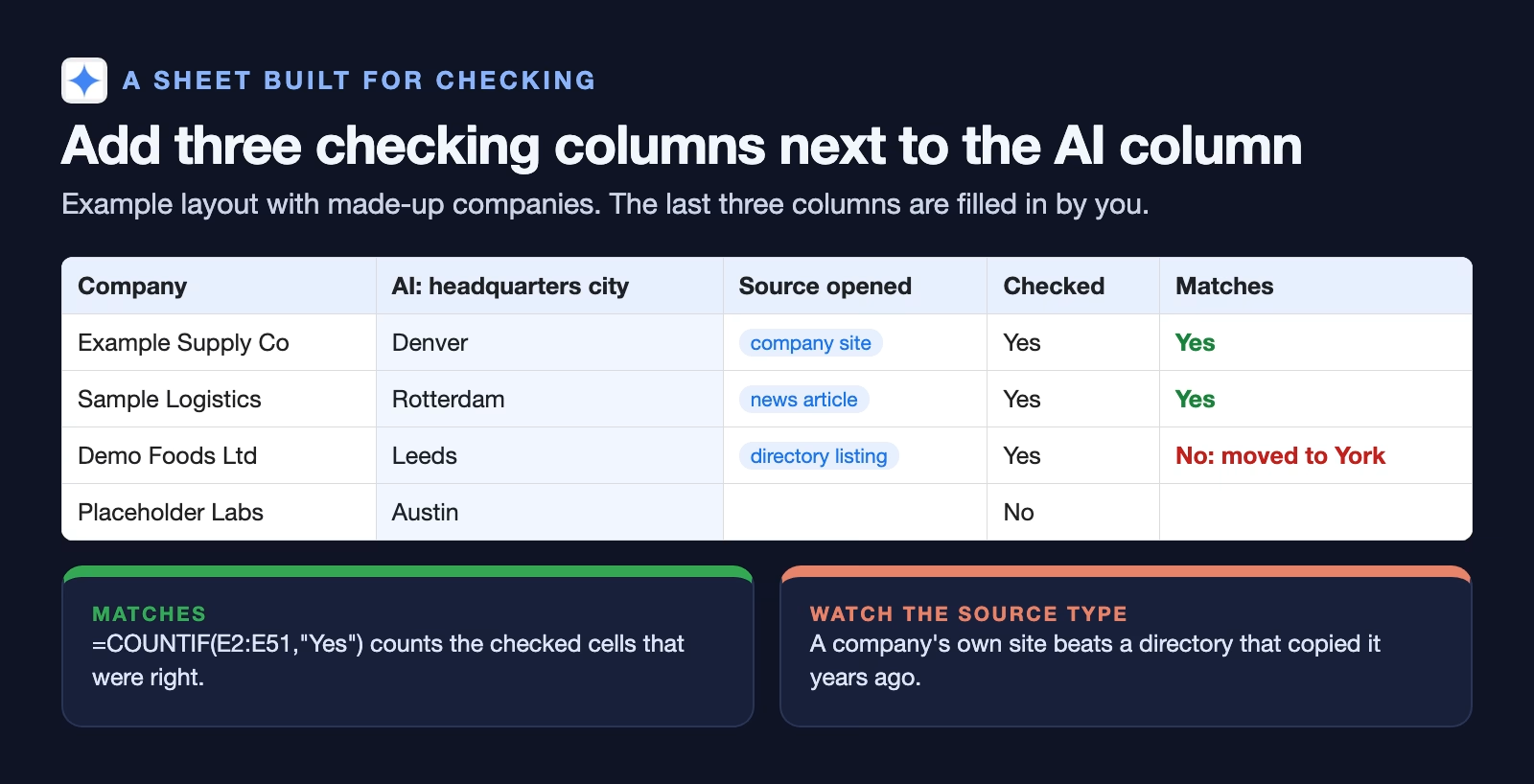
Suppose 29 of the 30 match and one is wrong: the source was a directory listing that still showed an old address. One mistake in 30 means roughly one in thirty is wrong across the column, and the rule-of-three upper bound no longer applies because the sample was not clean. Before you send the list on, go through every row whose source is a directory listing and check those individually. That is usually a small share of the rows, and it is where the mistakes live.
Then count your result with two simple formulas, so the number you report is not a guess. The first counts the rows in the Matches column (column E in the layout above) marked Yes; the second counts every row you have marked at all, matched or not. Divide the first by the second for your match rate.
=COUNTIF(E2:E201, "Yes")      checked rows that matched
=COUNTA(E2:E201)              rows checked so far
Report it plainly with the file: “Headquarters cities filled by Gemini from web sources; 30 random rows checked against sources, 29 matched; directory-sourced rows checked individually.” That one sentence tells your manager exactly how far to trust the column.
Common mistakes
- Checking the first rows instead of random ones. The top of a list is rarely typical.
- Treating a citation as proof. It shows where the answer came from, not that the page is right.
- Leaving the AI column live. Paste the results as values before you check, or a refresh can change cells you already marked.
- Asking for several facts in one cell. “City and staff count” in one prompt makes both harder to check. One fact per column.
- Forgetting the monthly limit. Test on ten rows, then fill the rest.
- Using it for private data. The function looks things up on the web; it is for public facts, not your customers’ details.
Try it this week
- Pick a list of 50 public things you already know something about, such as companies you buy from.
- Fill one column with a one-fact prompt, then paste the results as values.
- Sample 20 rows at random and check each source. Count the matches.
- Note which kinds of source were wrong, and add a line to your prompt or your checking rules to deal with them.
For a broader routine for checking any AI tool’s answers before you trust it at work, read how to check an AI tool’s answers yourself.
Quick recap
- Since October 20, 2026, cells filled by Gemini from the web show their sources.
- Click a cell, hover, then click Sources to see them.
- A source shows where an answer came from, not that it is right.
- Check a random sample; with no mistakes in n checks, the error rate could still be up to about 3 ÷ n.
- Freeze results as values, add checking columns, and report what you checked.
Sources
- Google Workspace Updates: Fill with Gemini now provides cell-level citations (October 20, 2026: citations, 3,000 cells per request, plans, rollout)
- Google Docs Editors Help: AI function in Google Sheets (syntax, 350 cells per run, Sources, limits; checked October 29, 2026)
- Google Workspace Admin Help: About AI usage limits (monthly AI function limits per plan, updated October 26, 2026)
- Borncity: Google Sheets, Gemini shows web sources in AI cells (German) (October 29, 2026: citations show origin, not correctness; 350-cell help page limit)
- Wikipedia: Rule of three (statistics)) (the 3 ÷ n upper bound when a sample has no errors)
Keep going
Same lessons in your feed
Short diagrams, hooks, and weekly tutorials on Substack, Instagram, X, and Facebook.