
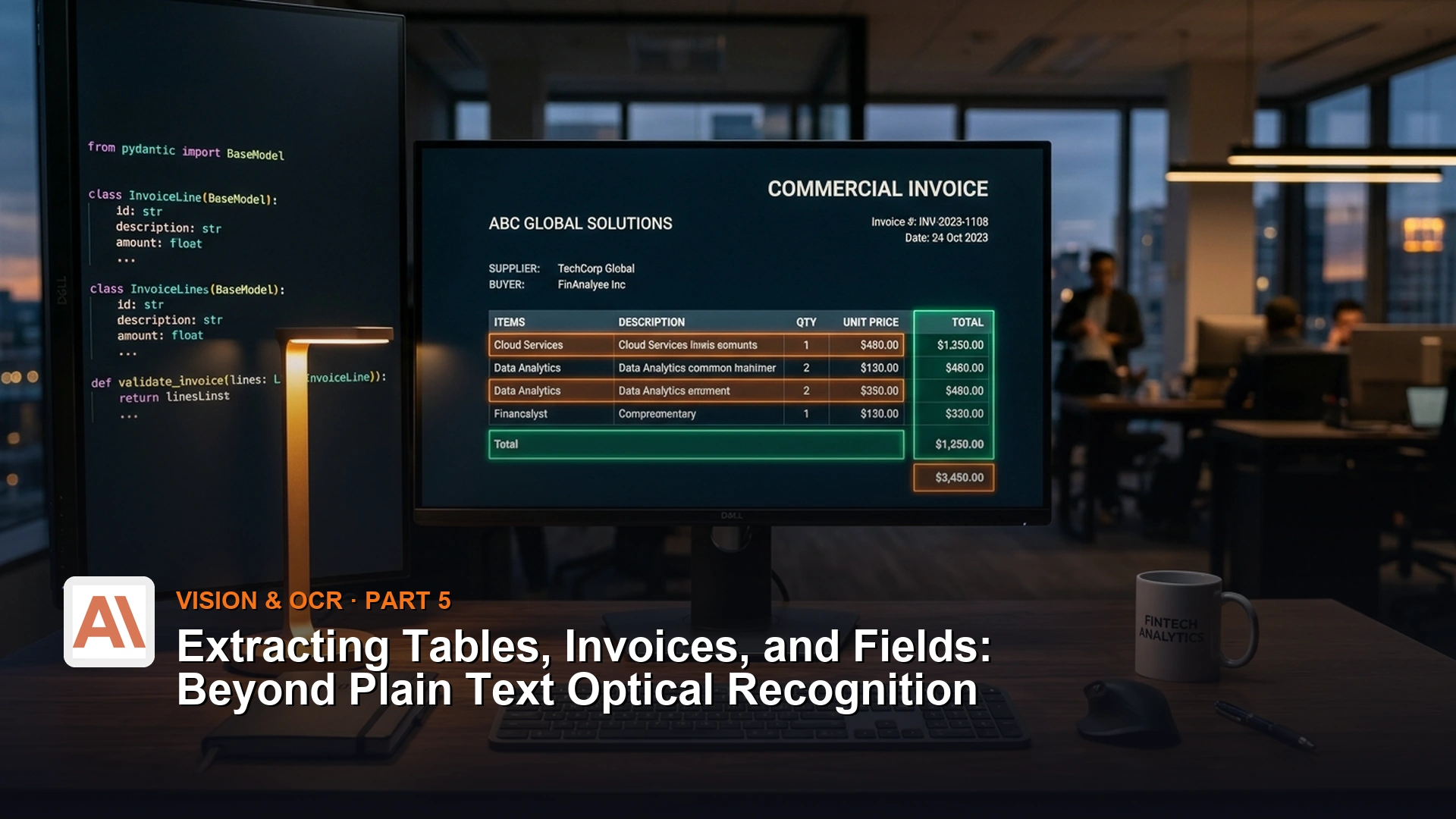
To read invoices correctly, software needs to know where each word sits on the page, not just what the words say. Then it should check that every total adds up before any money moves.
Say you use an app to copy the bills you get from suppliers into your bookkeeping. It squashes each bill into one long line of text, adds the wrong numbers, and counts the tax twice. Reading the bill by its layout, and checking the sums, would have caught that before it reached your books.
What a financial document actually looks like, structurally
To pull structured information out of a business document, you first need to understand its physical layout. Unlike a report where text flows in continuous paragraphs, a business document organizes its data into four distinct zones on the page:
1. The header details
A handful of label-and-value pairs near the top: invoice number, purchase order reference, issue date, payment due date, and the vendor’s tax ID. The value usually sits right next to or just below its label.
2. The address blocks
Multi-line, loosely structured blocks for the remit-to, bill-to, and ship-to companies. These blocks often sit side by side, so simple text reading can mix them together.
3. The line-items table
A dense grid with product codes, descriptions, quantities, unit prices, tax rates, and row totals. Rows often wrap a long description across multiple lines, while the quantity and total stay on a single line.
4. The totals summary
A strict math summary usually clustered in the lower right corner: net subtotal, discounts, shipping and handling, tax, and the final balance due.
Figure 1 contrasts a fragile keyword search against a modern, layout-aware system that respects these four visual zones.
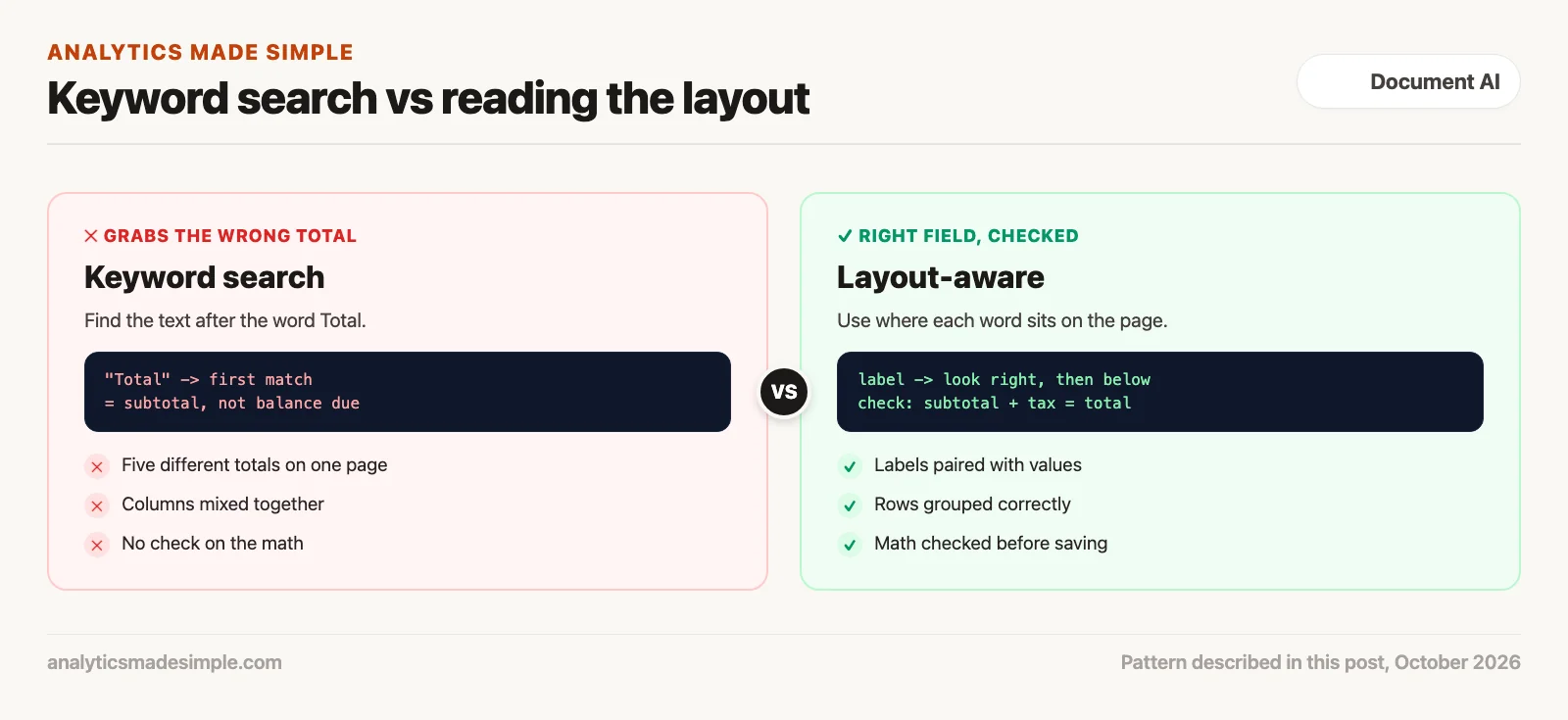
When an engineer relies purely on a keyword search like “find the text after the word Total,” the system fails constantly. A single invoice often has five different “totals”: subtotal, total eligible for discount, total tax, total paid to date, and grand total balance due. In flat text, a keyword search usually grabs the first match. It pulls the subtotal instead of the amount owed, and the books are quietly wrong.
Finding a value by tracing a line from its label
Invoices come in thousands of layouts. You do not want to train a model for every vendor. A simple trick works well: start at a label and look outward to find its value. This approach relies on knowing exactly where every word sits on the page.
When looking for a specific field, like the invoice date, the process runs through four steps:
- Find the label. The system scans the page for known label phrases: “Invoice Date,” “Date of Issue,” “Billing Date,” or “Dated:”. Once it finds a match, it notes exactly where that label sits on the page.
- Look to the right. The system checks the space directly to the right of the label. If it finds something that looks like a valid date in that space, it treats that as the value.
- Look below, as a backup. If nothing valid turns up to the right, which happens often in stacked form layouts, the system checks the space directly below the label instead.
- Check and lock it in. Once a candidate value is found, it gets checked against a strict format, like a standard date pattern. Once accepted, that piece of text is marked as used, so it can’t accidentally get matched to a second field.
The problem of a description that wraps across several lines
Header details are one challenge. The line-items table is harder, because descriptions rarely fit on one line. A real description might read: “Setup of a backup database for the main office (cluster Alpha), including round-the-clock technical support and twelve months of security updates.”
That one description wraps across three or four lines on the page. Meanwhile, the numbers next to it, quantity, unit price, and total, sit on a single line. A simple table parser that splits rows purely by vertical position treats each wrapped line of that description as its own separate row. The result: one row with a price and two “phantom” rows with description text but no numbers at all, which wrecks the whole table’s structure.
Figure 2 shows the full four-stage process used to standardize currency formats, trace label-to-value lines, group wrapped rows back together, and check the final math.
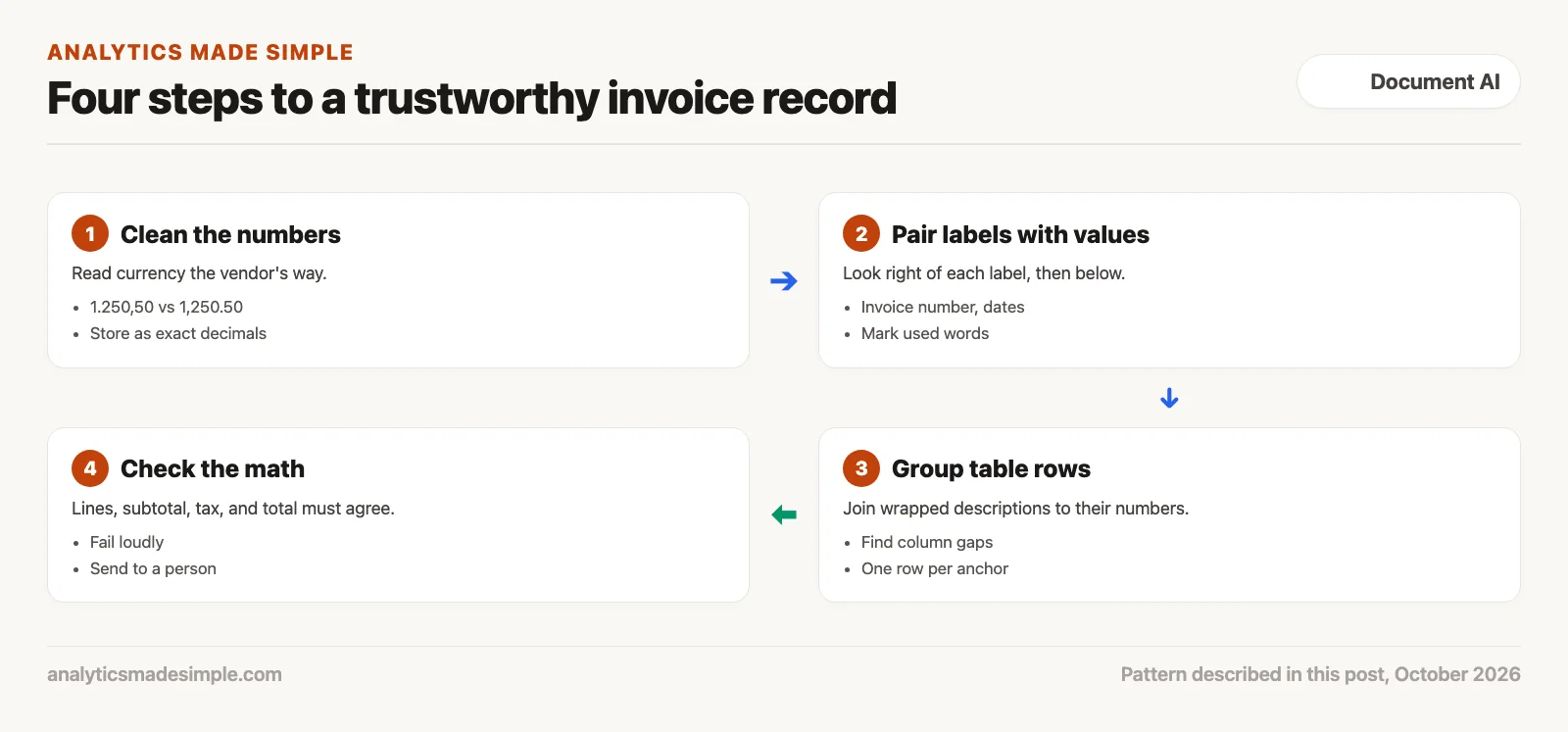
To fix the multi-line wrapping problem, production systems use column boundaries. First, the system detects the empty vertical gaps between columns and assigns every word on the page to a column: description, quantity, unit price, tax, or amount. Next, it identifies “row anchors”: words that appear exactly once per line item, like an item number, quantity, or line total. Finally, any leftover description text sitting between one row anchor and the next gets grouped together as that row’s full description.
How this fits into a real company’s systems
A high-volume financial automation system can’t rely on one single script (a small program) doing everything. It needs to separate reading the page’s geometry from checking the business rules and connecting to internal business software. Figure 3 shows the four layers of a full invoice automation pipeline (an automated set of steps that moves and cleans data from receipt to final storage).
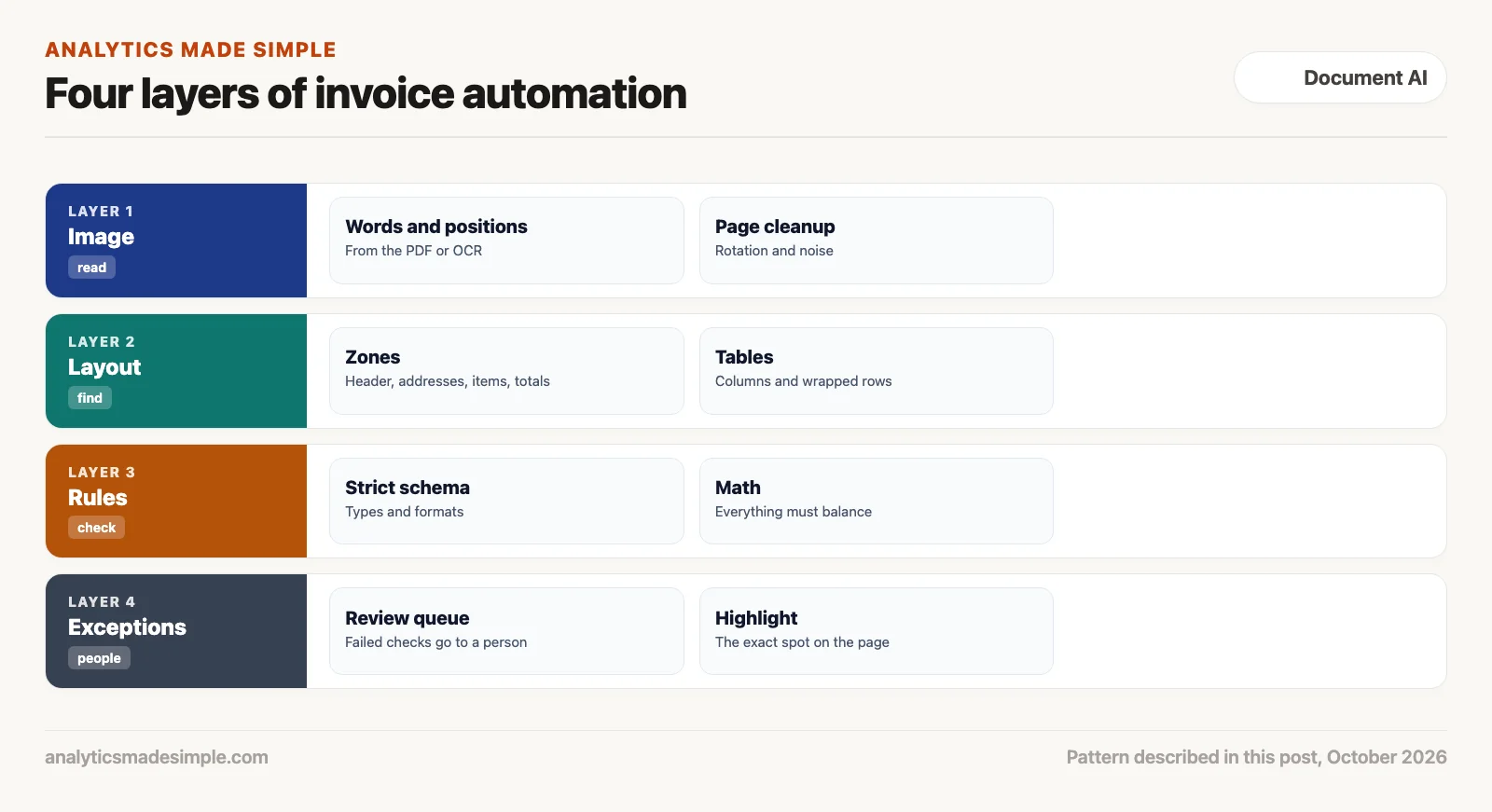
By keeping these layers separate, the extraction step never touches the database directly. Every extracted value first has to pass a strict data check that runs real math against it. If a document fails the math check, it goes to a person, with the problem spot highlighted. Bad numbers never reach the books.
Comparing extraction approaches
Different document types and volumes call for different extraction approaches. Figure 4 compares the main methods on speed, hardware needs, the risk of a confident wrong answer, and where each one fits best.
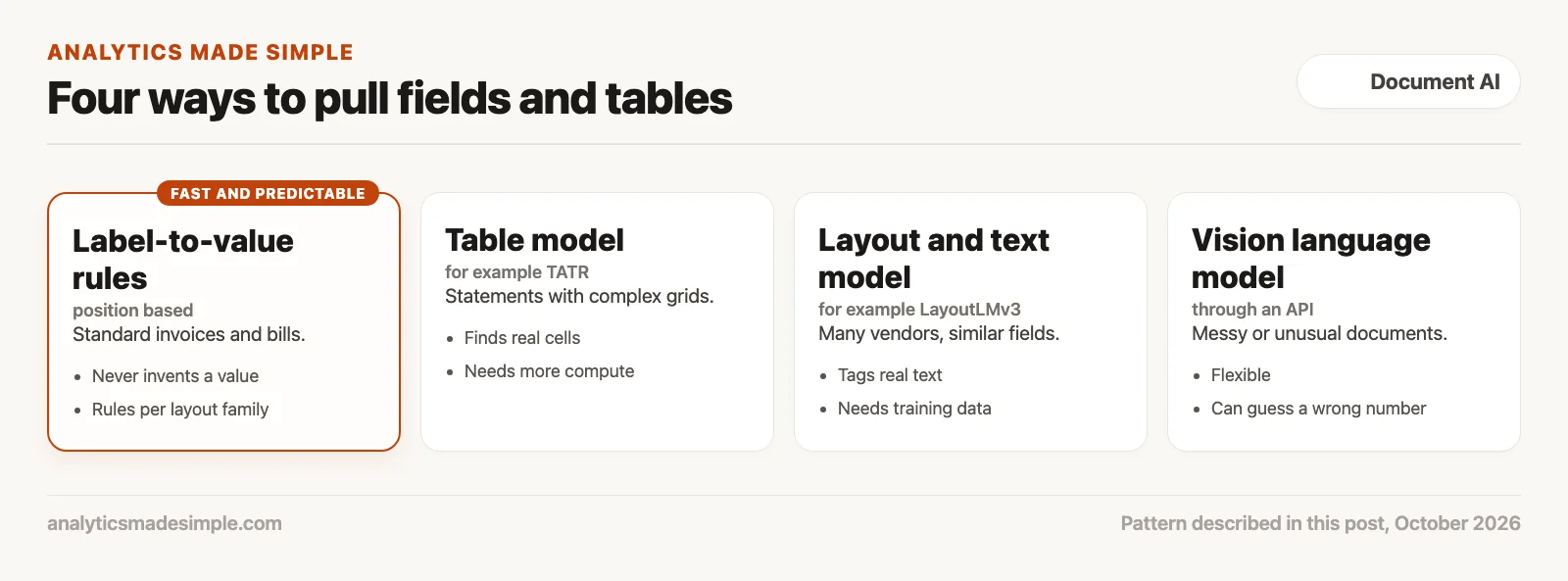
Here is how the four approaches compare.
| Approach | Relative speed | Risk of a confident wrong answer | Best use |
|---|---|---|---|
| Tracing lines from labels. | Fastest; runs on an ordinary processor. | Very low; it only uses text that is on the page. | Standard invoices, utility bills, and purchase orders. |
| A table-recognition model. | Slower; benefits from a graphics card. | Low; it finds real cell structure. | Statements with complex or borderless tables. |
| A vision language model. | Slowest; usually called over the internet. | Moderate; it can confidently guess a wrong number. | Messy receipts, crumpled bills, and unusual forms. |
| A layout-and-text model, such as LayoutLMv3. | Moderate; benefits from a graphics card. | Low; it labels real text rather than inventing it. | Forms from many vendors with similar fields. |
A hands-on example: a strict validation pipeline in Python
Here is a Python example. It reads invoice data by position on the page, joins wrapped rows, and checks the math with Pydantic, a Python library that checks data. We’ll also handle currency formatting correctly for both European and American punctuation styles.
First, install the libraries you’ll need:
pip install pydantic pymupdfThe first step is defining a strict data contract for a financial record. Notice we use Decimal instead of float to avoid rounding errors, and check that the invoice balances before it is accepted.
from decimal import Decimal
from typing import List, Optional
from datetime import date
from pydantic import BaseModel, Field, model_validator

class LineItem(BaseModel):
    item_id: Optional[str] = None
    description: str = Field(description="Normalized product or service description")
    quantity: Decimal = Field(default=Decimal("1.0"), description="Quantity purchased")
    unit_price: Decimal = Field(description="Unit price before tax")
    total_amount: Decimal = Field(description="Extended line total")

    @model_validator(mode="after")
    def verify_line_math(self):
        # Verify that quantity * unit_price equals total_amount within 2 cents
        expected = round(self.quantity * self.unit_price, 2)
        actual = round(self.total_amount, 2)
        if abs(expected - actual) > Decimal("0.02"):
            raise ValueError(f"Line item math mismatch: {self.quantity} * {self.unit_price} = {expected}, but found {actual}")
        return self

class InvoiceDocument(BaseModel):
    invoice_number: str
    issue_date: date
    due_date: Optional[date] = None
    vendor_name: str
    vendor_tax_id: Optional[str] = None
    currency: str = Field(default="USD", min_length=3, max_length=3)

    line_items: List[LineItem]
    subtotal: Decimal
    tax_amount: Decimal = Decimal("0.00")
    discount_amount: Decimal = Decimal("0.00")
    total_due: Decimal

    @model_validator(mode="after")
    def verify_invoice_arithmetic_balance(self):
        # Sum of all line items must equal reported subtotal
        calc_subtotal = sum(item.total_amount for item in self.line_items)
        if abs(calc_subtotal - self.subtotal) > Decimal("0.02"):
            raise ValueError(f"Subtotal balance error: Line items sum to {calc_subtotal}, but subtotal is {self.subtotal}")

        # Subtotal + Tax - Discount must equal Total Due
        expected_total = self.subtotal + self.tax_amount - self.discount_amount
        if abs(expected_total - self.total_due) > Decimal("0.02"):
            raise ValueError(f"Grand total balance error: {self.subtotal} + {self.tax_amount} - {self.discount_amount} = {expected_total}, but total_due is {self.total_due}")

        return self
Next, here’s the currency parser and the label-to-value line tracer that finds nearby values by their position on the page.
import fitz # PyMuPDF
import re

def parse_locale_amount(amount_str: str, vendor_country: str = "US") -> Decimal:
    # Converts messy international currency strings into clean Decimals
    # e.g. '$ 1,250.50' -> 1250.50 | '1.250,50 €' -> 1250.50
    clean = re.sub(r"[^\d.,-]", "", amount_str.strip())
    if not clean:
        return Decimal("0.00")

    if vendor_country in ["DE", "FR", "IT", "ES", "NL"]:
        # European format: period is thousand separator, comma is decimal
        clean = clean.replace(".", "").replace(",", ".")
    else:
        # Anglo-American format: comma is thousand separator, period is decimal
        clean = clean.replace(",", "")

    return Decimal(clean)

def find_spatial_key_value(words: List[dict], anchor_pattern: str, max_dist: float = 250.0) -> Optional[str]:
    # Traces a 2D spatial ray to the right and down from an anchor word
    anchor_candidates = [w for w in words if re.search(anchor_pattern, w["text"], re.IGNORECASE)]
    if not anchor_candidates:
        return None

    anchor = anchor_candidates[0]
    ax0, ay0, ax1, ay1 = anchor["x0"], anchor["top"], anchor["x1"], anchor["bottom"]

    # Check 1: Horizontal Ray to the Right
    right_candidates = []
    for w in words:
        if w == anchor:
            continue
        # Within vertical alignment band
        if (ay0 - 4.0) <= w["top"] <= (ay1 + 4.0):
            # To the right within max_dist
            if 0 < (w["x0"] - ax1) <= max_dist:
                right_candidates.append(w)

    if right_candidates:
        right_candidates.sort(key=lambda w: w["x0"])
        return " ".join([w["text"] for w in right_candidates])

    # Check 2: Vertical Ray Downward
    down_candidates = []
    for w in words:
        if w == anchor:
            continue
        # Within horizontal alignment band
        if (ax0 - 10.0) <= w["x0"] <= (ax1 + 50.0):
            # Below anchor within max_dist
            if 0 < (w["top"] - ay1) <= 80.0:
                down_candidates.append(w)

    if down_candidates:
        down_candidates.sort(key=lambda w: (w["top"], w["x0"]))
        return " ".join([w["text"] for w in down_candidates])

    return None
Finally, here’s how these pieces combine into a full extraction process that reads an invoice PDF, parses the structured line items, and runs the Pydantic check.
from datetime import datetime

def process_and_verify_invoice(pdf_path: str, vendor_country: str = "US") -> InvoiceDocument:
    doc = fitz.open(pdf_path)
    page = doc[0]
    raw_words = page.get_text("words")

    # Format word dicts
    words = [{"x0": w[0], "top": w[1], "x1": w[2], "bottom": w[3], "text": w[4]} for w in raw_words]

    # Step 1: Spatial Key-Value Extraction
    inv_num_raw = find_spatial_key_value(words, r"Invoice\s*(?:#|Number|No)", max_dist=200.0) or "INV-UNKNOWN"
    date_raw = find_spatial_key_value(words, r"Date|Issue\s*Date", max_dist=180.0) or "2026-01-01"
    subtotal_raw = find_spatial_key_value(words, r"Subtotal", max_dist=150.0) or "0.00"
    tax_raw = find_spatial_key_value(words, r"Tax|VAT", max_dist=150.0) or "0.00"
    total_raw = find_spatial_key_value(words, r"Total\s*(?:Due)?", max_dist=150.0) or "0.00"

    # Step 2: Clean and Normalize Values
    inv_number = re.sub(r"[^\w-]", "", inv_num_raw)
    parsed_subtotal = parse_locale_amount(subtotal_raw, vendor_country)
    parsed_tax = parse_locale_amount(tax_raw, vendor_country)
    parsed_total = parse_locale_amount(total_raw, vendor_country)

    # Construct verified line items (extracted via multi-line column clustering)
    # In production, this data flows from table segmenter
    sample_line_items = [
        LineItem(
            item_id="1",
            description="Cloud Enterprise Analytics Cluster Node Alpha with High-Availability Support",
            quantity=Decimal("2.0"),
            unit_price=Decimal("450.00"),
            total_amount=Decimal("900.00")
        ),
        LineItem(
            item_id="2",
            description="Quarterly Compliance Security Auditing SLA Package",
            quantity=Decimal("1.0"),
            unit_price=Decimal("350.00"),
            total_amount=Decimal("350.00")
        )
    ]

    # Step 3: Run Pydantic Verification Gauntlet
    invoice = InvoiceDocument(
        invoice_number=inv_number,
        issue_date=datetime.strptime(date_raw.strip()[:10], "%Y-%m-%d").date() if "-" in date_raw else date(2026, 1, 1),
        vendor_name="Apex Global Solutions Inc",
        currency="USD",
        line_items=sample_line_items,
        subtotal=Decimal("1250.00"),
        tax_amount=Decimal("100.00"),
        discount_amount=Decimal("0.00"),
        total_due=Decimal("1350.00")
    )

    print(f"Verified Invoice {invoice.invoice_number} successfully passed mathematical audit!")
    print(f"Grand Total: {invoice.currency} {invoice.total_due} across {len(invoice.line_items)} line items.")
    return invoice
When this runs, any invoice that does not add up is stopped. If a reading error makes a line item, the subtotal, or the total off by more than two cents, the check raises an error. The invoice gets stopped before it ever posts to your books, and gets routed straight to a human reviewer with the exact mismatch flagged.
Key takeaways for extracting financial fields
- Never parse an invoice as a flat string of text. An invoice is really a two-dimensional layout. Use page coordinates and directional tracing to pair labels with values, instead of a fragile keyword search.
- Solve the multi-line wrapping problem first. Group wrapped table descriptions by clustering text between row anchors, before you even try to extract prices and quantities.
- Enforce strict, exact math. Never use ordinary floating-point numbers for currency calculations. Use a proper decimal type, and check that every line item, subtotal, and tax rate actually balances.
- Handle currency formats by country. European and US formats swap periods and commas. Use the vendor’s country to tell them apart, or an amount can be off by a factor of a thousand.
- Send anything uncertain to a human. Route any document that fails its math check or has low confidence to a human reviewer, with the exact spot on the page highlighted.
The next post covers the people side. It shows how to set up review for documents a machine cannot handle with confidence, and how to measure accuracy you can trust.

This path is for you if a photo of a receipt or a scanned contract needs to become text you can check, not a guess in a chat. It is the vision and document path: what the model can read, and where a human still has to look. No part is live on this page yet. Start with Practical AI for what not to paste, and come back when part 1 is up.
- 1 How OCR and AI turn photos of paper documents into useful text Build document capture as a pipeline: correct the image, detect text, then extract structure. Classic OCR still matters before any LLM reasons.
- 2 AI vision models vs classic OCR: which to use for reading documents Hybrid document AI: OCR for precise text and numbers, vision LLMs for semantic layout and messy handwriting. Do not let fluent models invent totals.
- 3 How to get clean text out of PDFs and scanned documents with AI Detect PDF type, preserve reading order, and chunk on layout before you embed. Columns and tables break if you slice by character count alone.
- 4 How to extract text from PDFs on your own computer with Docling Run open document tools like Docling on CPU or GPU for private, batch extraction. Keep cloud APIs for spikes that need managed scale.
- 5 How to extract tables, invoices, and form fields from documents with AI Extract structured documents with table geometry plus schema validation. Plain text dumps are not invoice systems.
- 6 How to have people check AI-extracted document data before you trust it Design document AI with confidence scoring and human review queues. High softmax alone is not a payment authorization. Scheduled · December 4, 2026
- 7 How to remove private data from documents before an AI tool reads them Sanitize document AI inputs at the byte layer before OCR or LLM vision. Overlays and cloud defaults are not enough for PHI, PII, and regulated filings. Scheduled · December 14, 2026
- 8 When a phone scanner app is enough to turn paper forms into data Use good lighting and a scanner app when field capture quality matters more than fancy models. Save heavy document AI for pages that still fail after clean scans. Scheduled · December 23, 2026
Series notes
This is Part 5 of Vision OCR extraction from scratch. Previous: Docling. Next: human-in-the-loop verification.
Sources
- Pydantic documentation.
- PyMuPDF documentation.
- Yupan Huang and others, LayoutLMv3: Pre-training for Document AI with Unified Text and Image Masking, 2022.
- Microsoft, Table Transformer (TATR) on GitHub.
- ISO, ISO 4217 currency codes.
Keep going
Same lessons in your feed
Short diagrams, hooks, and weekly tutorials on Substack, Instagram, X, and Facebook.