
A PDF isn’t one single format. Plain text, a scanned image, and a mix of the two each need a different approach. Careless splitting scrambles the reading order. That hurts retrieval-augmented generation (RAG), where an AI looks up your own documents before answering.
Say you load your company’s two-column policy PDF into an AI assistant, and it answers a question with text from the wrong column. The PDF was split into equal-sized pieces of text, so lines from both columns got mixed together. Splitting by the page’s real layout keeps headings with their paragraphs and fixes those answers.
The three different things people call a “PDF”
Every document pipeline (a chain of automated steps that moves and cleans data) has to start by figuring out what kind of file it’s actually dealing with. In most companies, files labeled “PDFs” actually fall into three very different categories, and each one needs its own extraction approach:
1. Digital-native PDFs
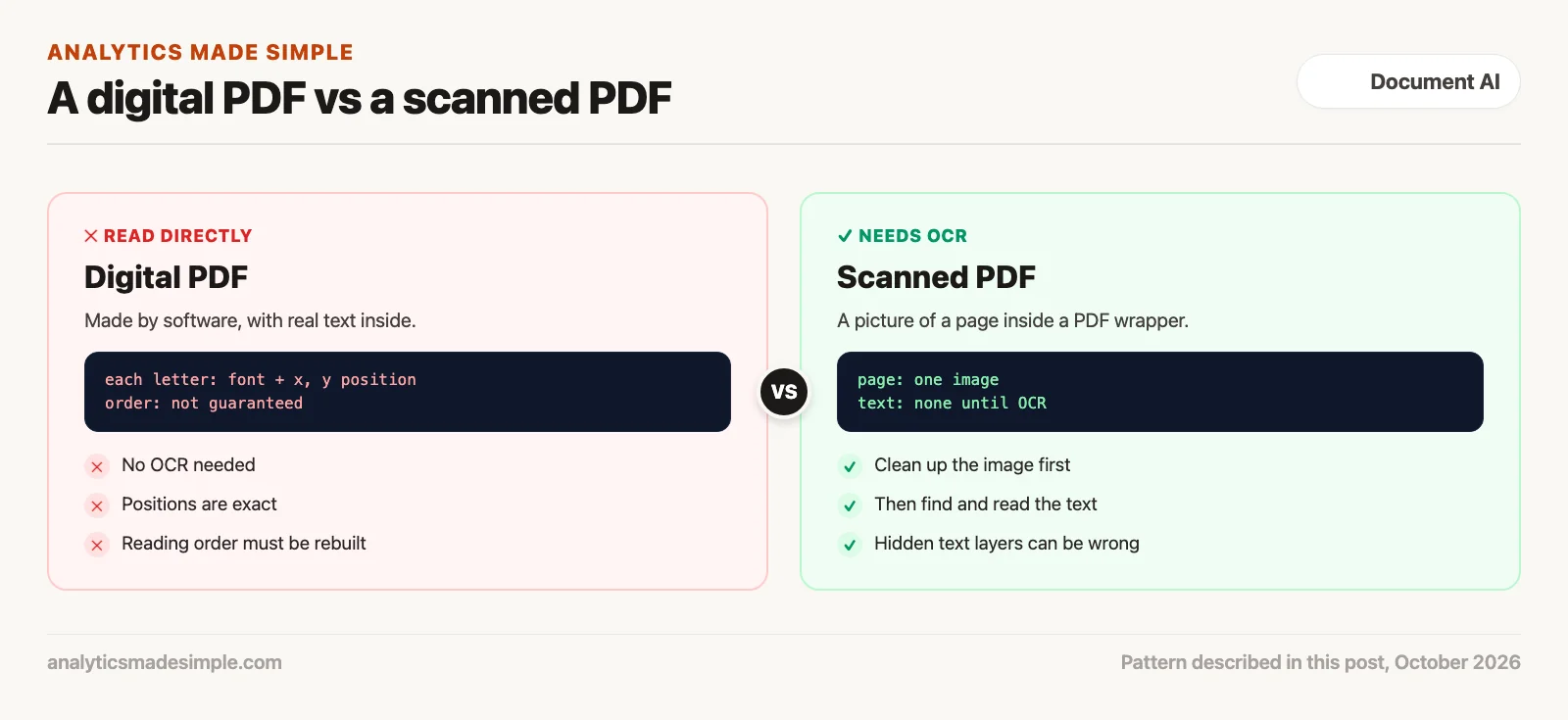
Generated directly by software like Word, Excel, InDesign, or LaTeX. Contains exact font data and precise coordinates for every letter. Needs no text recognition at all, but the letters are stored with no sense of reading order.
2. Scanned image PDFs
A PDF wrapper around a flat picture of a page. Contains no selectable text at all. Needs a full image-processing and text-recognition (OCR) pass to extract any content.
3. “Sandwich” PDFs
A scanned image on top, with an invisible layer of previously recognized text hidden underneath. Extremely common in company archives, and notoriously unreliable: that hidden text layer often drifts out of position or contains garbled characters.
Whether a document is digital-native or scanned defines the whole rest of the processing path. Figure 1 compares reading a digital-native PDF directly against the much heavier image-processing pipeline a scanned document needs.
When working with a digital-native PDF, the real engineering challenge isn’t recognizing characters. It’s rebuilding meaning from raw drawing instructions. Underneath the surface, a PDF file doesn’t actually store paragraphs or sentences. It stores drawing commands. They tell a viewer which font to use, where to place each letter, and what to draw. If a document was edited or assembled from several sources, words can end up saved in a strange order, or individual letters can be placed independently anywhere on the page. A simple text extractor just reads through that raw stream of letters in whatever order they happen to be stored, not the order a person would actually read them.
Why columns trip up simple text extraction
Picture a standard annual report laid out in two side-by-side columns. A person reading the printed page reads down the left column first, then moves to the top of the right column. A simple text-extraction tool, though, usually scans the page in horizontal bands. It reads the first line of the left column, immediately followed by the first line of the right column, then the second line of the left column, and so on.
The resulting text becomes a tangled mess of two unrelated trains of thought woven together. When that garbled text gets indexed for search, its meaning points nowhere useful. Later, a question about the left column pulls back a chunk mixed with text from the right column. The answer suffers.
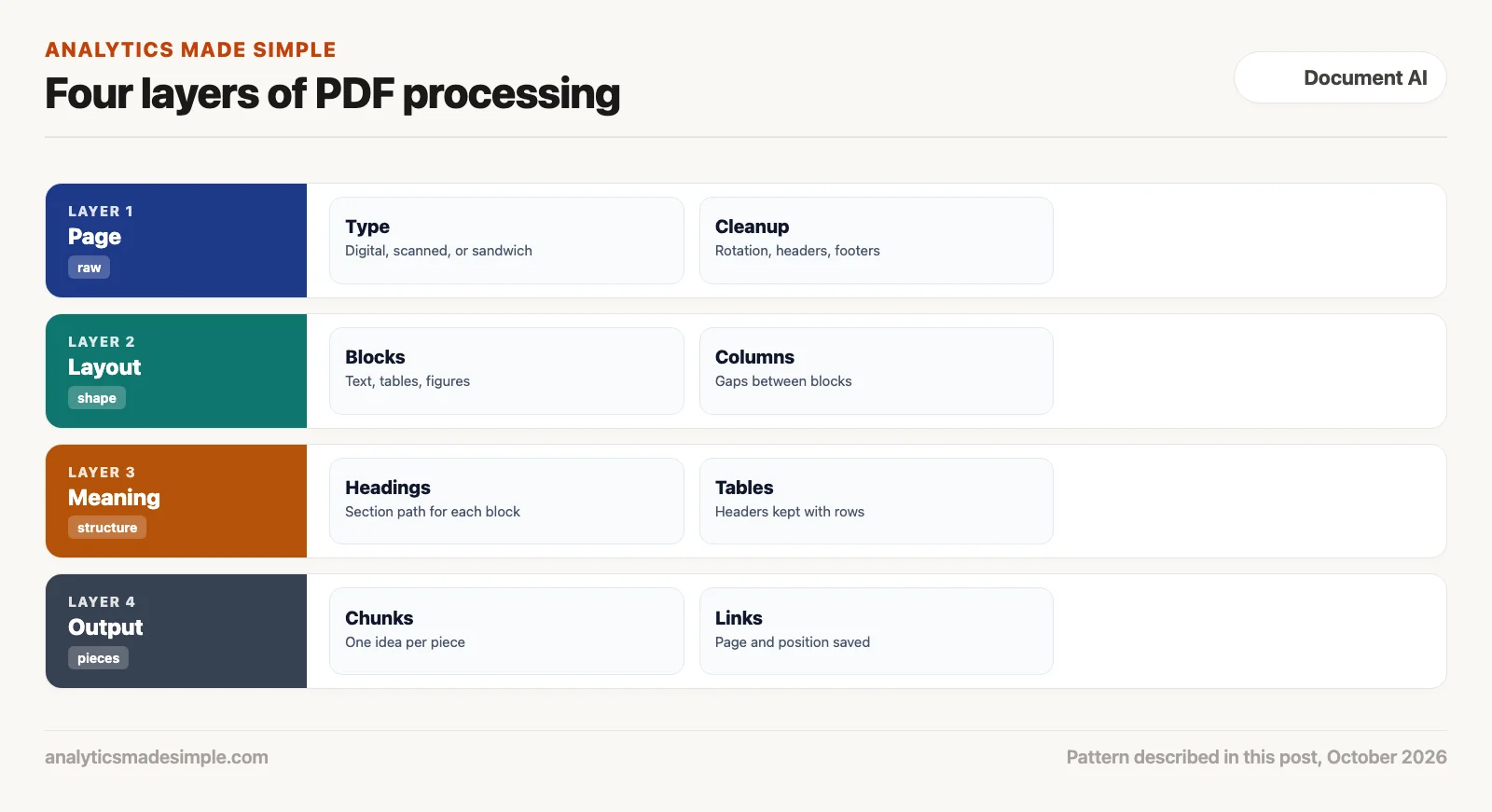
To fix the reading-order problem, modern document AI tools apply layout analysis. That process groups individual letters into visual blocks, measures the gaps between those blocks, and builds an ordered structure for the whole document. Figure 2 shows the four layers of that process.
Layout analysis breaks a document into a clean structure.
- Sorting out the page itself: Detecting whether the page is rotated and removing repeated headers, footers, and page numbers. Otherwise they end up in every chunk.
- Finding text blocks: Identifying separate regions of text, tables, figures, and callout boxes, using pattern detection or a trained layout model.
- Finding columns: Measuring the empty vertical space between blocks to detect multi-column layouts, and assigning each block to the correct column.
- Putting it all in order: Sorting blocks by column, then from top to bottom. The text then reads the way a person would read it.
Why chopping text into equal-sized pieces breaks retrieval
Many tutorials treat splitting as simple. Count 500 words, cut, back up 50 words for overlap, and repeat. That approach works fine for plain, unformatted text like a novel or a clean blog post. It actively breaks financial statements, legal contracts, technical specs, and regulatory filings.
When this simple approach hits a financial table, the results are bad:
| Document element. | Result with simple equal-size splitting. | Result with layout-aware splitting. |
|---|---|---|
| A multi-row financial table. | The table gets cut mid-row; column headers land in one chunk while the actual numbers land orphaned in another. | The whole table comes out as one structured block, with column headers preserved on every row. |
| A two-column contract clause. | Lines from column 1 and column 2 get mixed line by line, creating legal nonsense. | Column 1 is fully read and closed before column 2 starts; legal clauses stay grammatically intact. |
| Numbered section headings. | A section title like “Section 4.2(b)” gets separated from the clauses it actually governs. | The full heading path, like “Article IV, Section 4.2, Sub-clause B,” gets attached to every chunk beneath it. |
| Footnotes and citations. | Footnotes get randomly tacked onto whatever chunk happened to hit the word limit. | Footnotes are captured as separate notes, directly linked to the sentence that actually references them. |
When a search index stores a chunk containing only the numbers 12,450 | 8,920 | 21,370 without the table header that explains them (“Operating Expenses in Thousands”), that chunk means nothing on its own. It will never come up when someone searches “What were the operating expenses?”, because those exact words live in a completely different chunk.
A four-step process that keeps meaning intact
A four-step process avoids these failures. It ties every chunk to its place on the page and in the document. Figure 3 shows this full cycle.
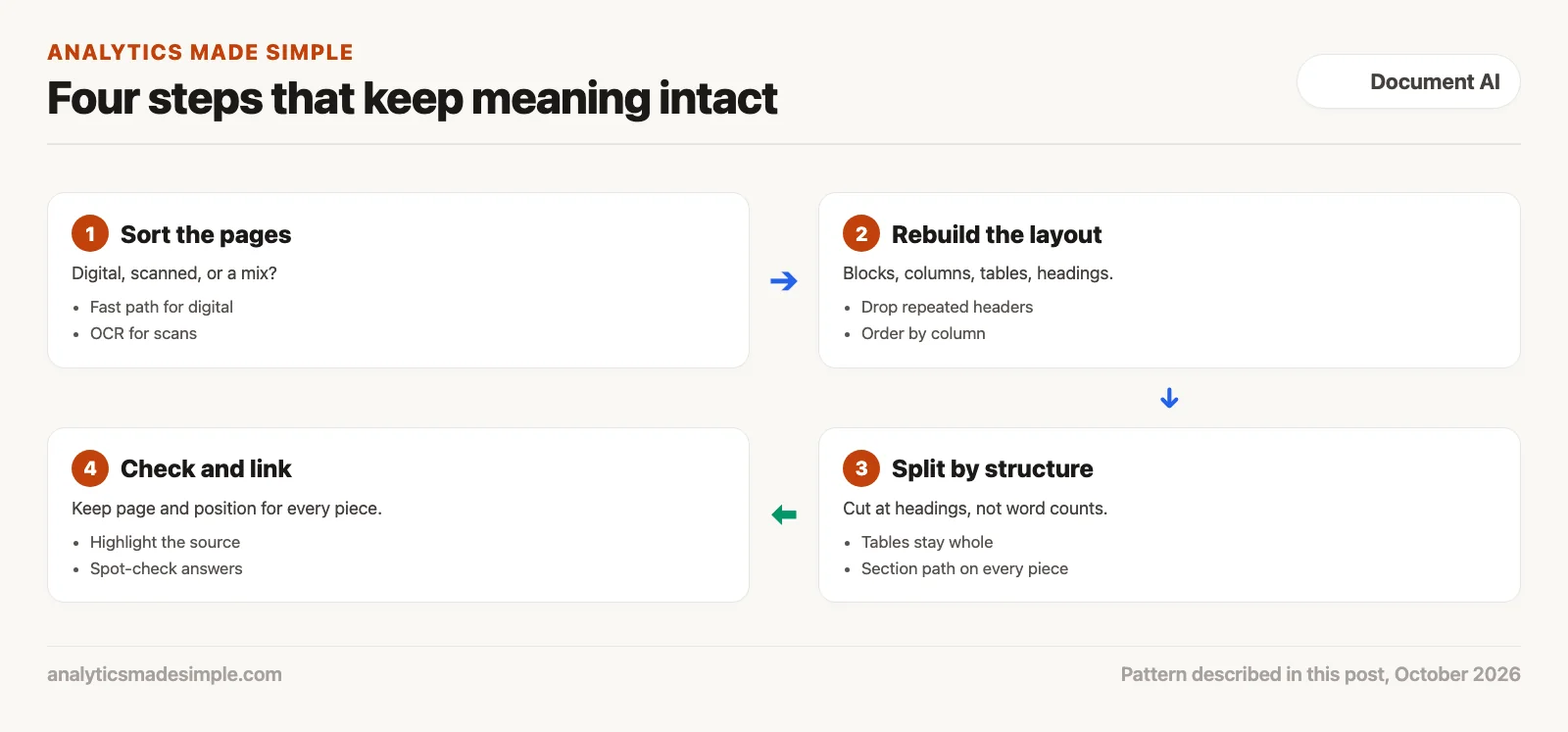
This kind of splitting engine runs on four core rules:
- Never split a table apart. A table is treated as one indivisible unit. If a table spans several pages, the software has to detect that the columns still line up, merge the rows together, and repeat the header row in every resulting chunk.
- Attach the section path to every chunk. If a paragraph sits inside “Chapter 2: Financial Condition,” under “Liquidity and Capital Resources,” under “Credit Facilities,” that exact path gets attached to the chunk’s text before it’s indexed. That way, a broad search for the section topic still finds the specific paragraph buried inside it.
- Cut at natural breaks, not arbitrary word counts. Instead of cutting text at some fixed word count, chunk boundaries snap to real structural points: section headers, paragraph breaks, or the end of a list.
- Keep a link back to the original page. Every chunk keeps a record of exactly where it sits on the source document, down to the page number and coordinates. When an AI model generates an answer, the interface can highlight the exact spot on the original PDF, so anyone can check the source instantly.
A hands-on example: building a layout-aware extractor in Python
To see these ideas in practice, here is how to build a layout-aware extractor in Python. It also does chunking, which means splitting a document into smaller pieces for search. We will use pdfplumber and pymupdf. They let us tell real text from a scanned image, rebuild the column order, and pull out tables.
First, install the libraries you need.
pip install pdfplumber pymupdf pydanticThe first step is a small utility that inspects each incoming PDF page and works out whether it holds native text, a scanned image, or a risky “sandwich” layer that needs closer checking.
import fitz # PyMuPDF
from typing import Dict, Any

def inspect_pdf_page_type(doc: fitz.Document, page_num: int) -> Dict[str, Any]:
    # Analyzes a PDF page to detect vector text vs scanned raster images
    page = doc[page_num]
    text = page.get_text().strip()
    image_list = page.get_images(full=True)

    char_count = len(text)
    image_count = len(image_list)
    page_rect = page.rect
    total_area = page_rect.width * page_rect.height

    # Calculate coverage of embedded raster images
    covered_image_area = 0.0
    for img_info in image_list:
        xref = img_info[0]
        for img_rect in page.get_image_rects(xref):
            covered_image_area += img_rect.width * img_rect.height

    coverage_ratio = covered_image_area / total_area if total_area > 0 else 0.0

    if char_count > 150 and coverage_ratio < 0.20:
        page_type = "digital_native_vector"
    elif char_count < 30 and image_count > 0:
        page_type = "scanned_raster_bitmap"
    elif char_count >= 30 and coverage_ratio > 0.60:
        page_type = "sandwich_pdf"
    else:
        page_type = "hybrid_mixed_content"

    return {
        "page_number": page_num + 1,
        "page_type": page_type,
        "char_count": char_count,
        "image_count": image_count,
        "image_coverage_ratio": round(coverage_ratio, 3)
    }

# Example execution across a multi-page document
doc = fitz.open("sample_regulatory_filing.pdf")
for p in range(len(doc)):
    metadata = inspect_pdf_page_type(doc, p)
    print(f"Page {metadata['page_number']}: Type={metadata['page_type']}, Chars={metadata['char_count']}, ImageCoverage={metadata['image_coverage_ratio']}")
Once we’ve identified the digital-native pages, we can extract their text while strictly respecting spatial reading order and pulling tables out separately. The code below uses pdfplumber to find table boundaries first, extract them as clean structured data, and then read the remaining text column by column.
import pdfplumber
from pydantic import BaseModel
from typing import List, Optional

class SemanticDocumentChunk(BaseModel):
    chunk_id: str
    page_number: int
    content_type: str # paragraph, table, or heading
    section_breadcrumb: str
    text_content: str
    bbox: List[float] # [x0, top, x1, bottom]

def extract_layout_aware_chunks(pdf_path: str) -> List[SemanticDocumentChunk]:
    chunks = []
    chunk_counter = 1
    current_section = "Document Preamble"

    with pdfplumber.open(pdf_path) as pdf:
        for page_idx, page in enumerate(pdf.pages):
            page_num = page_idx + 1

            # Step 1: Detect and extract tables to prevent text interleaving
            tables = page.find_tables()
            table_bboxes = []

            for table in tables:
                table_bboxes.append(table.bbox)
                extracted_data = table.extract()
                if not extracted_data or len(extracted_data) < 2:
                    continue

                # Format extracted table into clean GitHub-flavored Markdown
                header_row = [str(col).replace("\n", " ").strip() if col else "" for col in extracted_data[0]]
                markdown_lines = [
                    "| " + " | ".join(header_row) + " |",
                    "| " + " | ".join(["---"] * len(header_row)) + " |"
                ]

                for row in extracted_data[1:]:
                    clean_row = [str(col).replace("\n", " ").strip() if col else "" for col in row]
                    markdown_lines.append("| " + " | ".join(clean_row) + " |")

                table_markdown = "\n".join(markdown_lines)

                chunks.append(SemanticDocumentChunk(
                    chunk_id=f"chunk_{chunk_counter}",
                    page_number=page_num,
                    content_type="table",
                    section_breadcrumb=current_section,
                    text_content=f"### Table in {current_section}\n\n{table_markdown}",
                    bbox=[round(coord, 2) for coord in table.bbox]
                ))
                chunk_counter += 1

            # Step 2: Extract non-table words and sort by reading columns
            # We filter out words that fall inside known table bounding boxes
            words = page.extract_words(keep_blank_chars=False, use_text_flow=True)
            non_table_words = []

            for w in words:
                x_mid = (w["x0"] + w["x1"]) / 2.0
                y_mid = (w["top"] + w["bottom"]) / 2.0
                inside_table = False
                for tb in table_bboxes:
                    if tb[0] <= x_mid <= tb[2] and tb[1] <= y_mid <= tb[3]:
                        inside_table = True
                        break
                if not inside_table:
                    non_table_words.append(w)

            # Step 3: Cluster words into blocks and detect headings
            # If a word is substantially larger than body text (e.g. font size > 14pt), update section breadcrumb
            current_paragraph_words = []
            para_bbox = [9999.0, 9999.0, 0.0, 0.0]

            for w in non_table_words:
                font_size = w.get("height", 10.0)

                # Check for major section headings
                if font_size >= 14.0 and len(w["text"]) > 3:
                    if current_paragraph_words:
                        p_text = " ".join([word["text"] for word in current_paragraph_words])
                        if len(p_text.strip()) > 30:
                            chunks.append(SemanticDocumentChunk(
                                chunk_id=f"chunk_{chunk_counter}",
                                page_number=page_num,
                                content_type="paragraph",
                                section_breadcrumb=current_section,
                                text_content=p_text,
                                bbox=[round(c, 2) for c in para_bbox]
                            ))
                            chunk_counter += 1
                        current_paragraph_words = []
                        para_bbox = [9999.0, 9999.0, 0.0, 0.0]

                    current_section = w["text"]
                    continue

                current_paragraph_words.append(w)
                para_bbox[0] = min(para_bbox[0], w["x0"])
                para_bbox[1] = min(para_bbox[1], w["top"])
                para_bbox[2] = max(para_bbox[2], w["x1"])
                para_bbox[3] = max(para_bbox[3], w["bottom"])

            # Flush final paragraph on the page
            if current_paragraph_words:
                p_text = " ".join([word["text"] for word in current_paragraph_words])
                if len(p_text.strip()) > 30:
                    chunks.append(SemanticDocumentChunk(
                        chunk_id=f"chunk_{chunk_counter}",
                        page_number=page_num,
                        content_type="paragraph",
                        section_breadcrumb=current_section,
                        text_content=p_text,
                        bbox=[round(c, 2) for c in para_bbox]
                    ))
                    chunk_counter += 1

    return chunks
Running this layout-aware extraction produces clean, self-contained pieces of text. Tables come out as complete tables that still have their column headers. Paragraphs keep their section context, and multi-column text comes out in the right reading order instead of tangled together. When this data gets indexed for search, retrieval (looking up documents to use in an answer) accuracy improves right away, because each stored chunk actually represents one complete idea rather than a scrambled fragment.
Comparing the tools available
Building a document pipeline for your company doesn’t mean writing everything from scratch. The open-source and commercial document AI world already has specialized tools for different document volumes, accuracy needs, and budgets. Figure 4 compares the leading PDF extraction and layout tools on speed, table accuracy, hardware needs, and licensing.
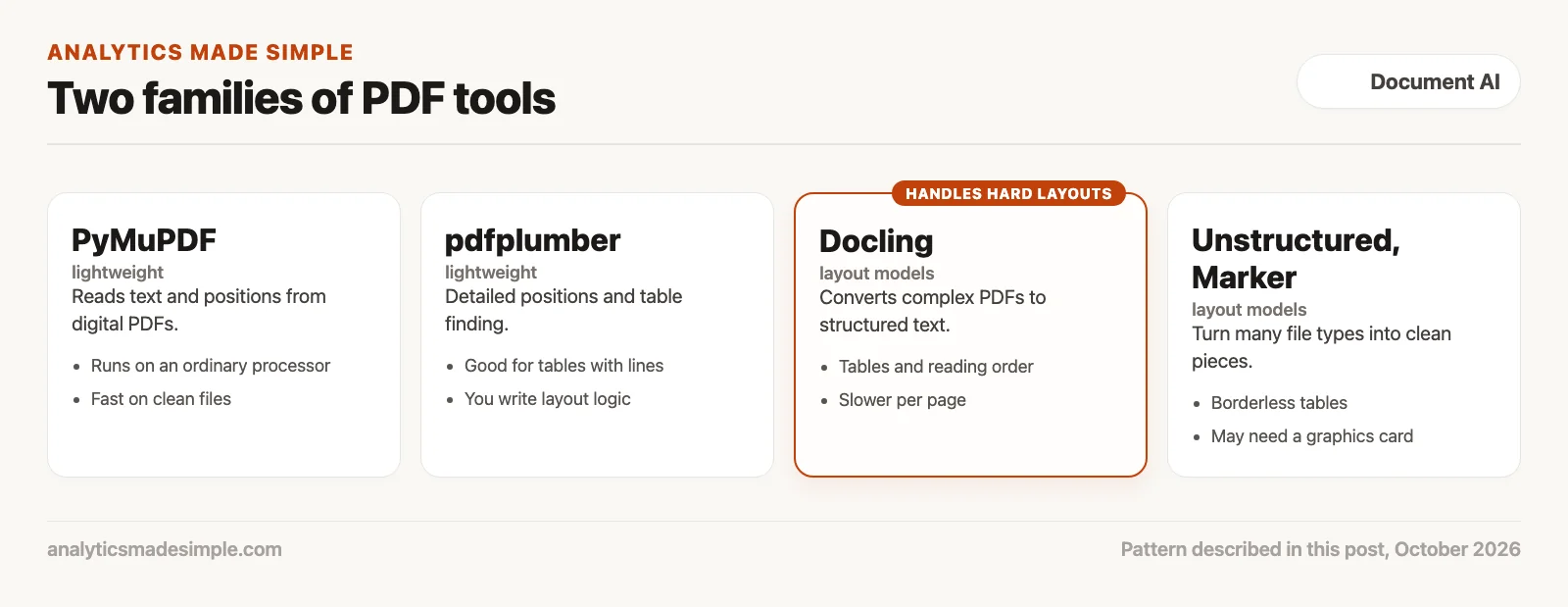
Keep these trade-offs in mind when you pick a tool.
Lightweight, processor-only tools
Libraries like PyMuPDF and pdfplumber run on lightweight containers or an ordinary processor chip (CPU), with no special hardware. They are fast and need no graphics chip. Best suited for high-volume, digital-native PDFs with predictable formatting.
Deep learning layout tools
Tools like Docling, Unstructured, and Marker use vision-based models to identify complex structures, borderless tables, and equations. They need a graphics chip (GPU) and run slower per page, but deliver much higher accuracy on irregular documents and complex research papers.
Key takeaways
- A PDF is a drawing canvas, not a text file. Never assume the letters in a PDF are stored in reading order. Always run layout analysis to reassemble the actual words and columns.
- Sort before you extract. Check image coverage and character density right away. Send digital-native pages down the fast coordinate-based path, and route scanned pages to a dedicated text-recognition step.
- Never split a table by word count. Treat a table as one indivisible block. Convert it to a structured format, and make sure the column headers stay attached to every row of data.
- Attach the section path to every chunk. Embed section and chapter titles directly into each smaller chunk beneath them, so a broad search question can still find specific text buried deep in the document.
- Keep the page coordinates. Store the physical page position with every chunk, so your application can visually highlight the source for anyone checking the answer.
The next post looks at Docling and other open tools. It shows how to run a document parser on your own computer instead of a cloud API (a service your code calls over the internet).
Your next step
Take one batch of PDFs you process regularly and sort them first: which pages have selectable text and which are scans. Route each kind to its own path as this post describes, then spot-check ten pages. Sorting before extracting is the single change that fixes most PDF pipelines.

This path is for you if a photo of a receipt or a scanned contract needs to become text you can check, not a guess in a chat. It is the vision and document path: what the model can read, and where a human still has to look. No part is live on this page yet. Start with Practical AI for what not to paste, and come back when part 1 is up.
- 1 How OCR and AI turn photos of paper documents into useful text Build document capture as a pipeline: correct the image, detect text, then extract structure. Classic OCR still matters before any LLM reasons.
- 2 AI vision models vs classic OCR: which to use for reading documents Hybrid document AI: OCR for precise text and numbers, vision LLMs for semantic layout and messy handwriting. Do not let fluent models invent totals.
- 3 How to get clean text out of PDFs and scanned documents with AI Detect PDF type, preserve reading order, and chunk on layout before you embed. Columns and tables break if you slice by character count alone.
- 4 How to extract text from PDFs on your own computer with Docling Run open document tools like Docling on CPU or GPU for private, batch extraction. Keep cloud APIs for spikes that need managed scale. Scheduled · November 25, 2026
- 5 How to extract tables, invoices, and form fields from documents with AI Extract structured documents with table geometry plus schema validation. Plain text dumps are not invoice systems. Scheduled · December 4, 2026
- 6 How to have people check AI-extracted document data before you trust it Design document AI with confidence scoring and human review queues. High softmax alone is not a payment authorization. Scheduled · December 14, 2026
- 7 How to remove private data from documents before an AI tool reads them Sanitize document AI inputs at the byte layer before OCR or LLM vision. Overlays and cloud defaults are not enough for PHI, PII, and regulated filings. Scheduled · December 23, 2026
- 8 When a phone scanner app is enough to turn paper forms into data Use good lighting and a scanner app when field capture quality matters more than fancy models. Save heavy document AI for pages that still fail after clean scans. Scheduled · January 1, 2027
Series notes
This is Part 3 of Vision OCR extraction from scratch. Previous: LLM vision vs OCR. Next: Docling and open stacks.
Sources
- PyMuPDF documentation.
- Jeremy Singer-Vine, pdfplumber on GitHub.
- Yang Xu and others, LayoutLMv2: Multi-modal Pre-training for Visually-Rich Document Understanding, 2020.
- ISO, ISO 32000-2, the PDF 2.0 specification.
- Docling, Unstructured, and Marker on GitHub.
Keep going
Same lessons in your feed
Short diagrams, hooks, and weekly tutorials on Substack, Instagram, X, and Facebook.