OpenClaw is a free AI assistant you run on your own computer and talk to through the chat apps you already use, such as Telegram, WhatsApp, or Slack. You choose the AI model, you decide what it may do, and its memory and passwords stay on your machine.
Picture yourself on the train, asking your assistant in Telegram whether last night’s backup finished and what a contract you received says about payment terms. Your laptop stays in your bag. A computer at home or a small rented server does the work and messages you the answer.
This post explains what OpenClaw is, how to set it up with Telegram, and how to keep it safe. Commands and settings come from OpenClaw’s documentation, checked October 2, 2026, so check them again before you follow along.
What OpenClaw is, and why running it yourself matters
OpenClaw is open-source software that connects your chat apps to an AI model and to tools on your own hardware. According to its GitHub page, it supports more than twenty messaging services, is run by the nonprofit OpenClaw Foundation, and has no paid tier or hosted service.
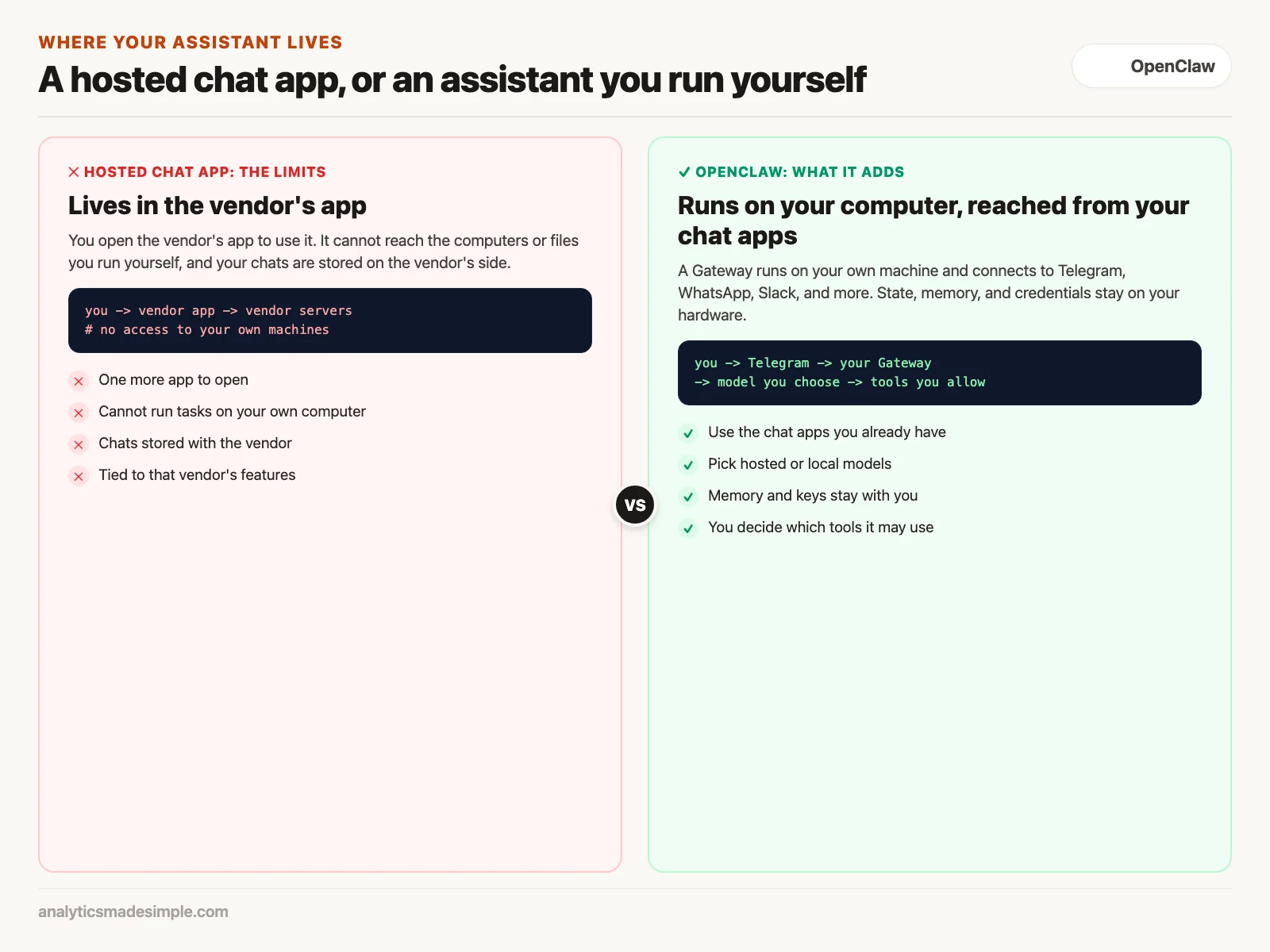
Most AI assistants live inside their maker’s own app. That has two limits. They cannot run anything on computers you control, such as checking a home server’s disk space. And everything you send is stored on the vendor’s side. OpenClaw comes to the apps you already use and keeps its state on your hardware. Your messages still go to whichever model provider you choose, unless you use a local model.
How the pieces fit together
The center of OpenClaw is the Gateway, a program that runs in the background on your computer. Around it are three kinds of pieces:
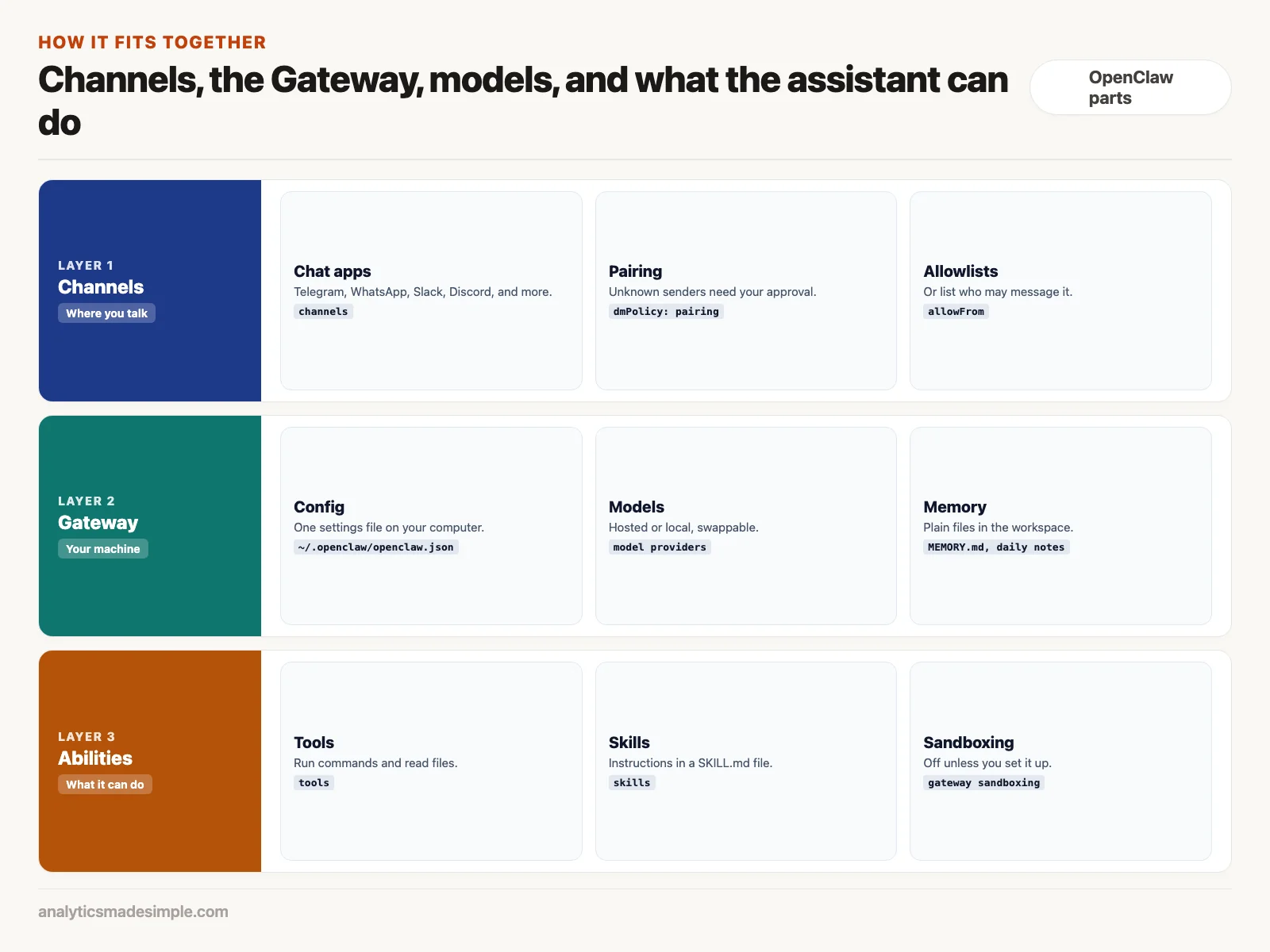
- Channels: the chat apps it connects to. By default, someone new who messages your bot must be approved first, a step called pairing.
- Models: the AI that does the thinking. You can use a hosted model or one that runs on your own machine, and switch later.
- Tools and skills: what the assistant can do. Tools let it run commands and read files. Skills are instructions written in a
SKILL.mdfile that teach it a specific job.
Its settings live in one file, ~/.openclaw/openclaw.json. Its memory is ordinary text files in its workspace: MEMORY.md for lasting facts and decisions, plus daily notes files, according to the memory documentation.
Setting it up with Telegram
Setup takes four steps. You need a computer that stays on, such as a home machine or a small rented server, and an account with a model provider or a local model.
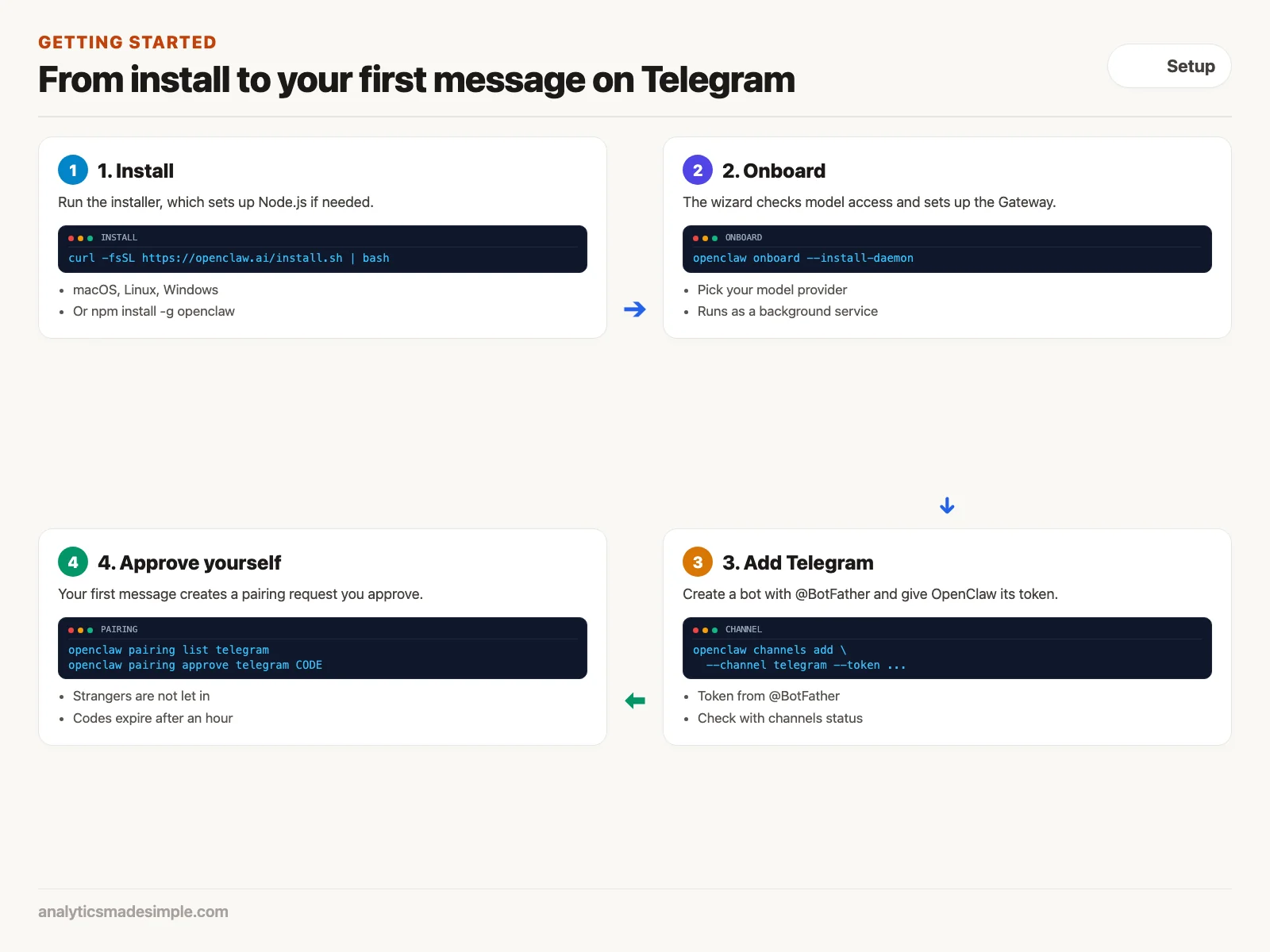
1. Install it: on macOS or Linux, the installer sets up everything, including Node.js if needed:
curl -fsSL https://openclaw.ai/install.sh | bashIf you already use Node.js, you can install the package instead, as the project’s README, its main instruction page on GitHub, shows. Either way, read a script (a small file of instructions that a computer runs from top to bottom) before piping it into your shell, because it runs with your permissions.
2. Run onboarding: the installer usually starts this for you. If not, run:
openclaw onboard --install-daemonThe wizard checks that your model works, creates the workspace, and sets the Gateway to run in the background.
3. Connect Telegram: in Telegram, message @BotFather, send /newbot, follow the prompts, and save the token it gives you, the password for your bot. Then give OpenClaw the token and check the channel, following the Telegram setup guide:
openclaw channels add --channel telegram --token YOUR_BOT_TOKEN
openclaw channels status --probe
4. Approve yourself: send your bot any message. That creates a pairing request, which you approve from your computer:
openclaw pairing list telegram
openclaw pairing approve telegram CODE
The guide notes that pairing codes expire after an hour. Until you approve someone, their messages do not reach the assistant, so a stranger who finds your bot cannot give it orders.
Teaching it a job with a skill
A skill is a short instruction file that tells the assistant how to do one task. The skills documentation says each needs at least a name and a description at the top of its SKILL.md file. A simple one might look like this:
---
name: backup-check
description: Check whether last night's backup finished and report the result
---
When asked about backups, read the newest line of the backup log
and reply with the finish time and whether it succeeded.
Only read the log. Never change or delete backup files.
This is a complete skill file: a short header with the skill’s name and description, then plain instructions. The last line limits it to reading the log, so the skill can report on backups but never change them.
Write skills to ask only for what the job needs, such as reading one log file. The same page warns to treat skills from others as untrusted code and read them before you turn them on.
Keeping it safe
Because anyone can message a chat bot, limit who it listens to and what it can touch. Three settings matter most, and the security guide covers them in detail:
- Keep pairing on: leave the default that requires approval for new senders, or list exactly who may message it.
- Turn on sandboxing for risky work: the README notes that tools run directly on your computer unless you configure sandboxing, a walled-off space for commands. Set that up before you let it run commands on anything important.
- Treat incoming messages as untrusted: a forwarded document or email can contain hidden instructions. Keep powerful tools behind your own approval.
What to do next
- Set it up on a spare computer first: try OpenClaw somewhere with no important files, so mistakes cost nothing while you learn.
- Start with read-only skills: give it one job that only looks, such as checking a log, before anything that changes files.
- Read the security guide before adding others: once more people can message it, pairing, allowlists, and sandboxing matter much more.
Series notes
This is Part 3 of AI assistants everyday. Previous: privacy and sandboxes. Next: Hermes Agent memory and skills.
Sources and further reading
- OpenClaw on GitHub: README, checked October 2, 2026.
- OpenClaw documentation: Telegram setup, skills, memory, configuration, and security.
- Telegram: bot tutorial and BotFather.
Keep going
Same lessons in your feed
Short diagrams, hooks, and weekly tutorials on Substack, Instagram, X, and Facebook.