The passwords your automations use belong in one locked place, not typed into the automations themselves. Give each automation only the access it needs, and change its passwords on a schedule. A password copied into a shared automation ends up in places nobody tracks.
Say you are in a hurry and paste the password for your email service straight into an automation. It works, so you move on. A week later a colleague copies that automation for a contractor, and another copy lands in a shared folder. Now the same password sits in three places, and changing it means finding all of them.
This post covers where those passwords should live, how much access to give, and how to change them safely.
Four habits that keep keys safe
A few terms first. A workflow is one automation: a chain of steps that runs on its own. A key, or API key, is a long password that lets a program use a service, where API means the connection one program uses to talk to another. A credential is any stored secret a workflow uses to log in, and a vault is software that stores credentials encrypted in one place.
Never type a password, key, or database connection string directly into a workflow step. Four habits cover most of the risk:
- Give the least access: a workflow that copies contacts should not also be able to delete accounts or change billing.
- Store keys in one encrypted place: use your automation tool’s credential store, or a vault such as HashiCorp Vault or Secrets Manager from Amazon Web Services (AWS), Amazon’s cloud computing service. The workflow names the credential, and the secret is filled in only when it runs.
- Change keys on a schedule: a key that never changes tends to leak, through someone leaving, a debugging session, or a careless paste. Many security policies ask for rotation every 90 days.
- Log use, and make it easy to cut off: record when keys are used and workflows change, and make sure you can switch a key off in one place.
Together these are called defense in depth: if one safeguard fails, the next one still stops the damage.
Pasted keys versus stored credentials
A key typed into a step travels wherever the workflow goes. A stored credential stays in one place, and the workflow only points to it.
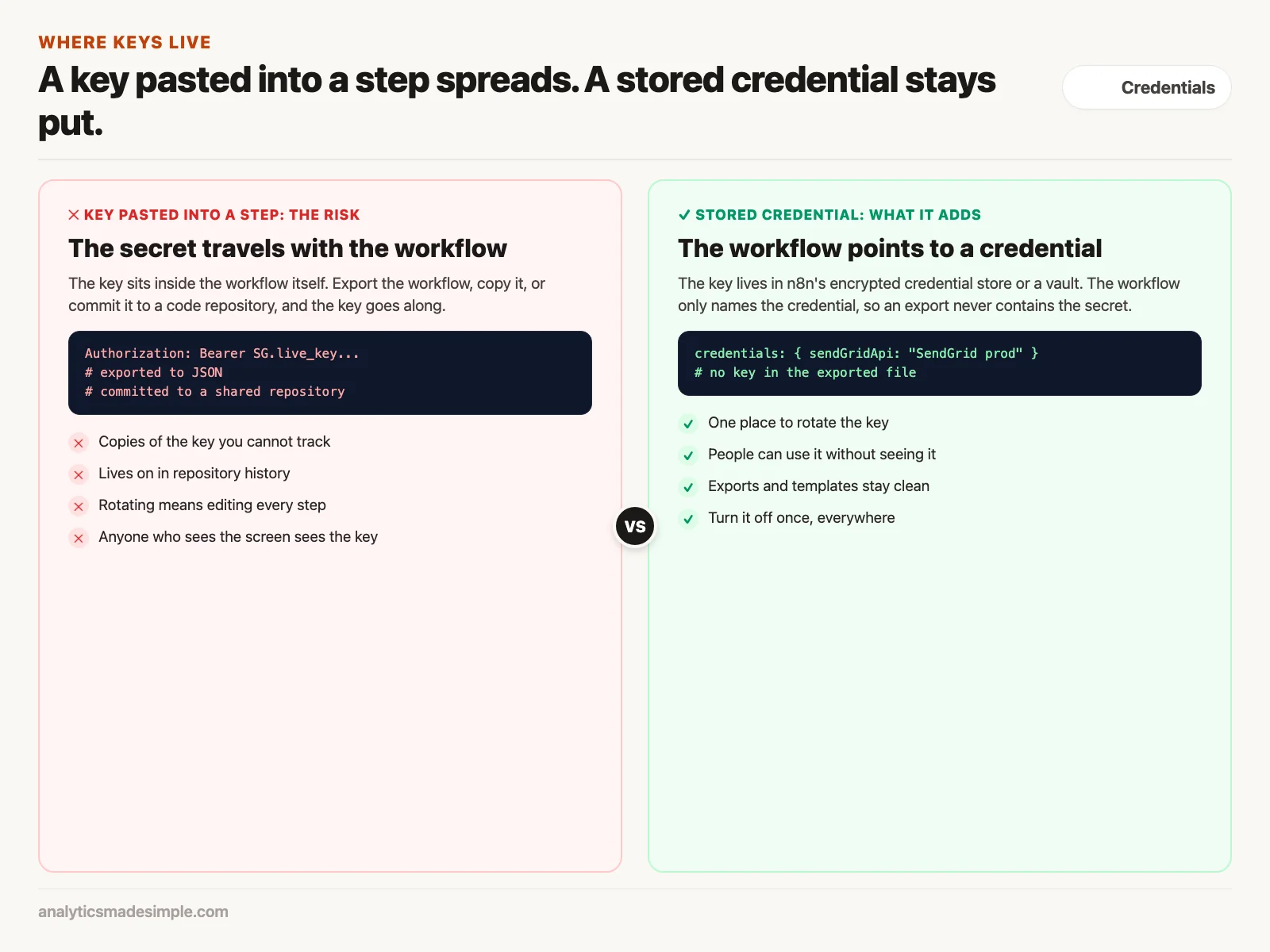
Here is how the shortcut causes trouble. You create a key for your email service and paste it into an HTTP Request step, the step that calls a web address over the Hypertext Transfer Protocol (HTTP). Months later, a colleague exports the workflow as a JSON file, a plain-text data format, and saves it in a shared code repository (a project folder that keeps every version of its files). The live key is now in the repository’s history for good, readable by anyone with access.
With a stored credential, n8n keeps the secret in its own encrypted credential storage. When you export the workflow, the file names the credential but does not include the key, so it cannot leak through a template or a copied file.
Locking down a self-hosted n8n
If you run n8n on your own server, two more settings help. n8n’s documentation lets you add _FILE to many settings, so secrets are read from separate files instead of sitting in your setup file. And the N8N_BLOCK_ENV_ACCESS_IN_NODE setting, which is off by default, stops Code steps from reading the server’s environment variables, the settings where secrets are often kept.
# docker-compose.yml: keep n8n's secrets in files, not in the file itself
services:
  n8n:
    image: docker.n8n.io/n8nio/n8n:latest
    restart: always
    ports:
      - "127.0.0.1:5678:5678"   # reachable only from this machine
    environment:
      - N8N_ENCRYPTION_KEY_FILE=/run/secrets/n8n_encryption_key
      - DB_TYPE=postgresdb
      - DB_POSTGRESDB_HOST=postgres
      - DB_POSTGRESDB_USER=n8n
      - DB_POSTGRESDB_PASSWORD_FILE=/run/secrets/postgres_password
      - N8N_BLOCK_ENV_ACCESS_IN_NODE=true   # Code steps cannot read server settings
    secrets:
      - n8n_encryption_key
      - postgres_password

secrets:
  n8n_encryption_key:
    file: ./secrets/n8n_encryption_key.txt
  postgres_password:
    file: ./secrets/postgres_password.txt
In plain words: the encryption key and the database password are read from files in a secrets folder, which you keep out of any shared repository. The port is reachable only from the server itself. And Code steps cannot read server settings, so a careless script cannot print your secrets.
n8n can also pull credentials from outside vaults such as HashiCorp Vault, AWS Secrets Manager, or Infisical. n8n’s documentation lists that feature as part of its Enterprise plans, both cloud and self-hosted.
Choosing where keys live
Options range from the tool’s own storage to keys that expire within minutes. Pick based on your rules:
- The platform’s credential store: both Zapier and n8n encrypt stored credentials, and you can let people run a workflow without seeing the secret. Treat this as the minimum for any real workflow.
- A company-wide vault: some companies must pass security audits, such as Service Organization Control (SOC) 2 or International Organization for Standardization (ISO) 27001. Others handle health data under the Health Insurance Portability and Accountability Act (HIPAA), the US law that protects patient data. These companies often keep all keys in one vault. The vault can hand out keys that expire soon, and it logs every request.
- No stored keys at all: OpenID Connect (OIDC) is a standard for proving who you are with a signed, temporary digital pass. With it, a workflow can get short-lived access to cloud services such as AWS (Amazon’s cloud computing service), Google Cloud, or Azure. No permanent key is stored anywhere.
Connecting apps with OAuth, the safe way
OAuth is the standard behind “Connect” buttons, where one app asks permission to act in another. The ready-made app behind such a button often asks for far more access than your workflow needs. It might want your whole Google Drive when you only read one spreadsheet.
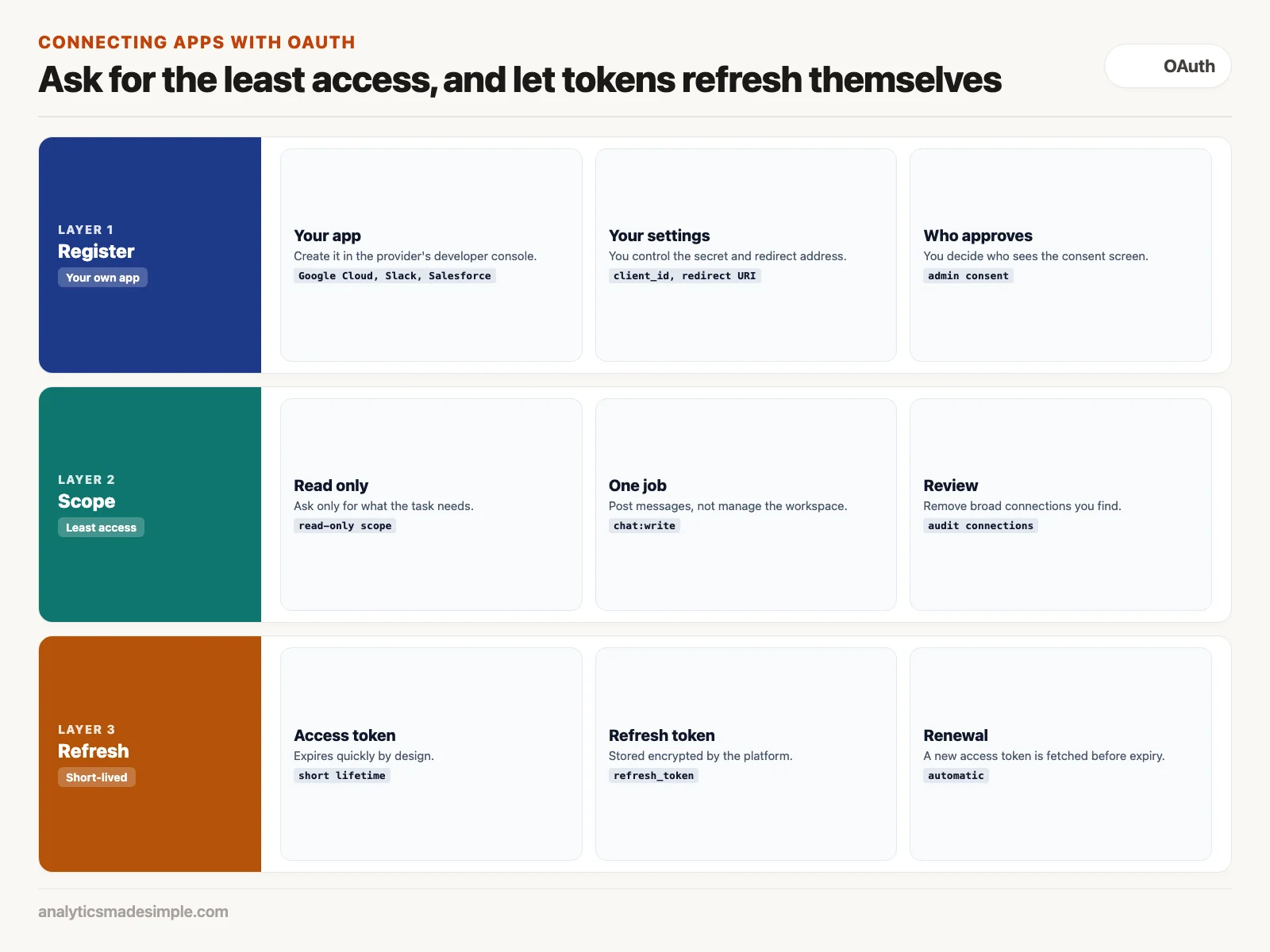
- Register your own app: create one in the provider’s developer console, such as Google Cloud, Slack, or Salesforce, so you control its settings and who approves it.
- Ask for the least access: if a workflow only reads records, request read-only access. If it only posts to Slack, request permission to post, not to manage the workspace.
- Let access codes refresh: OAuth access codes (tokens) are short-lived by design, as the OAuth 2.0 standard describes. The platform stores a long-lived renewal code and fetches new short-lived access codes automatically, so no permanent password is needed.
Changing a key without breaking anything
When every workflow points to one stored credential, changing a key is routine. When the key is pasted into a dozen steps, someone always misses one, and a workflow fails quietly days later.
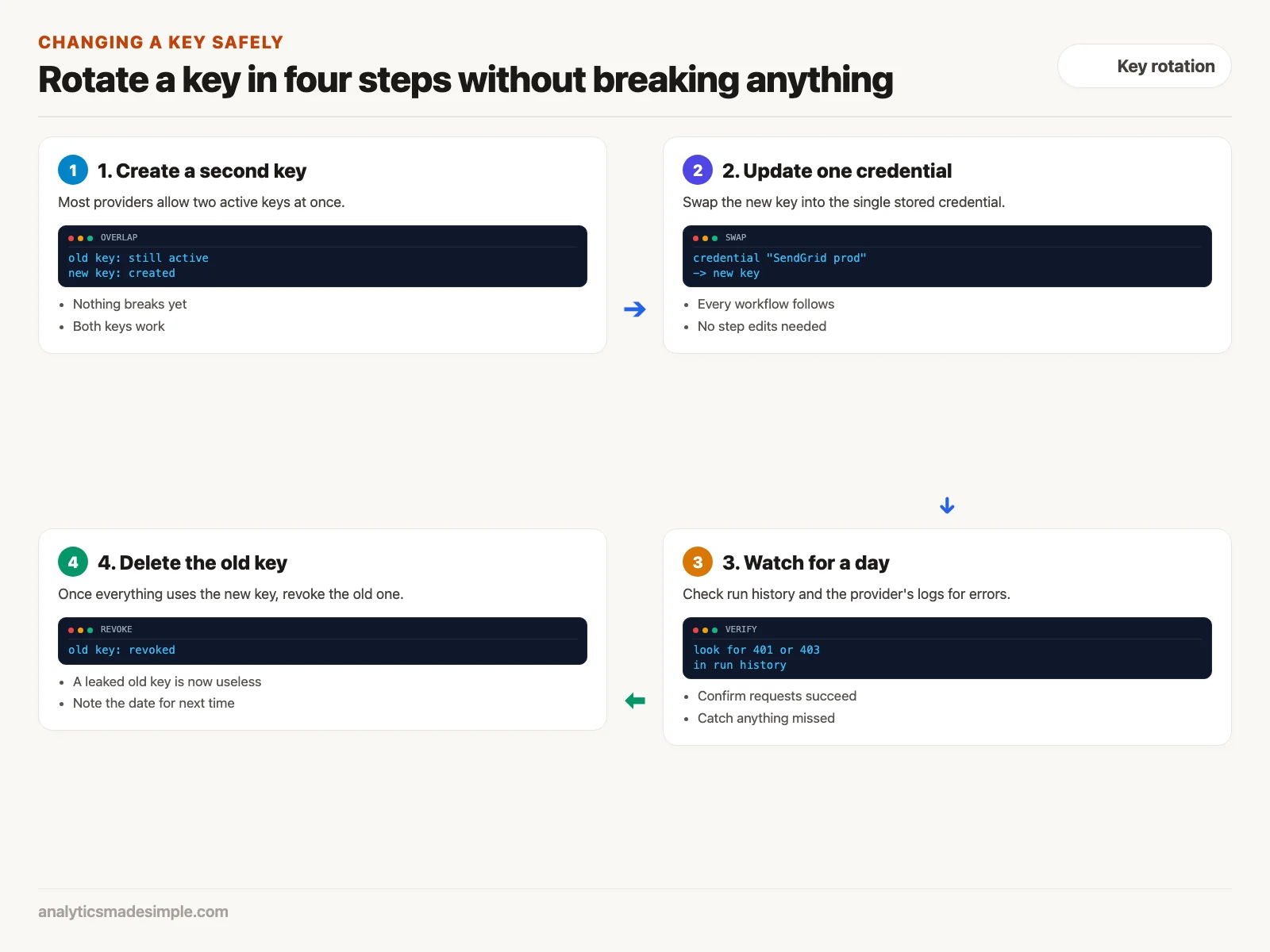
- Create a second key: most providers allow two active keys at once, so nothing breaks while you switch.
- Update the one stored credential: every workflow that points to it starts using the new key.
- Watch for a day: check run history and the provider’s logs for errors such as 401 or 403, which mean a login was refused.
- Delete the old key: once everything works on the new one, revoke the old key so a leaked copy is useless.
What to do next
- Search for pasted keys: look through HTTP Request steps for keys typed into headers, and move each one into a stored credential, because those are the keys most likely to leak.
- Turn on the setting that blocks scripts from reading secrets: if you self-host n8n, set
N8N_BLOCK_ENV_ACCESS_IN_NODE=true. - Review connected apps: disconnect any connection with broad admin access and replace it with a narrow one.
- Schedule rotation: put a recurring reminder on the calendar to rotate static keys with the four steps above.
The next post looks at when a plain script, a scheduled query, or a spreadsheet does the job better than an automation platform.
Series notes
This is Part 8 of Automation platforms from scratch. Previous: workflow AI. Next: when to skip platforms.
Sources
- n8n documentation: security settings, configuration methods, and external secrets, checked October 2, 2026.
- IETF, RFC 6749: The OAuth 2.0 Authorization Framework (2012), and RFC 7636: PKCE (2015).
- NIST, SP 800-53: Security and Privacy Controls.
- HashiCorp, Vault documentation.
Keep going
Same lessons in your feed
Short diagrams, hooks, and weekly tutorials on Substack, Instagram, X, and Facebook.