Claude Code is an AI helper for programmers that you run by typing. A handful of short commands that start with a slash (/) do most of the everyday work, like starting fresh or picking up where you left off. Learn five or six, and the tool stops feeling like a maze.
Imagine you used it yesterday, closed the window, and came back today. It has forgotten your plan, your change is half done, and you cannot remember whether the command to start fresh was /clear or /reset. This post gives you the short list you will actually use.
This is part of the Claude Code tutorial. Commands change with each release, so check Anthropic’s command reference (checked September 2026), or type / in your own copy to see what your version offers.
Two places “commands” live
People get confused because English uses the word “command” for two different places you can type.
Place 1: the shell. You are outside Claude Code, in a terminal program such as zsh, bash, or PowerShell, or in the terminal built into your code editor. There you type things like claude or claude -p "explain this". Those commands start, continue, or script a session, and together they are called the command-line interface (CLI).
Place 2: the slash menu. You are already inside a Claude Code session, and you type / at the start of a message. That opens the in-session command list, which includes help, clear, model switches, reviews, skills, and settings panels. The official docs call these session commands. Many are built-in, which means fixed product logic. Others are skills, which are prompt playbooks that you or Anthropic ship as packages built around a SKILL.md file. From the keyboard, both look like /something.
If you mix up the two places, you type /clear in a bare terminal and nothing useful happens, or you type claude -c inside a chat box and Claude treats it as ordinary prose. The brand is the same but the keyboards are different.
The slash menu: type /, filter, Tab
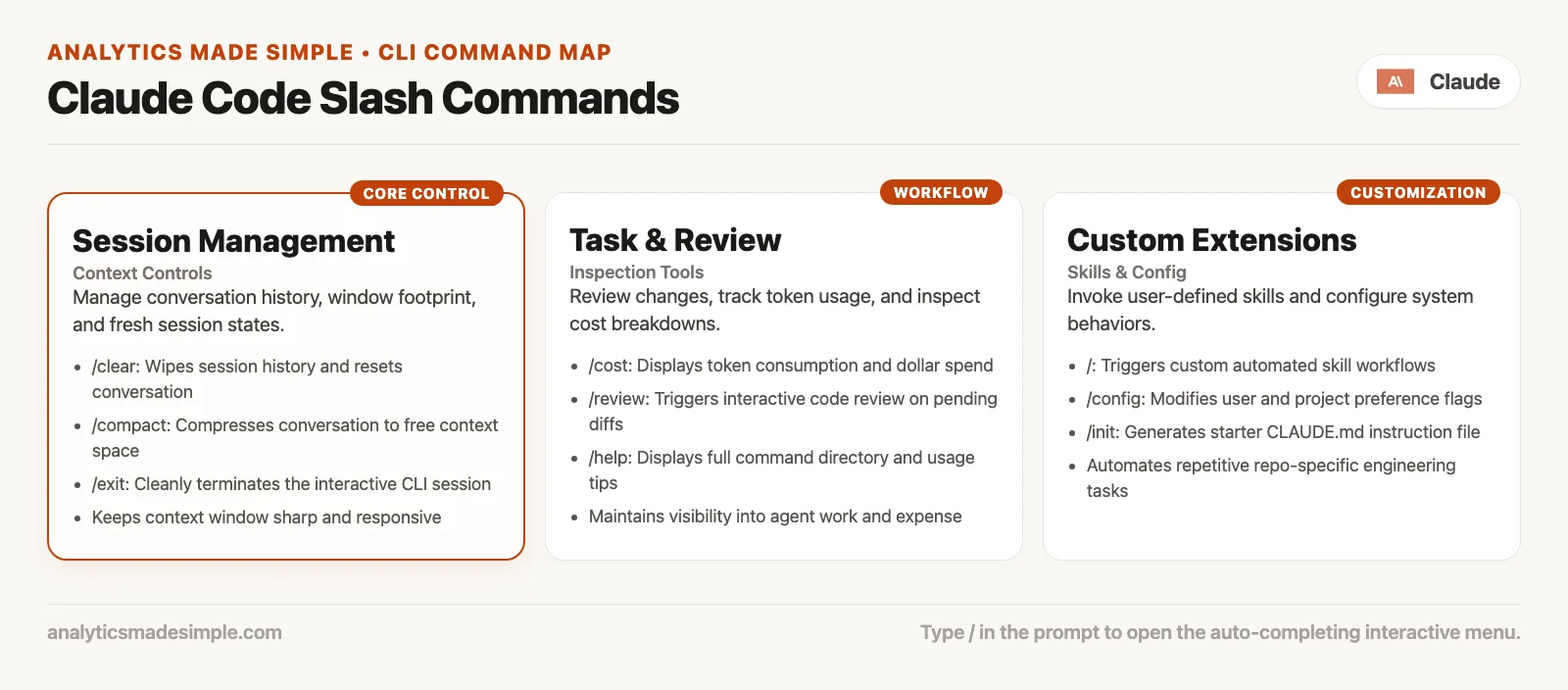
Inside an interactive session, type / as the first character of your message. Claude Code then shows every command available to you. Availability depends on your plan, your operating system, and your version, so your list will not match a screenshot from a stranger’s laptop.
Type more letters to filter the list. /he narrows toward /help, and /cl might show /clear, /claude-api, and similar names. Press Tab to accept a completion when the screen offers one. You do not need to memorize the full catalog on day one, because what you need is the reflex of typing slash, filtering, picking, and sending.
The product behaves by a few rules that are worth knowing, although they can change between versions:
- A command is recognized at the start of the message, and any free text after the name becomes its arguments.
- If Claude is in the middle of a response and you send another command, many commands wait in line until the turn finishes, while a few status-style commands can run immediately without interrupting the answer.
- Skills can stack at the front of a message in newer versions, for example two skill names followed by shared trailing text, while built-in commands still follow the older idea of one command at the start. When something feels odd, read the docs for your version.
Habit: When you forget a name, type
/and hunt for it. Do not invent slash names from muscle memory built on another product, because a wrong/string often turns into confusing chat text instead of a control.
Starter pack: four commands everyone should know
You can live for a week on a tiny set of commands while you are still learning how the agent works. An agent is a program that can edit files and run commands on its own. You can expand later.
/help
/help is orientation. Use it when the screen changed after an update, when you sit down at a new machine, or when a teammate said “just use the review command” and you blanked on the exact name. Asking for help is cheaper than guessing wrong and burning a long agent run.
/clear
/clear starts a new conversation with an empty chat history, and depending on your version, names like /reset or /new may do the same. Project memory such as the CLAUDE.md instructions file still loads on the next piece of work, so you are not wiping the standing instructions for the project. You are wiping a chat that got polluted with three abandoned approaches, a wrong file path you kept defending, and a digression about lunch.
Use clear when the task itself changed, and do not use it as a panic button when you merely feel embarrassed. If the conversation is long but still on the same task, prefer a summarizing tool, often /compact, so that Claude keeps a summary instead of forgetting the plan. A later post in this series goes deeper on memory and context. For now, remember that clear starts a new chat and is not a soft tidy.
/login
Signing in is a common pain point. Seats expire, tokens rotate (a token here is a saved proof that you are signed in), someone switches from pay-per-use billing to a Claude subscription, and build servers need different credentials than your laptop. When Claude cannot reach a model, or when you need to sign in again after a policy change, reach for the login flow instead of reinstalling the whole tool. The command line, the text window where you type commands instead of clicking, also has helpers such as claude auth login and claude auth status. Inside the session, use the login command your version lists under /.
/exit
/exit, and often /quit, leaves the interactive session. On some background or attached agent views, exit may detach from a remote run and leave it going. If you meant to stop the agent for good, check whether you need a stop command for a background session instead of exit. Leaving cleanly is better than force-killing a terminal and wondering whether a half-written file is still locked.
Shell patterns: start, continue, resume, one-shot
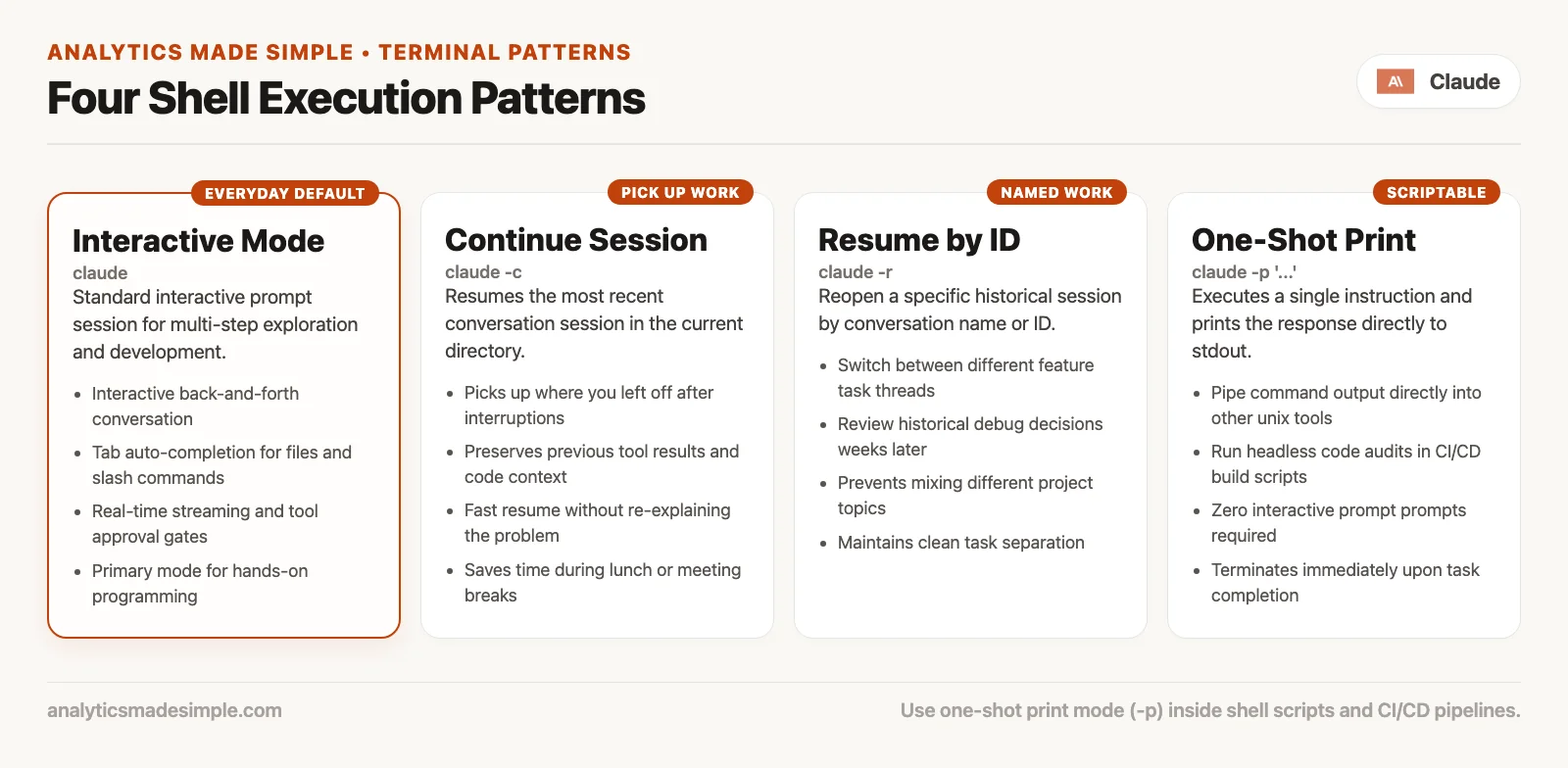
Before any slash menu exists, you start Claude Code from the shell. These four patterns cover most beginner and intermediate days. Full lists of options live in the CLI reference, and you do not need all of them to get work done.
claude: interactive session
From a project directory:
cd ~/work/my-app
claude
You get an interactive session tied to that working folder, and you can also start with a first prompt:
claude "Map how auth is enforced for the admin API. Cite file paths."This starts Claude Code with a first question already typed: explain how sign-in is checked for the admin area, and name the files. Asking for file paths makes the answer easy to verify.
Interactive mode is the default place to learn. You read the changes Claude proposes, answer permission prompts, steer in the middle of a task, and use slash commands.
claude -c: continue the most recent chat here
claude -c, whose long form is --continue, loads the most recent conversation for the current folder. Depending on product rules, that can include sessions that were given extra folder access. Use it when you stepped away for coffee and the terminal closed but the work is on the same branch and the same problem.
cd ~/work/my-app
claude -c
Continue does not travel across unrelated folders. If you cd into a different project and run -c, you continue that other project’s latest session and not the one you meant. The folder you are in is part of the deal.
claude -r: resume a named or id session
claude -r, whose long form is --resume, picks a specific session by id or name. Use it when “most recent” is the wrong one, for example when you bounced between a bug fix and a documentation pass, or when you named your sessions on purpose.
claude -r "auth-refactor" "Finish the remaining tests for the middleware change."Resume is how work that spans several days stays sane. Without it, people paste giant summaries into a fresh chat every morning and hope the model works out what they meant. With it, you reopen the thread that already holds the investigation.
claude -p: one-shot print mode
claude -p, which the docs also call print mode or non-interactive mode, runs one query and exits. It suits scripts, quick questions that do not need a chat window, automated checks that run on every code change (often called continuous integration, or CI), and pipes that feed one program’s output into another.
claude -p "In one short paragraph, what does this repo's main package export?"

cat error.log | claude -p "Explain the most likely root cause in plain English."
One-shot mode does not replace multi-file changes that need back-and-forth permissions. It is a power tool for bounded questions and automation. If you find yourself chaining twenty -p calls to imitate a conversation, stop and open interactive mode.
A command map by moment in the day
Memorizing a table is less useful than knowing when a command earns its place, so here is a practical map. Exact names can vary by version, while the jobs stay the same.
| Moment | Prefer | Why |
|---|---|---|
| First open in a new repo | Shell claude, then explore prompts; later /init style project setup if your version offers it | You need orientation before automation |
| Back from lunch, same task | claude -c or claude -r | Keep investigation context |
| Chat got polluted | /clear for a new task; /compact when the same task is long | Wrong tool for the wrong mess |
| Need a side question without derailing | Side-question commands such as /btw when available | Keeps main thread clean |
| About to ship | Diff viewers, review skills like /code-review, tests you run yourself | An agent feeling sure is not the same as your automated checks passing |
| Auth or install weirdness | /login, shell claude auth status, /doctor or claude doctor | Fix the tool before blaming the model |
| Done for the day | /exit; stop background agents intentionally | Leave no zombie sessions |
Built-in commands vs skills under the same slash
Two entries can both start with / and still be different kinds of thing.
Built-in commands run fixed product logic to clear context, open settings, exit, show usage, or change the model. They do not improvise the way a long prompt does, so when they fail the cause is usually configuration, permissions, or the network and not “the model got creative.”
Bundled skills such as /code-review, and many custom skills written by teams, hand Claude a detailed playbook and let it use its tools to carry it out. The official docs describe bundled skills as prompt-based, meaning Claude reads the instructions and works with tools instead of running one hard-coded routine. That is why a skill can start helper agents, read files, and adapt to your project.
Custom skills live under paths like .claude/skills/name/SKILL.md for a project or ~/.claude/skills/name/SKILL.md for you personally, and you can run them as /name. Older custom commands under .claude/commands/ still work, but skills are the recommended home because they support extra files and load automatically when relevant. The next post is the full lesson on skills. For now the takeaway is simple: if a slash name feels like a mini-workflow, it is probably a skill, and if it feels like a light switch for the product, it is probably built in.
Worked mini-session: same bug, three shell patterns
Imagine a flaky test in tests/test_billing.py, meaning a test that sometimes passes and sometimes fails for no clear reason. You have thirty minutes before a team standup.
Morning open (interactive):
cd ~/work/billing-service
claude
# then, in the session:
# "Read tests/test_billing.py and the code it covers. List three plausible causes of flakiness. Do not edit yet."
You explore and approve a few file reads. Then the standup interrupts you, so you exit.
After standup (continue):
cd ~/work/billing-service
claude -c
# "Continue from the flakiness list. Add a failing reproduction if you can find one. Still no production deploy."
Later, for a scripted summary to paste into Slack (one-shot):
claude -p "Summarize the current uncommitted diff in three bullets for a non-expert. No code edits."The -p option runs a single request and prints the answer without starting a chat, which suits a quick summary you paste somewhere else. The request also says not to edit any code, so the run only reads.
If yesterday’s auth-refactor session is the one you need and not today’s most recent chat, use resume instead of continue:
claude -r "auth-refactor" "Re-check the middleware tests after the rebase."The -r option reopens a named earlier session, here the one called auth-refactor, and sends it a new instruction. Use it when you need yesterday’s session and its context, not just the most recent one.
That is the whole pattern family. Use interactive mode for steering, continue for the latest thread, resume for a thread you choose, and print mode for a closed question.
Commands that shape quality mid-task
Once the starter pack is automatic, a second tier of commands pays for itself on real workdays.
Context hygiene
Long sessions fill the context window, which is the limited amount of text the model can keep in view at once, with dead ends. Tools such as /context help you see what is using the space. /compact summarizes the chat to free room while keeping the same conversation, and /clear is the hard reset for when the task itself changed. Using clear for every awkward silence makes you lose hard-won investigation. Never compacting, while pasting the same error message five times, fills the model’s view with noise.
Model and effort switches
Many installs expose model selection and effort controls as slash commands, and names like /model and /effort appear in the official command tables. A cheap, fast model is fine for “where is this function defined.” Harder reasoning across many files may need a heavier model or higher effort. Switching mid-session is a real feature, but switching every two minutes is not a strategy, so pick one setting for a task and stick with it until the task ends or clearly fails.
Review and ship helpers
Bundled skills such as /code-review exist to inspect changes for mistakes and cleanup. Other review commands target pull requests (PRs, which are proposed code changes waiting for a teammate to approve) or security-minded checks. They assist your judgment and do not replace tests, automated checks, or a human merge. Use them when the change is large enough that skimming alone is unreliable, and do not treat them as permission to skip reading the change.
Diagnostics
When the product itself misbehaves, prefer doctor and debug commands over random reinstalls. In the shell, claude doctor can print read-only diagnostics without a full interactive session. Checkup skills inside a session may offer fixes with a confirmation step. If signing in is the issue, log in first. If two copies of Claude are installed in different folders on your computer and fight over which one runs, the doctor output shows you which is which.
Arguments: text after the command name
Most session commands accept trailing text as arguments. These examples show the shape, although exact support depends on the command:
/compact Focus on the billing migration decisions, drop the CSS digression.
/code-review medium
/btw What does the AcmeClient class do in one sentence?
These are three commands you type inside a session. The first shrinks the conversation while keeping what you name, the second starts a code review at a chosen depth, and the third asks a side question without derailing the main task.
For skills, the arguments often flow into placeholders such as $ARGUMENTS inside the skill file. You do not need to write skills yet to use that idea, because whatever you type after the skill name is the payload the playbook receives. Keep arguments short and concrete. A paragraph-long argument after a slash name usually means you wanted a normal chat message instead.
What not to put in the slash box
Slash is for control and for named workflows, and everyday steering still belongs in normal language:
- “Do not touch production configs.”
- “Show me the plan before editing.”
- “Only change files under
src/billing/.” - “Stop after the failing test is isolated.”
Standing rules for a project belong in CLAUDE.md and related instruction files, which a later post in this series covers. Repeatable multi-step procedures belong in skills. If you keep pasting the same 12-line ritual every Tuesday, that is a candidate for a skill and not a reason for an ever longer slash argument.
Common mistakes
Treating /clear as “undo”
Clear empties the conversation context, but it does not reverse file edits that were already applied. For rollback, use git (the tool that tracks every change to your files) and the rewind features in the product if they are available. Confusing a chat reset with an undo on your files is how people lose track of what actually changed on disk.
Continuing the wrong directory
claude -c is tied to the folder you run it from. Running it from ~/Downloads when you meant the main project continues the wrong story, so always cd into the right folder first, and say the path out loud if you have to.
One-shot for multi-step agent work
claude -p shines for closed questions. It is a poor default for a job like “migrate this package and open a PR (a proposed code change that teammates review before it is merged),” because you lose the interactive permission and steering loop. Use interactive mode whenever a mistake could damage a lot of files or systems.
Inventing slash names
If /ship-it-please is not in the menu, typing it will not summon a hidden deploy fairy. Type / and filter, or create a real skill when you want a named workflow.
Ignoring version drift
Command tables move. A blog post from last quarter may name a command that is now a skill, or a skill that gained new options. When something fails with “unknown command,” run /help, check claude --version, and open the live docs instead of forcing outdated muscle memory.
Approving because the command menu felt official
Slash commands can still lead to shell commands and file edits. A command that looks official is not risk-free, so read permission prompts the same way you would if you had typed the shell string yourself.
Questions people ask
Is /help the same as reading the docs?
No. Help is local to your install and great for discovery, while the docs at code.claude.com stay the authority for full behavior, version notes, and edge cases. Use both.
Do I need skills to use slash commands?
No. Built-in commands work without writing any skill files. Skills extend the slash menu with your team’s playbooks and with Anthropic’s bundled playbooks, and a later post covers adding your own.
What about .claude/commands/?
Older custom command files still work, but prefer .claude/skills/<name>/SKILL.md for new work. It is the same /name idea with more room to grow.
How is this different from chat slash tools on claude.ai?
Claude Code’s slash menu is tied to coding-agent sessions, which bring project context, tools, permissions, and the lifecycle of a terminal program. Consumer chat apps have their own features, so do not assume every chat shortcut exists in Code or the reverse. The product map series keeps those places separate on purpose.
Practice in a throwaway project
- Open a throwaway or personal code project and run
claude. Type/and scroll the real list on your machine, then write down five names you recognize and two you do not. - Ask a small exploring question and exit with
/exit. Then runclaude -cfrom the same folder and confirm the thread continues. - Run one
claude -pquestion against the same project, and notice what is harder to do without interactive permissions. - Deliberately derail a chat with an unrelated topic, then practice choosing between compacting to stay on the task and clearing to switch tasks.
- If signing in is healthy, still run a status check once so you know what “logged in” looks like before a crisis.
- Tomorrow, before inventing a new ritual, type
/first and see whether the product already has a name for it.
Your next step
Start Claude Code in a practice folder, type / to see the command list, and try /help, /clear, and /exit. Then run claude -c to continue the session you just closed. Practicing the commands on a project that does not matter means you will not fumble them when the work does.
Series notes
The next post in the Claude Code tutorial (Part 4) is about skills: what a SKILL.md file is, where personal and project skills live, how to run one as /name, how automatic loading works, and how skills differ from the always-on CLAUDE.md file. Later posts cover memory, instruction files, plugins, agent loops, reviewing changes, and team safety rails.
If you need the wider product family again (Code, Cowork, chat, and the developer interface), return to the Claude product map. For everyday Claude habits that have nothing to do with code, Learn Claude from scratch still applies. Habits for checking AI output that work with any vendor live in the Practical AI series.
Quick recap
- Shell commands start and resume sessions, and slash commands control work inside a session.
- Type
/to list commands, type letters to filter them, and press Tab to complete when offered. - Know
/help,/clear,/login, and/exitby heart. - Shell patterns are
claudefor interactive,claude -cto continue,claude -rto resume, andclaude -pfor one-shot. - Built-in commands flip product switches, while skills run playbooks, and both can appear under
/. - Clear is a new chat and does not undo file changes. Continue depends on the folder you are in, and one-shot mode is not meant for a full day of agent work.
- When names drift, trust your live
/menu and code.claude.com over your memory.
Sources
Official Claude Code documentation used for command and CLI claims in this article (re-check after upgrades):
- Commands reference (built-ins and bundled skills): https://code.claude.com/docs/en/commands
- CLI reference (start, continue, resume, print mode, flags): https://code.claude.com/docs/en/cli-reference
- Skills overview (slash skills, custom commands merge): https://code.claude.com/docs/en/skills
- Claude Code overview: https://code.claude.com/docs/en/overview
- Common workflows: https://code.claude.com/docs/en/common-workflows
- Interactive mode notes (side questions and session UX): https://code.claude.com/docs/en/interactive-mode
- Features overview (skills vs other extension types): https://code.claude.com/docs/en/features-overview
- Analytics Made Simple: Claude Code tutorial series
- Analytics Made Simple: Claude product map series
Keep going
Same lessons in your feed
Short diagrams, hooks, and weekly tutorials on Substack, Instagram, X, and Facebook.