Codex is the part of ChatGPT built for software work. It opens a real project folder, reads the files, runs commands, and hands you changes to review before anything is saved for good. If you use the ordinary Chat window for a software job, you end up pasting code back and forth and losing track of which version is true.
Imagine you need to fix a small typo in a project’s setup notes. You open ChatGPT the way you always do and paste in the folder’s location. The ordinary chat cannot see your files, so it guesses at a folder layout that does not exist. Two more tries give you three different answers and no way to tell which one matches your real files. The model was not the problem; you used the wrong part of ChatGPT.
This is the first post in the ChatGPT Codex tutorial. On the desktop, Codex sits next to Chat and Work inside the ChatGPT app. New to ChatGPT? Start with Learn ChatGPT from scratch. To tell Chat, Work, and Codex apart, keep the ChatGPT product map open. Everyday writing is covered in the ChatGPT everyday tutorial, and office tasks with several steps in the ChatGPT Work tutorial. This post opens the coding features, picks a first project, and walks through one small, safe change from start to finish.
Button labels, plan packaging, and which feature lands where keep moving. Treat the names and rollout notes below as a field guide written in July 2026. In the week you write team policy or buy seats, re-check chatgpt.com/codex, Using Codex with your ChatGPT plan, ChatGPT Work and Codex, and developers.openai.com/codex.
Codex in one sentence
Codex is the coding agent inside ChatGPT for software development and technical work. You open a project, which means a local repo plus its related tools, and you ask it to read, plan, edit, run commands, and produce changes you can review. You stay responsible for what gets committed, merged, and released.
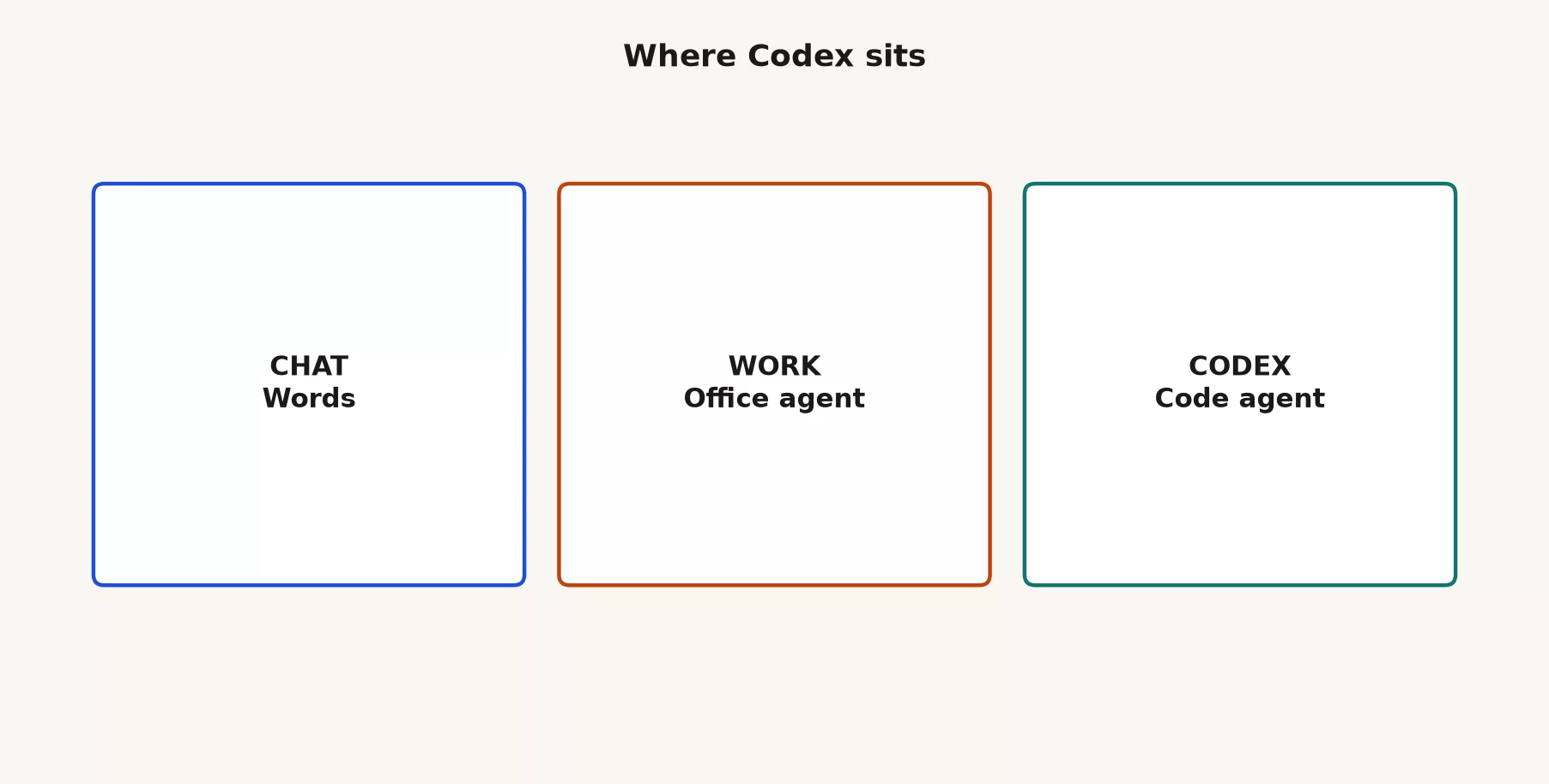
That is different from Chat, which is conversational help where you ask, get a reply, and leave. In Chat, you do all of the pasting yourself. Work is different too, because it handles multi-step office jobs that end in finished-looking decks, sheets, and docs. Codex lives inside a software project, with code, tests, diffs, and review much like a pull request. They share a login but do different kinds of jobs.
Rule of thumb: Chat answers and drafts with you. Work runs multi-step office jobs toward a package you still check. Codex changes software under review. Pick by the thing you need when you are done.
Why Codex exists at all
For years, “I used ChatGPT for code” meant pasting a function into Chat, getting a rewrite, pasting it back, and hoping you did not miss a place where the function is called. That works for a ten-line helper. Real projects are messier, because entry points hide under nested packages, tests describe behaviors the README, the project’s setup notes file, forgot, and the login code lives three folders away from the form that fails. In Chat, you become the glue. You re-paste context and lose track of which version of the file was last true.
Codex exists because software work wants a different loop: project context, a plan, tools, edits, checks, and a diff you can review. OpenAI’s own product language is blunt about the split. Chat stays for fast conversational help, Work stays for longer multi-step office work, and Codex stays dedicated to software development and technical work. Help articles describe the ChatGPT desktop app as Chat and Work under ChatGPT, with Codex alongside them on macOS and Windows.
Vocabulary costs money at work. Your finance team may approve a Plus seat and then be shocked when coding sessions burn through capacity. Your IT team may allow browser Chat and still restrict access to local folders. An analyst who only knows Chat will paste error messages into a thread while an engineer expects a project with diffs. Once you name the mode, plans, permissions, and review habits become easy to discuss.
Where Codex shows up
By mid-2026, the ChatGPT desktop app was where OpenAI made the three-way split hardest to ignore. Chat, Work, and Codex live together in one install on Mac and Windows. That helps muscle memory, because you open one app and then choose a kind of job and do not need a separate brand for every task. Official help describes a clearer desktop layout with a switcher between ChatGPT and Codex, and it notes that Codex remains a dedicated software area even as the apps merge.
Codex is not only a button in the desktop app. OpenAI also documents Codex in related places connected by your ChatGPT account, such as the desktop Codex mode, an editor extension, a command-line tool, web and cloud workflows, and GitHub-oriented paths, depending on your plan and setup. A good mental model is one agent family in different wrappers. Learning still starts best in desktop Codex, with a local project you can see and undo.
Desktop: the deepest home for your first week
Desktop is the right home when local files, terminals, diffs, and side-by-side review matter. If the only clean copy of the project is on your laptop, plan on desktop. If you want to sit beside an editor window and watch the agent propose changes, desktop is built for that. Confirm which account is signed in before you grant access to any folder, because a personal login on a company codebase is how security tickets are born.
Editor, command line, and web: later, not required yet
Once the desktop loop feels honest (orient, change, review), add the version that matches your daily tools. Some people live in an editor extension, some prefer a terminal (the text window where you type commands) command-line tool, and some teams lean on cloud agents for longer jobs. None of them replace the habit of reading the diff. If you skip desktop and jump straight into a long unattended cloud run on day one, you are practicing courage and not craft.
| Where you use it | Best for early learning | Watch out for |
|---|---|---|
| ChatGPT desktop (Codex mode) | Opening a first project, working with local files, seeing visible progress, and switching between Chat and Work | Update the app, confirm the account, and grant only the folders you mean to |
| Editor extension | People who already live in their editor and want agent help next to the cursor | You still need to review diffs, and autocomplete alone is not a plan for merging |
| Command-line tool | Terminal-first workflows, scripts, and remote environments | Permissions and shell risk, so read each prompt before you allow a command |
| Web or cloud Codex | Longer jobs, parallel agents, and team workflows as your plan allows | It is not a free pass to skip review, and it must never release to production silently |
Plans and limits without invented quotas
OpenAI’s help copy is clear on the shape, even when exact numbers move. Codex is included across ChatGPT plans, including Free and Go, with usage limits that vary by plan. Plus and Pro give you more usable coding time for focused sessions and fuller workdays. Business, Enterprise, Edu, and related organization plans add admin controls and team packaging. Some Plus and Pro users can add credits when they hit included limits, while others may need to upgrade or wait for a reset. Before you promise capacity to a team, re-check chatgpt.com/pricing and the live Codex rate card.
Here is the practical translation for a beginner.
- Free and Go: enough to learn the shape of Codex and try a tiny safe change, if the product offers it on your account. It is not the place to burn a week on a giant refactor.
- Plus and Pro: the usual home for real personal coding sessions, though the capacity is still finite. Scope your work before you start.
- Team, Business, and Enterprise: admin policy, shared norms, and often clearer answers about which folders and connectors are allowed.
Agentic coding, where the AI takes several actions on its own, uses much more than a short Chat rewrite, and that is normal. Learning to scope a job is a budget skill and not a personal flaw.
What you need before the first project
Codex works on real project folders, so it is not a second Chat thread with a darker theme. You will get more out of your first run if five things are true.
- A project folder you are allowed to open. Prefer a personal sandbox or a throwaway clone over production on day one. If the only copy is the live release repo, clone it again into a practice folder.
- An account with Codex access on your plan. Sign in with the ChatGPT account you intend to use on this machine, and confirm the Free and Go limits versus Plus and Pro capacity on the live pricing page and not on a blog rumor.
- Git on the machine, which is strongly recommended. Make a branch before edits and look at the diff after. That lets you undo a change without digging through history. You can learn without perfect git habits, but “review the diff before you commit” is much easier when git exists.
- Secrets hygiene. Never paste live API keys (the passwords programs use to call a service), customer data dumps, or
.envcontents into chat, even “just this once.” Point the agent at code structure and not at live credentials, and use placeholders and local environment files that stay out of the conversation log. - Clear company policy if this is work code. Personal keys in a corporate codebase create tickets. If policy is silent, ask before your first pull request, and if policy bans local agents on certain projects, respect that even if the tool is impressive.
Open the coding features: the first five minutes
The exact menu labels move around, but the order of jobs stays stable.
- Update and open the ChatGPT desktop app.
- Sign in with the correct account.
- Switch into Codex, and not into Chat or Work. Official help frames desktop as Chat and Work under ChatGPT, with Codex as the software area alongside.
- Open or attach a project, meaning a local repository folder you own or are allowed to touch.
- Confirm the folder permissions. Grant the project’s top folder and not your entire home directory, unless you have a real reason.
If the app still looks like “only Chat,” update it, check the release notes for your plan, and confirm that your account has already received the merged layout. Enterprise rollouts can lag behind consumer screenshots, so do not invent features from a marketing page that your organization does not have.
Create a branch before you invite edits
Open a terminal next to Codex, or use git habits you already trust, and make a practice branch.
cd ~/src/notes-sandbox
git status
git checkout -b practice/codex-first-run
If the working folder already has uncommitted changes, stop and commit or stash your own work first. Do not let an agent’s first session land on top of half-finished personal edits that you cannot separate later.
The first project ritual
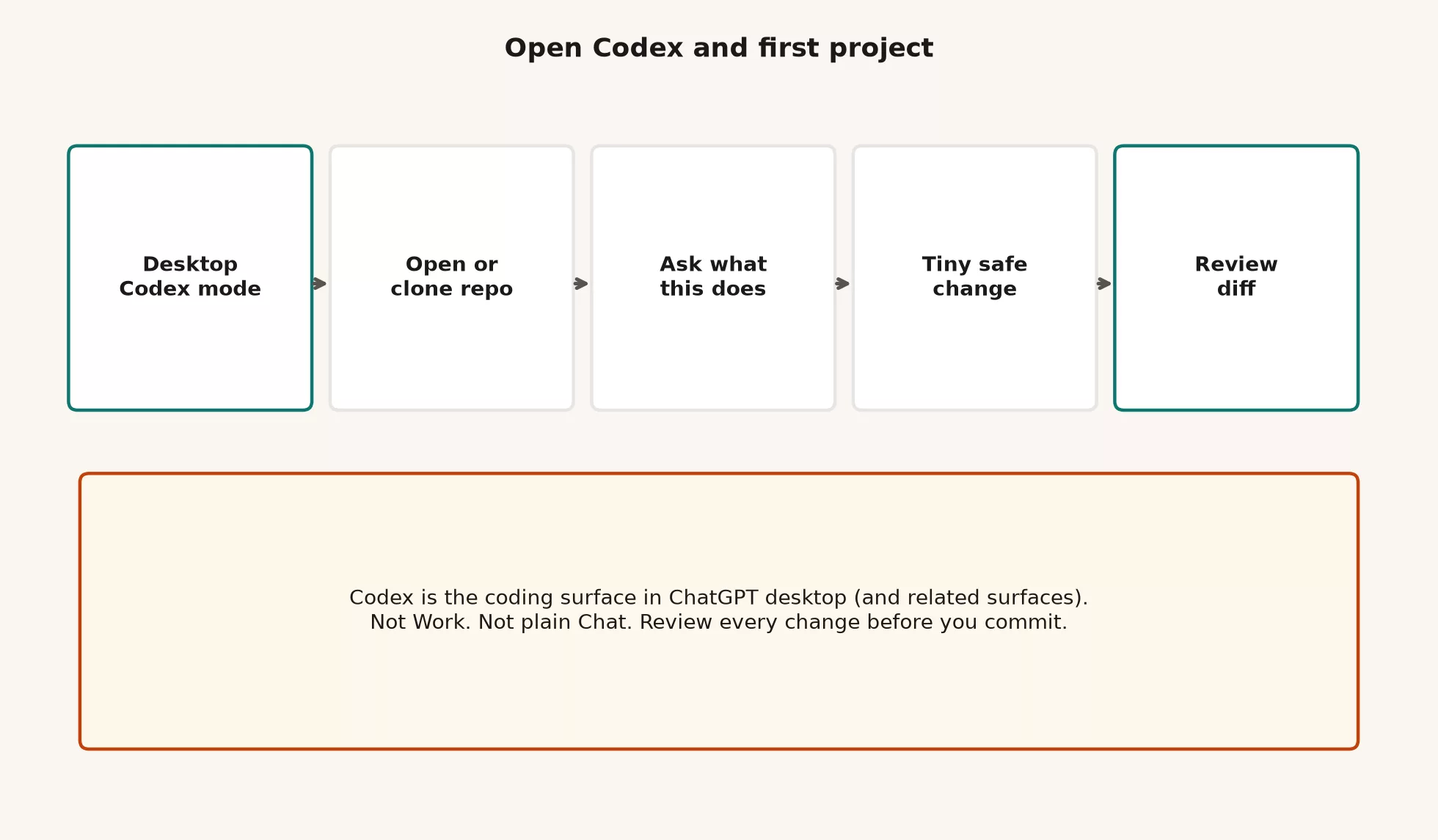
People fail their first run by asking for a rewrite of the login system in the second minute. The ritual below is smaller and boring on purpose.
Step 1: open the project
Use a small project you can afford to mess up. A personal side project, a tutorial app, or a fresh clone of something you already understand at a high level all work well. Avoid production release settings, customer data, and huge shared codebases where one bad command touches twenty packages.
Step 2: ask orientation questions with no edits yet
Type questions that force a map made of file paths and not of vibes.
What does this project do?
Where is the main entry point?
How do I run tests and start the app locally? Quote commands from the repo if they exist.
Do not edit any files yet.
Open the files it cites. If the entry path is wrong, say so and ask again. You are calibrating the agent against the real folder tree, and you are not grading a book report.
Step 3: one tiny safe change
Pick something reversible that you can review in under two minutes of reading. Good examples include the following.
- Fix a typo in the README
- Add a one-line comment next to an existing helper, if your team allows comments that teach
- Tighten an error message that already has a test nearby
- Add a missing badge line that is already documented elsewhere
Phrase the request the way you would write a ticket for a careful teammate.
In README.md only, fix the typo "instalation" to "installation".
Do not change any other files.
Do not reformat the whole document.
Show the diff and wait for me to review before any commit.
Step 4: review the diff, always
After the agent edits, read the change. Look at both the in-app diff and your own git view.
git status
git diff
These two commands list the files the agent changed and then show every changed line. Reading them before you commit is the review step that catches changes you did not ask for.
While you read, look for these five warning signs.
- Files you did not mention
- Formatting churn that hides a real logic change
- Deleted tests or weakened checks
- New dependencies you did not approve
- Passwords, login tokens (codes that keep you signed in), or
.envcontents that should never appear
Commit only when you can defend the patch in one sentence. If the agent drafts a commit message, rewrite anything you could not say out loud to your team. Later posts in this series go deeper on review and tests, and the habit starts now: no blind commits and no silent production releases.
A worked example: a README typo in a notes sandbox
Say you cloned notes-sandbox into ~/src/notes-sandbox, created the branch practice/codex-first-run, and opened that folder in desktop Codex.
Orientation
I am new to this repo. Prefer small diffs.
What does this project do?
Where is the HTTP entry point?
How do I run tests?
Do not edit files yet.
Codex points at src/server.js, src/routes/notes.js, and the scripts in package.json. You open those paths, and they match. While you are there, you notice that the README says “instalation” in the setup section. That is your tiny change.
Tiny change
Fix the typo "instalation" to "installation" in README.md only.
Do not touch source files.
Do not reformat other sections.
The agent proposes a one-line edit, and you approve it after reading the file path. Then you run a git command to see exactly what changed.
git diff README.mdYou see one changed line and no surprise lockfile, so you commit with a message like “docs: fix installation typo in README.” That loop is small on purpose. If you cannot complete a tiny loop honestly, you are not ready for a refactor across many files.
What Codex is good at early on
Codex earns its keep when the job is shaped like software and you will review the result.
- Explaining an unfamiliar folder tree with file paths
- Locating entry points, tests, and configuration
- Drafting small patches that match existing patterns
- Running allowed local commands, such as tests and style checks, while you watch
- Producing diffs you can accept, reject, or edit
It is less magical when the folder tree is huge, the ticket is vague, secrets sit in the prompt, or nobody will read the diff. Speed without review is how “AI wrote it” becomes an incident report.
What Codex is not for, especially on day one
| Wrong job | Better tool | Why |
|---|---|---|
| A one-line email rewrite | Chat | There is no project folder and no need for an agent |
| A status deck built from notes and a sheet | Work | It is an office deliverable and not a software patch |
| A silent production release | Your release process, with humans involved | Agents do not own uptime or blame |
| Pasting production secrets “for context” | Redacted examples or local environment files only | Chat logs are not a vault |
| A rewrite of a whole large codebase before making a map | Explore first, as the next post in this series explains | You cannot review what you cannot explain |
Safety rails that are not optional
Explore before you edit
If you do not know where the login code lives, do not ask for a rewrite of the login code. Ask for a map, demand file paths, and open the files. The next post in this series is the full explore playbook, and the rule starts here: orientation before ambition.
Branch early
A named branch turns “the agent did something weird” into “reset this branch.” Working on main with live release hooks is how a practice session becomes a pager alert.
No secrets in chat
Do not paste .env contents, private keys, customer personal data, or login cookies “so the agent can debug faster.” Describe the shape of the configuration and use dummy values. If a log already contains a secret, change that secret, and do not paste more of it into the model.
Not for silent production releases
Codex can help you write and test changes, but it does not replace your release checklist, your change approval board, or the human who owns an outage. Treat any suggestion to force-push to production, disable tests, or skip review as a warning sign. Later posts cover review and git habits in more depth, and the red line is already here: no unattended production releases.
Habits that carry over from other coding agents
If you have used other coding agents, such as Claude Code in a terminal, the good habits transfer: map before you edit, keep diffs small, review as a human, and treat tests as seatbelts. The product names do not transfer one for one. On the OpenAI side, say Codex for the coding agent, Chat for conversation, and Work for office jobs with many steps. Do not call every agent “Copilot” or every desktop mode “ChatGPT Code” in a ticket, because shared language is how teams write policies that survive a reorganization.
Common mistakes
Using Chat for a repo job
Paste-driven coding in Chat loses project context and creates edits outside git that nothing tracks. Open Codex and attach the project instead.
Opening Work for a software patch
Work is great for a deck about the release, but it is the wrong tool for changing the code of the release pipeline (a set of automated steps run in order).
Skipping orientation
Asking to “rewrite billing” on a folder tree the agent has not mapped produces confident wrongness. Ask what the project does and where the entry point is first.
Granting your whole home directory
Grant only the project folder. Broader access makes any mistake bigger if a command runs somewhere you did not intend.
Committing without reading the diff
A pretty explanation is not the patch, because the changed lines are the patch. Read them.
Burning Free and Go limits on a giant rewrite
Learn the loop with a tiny change first. Grow your ambition together with your plan capacity and your review skill.
Pasting secrets “just for this debug”
There is no safe “just this once” for production credentials in a chat log.
Where this fits in the learning path
On this site, ChatGPT learning is a ladder and not a pile of random tips. One step covers Custom GPTs, which are saved versions of ChatGPT that you set up for one repeating job.
- Learn ChatGPT from scratch: what it is, plans, first minutes, modes overview, memory, images and files, connectors, and judgment
- ChatGPT product map: Chat versus Work versus Codex, Custom GPTs, models, and light API notes
- ChatGPT everyday tutorial: writing, planning, learning, long docs, and email and workplace writing where no agent changes your files
- ChatGPT Work tutorial: office jobs with many steps, approvals, checkpoints, and when Work beats Chat
- ChatGPT Codex tutorial (you are here): coding features, safe exploring, skills and tasks as offered, review and tests, and git-friendly habits
- Later: a tutorial on building your own Custom GPT
If you skipped straight here from a marketing page, that is fine. Bookmark Learn and the product map so you do not invent policy from demos. Wider curriculum paths also sit on Learn.
Update ChatGPT desktop and confirm you can switch
Do not start with production billing. Do this instead.
- Update ChatGPT desktop and confirm you can switch into Codex.
- Clone or open a sandbox repo you own, and create a practice branch.
- Ask orientation questions with “do not edit yet,” and open the paths it cites.
- Request one tiny safe change, at the level of a README typo, and review
git diff. - Commit only if the patch is defensible, and note your plan limits if you hit them.
- Stop before any rewrite that touches many files. The next post in this series is about exploring a repo safely.
Quick recap
- Codex is the coding agent inside ChatGPT for software work that you still review.
- Chat is conversation, Work is office packages, and Codex is code under review.
- Desktop merges Chat, Work, and Codex, and the editor, command-line, and web versions share the account family.
- Free and Go can learn the shape, while Plus and Pro usually carry day-to-day coding usage, so re-check the live limits.
- The first ritual is to open a project, orient, make a tiny change, and review the diff.
- Branch first, keep secrets out of chat, and never allow silent production releases.
Series notes
This is Part 1 of the ChatGPT Codex tutorial. The next post, on exploring a repo safely, turns orientation into a full map. It covers good first questions, bounds on what not to touch, explore-before-edit discipline, and a worked loop you can run on any unfamiliar codebase this week. After that come skills and tasks as the product offers them, review and tests without trusting green checkmarks alone, then git-friendly habits for beginners.
Sources
Official product and help materials used for this article (re-check the week you set policy; UI and plan packaging move):
- Codex in ChatGPT (product overview; coding agents for software engineering; plan entry points)
- OpenAI Help: ChatGPT Work and Codex (Chat vs Work vs Codex; Codex for software development and technical work; desktop framing)
- OpenAI Help: Using Codex with your ChatGPT plan (access across plans including Free and Go; usage limits vary; desktop Codex mode and other clients)
- OpenAI Help: Moving to the new ChatGPT desktop app (Chat and Work under ChatGPT, Codex alongside; local files and developer tools)
- OpenAI Help: Codex collection (rate card, security, chat archive, related articles)
- OpenAI Help: Codex rate card (credit and plan packaging notes; re-check for your tier)
- OpenAI Developers: Codex (technical Codex docs hub for app, CLI, and related developer surfaces)
- OpenAI and OpenAI Help Center (live release notes, plan matrices, and account-specific steps)
- Analytics Made Simple: Learn ChatGPT from scratch
- Analytics Made Simple: ChatGPT product map
- Analytics Made Simple: ChatGPT everyday tutorial
- Analytics Made Simple: ChatGPT Work tutorial
- Analytics Made Simple: Learn
Keep going
Same lessons in your feed
Short diagrams, hooks, and weekly tutorials on Substack, Instagram, X, and Facebook.