
Claude Sheets lets you describe a spreadsheet in plain words and have Claude build it, with tabs, formulas, formatting and drop-down lists, then keep editing it with you. It is a beta on all paid Claude plans, and the habit that makes it safe to use is simple: check every total it writes before you rely on it.
Imagine you ask for a monthly household or team budget with a summary tab, and thirty seconds later you have a tidy sheet with coloured headers and a total at the bottom of every column. It looks finished, and that is the danger, because a total that stops one row short looks the same as one that does not.
This guide covers what Claude Sheets does, who can use it, how to build your first sheet, a four-step routine for checking the formulas, and when to move the file to Excel. If you build reports with Copilot in Excel instead, our guide on turning a monthly Excel report into a Copilot skill covers that route.
What can it build for you?
It builds and edits spreadsheets inside Claude from your instructions, and marks each change it makes. Anthropic launched it in beta on November 10, 2026, together with Claude Whiteboards, in its announcement, which says Claude “can now generate spreadsheets with tabs, formulas, formatting, and drop-downs, often from just a prompt”.
A formula is an instruction in a cell that calculates a result from other cells, such as adding up a column. A drop-down is a cell where you pick from a fixed list instead of typing, which keeps entries consistent.
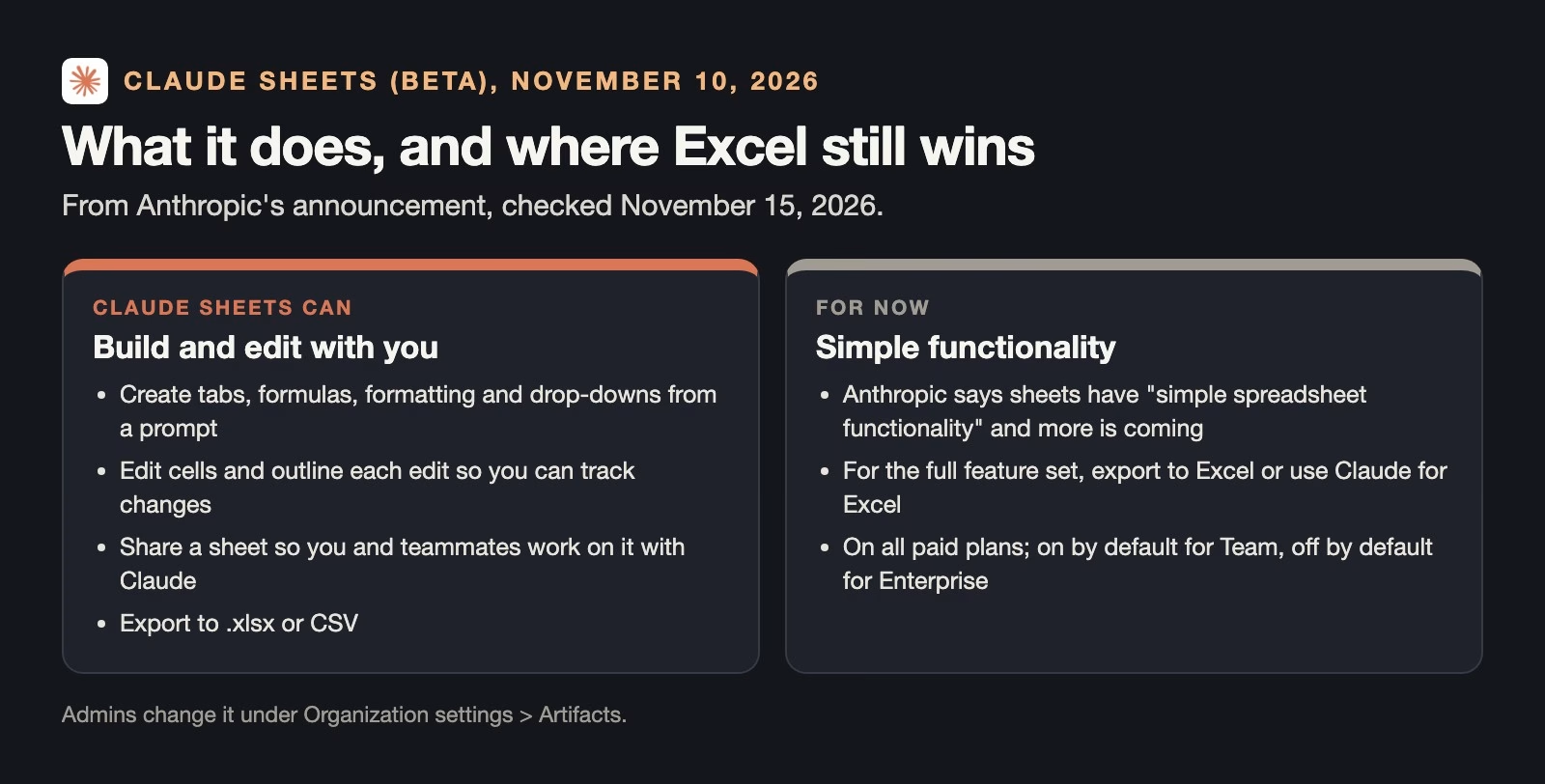
The same announcement says Claude can edit cells directly and outlines each new edit so you can track what changed. You can share a sheet with your team so that you, your colleagues and Claude work on it together, and you can export it as an Excel file (.xlsx) or a CSV, the plain comma-separated format almost every tool can open.
What it does not do yet
Anthropic is open about the limits. Its announcement (checked November 15, 2026) says sheets “have simple spreadsheet functionality” for now, with more coming, and suggests exporting to Excel or using Claude for Excel, its Excel add-in, when you need the full feature set.
Some third-party write-ups list a cell limit and a count of supported functions, but we could not find those figures on Anthropic’s own pages, so we have left them out. If you hit a limit, the export route is the answer.
Who can use it?
Claude Sheets is on all paid Claude plans and works on the web, desktop and mobile apps, according to Anthropic’s announcement of November 10, 2026. The same post says it is switched on by default for Team plans and off by default for Enterprise plans, where an admin turns it on under Organization settings > Artifacts.
An artifact, in Claude’s terms, is a piece of work Claude creates in its own panel next to the chat, such as a document, a chart or now a spreadsheet. If you are on Enterprise and cannot find Sheets, ask your admin whether it has been switched on.
How to build your first sheet
Start with a clear description of the result you want, including the tabs, the columns and what each total should add up. The more specific the request, the fewer formulas you will have to fix.
- Describe the sheet. For example: “Build a monthly budget with a Detail tab listing each expense with date, category and amount, and a Summary tab showing budget, actual and difference for five categories: Rent, Groceries, Transport, Utilities, Fun.”
- Ask for drop-downs. “Make the Category column a drop-down with those five categories.” This stops typos like “Grocery” and “Groceries” from splitting one category into two.
- Paste or type a few real rows. A sheet with real numbers is much easier to check than an empty template.
- Ask it to explain the formulas. “List every formula on the Summary tab and what range it adds up.” Claude’s answer becomes your checklist for the next step.
How to check the formulas it writes
Spend ten minutes checking before anyone uses the numbers. These four checks catch the common mistakes in any spreadsheet, whether a person or an AI built it.
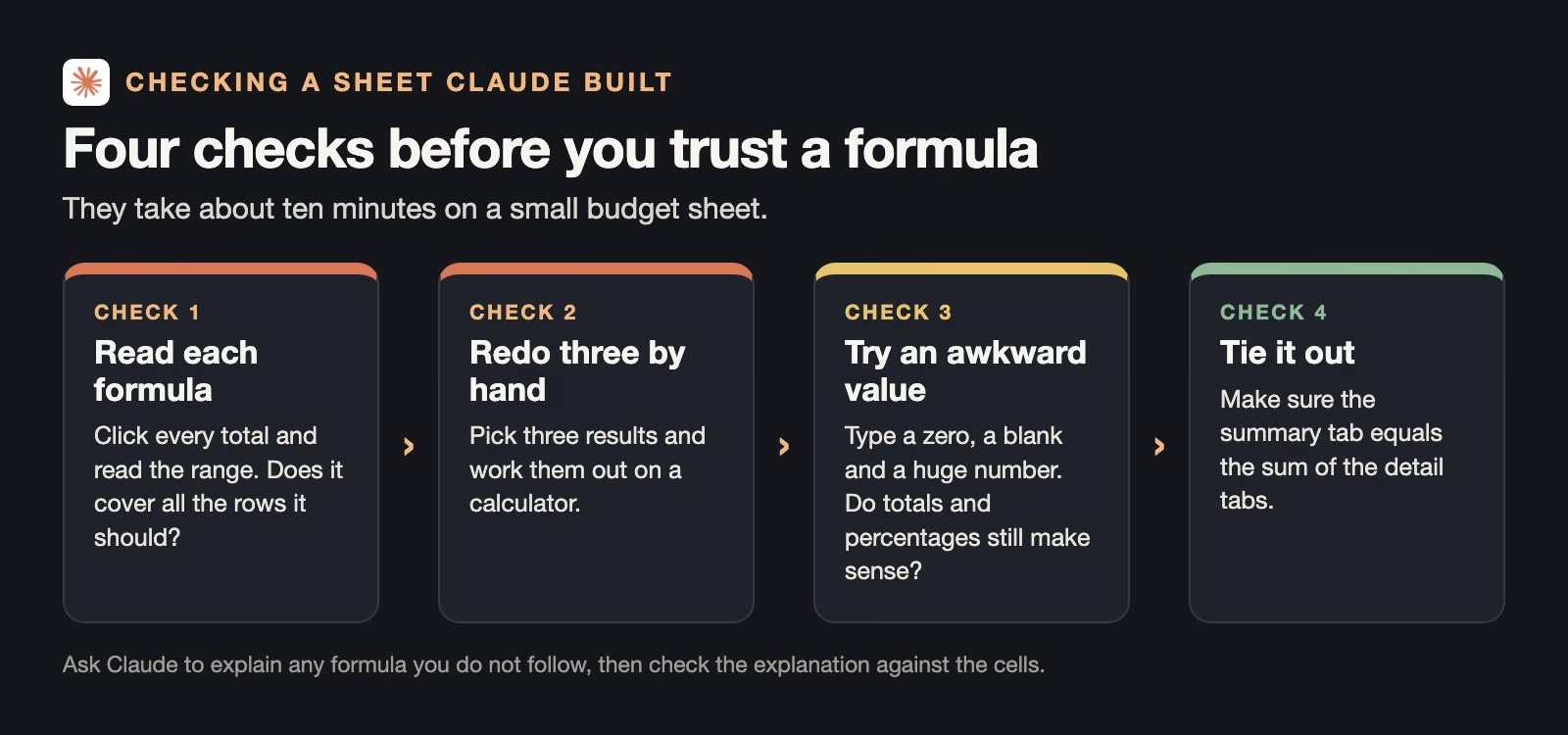
- Read each formula. Click every total and read the range it covers. A sum that should include rows 2 to 6 but says rows 2 to 5 is the most common error, and it is invisible until you look.
- Redo three results by hand. Pick three cells and work them out on a calculator. If one disagrees, ask Claude why, then check its explanation against the cells.
- Try an awkward value. Type a zero, leave a cell blank and enter a very large number. Totals should still add up and percentages should not show errors such as dividing by zero.
- Tie it out. The Summary tab’s totals should equal the totals from the Detail tab. If they differ, one of them is missing rows.
Because Claude outlines each edit, you can also look at what changed after every request. Check the outlined cells first; that is where new mistakes come from.
A worked example: the budget total that was short
Here is the kind of slip the first check catches. In this example, the Summary tab’s Actual total used =SUM(C2:C5), which adds Rent, Groceries, Transport and Utilities but stops one row before Fun.
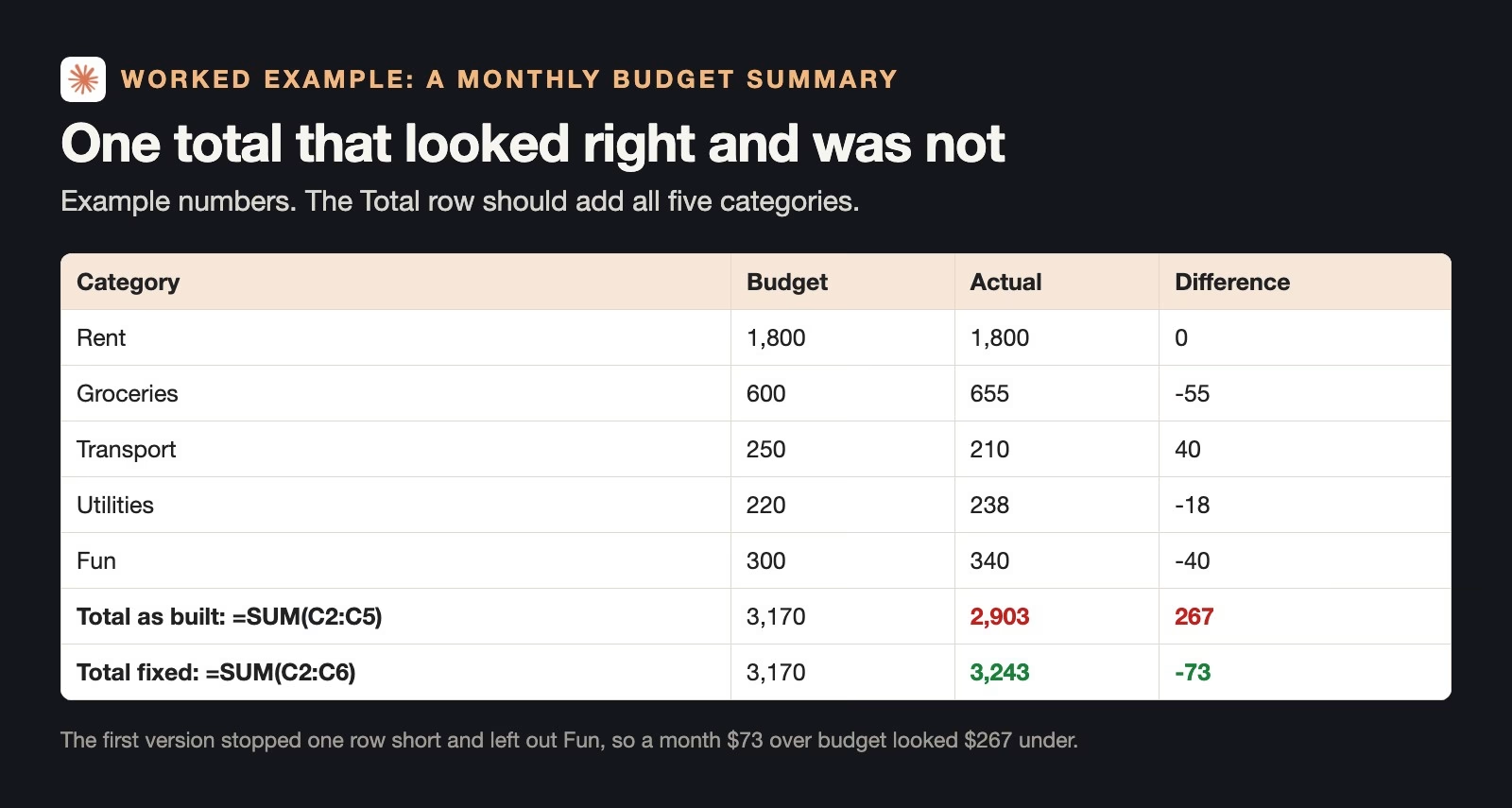
The sheet showed actual spending of 2,903 against a budget of 3,170, which looks like 267 under budget. Adding all five categories gives 3,243, which is 73 over. Nothing about the formatting hinted at the problem, and only reading the range showed it.
The fix is one character, =SUM(C2:C6). A sturdier fix is to ask Claude to total the whole column or use a named range, so that a sixth category added later is included automatically. Then run the four checks again, because every edit is a new chance for the same mistake.
Good first jobs to try
The best first jobs are small sheets you understand well enough to spot a wrong number. That way the checks take minutes, and you learn how Claude lays out formulas before you trust it with anything bigger.
- A trip or event budget. A handful of categories, a budget column, an actual column and a difference, which is easy to tie out by hand.
- A sign-up or task tracker. Names, a drop-down for status and a count of how many are done, where the drop-down keeps the status values clean.
- A simple price comparison. Three suppliers, their prices for the same five items and a total for each, so you can redo one supplier’s total on a calculator.
- A weekly hours log. Days down the side, people across the top and totals both ways, where the two grand totals must match as a built-in check.
Jobs to leave for later are the ones where a mistake is expensive and hard to see: payroll, tax, anything a customer will be billed from, and models with many linked tabs. For those, build in Claude Sheets if it helps you think, then move to Excel and have a second person check the formulas.
Ask Claude to check its own work, then check the check
After the first build, ask Claude: “For each total on the Summary tab, tell me which rows it adds and whether any row on the Detail tab is left out.” It is a useful second pair of eyes and often catches its own range errors. Treat its answer as a lead, not a verdict, and confirm anything it says by clicking the cell yourself.
When to move the file to Excel
Move to Excel when the sheet needs features Claude Sheets does not offer yet, or when the file has to live where your team already keeps its spreadsheets. Anthropic’s own advice, in its announcement checked November 15, 2026, is to export to .xlsx or CSV when you need Excel’s full functionality.
- Export as .xlsx to keep formulas and formatting for Excel or Google Sheets.
- Export as CSV when another tool only needs the values; CSV keeps the numbers but drops formulas and formatting.
- Check again after export. Open the file, show the formulas and repeat the tie-out. In Excel, Ctrl and the backtick key toggles formula view on Windows.
The announcement also mentions handing sheets to Airtable, Asana, monday.com and Smartsheet, if your team plans its work in one of those.
Common mistakes
- Trusting a sheet because it looks finished, when neat formatting says nothing about the ranges.
- Skipping the drop-downs, so spelling variants split one category into several.
- Checking only the first version, when each later edit can break a formula.
- Exporting to CSV and expecting formulas, when CSV keeps only values.
- Assuming Enterprise has it on, when the default there is off.
- Using it for a complex financial model, when Anthropic itself calls the functionality simple for now.
Try it this week
- Open Claude and ask for a monthly budget with a Detail tab and a Summary tab.
- Ask for drop-downs on the category column and add ten real rows.
- Ask Claude to list every formula on the Summary tab with its range.
- Run the four checks and fix anything that does not tie out.
- Export to .xlsx, open it in Excel and repeat the tie-out once.
Quick recap
- Claude Sheets launched in beta on November 10, 2026, on all paid Claude plans.
- It builds tabs, formulas, formatting and drop-downs from a description, and outlines each edit.
- It is on by default for Team and off by default for Enterprise.
- Anthropic calls its spreadsheet features simple for now; export to Excel for more.
- Read every range, redo three results, try awkward values and tie the tabs out.
- Check again after every edit and after every export.
Sources
- Anthropic: Claude Whiteboards, Claude Sheets and Claude Data (November 10, 2026; Sheets features, simple functionality, export, plans, admin defaults, partner handoffs)
- TechCrunch: Anthropic launches Claude Meetings (coverage of the November 10, 2026 launches including Sheets)
Keep going
Same lessons in your feed
Short diagrams, hooks, and weekly tutorials on Substack, Instagram, X, and Facebook.