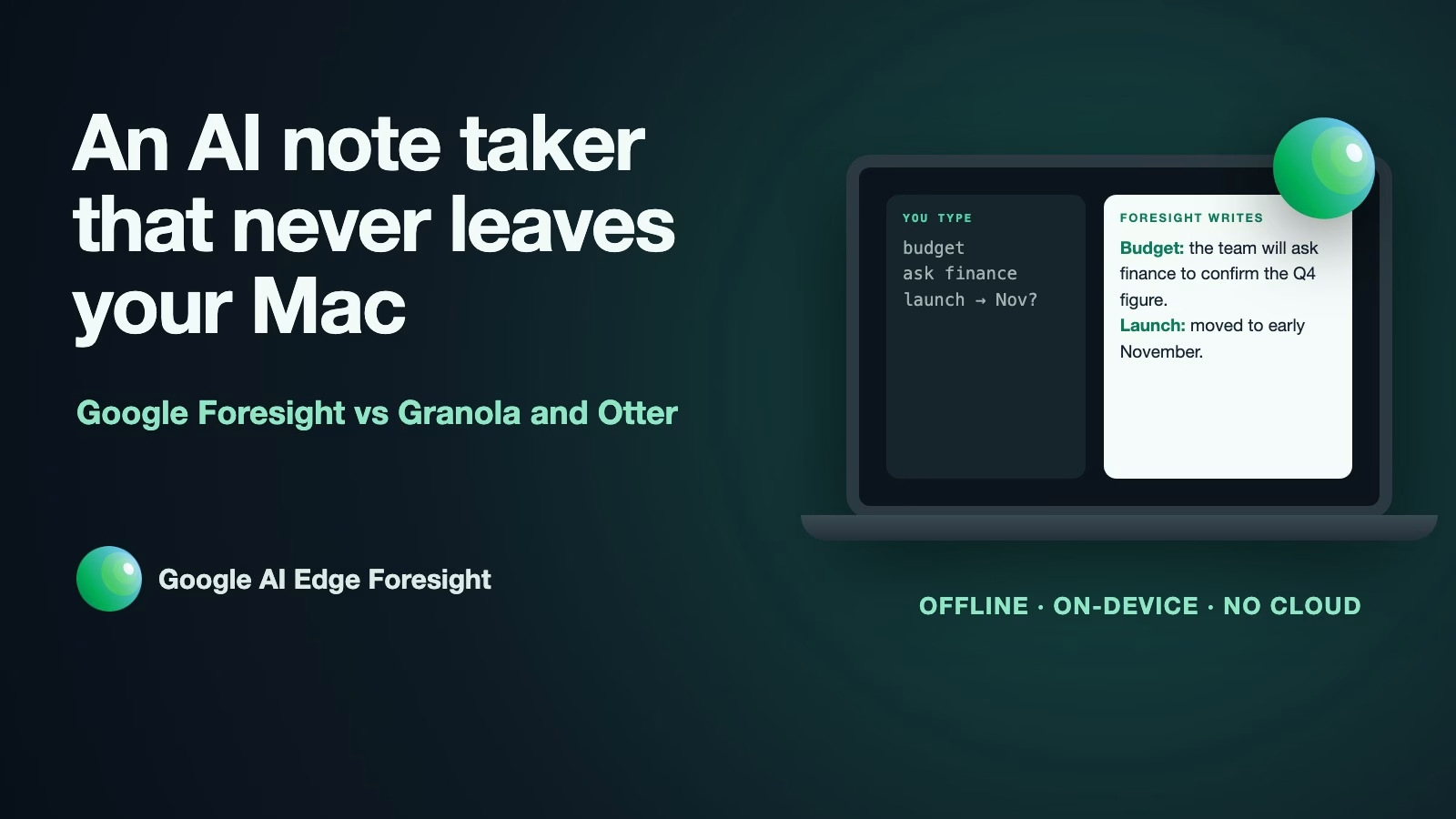
Google AI Edge Foresight is a free, experimental Mac app that records your meetings, turns your rough notes into full ones, and answers questions about your files, all on your own computer. It can replace Granola or Otter if privacy matters more to you than polish and you work alone on a Mac. If you need a phone app, shared team notes, or something your company has approved, keep what you have for now.
Imagine you have a client call at ten. The client’s lawyer is on it, and your company says recordings of client calls must not go to outside services. You would love an AI note taker. The usual ones send the audio away to be turned into text. Foresight is Google’s answer to that problem, and this post covers what it does, what “never leaves your Mac” really covers, and how to test it against the app you use now.
What Foresight is and what it does
Google released Foresight on October 6, 2026, alongside a new AI model called EmbeddingGemma 2. Google’s Foresight page (checked October 14, 2026) describes three jobs. It listens to a meeting, it learns from your files, and it answers questions using both.
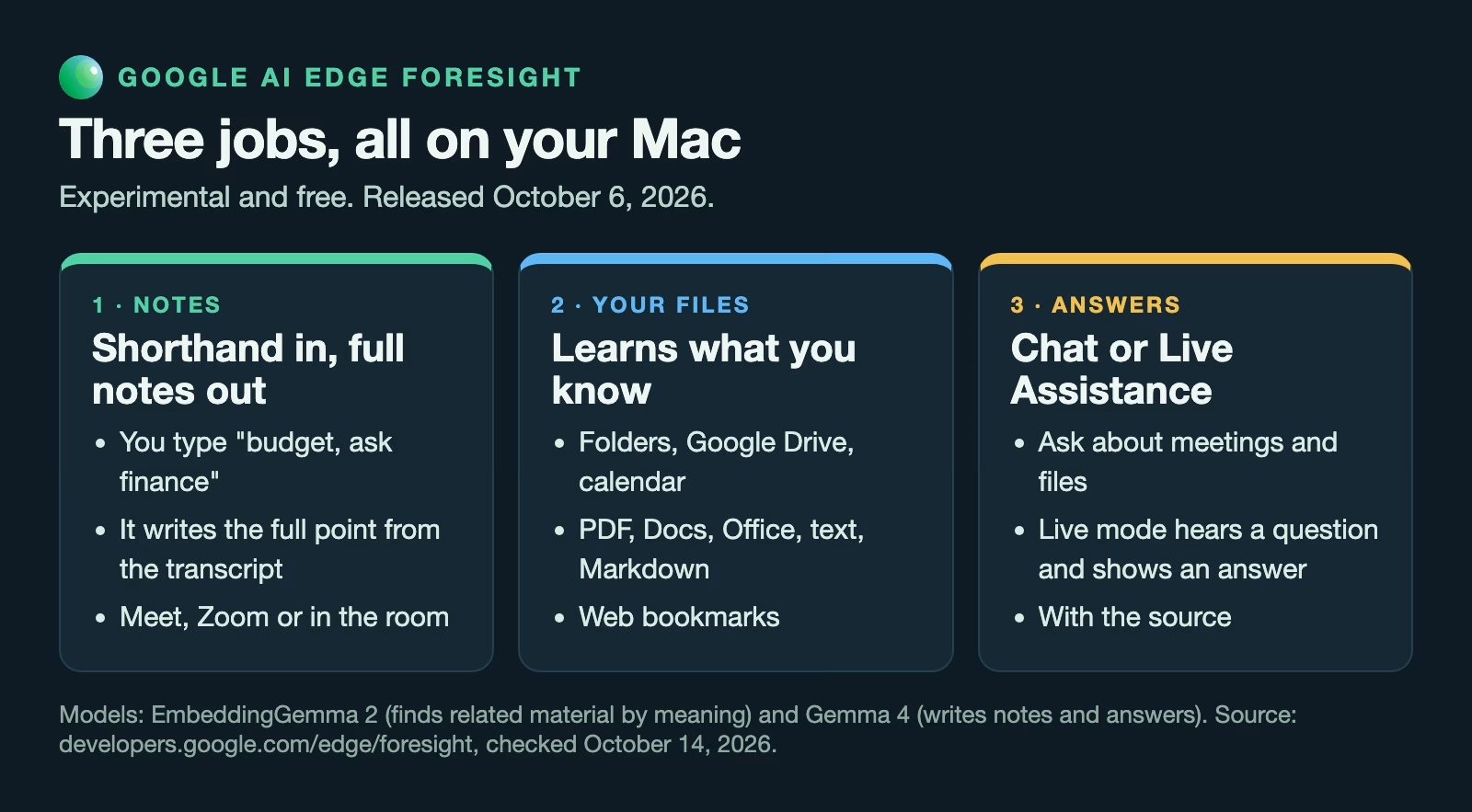
The first job is notes. While a meeting runs, you type short bullets such as “budget, ask finance” and Foresight writes them out in full from the transcript, the written record of what everyone said. Google’s page says to “scribble shorthand bullets for things you want to remember, and Foresight enriches them into polished notes using the meeting transcript.” It hears your computer’s sound as well as your microphone, so it works with Google Meet, Zoom, or a meeting in the room.
The second job is your files. You point it at folders, Google Drive, web links, and your calendar. Google’s page lists PDFs, Google Docs, Microsoft Office files, plain text, Markdown (plain text with simple marks for headings and lists), and web bookmarks. The third job is answers: you can ask it questions in a chat window, or turn on Live Assistance, which listens for questions in the meeting and shows an answer from your files, with the source.
Two Google models do the work. EmbeddingGemma 2 is an embedding model, an AI that turns text, images, audio, and video into lists of numbers so the app can find related material by meaning rather than by exact words. Gemma 4 is the model that writes the notes and the answers. Both run on the Mac itself, which Google’s page calls “fully on-device.”
How it compares with Granola and Otter
Granola and Otter are two of the best-known AI note takers. Each one solves the same problem in a different way, and the biggest difference is where your audio goes.
| Foresight | Granola | Otter | |
|---|---|---|---|
| Where audio becomes text | On your Mac | Cloud providers such as Deepgram and Assembly | Otter’s cloud service |
| How it hears the meeting | Mic and computer sound | Mic and computer sound | A helper that joins Zoom, Teams or Meet, or the app |
| Free plan | Free download, no plans | Basic, 30 days of history | 300 minutes a month, 30 per conversation |
| Paid plan | None | Business $14 a person a month | Pro $8.33 a month billed yearly |
| Phone app | No | Yes, iOS and Android | Yes |
| Works offline | Yes | No | No |
Granola, like Foresight, listens through your computer’s own sound, so no bot joins the call. But its security page says it “uses best-in-class transcription providers (like Deepgram and Assembly)” and that notes “are stored in our US-hosted AWS Virtual Private Cloud” (checked October 14, 2026). It also says Granola does not keep the meeting audio. That is a careful design, but your audio still travels to other companies to be turned into text.
Otter can send a helper into Zoom, Microsoft Teams, or Google Meet to record the call. Its pricing page lists a free plan with 300 minutes a month and a 30-minute limit per conversation, and Pro at $8.33 a month billed yearly (checked October 14, 2026). Granola’s pricing page lists a free Basic plan that keeps 30 days of meeting history and Business at $14 a person a month (checked October 14, 2026).
Foresight has no plans or prices at all. It is a free download from Google’s Foresight page, and the installer was about 160 MB when we checked on October 14, 2026. What it lacks is everything around the notes: no phone app, no sharing with teammates, and no list of integrations with other apps.
What “never leaves your Mac” covers, and what it does not
Google’s privacy promise is strong and specific. The FAQ on Google’s Foresight page says “Your personal knowledge sources, meeting audio, and notes never leave your computer,” and that the app works without an internet connection, even on a plane (checked October 14, 2026). For a call with a client’s lawyer, that is the right starting point.
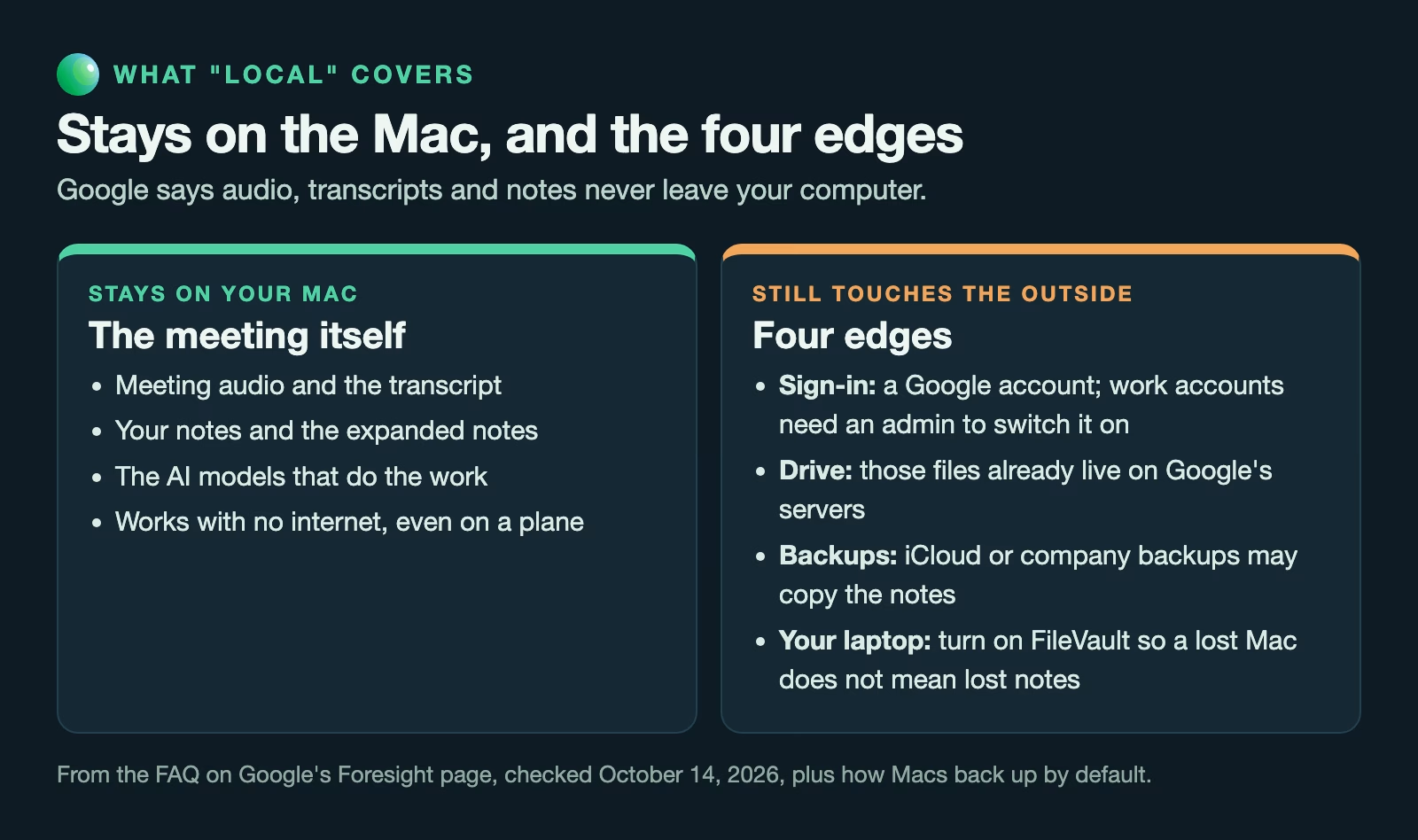
It still helps to know where the edges are. Read these before your first meeting.
- You sign in with a Google account. Google’s FAQ says (checked October 14, 2026) that work Google accounts need an administrator to switch on two settings first, Early Access Apps and Core Data Access, which can take up to 24 hours.
- Google Drive is a cloud service. If you connect it, Foresight reads your Drive files, and those files already live on Google’s servers. The promise is about the app’s processing, not about where your files were stored before.
- Your Mac becomes the record. The notes, transcripts, and audio sit on your laptop. If the laptop is lost and has no password or disk encryption, so are they. FileVault, the Mac’s built-in disk encryption, protects them.
- Backups copy them. If your Mac backs up to iCloud or a company server, the notes may go there too. Check what your backup includes.
- Experimental means it can change or stop. Google calls it an early access app. Do not let it be the only copy of anything you must keep.
None of this is a reason to avoid it. It just means “local” moves the job of keeping the notes safe from a company’s servers to your own laptop.
Telling people you are recording
A note taker that runs quietly on your laptop is easy to forget about. Your colleagues have not forgotten, though. Many places have laws about recording conversations, and some require everyone on the call to agree. Your company may have its own rules too, often stricter than the law. This is not legal advice, but a simple habit covers most cases.
Say it at the start, every time: “I’m using an app to take notes, it stays on my laptop, is that all right?” It takes five seconds. If anyone says no, turn it off and take notes by hand. Foresight has no bot in the call, so nobody sees a sign that it is running. That makes saying it out loud more important, not less.
Who should try it now, and who should wait
Foresight fits a narrow group very well. For everyone else, the app you have may still be the better choice.
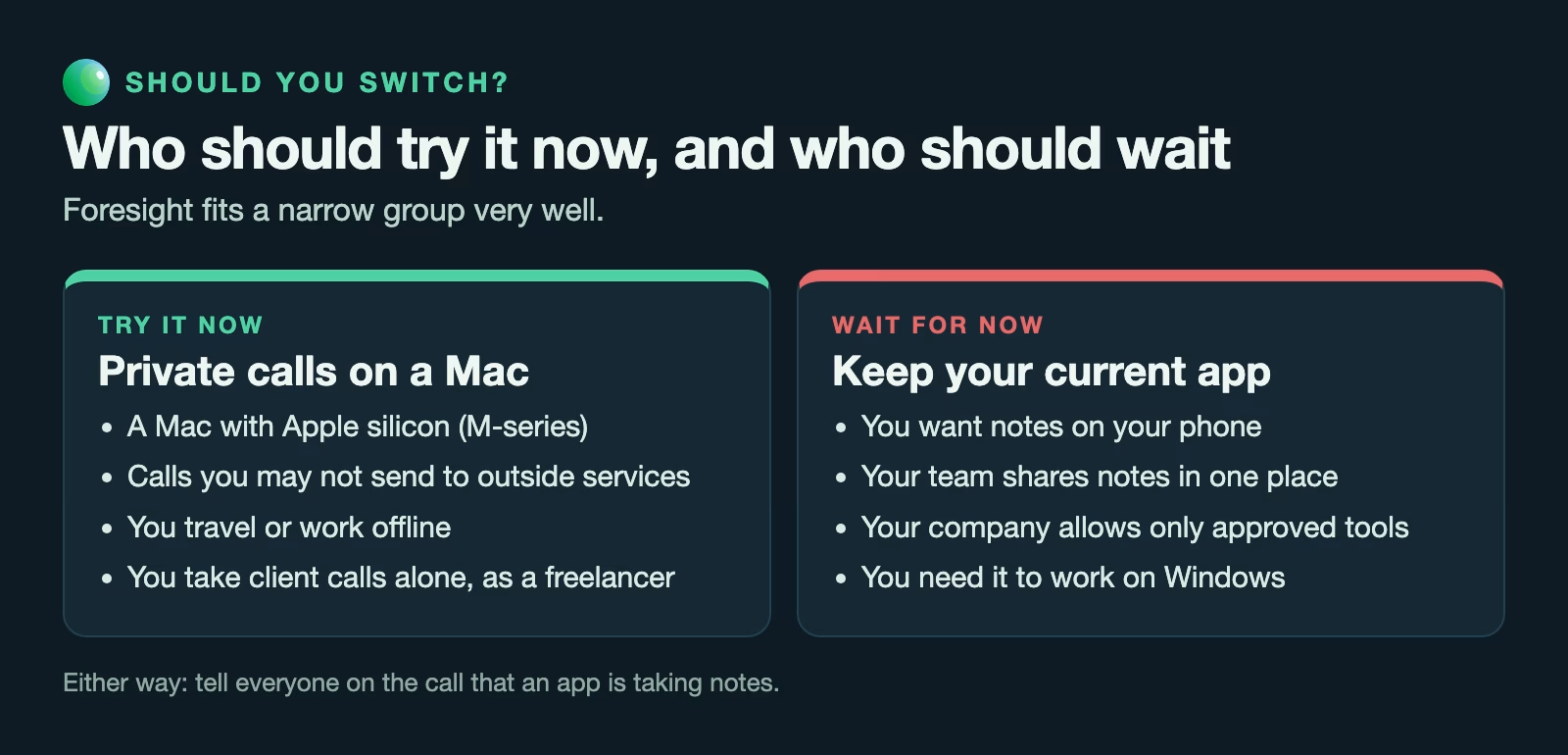
Try it now if you work on a Mac with Apple silicon, the M-series chips Google says it is “optimized for,” and your meetings involve material you are not allowed to send to outside services. It also suits people who travel, work offline, or simply want their notes to stay on their own machine. A freelancer who takes client calls alone is the ideal first user.
Wait if you need notes on your phone, if your team shares meeting notes in one place, or if your company only allows approved tools. Foresight does none of the first two, and an experimental app is unlikely to be on an approved list yet. Ask your IT team before installing it on a work laptop, the same way you would for any app that records sound.
How to test it against the app you use now
The fairest test is one real meeting recorded by both apps at once, with permission. Then compare the notes side by side. Afterwards, score each app on four questions.
- Did it catch every action item, the tasks someone agreed to do? Count the ones it missed.
- Did it get names and numbers right? A wrong figure in the notes is worse than a missing one.
- Did the expanded notes match what was said? Check two or three against the transcript.
- How long did it take your Mac? Note whether the fan ran or the battery dropped faster than usual.
Run the test on three meetings, not one. The first meeting tells you how setup went; the second and third tell you what daily use is like. If Foresight matches your current app on the first three questions, the privacy gain may be worth any loss in polish.
Getting started with your first meeting
Setup takes about fifteen minutes. Do it before the meeting, not during. Download the app from Google’s page and sign in. Then point it at one project folder, not your whole drive, so you can see what it finds. Give it permission to use the microphone and your Mac’s sound when macOS asks.
In the meeting, say that you are taking notes with an app. Type short bullets as things happen. Afterwards, read the expanded notes against your memory of the call, fix anything wrong, and copy the action items into whatever task list you use. AI notes are a first draft. The person who was in the room still signs off on them.
What to do this week
Pick one meeting where you would take notes anyway and nobody would mind an app listening. Install Foresight, connect one folder, and run it beside your current note taker. Score both on the four questions above. If you would rather keep AI on your own computer more generally, the post on running DeepSeek’s open models yourself explains the same trade-off for chat.
Sources
- Google AI Edge Foresight (features, file types, on-device models, privacy FAQ, Apple silicon, Workspace admin settings)
- 9to5Google: Google AI Edge Foresight for Mac (October 6, 2026 launch with EmbeddingGemma 2)
- Granola: Security (cloud transcription providers, audio not stored, notes on AWS)
- Granola: Pricing (Basic and Business plans)
- Otter: Pricing (free plan limits and Pro price)
Keep going
Same lessons in your feed
Short diagrams, hooks, and weekly tutorials on Substack, Instagram, X, and Facebook.